2012 MERCEDES-BENZ S-Class Tire
[x] Cancel search: TirePage 74 of 536

axle raised. Otherwise, ESP®
may intervene
and damage the brake system.
! Do not tow vehicles with 4MATIC with the
front or rear axle raised.
i Only use wheels with the recommended
tire sizes. Only then will ESP ®
function
properly.
ETS/4ETS (Electronic Traction System)GWARNING
Observe "Important safety notes"
( Y page 68).
Traction control is part of ESP ®
.
Traction control brakes the drive wheels
individually if they spin. This enables you to
pull away and accelerate on slippery surfaces,
for example if the road surface is slippery on
one side. On vehicles with 4MATIC, more
drive torque is also transferred to the wheel
or wheels with traction.
Traction control remains active if you
deactivate ESP ®
.
Deactivating/activating ESP ®
i
Observe the "Important safety notes"
section ( Y page 69).
GWARNING
ESP ®
should not be deactivated during
normal driving other than in the
circumstances described below. Disabling
the system will reduce vehicle stability in
driving maneuvers.
Do not deactivate ESP ®
when the emergency
or spare wheel is mounted.
GWARNING
S 63 AMG: ESP ®
should not be deactivated
during normal driving.
Deactivating the system results in the
following:
R no restriction to the engine torque
R loss of system-supported traction control
"ESP OFF" is designed for driving on closed
tracks when the vehicle's own oversteering
and understeering characteristics are desired
and requires an extremely qualified and
experienced driver who is able to handle
these critical driving situations.
You could lose control of your vehicle and
cause an accident.
Beware of these limits if you deactivate
ESP ®
.
Do not deactivate ESP ®
when the emergency
or spare wheel is mounted.
ESP ®
is activated automatically when the
engine is started.
i Vehicles with ECO start/stop function:
the ECO start/stop function switches the
engine off automatically when the vehicle
comes to a stop. The engine starts
automatically when the driver wants to pull
away again. ESP ®
remains in its previously
selected status. Example: if ESP ®
was
deactivated before the engine was
switched off, ESP ®
remains deactivated
when the engine is switched on again.
It may be best to deactivate ESP ®
in the
following situations:
R when using snow chains
R in deep snow
R on sand or gravelGWARNING
Switch on ESP ®
immediately if one of the
previously stated conditions is no longer met.
Otherwise, ESP ®
cannot stabilize the vehicle
if it begins to lurch or when a wheel spins.
72Driving safety systemsSafety
Page 88 of 536
GWARNING
Do not carry heavy or hard objects in the
passenger compartment unless they are
firmly secured in place.
Unsecured or improperly positioned cargo
increases a child's risk of injury in the event
of:
R strong braking maneuvers
R sudden changes of direction
R an accident
Unlocking and opening doors from
inside
You can open a door from inside the vehicle
even if it has been locked. You can only open
the rear doors from inside the vehicle if they
are not secured by the child-proof locks
( Y page 67).
Only open the door when the traffic situation
permits.
If the vehicle was previously locked with the
SmartKey or with KEYLESS-GO, opening the
vehicle from the inside will activate the anti-
theft alarm system. Switch off the alarm
( Y page 75).
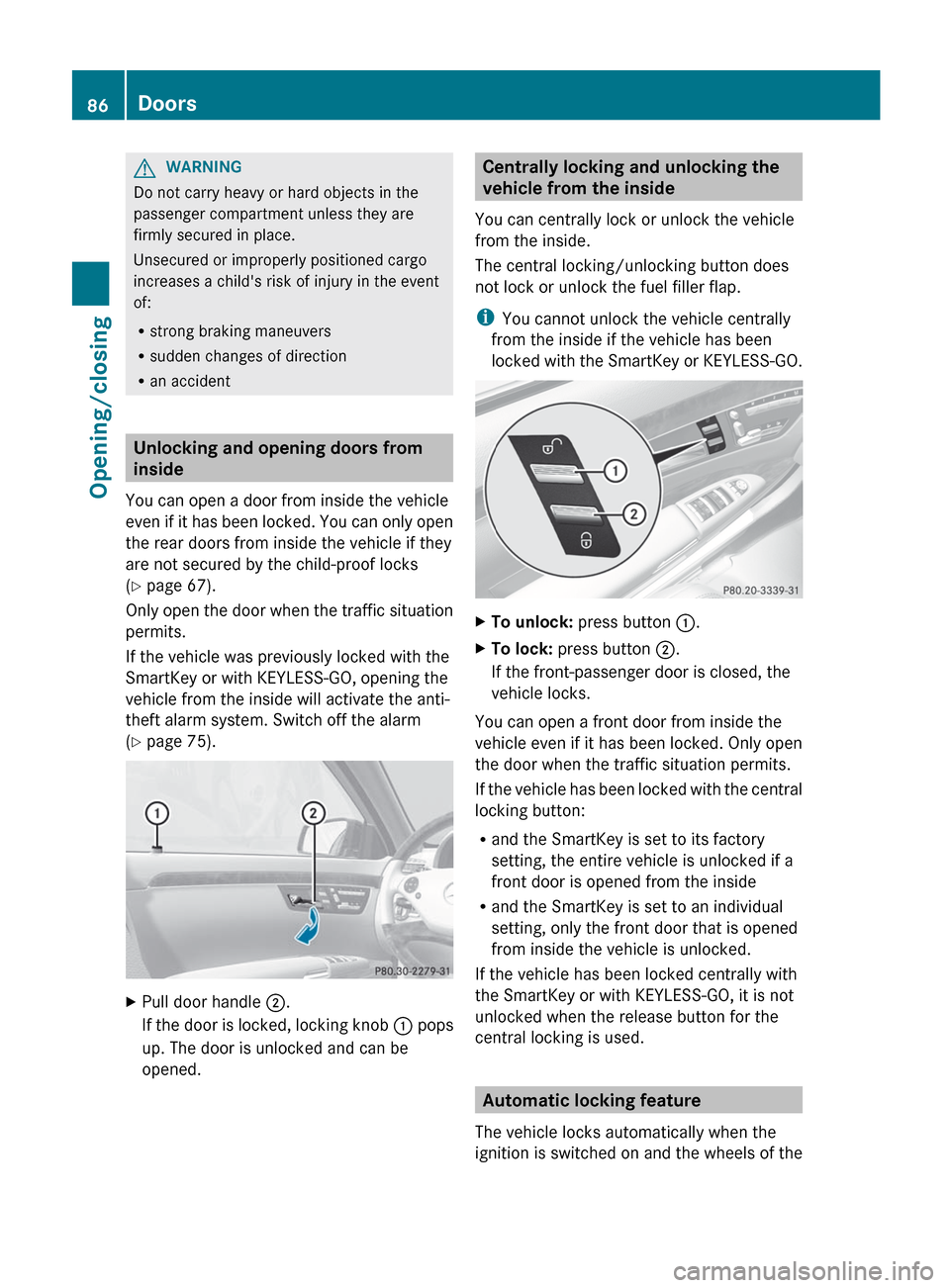
XPull door handle ;.
If the door is locked, locking knob : pops
up. The door is unlocked and can be
opened.Centrally locking and unlocking the
vehicle from the inside
You can centrally lock or unlock the vehicle
from the inside.
The central locking/unlocking button does
not lock or unlock the fuel filler flap.
i You cannot unlock the vehicle centrally
from the inside if the vehicle has been
locked with the SmartKey or KEYLESS-GO.XTo unlock: press button :.XTo lock: press button ;.
If the front-passenger door is closed, the
vehicle locks.
You can open a front door from inside the
vehicle even if it has been locked. Only open
the door when the traffic situation permits.
If the vehicle has been locked with the central
locking button:
R and the SmartKey is set to its factory
setting, the entire vehicle is unlocked if a
front door is opened from the inside
R and the SmartKey is set to an individual
setting, only the front door that is opened
from inside the vehicle is unlocked.
If the vehicle has been locked centrally with
the SmartKey or with KEYLESS-GO, it is not
unlocked when the release button for the
central locking is used.
Automatic locking feature
The vehicle locks automatically when the
ignition is switched on and the wheels of the
86DoorsOpening/closing
Page 98 of 536

term "sliding sunroof" refers to both types of
sliding sunroof.GWARNING
When opening or closing the sliding sunroof,
make sure that there is no danger of anyone
being harmed by the opening/closing
procedure.
The sliding sunroof is equipped with
automatic operation and the anti-entrapment
feature. If the movement of the sliding sunroof
is blocked during the closing procedure, the
sliding sunroof will stop and open slightly.
The sliding sunroof operates differently when
the sliding sunroof switch is pressed and held.
See the "Problems with the sliding sunroof"
section for more details.
The opening/closing procedure of the sliding
sunroof can be immediately halted by
releasing the sliding sunroof switch or, if the
sliding sunroof switch was moved past the
resistance point and released, by moving the
sliding sunroof switch in any direction.
GWARNING
The sliding sunroof is made out of glass. In the
event of an accident, the glass may shatter.
This may result in an opening in the roof.
In a vehicle rollover, occupants not wearing
their seat belts or not wearing them properly
may be thrown out of the opening. Such an
opening also presents a potential for injury for
occupants wearing their seat belts properly,
as entire body parts or portions of them may
protrude from the passenger compartment.
! Only open the sliding sunroof if it is free
of snow and ice. Otherwise, malfunctions
may occur.
Do not allow anything to protrude from the
sliding sunroof. Otherwise, the seals could
be damaged.
! The weather can change abruptly. It could
start to rain or snow. Make sure that the
sliding sunroof is closed when you leave the
vehicle. The vehicle electronics can be
damaged if water enters the vehicle
interior.
i Resonance noises can occur in addition
to the usual airflow noises when the sliding
sunroof is open. They are caused by minor
pressure fluctuations in the vehicle interior.
Change the position of the sliding sunroof
or open a side window slightly to reduce or
eliminate these noises.
Operating the sliding sunroof
Opening and closing
i You can continue to operate the sliding
sunroof after switching off the engine or
removing the SmartKey from the ignition
lock. This function is available for up to five
minutes or until the driver's or front-
passenger door is opened.
Overhead control panel
:To raise;To open=To close/lowerXTurn the SmartKey to position 1 or 2 in the
ignition lock.XPress or pull the 3 switch in the
corresponding direction.
i If you press the 3 switch beyond the
point of resistance, an automatic opening/
closing process is started in the
corresponding direction. You can stop
automatic operation by operating the
switch again.
96Sliding sunroofOpening/closing
Page 133 of 536
You see which characters you can enter with
that key. Each time the key is pressed, the
next character is selected.
Example: key p:
R press once = M
R press twice = N
R press three times = OXWait until the character display goes out.
The entries matching your input are shown
in the list.XEnter E, W , space, Y with the corresponding
keys.
i The space is entered using number key
9 .
Further functions in the list with
character bar
XTo delete characters: select F by sliding
V Æ and turning cVd the COMAND
controller and press W to confirm.XTo delete an entry: select F and press
and hold W the COMAND controller until
the entire entry has been deleted.XTo switch the character set: select
B and press W to confirm.XTo cancel an entry: select the & symbol
in the bottom left of the character bar and
press W to confirm.
or
XPress the % back button.
The address entry menu appears.XTo accept the first list entry: press and
hold W the COMAND controller until the
address entry menu appears.
The accepted list entry is shown there.
Calling up the list as a selection list
Select the desired city from the selection list.
If there are several entries for a city or if
several cities of the same name are stored,
then ¬ is highlighted in the character bar.
XPress W the COMAND controller.It is also possible to switch the city list to the
selection list at any time during character
input.XSlide W the COMAND controller
repeatedly until the city list appears as a
selection list.
or
XSelect ¬ in the character bar by turning
cVd the COMAND controller and press
W to confirm.
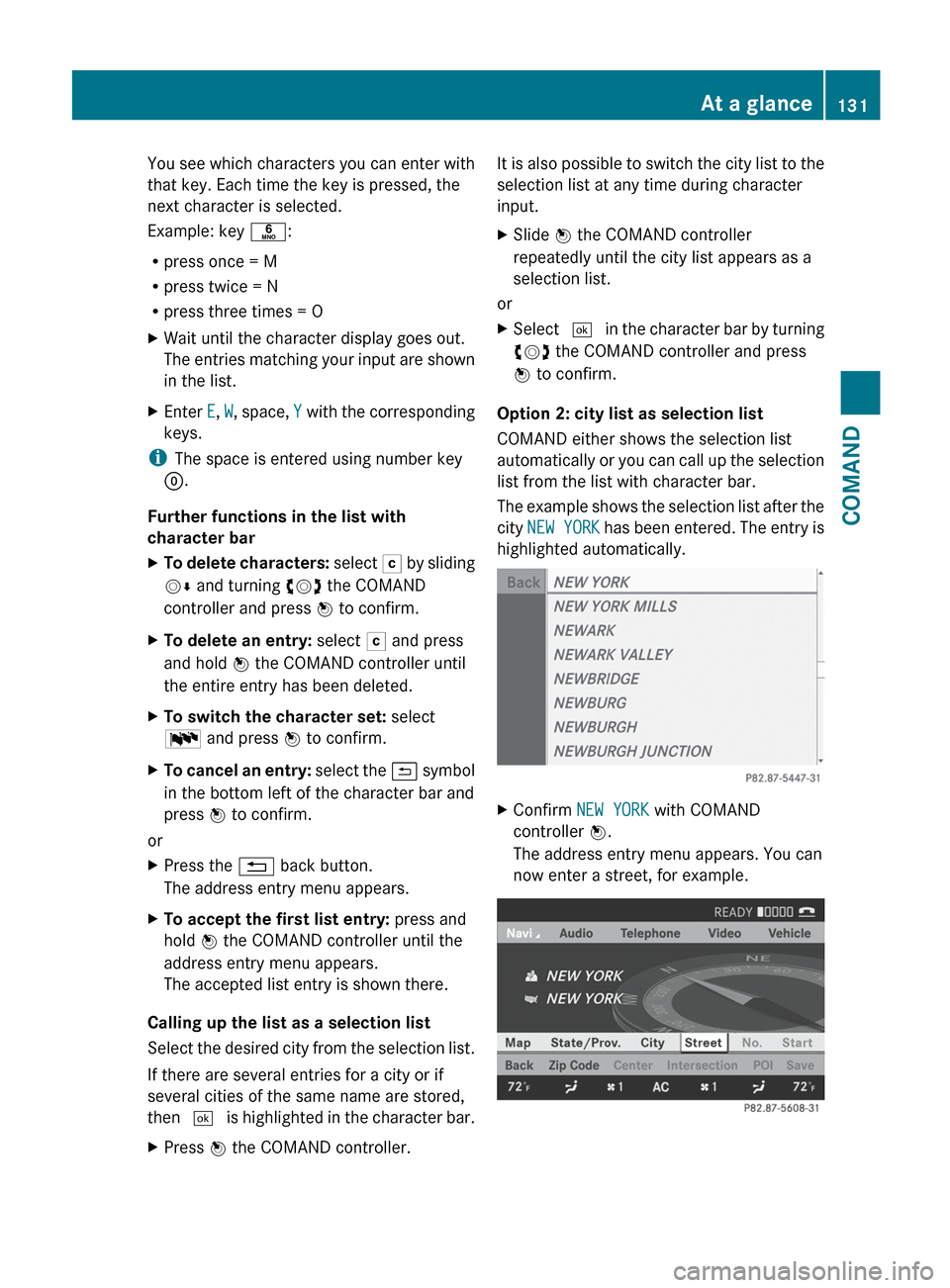
Option 2: city list as selection list
COMAND either shows the selection list
automatically or you can call up the selection
list from the list with character bar.
The example shows the selection list after the
city NEW YORK has been entered. The entry is
highlighted automatically.
XConfirm NEW YORK with COMAND
controller W.
The address entry menu appears. You can
now enter a street, for example.At a glance131COMANDZ
Page 159 of 536

XOption 1: enter the address, e.g. a city,
street and house number ( Y page 153).XOnce you have entered the address, select
Save in the address entry menu by turning
cVd and sliding ZVÆ the COMAND
controller and press W to confirm.XSelect Save as "My Address" and press
W to confirm.
COMAND stores your home address as My
Address in the destination memory.XOption 2: proceed as described under
"Option 1".
A prompt appears asking whether the
current home address should be
overwritten.XSelect Yes and press W to confirm.
After selecting Yes, the Save
successful message appears.
Entering a ZIP code
Entering a ZIP code will delete a previously
entered city.
XSelect Zip Code in the address entry menu
by turning cVd and sliding ZVÆ the
COMAND controller and press W to
confirm.
You see the list of zip codes with the
character bar.XEnter a ZIP code. Instructions for entering
characters using city input as an example
can be found in the "Entering characters in
navigation mode (entering a city)" section
( Y page 129).:Digits entered by the user;Digits automatically added by the system=List entry most closely resembling the
characters entered so far?To switch to the list without the character
barATo delete the entire entry: press and hold;
to delete the last character: press brieflyBAvailable charactersCSelected characterDUnavailable charactersECharacter barFTo cancel an entryGListXConfirm the entry with W.
If COMAND is able to assign the ZIP code
unambiguously to a specific address, the
address entry menu appears again. The ZIP
code appears in place of the city's name.
If COMAND cannot assign the ZIP code
unambiguously to a specific address, the
address entry menu also appears again.
The ZIP code is automatically entered. For
a more precise location, you can now enter,
for example, the street, a city, a center or
a POI.XStart route calculation ( Y page 156).
Entering a center
Entering a center will, for example, delete a
previously entered street.
XSelect Center (center) in the address entry
menu by turning cVd and sliding ZVÆ theNavigation157COMANDZ
Page 175 of 536

XSelect Position in the navigation system
menu bar by turning cVd the COMAND
controller and press W to confirm.XSelect Where am I? and press W to
confirm.
Off-road
Important safety note
GWARNING
The COMAND navigation system may direct
you to off-road routes that your vehicle may
not be capable of traversing through without
damaging your tires, wheels or vehicle. It is
the driver's sole responsibility to determine
the suitability of the route. Off-road routes
may be of varying conditions and their
appropriateness for use may be affected by
various factors such as time of day, time of
year and immediate weather conditions that
cannot be judged or taken into consideration
by the COMAND system.
Route guidance to a destination that is not
on a digitized road
COMAND can guide you to destinations
which are within the area covered by the
digital map, but which are not themselves
recorded on the map.
These destinations are known as off-road
destinations, which you can enter using the
map, for example. In these cases, COMAND
guides you for as long as possible with
navigation announcements and displays on
roads known to the system.Example display: route guidance to an off-road
destination
:Off-road destination;Off-road route section (dashed blue)=Current vehicle position (the tip of the
triangle indicates the vehicle’s direction
of travel)?Off-road (no street names available)
If the vehicle reaches an area which is not part
of the digital map, the display appears as a
split-screen view. On the right-hand side, an
arrow appears which points to off-road
destination :. You will hear the
announcement: "Please follow the arrow on
the display".
Route guidance from an off-road location
to a destination
If the vehicle position is within the area
covered by the digital map, but the map does
not contain any information about that
location, the vehicle is in an off-road location.
COMAND is also able to guide you to a
destination even from an off-road location.
At the start of the route guidance, you will see
the Street unknown message, an arrow and
the distance to the destination. The direction
arrow shows the linear direction to the actual
destination.
The continuous blue line on the map starts at
the street which you left last.
As soon as the vehicle is back on a road
known to the system, route guidance
continues in the usual way.
Navigation173COMANDZ
Page 177 of 536

iCOMAND uses corresponding icons to
highlight the entire section of the affected
route, regardless of how long the incident
actually is. The icons are placed on the side
of the road affected by the incident.Navigation175COMANDZ
Page 183 of 536

will appear asking whether you wish to
overwrite the existing data.XSelect Yes or No and press W to confirm.
If you select Yes, COMAND stores the data.
Deleting a destination or the home
address from the destination memory
XTo activate navigation mode: press the
S function button once or twice.XTo show the menu: press W the COMAND
controller.XSelect Destination in the navigation
system menu bar by turning cVd the
COMAND controller and press W to
confirm.XSelect From Memory and press W to
confirm.
You will see the destination memory list
either with the character bar (option 1) or
as a selection list (option 2).XOption 1: destination memory list with
character bar: proceed as described in the
"Entering characters using the character
bar" section ( Y page 129).XOption 2: destination memory list as
selection list: select a destination by
turning cVd the COMAND controller and
press W to confirm.
You see the address data of the selected
entry.XSelect Delete and press W to confirm.
A prompt appears asking whether you wish
to delete the destination.XSelect Yes or No and press W to confirm.
If you select Yes, COMAND deletes the
destination. You will see a message to this
effect.
If you select No, the process is aborted.
i
If the navigable address data for the
destination being deleted is also assigned
to an address book entry, COMAND will
also delete this data from there. If the
corresponding address book entry does
not contain any further data, such as
telephone numbers, COMAND deletes the
entire address book entry.
Previous destinations
Introduction
COMAND automatically stores the previous
destinations for which the route calculation
has been started. If the memory is full,
COMAND deletes the oldest destination. You
can also save a destination from the list of
previous destinations in the destination
memory. It will be stored there permanently.
Storing a destination permanently in
the destination memory
XProceed as described in the "From the list
of previous destinations" section
( Y page 179).
Storing the vehicle position in the list of
previous destinations
XTo activate navigation mode: press the
S function button once or twice.XTo show the menu: press W the COMAND
controller.XSelect Position in the navigation system
menu bar by turning cVd the COMAND
controller and press W to confirm.XSelect Store Vehicle Position and
press W to confirm.
COMAND stores the current vehicle
position as a destination in the list of
previous destinations.Navigation181COMANDZ