2012 MERCEDES-BENZ B-CLASS change wheel
[x] Cancel search: change wheelPage 177 of 340

The Park Assist Active Select R
Observe Surroundings
message appears in
the multifunction display.
X Further transmission shifts may be
necessary.
As soon as the parking procedure is
complete, the Park Assist Finished
message appears in the multifunction
display.
Active Parking Assist is then deactivated.
PARKTRONIC is still available.
X Maneuver if necessary.
X Always observe the warning messages
displayed by PARKTRONIC (
Y page 170).
Parking tips:
R The way your vehicle is positioned in the
parking space after parking is dependent
on various factors. These include the
position and shape of the vehicles parked
in
front and
behind it and the conditions of
the location. It may be the case that Active
Parking Assist guides you too far into a
parking space, or not far enough into it. In
some cases, it may also lead you across or
onto the curb. If necessary, you should
cancel the parking procedure with Active
Parking Assist.
R You can also engage forward gear
prematurely. The vehicle redirects and
does not drive as far into the parking space.
Should a gear be changed too early, the
parking procedure will be canceled. A
sensible parking position can no longer be
achieved from this position.
Exiting a parking space In order that Active Parking Assist can
support you
when
you exit the parking space:
R the border of the parking space must not
be too low.
R the border of the parking space must not
be too wide. The system maneuvers the
vehicle into a position at a maximum of 45° to the starting position in the parking
space.
R a maneuvering distance of at least 24 in
(0.60 m) must be available.
Active Parking Assist
can only assist you with
exiting a parking space if you have parked the
vehicle using Active Parking Assist.
X Start the engine.
X Switch on the turn signal on the side facing
the street.
X Shift the transmission to position D or R.
The Start Park Assist? Yes: OK No:
% message appears
in the multifunction
display.
X To cancel the procedure: press the
% button on the multifunction steering
wheel or pull away.
or
X To exit a parking space using Active
Parking Assist: press the a button on
the multifunction steering wheel.
The Park Assist Active Accelerate
and Brake Observe Surroundings
message appears in the multifunction
display.
X Let go of the multifunction steering wheel.
X Reverse the vehicle or drive forwards, being
ready to brake at all times. Do not exceed
a maximum speed of approximately
6 mph (10 km/h) when exiting a parking
space. Otherwise
Active Parking Assist will
be canceled.
X Stop when PARKTRONIC sounds the
continuous warning tone, if not before.
X Shift the transmission to position D or R
as
required while the vehicle is stationary.
Active Parking Assist immediately steers in
the other direction. The Park Assist
Active Accelerate and Brake
Observe Surroundings message appears
in the multifunction display.
i You will achieve the best results by
waiting for the steering procedure to
complete before pulling away. Driving systems
175
Driving and parking Z
ProCarManuals.com
Page 178 of 340
If you back up after activation, the steering
wheel is moved to the straight-ahead
position.
X Drive forwards or back up the vehicle, being
ready to brake at all times.
X Stop as soon as PARKTRONIC sounds the
continuous warning tone, if not before.
X Drive forwards and reverse as prompted by
the PARKTRONIC warning
displays, several
times if necessary.
Once you have exited the parking space
completely, the steering wheel is moved to
the straight-ahead position. You hear a tone
and the Park Assist Finished message
appears in the
multifunction display. You will
then have to steer and merge into traffic on
your own. PARKTRONIC is still available.
Canceling Active Parking Assist You can cancel Active Parking Assist at any
time.
X
Stop the movement of the multifunction
steering wheel or steer yourself.
Active Parking Assist will be canceled at
once. The Park Assist Canceled
message appears in the multifunction
display.
or
X Press the PARKTRONIC button on the
center console (
Y
page 171).
PARKTRONIC is switched off and Active
Parking Assist is immediately canceled.
The Park Assist Canceled message
appears in the multifunction display.
Active Parking Assist is canceled
automatically if:
R you engage the electric parking brake.
R parking using Active Parking Assist is no
longer possible.
R you are driving faster than 6 mph
(10 km/h).
R a wheel
spins, ESP®
intervenes or fails. The
÷ warning lamp lights up in the
instrument cluster. A warning tone sounds. The parking space
symbol disappears and the multifunction
display shows the
Park Assist Canceled
message.
If Active
Parking
Assist is canceled, you must
steer again yourself.
If a system malfunction occurs, the vehicle is
braked to a standstill. To drive on, depress the
accelerator again. Rear view camera
Important safety notes The rear view camera is only an aid. It is not
a replacement for your attention to your
immediate surroundings. You are always
responsible for safe maneuvering and
parking.
When
maneuvering
or parking, make
sure that there are no persons, animals or
objects in the area in which you are
maneuvering.
Under the following circumstances, the rear
view camera will not function, or will function
in a limited manner:
R the tailgate is open
R in heavy rain, snow or fog
R at night or in very dark places
R if the camera is exposed to very bright light
R if the area is lit by fluorescent light or LED
lighting (the display may flicker)
R if there is a sudden change in temperature,
e.g. when driving into a heated garage in
winter
R if the camera lens is dirty or obstructed
R if the rear of your vehicle is damaged. In
this event, have the camera position and
setting checked at a qualified specialist
workshop.176
Driving systemsDriving and parking
ProCarManuals.com
Page 182 of 340
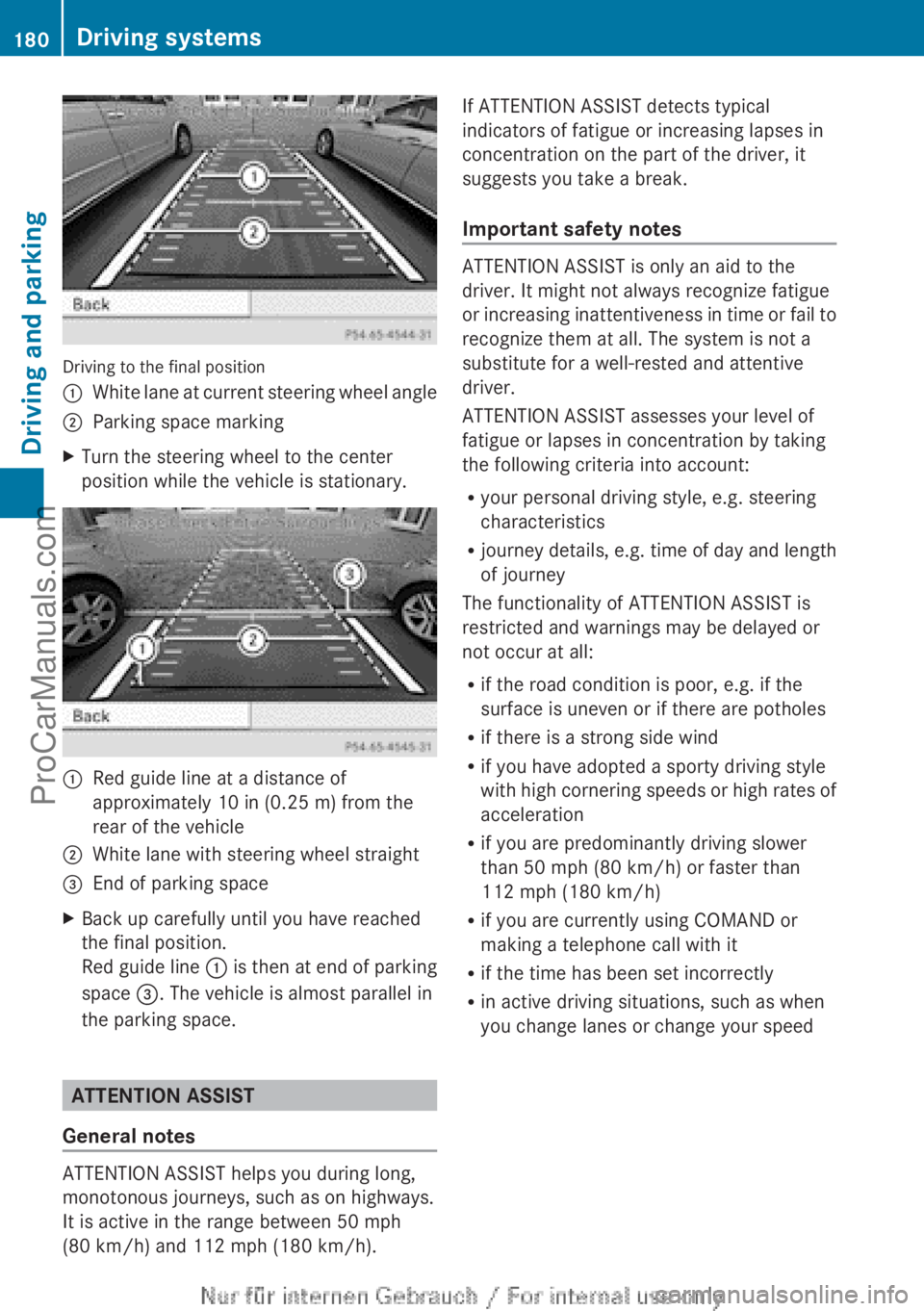
Driving to the final position
:
White lane at current steering wheel angle
; Parking space marking
X Turn the steering wheel to the center
position while the vehicle is stationary. :
Red guide line at a distance of
approximately 10 in (0.25 m
) from the
rear of the vehicle
; White lane with steering wheel straight
= End of parking space
X Back up carefully until you have reached
the final position.
Red guide line :
is
then
at end of parking
space =. The vehicle is almost parallel in
the parking space. ATTENTION ASSIST
General notes ATTENTION ASSIST helps you during long,
monotonous journeys, such as on highways.
It is active in the range between 50 mph
(80 km/h) and 112 mph (180 km/h). If ATTENTION ASSIST detects typical
indicators of fatigue or increasing lapses in
concentration on the part of the driver, it
suggests you take a break.
Important safety notes
ATTENTION ASSIST is only an aid to the
driver. It might not always recognize fatigue
or increasing
inattentiveness
in time or fail to
recognize them at all. The system is not a
substitute for a well-rested and attentive
driver.
ATTENTION ASSIST assesses your level of
fatigue or lapses in concentration by taking
the following criteria into account:
R your personal driving style, e.g. steering
characteristics
R journey details, e.g. time of day and length
of journey
The functionality of ATTENTION ASSIST is
restricted and warnings may be delayed or
not occur at all:
R if the road condition is poor, e.g. if the
surface is uneven or if there are potholes
R if there is a strong side wind
R if you have adopted a sporty driving style
with high cornering speeds or high rates of
acceleration
R if you are predominantly driving slower
than 50 mph (80 km/h) or faster than
112 mph (180 km/h)
R if you are currently using COMAND or
making a telephone call with it
R if the time has been set incorrectly
R in active driving situations, such as when
you change lanes or change your speed180
Driving systems
Driving and parking
ProCarManuals.com
Page 186 of 340
Keeping Assist is merely an aid. You are
responsible for the distance to the vehicle in
front, for vehicle speed, for braking in good
time and for staying in your lane.
The Lane Keeping Assist does not keep the
vehicle in the lane.
The system may be impaired or may not
function if:
R
there is poor visibility, e.g. due to
insufficient illumination of
the road, or due
to snow, rain, fog or spray
R there is glare, e.g. from oncoming traffic,
the sun or reflections (e.g. when the road
surface is wet)
R the windshield is dirty, fogged up, damaged
or covered, for instance by a sticker, in the
vicinity of the camera
R there are no, several or unclear lane
markings for a lane, e.g. in areas with road
construction work
R the lane markings are worn away, dark or
covered up, e.g. by dirt or snow
R the distance to the vehicle in front is too
small and the lane markings thus cannot be
detected
R the lane markings change quickly, e.g.
lanes branch off, cross one another or
merge
R the road is narrow and winding
R there are strong shadows cast on the lane
A warning may be given if a front wheel
passes over a lane marking. It will warn you
by means of intermittent vibration in the
steering wheel for up to 1.5 seconds.
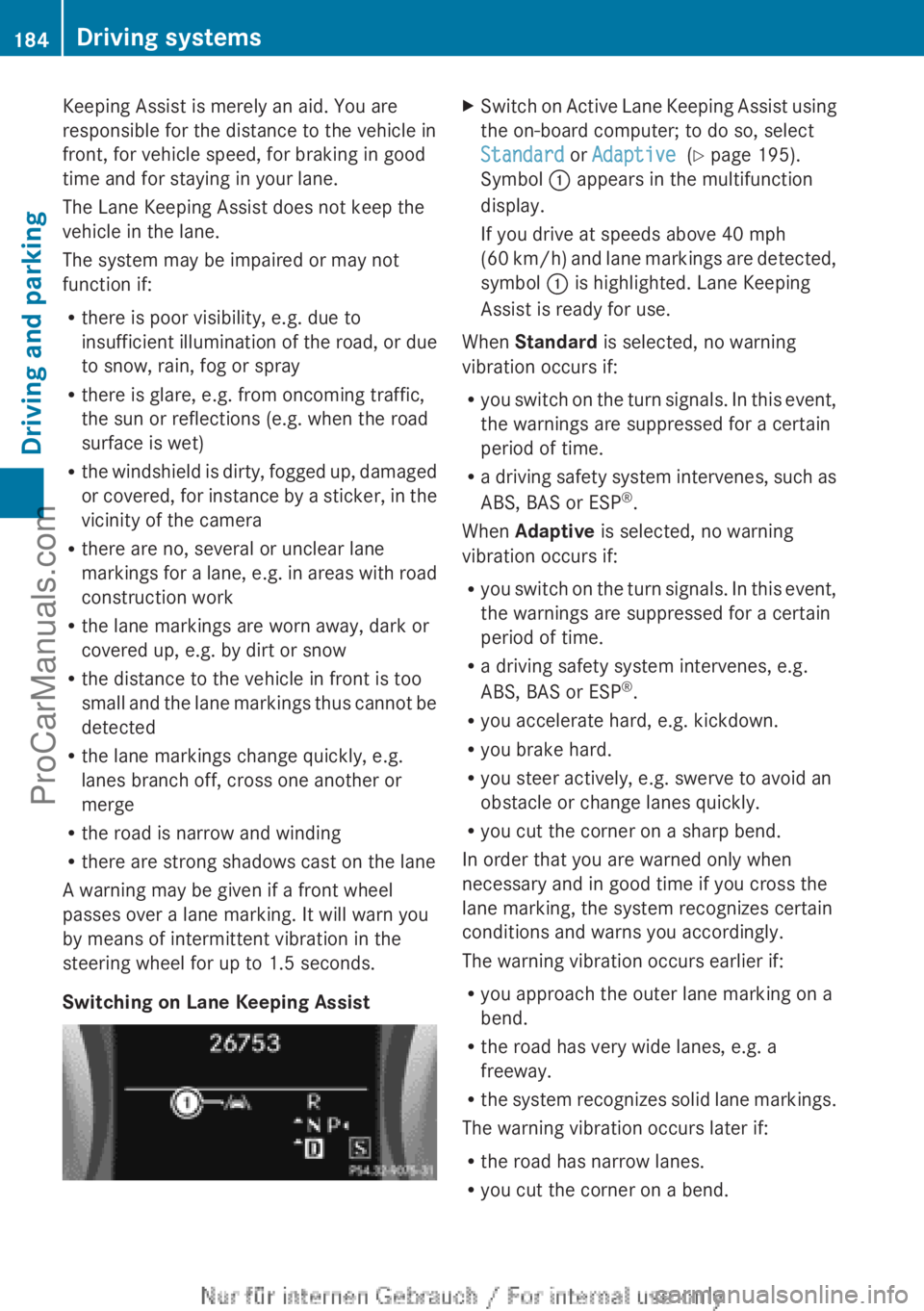
Switching on Lane Keeping Assist X
Switch on Active Lane Keeping Assist using
the on-board computer; to do so, select
Standard or Adaptive (Y page 195).
Symbol : appears in the multifunction
display.
If you drive at speeds above 40 mph
(60 km/h
) and lane markings are detected,
symbol : is highlighted. Lane Keeping
Assist is ready for use.
When Standard is selected, no warning
vibration occurs if:
R you switch on
the turn signals. In this event,
the warnings are suppressed for a certain
period of time.
R a driving safety system intervenes, such as
ABS, BAS or ESP ®
.
When Adaptive is selected, no warning
vibration occurs if:
R you switch on the turn signals. In this event,
the warnings are suppressed for a certain
period of time.
R a driving safety system intervenes, e.g.
ABS, BAS or ESP ®
.
R you accelerate hard, e.g. kickdown.
R you brake hard.
R you steer actively, e.g. swerve to avoid an
obstacle or change lanes quickly.
R you cut the corner on a sharp bend.
In order that you are warned only when
necessary and in good time if you cross the
lane marking, the system recognizes certain
conditions and warns you accordingly.
The warning vibration occurs earlier if:
R you approach the outer lane marking on a
bend.
R the road has very wide lanes, e.g. a
freeway.
R the system recognizes solid lane markings.
The warning vibration occurs later if:
R the road has narrow lanes.
R you cut the corner on a bend.184
Driving systems
Driving and parking
ProCarManuals.com
Page 189 of 340

!
A display message
is shown if the coolant
temperature is too high.
If the coolant temperature is over
248 ‡(120 †), do not continue driving. The
engine will otherwise be damaged.
The coolant temperature gage is in the
instrument cluster on the right-hand side.
Under normal operating conditions and with
the specified coolant level, the coolant
temperature may rise to 248 ‡ (120 †). Tachometer
! Do not drive in the overrevving range, as
this could damage the engine.
The red band
in the tachometer indicates the
engine's overrevving range.
The fuel supply is interrupted to protect the
engine when the red band is reached. Outside temperature display
You should pay special attention to road
conditions when temperatures are around
freezing point.
The outside temperature display is in the
multifunction display.
Changes in the outside temperature are
displayed after a short delay. Speedometer with segments
The segments in the speedometer indicate
which speed range is available.
R Cruise control activated ( Y page 157):
The segments light up from the stored
speed to the maximum speed.
R DISTRONIC PLUS activated (Y page 159):
One or two segments in the set speed
range light up.
R DISTRONIC PLUS detects
a vehicle in front:The segments between the speed of the
vehicle in front and the stored speed light
up. Operating the on-board computer
Overview :
Multifunction display
; Switches on the Voice Control System;
see the separate operating instructions
= Right control panel
? Left control panel
A Back button
X To activate the on-board computer: turn
the SmartKey to position 1 in the ignition
lock.
You
can control the multifunction display and
the settings in the on-board computer using
the buttons on the multifunction steering
wheel. Displays and operation
187
On-board computer and displays Z
ProCarManuals.com
Page 193 of 340

i
When you reset the values in the "ECO
display", the values in the trip computer
"From start" are likewise reset. When you
reset the values
in the trip computer "From
start", the values in the "ECO display" are
likewise reset. Navigation system menu
Displaying navigation instructions X
Switch on Audio 20 with Becker ®
MAP
PILOT or COMAND (see the separate
operating instructions).
X Press the = or ; button on the
steering wheel to select the Navi menu.
In the Navi menu, the multifunction display
shows navigation instructions. For more
information, see the separate operating
instructions.
Route guidance not active :
Direction of travel
; Current road
Route guidance active No change of direction announced
:
Distance to the destination
; Distance to the next change of direction =
Current road
? "Follow the road's course" symbol
Change of direction announced without a
lane recommendation :
Road into which the change of direction
leads
; Distance to change of direction and visual
distance display
= Symbol for change of direction
When a change of direction is announced, you
will see
symbol =
for the change of direction
and distance graphic ;. The distance
indicator shortens towards the top of the
display as you approach the point of the
announced change of direction.
Change of direction announced with a
lane recommendation :
Road into which the change of direction
leads
; Distance to change of direction and visual
distance display
= Lane recommendation
? New lane during a change of direction
A Uninterrupted lane
B Symbol for change of direction
On multilane roads, the system can display
lane recommendation
=
for the next change
of direction. During the change of direction,
additional lanes may be displayed. Menus and submenus
191
On-board computer and displays Z
ProCarManuals.com
Page 194 of 340

Lane recommendations are only displayed if
the relevant data is available on the digital
map.
Other status indicators of the
navigation system
R
O: you have
reached the destination or an
intermediate destination.
R New Route... or Calculating Route:
calculating a new route
R Off Map or Off Mapped Road : the vehicle
position is outside the area of the digital
map (off-map position).
R No Route : no route could be calculated to
the selected destination. Audio menu
Selecting a radio station :
Waveband
; Station frequency with memory position
i The memory position is only displayed
along with station ; if this has been
stored.
X Switch on the audio system or COMAND
and select Radio; see the separate
operating instructions.
X Press the = or ; button on the
steering wheel to select the Audio menu.
X To select a stored station: briefly press
the 9 or : button. X
To select a station from the station
list: press and briefly hold the 9
or : button.
If no station list is received:
X To select a station using the station
search: press and briefly hold the 9
or : button.
i For information on changing waveband
and storing stations, see the separate
operating instructions.
i SIRIUS XM satellite radio functions like a
normal radio.
For more information on satellite radio
operation, see the separate operating
instructions.
Operating an audio player or audio
media CD changer display (example)
:
Current CD in the CD changer
; Current title
Audio data from various audio devices or
media can be played, depending on the
equipment installed in the vehicle.
X Switch on the audio system or COMAND
and activate audio CD/DVD mode or MP3
mode; see the separate operating
instructions.
X Press the = or ; button on the
steering wheel to select the Audio menu.
X To select the next/previous track:
briefly press the 9 or : button.
X To select a track from the track list
(rapid scrolling): press and hold the
9 or : button until desired
track ; has been reached.192
Menus and submenus
On-board computer and displays
ProCarManuals.com
Page 195 of 340

If you press and hold
9 or :, the
rapid scrolling speed is increased. Not all
audio drives or data carriers support this
function.
If track information is stored on the audio
device or medium, the multifunction display
will show the number and title of the track.
The current track does not appear in audio
AUX mode (Auxiliary audio mode: external
audio source connected).
Video DVD operation DVD changer display (example)
:
Current DVD in the DVD changer
; Current scene
X Switch on COMAND and select video DVD;
see the separate operating instructions.
X Press the = or ; button on the
steering wheel to select the Audio menu.
X To select the next/previous scene:
briefly press the 9 or : button.
X To select a scene from the scene list
(rapid scrolling): press and hold the
9 or : button until desired
scene ; has been reached. Telephone menu
Introduction G
WARNING
If you operate information systems and
communication equipment integrated in the
vehicle while driving, you will be distracted
from traffic conditions. You could also lose
control of the vehicle. There is a risk of an
accident. Only operate the equipment when the traffic
situation permits.
If
you are not sure that this
is possible, park the vehicle paying attention
to traffic conditions and operate the
equipment when the vehicle is stationary.
When telephoning, you must observe the
legal requirements for the country in which
you are currently driving.
X Switch on your mobile phone and audio
system or COMAND, see the separate
operating instructions.
X Establish a Bluetooth ®
connection to the
audio system or COMAND; see the
separate operating instructions.
X Press the = or ; button on the
steering wheel to select the Tel menu.
You will see one of the following display
messages in the multifunction display:
R Phone READY or the name of the network
provider: the mobile phone has found a
network and is ready to receive.
R Phone No Service: there is no network
available or the mobile phone is searching
for a network.
Accepting a call Example: incoming call
X
Press the 6 button on the steering
wheel to accept an incoming call.
If someone calls you when you are in the
Tel menu, a display message appears in the
multifunction display.
If you are not in the Tel menu, you can still
accept a call. Menus and submenus
193
On-board computer and displays Z
ProCarManuals.com