Page 62 of 396
System allowing cer tain screens to be switched
off for night driving. The instrument panel remains on with the
vehicle speed, electronic or automatic gearbox
gear selected, cruise control or speed limiter
in
formation, if in use, and the low fuel aler ts asappropriate.
If there is an aler t or a chan
ge in a function
or to a setting, the black panel mode is
interrupted.
Black panel (black screen)
Activation
)
With the vehicle lighting on, press this button again to activate the black panel. )
Press once more to illuminate on thevarious screens again.
In the instrument panel, you can change thecolour of its dials (button A) independently fromAthat of the screens (button B ).
There are five colour variants, from white to
blue.)press the appropriate button as many times as needed to obtain the desired colour.
Customising the instrument
panel colours
Page 63 of 396
61Monitoring
Customising the polyphonic
sounds
This menu allows you to choose a family of polyphonic sounds from the four available.
These sounds are grouped together in a familyand are adapted to suit the situation and context (alert, confirmation, rejection, direction
indicators, lighting left on, key in ignition...).
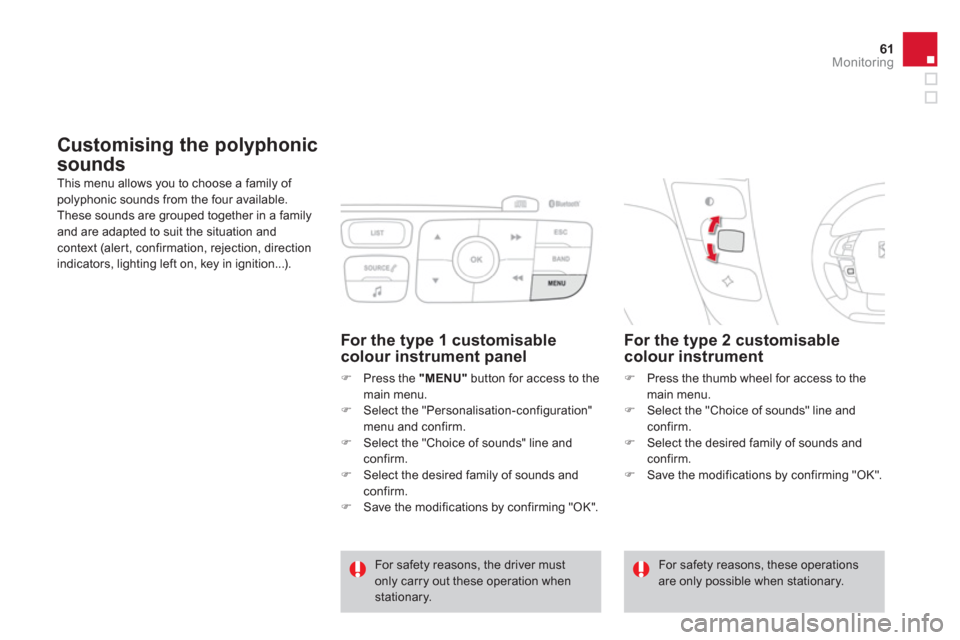
For the type 2 customisablecolour instrument
)
Press the thumb wheel for access to the main menu.)
Select the "Choice of sounds" line and confirm.
)
Select the desired family of sounds and confirm. )
Save the modifications by confirming "OK".
For safety reasons, the driver mustonly carry out these operation when stationary.
For safety reasons, these operations are only possible when stationary.
For the type 1 customisable colour instrument panel
)
Press the "MENU"button for access to the
main menu. ) Select the "Personalisation-configuration"
menu and confirm.
) Select the "Choice of sounds" line andconfirm.)
Select the desired family of sounds and confirm.)
Save the modifications by confirming "OK".
Page 67 of 396
65
Multifunction screens
With the audio system switched on, this menu allows you to activate or deactivate the
functions associated with use of the radio (RDS, DAB/FM auto tracking, RadioText (TXT)
display) or to choose the media play mode(Normal, Random, Random all, Repeat).
For more information on the "Multimedia"
application, refer to the "Audio and Telematics"
section.
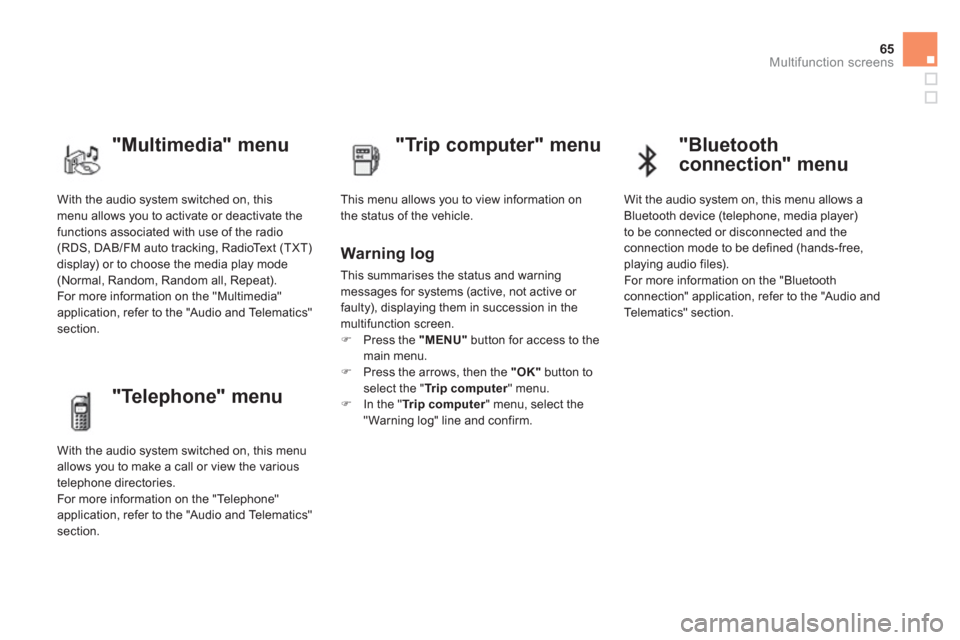
"Multimedia" menu
"Trip computer" menu
This menu allows you to view information on
the status of the vehicle.
Warning log
This summarises the status and warning
messages for systems (active, not active or
faulty), displaying them in succession in the
multifunction screen. ) Press the "MENU"button for access to the
main menu. ) Press the arrows, then the "OK"button toselect the " Trip computer
" menu.)
In the " Trip computer" menu, select the"Warning log" line and confirm.
"Telephone" menu
With the audio system switched on, this menu
allows you to make a call or view the various
telephone directories.
For more information on the "Telephone"
application, refer to the "Audio and Telematics"
section.
"Bluetooth
connection" menu
Wit the audio system on, this menu allows a
Bluetooth device (telephone, media player)
t
o be connected or disconnected and theconnection mode to be defined (hands-free,
playing audio files).
For more information on the "Bluetoothconnection" application, refer to the "Audio and
Telematics" section.
Page 69 of 396
67
Multifunction screens
)Press the " �
" or "�
" buttons to set thevalue required (15, 30 or 60 seconds), then press the "OK"
button to confirm.
Choice of language
Once this menu has been selected, you canchoose the language used by the display from a pre-defined list.
Display confi guration
This menu gives access to the followingsettings:
- "Choice of units",
- "Date and time ad
justment",
- "Display parameters",
- "Brightness".
Choice of sounds
This menu allows you to choose a family of
polyphonic sounds from the four available.
These sounds are grouped together in a familyand are adapted to suit the situation and context (alert, confirmation, rejection, direction
indicators, lighting left on, key in ignition...).
For safety reasons, configuration of the multifunction screen by the driver mustonly be done when stationary.
)Press the " � " or " � " buttons, then the "OK"button to select the "OK"
box and confirm or press the "ESC"button to cancel.
Page 70 of 396
Colour screen and map
It displays the following information automatically and directly:
- time,
- date,
- altitude,
- ambient temperature
(the value displayed flashes if there is a risk of ice),
- parking sensor information,
- parking space measurement,
- audio functions,
- directory and telephone information,
- satellite navigation system information.
Displays in the screen
From the navigation system control panel, to
select one of the applications: ) press the dedicated "RADIO"
, "MUSIC","NAV"
, "TRAFFIC", "PHONE"
or "SETUP"
button for access to thecorresponding menu, )
turn the dial A
to select a function, an item in a list,)
press button Bto confirm the selection,
or
) press the "ESC"button to abandon thecurrent operation and return to the previous
display.
Controls
For more information on these applications,
refer to the "Audio and Telematics" section.
Page 73 of 396
71Multifunction screens
- the current information tab with:
●
the range,
●
the current fuel consumption,
●
the Stop & Star t time counter.
- t
he trip "1"
tab with:
●
the distance travelled,
●
the avera
ge fuel consumption,
●
the average speed,
for the first trip.
- the trip
"2"tab with:
●
the distance travelled,
●
the avera
ge fuel consumption,
●
the average speed,
for the second trip.
Trip zero reset
)
When the trip required is displayed, press
the button on the end of the wiper stalk for
m
ore than two seconds.
Tr i p s "1"and "2"
are independent but their use is identical. For example, trip "1"
can be used for dailyfigures, and trip "2"
for monthly figures.
Page 74 of 396
Type 2 central instrument panel screen
Information displays
- Display of instantaneous information with:
●
the ran
ge,
●
the current fuel consumption,
●
Stop & Start time counter,
- Display of trip "1"
with:
●
the distance travelled,
●
the average fuel consumption,
●
the average speed,
for the first trip.
- Displa
y of trip "2"
with:
●
the distance travelled,
●
the average fuel consumption,
●
the average speed, for the second trip.
●
information on the current audio source,
●
black screen,
●
navi
gation-guidance messages.
)Press the button, located at the end of the
wiper stalkor )turn the thumb wheel, located on the left of
the steering wheel
,
to display the following information in turn:
●
reminder of the speed,
●
instantaneous information
,●
trip "1" ,
●
trip "2",
Page 75 of 396
73Multifunction screens
Tr ip zero reset
)When the required trip is displayed, press
th
e thumb wheel located on the left of the
steering wheel
or the button on the end of
the wiper stalk
for more than two seconds.
Trips "1"
and "2"are independent but their use
is identical.
For example, trip "1"
can be used for daily figures and trip "2"
for monthly figures.


