2011 TOYOTA VERSO S steering
[x] Cancel search: steeringPage 170 of 664

1703-1. Instrument cluster
Warning lights inform the driver of
malfunctions in the indicated vehi-
cle’s systems.
*1: These lights turn on when the power
switch is turned to ON to indicate
that a system check is being per-
formed. They will turn off after the
hybrid system is on, or after a few
seconds. There may be a malfunc-
tion in a system if the light does not
come on, or turn off. Have the vehi-
cle inspected by any authorized
Toyota retailer or Toyota authorized
repairer, or any reliable repairer.
Warning lights
(Red)
Brake system warning
light
*1 (P.568)
(Yellow)
Brake system warning
light
*1 (P.568)
Charging system warn-
ing light
*1 (P.569)
High coolant temperature
warning light
*2 (P.569)
Hybrid system overheat
warning light
*2 (P.569)
Low engine oil pressure
warning light
*2 (P.569)
Malfunction indicator
lamp
*1 (P.570)
SRS warning light
*1
(P.570)
ABS warning light
*1
(P.570)
(Red/yellow)
Electric power steering
system warning light
*1
(P.570)
(Flashes or illu-
minates)
PCS warning light*1 (if
equipped) (P.571)
(Orange)
LTA indicator (if
equipped) (P.571)
Toyota parking assist-
sensor OFF indicator
*3 (if
equipped) (P.572)
PKSB OFF indicator*1 (if
equipped) (P.572)
BSM OFF indicator
*1 (if
equipped) (P.573)
RCTA OFF indicator
*1 (if
equipped)
(P.573)
Slip indicator light
*1
(P.573)
Brake Override Sys-
tem/Drive-Start Con-
trol/PKSB (if equipped)
warning light
*2 (P.574)
(Flashes)
Brake hold operated indi-
cator
*1 (P.574)
(Flashes)
Parking brake indicator
(P.574)
Tire pressure warning
light
*1 (P.575)
Low fuel level warning
light (P.575)
Driver’s and front pas-
senger’s seat belt
reminder light (P.575)
Rear passengers’ seat
belt reminder lights
(P.576)
Page 180 of 664
1803-1. Instrument cluster
A variety of information can be dis-
played by selecting a menu icon.
Additionally, warning or sugges-
tion/advice pop-up displays will be dis-
played in some situations.
Menu icons ( P.180)
■The multi-information display is
displayed when
The power switch is in ON.
■When changing driving mode
●Background color of the multi-informa- tion display is changed following the selected driving mode. ( P.434)
●Background color of the multi-informa- tion display is changed following the
selected driving mode or when Trail Mode is turned on. ( P.434, 435)
■Liquid crystal display
Small spots or light spots may appear
on the display. This phenomenon is characteristic of liquid crystal displays, and there is no problem continuing to
use the display.
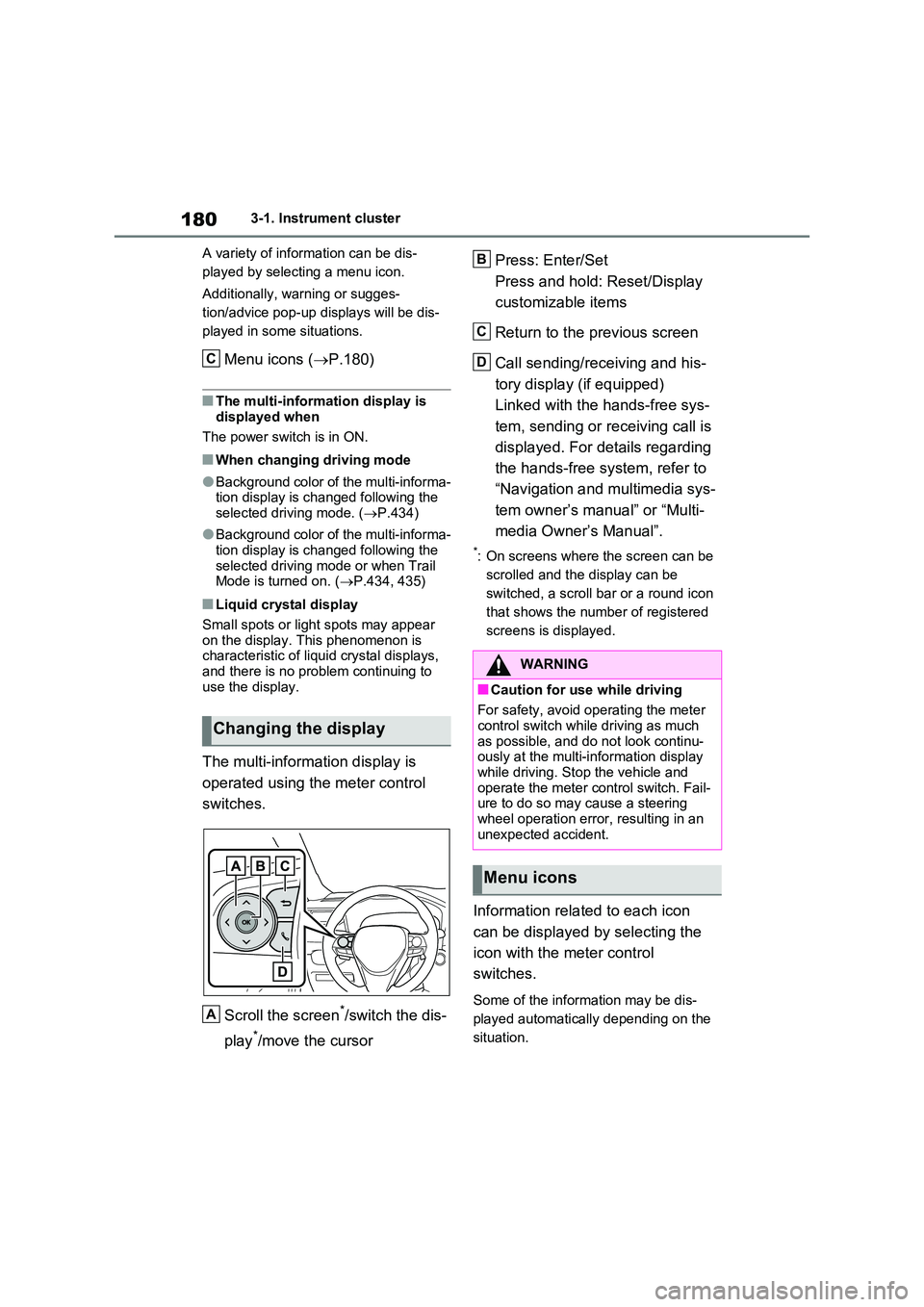
The multi-information display is
operated using the meter control
switches.
Scroll the screen*/switch the dis-
play*/move the cursor
Press: Enter/Set
Press and hold: Reset/Display
customizable items
Return to the previous screen
Call sending/receiving and his-
tory display (if equipped)
Linked with the hands-free sys-
tem, sending or receiving call is
displayed. For details regarding
the hands-free system, refer to
“Navigation and multimedia sys-
tem owner’s manual” or “Multi-
media Owner’s Manual”.
*: On screens where the screen can be
scrolled and the display can be
switched, a scroll bar or a round icon
that shows the number of registered
screens is displayed.
Information related to each icon
can be displayed by selecting the
icon with the meter control
switches.
Some of the information may be dis-
played automatically depending on the
situation.
Changing the display
C
A
WARNING
■Caution for use while driving
For safety, avoid operating the meter control switch while driving as much
as possible, and do not look continu- ously at the multi-information display while driving. Stop the vehicle and
operate the meter control switch. Fail- ure to do so may cause a steering wheel operation error, resulting in an
unexpected accident.
Menu icons
B
C
D
Page 185 of 664
185
3 3-1. Instrument cluster
Vehicle status information and indicators
■Drive information
2 items that are selected using the
“Drive Info Items” setting (average
speed, distance and total time) can
be displayed vertically.
The displayed information changes
according to the “Drive Info Type”
setting (since the system was
started or between resets).
(P.186)
Use the displayed information as a ref-
erence only.
Following items will be displayed.
“Trip”
• “Average Speed”: Displays the aver-
age vehicle speed since hybrid sys-
tem start
*
• “Distance”: Displays the distance
driven since hybrid system start*
• “Total Time”: Displays the elapsed
time since hybrid system start*
*
: These items are reset each time the
hybrid system stops.
“Total”
• “Average Speed”: Displays the aver-
age vehicle speed since the display
was reset
*
• “Distance”: Displays the distance
driven since the display was reset*
• “Total Time”: Displays the elapsed
time since the display was reset*
*
: To reset, display the desired item and
press and hold .
■Energy monitor
P.195
■Tire pressure
P.511
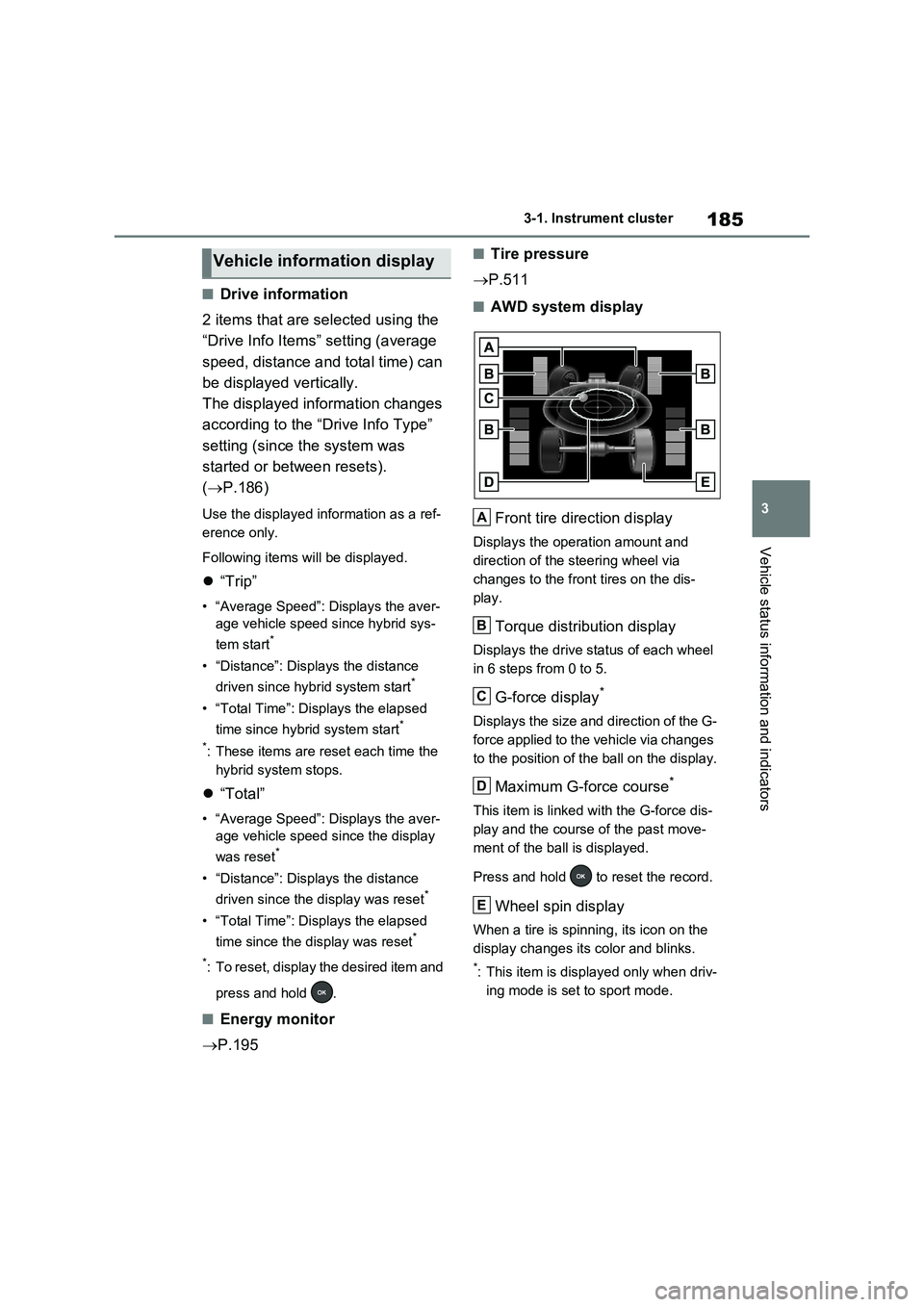
■AWD system display
Front tire direction display
Displays the operation amount and
direction of the steering wheel via
changes to the front tires on the dis-
play.
Torque distribution display
Displays the drive status of each wheel
in 6 steps from 0 to 5.
G-force display*
Displays the size and direction of the G-
force applied to the vehicle via changes
to the position of the ball on the display.
Maximum G-force course*
This item is linked with the G-force dis-
play and the course of the past move-
ment of the ball is displayed.
Press and hold to reset the record.
Wheel spin display
When a tire is spinning, its icon on the
display changes its color and blinks.
*: This item is displayed only when driv-
ing mode is set to sport mode.
Vehicle information display
A
B
C
D
E
Page 186 of 664
1863-1. Instrument cluster
Vehicle settings and the content
displayed on the screen can be
changed by using the meter control
switches.
■Setting procedure
1Operate or of the meter
control switches and select .
2Operate or of the meter
control switches and select the
desired item.
• If the function is turned on and
off or the volume, etc. is changed
on the setting screen, the setting
is changed each time is
pressed.
• For functions that allow opera-
tion contents, display contents,
etc., of function to be selected,
the setting screen is displayed by
pressing and holding . When
the setting screen is displayed,
select the setting or desired
value (time, etc.) with .
3After changing the settings,
press of the meter control
switches.
■ LTA (Lane Tracing Assist)
(if equipped) (P.362)
Select to set up the following items.
“Lane Center”
Select to enable/disable the lane cen-
tering function.
“Steering Assist”
Select to enable/disable steering wheel
assistance.
“Alert”
Select to change each notification
method of the lane departure alert.
“Sensitivity”
Select to set the lane departure alert
sensitivity.
“Sway Warning”
Select to enable/disable the vehicle
sway warning.
“Sway Sensitivity”
Select to set the vehicle sway warning
sensitivity.
■ PCS (Pre-Collision Sys-
tem) (if equipped) (P.355)
Select to set up the following items.
PCS on/off
Select to enable/disable the pre-colli-
sion system.
“Sensitivity”
Select to change the pre-collision warn-
ing timing.
■ BSM (Blind Spot Monitor)
(if equipped) (P.393)
Select to set up the following items.
BSM (Blind Spot Monitor) on/off
Select to enable/disable the BSM sys-
tem.
“Brightness”
Select to switch the brightness of the
outside rear view mirror indicators.
(P.393)
“Sensitivity”
Select to change the alert timing for an
approaching vehicle.
Settings display
Page 194 of 664
1943-1. Instrument cluster
Brake Override System
(P.301)
Drive-Start Control (P.301)
Parking Support Brake function
(static objects) (if equipped)
(P.424)
Displayed content is the same as that
displayed on the meter. For details,
refer to the explanations of each sys-
tem.
■ / icons
Displays the following multi-infor-
mation display linked icons:
: Master warning icon
Displayed when a warning message is
displayed on the multi-information dis-
play.
: Information icon
Displayed when a suggestion/advice
pop-up display is displayed on the
multi-information display.
■Warning message
Some warning messages are dis-
played when necessary, according
to certain conditions.
Displayed content is the same as that
displayed on the multi-information dis-
play. For details, refer to the explana-
tions of each system.
■Audio system operation status
Displayed when an audio remote
control switch on the steering wheel
is operated.
■Hands-free system status (if
equipped)
Displayed when the hands-free system is operated.
■Outside temperature display
Displayed when the power switch is
turned to ON or when the low out-
side temperature indicator is flash-
ing.
■When a pop-up display is displayed
When a pop-up display is displayed, a
current display may no longer be dis-
played. In this case, the display will
return after the pop-up display disap-
pears.
■Outside temperature display
●When the ambient temperature is
approximately 3°C (37°F) or lower,
will flash for approximately 10
seconds and the outside temperature
display will turn off.
●In the following situations, the correct
outside temperature may not be dis-
played, or the display may take longer
than normal to change:
• When stopped (including when using
“My Room Mode”), or driving at low
speeds (less than 20 km/h [12 mph])
• When the outside temperature has
changed suddenly (at the
entrance/exit of a garage, tunnel, etc.)
●When “--” or “E” is displayed, the sys-
tem may be malfunctioning.
Take your vehicle to any authorized
Toyota retailer or Toyota authorized
repairer, or any reliable repairer.
Display content selected by “HUD
Driving Support” on the screen
is displayed. (P.192)
Hybrid System Indica-
tor/Tachometer
Page 195 of 664
195
3 3-1. Instrument cluster
Vehicle status information and indicators
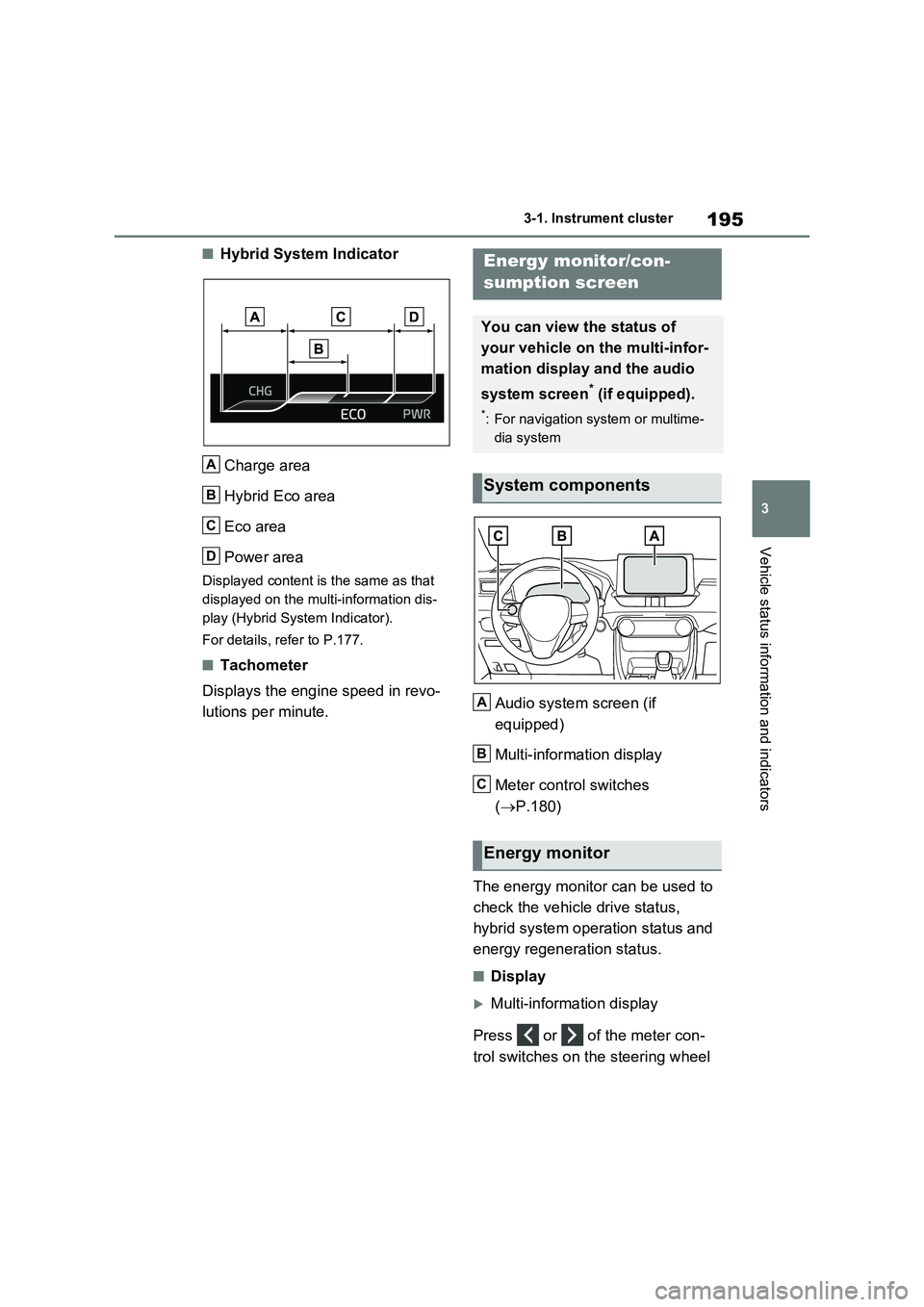
■Hybrid System Indicator
Charge area
Hybrid Eco area
Eco area
Power area
Displayed content is the same as that
displayed on the multi-information dis-
play (Hybrid System Indicator).
For details, refer to P.177.
■Tachometer
Displays the engine speed in revo-
lutions per minute.Audio system screen (if
equipped)
Multi-information display
Meter control switches
(P.180)
The energy monitor can be used to
check the vehicle drive status,
hybrid system operation status and
energy regeneration status.
■Display
Multi-information display
Press or of the meter con-
trol switches on the steering wheel
A
B
C
D
Energy monitor/con-
sumption screen
You can view the status of
your vehicle on the multi-infor-
mation display and the audio
system screen
* (if equipped).
*: For navigation system or multime-
dia system
System components
Energy monitor
A
B
C
Page 201 of 664
4
201
4
Before driving
Before driving
4-1. Key information
Keys.................................. 202
4-2. Opening, closing and locking
the doors
Side doors ........................ 205
Back door ......................... 210
Smart entry & start system 223
4-3. Adjusting the seats
Front seats........................ 270
Rear seats ........................ 271
Driving position memory ... 273
Head restraints ................. 276
4-4. Adjusting the steering wheel
and mirrors
Steering wheel .................. 278
Inside rear view mirror ...... 279
Digital Rear-view Mirror .... 280
Outside rear view mirrors . 289
4-5. Opening, closing the win-
dows and moon roof
Power windows................. 291
Panoramic moon roof ....... 294
Page 274 of 664
2744-3. Adjusting the seats
will be overwritten.
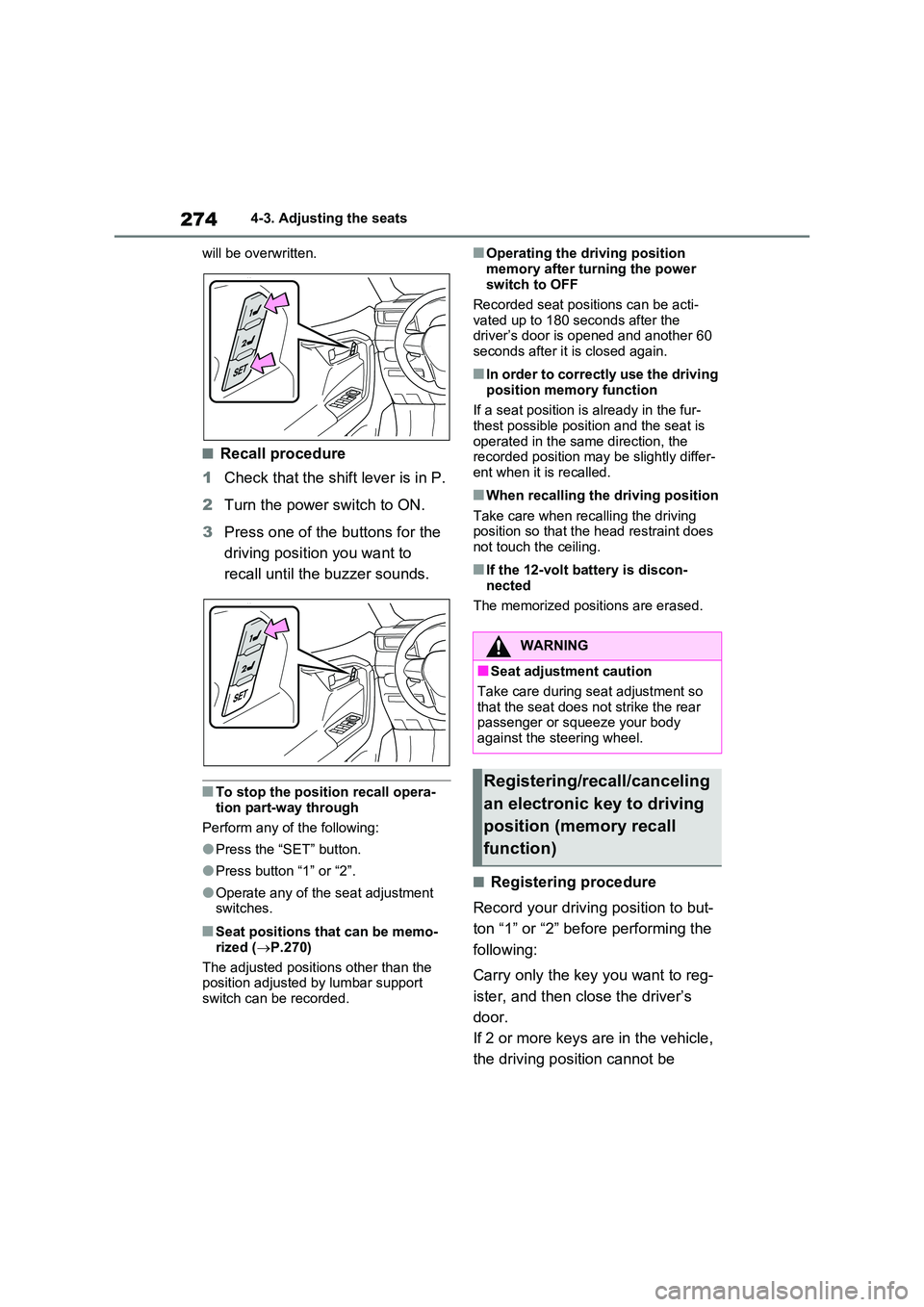
■Recall procedure
1 Check that the shift lever is in P.
2 Turn the power switch to ON.
3 Press one of the buttons for the
driving position you want to
recall until the buzzer sounds.
■To stop the position recall opera-
tion part-way through
Perform any of the following:
●Press the “SET” button.
●Press button “1” or “2”.
●Operate any of the seat adjustment switches.
■Seat positions that can be memo-
rized ( P.270)
The adjusted positions other than the position adjusted by lumbar support
switch can be recorded.
■Operating the driving position
memory after turning the power switch to OFF
Recorded seat positions can be acti-
vated up to 180 seconds after the driver’s door is opened and another 60 seconds after it is closed again.
■In order to correctly use the driving
position memory function
If a seat position is already in the fur- thest possible position and the seat is
operated in the same direction, the recorded position may be slightly differ-ent when it is recalled.
■When recalling the driving position
Take care when recalling the driving position so that the head restraint does not touch the ceiling.
■If the 12-volt battery is discon-
nected
The memorized positions are erased.
■Registering procedure
Record your driving position to but-
ton “1” or “2” before performing the
following:
Carry only the key you want to reg-
ister, and then close the driver’s
door.
If 2 or more keys are in the vehicle,
the driving position cannot be
WARNING
■Seat adjustment caution
Take care during seat adjustment so that the seat does not strike the rear passenger or squeeze your body
against the steering wheel.
Registering/recall/canceling
an electronic key to driving
position (memory recall
function)