2011 MERCEDES-BENZ S-Class rest
[x] Cancel search: restPage 227 of 524
than MP3 or WMA tracks are not displayed by
COMAND.
If MP3 or WMA files are stored in the root
directory itself, the root directory will also be
treated as a folder. COMAND will then show
the name of the root directory as the folder
name.
You must observe the following when
assigning track names:
R track names must have at least one
character.
R track names must have the extension
"mp3" or "wma".
R there must be a full stop between the track
name and the extension.
Example of a correct track name:
"Track1.mp3".
i COMAND does not support ID3 tags.
Permissible formats
COMAND supports the following formats:
R Microsoft Windows Media Audio V2, V7, V8
and V9 (WMA)
Permissible bit and sampling rates
COMAND supports MP3 files of the following
types:
R constant and variable bit rates from
32 kbit/s to 320 kbit/s
R sampling rates of 8 kHz to 48 kHz
COMAND supports WMA files of the
following types:
R fixed bit rates of 5 kbit/s up to
384 kbit/s
R sampling rates of 8 kHz to 48 kHz
COMAND does not support WMA files of the
following types:
R DRM (Digital Rights Management)
encrypted files
i Only use tracks with a bit rate of at least
128 kbit/s and a sampling rate of at least
44.1 kHz. Lower rates can cause a
noticeable deterioration in quality. This isespecially the case if you have activated a
surround sound function.
Notes on copyright
MP3 or WMA tracks that you create or play
back are generally subject to copyright
protection in accordance with the applicable
international and national regulations.
In many countries, reproductions, even for
private use, are not permitted without the
prior consent of the copyright holder.
Make sure that you know about the applicable
copyright regulations and that you comply
with these.
If you own these rights yourself, e.g. for your
own compositions and recordings, or if the
copyright holder has granted you permission,
these restrictions do not apply.
Notes on CDs/DVDs
Discs with copy protection are not
compatible with the audio CD standard and
therefore may not be able to be played by
COMAND.
There may be playback problems when
playing copied discs. There is a wide range of
data carriers, burning software and burners
available. This variety means that there is no
guarantee that the system will be able to play
discs that you have copied yourself.
There may be playback problems if you play
CDs that you have copied yourself with a
storage capacity of more than 700 MB. CDs
of this type do not conform to the currently
applicable standards.
i On many DVD audio discs, the last track
does not contain any music. In such cases,
COMAND then switches to the next disc.
This is normal system behavior and does
not mean that there is a malfunction.
! Do not affix stickers or labels to the discs.
They could peel off and damage the drive.
The drive is designed to hold discs which
comply with the EN 60908 standard.
Therefore, you can only use discs with a
maximum thickness of 1.3 mm.Audio225COMANDZ
Page 239 of 524
DVD playback conditions
If video DVDs do not correspond to the NTSC
or PAL TV playback standards, there may be
picture/sound interference or other playback
problems.
COMAND can play back video DVDs
produced according to the following
standards:
Rregion code 1 or region code 0 (no region
code)
iIf you insert a video DVD with a different
region code, you will see a message to this
effect.
RPAL or NTSC standard
You will generally find the relevant details
either on the DVD itself or on the DVD case.
iCOMAND is set to region code 1 at the
factory. This setting can be changed at an
authorized Mercedes-Benz Center. This will
allow you to play video DVDs with a
different region code, provided that they
are produced in accordance with the PAL
or NTSC standard. The region code can be
changed a maximum of five times.
Function restrictions
Depending on the DVD, it is possible that
certain functions or actions will be
temporarily blocked or may not function at all.
As soon as you try to activate these functions
or actions, you will see the K symbol in the
display.
Inserting and removing DVDs
XProceed as described in the "Inserting and
ejecting CDs and DVDs" section
(Y page 217).
Activating video DVD mode
Option 1
XInsert a video DVD.
COMAND loads the medium inserted and
starts to play it.
Option 2
XSelect Video in the main function bar by
sliding ZV and turning cVd the COMAND
controller and press W to confirm.
Video DVD mode is switched on.
Hiding/showing the control menu
XTo show: turn cVd or slide ZVÆ the
COMAND controller.
iThis function is not available while the
DVD's own menu (Y page 240) is being
displayed.
XTo hide: slide ZVÆ the COMAND
controller.
or
XWait for approximately eight seconds.
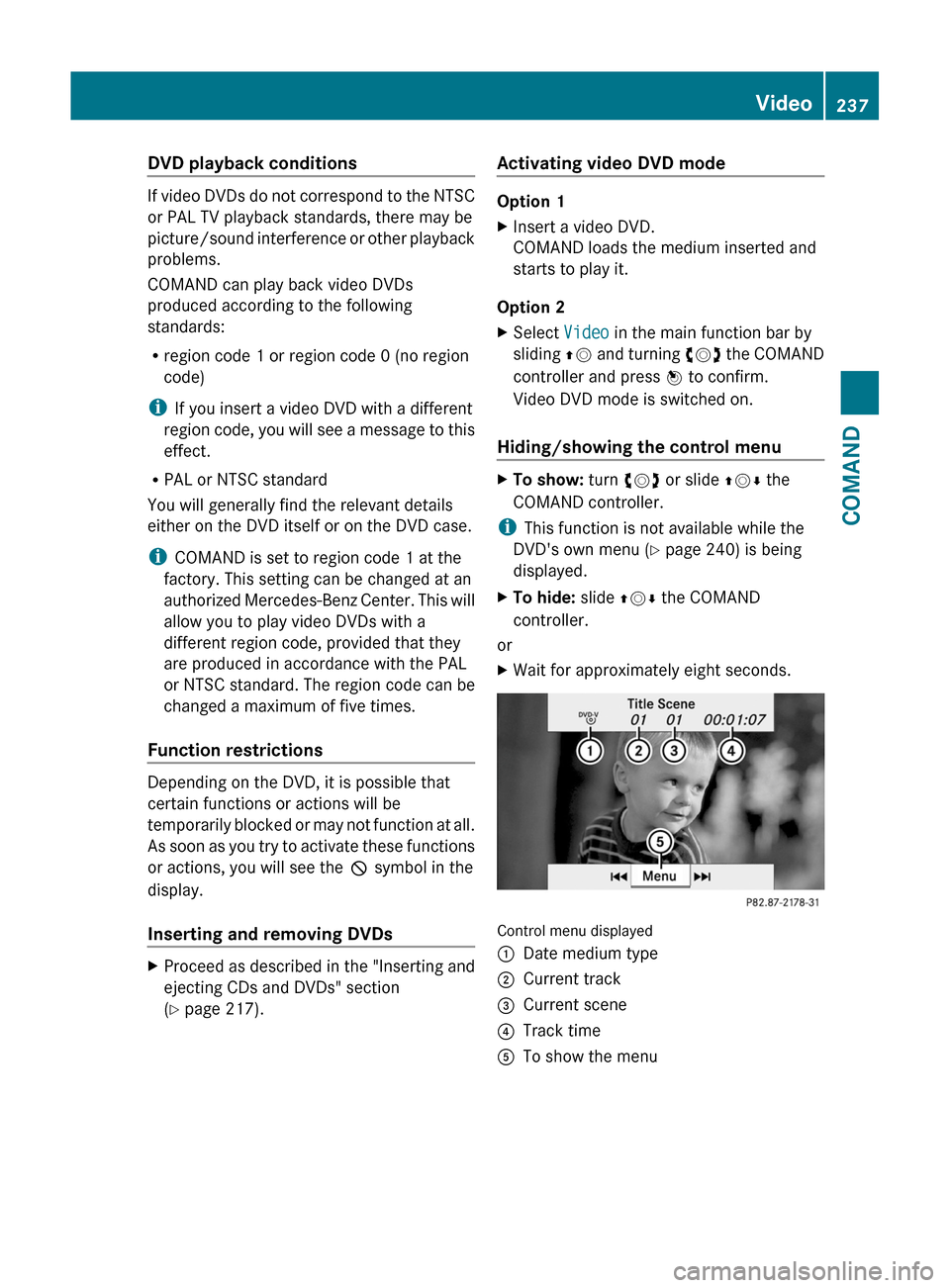
Control menu displayed
:Date medium type;Current track=Current scene?Track timeATo show the menuVideo237COMANDZ
Page 241 of 524
Stop functionXPress W the COMAND controller to show
the menu.
XTo interrupt playback: select ± by
turning cVd the COMAND controller and
press W to confirm.
The « display changes to M. The video
image is hidden.
XTo continue playback: select M and press
W to confirm.
Playback continues from the point where it
was interrupted.
XTo stop playback: while playback is
interrupted, select ± again and press W
to confirm.
or
XDuring playback, confirm ± by pressing
W twice in quick succession.
M is selected.
XTo restart playback: confirm M by
pressing W.
Playback restarts from the beginning.
Pause function
XPress W the COMAND controller to show
the menu.
XTo pause: select « by turning cVd the
COMAND controller and press W to
confirm.
The « display changes to M.
XTo continue playback: select M and press
W to confirm.
The menu is hidden.
Selecting a scene/chapter
If the film is divided into scenes or chapters,
you can select them directly while the film is
running, or skip forwards step-by-step. Some
DVDs do not permit this at certain points (e.g.
during the opening credits).
It may also be possible to select the scene/
chapter from within the menu stored on the
DVD.
XTo skip forwards or back: turn cVd or
slide XVY the COMAND controller.
The navigation menu (Y page 237) appears
for approximately eight seconds.
XOn the multifunction steering wheel:
switch on video DVD mode in COMAND
(Y page 237).
XUse the = or ; button to select the
Audio menu.
XPress 9 or : to select a scene/
chapter.
If you press and hold 9 or : for an
extended period, rapid scroll begins.
Selecting a film/title
This function is only available if the DVD is
divided into several films/tracks. If the DVD
contains several films, these can be selected
directly. A film can be selected either when
the DVD is being played back or when it is
stopped.
The film can also be selected from the menu
on the DVD itself.
XPress W the COMAND controller to show
the menu.
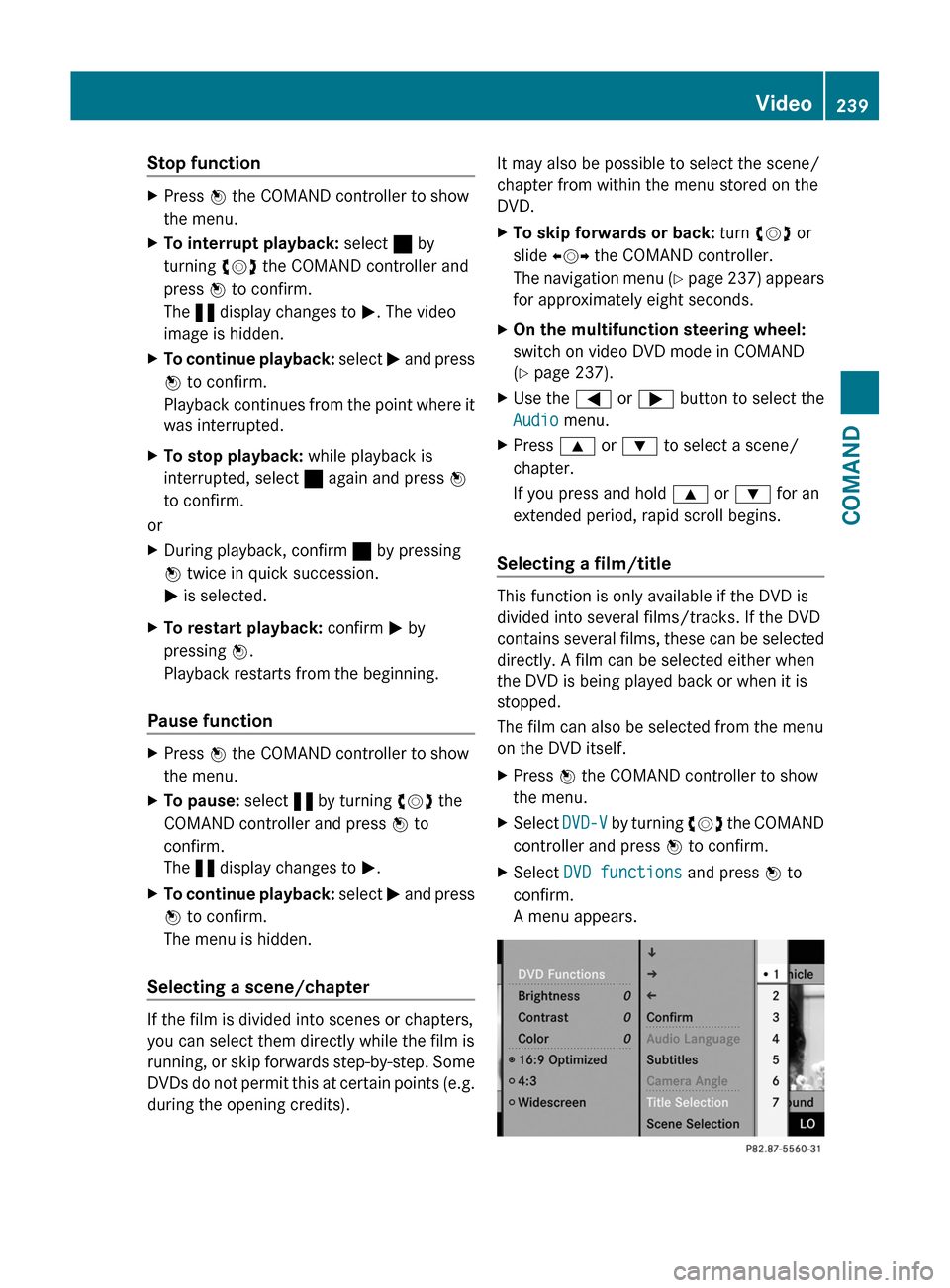
XSelect DVD-V by turning cVd the COMAND
controller and press W to confirm.
XSelect DVD functions and press W to
confirm.
A menu appears.
Video239COMANDZ
Page 250 of 524

Removing the CD/DVDXPress the þ eject button.
The drive ejects the disc.XTake the disc out of the slot.
If you do not take the disc out of the slot,
the drive will draw it in again automatically
after a short while.
Switching on audio CD, audio DVD or
MP3 mode
XInsert a CD/DVD ( Y page 247).
The Rear Seat Entertainment System loads
the inserted disc.XSelect Disc in the menu using the
9=; buttons on the remote
control and press the 9 button to confirm.
The corresponding mode is switched on.
The Rear Seat Entertainment System plays
the disc.
i Variable bit rates in MP3 tracks can result
in the elapsed time shown being different
to the actual elapsed time.
Selecting a track
Selecting by skipping to a track
XTo skip forwards or backwards to a
track: press the = or ; button on
the remote control.
or
XPress the E or F button.
The skip forward function skips to the next
track.
Skipping backwards restarts the current
track (if it has been playing for more than
eight seconds) or starts the previous track
(if the current track has only been playing
for a shorter time).
If you have selected the playback options
Random tracks or Random folder , the
track order is random.Selecting by track list
In audio CD mode, the track list contains all
tracks on the disc currently playing.
In audio DVD mode, the track list contains all
tracks in the currently active group; see
"Setting the audio format" ( Y page 223).
In MP3 mode, the track list shows all tracks
in the currently active folder as well as the
folder structure, allowing you to select any
track on the MP3 CD.XSelect Track list (audio CD/DVD mode)
or Folder (MP3 mode) using
the :=; buttons on the remote
control and press the 9 button to confirm.
or
XPress the 9 button when the display/
selection window is active.
The track list appears. The # dot indicates
the current track.XSelect a track using the 9: buttons
and press the 9 button to confirm.
Making a selection by entering the track
number directly
XPress h on the remote control.
The track entry display appears.
Example: track 2
XPress the · number button.
Example: track 12
XPress the corresponding number keys in
rapid succession.
i You cannot enter numbers which are
higher than the number of tracks on the CD
or in the currently active folder.
XWait for approximately three seconds after
making the entry.
You will hear the track entered. The
respective basic menu is shown again.
Fast forward/rewind
XWith the display/selection window active,
press the = or ; button on the248Rear Seat Entertainment SystemCOMAND
Page 252 of 524
XTo interrupt playback: select ± using
the :=; buttons on the remote
control and press the 9 button to confirm.
The « display changes to M.XTo continue playback: select M and press
the 9 button to confirm.
Playback continues from the point where it
was interrupted.XTo stop playback: while playback is
interrupted, select ± again and press the
9 button to confirm.
Playback stops and returns to the
beginning of the DVD. M is highlighted.XTo restart playback: select M and press
the 9 button to confirm.
Playback starts from the beginning of the
DVD.
Setting the audio format
Further information on audio formats is
available in the Audio section ( Y page 223).
XSelect DVD-A using the :=;
buttons on the remote control and press
the 9 button to confirm.XSelect Group using the 9: buttons
and press the 9 button to confirm.
The list of available audio formats appears.
The # dot indicates the format currently
selected.XSelect an audio format using the
9: buttons and press the 9 button
to confirm.XTo exit the menu: press the =
or ; button.
Playback options
Further information on playback options is
available in the Audio section ( Y page 224).
XSelect CD, DVD-A or MP3 using
the :=; buttons on the remote
control and press the 9 button to confirm.
The options list appears. The # dot
indicates the option selected.XSelect Normal track sequence , Random
tracks or Random folder using the
9: buttons and press the 9 button
to confirm.
The option is switched on. All options
except Normal track sequence will be
indicated in the display/selection window.
i If you change the disc, the Normal
track sequence option is activated
automatically. If an option is selected, it
remains selected after the Rear Seat
Entertainment System is switched on or
off.
Switching track information on/off
(MP3 mode only)
If the function is switched on, folder and track
names are displayed.
If the function is switched off, disc and file
names are displayed.
XSelect MP3 using the :=;
buttons on the remote control and press
the 9 button to confirm.XSelect Show track information using
the 9: buttons and press the 9
button to confirm.
The function is switched on O or off ª,
depending on the previous status.
DVD video mode
General notes
Here you will find further information on the
following topics:
R safety notes ( Y page 217)
R notes on DVDs ( Y page 236)
250Rear Seat Entertainment SystemCOMAND
Page 253 of 524
DVD playback conditions
There may be playback problems when
playing copied discs. There are a large variety
of discs, DVD authoring software, disc writing
software and writers available. This variety
means that there is no guarantee that the
Rear Seat Entertainment System will be able
to play video DVDs that you have copied
yourself.
You will find further information in the Video
section (Y page 237). Information regarding
COMAND also applies to the Rear Seat
Entertainment System.
Function restrictions
Depending on the DVD, it is possible that
certain functions or actions described in this
section will be temporarily blocked or may not
function at all. As soon as you try to activate
these functions or actions, you will see the
K symbol in the display.
Inserting and removing a CD/DVD
XProceed as described in the "Audio CD/
DVD and MP3 mode" section
(Y page 247).
Activating video DVD mode
XInsert a video DVD.
The Rear Seat Entertainment System loads
the disc.
If disc mode was the last mode selected, it
will now be active.
If it was not, switch on video DVD mode as
described in the following instruction.
XSelect Disc in the menu using the
9=; buttons on the remote
control and press the 9 button to confirm.
If the video DVD fulfills the playback
criteria, the film either starts automatically
or the menu saved on the DVD appears. If
the DVD menu appears, you must start the
film manually.
XSelect the corresponding menu item in the
DVD menu.
Hiding/showing the control menu
XTo show: press the 9 or : button
on the remote control.
XTo hide: press the 9 or : button.
or
XWait about eight seconds.
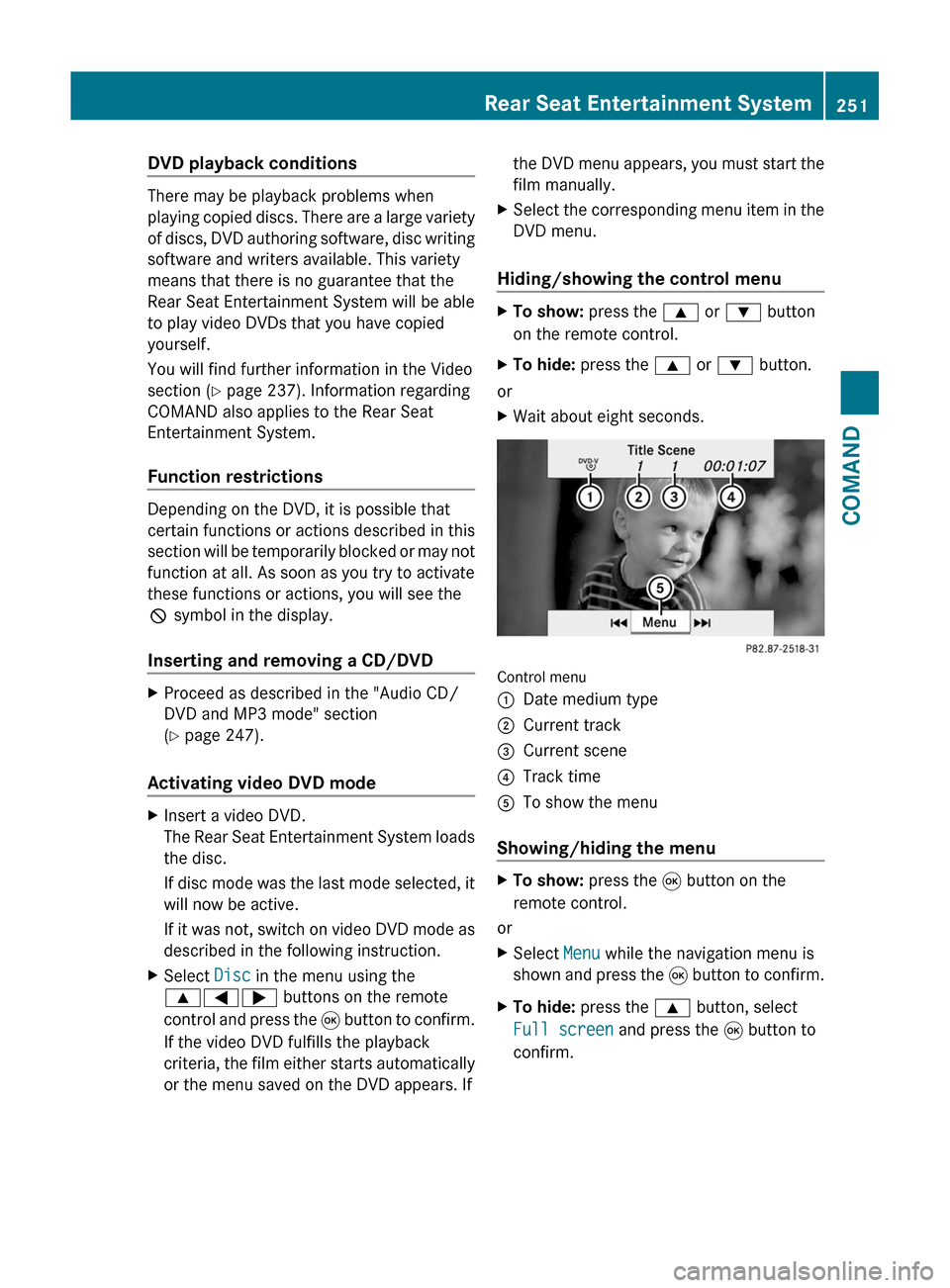
Control menu
:Date medium type;Current track=Current scene?Track timeATo show the menu
Showing/hiding the menu
XTo show: press the 9 button on the
remote control.
or
XSelect Menu while the navigation menu is
shown and press the 9 button to confirm.
XTo hide: press the 9 button, select
Full screen and press the 9 button to
confirm.
Rear Seat Entertainment System251COMANDZ
Page 254 of 524
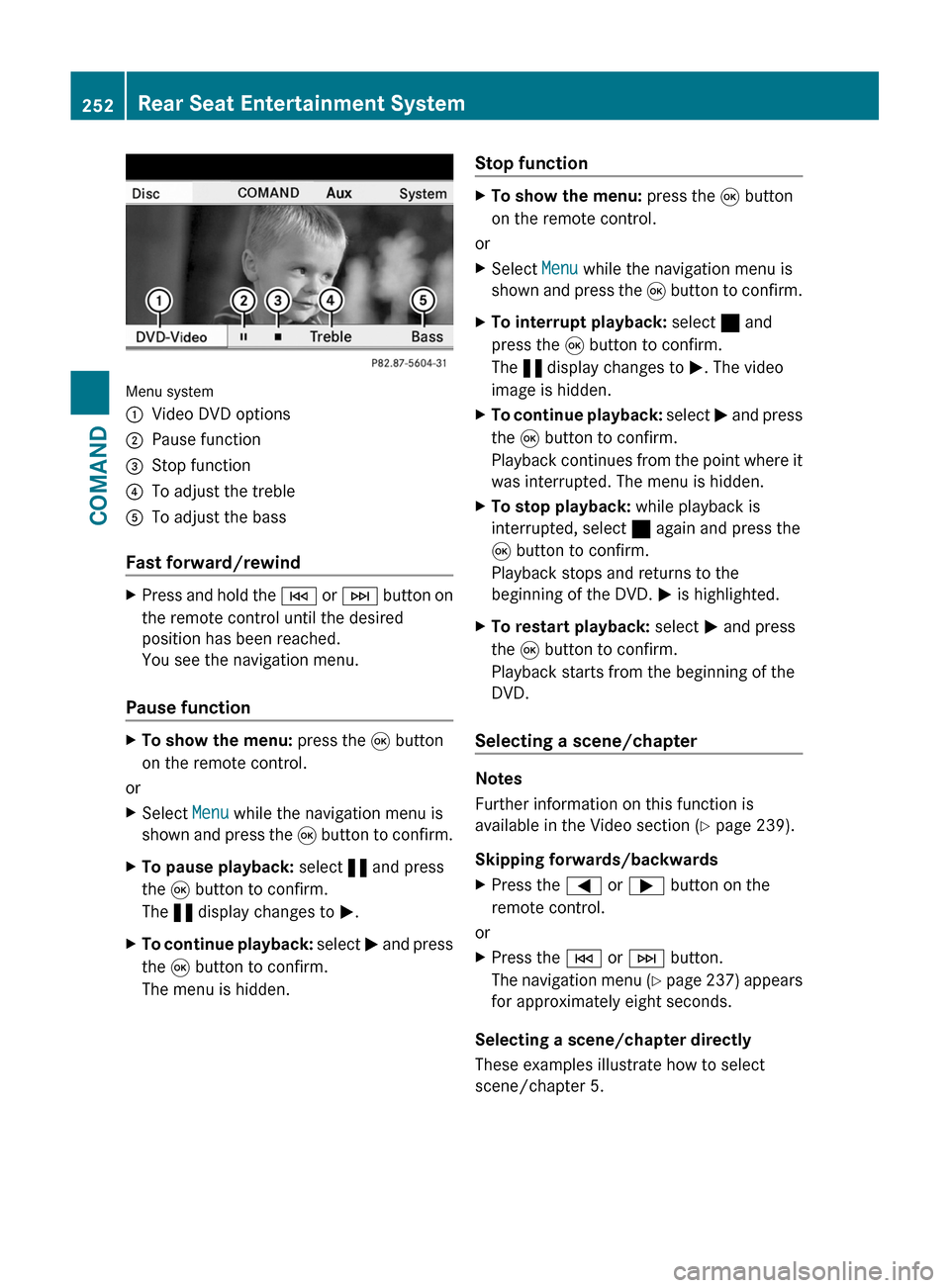
Menu system
:Video DVD options;Pause function=Stop function?To adjust the trebleATo adjust the bass
Fast forward/rewind
XPress and hold the E or F button on
the remote control until the desired
position has been reached.
You see the navigation menu.
Pause function
XTo show the menu: press the 9 button
on the remote control.
or
XSelect Menu while the navigation menu is
shown and press the 9 button to confirm.
XTo pause playback: select « and press
the 9 button to confirm.
The « display changes to M.
XTo continue playback: select M and press
the 9 button to confirm.
The menu is hidden.
Stop functionXTo show the menu: press the 9 button
on the remote control.
or
XSelect Menu while the navigation menu is
shown and press the 9 button to confirm.
XTo interrupt playback: select ± and
press the 9 button to confirm.
The « display changes to M. The video
image is hidden.
XTo continue playback: select M and press
the 9 button to confirm.
Playback continues from the point where it
was interrupted. The menu is hidden.
XTo stop playback: while playback is
interrupted, select ± again and press the
9 button to confirm.
Playback stops and returns to the
beginning of the DVD. M is highlighted.
XTo restart playback: select M and press
the 9 button to confirm.
Playback starts from the beginning of the
DVD.
Selecting a scene/chapter
Notes
Further information on this function is
available in the Video section (Y page 239).
Skipping forwards/backwards
XPress the = or ; button on the
remote control.
or
XPress the E or F button.
The navigation menu (Y page 237) appears
for approximately eight seconds.
Selecting a scene/chapter directly
These examples illustrate how to select
scene/chapter 5.
252Rear Seat Entertainment SystemCOMAND
Page 259 of 524

Vehicle
Vehicle
General notes
In this menu, you can set the following vehicle
functions:
RECO
RMulticontour seat settings
RRear window blind
REASY-ENTRY/EXIT feature
RExterior lighting delayed switch-off time
RInterior lighting delayed switch-off
RAmbient lighting
RAutomatic folding mirror
RLocator lighting
RAutomatic locking feature
RTrunk lid opening height restriction
You can open the "Vehicle" menu in one of
two ways.
Opening the "Vehicle" menu from the
main area in the center of the display
:"Vehicle" menu item;Main areaXSelect Vehicle in the main function bar by
sliding XVY and turning cVd the
COMAND controller and press W to
confirm.
Main area ; is active.
XSelect the individual vehicle functions by
sliding XVY or turning cVd the COMAND
controller and press W to confirm.
Opening from the "Vehicle" menuXSelect Vehicle in the main function bar by
sliding XVY and turning cVd the
COMAND controller and press W to
confirm.
The "Vehicle" submenu opens.
XSelect the individual vehicle functions in
the menu by sliding XVY or turning cVd
the COMAND controller and press W to
confirm.
In the next section, it is the first procedure
that is always described.
Switching the ECO function on/off
The ECO start/stop function switches the
engine off automatically when the vehicle is
stopped under certain conditions. When
pulling away again, the engine starts
automatically (Y page 302). You can switch
the ECO start/stop function on and off using
COMAND.
If you switch the ECO start/stop function off
using COMAND, the function is switched on
again automatically when you switch the
ignition off and on again.
Vehicle257COMANDZ