2011 MERCEDES-BENZ S-Class rest
[x] Cancel search: restPage 138 of 524
dts™
MLP™
Selecting settings for the Bang & Olufsen
sound system
Calling up the selection menu
XSelect Sound.XHighlight Bang&Olufsen.XPress W.
A selection menu appears.
A # dot in front of an entry indicates the
current setting.
Selecting the setting for True Image™
XTurn cVd or slide ZVÆ and highlight
reference or 3D sound.
XPress W.
Selecting sound mode
XSelect Sound Mode in the selection menu.XTurn cVd or slide ZVÆ and highlight left,
all or right.
XPress W.XTo exit the menu: press the % back
button beside the COMAND controller.
or
XSlide XVY.
iPlease bear the following in mind:
You will achieve the best sound results on
your Bang & Olufsen sound system by
playing high-quality audio DVDs and CDs.
MP3 tracks should have a bit rate of at least
224 kbit/s.
When playing using an iPod®, the bit rate
should also be at least 224 kbit/s.
For optimum playback quality:
XDeactivate the EQ setting on the
iPod®.
Surround-sound playback does not
function for mono signal sources, such as
the medium wave range (MW) in radio
mode.
On some stereo recordings, the sound
characteristics may differ from
conventional stereo playback.
Rear Seat Entertainment System
Components
Overview
The Rear Seat Entertainment System*
comprises:
Rtwo screens for the rear behind the front-
seat head restraints
Rthe remote control
Ra CD/DVD drive
RAUX jacks on both screens (display AUX)
and on the CD/DVD drive (drive AUX)
Rtwo sets of cordless headphones
136At a glanceCOMAND
Page 147 of 524

XSelect Yes or No and press W to confirm.
If you select No, the process will be aborted.
If you select Yes, the individualization is
deleted. You will see a message to this
effect.
Bluetooth® settings
General information about Bluetooth®
Bluetooth® technology is the standard for
short-range wireless data transmission of up
to approximately 10 meters. Bluetooth®
allows, for example, the exchange of vCards.
Bluetooth® is a registered trademark of
Bluetooth Special Interest Group (SIG) Inc.
Requirements for a Bluetooth®
connection
You can connect mobile phones and
notebooks with COMAND.
To do so, the following conditions need to be
met:
RBluetooth®-capable devices, e.g. mobile
phones, must comply with a certain profile
in order to be connected to COMAND.
Every Bluetooth® device has its own
specific Bluetooth® name.
RBluetooth® must be activated in COMAND
and on the respective Bluetooth® device;
see the separate operating instructions.
Rthe Bluetooth® device must be "visible" to
COMAND in order for COMAND to find and
display it. For the setting procedures,
please see the operating instructions for
the Bluetooth® device.
iOnce a mobile phone has been
connected, reception and transmission
volume may change.
Activating/deactivating Bluetooth®
XSelect Vehicle in the main function bar by
turning cVd the COMAND controller and
press W to confirm.
XSelect System by turning cVd the
COMAND controller and press W to
confirm.
XSelect Bluetooth by turning cVd the
COMAND controller and press W to
confirm.
XSelect Bluetooth activated and press
W to confirm.
This switches Bluetooth® on O or off ª.
Connecting Bluetooth® devices
General information
Before using your Bluetooth® device with
COMAND for the first time, you will need to
connect it.
Connecting is comprised of:
Rsearching for a Bluetooth® device and
Rsubsequently authorizing it
iYou can connect up to ten devices to
COMAND.
For more information on suitable mobile
phones and on connecting a Bluetooth®-
capable mobile phone to COMAND, visit
http://www.mbusa-mobile.com or call
the Mercedes-Benz Customer Assistance
Center at
1-800-FOR-MERCedes(1-800-367-6372)
(US) or Customer Service at
1-800-387-0100 (Canada).
System settings145COMANDZ
Page 150 of 524
System language settings
This function allows you to determine the
language for the menu displays and the
navigation announcements. The selected
language affects the characters available for
entry.
If you change the system language, the
language for Voice Control System will be
also be changed. If the selected language is
not supported by Voice Control System,
"English" will be selected.XSelect Vehicle by turning cVd the
COMAND controller and press W to
confirm.XSelect System and press W to confirm.XSelect Language and press W to confirm.
You see the language list. The # dot
indicates the current setting.XSelect the language by turning cVd the
COMAND controller and press W to
confirm.
COMAND loads the selected language and
sets it.
i In Arabic as well as some other countries,
the selection option English (Arabic
map) is available when setting the system
language. This language setting shows the
menus and input data in COMAND in
English and the map in Arabic for certain
countries. The destination is entered in
English.
Reset function
You can reset COMAND to the factory
settings. Amongst other things, this will
delete all personal data (e.g. station presets,
address book entries, entries in the
destination memory and in the list of previous
destinations in the navigation system).
Resetting is recommended before selling or
transferring ownership of your vehicle, for
example.
XSelect Vehicle in the main function bar by
turning cVd the COMAND controller and
press W to confirm.XSelect System by turning cVd the
COMAND controller and press W to
confirm.XSelect Reset and press W to confirm.
A prompt appears asking whether you wish
to reset.XSelect Yes or No and press W to confirm.
If you select No, the process will be aborted.
If you select Yes, another prompt appears
asking whether you really wish to reset.XSelect Yes or No and press W to confirm.
If you select Yes, a message will be shown.
COMAND is reset and restarted.
If you select No, the process will be aborted.
Navigation
Vehicle equipment
i These Operating Instructions describe all
standard and optional equipment available
for your vehicle at the time of purchase.
Please note that your vehicle may not be
equipped with all features described.
Introduction
Important safety notes
GWarning
For safety reasons, only enter a destination
when the vehicle is stationary. When the
vehicle is in motion, a passenger should enter
the destination. Study manual and select
route before driving.
Bear in mind that at a speed of just 30 mph
(approximately 50 km/h), your vehicle is
covering a distance of 44 feet (approximately
14 m) every second.
148NavigationCOMAND
Page 151 of 524
COMAND calculates the route to the
destination without taking account of the
following:
R Traffic lights
R Stop and right-of-way-signs
R Lane merging
R Parking or stopping prohibited areas
R Other road and traffic rules and regulations
R Narrow bridgesGWarning
COMAND may give incorrect navigation
commands if the data in the digital map does
not correspond with the actual road/traffic
situation. Digital maps do not cover all areas
nor all routes within an area. For example, if
the traffic routing has been changed or the
direction of a one-way road has been
reversed.
For this reason, you must always observe
applicable road and traffic rules and
regulations during your journey. Road and
traffic rules and regulations always have
priority over the navigation commands
generated by the system.
GWarning
Navigation announcements are intended to
direct you while driving without diverting your
attention from the road and driving.
Please always use this feature instead of
consulting the map display for directions.
Looking at the icons or map display can
distract you from traffic conditions and
driving, and increase the risk of an accident.
General information
Operational readiness of the navigation
system
The navigation system must determine the
position of the vehicle before first use or
whenever operational status is restored.
Therefore, you may have to drive for a while
before precise route guidance is possible.
GPS reception
Among other things, correct functioning of
the navigation system depends on GPS
reception. In certain situations, GPS
reception may be impaired, there may be
interference or there may be no reception at
all, e.g. in tunnels or parking garages.
Input restriction
On vehicles for certain countries, there is a
restriction on entering data.
The restriction is active at vehicle speeds
above approximately 3 mph (5 km/h). The
restriction is deactivated as soon as the
speed falls below 2 mph (3 km/h).
When the restriction is active, certain entries
cannot be made. This will be indicated by the
fact that certain menu items are grayed out
and cannot be selected.
The following entries are not possible, for
example:
R entering the destination city and street
R entering a destination via the map
R entering in the vicinity of a city or via a
name search
R editing entries
R direct entry using the number keypad
Other entries are still possible, such as
entering points of interest in the vicinity of the
destination or current position.
Switching on navigation modeXPress the S function button once or
twice.
or
XSelect Navi in the main function bar by
sliding ZV and turning cVd the COMAND
controller and press W to confirm.
In both cases, you will see the map either
with or without the menu shown.Navigation149COMANDZ
Page 153 of 524
XSelect the route option(s) and press W to
confirm.
The route options are switched on O or off
ª , depending on the previous status.
i
If you change the route type and/or the
route options while route guidance is active
(the route has been calculated), COMAND
will calculate a new route.
If you change the route type and/or the
route options while route guidance is
inactive (no destination has been entered
yet), COMAND uses the new setting for the
next route guidance.
i The route calculated may, for example,
include ferry connections, even if the
Minimize Ferries route option is
switched on.
In some cases, e.g. when calculating
particularly long routes, COMAND may not
be able to take all the selected route
options into account.
XTo exit the menu: slide XVY the COMAND
controller.
Entering destinations
Introduction to destination input
GWarning!
For safety reasons, only enter a new
destination when the vehicle is stationary.
You could otherwise be distracted from the
traffic conditions, cause an accident and
injure yourself and others.
The following destination input options are
available:
R entering a destination by address
R entering a destination from the destination
memory
R entering a destination from the list of last
destinations
R entering a destination using the map
Rentering an intermediate stop
R entering a point of interest
Entering a destination by address
Introduction
When entering an address as the destination,
you have the following options:
R entering the state/province, city/ZIP code
and street
R entering the state/province, town/ZIP
code and center
R entering the state/province, town/ZIP
code, street and house number
R entering the state/province, town/ZIP
code, street and intersection
R entering the state/province, street, city
and house number
R entering the state/province, street and
house number
R entering the state/province, street and
intersection
i You can only enter those cities, streets,
ZIP codes etc. that are stored in the digital
map. This means that for some countries
you cannot enter ZIP codes, for example.
Example: entering an address
The following is a step-by-step example of
how to enter an address. The destination
address is as follows:
New York (state)
New York (city)
40 Broadway
You can of course enter any country, city,
street and house number desired and enter,
for example, your home address (My
address).
Calling up the address entry menu
XTo switch on navigation mode: press the
S function button once or twice.XTo show the menu: press the W COMAND
controller.Navigation151COMANDZ
Page 160 of 524

:Current vehicle position;Crosshair=Details of the crosshair position?Map scale selected
Display = depends on the settings selected
in "Map information in the display"
(Y page 182). The current street name can
be shown, provided the digital map contains
the necessary data, or the coordinates of the
crosshair if the geo-coordinate display is
switched on and the GPS signal is strong
enough.
Moving the map and selecting the
destination
XTo scroll the map: slide the COMAND
controller XVY, ZVÆ or aVb.
XTo set the map scale: as soon as you turn
cVd the COMAND controller, the scale bar
appears.
XTurn cVd until the desired scale is set.
Turning clockwise zooms out from the map,
turning counter-clockwise zooms in.
XTo select a destination: press W the
COMAND controller once or several times.
You will see either the address entry menu
with the destination address or, if COMAND
is unable to assign a unique address, a
selection list.
XSelect a destination by turning cVd the
COMAND controller and press W to
confirm.
If the destination is within the limits of the
digital map, COMAND attempts to assign
the destination to the map.
If the destination can be assigned, you will
see the address entry menu with the
address of the destination. If not, you will
see the Destination from Map entry.
XTo start route calculation: select Start
and press W to confirm.
Entering an intermediate stop
Introduction
When route guidance is active, you can enter
an intermediate stop. Intermediate stops can
be predefined destinations from the following
categories that COMAND offers for selection:
RMercedes-Benz Service Center
RHospital
RGas Station
RParking Lot
RRestaurant
However, you can also enter destinations
other than the predefined ones. To do this,
select the menu item Other.
You can use the intermediate stop function to
influence route guidance to the main
destination. When you have reached your
intermediate stop, COMAND automatically
recalculates the route to the main
destination.
158NavigationCOMAND
Page 161 of 524
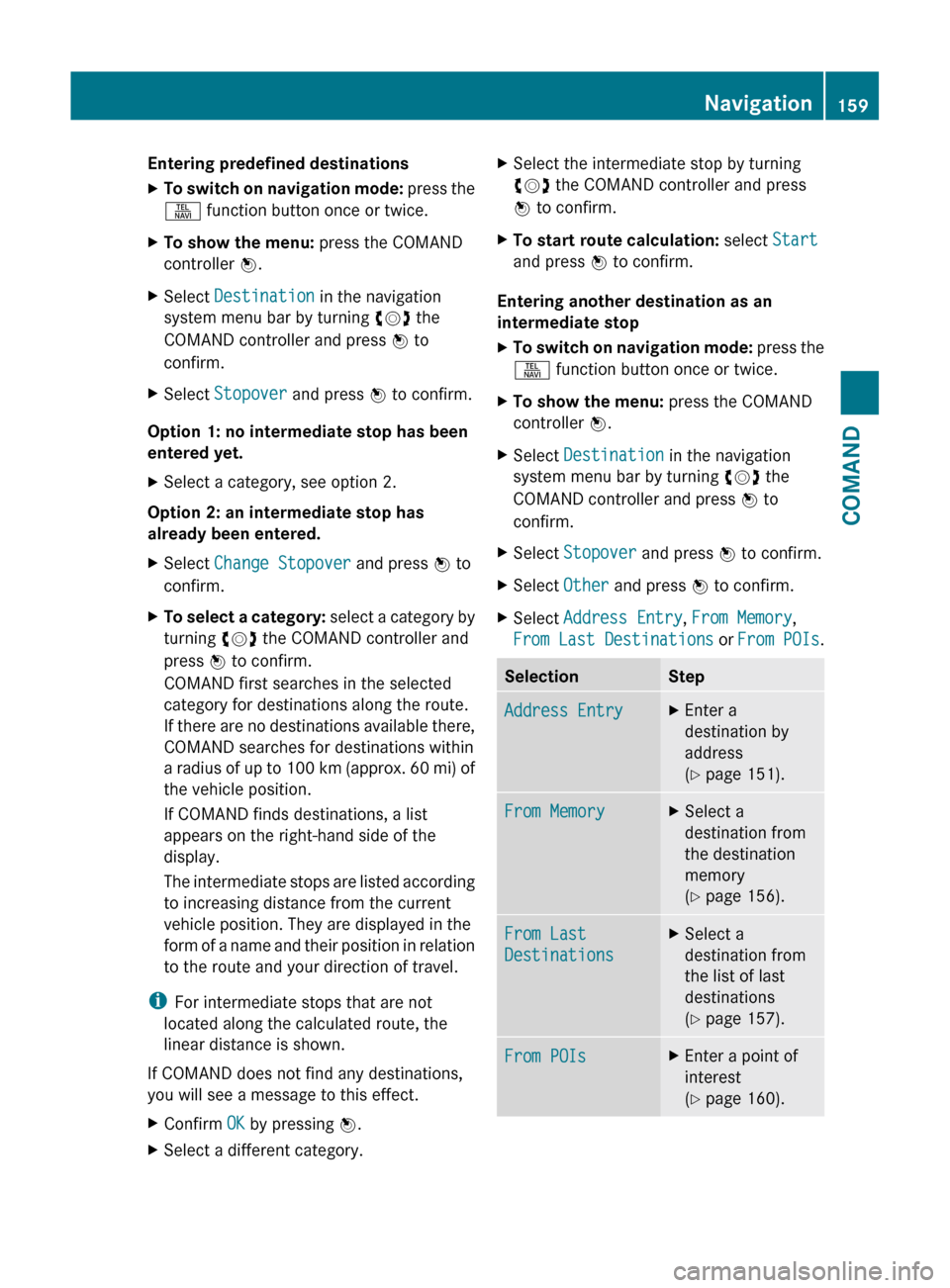
Entering predefined destinationsXTo switch on navigation mode: press the
S function button once or twice.XTo show the menu: press the COMAND
controller W.XSelect Destination in the navigation
system menu bar by turning cVd the
COMAND controller and press W to
confirm.XSelect Stopover and press W to confirm.
Option 1: no intermediate stop has been
entered yet.
XSelect a category, see option 2.
Option 2: an intermediate stop has
already been entered.
XSelect Change Stopover and press W to
confirm.XTo select a category: select a category by
turning cVd the COMAND controller and
press W to confirm.
COMAND first searches in the selected
category for destinations along the route.
If there are no destinations available there,
COMAND searches for destinations within
a radius of up to 100 km (approx. 60 mi) of
the vehicle position.
If COMAND finds destinations, a list
appears on the right-hand side of the
display.
The intermediate stops are listed according
to increasing distance from the current
vehicle position. They are displayed in the
form of a name and their position in relation
to the route and your direction of travel.
i For intermediate stops that are not
located along the calculated route, the
linear distance is shown.
If COMAND does not find any destinations,
you will see a message to this effect.
XConfirm OK by pressing W.XSelect a different category.XSelect the intermediate stop by turning
cVd the COMAND controller and press
W to confirm.XTo start route calculation: select Start
and press W to confirm.
Entering another destination as an
intermediate stop
XTo switch on navigation mode: press the
S function button once or twice.XTo show the menu: press the COMAND
controller W.XSelect Destination in the navigation
system menu bar by turning cVd the
COMAND controller and press W to
confirm.XSelect Stopover and press W to confirm.XSelect Other and press W to confirm.XSelect Address Entry , From Memory ,
From Last Destinations or From POIs .SelectionStepAddress EntryXEnter a
destination by
address
( Y page 151).From MemoryXSelect a
destination from
the destination
memory
( Y page 156).From Last
DestinationsXSelect a
destination from
the list of last
destinations
( Y page 157).From POIsXEnter a point of
interest
( Y page 160).Navigation159COMANDZ
Page 162 of 524
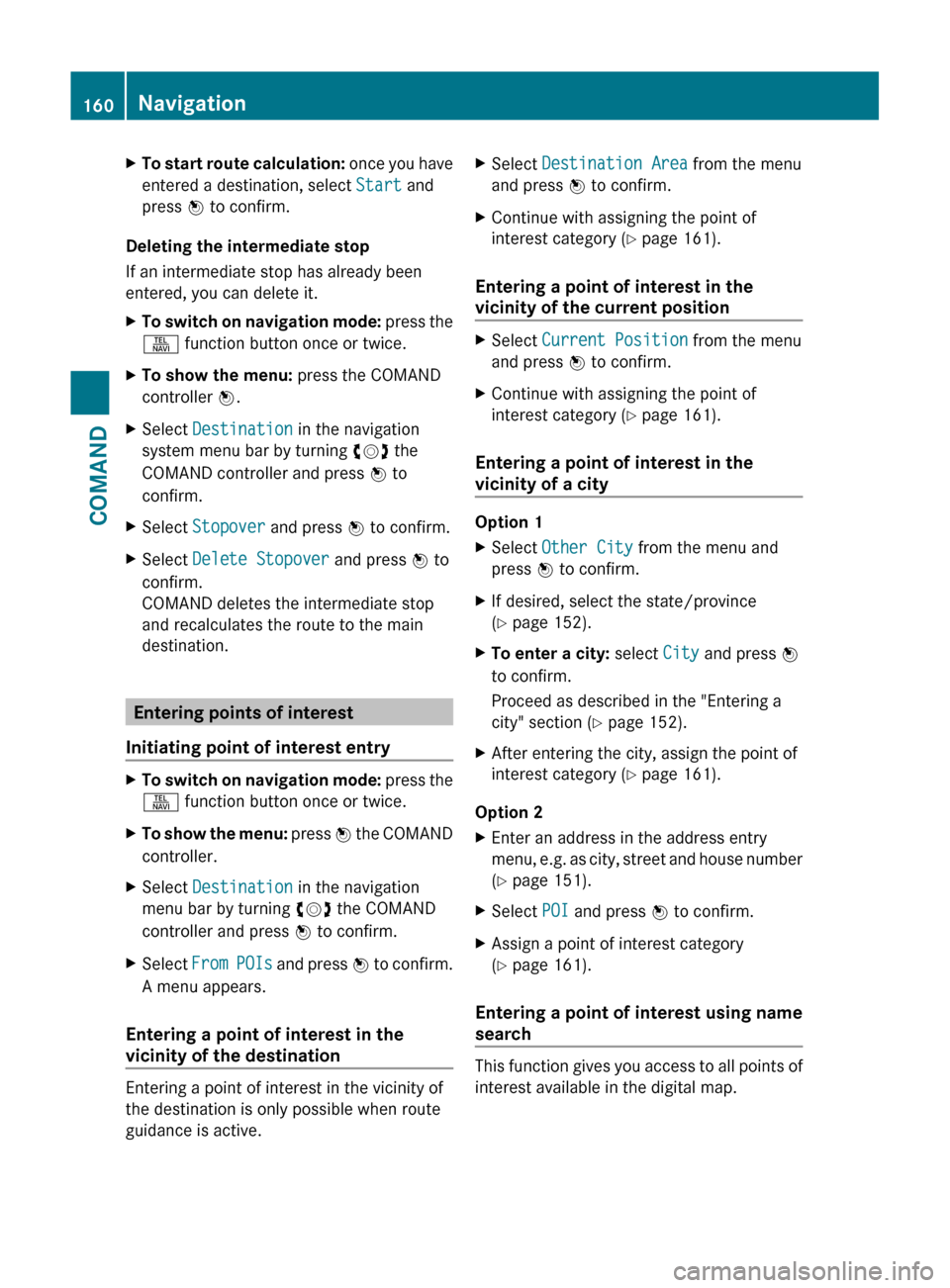
XTo start route calculation: once you have
entered a destination, select Start and
press W to confirm.
Deleting the intermediate stop
If an intermediate stop has already been
entered, you can delete it.
XTo switch on navigation mode: press the
S function button once or twice.XTo show the menu: press the COMAND
controller W.XSelect Destination in the navigation
system menu bar by turning cVd the
COMAND controller and press W to
confirm.XSelect Stopover and press W to confirm.XSelect Delete Stopover and press W to
confirm.
COMAND deletes the intermediate stop
and recalculates the route to the main
destination.
Entering points of interest
Initiating point of interest entry
XTo switch on navigation mode: press the
S function button once or twice.XTo show the menu: press W the COMAND
controller.XSelect Destination in the navigation
menu bar by turning cVd the COMAND
controller and press W to confirm.XSelect From POIs and press W to confirm.
A menu appears.
Entering a point of interest in the
vicinity of the destination
Entering a point of interest in the vicinity of
the destination is only possible when route
guidance is active.
XSelect Destination Area from the menu
and press W to confirm.XContinue with assigning the point of
interest category ( Y page 161).
Entering a point of interest in the
vicinity of the current position
XSelect Current Position from the menu
and press W to confirm.XContinue with assigning the point of
interest category ( Y page 161).
Entering a point of interest in the
vicinity of a city
Option 1
XSelect Other City from the menu and
press W to confirm.XIf desired, select the state/province
( Y page 152).XTo enter a city: select City and press W
to confirm.
Proceed as described in the "Entering a
city" section ( Y page 152).XAfter entering the city, assign the point of
interest category ( Y page 161).
Option 2
XEnter an address in the address entry
menu, e.g. as city, street and house number
( Y page 151).XSelect POI and press W to confirm.XAssign a point of interest category
( Y page 161).
Entering a point of interest using name
search
This function gives you access to all points of
interest available in the digital map.
160NavigationCOMAND