Page 285 of 574
Changing and Selecting the Folders/Files
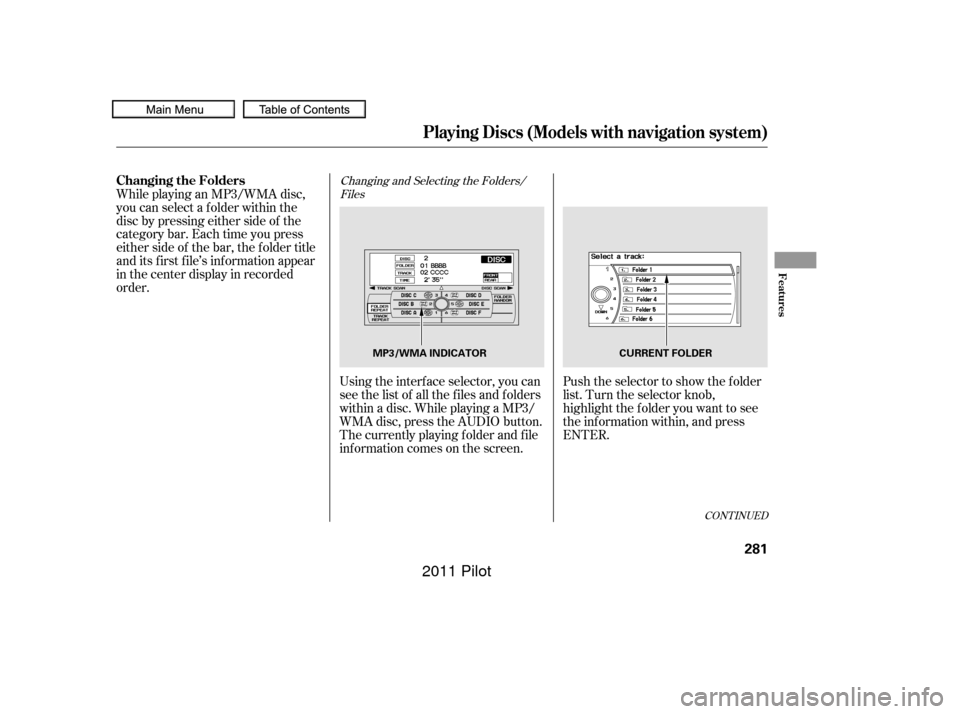
Using the interf ace selector, you can
see the list of all the f iles and f olders
within a disc. While playing a MP3/
WMA disc, press the AUDIO button.
The currently playing f older and f ile
inf ormation comes on the screen. Push the selector to show the f older
list. Turn the selector knob,
highlight the f older you want to see
the information within, and press
ENTER.
While playing an MP3/WMA disc,
you can select a f older within the
disc by pressing either side of the
category bar. Each time you press
either side of the bar, the folder title
and its f irst f ile’s inf ormation appear
in the center display in recorded
order.
CONT INUED
Playing Discs (Models with navigation system)
Changing the Folders
Features
281
MP3/WMA INDICATOR
CURRENT FOLDER
10/01/26 19:11:15 31SZA620_286
2011 Pilot
Page 292 of 574
Playing an iPod(Models with navigation system)
288
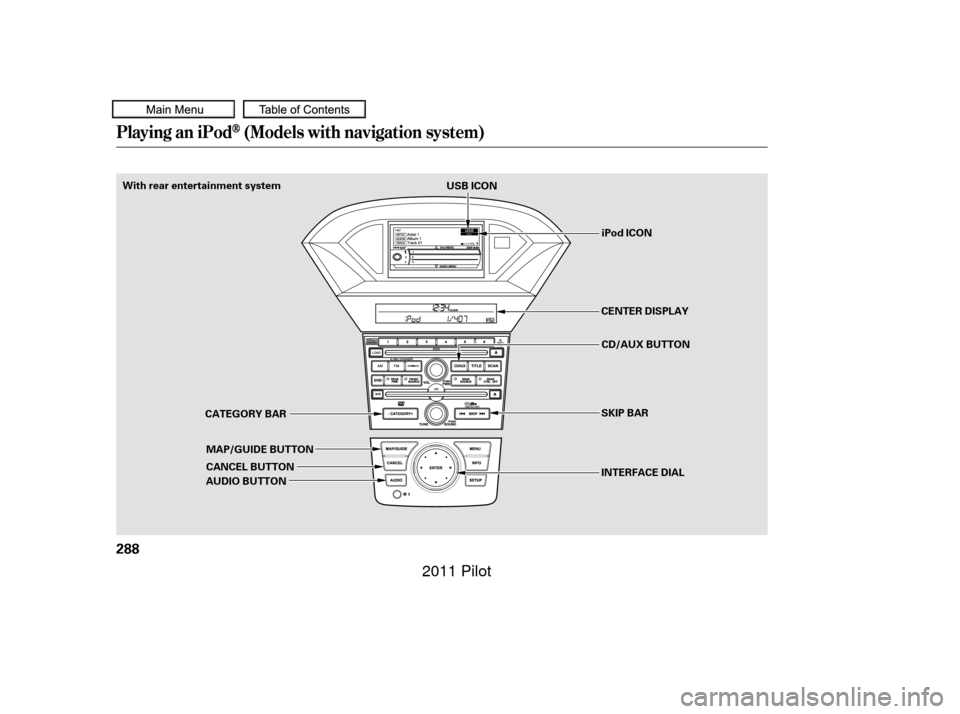
CATEGORY BARUSB ICON
iPod ICON
MAP/GUIDE BUTTON
AUDIO BUTTON CANCEL BUTTON
With rear entertainment system
CENTER DISPLAY
SKIP BAR
INTERFACE DIALCD/AUX BUTTON
10/01/26 19:12:32 31SZA620_293
2011 Pilot
Page 295 of 574
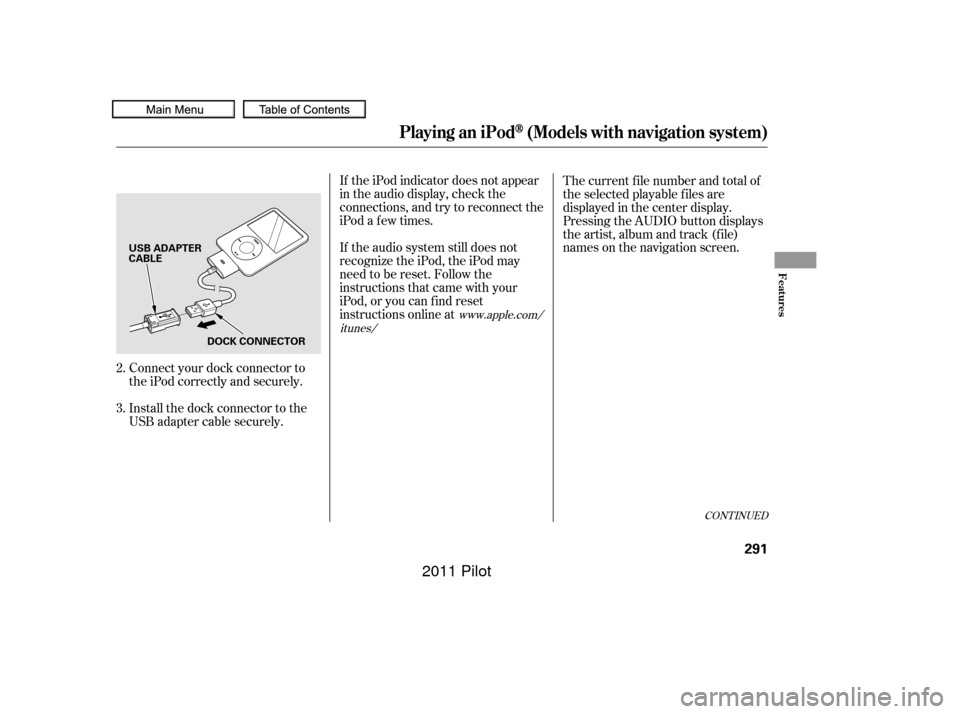
Connect your dock connector to
the iPod correctly and securely.
Install the dock connector to the
USB adapter cable securely.If the iPod indicator does not appear
in the audio display, check the
connections, and try to reconnect the
iPod a f ew times.
If the audio system still does not
recognize the iPod, the iPod may
need to be reset. Follow the
instructions that came with your
iPod, or you can f ind reset
instructions online at
The current f ile number and total of
the selected playable f iles are
displayed in the center display.
Pressing the AUDIO button displays
the artist, album and track (f ile)
names on the navigation screen.
2.
3.
www.apple.com/
itunes/
CONT INUED
Playing an iPod(Models with navigation system)
Features
291
USB ADAPTER
CABLE
DOCK CONNECTOR
10/01/26 19:13:01 31SZA620_296
2011 Pilot
Page 300 of 574
�Î
�ΠYou can disconnect the iPod at any
time when you see ‘‘OK to
disconnect’’ message in the iPod
display. Always make sure you see
‘‘OK to disconnect’’ message in the
iPod display bef ore you disconnect it.
Make sure to f ollow the iPod’s
instructions on how to disconnect
the dock connector f rom the USB
adapter cable.The displayed message may
vary on models or versions. On
some models, there is no
message to disconnect.
When you disconnect the iPod while
it is playing, the center display and
the audio screen (if selected) show
NO DATA. If you see an error message in the
center display, see page .
If you reconnect the same iPod, the
system may begin playing where it
lef t of f , depending on what mode the
iPod is in when it is reconnected.
: 297
Disconnect ing an iPodiPodError Messages
Playing an iPod(Models with navigation system)
296
10/01/26 19:13:46 31SZA620_301
2011 Pilot
Page 301 of 574
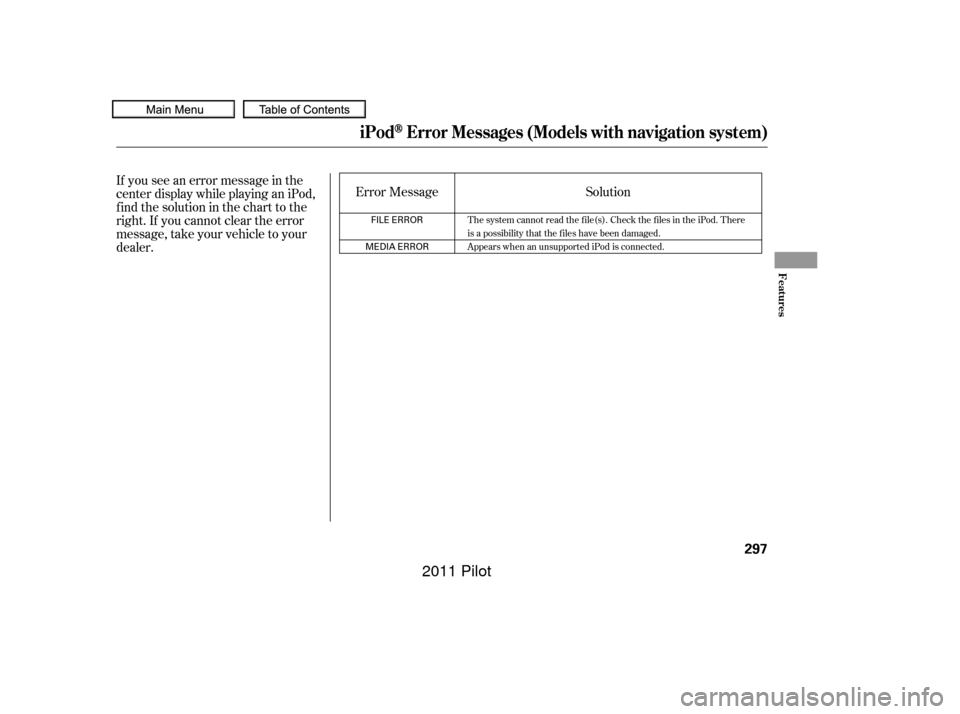
If you see an error message in the
center display while playing an iPod,
f ind the solution in the chart to the
right. If you cannot clear the error
message, take your vehicle to your
dealer.Error Message
Solution
The system cannot read the file(s). Check the files in the iPod. There
is a possibility that the files have been damaged.
Appears when an unsupported iPod is connected.
iPodError Messages (Models with navigation system)
Features
297
FILE ERROR
MEDIA ERROR
10/01/26 19:13:51 31SZA620_302
2011 Pilot
Page 302 of 574
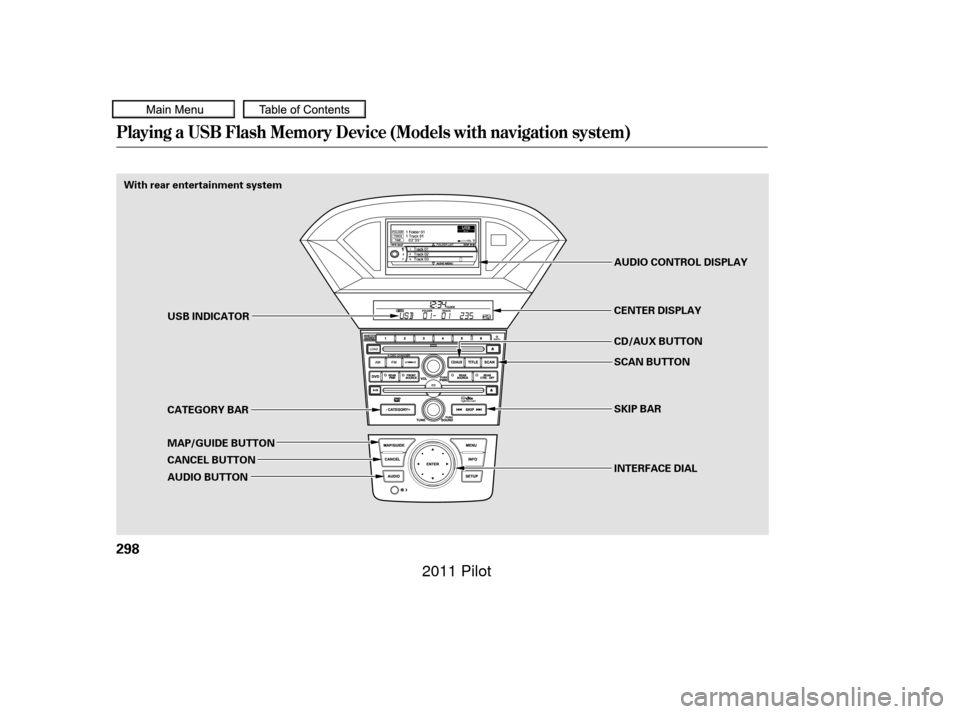
Playing a USB Flash Memory Device (Models with navigation system)
298
With rear entertainment systemINTERFACE DIAL SKIP BAR SCAN BUTTON CD/AUX BUTTON CENTER DISPLAY AUDIO CONTROL DISPLAY
USB INDICATOR
CATEGORY BAR
MAP/GUIDE BUTTON
CANCEL BUTTON
AUDIO BUTTON
10/01/26 19:13:57 31SZA620_303
2011 Pilot
Page 305 of 574
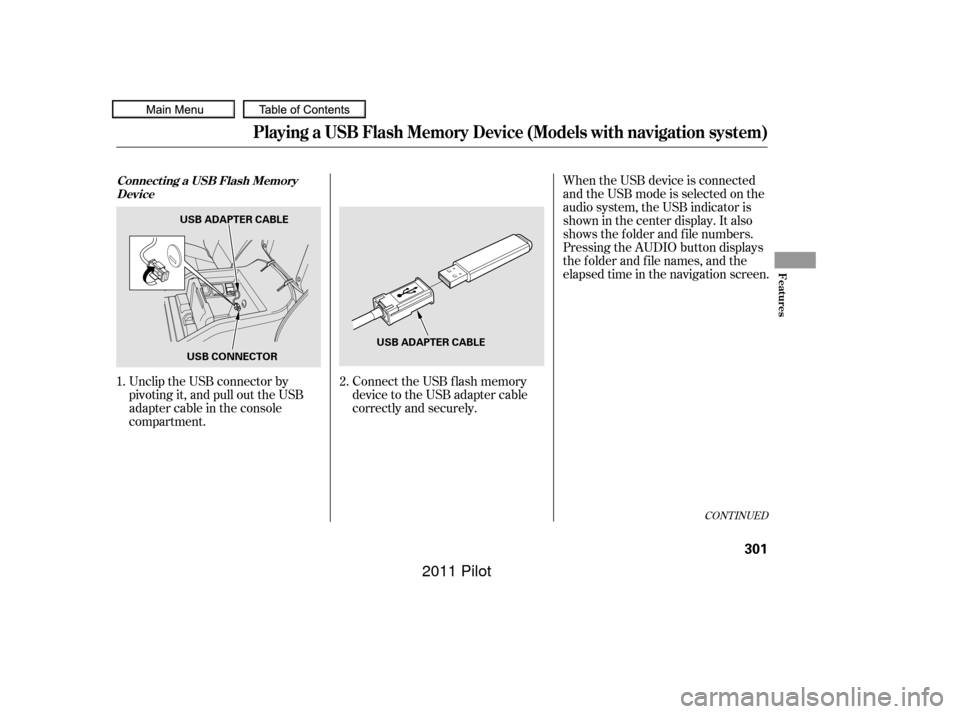
When the USB device is connected
andtheUSBmodeisselectedonthe
audio system, the USB indicator is
showninthecenterdisplay.Italso
shows the f older and f ile numbers.
Pressing the AUDIO button displays
the f older and f ile names, and the
elapsed time in the navigation screen.
Unclip the USB connector by
pivoting it, and pull out the USB
adapter cable in the console
compartment. Connect the USB f lash memory
device to the USB adapter cable
correctly and securely.
2.
1.
CONT INUED
Connect ing a USB Flash Memory
Device
Playing a USB Flash Memory Device (Models with navigation system)
Features
301
USB ADAPTER CABLE
USB CONNECTOR USB ADAPTER CABLE
10/01/26 19:14:40 31SZA620_306
2011 Pilot
Page 309 of 574
�µ�µ
You can also select the scan feature
with the SCAN button on the control
panel.
Press and release the SCAN button.
Press and hold the SCAN button to
get out of the scan mode and play
the last f ile sampled. You can also select the folder scan
f eature with the SCAN button on the
control panel. Press and release the
SCAN button repeatedly.
Press and hold the SCAN button to
get out of the f older scan mode and
play the last f ile sampled.
This f unction
samples all f iles in the selected
f older in the order they are stored.
To activate the scan feature, push
the selector to the right. You will see
TRACK SCAN on the screen. You
will also see SCAN on the center
display and the f ile number blinking.
You will get a 10 second sampling of
each f ile in the f older. Push the
selector to the right repeatedly to get
out of the scan mode. The system
plays the last f ile sampled. This f unction
samples the f irst f ile in each f older in
the order they are stored. To
activate the folder scan feature, push
the selector to the right repeatedly.
You will see FOLDER SCAN on the
screen. You will also see SCAN on
the center display and the folder
number blinking. You will get a 10
second sampling of the f irst f ile in
each f older. Push the selector to the
righttogetoutofthescanmode.
The system plays the last f ile
sampled. Pressing either side of the
CATEGORY or SKIP bar or button
also turns off the feature.
Playing a USB Flash Memory Device (Models with navigation system)
T RACK SCAN
FOL DER SCAN
Features
305
10/01/26 19:15:19 31SZA620_310
2011 Pilot