Page 262 of 574
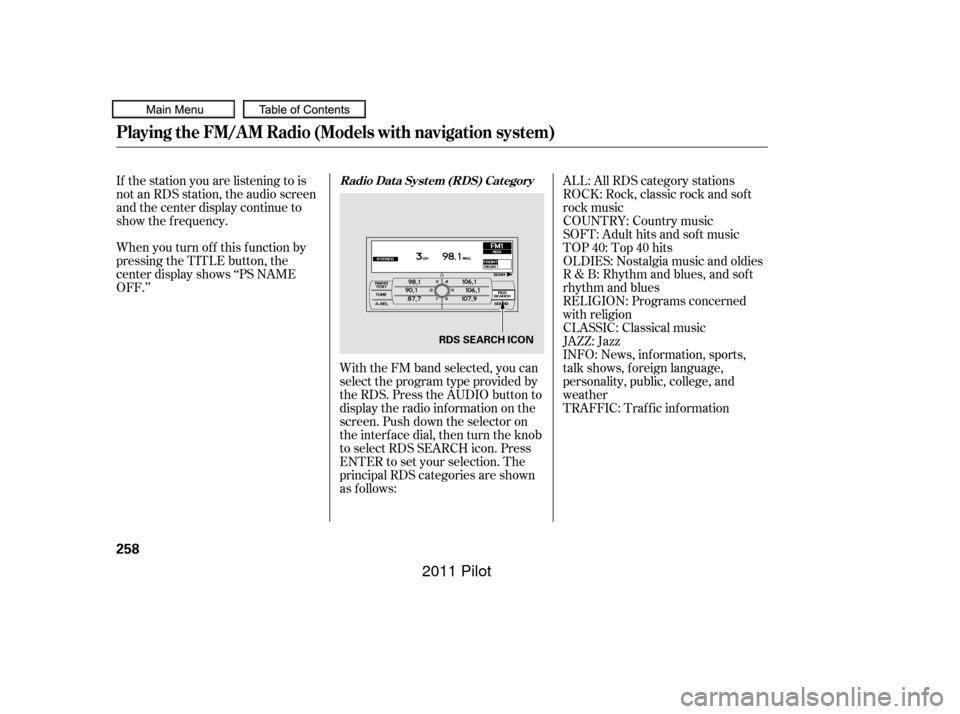
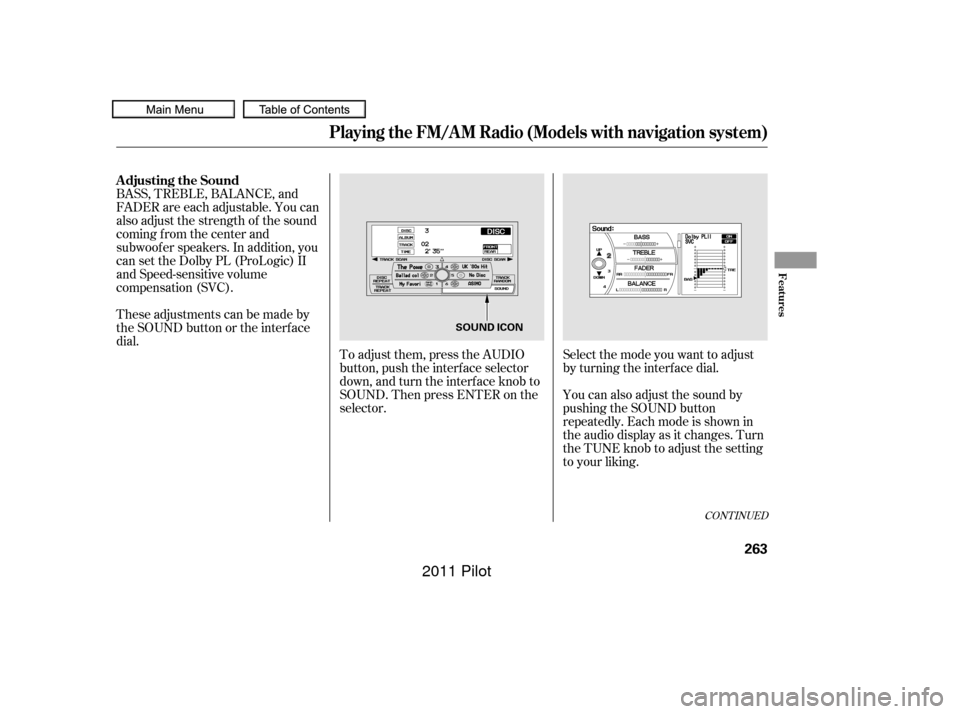
With the FM band selected, you can
select the program type provided by
the RDS. Press the AUDIO button to
display the radio inf ormation on the
screen. Push down the selector on
the interf ace dial, then turn the knob
to select RDS SEARCH icon. Press
ENTER to set your selection. The
principal RDS categories are shown
as f ollows:
If the station you are listening to is
not an RDS station, the audio screen
and the center display continue to
show the f requency.
INFO: News, inf ormation, sports,
talk shows, f oreign language,
personality, public, college, and
weather JAZZ: Jazz CLASSIC: Classical music RELIGION: Programs concerned
with religion R & B: Rhythm and blues, and sof t
rhythm and blues OLDIES: Nostalgia music and oldies TOP 40: Top 40 hits
SOFT: Adult hits and sof t music
COUNTRY: Country music ROCK: Rock, classic rock and sof t
rock music ALL: All RDS category stations
TRAFFIC: Traffic information
When you turn of f this f unction by
pressing the TITLE button, the
center display shows ‘‘PS NAME
OFF.’’
Playing the FM/A M Radio (Models with navigation system)
Radio Data System (RDS) Category
258
RDS SEARCH ICON
10/01/26 19:07:29 31SZA620_263
2011 Pilot
Page 263 of 574
�µ�´
CONT INUED
If the system does not find a station,
‘‘NOTHING’’ will be blinking f or
about 5 seconds, then the system
goes back to the last selected station.
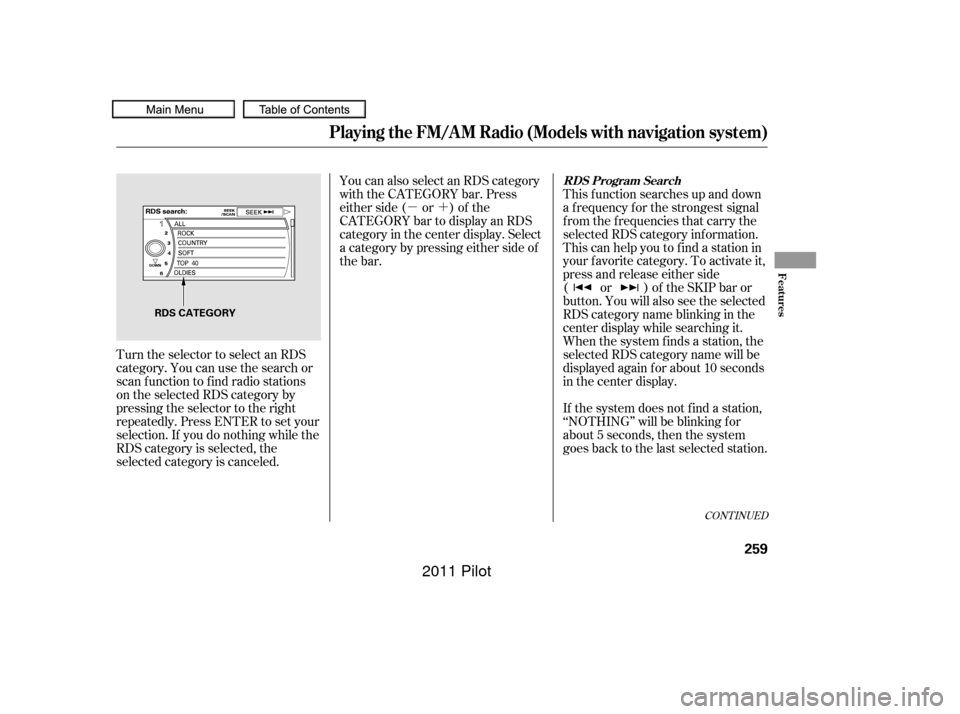
Turn the selector to select an RDS
category. You can use the search or
scan function to find radio stations
on the selected RDS category by
pressing the selector to the right
repeatedly. Press ENTER to set your
selection. If you do nothing while the
RDS category is selected, the
selected category is canceled. This f unction searches up and down
a f requency f or the strongest signal
f rom the f requencies that carry the
selected RDS category inf ormation.
This can help you to find a station in
your favorite category. To activate it,
press and release either side
( or ) of the SKIP bar or
button. You will also see the selected
RDS category name blinking in the
center display while searching it.
When the system finds a station, the
selected RDS category name will be
displayed again for about 10 seconds
in the center display.
You can also select an RDS category
with the CATEGORY bar. Press
either side ( or ) of the
CATEGORY bar to display an RDS
category in the center display. Select
a category by pressing either side of
the bar.
Playing the FM/A M Radio (Models with navigation system)
RDS Program Search
Features
259
RDS CATEGORY
10/01/26 19:07:38 31SZA620_264
2011 Pilot
Page 267 of 574
BASS, TREBLE, BALANCE, and
FADER are each adjustable. You can
also adjust the strength of the sound
coming from the center and
subwoof er speakers. In addition, you
can set the Dolby PL (ProLogic) II
and Speed-sensitive volume
compensation (SVC).Selectthemodeyouwanttoadjust
by turning the interf ace dial.
You can also adjust the sound by
pushing the SOUND button
repeatedly. Each mode is shown in
the audio display as it changes. Turn
the TUNE knob to adjust the setting
to your liking.
To adjust them, press the AUDIO
button, push the interf ace selector
down, and turn the interf ace knob to
SOUND. Then press ENTER on the
selector.
Theseadjustmentscanbemadeby
the SOUND button or the interface
dial.
CONT INUED
Adjusting the Sound
Playing the FM/A M Radio (Models with navigation system)
Features
263
SOUND ICON
10/01/26 19:08:14 31SZA620_268
2011 Pilot
Page 268 of 574

�µ�µ �µTo adjust bass
and treble, select BASS or TREBLE,
andpressENTERontheinterface
selector. The current setting is
shownonthedisplay.Turnthe
interf ace knob to the desired level,
and enter your selection by pressing
ENTER on the interf ace selector. These
modes adjust the strength of the
sound coming f rom each speaker.
Fader adjusts the f ront-to-back
strength, while balance adjusts the
side-to-side strength. To adjust f ader
and balance, select FADER or
BALANCE, then press ENTER on
the interf ace selector. The current
setting is shown on the screen. Turn
the interface knob to the desired
level, and enter your selection by
pressing ENTER on the interf ace
selector. To equalize the f ader or
balance, turn the interf ace knob until
the marks on the sound grid come to
the center of the adjustment bar. To
adjust the strength of the sound
f rom the center or subwoof er
speaker, select it and press ENTER
on the interf ace selector. Turn the
interf ace knob to the desired level,
and enter your selection by pressing
ENTER on the interf ace selector.
BASS/TREBL E
FADER/BAL ANCE CENTER/SUBWOOFER
Playing the FM/A M Radio (Models with navigation system)
264
10/01/26 19:08:20 31SZA620_269
2011 Pilot
Page 272 of 574

�µ
�µ In the category mode, such as Jazz,
Rock, Classical, etc., you can
navigate through all of the channels
within that category. In the channel
mode, you can select all of the
available channels.
Onthescreen,youwillseethe
selected CHANNEL (number),
CATEGORY, NAME (artist name),
and TITLE (music title). Turn the TUNE knob to
change channel selections. Turn the
knob right f or higher numbered
channels and lef t f or lower
numbered channels. You can also
change channels with the interf ace
selector, push down the interf ace
selector to choose TUNE and press
ENTERontheselector.Turnthe
interf ace knob to the same directions.
In the category mode, you can only
select channels within that category.
To switch between the
category mode and channel mode,
press and hold the TITLE button
until the mode changes. The
CATEGORY or CHANNEL mode is
displayed on the screen. To switch
the mode with the interf ace dial,
push down the interf ace selector to
select AUDIO MENU, then turn the
knob to select MODE, and press
ENTER on the selector repeatedly. Each time you press and release the
TITLE button, the center display
changes in the f ollowing sequence:
NAME (artist name), TITLE (music
title), and CHANNEL NAME
(channel name).
Playing the XMRadio (Models with navigation system)
TUNE
MODE
268
10/01/26 19:08:53 31SZA620_273
2011 Pilot
Page 279 of 574
Your vehicle’s audio system has an
in-dash disc changer with the same
controls used f or the radio. To
operate the disc changer, the ignition
switch must be in the ACCESSORY
(I) or the ON (II) position.
The disc changer can play these disc
formats:When playing a disc in MP3, you will
see ‘‘MP3’’ in the display. In WMA
f ormat, ‘‘WMA’’ will appear in the
display. The changer can also play MP3 or
WMA format (see page ).If a f ile on an MP3 or WMA disc is
protected by digital rights
management (DRM), the audio
system displays UNSUPPORTED in
the center display, and then skips to
the next f ile.
Video CDs and DVD discs will not
work in this unit.
Some CD-DA and CD-ROM mixed
discs are not playable.
You cannot load and play 3-inch
(8-cm)discsinthissystem.
CD (CD-DA)
CD-R/RW
MP3/WMA
If you have a disc that is a
combination of CD-DA tracks and
MP3/WMA f iles, you can choose the
format to listen to by pressing and
holding the CD/AUX button until
you hear a beep.
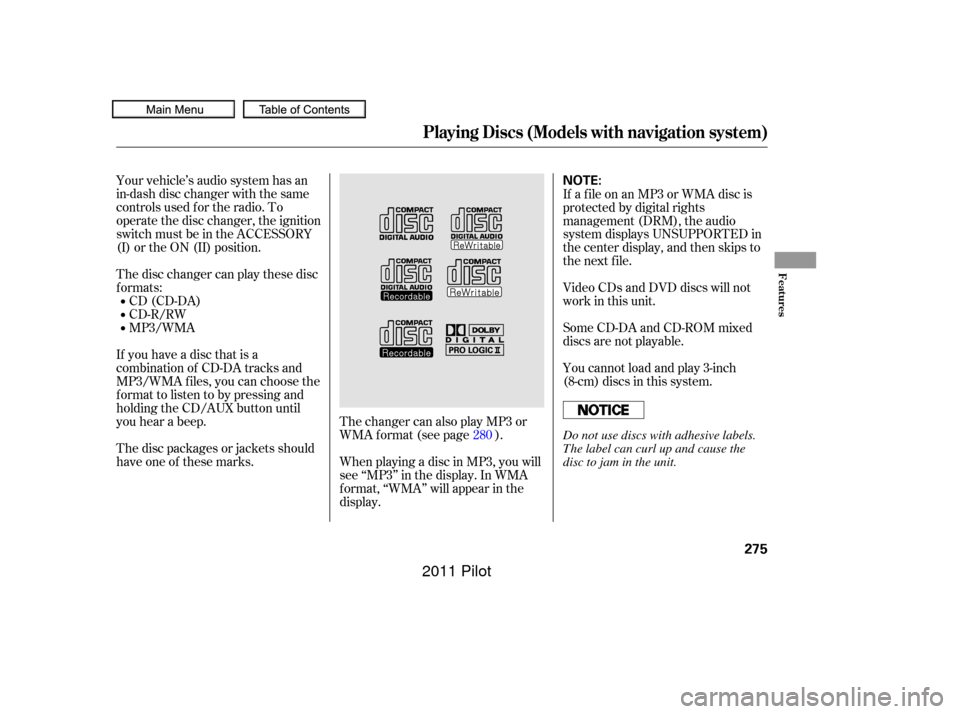
The disc packages or jackets should
have one of these marks. 280
Playing Discs (Models with navigation system)
Features
275
NOTE:
Do not use discs with adhesive labels.
The label can curl up and cause the
disc to jam in the unit.
10/01/26 19:10:06 31SZA620_280
2011 Pilot
Page 281 of 574
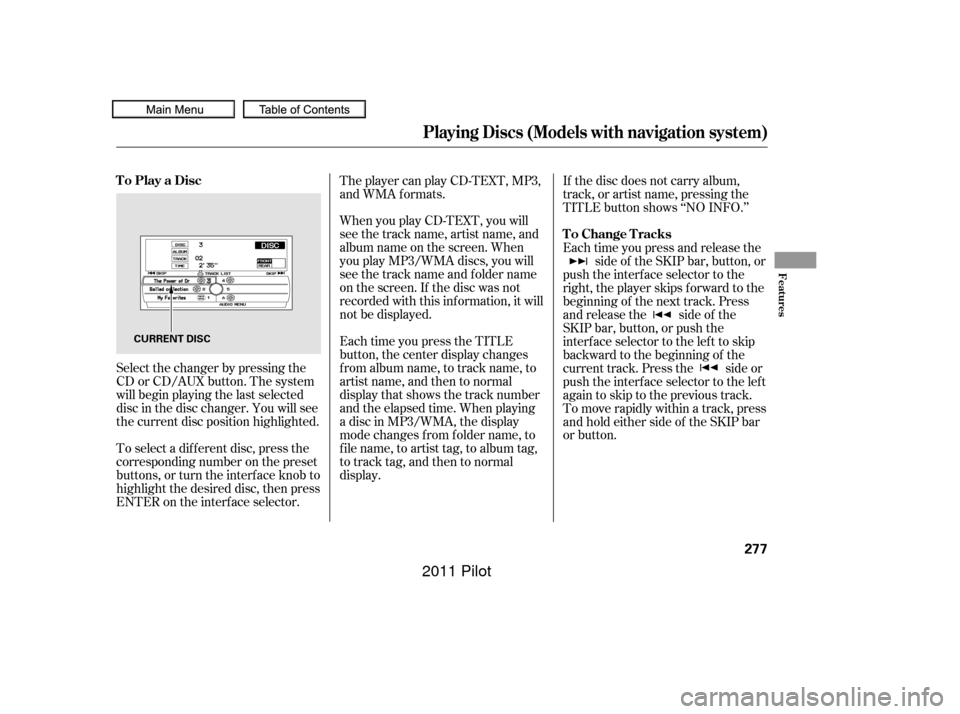
When you play CD-TEXT, you will
see the track name, artist name, and
album name on the screen. When
you play MP3/WMA discs, you will
see the track name and folder name
on the screen. If the disc was not
recorded with this inf ormation, it will
not be displayed.
To select a dif f erent disc, press the
corresponding number on the preset
buttons, or turn the interf ace knob to
highlight the desired disc, then press
ENTER on the interf ace selector. The player can play CD-TEXT, MP3,
and WMA formats.
Select the changer by pressing the
CD or CD/AUX button. The system
will begin playing the last selected
disc in the disc changer. You will see
the current disc position highlighted. Each time you press the TITLE
button, the center display changes
f rom album name, to track name, to
artist name, and then to normal
display that shows the track number
and the elapsed time. When playing
a disc in MP3/WMA, the display
mode changes f rom f older name, to
f ile name, to artist tag, to album tag,
to track tag, and then to normal
display.If the disc does not carry album,
track, or artist name, pressing the
TITLE button shows ‘‘NO INFO.’’
Each time you press and release the
side of the SKIP bar, button, or
push the interface selector to the
right, the player skips forward to the
beginning of the next track. Press
and release the side of the
SKIP bar, button, or push the
interface selector to the left to skip
backward to the beginning of the
current track. Press the side or
push the interface selector to the left
againtoskiptotheprevioustrack.
To move rapidly within a track, press
andholdeithersideof theSKIPbar
or button.
Playing Discs (Models with navigation system)
To Play a Disc
To Change Tracks
Features
277
CURRENT DISC
10/01/26 19:10:31 31SZA620_282
2011 Pilot
Page 284 of 574

�µ
�µ
�µ
�µ
�µ �µ
�µ
�µ
To take the system out of disc mode,
press the AM or FM button, the
button, AUX button, or CD/
AUX button. To return to disc mode,
press the CD button or CD/AUX
button.
If you turn the system of f while a
disc is playing, either with the
power/volume knob or the ignition
switch, play will continue at the same
point when you turn it back on. The CD changer can play CD-Rs and
CD-RWscompressedinMP3and
WMA format. When playing a disc in
MP3 or WMA, you will see ‘‘MP3’’ or
‘‘WMA’’ on the center display. A disc
can support more than 99 f olders,
and each folder can hold up to 255
playable f iles.
When there are more than 99 f olders
on a disc, the center display only
shows two digits.
The specif ications f or compatible
MP3 f iles are:
Sampling f requency:
32/44.1/48 kHz (MPEG1), 16/
22.05/24 kHz (MPEG2)
Bitrate:
32/40/48/56/64/80/96/112/128/
160/192/224/256/320 kbps
(MPEG1), 8/16/24/32/40/48/56/
64/80/96/112/128/160 kbps
(MPEG2)
Compatible with variable bitrate and multi-session.
Maximum layers
(including ROOT): 8 layers
The specif ications f or compatible
WMA f iles are: Sampling f requency:
22.05/32/44.1/48 kHz
Bitrate:
48/64/80/96/128/160/192 kbps
Compatible with variable bitrate
and multi-session
Maximum layers
(including ROOT): 8 layers
To play an MP3/WMA disc, use the
disc controls previously described,
along with the f ollowing inf ormation.
Playing Discs (Models with navigation system)
To Stop Playing a Disc Playing an MP3/WMA Disc
280
10/01/26 19:11:04 31SZA620_285
2011 Pilot