Page 359 of 722
�µ
�µ
�µ
�µ
�µ
�µ
�µ
�µ
�µRecording f unction f rom f ollowing
media is not supported.
CD-DA which prohibits the
copying by SCMS
CD-DA with copy control
SACD (Super Audio CD)
DTS-CD
DVD-A
CD-R/RW
DVD-R/RW
Copy controlled CDs (Playback
cannot be guaranteed)
DTS-CDs (Only enabled f or
playback)
The Hard Disc Drive (HDD) Audio
f unction can record tracks f rom
music CDs to the navigation system’s
hard disc. This f unction also allows
f or various playing methods, such as
playingrecordedtracksonanartist-
by-artist or genre-by-genre basis. For
example, you can play the tracks that
youwanttolistentoinanyorder
that you like f or each playlist.
Music data recorded on HDD can
only be used f or personal
enjoyment.
Data is recorded using ultra-
ef f icient compression technology,
theref ore, sound quality may vary
slightly f rom the original.
Title inf ormation will be displayed
when the inf ormation is f ound in
the Gracenote
Album Inf o
(Gracenote
Media Database) on
the built-in hard disk drive. See
page .
If the HDD is ever replaced, all data
will be lost and stored music will not
be recovered.
Only recordings f rom a standard
CD-DA (44.1 kHz, 16 bit stereo
PCM digital sound data) to HDD
are supported.
Digital music f iles, such as MP3,
WMA, AAC etc., in CD-R, DVD-R
and USB f lash memory devices
cannot be copied to HDD.
Likewise, digital music f iles
recorded to HDD cannot be copied
to CD-R, DVD-R and USB devices. 380
Playing Hard Disc Drive (HDD) Audio (Models with navigation system)356NOTE:
10/07/17 10:21:33 31TK8600_361
2011 Odyssey
Page 366 of 722
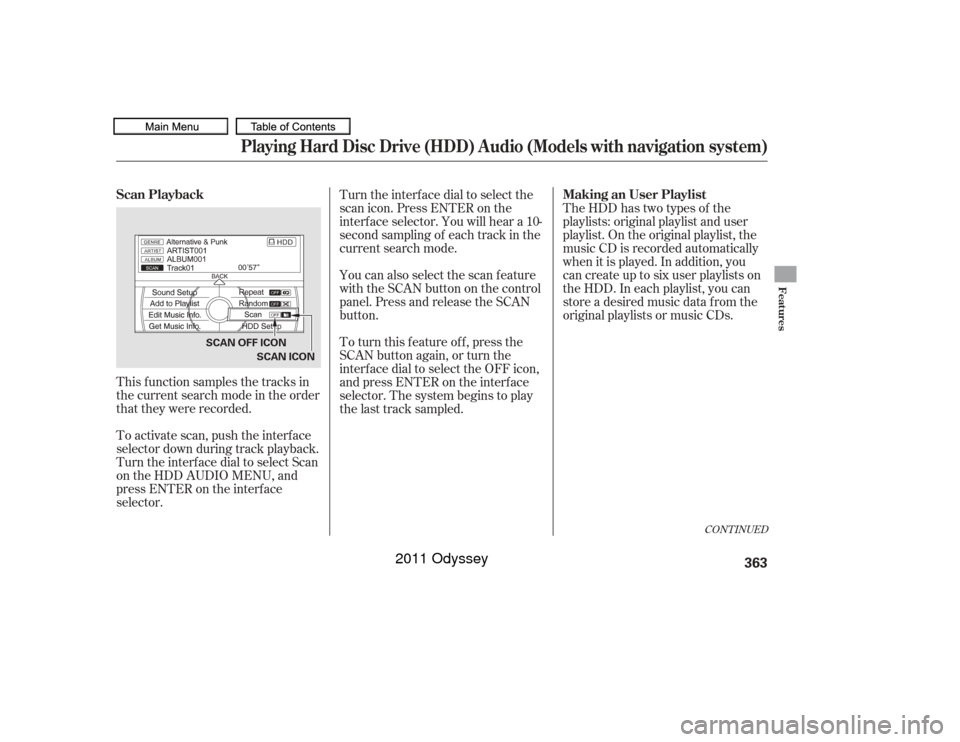
This f unction samples the tracks in
the current search mode in the order
that they were recorded.
To activate scan, push the interface
selector down during track playback.
Turn the interf ace dial to select Scan
on the HDD AUDIO MENU, and
press ENTER on the interf ace
selector.Turn the interface dial to select the
scan icon. Press ENTER on the
interf ace selector. You will hear a 10-
second sampling of each track in the
current search mode.
TheHDDhastwotypesof the
playlists: original playlist and user
playlist. On the original playlist, the
music CD is recorded automatically
when it is played. In addition, you
can create up to six user playlists on
the HDD. In each playlist, you can
store a desired music data f rom the
original playlists or music CDs.
You can also select the scan feature
with the SCAN button on the control
panel. Press and release the SCAN
button.
To turn this feature off, press the
SCAN button again, or turn the
interf ace dial to select the OFF icon,
andpressENTERontheinterface
selector. The system begins to play
the last track sampled.
CONT INUED
Scan Playback
Making an User Playlist
Playing Hard Disc Drive (HDD) Audio (Models with navigation system)
Features
363
SCAN OFF ICON
SCAN ICON
10/07/17 10:22:38 31TK8600_368
2011 Odyssey
Page 367 of 722
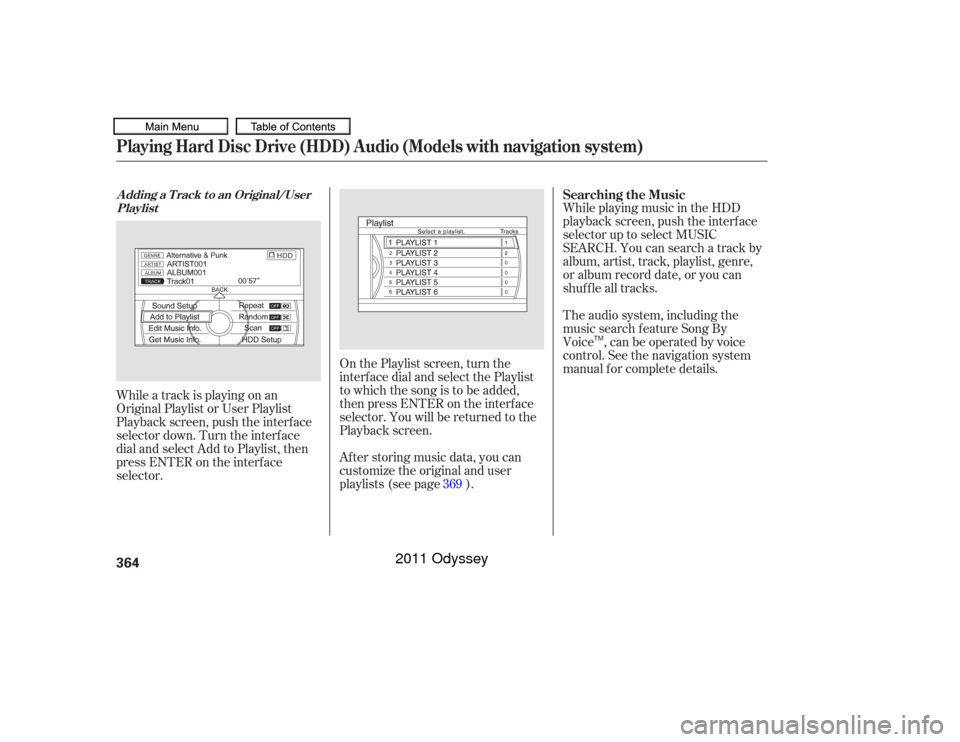
While playing music in the HDD
playback screen, push the interf ace
selector up to select MUSIC
SEARCH. You can search a track by
album, artist, track, playlist, genre,
or album record date, or you can
shuf f le all tracks.
While a track is playing on an
Original Playlist or User Playlist
Playback screen, push the interf ace
selector down. Turn the interf ace
dial and select Add to Playlist, then
press ENTER on the interf ace
selector. After storing music data, you can
customize the original and user
playlists (see page ). On the Playlist screen, turn the
interf ace dial and select the Playlist
to which the song is to be added,
then press ENTER on the interf ace
selector. You will be returned to the
Playback screen.The audio system, including the
music search f eature Song By
Voice , can be operated by voice
control. See the navigation system
manual f or complete details.
369 Searching the Music
A dding a T rack t o an Original/User
PlaylistPlaying Hard Disc Drive (HDD) Audio (Models with navigation system)364
TM
10/07/17 10:22:45 31TK8600_369
2011 Odyssey
Page 387 of 722
The audio system reads and plays
playable sound f iles on the iPod. The
system cannot operate an iPod as a
mass storage device. The system will
only play songs stored on the iPod
with iTunes.
iPod and iTunes are registered
trademarks owned by Apple Inc.
You can select the AUX mode by
using the voice control buttons.
This audio system can select and
play the audio f iles on the iPod
with
the same controls used f or the in-
dash disc player. To play an iPod,
connect it to the USB adapter cable
in the glove box by using your dock
connector, then press the USB/AUX
button. The ignition switch must be
in the ACCESSORY (I) or ON (II)
position. The iPod will also be
charged with the ignition switch in
these settings.
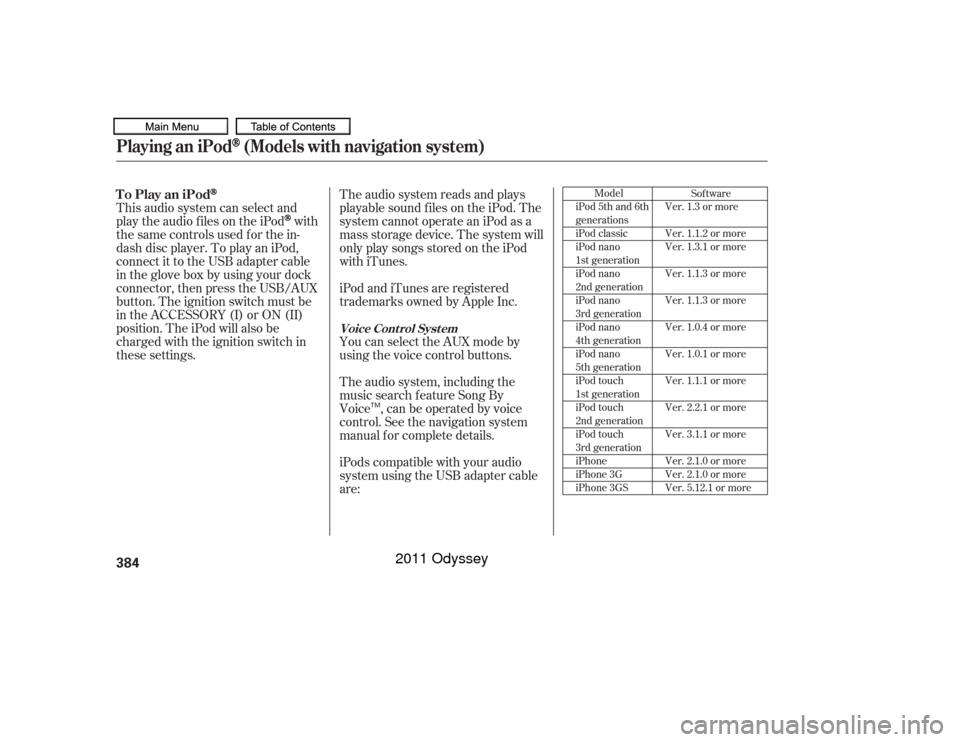
iPods compatible with your audio
system using the USB adapter cable
are: The audio system, including the
music search f eature Song By
Voice , can be operated by voice
control. See the navigation system
manual f or complete details.
Model
iPod 5th and 6th
generations
iPod classic
iPod nano
1st generation
iPod nano
2nd generation
iPod nano
3rd generation
iPod nano
4th generation
iPod nano
5th generation
iPod touch
1st generation
iPod touch
2nd generation
iPod touch
3rd generation
iPhone
iPhone 3G
iPhone 3GS Sof tware
Ver. 1.3 or more
Ver. 1.1.2 or more
Ver. 1.3.1 or more
Ver. 1.1.3 or more
Ver. 1.1.3 or more
Ver. 1.0.4 or more
Ver. 1.0.1 or more
Ver. 1.1.1 or more
Ver. 2.2.1 or more
Ver. 3.1.1 or more
Ver. 2.1.0 or more
Ver. 2.1.0 or more
Ver. 5.12.1 or more
To Play an iPod
Voice Cont rol Syst em
Playing an iPod
(Models with navigation system)
384
TM
10/07/17 10:25:28 31TK8600_389
2011 Odyssey
Page 390 of 722
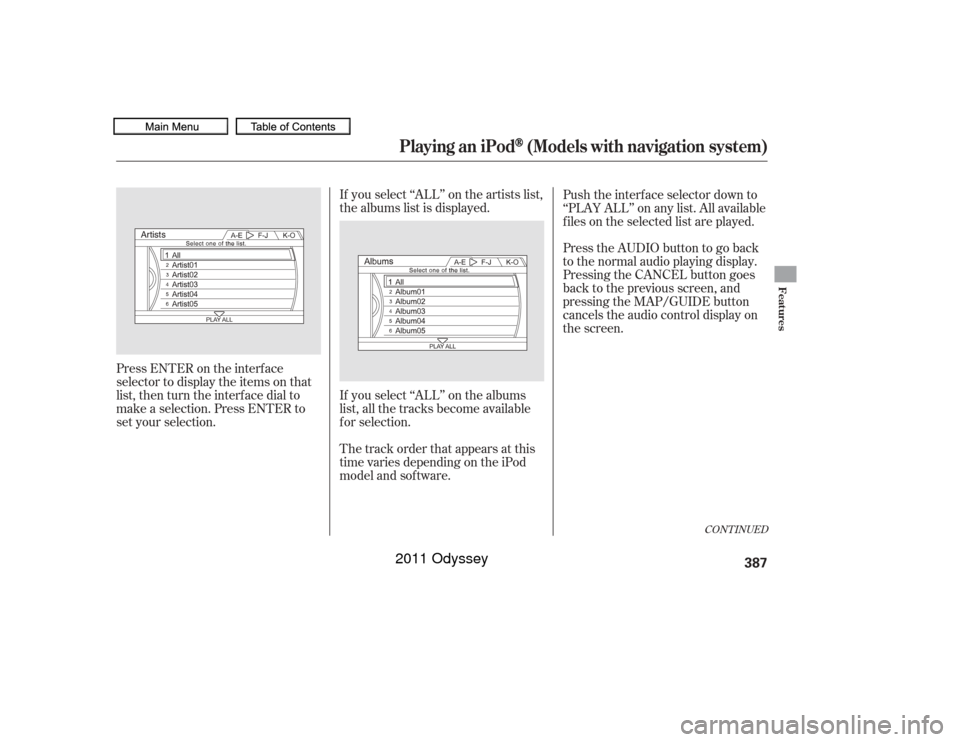
If you select ‘‘ALL’’ on the artists list,
the albums list is displayed.
If you select ‘‘ALL’’ on the albums
list, all the tracks become available
f or selection.
The track order that appears at this
time varies depending on the iPod
model and sof tware.
Press ENTER on the interf ace
selector to display the items on that
list, then turn the interface dial to
make a selection. Press ENTER to
set your selection. Push the interf ace selector down to
‘‘PLAY ALL’’ on any list. All available
f iles on the selected list are played.
PresstheAUDIObuttontogoback
to the normal audio playing display.
Pressing the CANCEL button goes
back to the previous screen, and
pressing the MAP/GUIDE button
cancels the audio control display on
the screen.
CONT INUED
Playing an iPod
(Models with navigation system)
Features
387
10/07/17 10:25:54 31TK8600_392
2011 Odyssey
Page 391 of 722
�µ
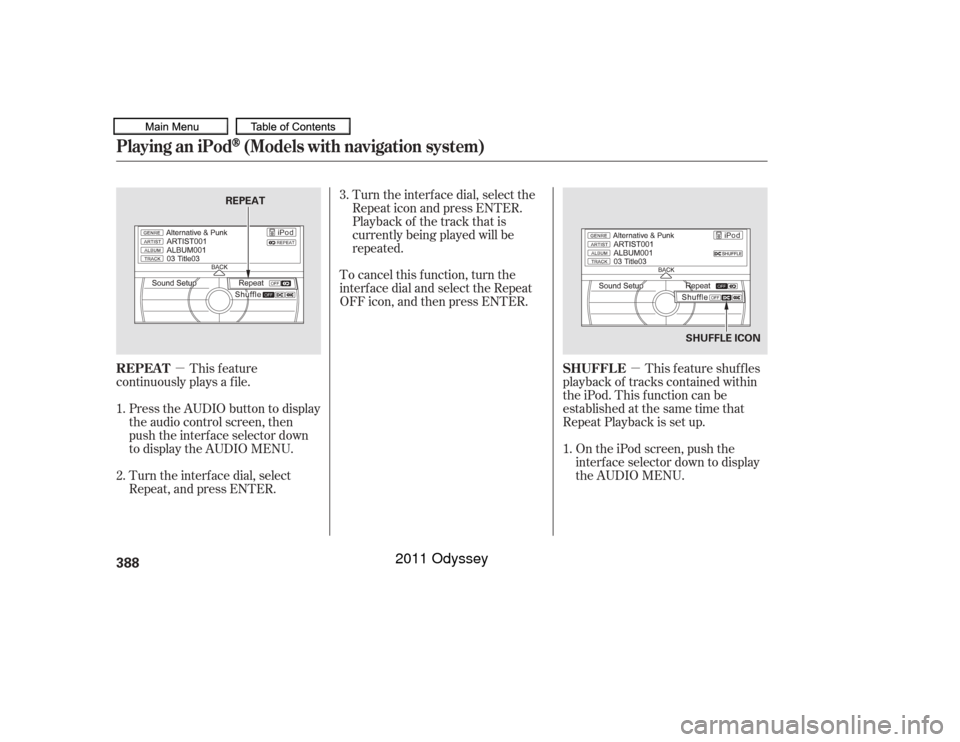
�µ This feature shuffles
playback of tracks contained within
the iPod. This f unction can be
established at the same time that
Repeat Playback is set up.
On the iPod screen, push the
interf ace selector down to display
the AUDIO MENU.
Turn the interf ace dial, select the
Repeat icon and press ENTER.
Playback of the track that is
currently being played will be
repeated.
To cancel this f unction, turn the
interf ace dial and select the Repeat
OFFicon,andthenpressENTER.
This feature
continuously plays a f ile.
Press the AUDIO button to display
the audio control screen, then
push the interf ace selector down
to display the AUDIO MENU.
Turn the interf ace dial, select
Repeat, and press ENTER. 3.
1.
1.
2. SHUFFLE
REPEAT
Playing an iPod
(Models with navigation system)
388
SHUFFLE ICON
REPEAT
10/07/17 10:26:03 31TK8600_393
2011 Odyssey
Page 396 of 722
�Î
�ÎOnly AAC f ormat f iles recorded
with iTunes are playable on this
audio unit.
Some USB f lash memory devices
(such as devices with security lock-
out f eatures, etc.) will not work in
this audio unit. The recommended USB f lash
memory devices are 256 MB or
higher, and f ormatted with the FAT
f ile system. Some digital audio
players may be compatible as well.
This audio system can select and
play the audio f iles f rom a USB f lash
memory device with the same
controls used f or the in-dash disc
player. To play a USB f lash memory
device, connect it to the USB adapter
cable in the glove box, then press the
USB/AUX button. The ignition
switch must be in the ACCESSORY
(I) or ON (II) position. Do not use a device such as a card
reader or hard drive as it or your
f iles may be damaged.
Do not connect your USB f lash
memory device using a hub.
Do not use an extension cable to
the USB adapter cable equipped
with your vehicle.
The audio system reads and plays
the audio f iles on the USB f lash
memory device in MP3, WMA or
AAC formats. The USB flash
memory device limit is up to 700
f olders or up to 15000 f iles. :
CONT INUED
To Play a USB Flash Memory
Device
Playing a USB Flash Memory Device (Models with navigation system)
Features
393
NOTE:
10/07/17 10:26:40 31TK8600_398
2011 Odyssey
Page 397 of 722

Some versions of MP3, WMA, or
AAC f ormat may not be supported. If
an unsupported f ile is f ound, the
audio unit displays UNSUPPORTED,
then skips to the next file.
Some devices cannot be powered
or charged via the USB adapter. If
this is the case, use the accessory
adapter to supply power to your
device.
You can select the AUX mode by
using the voice control buttons, but
cannot operate the play mode
f unctions. The order of f iles in USB playback
maybedifferentfromtheorderof
f iles displayed in PC or other
devices etc. Files are played in the
orderstoredinUSBflashmemory
device.
Do not keep a USB f lash memory
device in the vehicle. Direct
sunlight and high heat will damage
it.
Depending on the type and
number of f iles, it may take some
time bef ore they begin to play.
Depending on the sof tware the
f iles were made with, it may not be
possibletoplaysomefiles,or
displaysometextdata. We recommend backing up your
data bef ore playing a USB f lash
memory device.
Depending on the type of
encoding and writing sof tware
used, there may be cases where
character inf ormation does not
display properly.
Voice Cont rol Syst em
Playing a USB Flash Memory Device (Models with navigation system)394
10/07/17 10:26:49 31TK8600_399
2011 Odyssey