Page 156 of 400

�Î
�ΠThe recommended USB f lash
memory devices are 256 MB or
higher, and f ormatted with the FAT
f ile system. Some digital audio
players may be compatible as well.
This audio system can select and
play the audio f iles on a USB f lash
memory device with the same
controls used f or the disc player. To
play a USB f lash memory device,
connect it to the USB adapter cable
in the console compartment, then
press the AUX button. The ignition
switch must be in the ACCESSORY
(I) or ON (II) position.
The audio system reads and plays
the audio f iles on the USB f lash
memory device in MP3, WMA or
AAC formats. The USB flash
memory device limit is up to 700
f olders or up to 65535 f iles.
Only AAC f ormat f iles recorded
with iTunes are playable on this
audio unit. Depending on the sof tware the
f iles were made with, it may not be
possibletoplaysomefiles,or
display some text data.
Depending on the type and
number of f iles, it may take some
time bef ore they begin to play.
Some devices cannot be powered
or charged via the USB adapter. If
this is the case, use the accessory
adapter to supply power to your
device.
We recommend backing up your
data bef ore playing a USB f lash
memory device.
Do not keep a USB f lash memory
device in the vehicle. Direct
sunlight and high heat will damage
it.
Do not use an extension cable to
the USB adapter cable equipped
with your vehicle.
Do not connect your USB f lash
memory device using a hub.
Do not use a device such as a card
reader or hard drive as the device
or your f iles may be damaged.
Some USB f lash memory devices
(such as devices with security lock-
out f eatures, etc.) will not work in
this audio unit.
Playing a USB Flash Memory Device (Models without navigat ion system)
To Play a USB Flash Memory
Device
152
NOTE:
Main Menu
Page 158 of 400

�¼
Connect the USB f lash memory
device to the USB adapter cable
correctly and securely. When the USB f lash memory device
is connected, the display shows a
‘‘USB CONNECTED’’ message f or a
f ew seconds. If the AUX mode is
selected, a ‘‘USB LOAD’’ message is
displayed f or a f ew seconds.
When the USB f lash memory device
is connected, the USB indicator is
showninthedisplay.
Each time you press the DISP button,
the display mode shows you in
sequence, the f older name, the f ile
name, the artist tag, the album tag,
the track tag and name off (which
turns off the text display).
The display shows up to 16
characters of the selected data. If the
text data has more than 17
characters, you will see the f irst 15
characters and the indicator in
the display. Press and hold the DISP
button until the next 16 characters
are shown.
If youpressandholdtheDISP
button again, the display shows the
f irst 15 characters again.
2.
Playing a USB Flash Memory Device (Models without navigat ion system)
T ext Data Display Function
154
USB ADAPTER CABLE
Main Menu
Page 200 of 400
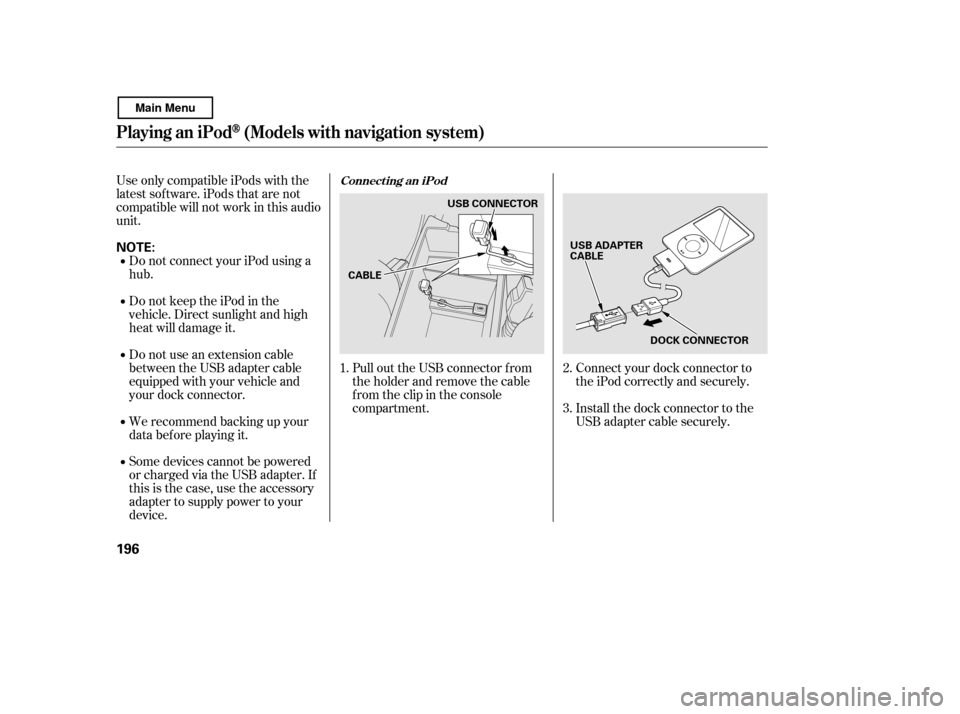
Install the dock connector to the
USB adapter cable securely.
Connect your dock connector to
the iPod correctly and securely.
Pull out the USB connector f rom
the holder and remove the cable
f rom the clip in the console
compartment.
Some devices cannot be powered
or charged via the USB adapter. If
this is the case, use the accessory
adapter to supply power to your
device.
We recommend backing up your
data bef ore playing it.
Do not use an extension cable
between the USB adapter cable
equipped with your vehicle and
your dock connector.
DonotkeeptheiPodinthe
vehicle. Direct sunlight and high
heat will damage it.
Do not connect your iPod using ahub.
UseonlycompatibleiPodswiththe
latest sof tware. iPods that are not
compatible will not work in this audio
unit.
1.2. 3.
Connect ing an iPod
Playing an iPod(Models with navigation system)
196
NOTE:
DOCK CONNECTOR
USB ADAPTER
CABLE
CABLE USB CONNECTOR
Main Menu
Page 209 of 400

�Î
�Î
You can also select an icon by
moving the joystick. Move it to lef t,
right, up, or down to change the
highlighting and scroll through lists,
then press ENT on the top of the
joystick to set your selection. The recommended USB f lash
memory devices are 256 MB or
higher, and f ormatted with the FAT
f ile system. Some digital audio
players may be compatible as well.
The audio system reads and plays
the audio f iles on the USB f lash
memory device in MP3, WMA or
AAC f ormats. Depending on the
f ormat, the display shows MP3,
WMA or AAC when a USB flash
memory device is playing. The USB
f lash memory device limit is up to
700 f olders or up to 65535 f iles.
To select the USB mode without
using the icon, press the CD/XM
button repeatedly. The status bar
appears on the bottom of the screen.
Only AAC f ormat f iles recorded
with iTunes are playable on this
audio unit. Some USB f lash memory devices
(such as devices with security lock-
out f eatures, etc.) will not work in
this audio unit.
Do not use a device such as a card
reader or hard drive as the device
or your f iles may be damaged.
Do not connect your USB f lash
memory device using a hub.
Do not use an extension cable to
the USB adapter cable equipped
with your vehicle.
This audio system can select and
play the audio f iles f rom a USB f lash
memory device with the same
controls used f or the in-dash disc
player. To play a USB f lash memory
device, connect it to the USB adapter
cable in the console compartment.
The ignition switch must be in the
ACCESSORY (I) or ON (II) position.
Press the AUDIO button beside the
screen to show the audio display and
touch the USB icon.
:
CONT INUED
To Play a USB Flash Memory
Device
Playing a USB Flash Memory Device (Models with navigat ion syst em)
Features
205
NOTE:
Main Menu
Page 211 of 400
CONT INUED
On the map screen, you can see the
audio inf ormation whenever you
touch the AUDIO INFO icon on the
lower part of the screen.
Connect the USB f lash memory
device to the USB adapter cable
correctly and securely.
When the USB device is connected
and the audio display is selected on
the screen by pressing the AUDIO
button, the AUX icon switches to the
USB icon. The display also shows
the f older and f ile numbers, and the
elapsed time.
Pull out the USB connector f rom
the holder and remove the cable
f rom the clip in the console
compartment.
2.
1.
Playing a USB Flash Memory Device (Models with navigat ion syst em)
Connect ing a USB Flash Memory
Device
Features
207
USB ADAPTER CABLE AUDIO INFO ICON
CABLE USB CONNECTOR
Main Menu
Page 227 of 400
Once the security system is set,
opening either door without using
the key or the remote transmitter,
the hood, or the trunk will cause the
alarm to activate. It will also activate
if the audio unit is removed f rom the
dashboard or the wiring is cut.
The security system helps to protect
your vehicle and valuables f rom thef t.
The horn sounds and a combination
of headlights, parking lights, side
marker lights, and taillights f lashes if
someone attempts to break into your
vehicleorremovetheradio.This
alarm continues f or 2 minutes, then
the system resets. To reset an
activated system before the 2
minutes have elapsed, unlock the
driver’s door with the key or the
remote transmitter.
The security system automatically
sets 15 seconds after you lock the
doors, hood, and trunk. For the
system to activate, you must lock the
doors f rom the outside with the key,
lock tab, door lock switch, or remote
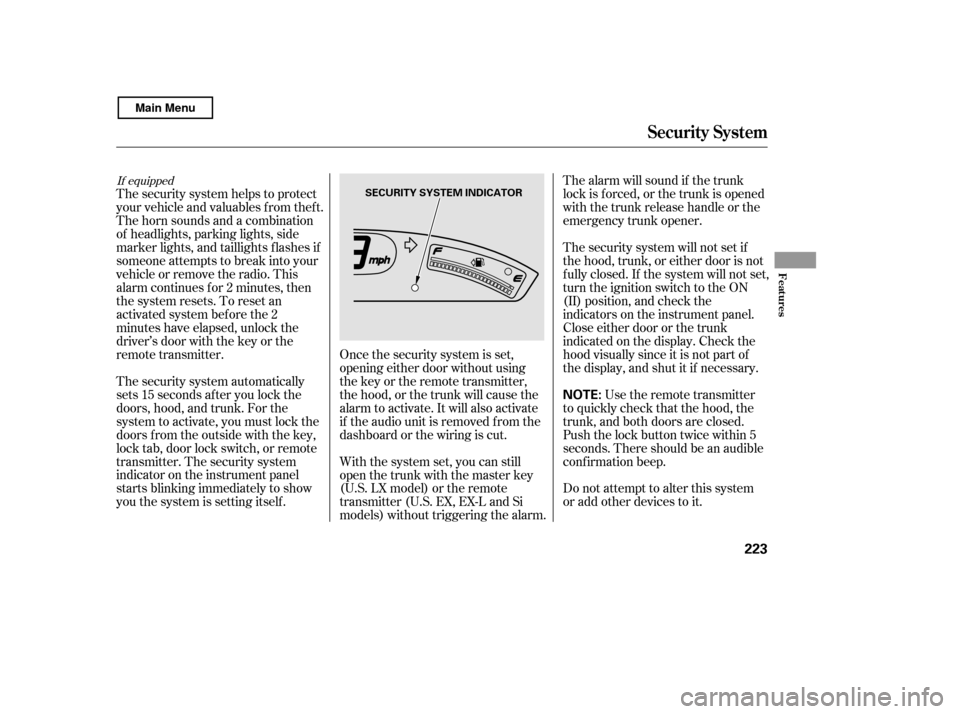
transmitter. The security system
indicator on the instrument panel
starts blinking immediately to show
you the system is setting itself . The security system will not set if
the hood, trunk, or either door is not
f ully closed. If the system will not set,
turn the ignition switch to the ON
(II) position, and check the
indicators on the instrument panel.
Close either door or the trunk
indicated on the display. Check the
hood visually since it is not part of
the display, and shut it if necessary.
With the system set, you can still
open the trunk with the master key
(U.S. LX model) or the remote
transmitter (U.S. EX, EX-L and Si
models) without triggering the alarm. The alarm will sound if the trunk
lock is f orced, or the trunk is opened
with the trunk release handle or the
emergency trunk opener.
Use the remote transmitter
to quickly check that the hood, the
trunk, and both doors are closed.
Push the lock button twice within 5
seconds. There should be an audible
conf irmation beep.
Do not attempt to alter this system
or add other devices to it.
If equipped
Security System
Features
223
NOTE:
SECURITY SYSTEM INDICATOR
Main Menu
Page 236 of 400
BluetoothHandsFreeL ink
232
‘‘Hands Free Help’’
‘‘System
Set up’’
‘‘Tutorial’’ ‘‘Clear’’
‘‘Auto Transfer’’
‘‘Call Notification’’ ‘‘Security’’
‘‘Change Passcode’’
Press HFL
Talk button
Press and release the HFL Talk button each time you give a command. Set how you would like to be notified of an incoming call
Set calls to automatically transfer from your phone to HFL when you
enter the vehicle
Hear a list of available commands and additional information describing each comma nd
(See page 247)
Apply a security passcode to the system that must be input at each key
cycle to access the system
Change your security passcode
Clear the system of all paired phones, phonebook entries and security
passcode
Hear a tutorial for general rules on using the system (See page 248)
(See page 248) (See page 248)
(See page 249)
(See page 228)
(See page 228)
Main Menu
Page 251 of 400
This command group allows you to
change or customize HFL basic
settings.Press and release the HFL Talk
button bef ore a command.
Say ‘‘ .’’ Once a passcode is set, you
will need to enter it to use HFL each
time you start the vehicle. If you
f orget the code, your dealer will have
toresetitforyou,oryouwillhaveto
clear the entire system (see page ).
Follow the HFL prompts and say
the 4-digit passcode you want to
set.
Say‘‘ ’’aftertheprompts.
Follow the HFL prompts to
conf irm the number.
1. 2.3. 4.
249
CONT INUED
System Setup
System setup
SecurityT o set a 4-digit passcode t o lock t heHFL syst em f or securit y purposes:
BluetoothHandsFreeL ink
Features
247
NOTE:
Main Menu