2011 CHEVROLET HHR buttons
[x] Cancel search: buttonsPage 142 of 430
Black plate (36,1)Chevrolet HHR Owner Manual - 2011
Mirrors
Manual Rearview Mirror
Hold the inside rearview mirror in the center to move it
for a clearer view behind your vehicle. Adjust the mirror
to avoid glare from the headlamps behind you. Push the
tab forward for daytime use and pull it for nighttime use.
If the vehicle has map lamps, press the buttons located
at the bottom of the mirror to turn them on or off.
Automatic Dimming Rearview Mirror
The vehicle may have an automatic dimming inside
rearview mirror with a compass and map lights and/or
OnStar
®.
Vehicles with OnStar have three additional control
buttons located at the bottom of the mirror. See your
dealer for more information on the system and how to
subscribe to OnStar
®. See the OnStar®owners guide
for more information about the services OnStar
provides.
Press the buttons located at the bottom of the mirror to
turn the map lights on or off.
O(On/Off): Press to turn the dimming feature on or off.
Automatic Dimming Mirror Operation
Automatic dimming reduces the glare of lights from
behind the vehicle. The dimming feature comes on and
the indicator light illuminates each time the vehicle is
started.
Cleaning the Mirror
Do not spray glass cleaner directly on the mirror. Use a
soft towel dampened with water.
Compass
Compass Operation
Y
/O(On/Off): If the vehicle has one of these buttons,
press to turn the compass on or off.
With the compass feature on, each time the vehicle is
started, the compass displays the current compass
direction after a few seconds.
Compass Calibration
If after a few seconds the display does not show a
compass direction, (N for North for example), there may
be a strong magnetic field interfering with the compass.
Interference can be caused by a magnetic antenna
mount, note pad holder, or similar object. If CAL
appears in the compass window, the compass may
need to be reset or calibrated.
3-36
Page 144 of 430
Black plate (38,1)Chevrolet HHR Owner Manual - 2011
Outside Power Mirrors
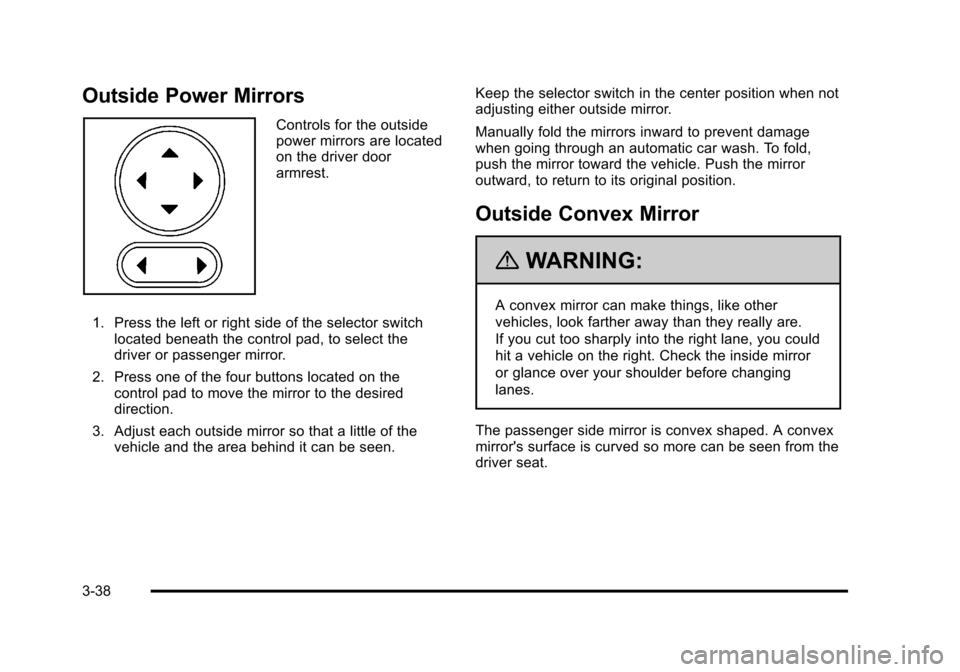
Controls for the outside
power mirrors are located
on the driver door
armrest.
1. Press the left or right side of the selector switch located beneath the control pad, to select the
driver or passenger mirror.
2. Press one of the four buttons located on the control pad to move the mirror to the desired
direction.
3. Adjust each outside mirror so that a little of the vehicle and the area behind it can be seen. Keep the selector switch in the center position when not
adjusting either outside mirror.
Manually fold the mirrors inward to prevent damage
when going through an automatic car wash. To fold,
push the mirror toward the vehicle. Push the mirror
outward, to return to its original position.
Outside Convex Mirror
{WARNING:
A convex mirror can make things, like other
vehicles, look farther away than they really are.
If you cut too sharply into the right lane, you could
hit a vehicle on the right. Check the inside mirror
or glance over your shoulder before changing
lanes.
The passenger side mirror is convex shaped. A convex
mirror's surface is curved so more can be seen from the
driver seat.
3-38
Page 164 of 430
Black plate (8,1)Chevrolet HHR Owner Manual - 2011
Cruise Control
With cruise control, a speed of about 40 km (25 mph) or
more can be maintained without keeping your foot on
the accelerator. Cruise control does not work at speeds
below 40 km (25 mph).
The brake must be applied at least one time, after the
vehicle has been started, before cruise control will
function.
{WARNING:
Cruise control can be dangerous where you
cannot drive safely at a steady speed. So, do not
use the cruise control on winding roads or in
heavy traffic.
Cruise control can be dangerous on slippery
roads. On such roads, fast changes in tire traction
can cause excessive wheel slip, and you could
lose control. Do not use cruise control on slippery
roads.
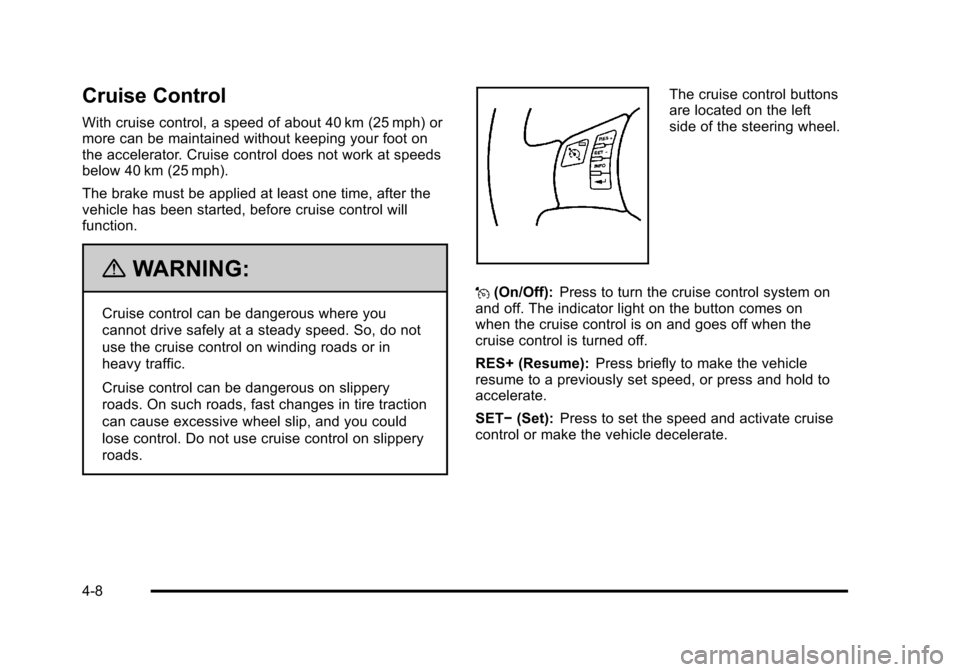
The cruise control buttons
are located on the left
side of the steering wheel.
J (On/Off): Press to turn the cruise control system on
and off. The indicator light on the button comes on
when the cruise control is on and goes off when the
cruise control is turned off.
RES+ (Resume): Press briefly to make the vehicle
resume to a previously set speed, or press and hold to
accelerate.
SET− (Set): Press to set the speed and activate cruise
control or make the vehicle decelerate.
4-8
Page 194 of 430
Black plate (38,1)Chevrolet HHR Owner Manual - 2011
Driver Information Center (DIC)
Your vehicle has a Driver Information Center (DIC). The
DIC display gives you the status of many of your
vehicle's systems. The DIC is also used to display
driver personalization menu modes and warning/status
messages. All messages will appear in the DIC display,
located at the bottom of the instrument panel cluster.
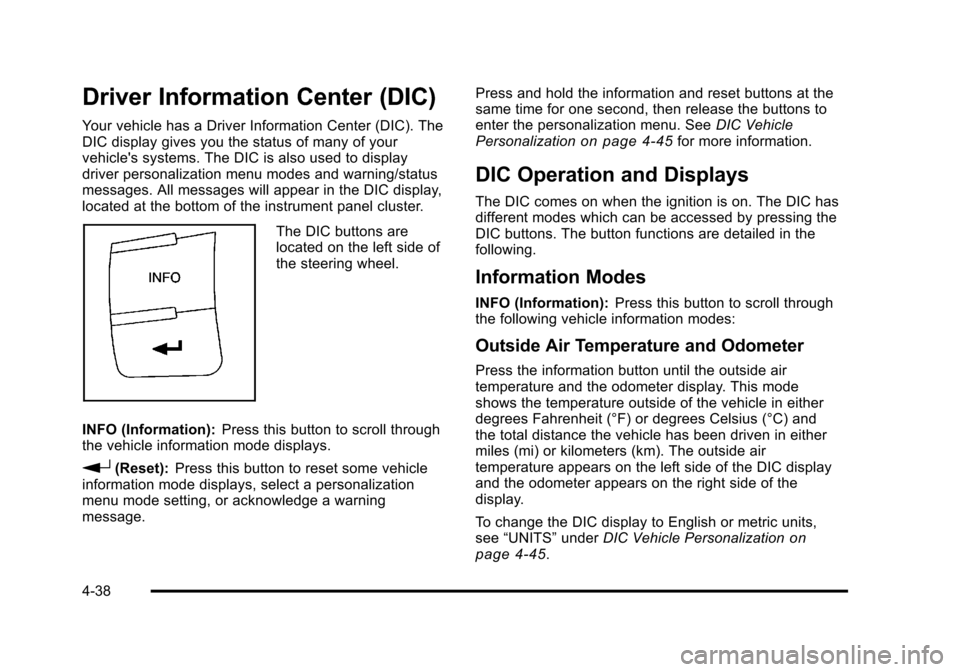
The DIC buttons are
located on the left side of
the steering wheel.
INFO (Information): Press this button to scroll through
the vehicle information mode displays.
r(Reset): Press this button to reset some vehicle
information mode displays, select a personalization
menu mode setting, or acknowledge a warning
message. Press and hold the information and reset buttons at the
same time for one second, then release the buttons to
enter the personalization menu. See
DIC Vehicle
Personalization
on page 4‑45for more information.
DIC Operation and Displays
The DIC comes on when the ignition is on. The DIC has
different modes which can be accessed by pressing the
DIC buttons. The button functions are detailed in the
following.
Information Modes
INFO (Information): Press this button to scroll through
the following vehicle information modes:
Outside Air Temperature and Odometer
Press the information button until the outside air
temperature and the odometer display. This mode
shows the temperature outside of the vehicle in either
degrees Fahrenheit (°F) or degrees Celsius (°C) and
the total distance the vehicle has been driven in either
miles (mi) or kilometers (km). The outside air
temperature appears on the left side of the DIC display
and the odometer appears on the right side of the
display.
To change the DIC display to English or metric units,
see “UNITS” underDIC Vehicle Personalization
on
page 4‑45.
4-38
Page 196 of 430
Black plate (40,1)Chevrolet HHR Owner Manual - 2011
AV (Average) SPEED
Press the information button until AV SPEED displays.
This mode shows the vehicle's average speed in miles
per hour (mph) or kilometers per hour (km/h).
To reset the average vehicle speed, press and hold the
reset button while AV SPEED is displayed.
OIL LIFE
Press the information button until OIL LIFE displays.
The engine oil life system shows an estimate of the oil's
remaining useful life. It shows 100% when the system is
reset after an oil change. It alerts you to change the oil
on a schedule consistent with your driving conditions.
In addition to the engine oil life system monitoring the
oil life, additional maintenance is recommended in the
Maintenance Schedule in this manual. SeeEngine Oil
on page 6‑16andScheduled Maintenanceon
page 7‑3.
Always reset the engine oil life system after an oil
change. See “How to Reset the Engine Oil Life System”
under Engine Oil Life System on page 6‑19.
COOLANT
Press the information button until COOLANT displays.
This mode shows the temperature of the engine coolant
in either degrees Fahrenheit (°F) or degrees
Celsius (°C).
Tire Pressure
If your vehicle has a Tire Pressure Monitor System
(TPMS), the pressure for each tire can be viewed in the
DIC. The tire pressure is shown in either pounds per
square inch (psi) or kilopascals (kPa). Press the
information button until LF ## PSI (kPa) ## RF displays
for the front tires. Press the information button again
until LR ## PSI (kPa) ## RR displays for the rear tires.
If a low tire pressure condition is detected by the
system while driving, a message advising you to check
the tire pressure appears in the display. See Inflation -
Tire Pressure
on page 6‑54and DIC Warnings and
Messageson page 4‑40for more information.
DIC Warnings and Messages
These messages appear if there is a problem detected
in one of your vehicle's systems.
A message clears when the vehicle's condition is no
longer present. To acknowledge a message and clear it
from the display, press and hold any of the DIC buttons.
If the condition is still present, the warning message
comes back on the next time the vehicle is turned off
and back on. With most messages, a warning chime
sounds when the message displays. Your vehicle may
have other warning messages.
4-40
Page 202 of 430
Black plate (46,1)Chevrolet HHR Owner Manual - 2011
To change feature settings, use the following procedure:
Entering Personalization Menu
1. Turn the ignition on while the vehicle is stopped.To avoid excessive drain on the battery, it is
recommended that the headlamps are turned off.
2. Press and hold the information and reset buttons at the same time for one second, then release to
enter the personalization menu.
If the vehicle speed is greater than 2 mph (3 km/h),
only the UNITS menu will be accessible.
3. Press the information button to scroll through the available personalization menu modes.
Press the reset button to scroll through the
available settings for each mode.
If you do not make a selection within ten seconds,
the display will go back to the previous information
displayed.
Personalization Menu Modes
OIL LIFE RESET
When this feature is displayed, you can reset the
engine oil life system. To reset the system, see Engine
Oil Life System
on page 6‑19. See “OIL LIFE” under
DIC Operation and Displayson page 4‑38for more
information.
UNITS
This feature allows you to select the units of
measurement in which the DIC will display the vehicle
information. When UNITS appears on the display, press
and hold the reset button for at least one second to
scroll through the available settings:
ENGLISH (default in United States): All information
will be displayed in English units.
METRIC (default in Canada): All information will be
displayed in metric units.
To select a setting and move on to the next feature,
press the information button while the desired setting is
displayed on the DIC.
LOCK HORN
This feature, which allows the vehicle's horn to chirp
every time the lock button on the Remote Keyless Entry
(RKE) transmitter is pressed, can be enabled or
disabled. When LOCK HORN appears on the display,
press and hold the reset button for at least one second
to scroll through the available settings:
OFF (default): The horn will not chirp on the first press
of the lock button on the RKE transmitter. The horn will
still chirp on the second press.
4-46
Page 213 of 430
Black plate (57,1)Chevrolet HHR Owner Manual - 2011
Storing a Radio Station as a Preset
Radios that have numbered pushbuttons store radio
stations as presets.
Up to 18 stations (six FM1, six FM2, and six AM),
can be programmed on the six numbered buttons.
To store preset stations:1. Tune in the desired station.
2. Press and hold one of the six numbered buttons for three seconds until a beep sounds.
3. Repeat the Steps 1 and 2 for each numbered button.
Setting the Tone (Bass/Midrange/Treble)
BASS/MID/TREB (Bass, Midrange, or Treble): The
radio may display some or all tones such as BASS,
MID, and TREB.
To adjust the tone settings on the Radio with
CD (Base):
Press
funtil the tone control labels display, then
turn
fto change the setting. To adjust the tone settings on the Radio with CD (MP3)
and USB Port or the Radio with CD (MP3):
1. Press
funtil the tone control tabs display.
2. Press the softkey below the desired tab to be adjusted.
3. To increase the level of the bass, midrange, or treble:
.Press¨SEEK, or\FWD.
.Turnfclockwise.
4. To decrease the level of the bass, midrange, or treble:
.Press©SEEK, orsREV.
.Turnfcounterclockwise.
The radio may be capable of adjusting bass, midrange,
or treble to the middle position by pressing the softkey
below the BASS, MID, or TREB tab for more than
two seconds. The radio beeps once and the level
adjusts to the middle position.
The radio may also be capable of adjusting all tone and
speaker controls to the middle position by pressing
f
for more than two seconds until the radio beeps once.
If a station's frequency is weak, or has static, decrease
the treble.
4-57
Page 219 of 430
Black plate (63,1)Chevrolet HHR Owner Manual - 2011
CD/AUX (CD/Auxiliary):Press to play a CD while a
portable audio device is connected to the auxiliary
input. Press again and the system begins playing audio
from the connected portable audio player. If a portable
audio player is not connected, No Aux Input Device
may display.
Using the USB Port
Radio's with a USB port can control a USB storage
device or an iPod®using the radio buttons and knobs.
See Using an MP3on page 4‑63for information about
how to connect and control a USB storage device or
an iPod.
USB Support
The USB connector is located on the front of the radio
and uses the USB 2.0 standard.
USB Supported Devices
.USB Flash Drives
.Portable USB Hard Drives
.Fifth generation or later iPod
.First, Second, or Third generation iPod nano
.iPod touch
.iPod classic Make sure the iPod has the latest firmware from Apple
®
for proper operation. iPod firmware can be updated
using the latest iTunes®application. See
www.apple.com/itunes.
For help with identifying your iPod, go to
www.apple.com/support.
Using an MP3
Format
Radios that have the capability of playing MP3's can
play .mp3 or .wma files that were recorded onto a
CD-R or CD-RW disc. Radios that have a USB port
can play .mp3 and .wma files that are stored on a
USB storage device as well as AAC files that are
stored on an iPod
®.
Compressed Audio
The radio can play discs that contain both
uncompressed CD audio and MP3 files. If both formats
are on the disc, the radio reads all MP3 files first, then
the uncompressed CD audio files.
4-63