2010 JAGUAR XFR pinpoint
[x] Cancel search: pinpointPage 2014 of 3039
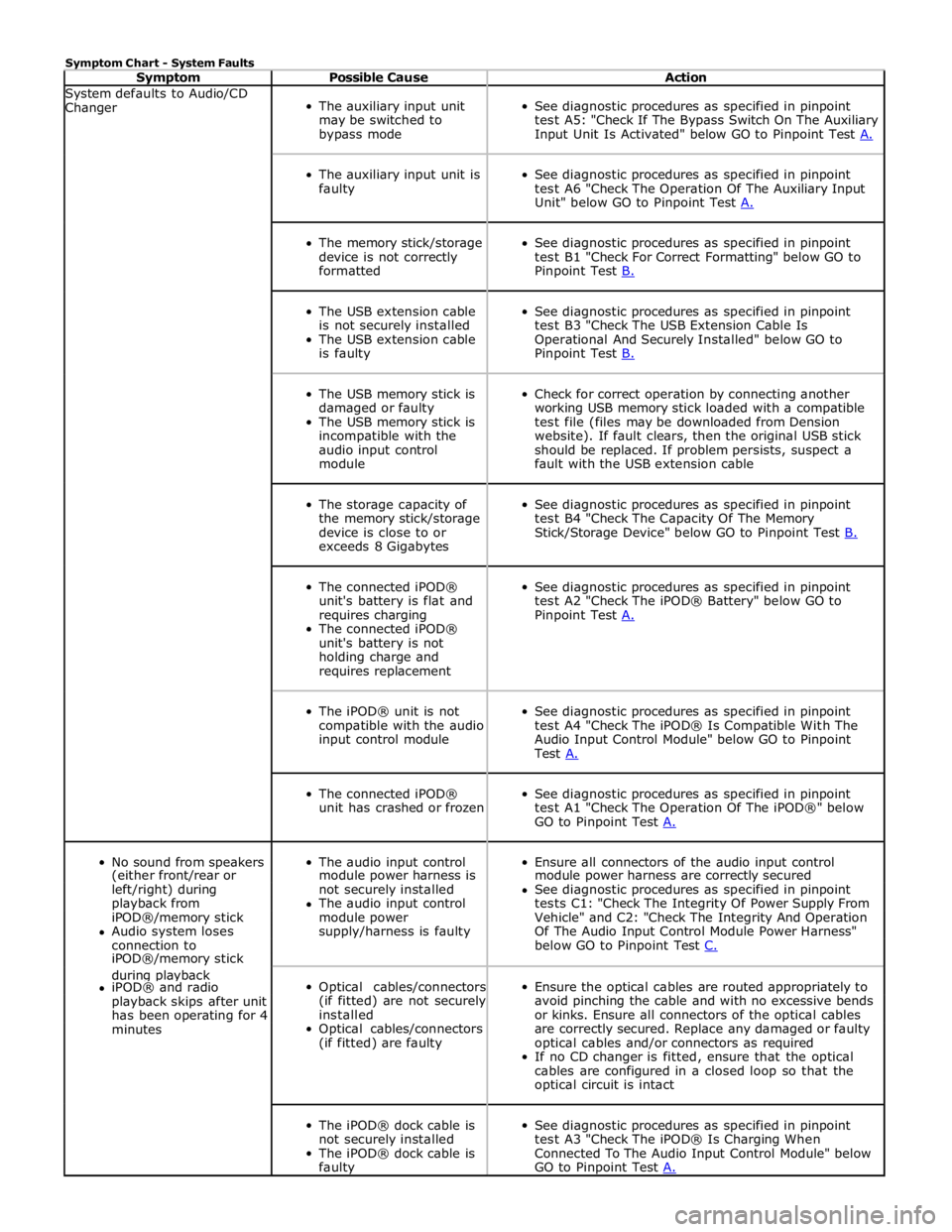
Symptom Chart - System Faults
Symptom Possible Cause Action System defaults to Audio/CD
Changer
The auxiliary input unit
may be switched to
bypass mode
See diagnostic procedures as specified in pinpoint
test A5: "Check If The Bypass Switch On The Auxiliary
Input Unit Is Activated" below GO to Pinpoint Test A.
The auxiliary input unit is
faulty
See diagnostic procedures as specified in pinpoint
test A6 "Check The Operation Of The Auxiliary Input
Unit" below GO to Pinpoint Test A.
The memory stick/storage
device is not correctly
formatted
See diagnostic procedures as specified in pinpoint
test B1 "Check For Correct Formatting" below GO to
Pinpoint Test B.
The USB extension cable
is not securely installed
The USB extension cable
is faulty
See diagnostic procedures as specified in pinpoint
test B3 "Check The USB Extension Cable Is
Operational And Securely Installed" below GO to
Pinpoint Test B.
The USB memory stick is
damaged or faulty
The USB memory stick is
incompatible with the
audio input control
module
Check for correct operation by connecting another
working USB memory stick loaded with a compatible
test file (files may be downloaded from Dension
website). If fault clears, then the original USB stick
should be replaced. If problem persists, suspect a
fault with the USB extension cable
The storage capacity of
the memory stick/storage
device is close to or
exceeds 8 Gigabytes
See diagnostic procedures as specified in pinpoint
test B4 "Check The Capacity Of The Memory
Stick/Storage Device" below GO to Pinpoint Test B.
The connected iPOD®
unit's battery is flat and
requires charging
The connected iPOD®
unit's battery is not
holding charge and
requires replacement
See diagnostic procedures as specified in pinpoint
test A2 "Check The iPOD® Battery" below GO to
Pinpoint Test A.
The iPOD® unit is not
compatible with the audio
input control module
See diagnostic procedures as specified in pinpoint
test A4 "Check The iPOD® Is Compatible With The
Audio Input Control Module" below GO to Pinpoint
Test A.
The connected iPOD®
unit has crashed or frozen
See diagnostic procedures as specified in pinpoint
test A1 "Check The Operation Of The iPOD®" below
GO to Pinpoint Test A.
No sound from speakers
The audio input control
Ensure all connectors of the audio input control (either front/rear or module power harness is module power harness are correctly secured left/right) during not securely installed See diagnostic procedures as specified in pinpoint playback from The audio input control tests C1: "Check The Integrity Of Power Supply From iPOD®/memory stick module power Vehicle" and C2: "Check The Integrity And Operation Audio system loses supply/harness is faulty Of The Audio Input Control Module Power Harness" connection to below GO to Pinpoint Test C. iPOD®/memory stick during playback
Optical cables/connectors
(if fitted) are not securely
installed
Optical cables/connectors
(if fitted) are faulty
Ensure the optical cables are routed appropriately to
avoid pinching the cable and with no excessive bends
or kinks. Ensure all connectors of the optical cables
are correctly secured. Replace any damaged or faulty
optical cables and/or connectors as required
If no CD changer is fitted, ensure that the optical
cables are configured in a closed loop so that the
optical circuit is intact iPOD® and radio playback skips after unit has been operating for 4 minutes
The iPOD® dock cable is
not securely installed
The iPOD® dock cable is
faulty
See diagnostic procedures as specified in pinpoint
test A3 "Check The iPOD® Is Charging When
Connected To The Audio Input Control Module" below
GO to Pinpoint Test A.
Page 2015 of 3039
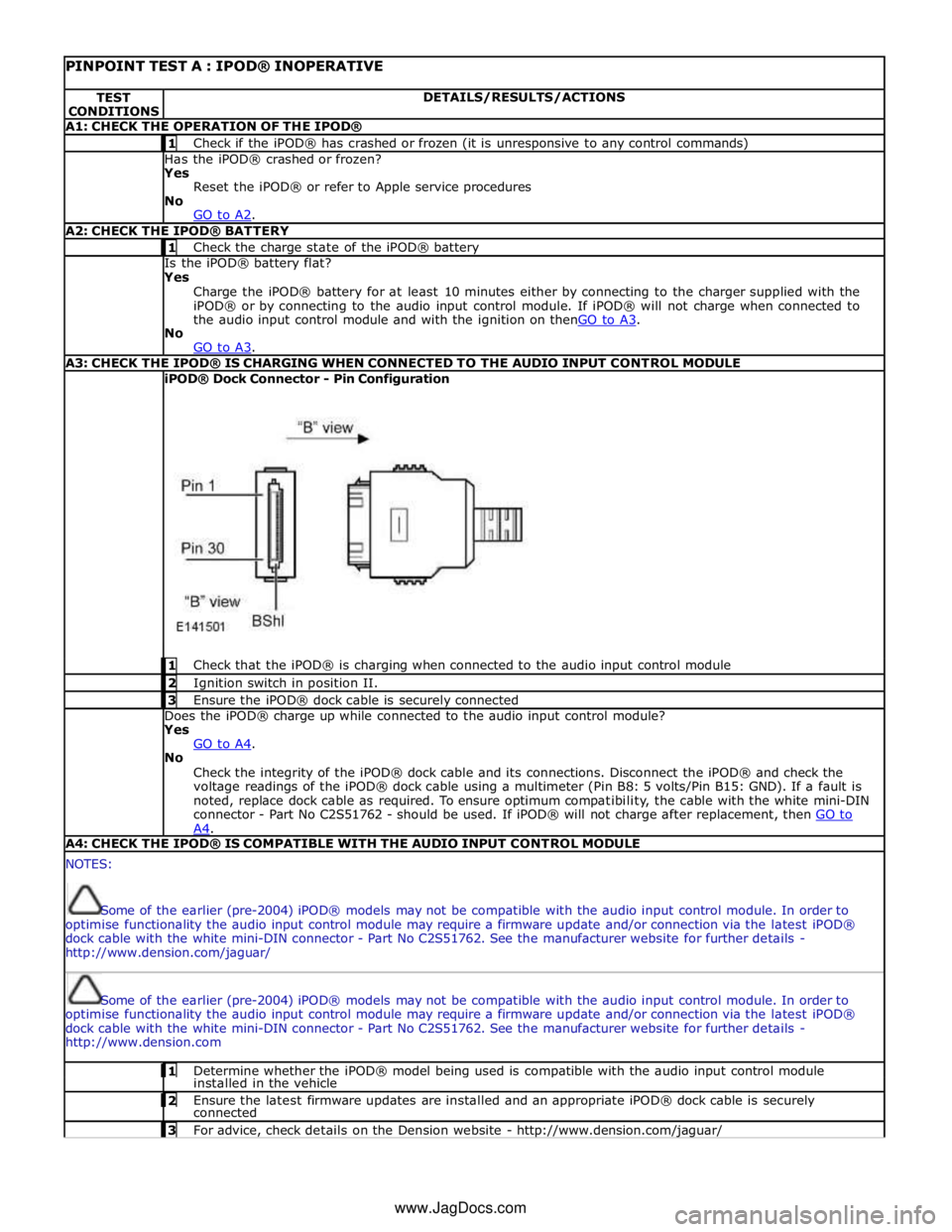
PINPOINT TEST A : IPOD® INOPERATIVE TEST
CONDITIONS DETAILS/RESULTS/ACTIONS A1: CHECK THE OPERATION OF THE IPOD® 1 Check if the iPOD® has crashed or frozen (it is unresponsive to any control commands) Has the iPOD® crashed or frozen?
Yes
Reset the iPOD® or refer to Apple service procedures
No
GO to A2. A2: CHECK THE IPOD® BATTERY 1 Check the charge state of the iPOD® battery Is the iPOD® battery flat?
Yes
Charge the iPOD® battery for at least 10 minutes either by connecting to the charger supplied with the
iPOD® or by connecting to the audio input control module. If iPOD® will not charge when connected to
the audio input control module and with the ignition on thenGO to A3. No
GO to A3. A3: CHECK THE IPOD® IS CHARGING WHEN CONNECTED TO THE AUDIO INPUT CONTROL MODULE iPOD® Dock Connector - Pin Configuration
1 Check that the iPOD® is charging when connected to the audio input control module 2 Ignition switch in position II. 3 Ensure the iPOD® dock cable is securely connected Does the iPOD® charge up while connected to the audio input control module?
Yes
GO to A4. No
Check the integrity of the iPOD® dock cable and its connections. Disconnect the iPOD® and check the
voltage readings of the iPOD® dock cable using a multimeter (Pin B8: 5 volts/Pin B15: GND). If a fault is
noted, replace dock cable as required. To ensure optimum compatibility, the cable with the white mini-DIN
connector - Part No C2S51762 - should be used. If iPOD® will not charge after replacement, then GO to A4. A4: CHECK THE IPOD® IS COMPATIBLE WITH THE AUDIO INPUT CONTROL MODULE NOTES:
Some of the earlier (pre-2004) iPOD® models may not be compatible with the audio input control module. In order to
optimise functionality the audio input control module may require a firmware update and/or connection via the latest iPOD®
dock cable with the white mini-DIN connector - Part No C2S51762. See the manufacturer website for further details -
http://www.dension.com/jaguar/
Some of the earlier (pre-2004) iPOD® models may not be compatible with the audio input control module. In order to
optimise functionality the audio input control module may require a firmware update and/or connection via the latest iPOD®
dock cable with the white mini-DIN connector - Part No C2S51762. See the manufacturer website for further details -
http://www.dension.com 1 Determine whether the iPOD® model being used is compatible with the audio input control module installed in the vehicle 2 Ensure the latest firmware updates are installed and an appropriate iPOD® dock cable is securely connected 3 For advice, check details on the Dension website - http://www.dension.com/jaguar/ www.JagDocs.com
Page 2016 of 3039
Is the iPOD® compatible with the audio input control module?
Yes
GO to A5. No
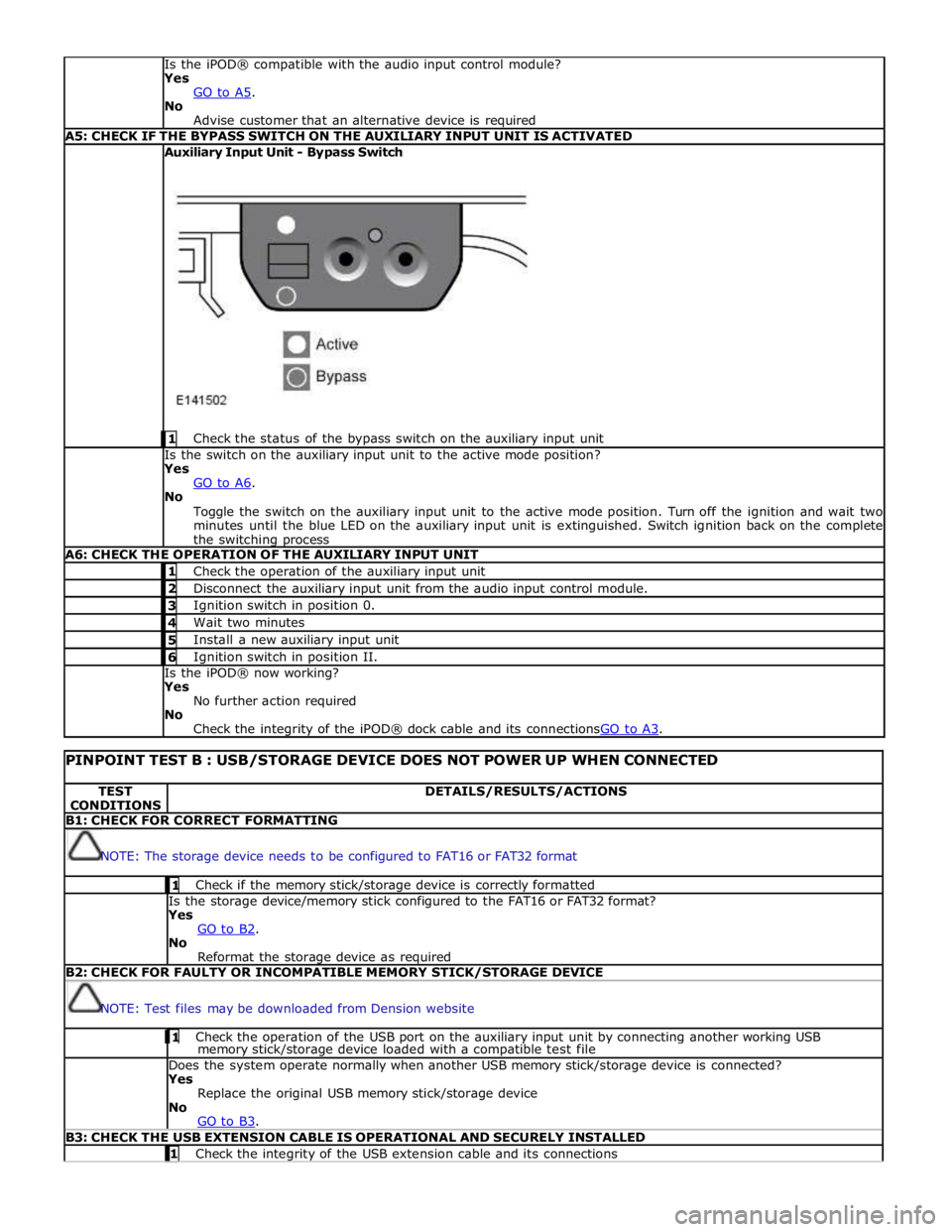
Advise customer that an alternative device is required A5: CHECK IF THE BYPASS SWITCH ON THE AUXILIARY INPUT UNIT IS ACTIVATED Auxiliary Input Unit - Bypass Switch
1 Check the status of the bypass switch on the auxiliary input unit Is the switch on the auxiliary input unit to the active mode position?
Yes
GO to A6. No
Toggle the switch on the auxiliary input unit to the active mode position. Turn off the ignition and wait two
minutes until the blue LED on the auxiliary input unit is extinguished. Switch ignition back on the complete
the switching process A6: CHECK THE OPERATION OF THE AUXILIARY INPUT UNIT 1 Check the operation of the auxiliary input unit 2 Disconnect the auxiliary input unit from the audio input control module. 3 Ignition switch in position 0. 4 Wait two minutes 5 Install a new auxiliary input unit 6 Ignition switch in position II. Is the iPOD® now working?
Yes
No further action required
No
Check the integrity of the iPOD® dock cable and its connectionsGO to A3.
PINPOINT TEST B : USB/STORAGE DEVICE DOES NOT POWER UP WHEN CONNECTED TEST
CONDITIONS DETAILS/RESULTS/ACTIONS B1: CHECK FOR CORRECT FORMATTING
NOTE: The storage device needs to be configured to FAT16 or FAT32 format 1 Check if the memory stick/storage device is correctly formatted Is the storage device/memory stick configured to the FAT16 or FAT32 format?
Yes
GO to B2. No
Reformat the storage device as required B2: CHECK FOR FAULTY OR INCOMPATIBLE MEMORY STICK/STORAGE DEVICE
NOTE: Test files may be downloaded from Dension website 1 Check the operation of the USB port on the auxiliary input unit by connecting another working USB memory stick/storage device loaded with a compatible test file Does the system operate normally when another USB memory stick/storage device is connected?
Yes
Replace the original USB memory stick/storage device
No
GO to B3. B3: CHECK THE USB EXTENSION CABLE IS OPERATIONAL AND SECURELY INSTALLED 1 Check the integrity of the USB extension cable and its connections
Page 2017 of 3039
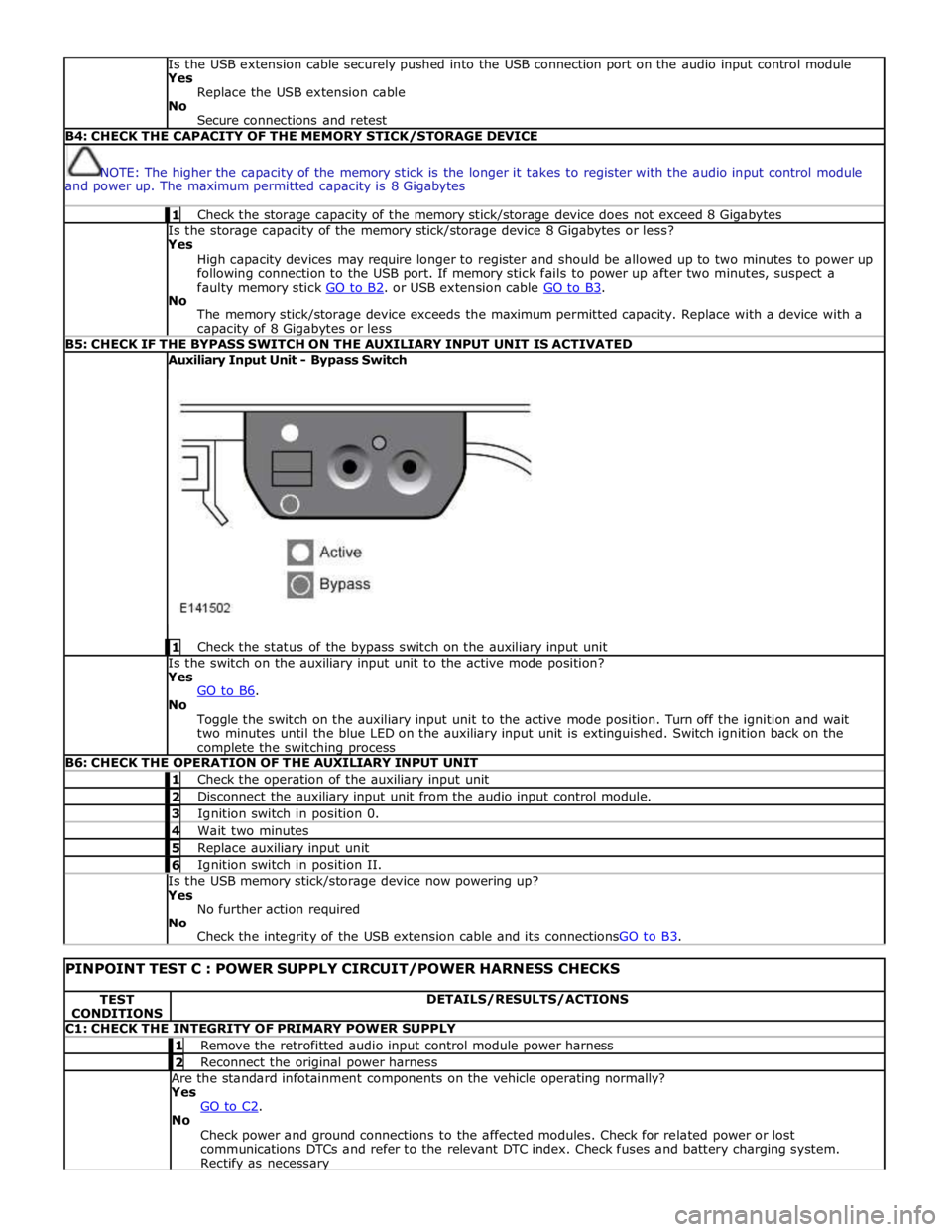
Is the USB extension cable securely pushed into the USB connection port on the audio input control module
Yes
Replace the USB extension cable
No
Secure connections and retest B4: CHECK THE CAPACITY OF THE MEMORY STICK/STORAGE DEVICE
NOTE: The higher the capacity of the memory stick is the longer it takes to register with the audio input control module
and power up. The maximum permitted capacity is 8 Gigabytes 1 Check the storage capacity of the memory stick/storage device does not exceed 8 Gigabytes Is the storage capacity of the memory stick/storage device 8 Gigabytes or less?
Yes
High capacity devices may require longer to register and should be allowed up to two minutes to power up
following connection to the USB port. If memory stick fails to power up after two minutes, suspect a
faulty memory stick GO to B2. or USB extension cable GO to B3. No
The memory stick/storage device exceeds the maximum permitted capacity. Replace with a device with a capacity of 8 Gigabytes or less B5: CHECK IF THE BYPASS SWITCH ON THE AUXILIARY INPUT UNIT IS ACTIVATED Auxiliary Input Unit - Bypass Switch
1 Check the status of the bypass switch on the auxiliary input unit Is the switch on the auxiliary input unit to the active mode position?
Yes
GO to B6. No
Toggle the switch on the auxiliary input unit to the active mode position. Turn off the ignition and wait
two minutes until the blue LED on the auxiliary input unit is extinguished. Switch ignition back on the complete the switching process B6: CHECK THE OPERATION OF THE AUXILIARY INPUT UNIT 1 Check the operation of the auxiliary input unit 2 Disconnect the auxiliary input unit from the audio input control module. 3 Ignition switch in position 0. 4 Wait two minutes 5 Replace auxiliary input unit 6 Ignition switch in position II. Is the USB memory stick/storage device now powering up?
Yes
No further action required
No
Check the integrity of the USB extension cable and its connectionsGO to B3.
PINPOINT TEST C : POWER SUPPLY CIRCUIT/POWER HARNESS CHECKS TEST
CONDITIONS DETAILS/RESULTS/ACTIONS C1: CHECK THE INTEGRITY OF PRIMARY POWER SUPPLY 1 Remove the retrofitted audio input control module power harness 2 Reconnect the original power harness Are the standard infotainment components on the vehicle operating normally?
Yes
GO to C2. No
Check power and ground connections to the affected modules. Check for related power or lost
communications DTCs and refer to the relevant DTC index. Check fuses and battery charging system. Rectify as necessary
Page 2063 of 3039
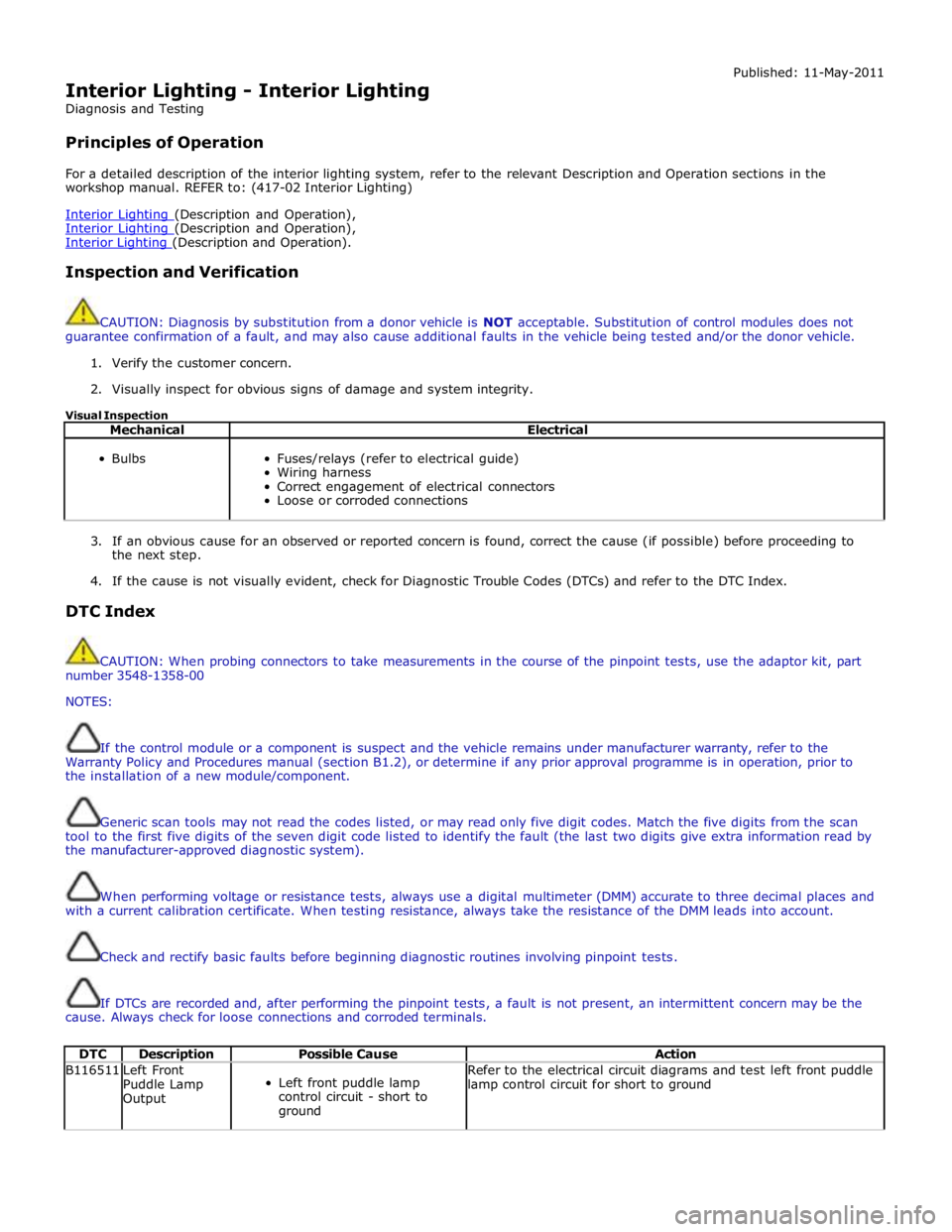
Interior Lighting - Interior Lighting
Diagnosis and Testing
Principles of Operation Published: 11-May-2011
For a detailed description of the interior lighting system, refer to the relevant Description and Operation sections in the
workshop manual. REFER to: (417-02 Interior Lighting)
Interior Lighting (Description and Operation), Interior Lighting (Description and Operation), Interior Lighting (Description and Operation).
Inspection and Verification
CAUTION: Diagnosis by substitution from a donor vehicle is NOT acceptable. Substitution of control modules does not
guarantee confirmation of a fault, and may also cause additional faults in the vehicle being tested and/or the donor vehicle.
1. Verify the customer concern.
2. Visually inspect for obvious signs of damage and system integrity.
Visual Inspection
Mechanical Electrical
Bulbs
Fuses/relays (refer to electrical guide)
Wiring harness
Correct engagement of electrical connectors
Loose or corroded connections
3. If an obvious cause for an observed or reported concern is found, correct the cause (if possible) before proceeding to
the next step.
4. If the cause is not visually evident, check for Diagnostic Trouble Codes (DTCs) and refer to the DTC Index.
DTC Index
CAUTION: When probing connectors to take measurements in the course of the pinpoint tests, use the adaptor kit, part
number 3548-1358-00
NOTES:
If the control module or a component is suspect and the vehicle remains under manufacturer warranty, refer to the
Warranty Policy and Procedures manual (section B1.2), or determine if any prior approval programme is in operation, prior to
the installation of a new module/component.
Generic scan tools may not read the codes listed, or may read only five digit codes. Match the five digits from the scan
tool to the first five digits of the seven digit code listed to identify the fault (the last two digits give extra information read by
the manufacturer-approved diagnostic system).
When performing voltage or resistance tests, always use a digital multimeter (DMM) accurate to three decimal places and
with a current calibration certificate. When testing resistance, always take the resistance of the DMM leads into account.
Check and rectify basic faults before beginning diagnostic routines involving pinpoint tests.
If DTCs are recorded and, after performing the pinpoint tests, a fault is not present, an intermittent concern may be the
cause. Always check for loose connections and corroded terminals.
DTC Description Possible Cause Action B116511
Left Front
Puddle Lamp
Output
Left front puddle lamp
control circuit - short to
ground Refer to the electrical circuit diagrams and test left front puddle
lamp control circuit for short to ground
Page 2064 of 3039

DTC Description Possible Cause Action B116515
Left Front
Puddle Lamp
Output
Left front puddle lamp
control circuit - short to
power, open circuit Carry out any pinpoint tests associated with this DTC using the
manufacturer approved diagnostic system. Refer to the electrical
circuit diagrams and test left front puddle lamp control circuit
for short to power, open circuit B116611
Right Front
Puddle Lamp
Output
Right front puddle lamp
control circuit - short to
ground Refer to the electrical circuit diagrams and test right front
puddle lamp control circuit for short to ground B116615
Right Front
Puddle Lamp
Output
Right front puddle lamp
control circuit - short to
power, open circuit Carry out any pinpoint tests associated with this DTC using the
manufacturer approved diagnostic system. Refer to the electrical
circuit diagrams and test right front puddle lamp control circuit
for short to power, open circuit B111E11
Boot/Trunk
Lamps
Luggage compartment lamp
control circuit - short to
ground Carry out any pinpoint test associated with this DTC using the
manufacturer approved diagnostic system. Refer to the electrical
circuit diagrams and check luggage compartment lamp control
circuit for short to ground B111E15
Boot/Trunk
Lamps
Luggage compartment lamp
control circuit - short to
power, open circuit Carry out any pinpoint test associated with this DTC using the
manufacturer approved diagnostic system. Refer to the electrical
circuit diagrams and check luggage compartment lamp control
circuit for short to power, open circuit B112412
Lamp Fade
Control
Interior lamp fade control
circuit - short to power Refer to the electrical circuit diagrams and check interior lamp
fade control circuit for short to power B113C12
Hazard Switch
Illumination
Hazard switch illumination
control circuit - short to
power Refer to the electrical circuit diagrams and check hazard switch
illumination control circuit for short to power B1A8596
Ambient Light
Sensor
Light sensor internal
electronic failure Check and install a new sensor as required U201012
Switch
Illumination
Switch/interior illumination
PWM supply circuit - short to
power Refer to the electrical circuit diagrams and check switch/interior
illumination PWM supply circuit for short to power U201014
Switch
Illumination
Switch/interior illumination
PWM supply circuit - short to
ground, open circuit Refer to the electrical circuit diagrams and check switch/interior
illumination PWM supply circuit for short to ground, open circuit
Page 2075 of 3039
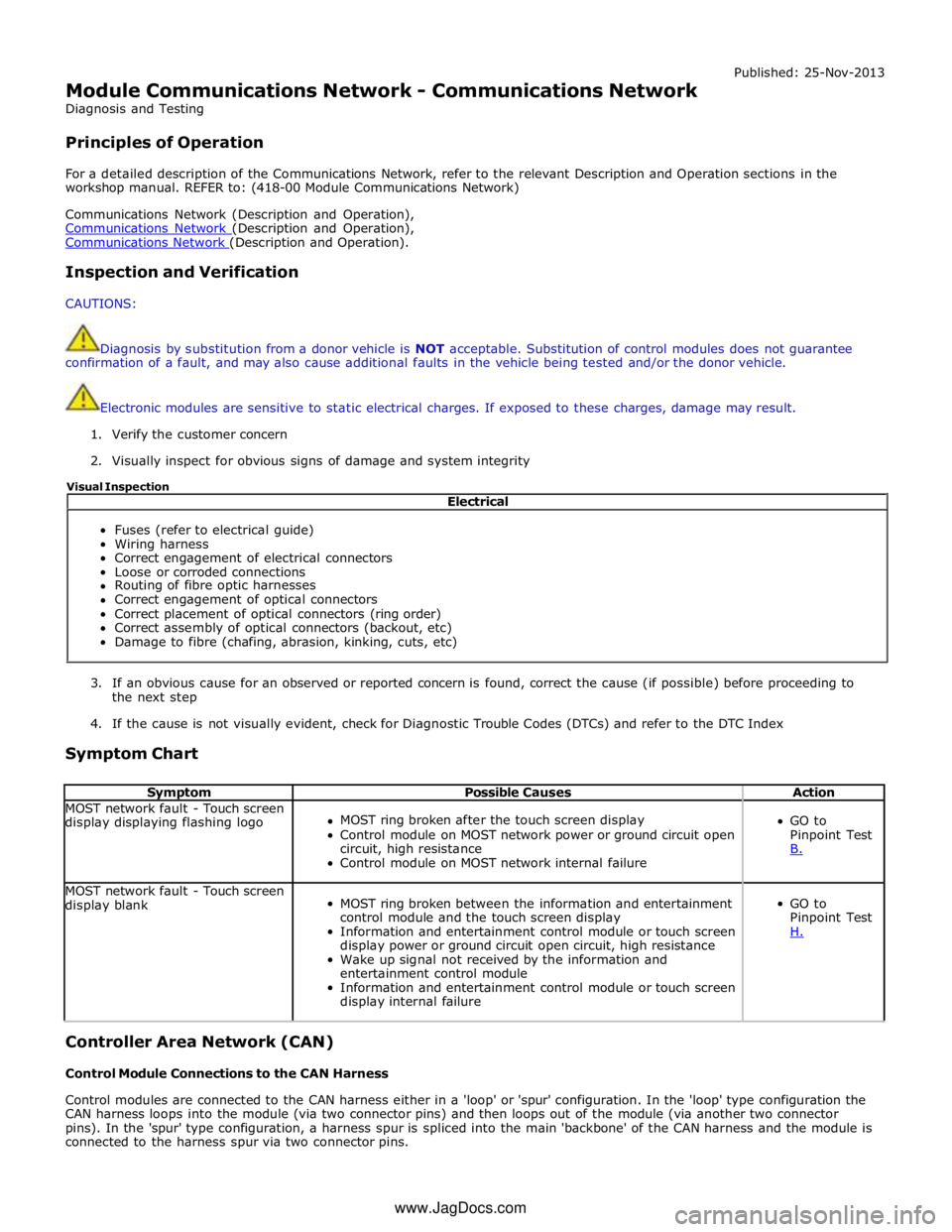
Module Communications Network - Communications Network
Diagnosis and Testing
Principles of Operation Published: 25-Nov-2013
For a detailed description of the Communications Network, refer to the relevant Description and Operation sections in the
workshop manual. REFER to: (418-00 Module Communications Network)
Communications Network (Description and Operation),
Communications Network (Description and Operation), Communications Network (Description and Operation).
Inspection and Verification
CAUTIONS:
Diagnosis by substitution from a donor vehicle is NOT acceptable. Substitution of control modules does not guarantee
confirmation of a fault, and may also cause additional faults in the vehicle being tested and/or the donor vehicle.
Electronic modules are sensitive to static electrical charges. If exposed to these charges, damage may result.
1. Verify the customer concern
2. Visually inspect for obvious signs of damage and system integrity
3. If an obvious cause for an observed or reported concern is found, correct the cause (if possible) before proceeding to
the next step
4. If the cause is not visually evident, check for Diagnostic Trouble Codes (DTCs) and refer to the DTC Index
Symptom Chart
Symptom Possible Causes Action MOST network fault - Touch screen
display displaying flashing logo
MOST ring broken after the touch screen display
Control module on MOST network power or ground circuit open
circuit, high resistance
Control module on MOST network internal failure
GO to
Pinpoint Test
B. MOST network fault - Touch screen
display blank
MOST ring broken between the information and entertainment
control module and the touch screen display
Information and entertainment control module or touch screen
display power or ground circuit open circuit, high resistance
Wake up signal not received by the information and
entertainment control module
Information and entertainment control module or touch screen
display internal failure
GO to
Pinpoint Test
H. Controller Area Network (CAN)
Control Module Connections to the CAN Harness
Control modules are connected to the CAN harness either in a 'loop' or 'spur' configuration. In the 'loop' type configuration the
CAN harness loops into the module (via two connector pins) and then loops out of the module (via another two connector
pins). In the 'spur' type configuration, a harness spur is spliced into the main 'backbone' of the CAN harness and the module is
connected to the harness spur via two connector pins. Electrical
Fuses (refer to electrical guide)
Wiring harness
Correct engagement of electrical connectors
Loose or corroded connections
Routing of fibre optic harnesses
Correct engagement of optical connectors
Correct placement of optical connectors (ring order)
Correct assembly of optical connectors (backout, etc)
Damage to fibre (chafing, abrasion, kinking, cuts, etc) Visual Inspection
www.JagDocs.com
Page 2078 of 3039
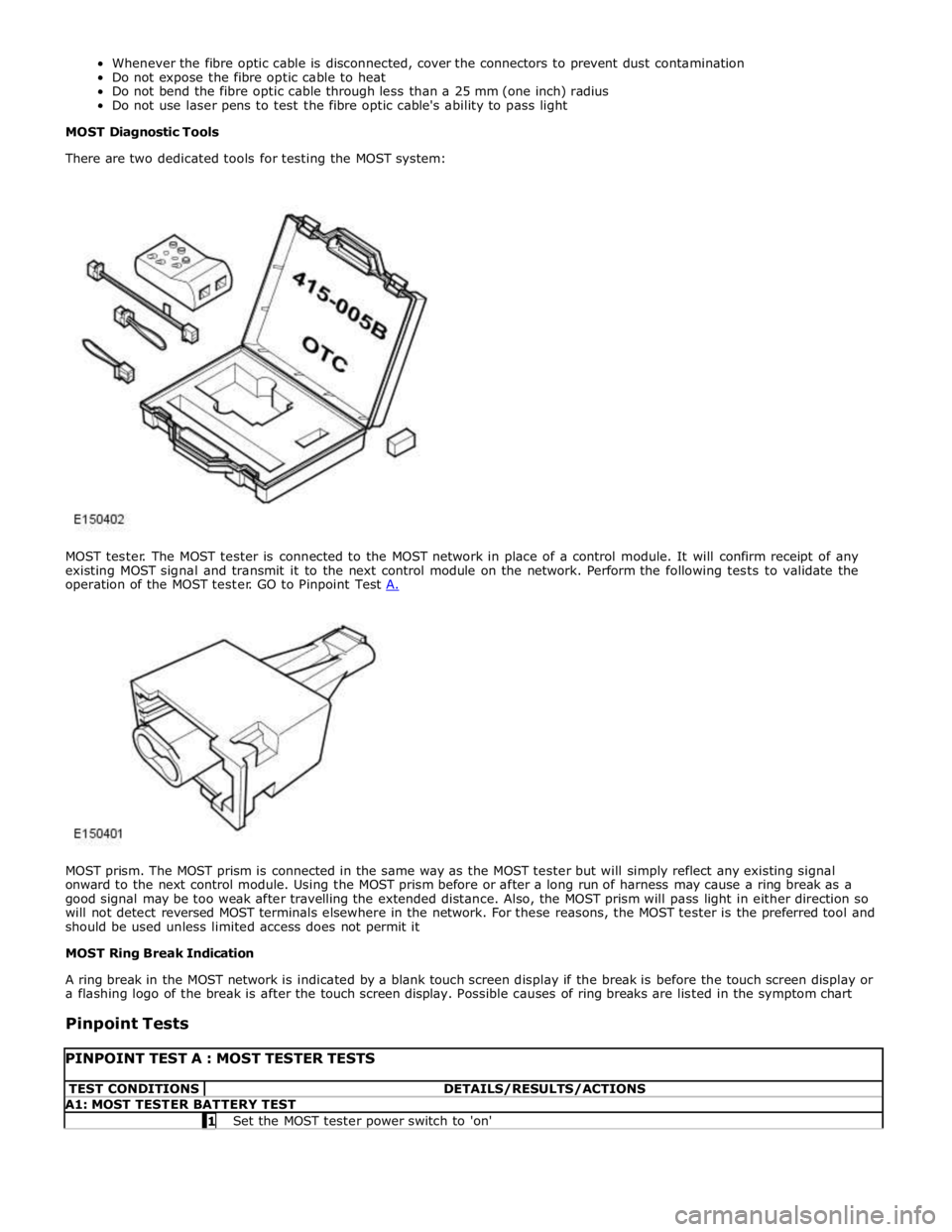
MOST prism. The MOST prism is connected in the same way as the MOST tester but will simply reflect any existing signal
onward to the next control module. Using the MOST prism before or after a long run of harness may cause a ring break as a
good signal may be too weak after travelling the extended distance. Also, the MOST prism will pass light in either direction so
will not detect reversed MOST terminals elsewhere in the network. For these reasons, the MOST tester is the preferred tool and
should be used unless limited access does not permit it
MOST Ring Break Indication
A ring break in the MOST network is indicated by a blank touch screen display if the break is before the touch screen display or
a flashing logo of the break is after the touch screen display. Possible causes of ring breaks are listed in the symptom chart
Pinpoint Tests
PINPOINT TEST A : MOST TESTER TESTS TEST CONDITIONS DETAILS/RESULTS/ACTIONS A1: MOST TESTER BATTERY TEST 1 Set the MOST tester power switch to 'on'