Page 237 of 441
�µ�´
Playing a PC card (EX-L model with navigation system)
222
TRACK LIST ICON
PC CARD ICON
FAST FORWARD BUTTON
RANDOM BUTTON JOYSTICK
PLAY MODE ICON
U.S. model is shown. SKIP BUTTON
REPEAT BUTTON SKIP BUTTON
REWIND BUTTON
TUNE BAR
SCAN BUTTON
AUDIO BUTTON
CD/XM BUTTON
OPEN BUTTON POWER/VOLUME KNOB
Table of Contents
Page 239 of 441
�µ �µ�µ�µCompatible with variable bitrate
and multi-session
Maximum layers
(including ROOT): 8 layers
In WMA f ormat, DRM (digital rights
management) f iles cannot be played.
If the system finds a DRM file, it
skips that f ile and plays the next
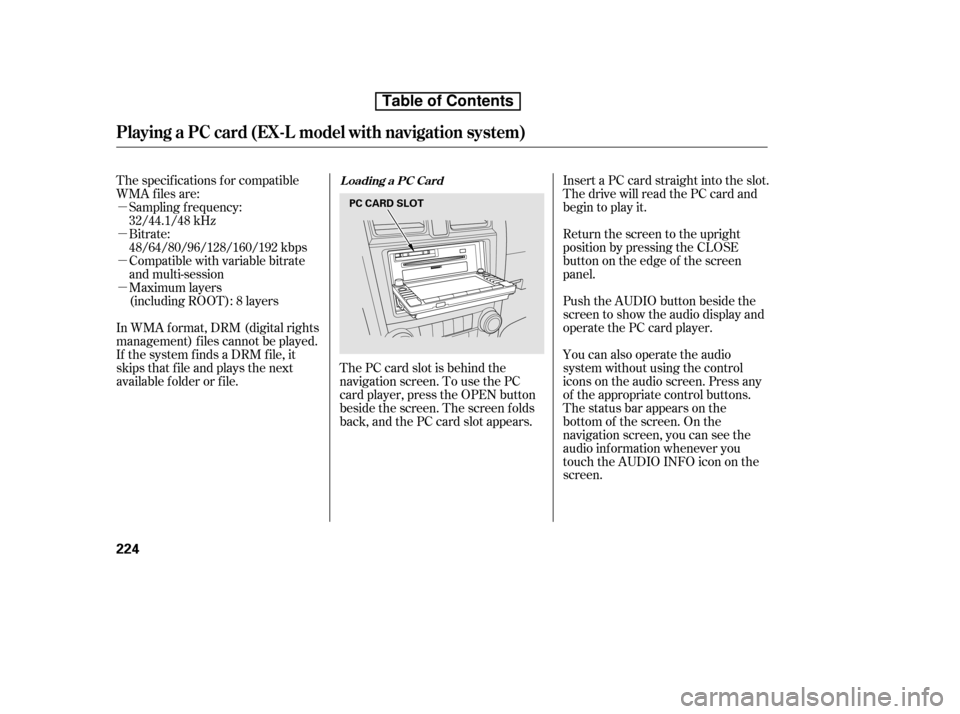
available f older or f ile. The PC card slot is behind the
navigation screen. To use the PC
card player, press the OPEN button
beside the screen. The screen f olds
back, and the PC card slot appears.Insert a PC card straight into the slot.
The drive will read the PC card and
begin to play it.
Return the screen to the upright
position by pressing the CLOSE
button on the edge of the screen
panel.
Push the AUDIO button beside the
screen to show the audio display and
operate the PC card player.
You can also operate the audio
system without using the control
icons on the audio screen. Press any
of the appropriate control buttons.
The status bar appears on the
bottom of the screen. On the
navigation screen, you can see the
audio inf ormation whenever you
touch the AUDIO INFO icon on the
screen.
The specif ications f or compatible
WMA f iles are:
Sampling f requency:
32/44.1/48 kHz
Bitrate:
48/64/80/96/128/160/192 kbps
Loading a PC Card
Playing a PC card (EX-L model with navigation system)
224
PC CARD SLOT
Table of Contents
Page 248 of 441
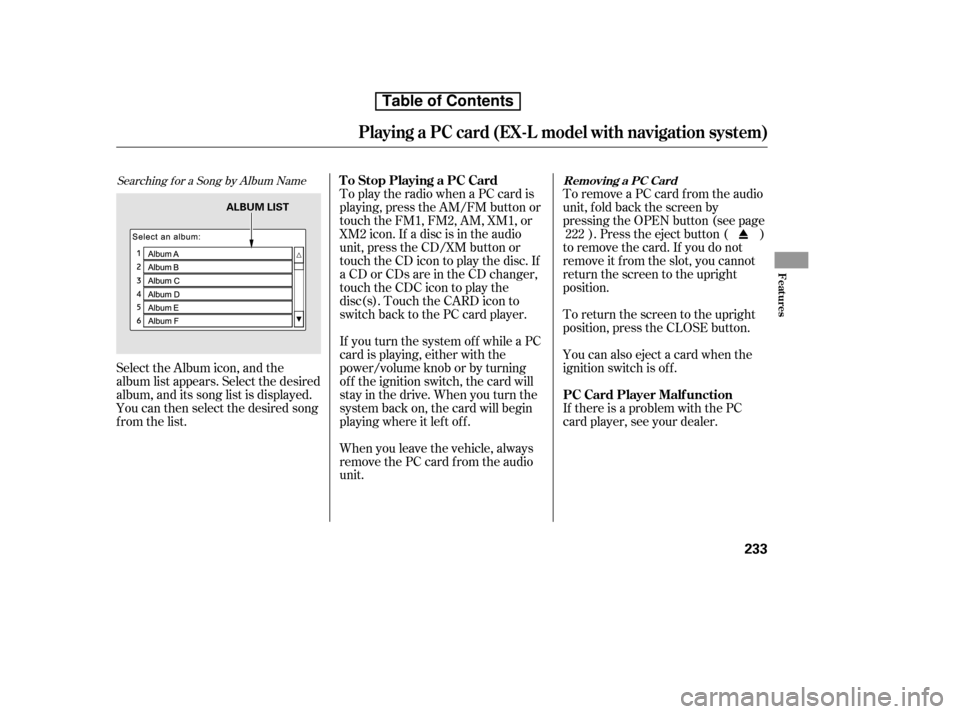
Searching f or a Song by Album Name
Select the Album icon, and the
album list appears. Select the desired
album, and its song list is displayed.
You can then select the desired song
from the list.To remove a PC card f rom the audio
unit, f old back the screen by
pressing the OPEN button (see page
). Press the eject button ( )
to remove the card. If you do not
remove it f rom the slot, you cannot
return the screen to the upright
position.
To return the screen to the upright
position, press the CLOSE button.
You can also eject a card when the
ignition switch is of f .
If there is a problem with the PC
card player, see your dealer.
To play the radio when a PC card is
playing, press the AM/FM button or
touch the FM1, FM2, AM, XM1, or
XM2 icon. If a disc is in the audio
unit, press the CD/XM button or
touch the CD icon to play the disc. If
a CD or CDs are in the CD changer,
touch the CDC icon to play the
disc(s). Touch the CARD icon to
switch back to the PC card player.
If you turn the system of f while a PC
card is playing, either with the
power/volume knob or by turning
of f the ignition switch, the card will
stay in the drive. When you turn the
system back on, the card will begin
playing where it lef t of f .
When you leave the vehicle, always
remove the PC card f rom the audio
unit. 222
T o Stop Playing a PC Card
PC Card Player Malf unction
Removing a PC Card
Playing a PC card (EX-L model with navigation system)
Features
233
ALBUM LIST
Table of Contents
Page 250 of 441
�´
�µ
Playing an iPod(EX-L model with navigation system)
Features
235
SKIP BUTTON
FAST FORWARD BUTTON
REWIND BUTTON
RANDOM BUTTON JOYSTICK
U.S. model is shown. AUX ICON
SKIP BUTTON
REPEAT BUTTON
POWER/VOLUME KNOB
iPod INDICATOR
AUDIO BUTTON
CD/XM BUTTON
OPEN BUTTON
Table of Contents
Page 252 of 441
CONT INUED
If the audio system still does not
recognize the iPod, the iPod may
need to be reset. Follow the
instructions that came with your
iPod, or you can f ind reset
instructions online atInstall the dock connector to the
USB adapter cable securely.
Connect your dock connector to
the iPod correctly and securely.
Push the release button to release
the USB adapter cable.
Open the upper glove box.
In AAC f ormat, DRM (digital rights
management) f iles cannot be played.
If the system finds a DRM file, the
audio unit displays UNPLAYABLE,
andthenskipstothenextfile.
1. 2. 3.4.
www.apple.com/
ipod.
Playing an iPod(EX-L model with navigation system)
Connect ing an iPod
Features
237
DOCK CONNECTOR
USB ADAPTER CABLE
USB CONNECTOR
RELEASE BUTTON
Table of Contents
Page 257 of 441
�µ�´
Playing a USB Flash Memory Device (EX-L model with navigation system)
242
FAST FORWARD BUTTON
RANDOM BUTTON JOYSTICK
U.S. model is shown. SKIP BUTTON
REPEAT BUTTON SKIP BUTTON
REWIND BUTTON
SCAN BUTTON
AUDIO BUTTON
CD/XM BUTTON
OPEN BUTTON AUX ICON
POWER/VOLUME KNOB
MP3/WMA INDICATOR
Table of Contents
Page 260 of 441

CONT INUED
Some versions of MP3, WMA, or
AAC f ormat may not be supported. If
an unsupported f ile is f ound, the
audio unit displays UNSUPPORTED,
then skips to the next f ile.Connect the USB f lash memory
device to the USB connector
correctly and securely.
When the USB f lash memory device
is connected and the USB mode is
selected on the audio system, the
WMAorMP3indicatorisshownon
the navigation screen. It also shows
the f older and f ile numbers, and the
elapsed time on the screen.
Push the release button to release
the USB adapter cable.
Open the upper glove box.
In WMA or AAC format, DRM
(digital rights management) f iles
cannot be played. If the system f inds
a DRM f ile, the audio unit displays
UNPLAYABLE FILE, and then skips
to the next file.
1. 2.3.Connect ing a USB Flash Memory
Device
Playing a USB Flash Memory Device (EX-L model with navigation system)
Features
245
USB ADAPTER CABLE
USB CONNECTOR
RELEASE BUTTON
Combining a low sampling f requency
with a low bitrate may result in
extremely degraded sound quality.
Table of Contents
Page 276 of 441

�µ�µ�µ�µ
�µ�µ
If you see ‘‘ ’’ in the direction
display when you turn the ignition
switch to the ON (II) position, the
compassisself-calibrating. The compass may need to be
manually calibrated af ter exposure to
a strong magnetic field. If the
compass display changes to ‘‘ ’’
and the calibrate indicator blinks, or
the display does not show any
direction and the compass is not self -
calibrating, do the f ollowing.
Do this procedure in an open
area, away f rom buildings, power
lines, and other vehicles. In most areas, there is a variation
between magnetic north and true
north. Zone selection is required so
the compass can compensate f or this
variation. To check and select the
zone, do this:
Drivethevehicleslowlyinthree
complete circles.
When the display goes f rom
‘‘ ’’ or blank to an actual
heading, the unit is calibrated and
the display returns to normal. Press and hold the select/reset
knob f or 10 seconds to change the
display to the reset mode.
1. 1.
2.
CONT INUED
Compass
Compass Calibration Compass Zone Selection
Features
261
NOTE:CALIBRATE INDICATOR
SELF-CALIBRATING
DIRECTION DISPLAY
Table of Contents


