Page 202 of 441
CONT INUED
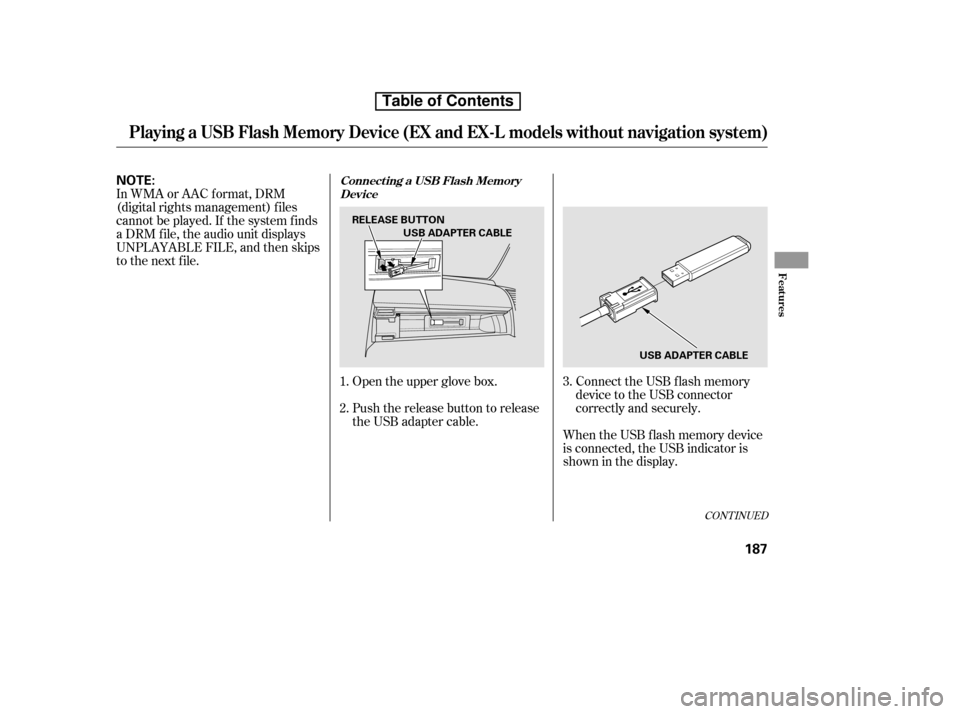
When the USB f lash memory device
is connected, the USB indicator is
showninthedisplay.Connect the USB f lash memory
device to the USB connector
correctly and securely.
Open the upper glove box.
Push the release button to release
the USB adapter cable.
In WMA or AAC format, DRM
(digital rights management) f iles
cannot be played. If the system f inds
a DRM f ile, the audio unit displays
UNPLAYABLE FILE, and then skips
to the next file.
1. 2.3.
Playing a USB Flash Memory Device (EX and EX-L models without navi
gation system)
Connect ing a USB Flash Memory
Device
Features
187
NOTE:
USB ADAPTER CABLE
RELEASE BUTTON
USB ADAPTER CABLE
Table of Contents
Page 220 of 441
Depending on where you drive, you
may experience reception problems.
Interf erence can be caused by any of
these conditions:Driving on the north side of a
large commercial truck on an
east/west road.
Driving in tunnels.
Driving on a road beside a vertical
wall, steep clif f , or hill to the south
of you.
Driving on the lower level of a
multi-tiered road.
Driving on a single lane road
alongside dense trees taller than
50 ft. (15 m) to the south of you.
Driving on the north side of an
east/west mountain road.
Large items carried on a roof rack.
There may be other geographic
situations that could af f ect XM Radio
reception. If your XM Radio service has expired
or you purchased your vehicle f rom
a previous owner, you can listen to a
sampling of the broadcasts available
on XM Radio. With the ignition
switch in the ACCESSORY (I) or ON
(II) position, push the power/volume
knob to turn on the audio system and
press the CD/XM button. A variety
of music types and styles will play.
If you decide to purchase XM Radio
service, contact XM Radio at
,orat
1-800-852-9696. In Canada, contact
XM CANADA
at , or
at 1-877-209-0079. You will need to
give them your radio I.D. number
and your credit card number. To get your radio I.D. number, press the
TUNE bar until ‘‘0’’ appears in the
display. Your I.D. will appear in the
display.
After you’ve registered with XM
Radio, keep your audio system in the
XM radio mode while you wait f or
activation. This should take about 30
minutes.
While waiting f or activation, make
sure your vehicle remains in an open
area with good reception. Once your
audio system is activated, you’ll be
able to listen to XM Radio broadcasts.
XM Radio will continue to send an
activation signal to your vehicle f or
at least 12 hours from the activation
request. If the service has not been
activated after 36 hours, contactXM
Radio. In Canada, contact XM
CANADA
.
As required by the FCC:
Changes or modif ications not expresslyapproved by the party responsible f or
compliance could void the user’sauthority to operate the equipment.
www.xmradio.com www.xmradio.ca
Receiving XM Radio Service
Playing t he XMRadio (EX-L model with navigation system)
Features
205
Table of Contents
Page 221 of 441
�µ�´
Playing a Disc (EX-L model with navigation system)
206
SCAN BUTTON JOYSTICK
AUDIO BUTTON
POWER/VOLUME KNOB
OPEN BUTTON
CD BUTTON
RANDOM
BUTTON
REPEAT BUTTON REWIND BUTTON FAST FORWARD
BUTTONCD ICON
TUNE BAR SKIP BUTTONSKIP BUTTON
U.S. model is shown.
Table of Contents
Page 223 of 441
Insert a disc about half way into the
disc slot. The drive will pull the disc
in the rest of the way and begin to
play it.
You cannot load and play 3-inch
(8-cm)discsinthissystem.To return the screen to the upright
position, press the CLOSE button on
the edge of the screen panel. Do not
use the f olded down screen as a tray.
If you put a cup, f or example, on the
screen, the liquid inside the cup may
spill on the screen when you go over
a bump.
The in-dash disc player is behind the
navigation screen. To use the disc
player, press the OPEN button
beside the screen. The screen f olds
back, and the disc slot appears.
To Load a Disc
Playing a Disc (EX-L model with navigation system)
208
OPEN BUTTON DISC SLOT
CLOSE BUTTON
Table of Contents
Page 228 of 441
You cannot close the screen if a disc
is partially inserted into its slot.
To return the screen to the upright
position, press the CLOSE button.
You can also eject the disc when the
ignition switch is of f . For inf ormation on how to handle
and protect discs, see page .
To remove a disc f rom the audio unit,
f old back the screen by pressing the
OPEN button (see page ). Press
the disc eject button ( ) to
remove the disc. If you eject the disc,
but do not remove it f rom the slot,
the system will automatically reload
it af ter 10 seconds and put it in pause
mode. To begin playing, press the
CD/XM button. 252
206
Removing a DiscProtecting Discs
Playing a Disc (EX-L model with navigation system)
Features
213
Table of Contents
Page 230 of 441
�´
�µ
CD Changer (EX-L model with navigation system)
Features
215
CD ICON CD CHANGER ICON
POWER/VOLUME KNOB
JOYSTICK
OPEN BUTTON
CD BUTTON
AUDIO BUTTON
SCAN BUTTON
TUNE BAR
REWIND BUTTONFAST FORWARD BUTTON
RANDOM BUTTON
REPEAT BUTTON SKIP BUTTON
SKIP BUTTON
U.S. model is shown.
Table of Contents
Page 231 of 441
Open the center console cover,
then slide open the CD changer
cover by pulling it rearward.Push the EJECT button to remove
the CD magazine. The magazine
will pop up automatically.
Your vehicle has the CD changer in
the center console.
CD-R,CD-RWdisc,andCD
compressedinMP3andWMAwill
not work in this unit. Video CDs and
DVD discs also will not work.
Do not spill any liquids on the center
console. Spilled liquids can damage
electrical components in the CD
changer.
1.2.
L oading CDs in the Changer
CD Changer (EX-L model with navigation system)
216
EJECT BUTTON
Table of Contents
Page 232 of 441
To install a CD into the magazine,
push the button while pulling out
on the tab.Store all six trays in the magazine,
and reinstall the magazine in the
CD changer as shown.
PutaCDonthetraywiththe
printed surf ace f acing up as shown.
Reinstall the tray in the magazine.
Repeat this procedure to open the
other f ive trays.
Make sure to slide the CD
changer cover closed until it clicks.
To remove CDs f rom the CD
changer, ref er to the loading
procedure.
3. 4. 5.
6. 7.
CD Changer (EX-L model with navigation system)
Features
217
Table of Contents