2010 CHEVROLET IMPALA buttons
[x] Cancel search: buttonsPage 142 of 432
Programming Universal Home
Remote — Rolling CodeFor questions or help programming the Universal
Home Remote System, call 1-866-572-2728 or go to
www.learcar2u.com.
Most garage door openers sold after 1996 are Rolling
Code units.
Programming a garage door opener involves
time-sensitive actions, so read the entire procedure
before starting. Otherwise, the device will time out and
the procedure will have to be repeated.To program up to three devices:
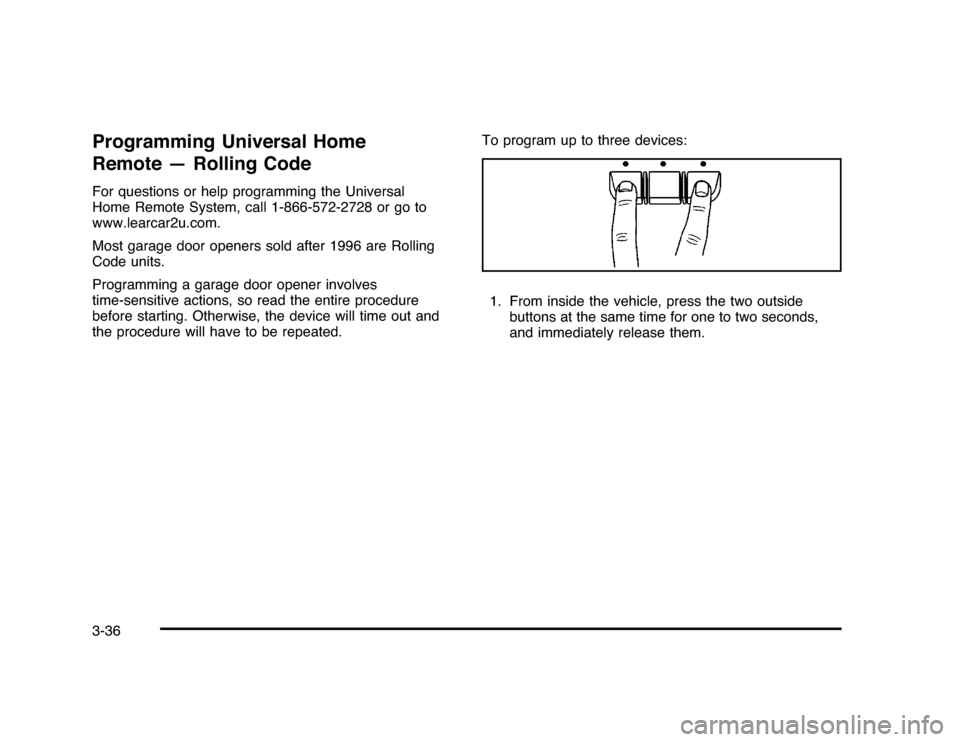
1. From inside the vehicle, press the two outside
buttons at the same time for one to two seconds,
and immediately release them.3-36
Page 146 of 432

2. Write down the eight to 12 switch settings from left
to right as follows:
•
When a switch is in the up position, write “Left.”
•
When a switch is in the down position, write
“Right.”
•
If a switch is set between the up and down
position, write “Middle.”
The switch settings written down in Step 2 will
now become the button strokes to be entered into
the Universal Home Remote in Step 4. Be sure to
enter the switch settings written down in Step 2, in
order from left to right, into the Universal Home
Remote, when completing Step 4.
3. From inside your vehicle, first firmly press all three
buttons at the same time for about three seconds.
Release the buttons to put the Universal Home
Remote into programming mode.4. The indicator lights will blink slowly. Enter each
switch setting from Step 2 into your vehicle’s
Universal Home Remote. You will have two
and one-half minutes to complete Step 4. Now
press one button on the Universal Home Remote
for each switch setting as follows:
•
If you wrote “Left,” press the left button in the
vehicle.
•
If you wrote “Right,” press the right button in the
vehicle.
•
If you wrote “Middle,” press the middle button in
the vehicle.
3-40
Page 147 of 432
5. After entering all of the switch positions, again,
firmly press and release all three buttons at the
same time. The indicator lights will turn on.
6. Press and hold the button that will be used to
control the garage door until the garage door
moves. The indicator light above the selected button
should slowly blink. This button may need to be
held for up to 55 seconds.
7. Immediately release the button when the garage
door moves. The indicator light will blink rapidly
until programming is complete.
8. Press and release the same button again.
The garage door should move, confirming
that programming is successful and complete.
To program another Fixed Code device such as an
additional garage door opener, a security device,
or home automation device, repeat Steps 1-8, choosing
a different button in Step 6 than what was used for
the garage door opener.Using Universal Home RemotePress and hold the appropriate button for at least half of
a second. The indicator light will come on while the
signal is being transmitted.
Reprogramming Universal Home
Remote ButtonsAny of the three buttons can be reprogrammed by
repeating the instructions.Erasing Universal Home Remote
ButtonsThe programmed buttons should be erased when the
vehicle is sold or the lease ends.
To erase either Rolling Code or Fixed Code on the
Universal Home Remote device:
1. Press and hold the two outside buttons at the
same time for approximately 20 seconds, until
the indicator lights, located directly above the
buttons, begin to blink rapidly.
2. Once the indicator lights begin to blink, release both
buttons. The codes from all buttons will be erased.
For help or information on the Universal Home Remote
System, call the customer assistance phone number
underCustomer Assistance Offices on page 8-6.
3-41
Page 157 of 432
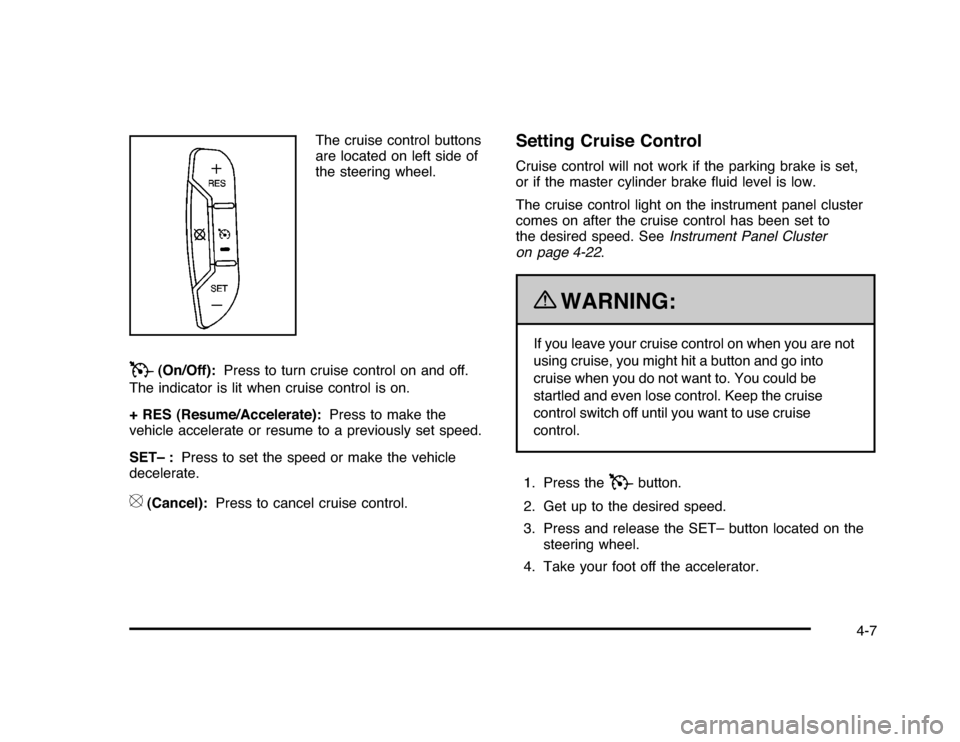
The cruise control buttons
are located on left side of
the steering wheel.
T
(On/Off):Press to turn cruise control on and off.
The indicator is lit when cruise control is on.
+ RES (Resume/Accelerate):Press to make the
vehicle accelerate or resume to a previously set speed.
SET– :Press to set the speed or make the vehicle
decelerate.
[
(Cancel):Press to cancel cruise control.
Setting Cruise ControlCruise control will not work if the parking brake is set,
or if the master cylinder brake fluid level is low.
The cruise control light on the instrument panel cluster
comes on after the cruise control has been set to
the desired speed. SeeInstrument Panel Cluster
on page 4-22.
{
WARNING:
If you leave your cruise control on when you are not
using cruise, you might hit a button and go into
cruise when you do not want to. You could be
startled and even lose control. Keep the cruise
control switch off until you want to use cruise
control.
1. Press the
T
button.
2. Get up to the desired speed.
3. Press and release the SET– button located on the
steering wheel.
4. Take your foot off the accelerator.
4-7
Page 187 of 432
Driver Information Center (DIC)Your vehicle has a Driver Information Center (DIC).
All messages will appear in the DIC display located
below the speedometer in the instrument panel cluster.
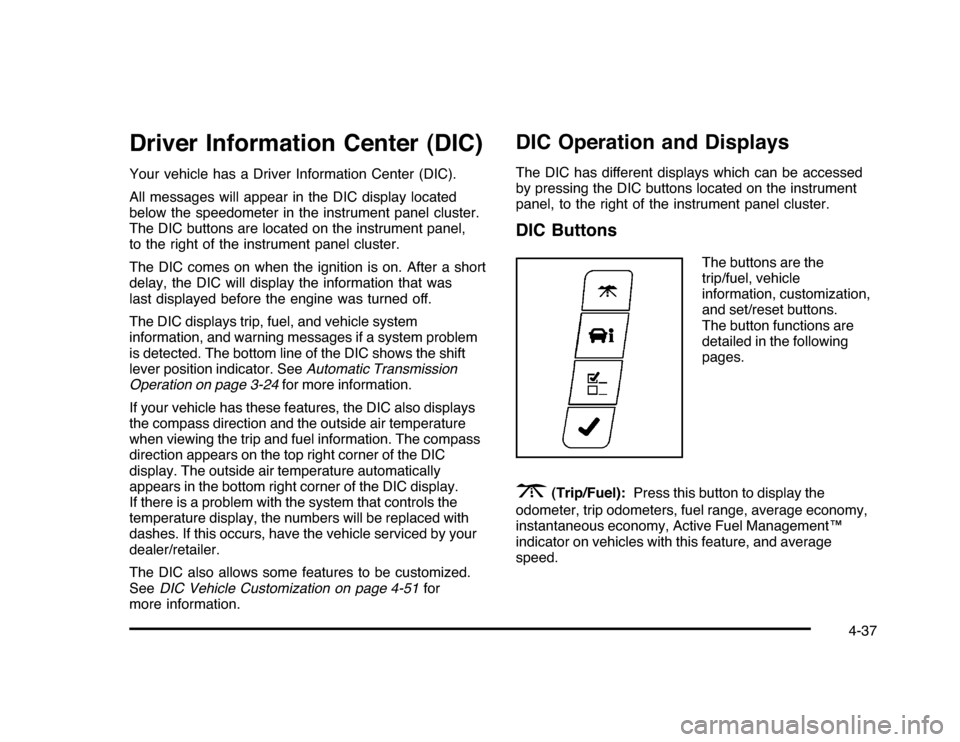
The DIC buttons are located on the instrument panel,
to the right of the instrument panel cluster.
The DIC comes on when the ignition is on. After a short
delay, the DIC will display the information that was
last displayed before the engine was turned off.
The DIC displays trip, fuel, and vehicle system
information, and warning messages if a system problem
is detected. The bottom line of the DIC shows the shift
lever position indicator. SeeAutomatic Transmission
Operation on page 3-24for more information.
If your vehicle has these features, the DIC also displays
the compass direction and the outside air temperature
when viewing the trip and fuel information. The compass
direction appears on the top right corner of the DIC
display. The outside air temperature automatically
appears in the bottom right corner of the DIC display.
If there is a problem with the system that controls the
temperature display, the numbers will be replaced with
dashes. If this occurs, have the vehicle serviced by your
dealer/retailer.
The DIC also allows some features to be customized.
SeeDIC Vehicle Customization on page 4-51for
more information.
DIC Operation and DisplaysThe DIC has different displays which can be accessed
by pressing the DIC buttons located on the instrument
panel, to the right of the instrument panel cluster.DIC Buttons
The buttons are the
trip/fuel, vehicle
information, customization,
and set/reset buttons.
The button functions are
detailed in the following
pages.
3
(Trip/Fuel):Press this button to display the
odometer, trip odometers, fuel range, average economy,
instantaneous economy, Active Fuel Management™
indicator on vehicles with this feature, and average
speed.
4-37
Page 191 of 432

Change Compass ZoneYour vehicle may have this feature. To change the
compass zone through the DIC, seeDIC Compass
on page 4-42.Calibrate CompassYour vehicle may have this feature. The compass can
be manually calibrated. To calibrate the compass
through the DIC, seeDIC Compass on page 4-42.Relearn Remote KeyTo access this display, the vehicle must be in P (Park).
This display allows you to match the Remote Keyless
Entry (RKE) transmitter to your vehicle. This procedure
will erase all previously learned transmitters. Therefore,
they must be relearned as additional transmitters.To match an RKE transmitter to your vehicle:
1. Press the vehicle information button until
PRESS
V
TO RELEARN REMOTE KEY displays.
2. Press the set/reset button until REMOTE KEY
LEARNING ACTIVE is displayed.
3. Press and hold the lock and unlock buttons on
the first transmitter at the same time for about
15 seconds.
A chime will sound indicating that the transmitter is
matched.
4. To match additional transmitters at this time, repeat
Step 3.
Each vehicle can have a maximum of eight
transmitters matched to it.
5. To exit the programming mode, you must cycle the
key to LOCK/OFF.
Blank DisplayThis display shows no information.
4-41
Page 194 of 432
DIC Warnings and MessagesMessages are displayed on the DIC to notify the driver
that the status of the vehicle has changed and that some
action may be needed by the driver to correct the
condition. Multiple messages may appear one after
another. Some messages may not require immediate
action, but you can press the set/reset button to
acknowledge that you received the message and clear
it from the DIC display. Pressing any of the DIC buttons
also acknowledges and clears any messages. Some
messages cannot be cleared from the DIC display
because they are more urgent. These messages require
action before they can be cleared. You should take any
messages that appear on the display seriously and
remember that clearing the messages will only make
the messages disappear, not correct the problem.
The following are the possible messages that can be
displayed and some information about them.AUTOMATIC LIGHT CONTROL OFFThis message displays when the automatic headlamps
are turned off. SeeExterior Lamps on page 4-9for
more information.AUTOMATIC LIGHT CONTROL ONThis message displays when the automatic headlamps
are turned on. SeeExterior Lamps on page 4-9for
more information.
BATTERY SAVER ACTIVEThis message displays when the system detects that
the battery voltage is dropping beyond a reasonable
level. The battery saver system starts reducing certain
features of the vehicle that you may be able to notice.
At the point that the features are disabled, this message
is displayed. It means that the vehicle is trying to
save the charge in the battery.
Turn off all unnecessary accessories to allow the battery
to recharge.
The normal battery voltage range is 11.5 to 15.5 volts.CHANGE ENGINE OIL SOONThis message displays when service is required for the
vehicle. See your dealer/retailer. SeeEngine Oil on
page 6-15andScheduled Maintenance on page 7-3
for more information.
Acknowledging the CHANGE ENGINE OIL SOON
message will not reset the OIL LIFE REMAINING.
That must be done at the OIL LIFE screen under the
vehicle information menu. See “Oil Life” underDIC
Operation and Displays on page 4-37andEngine Oil
Life System on page 6-18.
4-44
Page 207 of 432
Exiting the Feature Settings MenuThe feature settings menu will be exited when any of
the following occurs:•
The vehicle is shifted out of P (Park).
•
The vehicle is no longer in ON/RUN.
•
The trip/fuel or vehicle information DIC buttons are
pressed.
•
The end of the feature settings menu is reached
and exited.
•
A 40 second time period has elapsed with no
selection made.
Audio System(s)Determine which radio the vehicle has and read the
following pages to become familiar with its features.
{
WARNING:
Taking your eyes off the road for extended periods
could cause a crash resulting in injury or death to
you or others. Do not give extended attention to
entertainment tasks while driving.This system provides access to many audio and non
audio listings.
To minimize taking your eyes off the road while driving,
do the following while the vehicle is parked:
•
Become familiar with the operation and controls of
the audio system.
•
Set up the tone, speaker adjustments, and preset
radio stations.
For more information, seeDefensive Driving on
page 5-2.
Notice:Contact your dealer/retailer before adding
any equipment.
Adding audio or communication equipment could
interfere with the operation of the vehicle’s engine,
radio, or other systems, and could damage them.
Follow federal rules covering mobile radio and
telephone equipment.
The vehicle has Retained Accessory Power (RAP).
With RAP, the audio system can be played even after
the ignition is turned off. SeeRetained Accessory Power
(RAP) on page 3-21for more information.
4-57