Page 306 of 556
306
3-3. Using the rear seat entertainment system
L/C200_U (OM60D97U)
Using the DVD changer
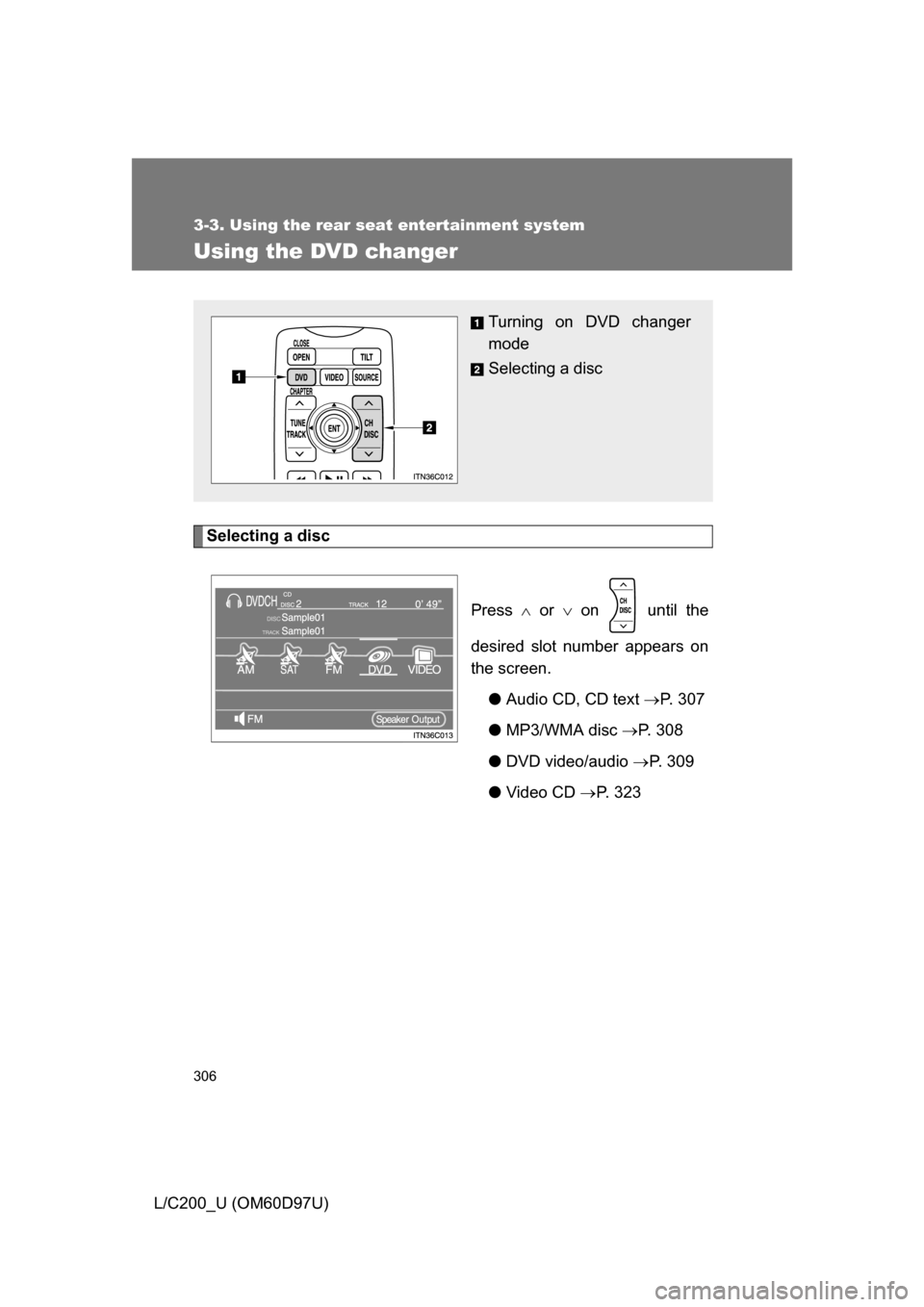
Selecting a discPress or on until the
desired slot number appears on
the screen. ●Audio CD, CD text P. 307
● MP3/WMA disc P. 3 0 8
● DVD video/audio P. 3 0 9
● Video CD P. 323
Turning on DVD changer
mode
Selecting a disc
Page 307 of 556
307
3-3. Using the rear seat entertainment system
3
Interior features
L/C200_U (OM60D97U)
Playing an audio CD/CD text
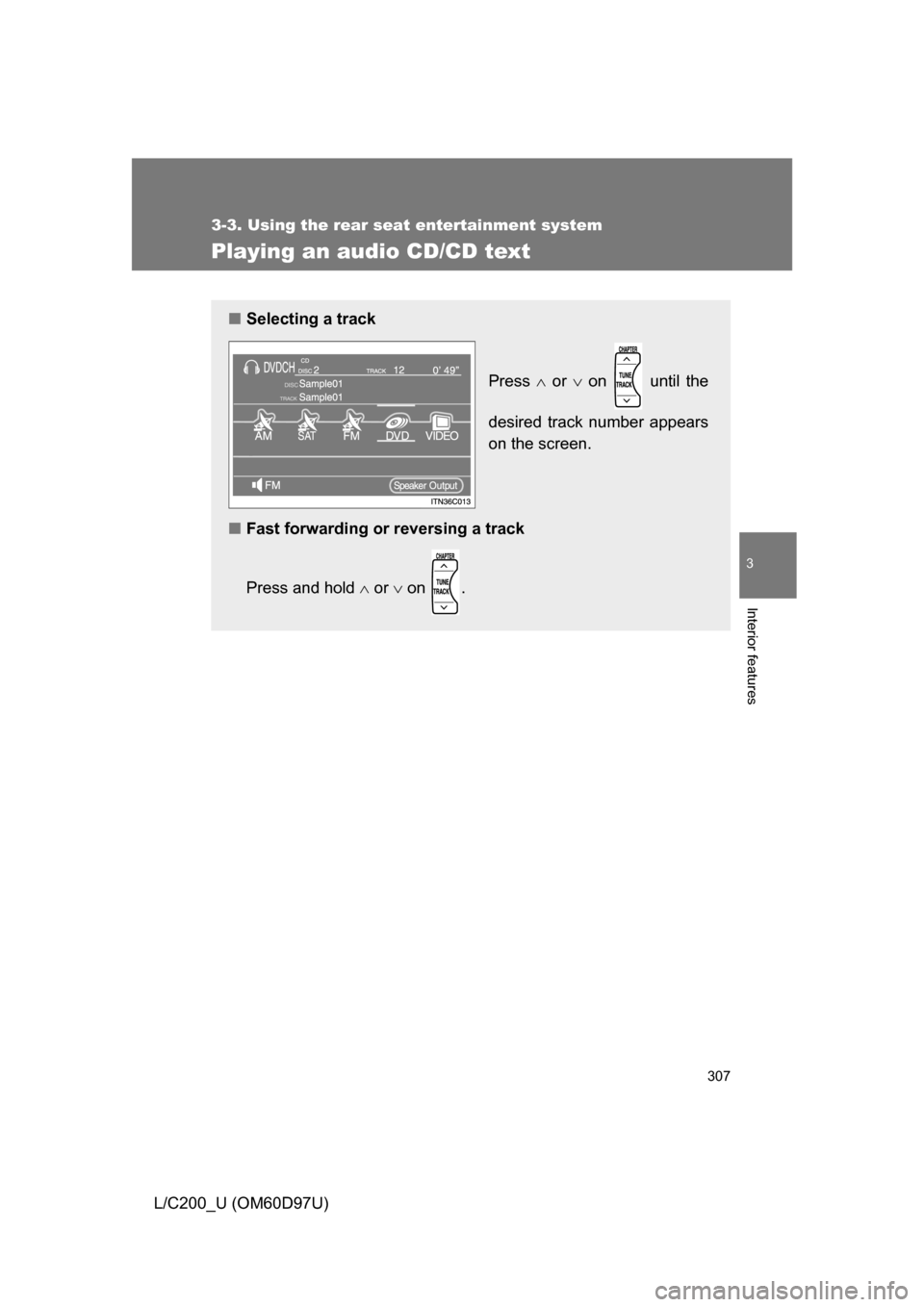
■Selecting a track
Press or on until the
desired track number appears
on the screen.
■ Fast forwarding or reversing a track
Press and hold or on .
Page 309 of 556
309
3-3. Using the rear seat entertainment system
3
Interior features
L/C200_U (OM60D97U)
Playing DVD video/audio
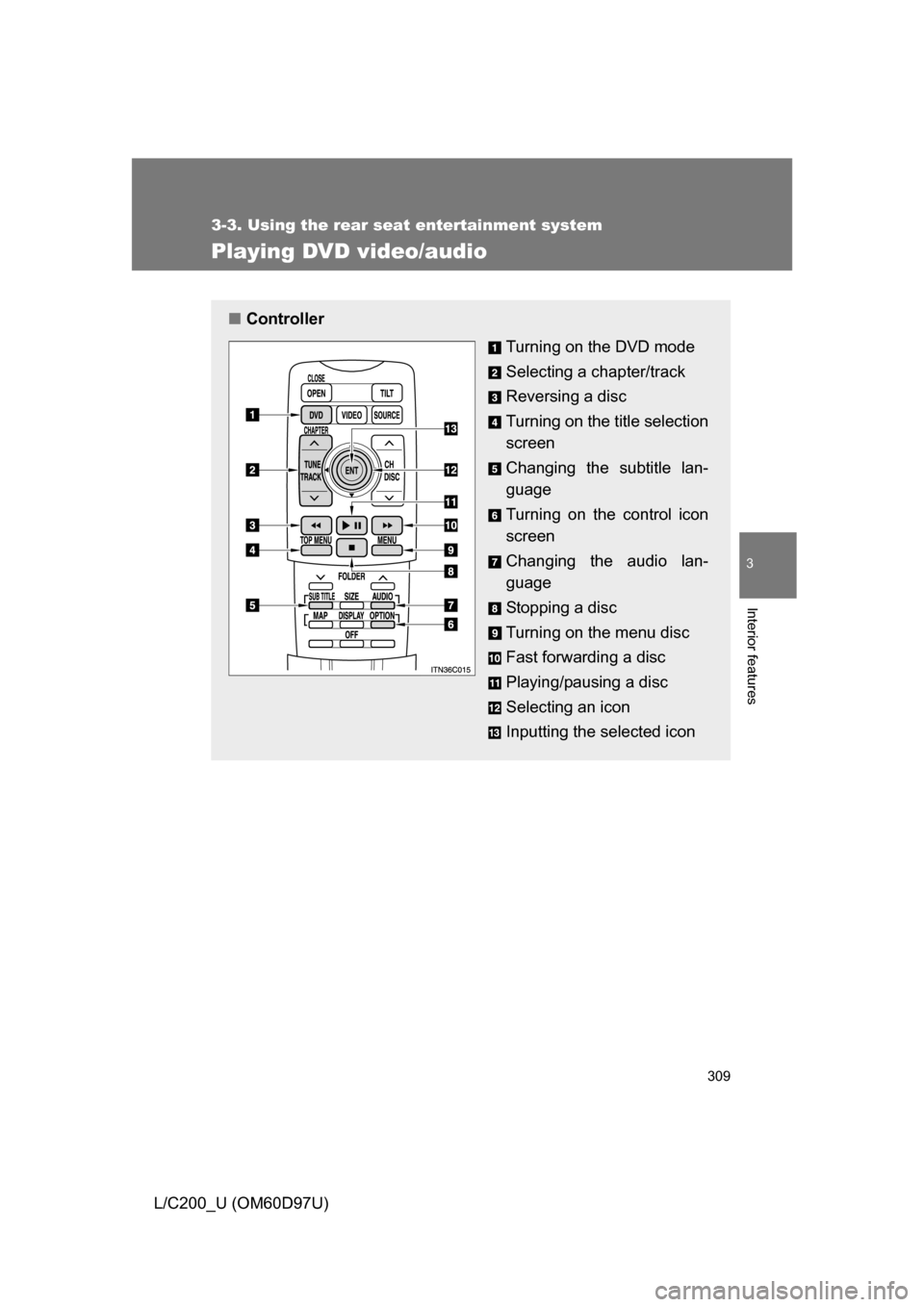
■Controller
Turning on the DVD mode
Selecting a chapter/track
Reversing a disc
Turning on the title selection
screen
Changing the subtitle lan-
guage
Turning on the control icon
screen
Changing the audio lan-
guage
Stopping a disc
Turning on the menu disc
Fast forwarding a disc
Playing/pausing a disc
Selecting an icon
Inputting the selected icon
Page 310 of 556
310 3-3. Using the rear seat entertainment system
L/C200_U (OM60D97U)
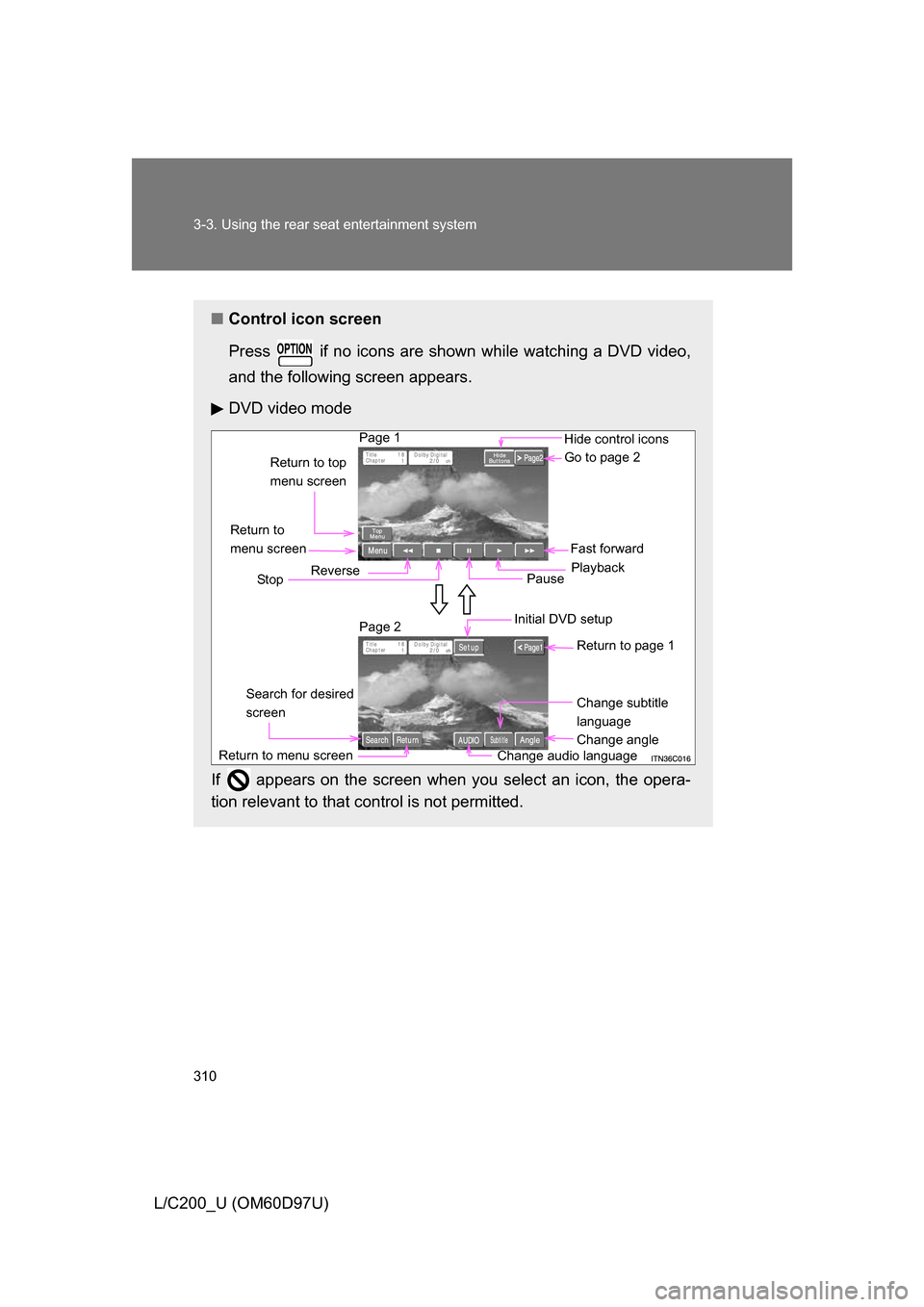
■Control icon screen
Press if no icons are shown while watching a DVD video,
and the following screen appears.
DVD video mode
If appears on the screen when you select an icon, the opera-
tion relevant to that control is not permitted.
Return to top
menu screen Hide control icons
Return to
menu screen Reverse
Stop Fast forward
Playback
Pause Go to page 2
Return to menu screen Change subtitle
language
Change audio language Initial DVD setup
Return to page 1
Change angle
Page 2
Page 1
Search for desired
screen
Page 311 of 556
311
3-3. Using the rear seat entertainment system
3
Interior features
L/C200_U (OM60D97U)
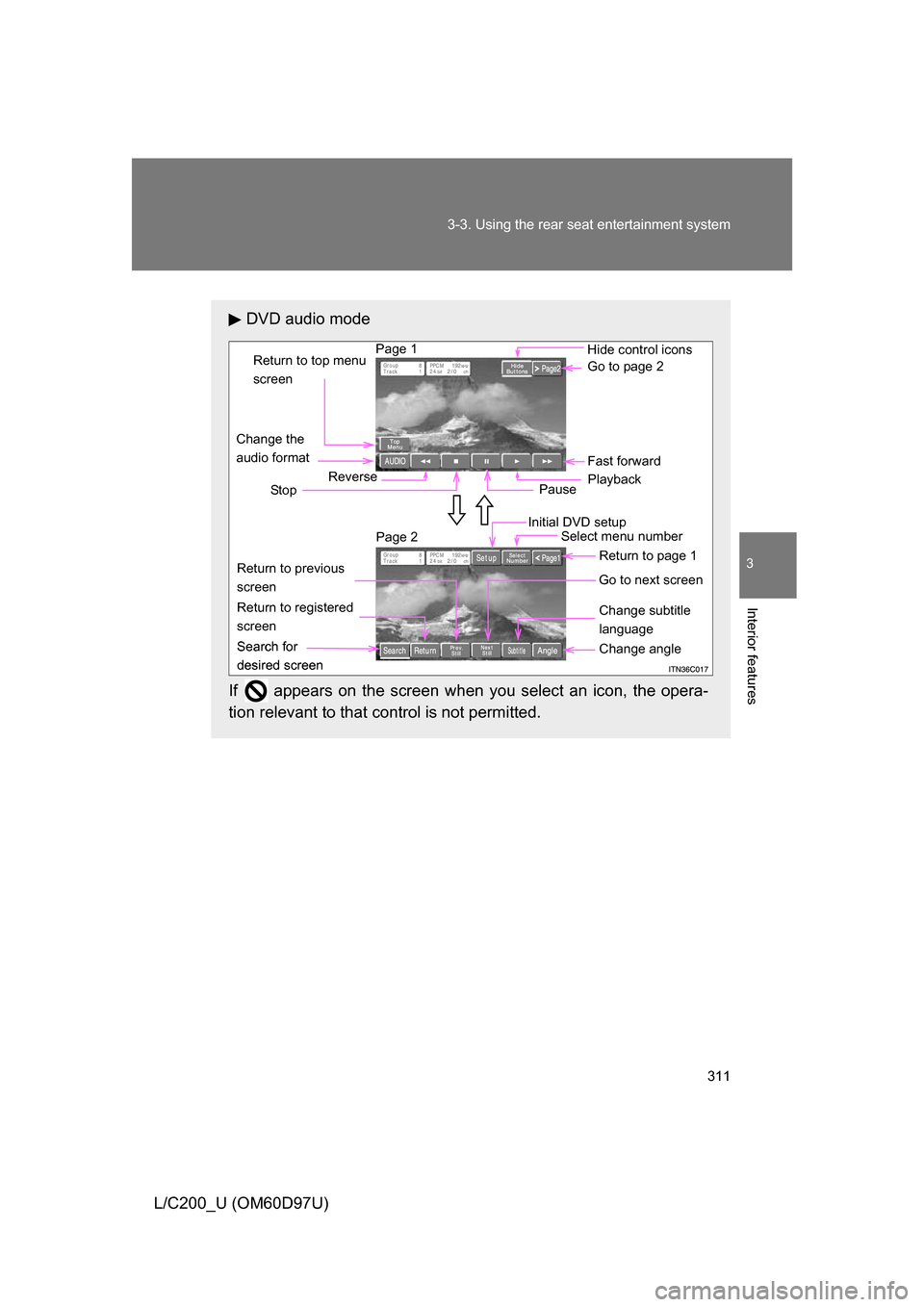
DVD audio mode
If appears on the screen when you select an icon, the opera-
tion relevant to that control is not permitted.
Change the
audio format
Change angle
Initial DVD setup
Select menu number
Return to page 1
Change subtitle
language
Return to previous
screen
Go to next screen
Return to registered
screen Return to top menu
screen
Hide control icons
Reverse
St op Fast forward
Playback
Pause Go to page 2
Search for
desired screen Page 2
Page 1
Search for
desired screen
Page 313 of 556
313
3-3. Using the rear seat entertainment system
3
Interior features
L/C200_U (OM60D97U)
Returning to the previous screen
Select to return to the previous screen. For the operation of
the menu screen, see the separa te manual for the DVD disc.
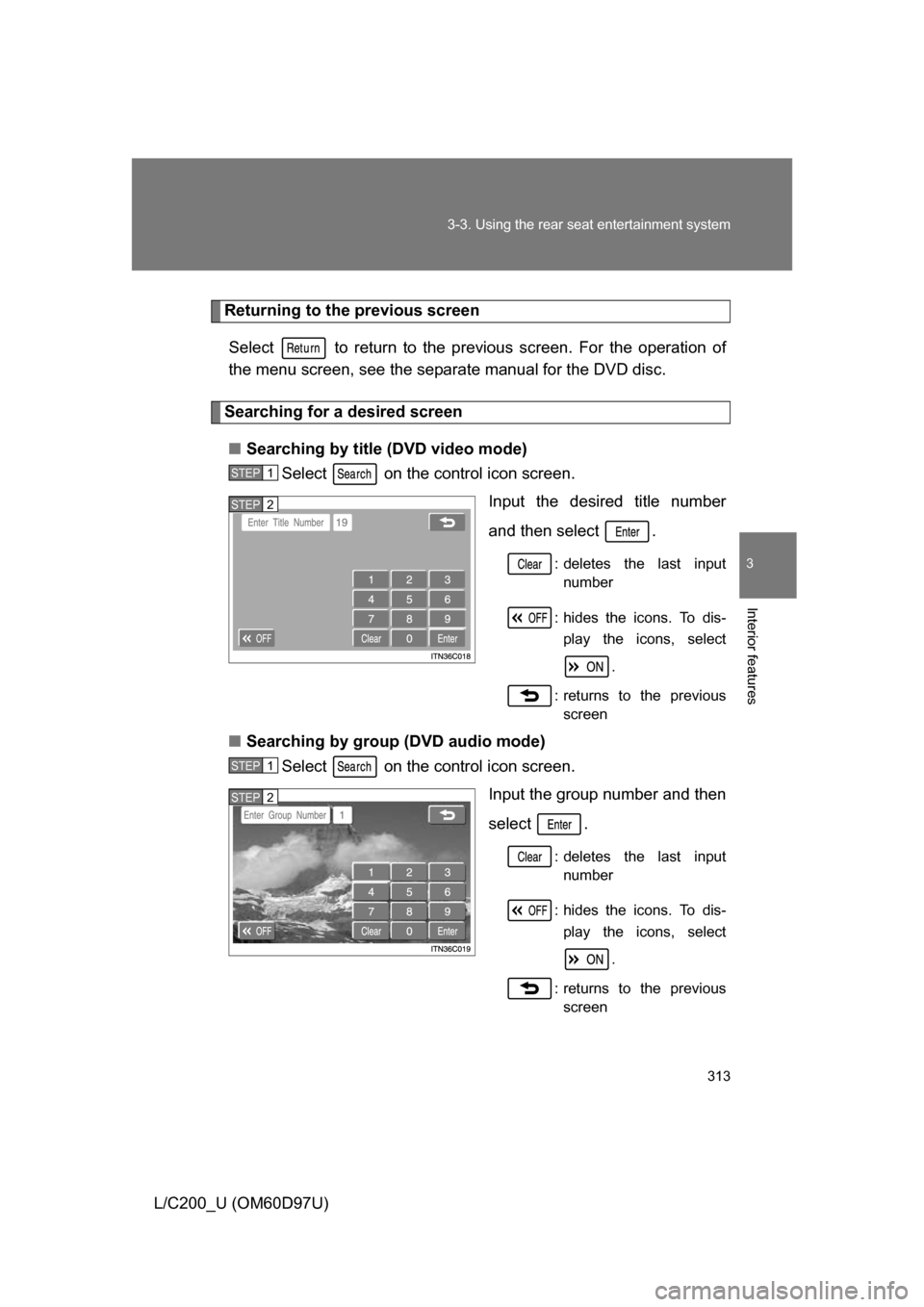
Searching for a desired screen
■ Searching by title (DVD video mode)
Select on the control icon screen.
Input the desired title number
and then select .
: deletes the last inputnumber
: hides the icons. To dis- play the icons, select
.
: returns to the previous screen
■ Searching by group (DVD audio mode)
Select on the control icon screen.
Input the group number and then
select .
: deletes the last inputnumber
: hides the icons. To dis- play the icons, select
.
: returns to the previous screen
STEP1
STEP2
STEP1
STEP2
Page 314 of 556
314 3-3. Using the rear seat entertainment system
L/C200_U (OM60D97U)■
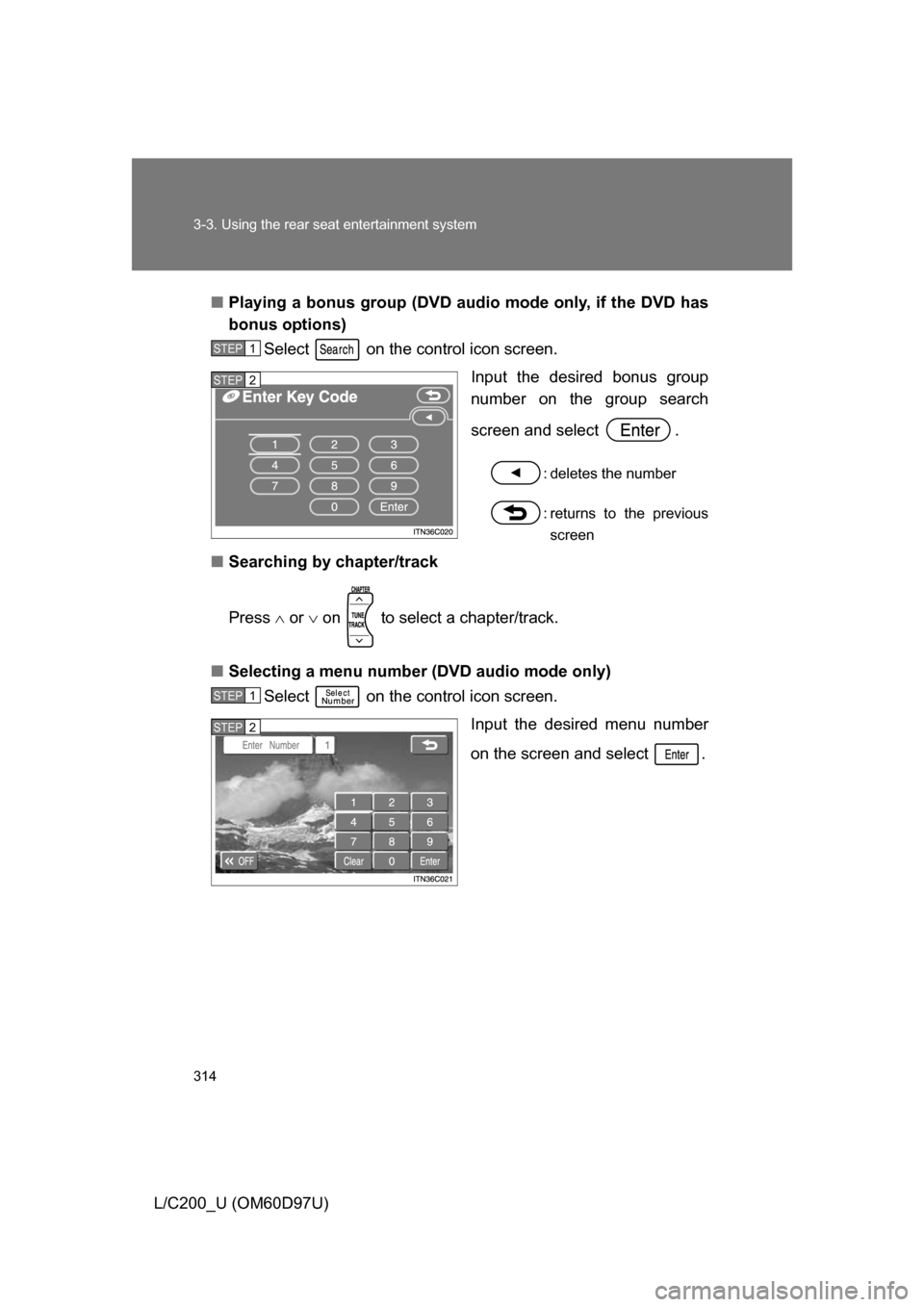
Playing a bonus group (DVD audio mode only, if the DVD has
bonus options)
Select on the control icon screen.
Input the desired bonus group
number on the group search
screen and select .
: deletes the number
: returns to the previousscreen
■ Searching by chapter/track
Press or on to select a chapter/track.
■ Selecting a menu number (DVD audio mode only)
Select on the control icon screen.
Input the desired menu number
on the screen and select .
STEP1
STEP2
STEP1
STEP2
Page 315 of 556
315
3-3. Using the rear seat entertainment system
3
Interior features
L/C200_U (OM60D97U)
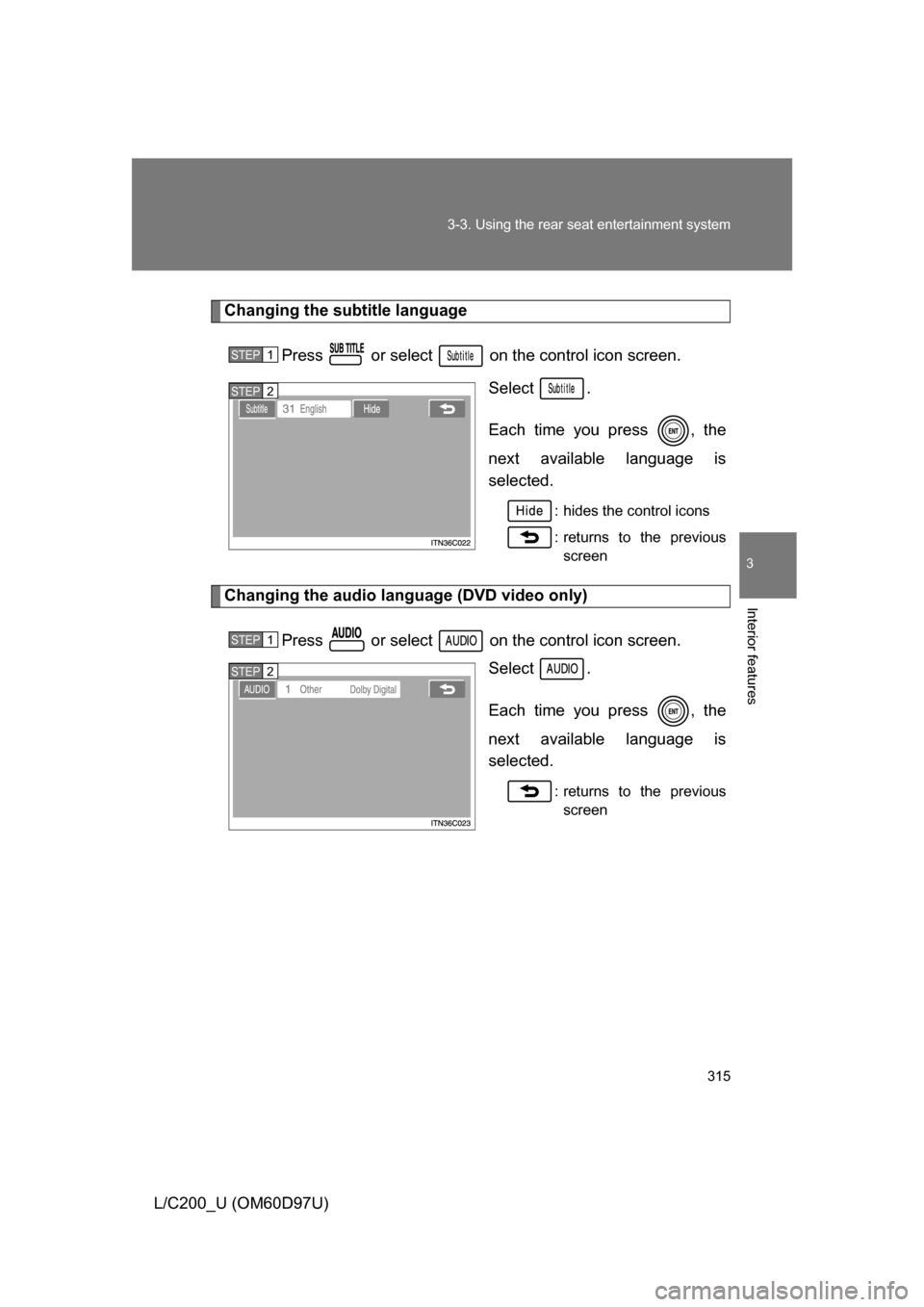
Changing the subtitle language
Press or select on the control icon screen. Select .
Each time you press , the
next available language is
selected.
: hides the control icons
: returns to the previousscreen
Changing the audio language (DVD video only)
Press or select on the control icon screen. Select .
Each time you press , the
next available language is
selected.
: returns to the previousscreen
STEP1
STEP2
STEP1
STEP2