2009 SUBARU OUTBACK ECO mode
[x] Cancel search: ECO modePage 202 of 447
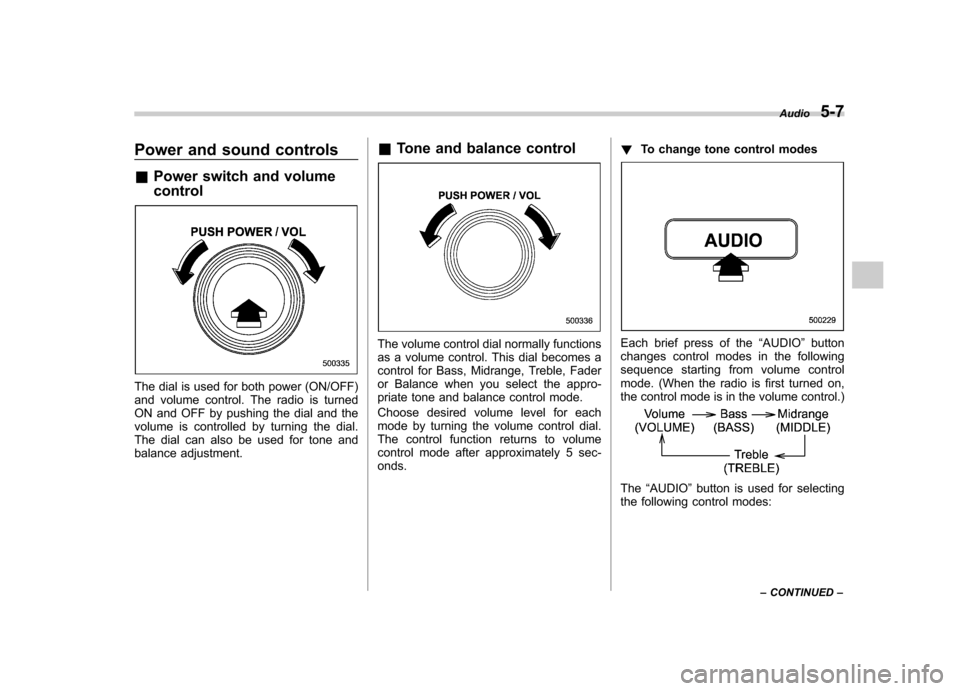
Power and sound controls &Power switch and volume control
The dial is used for both power (ON/OFF)
and volume control. The radio is turned
ON and OFF by pushing the dial and the
volume is controlled by turning the dial.
The dial can also be used for tone and
balance adjustment. &
Tone and balance control
The volume control dial normally functions
as a volume control. This dial becomes a
control for Bass, Midrange, Treble, Fader
or Balance when you select the appro-
priate tone and balance control mode.
Choose desired volume level for each
mode by turning the volume control dial.
The control function returns to volume
control mode after approximately 5 sec-onds. !
To change tone control modesEach brief press of the “AUDIO ”button
changes control modes in the following
sequence starting from volume control
mode. (When the radio is first turned on,
the control mode is in the volume control.)
The “AUDIO ”button is used for selecting
the following control modes: Audio
5-7
– CONTINUED –
Page 206 of 447
!Scan tuning (SCAN)
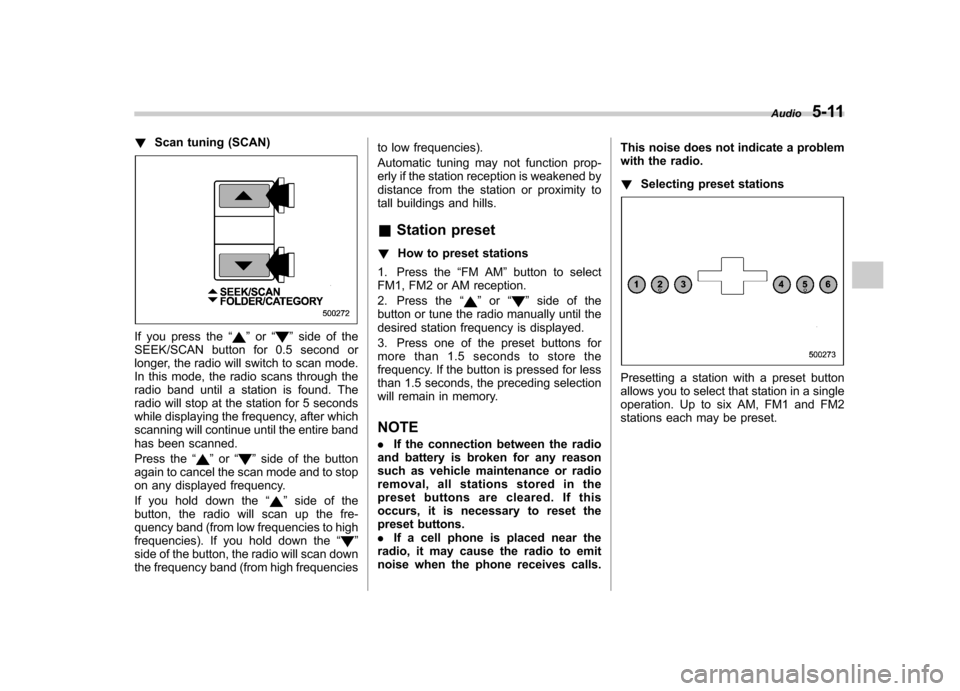
If you press the “”or “”side of the
SEEK/SCAN button for 0.5 second or
longer, the radio will switch to scan mode.
In this mode, the radio scans through the
radio band until a station is found. The
radio will stop at the station for 5 seconds
while displaying the frequency, after which
scanning will continue until the entire band
has been scanned.
Press the “
”or “”side of the button
again to cancel the scan mode and to stop
on any displayed frequency.
If you hold down the “
”side of the
button, the radio will scan up the fre-
quency band (from low frequencies to high
frequencies). If you hold down the “
”
side of the button, the radio will scan down
the frequency band (from high frequencies to low frequencies).
Automatic tuning may not function prop-
erly if the station reception is weakened by
distance from the station or proximity to
tall buildings and hills. &
Station preset
! How to preset stations
1. Press the “FM AM ”button to select
FM1, FM2 or AM reception.
2. Press the “
”or “”side of the
button or tune the radio manually until the
desired station frequency is displayed.
3. Press one of the preset buttons for
more than 1.5 seconds to store the
frequency. If the button is pressed for less
than 1.5 seconds, the preceding selection
will remain in memory. NOTE . If the connection between the radio
and battery is broken for any reason
such as vehicle maintenance or radio
removal, all stations stored in the
preset buttons are cleared. If this
occurs, it is necessary to reset the
preset buttons.. If a cell phone is placed near the
radio, it may cause the radio to emit
noise when the phone receives calls. This noise does not indicate a problem
with the radio. !
Selecting preset stations
Presetting a station with a preset button
allows you to select that station in a single
operation. Up to six AM, FM1 and FM2
stations each may be preset. Audio
5-11
Page 208 of 447
&Channel and category selec- tion
! Channel selection
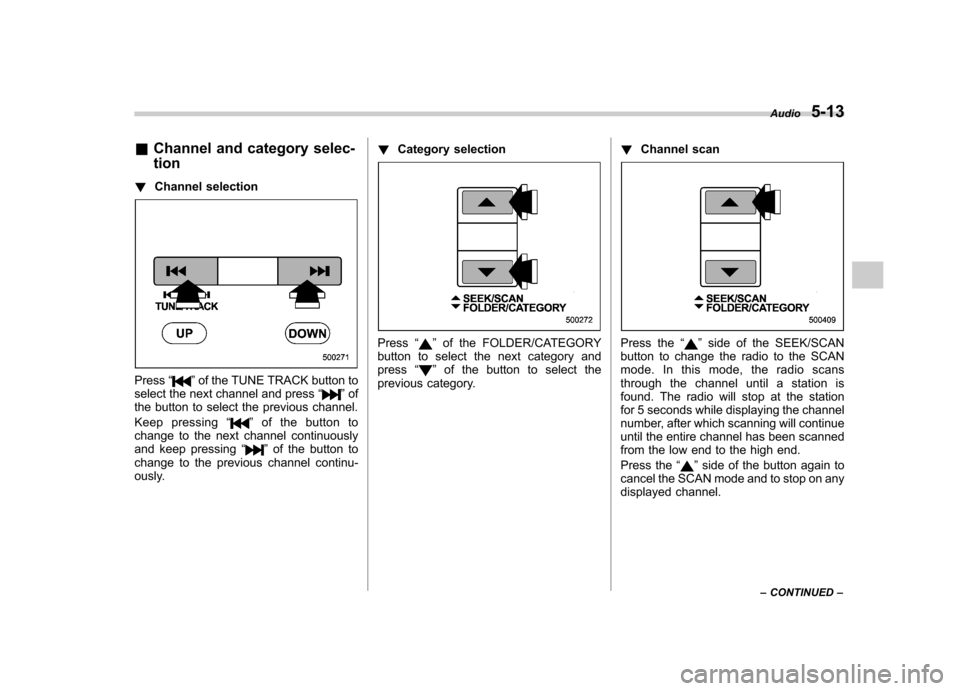
Press “”of the TUNE TRACK button to
select the next channel and press “”of
the button to select the previous channel.
Keep pressing “
”ofthebuttonto
change to the next channel continuously
and keep pressing “
”of the button to
change to the previous channel continu-
ously. !
Category selection
Press “”of the FOLDER/CATEGORY
button to select the next category and press “
”of the button to select the
previous category. !
Channel scan
Press the “”side of the SEEK/SCAN
button to change the radio to the SCAN
mode. In this mode, the radio scans
through the channel until a station is
found. The radio will stop at the station
for 5 seconds while displaying the channel
number, after which scanning will continue
until the entire channel has been scanned
from the low end to the high end.
Press the “
”side of the button again to
cancel the SCAN mode and to stop on any
displayed channel. Audio
5-13
– CONTINUED –
Page 210 of 447
CD player operation NOTE .Make sure to always insert a disc
with the label side up. If a disc is
inserted with the label side down, the
player displays “CHECK DISC ”.
Refer to “When the following messages
are displayed ”in this section.
. If a disc is inserted during a radio
broadcast, the disc will interrupt thebroadcast.. After the last song finishes, the disc
will automatically return to track 1 (the
first song on the disc) and will auto-
matically play back. . The player is designed to be able to
play music CD-Rs and music CD-RWs,
but it may not be able to play certainones.. Single CDs (i.e., 8 cm/3 inch CDs)
are not supported, and if inserted, they
will be immediately ejected.. A file (song) that is protected by a
copyright of WMA cannot be played,
and the player will skip to the next file(song). &
How to insert a CD (type A)
Hold a disc with a finger in the center hole
while gripping the edge of the disc, then
insert it in to the slot (with the label side
up) and the player will automatically pull
the disc into position. NOTE
DO NOT INSERT TWO DISCS INTO THE
DISC INSERTION SLOT AT A TIME. & How to insert a CD(s) (type B)
1. Briefly press the “LOAD ”button. If the
magazine in the player has an idle
position where you can insert a disc, the
disc number indicator associated with the
idle position will blink.
If no indicator blinks, it means that there is no idle position in the magazine.
2. When the
“LOAD ”indicator flashes,
insert the disc. Once you have inserted
the disc, the “LOAD ”indicator will go off.
The disc will then be automatically drawn
in, and the player will begin to play back
the first track of the disc. . To insert more discs in succession,
repeat Steps 1 and 2. The magazine will
be loaded with discs in ascending order of
position number.
If you do not insert any disc in 15 seconds
after you have pressed the “LOAD ”button,
the player will begin to play back the first
track of the last disc you have inserted. . The disc indicator steadily lights up if a
disc is already inserted in the correspond-
ing position of the magazine. . While the player is in the loading mode,
if you press the “FM AM ”, “SAT ”or “AUX ”
button, the player will enter the standby
mode. Press the “CD ”button to start
playback. Audio
5-15
– CONTINUED –
Page 211 of 447
5-16Audio
! Inserting a disc in a desired posi- tion
1. Briefly press the “LOAD ”button. If the
magazine in the player has an idle
position where you can insert a disc, the
disc number indicator associated with the
idle position will blink.
The positions in the magazine for which
the indicator steadily lights up are already
loaded with discs.
2. Press the disc select button at the
position where you want to insert a disc.
3. When the “LOAD ”indicator flashes,
insert the disc. Once you have inserted
the disc, the “LOAD ”indicator will go off.
The disc will then be automatically drawn
in, and the player will begin to play the first
track on the disc. . If you wish to insert another disc,
repeat the procedure beginning with step 1.
If you do not insert any disc in 15 seconds
after you have pressed the “LOAD ”button,
the player will begin to play back the first
track of the last disc you have inserted. . While the player is in the loading mode,
if you press the “FM AM ”, “SAT ”or “AUX ”
button, the player will enter standby mode. Press the
“CD ”button to start playback.
! Loading all the magazine (full disc
loading mode)
1. If you continue to press the “LOAD ”
button for more than 1.5 seconds, the
player will produce a beep sound and will
enter the full disc loading mode.
2. When the disc number indicator and “ ALL LOAD ”indicator start flashing, insert
a disc within 15 seconds. If a disc is
successfully loaded during this period, the
disc number indicator will stop blinking
and will steadily light.
3. When the loading of a disc is com-
plete, the next disc number indicator will
blink. Then repeat Step 2.
4. When the magazine is filled with discs
by repeating Steps 2 and 3, the player will
Page 212 of 447
start playback of the discs, beginning with
the one inserted first.
If you fail to insert any disc during each 15
seconds interval, the full disc loading
mode will be canceled, and the player will
start playback of the disc inserted first. &How to play back a CD
! When there is no CD inserted
Insert a CD by referring to “How to insert a
CD (type A) ”/“How to insert a CD(s) (type
B) ”.
When a CD is loaded, the player will start
playback of the CD, beginning with the
first track. ! When CD is in the player (type A)
When the “CD ”button is pressed, the player will start playback. !
When there are CDs loaded (type B)
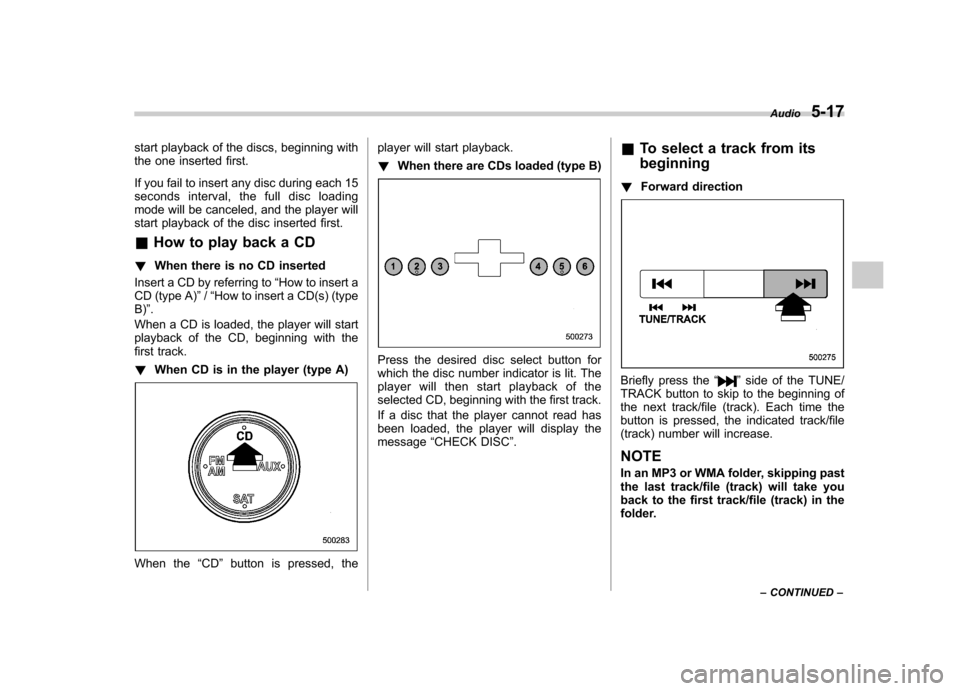
Press the desired disc select button for
which the disc number indicator is lit. The
player will then start playback of the
selected CD, beginning with the first track.
If a disc that the player cannot read has
been loaded, the player will display themessage “CHECK DISC ”. &
To select a track from its beginning
! Forward direction
Briefly press the “”side of the TUNE/
TRACK button to skip to the beginning of
the next track/file (track). Each time the
button is pressed, the indicated track/file
(track) number will increase. NOTE
In an MP3 or WMA folder, skipping past
the last track/file (track) will take you
back to the first track/file (track) in the
folder. Audio
5-17
– CONTINUED –
Page 215 of 447
5-20Audio
If you accidentally press the button and
cancel the disc/folder repeat-play
mode, press it again to reselect the
disc/folder repeat-play mode..For MP3 and WMA discs, they can
play back repeatedly only for the
currently playing file folder. They can-
not play back the whole disc.. The disc/folder repeat-play mode
will be cancelled if you perform any of
the following steps:
.Press the “RPT ”button
. Press the “
”button
. Press the disc select button
. Select the radio or AUX mode
. Press the “
”or “”side of the
SEEK/SCAN button in the folder
repeating mode “F-RPT ”
. Turn off the power of the audio
equipment. . Turn the ignition switch to the
“ LOCK ”position. &
Random playback
! Non-MP3/WMA disc
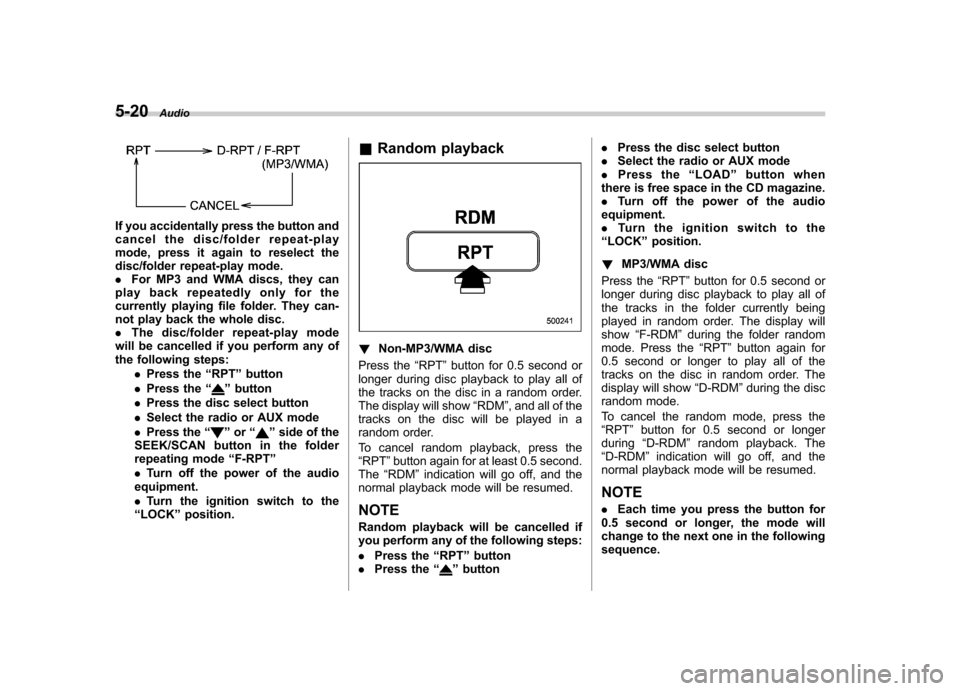
Press the “RPT ”button for 0.5 second or
longer during disc playback to play all of
the tracks on the disc in a random order.
The display will show “RDM ”, and all of the
tracks on the disc will be played in a
random order.
To cancel random playback, press the “ RPT ”button again for at least 0.5 second.
The “RDM ”indication will go off, and the
normal playback mode will be resumed.
NOTE
Random playback will be cancelled if
you perform any of the following steps: . Press the “RPT ”button
. Press the “
”button .
Press the disc select button
. Select the radio or AUX mode
. Press the “LOAD ”button when
there is free space in the CD magazine. . Turn off the power of the audio
equipment.. Turntheignitionswitchtothe
“ LOCK ”position.
! MP3/WMA disc
Press the “RPT ”button for 0.5 second or
longer during disc playback to play all of
the tracks in the folder currently being
played in random order. The display willshow “F-RDM ”during the folder random
mode. Press the “RPT ”button again for
0.5 second or longer to play all of the
tracks on the disc in random order. The
display will show “D-RDM ”during the disc
random mode.
To cancel the random mode, press the “ RPT ”button for 0.5 second or longer
during “D-RDM ”random playback. The
“ D-RDM ”indication will go off, and the
normal playback mode will be resumed. NOTE . Each time you press the button for
0.5 second or longer, the mode will
change to the next one in the followingsequence.
Page 216 of 447
If you accidentally press the button and
cancel the random mode, press it again
to reselect the random mode..Random playback will be cancelled
if you perform any of the followingsteps:
.Press the “RPT ”button
. Press the “
”or “”side of the
SEEK/SCAN button in the folder
random mode “F-RDM ”
. Press the “
”button
. Press the disc select button
. Select the radio or AUX mode
. Press the “LOAD ”button when
there is free space in the CD magazine. . Turn off the power of the audio
equipment.. Turn the ignition switch to the
“ LOCK ”position. &
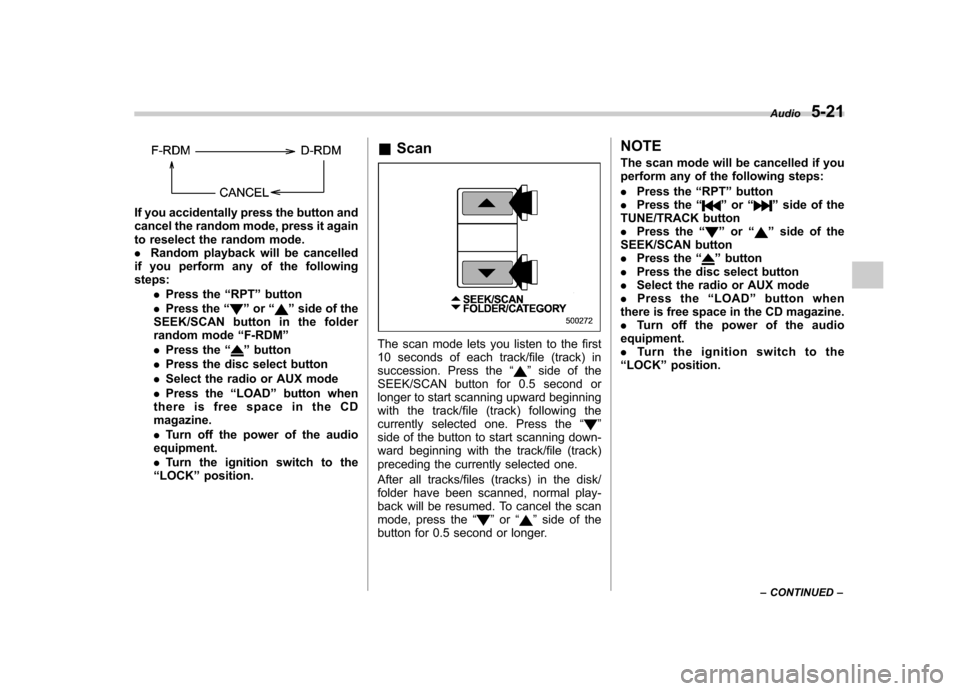
ScanThe scan mode lets you listen to the first
10 seconds of each track/file (track) in
succession. Press the “
”side of the
SEEK/SCAN button for 0.5 second or
longer to start scanning upward beginning
with the track/file (track) following the
currently selected one. Press the “
”
side of the button to start scanning down-
ward beginning with the track/file (track)
preceding the currently selected one.
After all tracks/files (tracks) in the disk/
folder have been scanned, normal play-
back will be resumed. To cancel the scan
mode, press the “
”or “”side of the
button for 0.5 second or longer. NOTE
The scan mode will be cancelled if you
perform any of the following steps: .
Press the “RPT ”button
. Press the “
”or “”side of the
TUNE/TRACK button . Press the “
”or “”side of the
SEEK/SCAN button . Press the “
”button
. Press the disc select button
. Select the radio or AUX mode
. Press the “LOAD ”button when
there is free space in the CD magazine. . Turn off the power of the audio
equipment.. Turntheignitionswitchtothe
“ LOCK ”position. Audio
5-21
– CONTINUED –