2009 MITSUBISHI ASX turn signal
[x] Cancel search: turn signalPage 144 of 368

• Flashing of the turn-signal lamps when
the lever is operated with the ignition
switch or the operation mode is in ACC.
• Deactivate the turn-signal lamp 3-flash function for lane changes.
• The time required to operate the lever for the 3-flash function can be adjusted.
For further information, we recommend you
to consult a MITSUBISHI MOTORS Author-
ized Service Point.
On vehicles equipped with MITSUBISHI
Multi-Communication System (MMCS),
screen operations can be used to make the ad-
justment. Refer to the separate owner’s man-
ual for details. Hazard warning flasher switch
E00506600860
Use
the hazard warning flasher switch when the ve-
hicle has to be parked on the road for any emergency.
The hazard warning flashers can always be operat-
ed, regardless of the ignition switch position or the
operation mode.
Push the switch to turn on the hazard warning flash-
ers, all turn-signal lamps flash continuously. To
turn them off, push the switch again. NOTE
l While
the hazard warning lamps are blinking
due to having manually pushed the switch,
the emergency stop signal system does not op-
erate.
Refer to “Emergency stop signal system” on
page 4-37. Fog lamp switch
E00506700034
Front fog lamp switch* E00508300685
The front fog lamps can be operated while the head-
lamps
or tail lamps are on. Turn the knob in the
“ON” direction to turn on the front fog lamps. An
indication lamp in the instrument cluster will also
come on. Turn the knob in the “OFF” direction to
turn off the front fog lamps. The knob will automat-
ically return to its original position when you re-
lease it. NOTE
l The
front fog lamps are automatically turned
off when the headlamps or tail lamps are
turned off. To turn the front fog lamps on
again, turn the knob in the “ON” direction af-
ter turning on the headlamps or tail lamps.
l Do not use fog lamps except in conditions of
fog, otherwise excessive lamp glare may tem-
porarily blind oncoming vehicle drivers. Instruments and controls
3-50
3
Page 221 of 368
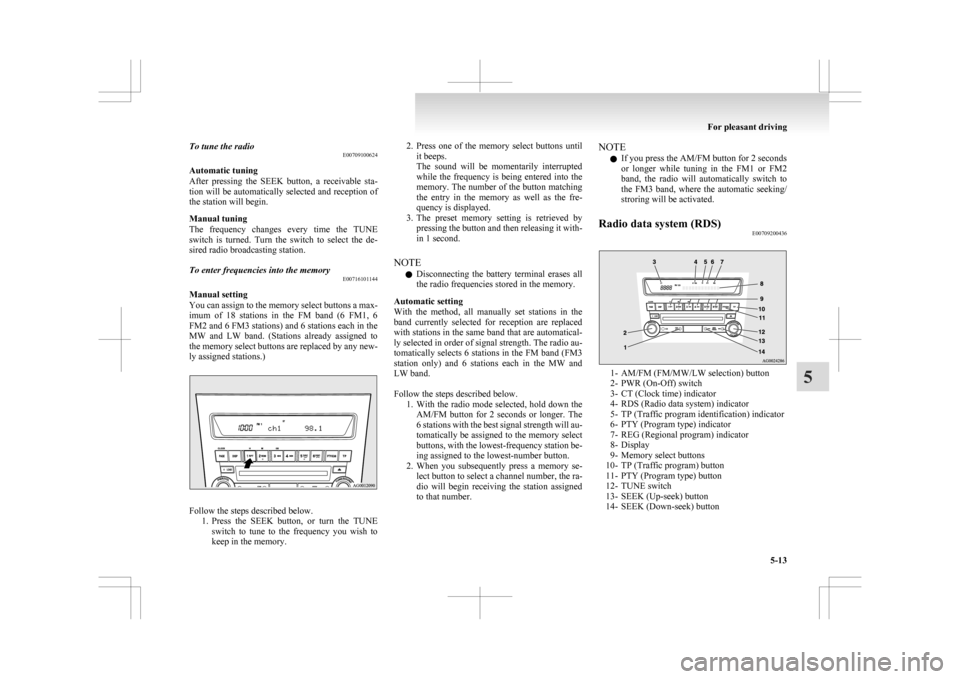
To tune the radio
E00709100624
Automatic tuning
After
pressing the SEEK button, a receivable sta-
tion will be automatically selected and reception of
the station will begin.
Manual tuning
The frequency changes every time the TUNE
switch is turned. Turn the switch to select the de-
sired radio broadcasting station.
To enter frequencies into the memory E00716101144
Manual setting
You
can assign to the memory select buttons a max-
imum of 18 stations in the FM band (6 FM1, 6
FM2 and 6 FM3 stations) and 6 stations each in the
MW and LW band. (Stations already assigned to
the memory select buttons are replaced by any new-
ly assigned stations.) Follow the steps described below.
1. Press
the SEEK button, or turn the TUNE
switch to tune to the frequency you wish to
keep in the memory. 2. Press
one of the memory select buttons until
it beeps.
The sound will be momentarily interrupted
while the frequency is being entered into the
memory. The number of the button matching
the entry in the memory as well as the fre-
quency is displayed.
3. The preset memory setting is retrieved by pressing the button and then releasing it with-
in 1 second.
NOTE l Disconnecting the battery terminal erases all
the radio frequencies stored in the memory.
Automatic setting
With the method, all manually set stations in the
band currently selected for reception are replaced
with stations in the same band that are automatical-
ly selected in order of signal strength. The radio au-
tomatically selects 6 stations in the FM band (FM3
station only) and 6 stations each in the MW and
LW band.
Follow the steps described below. 1. With the radio mode selected, hold down theAM/FM button for 2 seconds or longer. The
6 stations with the best signal strength will au-
tomatically be assigned to the memory select
buttons, with the lowest-frequency station be-
ing assigned to the lowest-number button.
2. When you subsequently press a memory se- lect button to select a channel number, the ra-
dio will begin receiving the station assigned
to that number. NOTE
l If you press the AM/FM button for 2 seconds
or
longer while tuning in the FM1 or FM2
band, the radio will automatically switch to
the FM3 band, where the automatic seeking/
stroring will be activated.
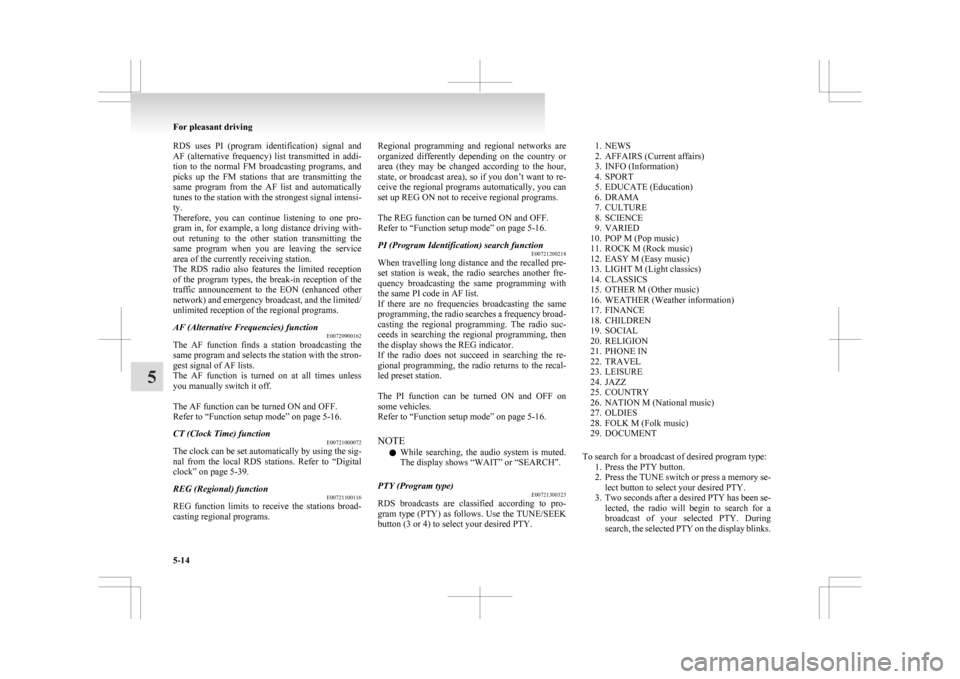
Radio data system (RDS) E00709200436 1- AM/FM (FM/MW/LW selection) button
2-
PWR (On-Off) switch
3- CT (Clock time) indicator
4- RDS (Radio data system) indicator
5- TP (Traffic program identification) indicator
6- PTY (Program type) indicator
7- REG (Regional program) indicator
8- Display
9- Memory select buttons
10- TP (Traffic program) button
11- PTY (Program type) button
12- TUNE switch
13- SEEK (Up-seek) button
14- SEEK (Down-seek) button For pleasant driving
5-13 5
Page 222 of 368
RDS uses PI (program identification) signal and
AF
(alternative frequency) list transmitted in addi-
tion to the normal FM broadcasting programs, and
picks up the FM stations that are transmitting the
same program from the AF list and automatically
tunes to the station with the strongest signal intensi-
ty.
Therefore, you can continue listening to one pro-
gram in, for example, a long distance driving with-
out retuning to the other station transmitting the
same program when you are leaving the service
area of the currently receiving station.
The RDS radio also features the limited reception
of the program types, the break-in reception of the
traffic announcement to the EON (enhanced other
network) and emergency broadcast, and the limited/
unlimited reception of the regional programs.
AF (Alternative Frequencies) function E00720900162
The AF function finds a station broadcasting the
same
program and selects the station with the stron-
gest signal of AF lists.
The AF function is turned on at all times unless
you manually switch it off.
The AF function can be turned ON and OFF.
Refer to “Function setup mode” on page 5-16.
CT (Clock Time) function E00721000072
The clock can be set automatically by using the sig-
nal
from the local RDS stations. Refer to “Digital
clock” on page 5-39.
REG (Regional) function E00721100116
REG function limits to receive the stations broad-
casting regional programs. Regional programming and regional networks are
organized
differently depending on the country or
area (they may be changed according to the hour,
state, or broadcast area), so if you don’t want to re-
ceive the regional programs automatically, you can
set up REG ON not to receive regional programs.
The REG function can be turned ON and OFF.
Refer to “Function setup mode” on page 5-16.
PI (Program Identification) search function E00721200218
When travelling long distance and the recalled pre-
set
station is weak, the radio searches another fre-
quency broadcasting the same programming with
the same PI code in AF list.
If there are no frequencies broadcasting the same
programming, the radio searches a frequency broad-
casting the regional programming. The radio suc-
ceeds in searching the regional programming, then
the display shows the REG indicator.
If the radio does not succeed in searching the re-
gional programming, the radio returns to the recal-
led preset station.
The PI function can be turned ON and OFF on
some vehicles.
Refer to “Function setup mode” on page 5-16.
NOTE
l While searching, the audio system is muted.
The display shows “WAIT” or “SEARCH”.
PTY (Program type) E00721300323
RDS broadcasts are classified according to pro-
gram
type (PTY) as follows. Use the TUNE/SEEK
button (3 or 4) to select your desired PTY.
1. NEWS
2.
AFFAIRS (Current affairs)
3. INFO (Information)
4. SPORT
5. EDUCATE (Education)
6. DRAMA
7. CULTURE
8. SCIENCE
9. VARIED
10. POP M (Pop music)
11. ROCK M (Rock music)
12. EASY M (Easy music)
13. LIGHT M (Light classics)
14. CLASSICS
15. OTHER M (Other music)
16. WEATHER (Weather information)
17. FINANCE
18. CHILDREN
19. SOCIAL
20. RELIGION
21. PHONE IN
22. TRAVEL
23. LEISURE
24. JAZZ
25. COUNTRY
26. NATION M (National music)
27. OLDIES
28. FOLK M (Folk music)
29. DOCUMENT
To search for a broadcast of desired program type: 1. Press the PTY button.
2. Press the TUNE switch or press a memory se-lect button to select your desired PTY.
3. Two seconds after a desired PTY has been se- lected, the radio will begin to search for a
broadcast of your selected PTY. During
search, the selected PTY on the display blinks. For pleasant driving
5-14
5
Page 224 of 368

The traffic information program standby function
is
turned on (with the TP indicator shown on the dis-
play) and after about 45 seconds since the RDS in-
dicator turns off due to weak signal or the tuning
station is changed over from a TP station to a sta-
tion which does not broadcast traffic information,
the sound will beep 5 times and seeks out a TP sta-
tion in all frequencies automatically.
The TP search function can be turned ON and OFF.
Refer to “Function setup mode” on page 5-16.
Emergency broadcasts E00721700242 If an emergency broadcast is caught while receiv-
ing
a FM broadcast or playing back a compact disc
with the ignition switch or the operation mode is in
ON or ACC, the display will show “ALARM” and
the emergency broadcast will interrupt the current
program. The volume level is set separately for lis-
tening to normal audio programs and for listening
to emergency broadcasts. The volume level will
therefore change automatically to that set when an
emergency broadcast or traffic information broad-
cast was last received. When the emergency broad-
cast is over, the radio will return to the previously
received program and to the corresponding volume
level.
Function setup mode E00722500423
It is possible to change the following functions:
l AF
l CT
l REG
l TP-S
l PI-S
l Language of PTY display
l SCV 1. Press the TUNE switch for 2 seconds or lon-
ger to select the function setup mode. 2. Press
the TUNE switch repeatedly to select
the mode you wish to change.
The order is: AF → CT → REG → TP-S →
PI-S → Language of PTY display → SCV
→ PHONE → Function setup mode OFF.
NOTE l Although “PHONE” appears on the display,
the PHONE function is inoperative. For pleasant driving
5-16
5
Page 248 of 368
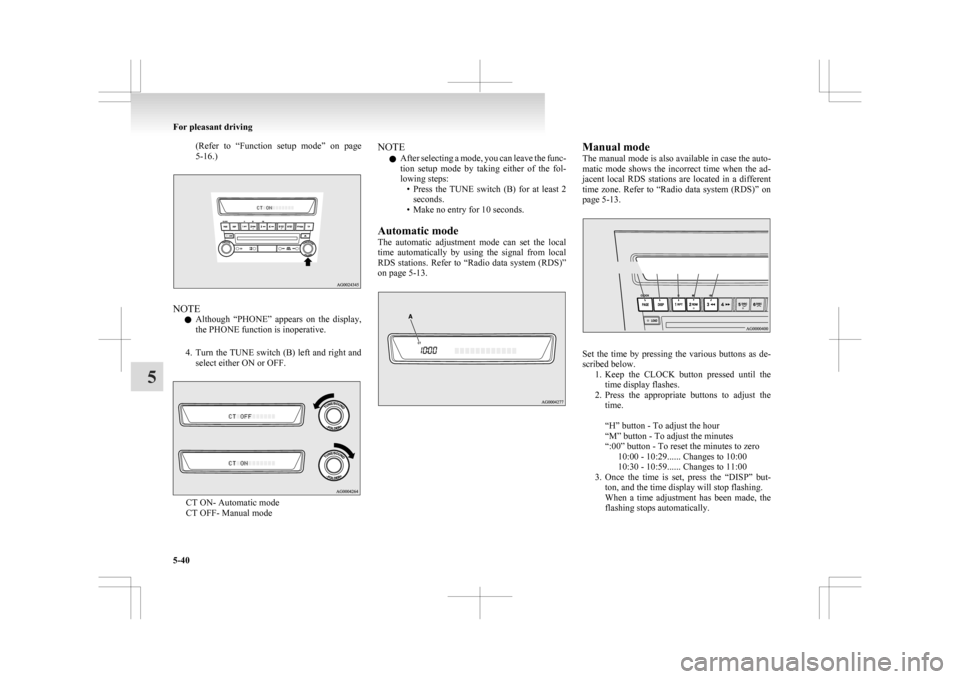
(Refer to “Function setup mode” on page
5-16.) NOTE
l Although
“PHONE” appears on the display,
the PHONE function is inoperative.
4. Turn the TUNE switch (B) left and right and select either ON or OFF. CT ON- Automatic mode
CT OFF- Manual mode NOTE
l After
selecting a mode, you can leave the func-
tion setup mode by taking either of the fol-
lowing steps: • Press the TUNE switch (B) for at least 2seconds.
• Make no entry for 10 seconds.
Automatic mode
The automatic adjustment mode can set the local
time automatically by using the signal from local
RDS stations. Refer to “Radio data system (RDS)”
on page 5-13. Manual mode
The
manual mode is also available in case the auto-
matic mode shows the incorrect time when the ad-
jacent local RDS stations are located in a different
time zone. Refer to “Radio data system (RDS)” on
page 5-13. Set the time by pressing the various buttons as de-
scribed below.
1. Keep
the CLOCK button pressed until the
time display flashes.
2. Press the appropriate buttons to adjust the time.
“H” button - To adjust the hour
“M” button - To adjust the minutes
“:00” button - To reset the minutes to zero 10:00 - 10:29...... Changes to 10:00
10:30 - 10:59...... Changes to 11:00
3. Once the time is set, press the “DISP” but- ton, and the time display will stop flashing.
When a time adjustment has been made, the
flashing stops automatically. For pleasant driving
5-40
5
Page 251 of 368
l
If this button is pressed in the voice recogni-
tion mode, the voice recognition mode will
be deactivated.
NOTE l When you press the SPEECH button to enter
voice recognition mode with a cellular phone
paired to the system, current information on
the cellular phone, such as “remaining bat-
tery life,” “signal strength” or “roaming,”
will be displayed on the audio display.*
*: Some cellular phones will not send this in-
formation to Bluetooth ®
2.0 interface.
l Call waiting and three-way calls can be used
by the Bluetooth ®
2.0 interface, only if it is
possible to use those services with your cellu-
lar phone.
Voice recognition function E00727300312
The Bluetooth ®
2.0 interface is equipped with a
voice recognition function.
Simply say voice commands and you can perform
various operations and make or receive hands-free
calls.
With the Bluetooth ®
2.0 interface, voice recogni-
tion is possible for English, French, Spanish, Ital-
ian, German, Dutch, Portuguese and Russian. The
factory setting is English. NOTE
l If
the voice command that you say differs
from the predefined command or cannot be
recognised due to ambient noise or some oth-
er reason, the Bluetooth ®
2.0 interface will
ask you for the voice command again up to 3
times.
l For best performance and further reduction
of ambient noise, the vehicle windows
should be closed while engaging the voice rec-
ognition function.
l Some voice commands have alternative com-
mands.
l Depending on the selected language, some
functions may not be available.
Selecting the Language 1. Press the SPEECH button.
2. Say “Setup”.
3. Say “Language.”
4. The voice guide will say “Select a language:English, French, Spanish, Italian, German,
Dutch, Portuguese or Russian” Say the de-
sired language. (Example: Say “English.”)
5. The voice guide will say “English (French, Spanish, Italian, German, Dutch, Portuguese
or Russian) selected. Is this correct?” Say
“Yes.”
Answer “No” to return to Step 4.
NOTE l The voice guide will repeat the same mes-
sage twice. The first message is in the cur-
rent language, and the second message is in
the selected language. l
If many entries are registered in the vehicle
phone book, changing the language will take
longer.
l Changing the language deletes the mobile
phone book imported to the Bluetooth ®
2.0
interface. If you wish to use it, you will have
to import it again.
6. When the voice guide says “English (French, Spanish, Italian, German, Dutch, Portuguese
or Russian) selected,” the language change
process will be completed and the system
will return to the main menu.
Useful voice commands E00760000019
Help function E00760100010
The Bluetooth ®
2.0 interface is equipped with a
help function.
If you say “Help” when the system is waiting for a
voice command input, the system will tell you a list
of the commands that can be used under the circum-
stances.
Cancelling E00760200011
There are two cancel functions.
If
you are at the main menu, say “Cancel” to exit
from the Bluetooth ®
2.0 interface.
If you are anywhere else within the system, say
“Cancel” to return to the main menu.
Confirmation function setting E00760400013
The Bluetooth ®
2.0 interface is equipped with a con-
firmation function. For pleasant driving
5-43 5
Page 286 of 368
l
Use the tyre sealant only at ambient tempera-
tures of -30 °C to + 60 °C.
l Effect an emergency repair without pulling
out the object (nail, screw, etc.) that is stuck
in the tyre.
l Do not use the tyre sealant if the tyre has
been damaged by being driven when insuffi-
ciently inflated (e.g. bumps, cuts, cracks etc.
on the tyre).
l Allow any tyre sealant seeping out of the
hole to dry, then pull off like a film.
l Wipe tyre sealant off the paintwork immedi-
ately with a damp cloth.
l Allow any tyre sealant in a damaged tyre to
dry out and dispose of it together with the tyre.
l Immediately change out of any clothes conta-
minated with the tyre sealant.
Before repairing a tyre, first stop your vehicle in a
safe, flat location. 1. Park the vehicle on level and stable ground.
2. Set the parking brake firmly.
3. On vehicles with M/T, stop the engine andmove the gearshift lever to the “R” (Reverse)
position.
On vehicles with CVT, move the selector lev-
er to the “P” (PARK) position and stop the en-
gine.
4. Turn on the hazard warning flashers and set up a warning triangle, flashing signal lamp,
etc., at an adequate distance from the vehi-
cle, and have all your passengers leave the ve-
hicle.
5. Take out the tyre sealant bottle and the com- pressor.
6. Shake the tyre sealant bottle well. NOTE
l In
cold conditions (when the ambient temper-
ature is 0 °C or lower), thickening of the tyre
sealant can make the tyre sealant hard to
squeeze out of the bottle. Warm the bottle in-
side the vehicle.
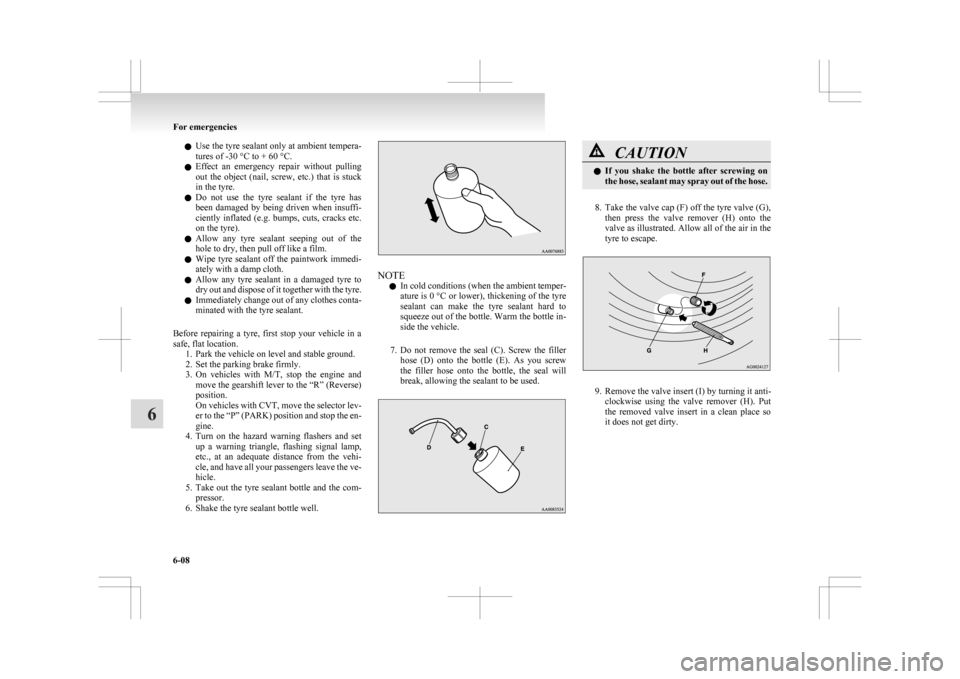
7. Do not remove the seal (C). Screw the filler hose (D) onto the bottle (E). As you screw
the filler hose onto the bottle, the seal will
break, allowing the sealant to be used. CAUTION
l
If
you shake the bottle after screwing on
the hose, sealant may spray out of the hose.
8. Take
the valve cap (F) off the tyre valve (G), then press the valve remover (H) onto the
valve as illustrated. Allow all of the air in the
tyre to escape. 9. Remove the valve insert (I) by turning it anti-
clockwise
using the valve remover (H). Put
the removed valve insert in a clean place so
it does not get dirty. For emergencies
6-08
6
Page 290 of 368
l
A tyre in which puncture sealant has been
used should ideally be replaced with a new
one. If you wish to have such a tyre properly
repaired for reuse, please contact a
MITSUBISHI MOTORS Authorized Service
Point or another specialist. Note that a proper
repair is impossible following an emergency
repair if the puncture hole cannot be located.
l Wipe away any sealant that gets on the
wheel. Provided the valve is replaced with a
new one, the wheel can be reused.
l The manufacturer is unable to guarantee that
all tyre punctures can be repaired with the
tyre repair kit, in particular cuts or perfora-
tions with a diameter of more than 4 mm or
away from the tyre’s tread. The manufacturer
is not liable for damage sustained through im-
proper use of the tyre repair kit.
l The manufacturer is not liable for damage sus-
tained through re-use of any tyre in which
tyre sealant has been used. How to change a tyre
E00801202637
Before
changing a tyre, first stop your vehicle in a
safe, flat location. 1. Park the vehicle on level and stable ground,free of loose pebbles, etc.
2. Set the parking brake firmly.
3. On vehicles with M/T, stop the engine and move the gearshift lever to the “R” (Reverse)
position.
On vehicles with CVT, move the selector lev-
er to the “P” (PARK) position and stop the en-
gine.
4. Turn on the hazard warning flashers and set up a warning triangle, flashing signal lamp,
etc., at an adequate distance from the vehi-
cle, and have all your passengers leave the ve-
hicle.
NOTE l The warning triangle and flashing signal
lamp do not come with your vehicle. It is rec-
ommended that you keep one in the vehicle
for use if needed.
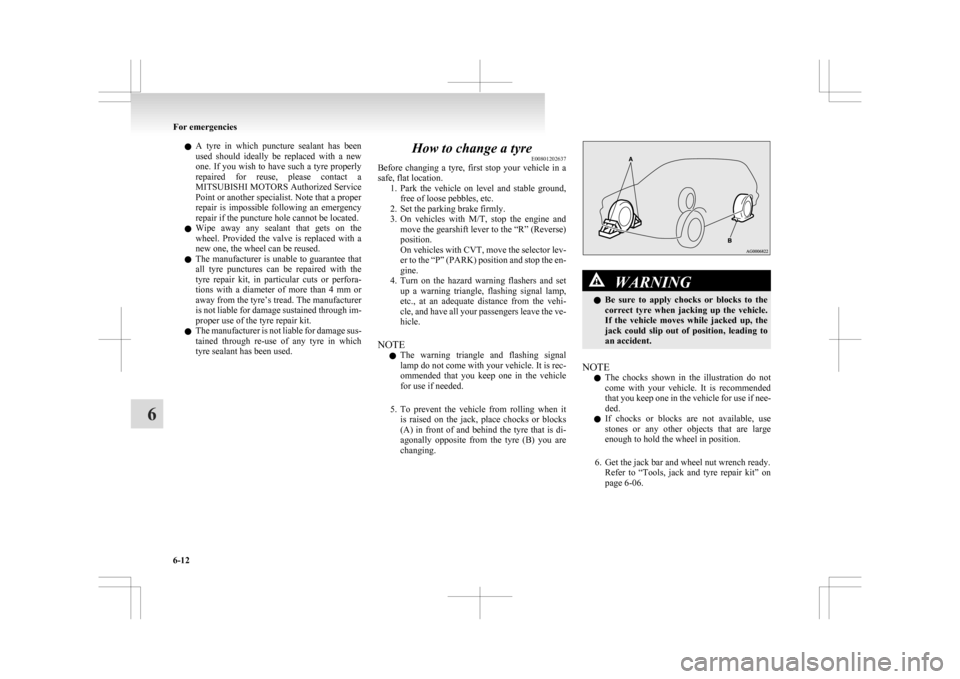
5. To prevent the vehicle from rolling when it is raised on the jack, place chocks or blocks
(A) in front of and behind the tyre that is di-
agonally opposite from the tyre (B) you are
changing. WARNING
l Be
sure to apply chocks or blocks to the
correct tyre when jacking up the vehicle.
If the vehicle moves while jacked up, the
jack could slip out of position, leading to
an accident.
NOTE l The
chocks shown in the illustration do not
come with your vehicle. It is recommended
that you keep one in the vehicle for use if nee-
ded.
l If chocks or blocks are not available, use
stones or any other objects that are large
enough to hold the wheel in position.
6. Get the jack bar and wheel nut wrench ready. Refer to “Tools, jack and tyre repair kit” on
page 6-06. For emergencies
6-12
6