Page 290 of 534

•The iPod�can be controlled using the radio buttons to
Play, Browse, and List the iPod�contents.
•The iPod�battery charges when plugged into the UCI
connector.
Controlling The iPod�Using Radio Buttons
To get into the UCI (iPod�) mode and access a connected
iPod�, press the ‘AUX’ button on the radio faceplate.
Once in the UCI (iPod�) mode, iPod�audio tracks (if
available from iPod�) start playing over the vehicle’s
audio system.
Play Mode
When switched to UCI mode, the iPod�automatically
starts Play mode. In Play mode, you may use the
following buttons on the radio faceplate to control the
iPod�and display data:
•Use the TUNE control knob to select the next or
previous track.
•Turning it clockwise (forward) by one click, while
playing a track, skips to the next track.
•Turning it counterclockwise (backward) by one
click, during the first two seconds of the track, will
jump to the previous track in the list. Turning this
button at any other time in the track, will jump to
the beginning of the current track.
•Jump backward in the current track by pressing and
holding the <
button long enough will take you to the beginning
of the current track.
•Jump forward in the current track by pressing and
holding theFF>> button.
•A single press backward <> will
jump backward or forward respectively, for five
seconds.
288 UNDERSTANDING YOUR INSTRUMENT PANEL
ProCarManuals.com
Page 292 of 534

•Turning it clockwise (forward) and counterclock-
wise (backward) scrolls through the lists, displaying
the track detail on the radio display. Once you have
the track to be played highlighted on the radio
display, press theTUNEcontrol knob to select and
start playing the track. Turning theTUNEcontrol
knob fast will scroll through the list faster. During
fast scroll, you may notice a slight delay in updating
the information on the radio display.
•During all List modes, the iPod�displays all lists in
“wrap-around” mode. So if the track is at the
bottom of the list just turn the wheel backwards
(counter-clockwise) to get to the track faster.
•In List mode, the radioPRESETButtons are used as
shortcuts to the following lists on the iPod�.
•Preset 1 – Playlists
•Preset 2 – Artists
•Preset 3 – Albums
•Preset 4 – Genres
•Preset 5 - Audiobooks
•Preset 6 – Podcasts
•Pressing a PRESET button, will display the current
list on the top line and the first item in that list on
the second line.
•To Exit List mode without selecting a track, press the
samePRESETbutton again to go back toPlay
mode.
•LISTbutton: TheLISTbutton will display the top
level menu of the iPod�. Turn theTUNEcontrol knob
to list the top-menu item you wish to select and press
theTUNEcontrol knob. This will display the next
sub-menu list item on the iPod�then you can follow
290 UNDERSTANDING YOUR INSTRUMENT PANEL
ProCarManuals.com
Page 295 of 534
Next, turn the knob surrounding the joystick in the center
of the radio to scroll to Subscription, and then press and
release the joystick. All of the ESNs that apply to your
vehicle will display.
Selecting Satellite Mode
Press the SAT button until�SAT�appears in the display. A
CD may remain in the radio while in the Satellite radio
mode.
Satellite Antenna
To ensure optimum reception, do not place items on the
roof around the rooftop antenna location or strap items to
the trunk lid around the trunk lid antenna (if equipped).
Metal objects placed within the line of sight of the
antenna will cause decreased performance. Larger lug-
gage items such as bikes should be placed as far rearward
as possible, within the loading design of the rack. Do not
place items directly on or above the antenna.
Reception Quality
Satellite reception may be interrupted due to one of the
following reasons:
•The vehicle is parked in an underground parking
structure or under a physical obstacle.
•Dense tree coverage may interrupt reception in the
form of short audio mutes.
•Driving under wide bridges or along tall buildings can
cause intermittent reception.
•Placing objects over or too close to the antenna can
cause signal blockage.
Operating Instructions — Satellite Mode
NOTE:The ignition switch must be in the ON or ACC
position to operate the radio.
UNDERSTANDING YOUR INSTRUMENT PANEL 293
4
ProCarManuals.com
Page 296 of 534
SEEK Buttons
Press and release the SEEK buttons to search for the next
channel in Satellite mode. Press the right switch to seek
up and the left switch to seek down. The radio will
remain tuned to the new channel until you make another
selection. Holding either button will bypass channels
without stopping until you release it.
SCAN Button (When Equipped)
Pressing the SCAN button causes the tuner to search for
the next channel, pausing for eight seconds before con-
tinuing to the next. To stop the search, press the SCAN
button a second time.
INFO Button — Except REU Radio
Pressing the INFO button will cycle the display informa-
tion between Artist, Song Title, and Composer (if avail-
able). Also, pressing and holding the INFO button for anadditional three seconds will make the radio display the
Song Title all of the time (press and hold again to return
to normal display).
INFO Button — REU Radio
Pressing the INFO button will display information about
Artist, Song Title, and Composer (if available). Pressing
the INFO button again will close the INFO screen.
RW/FF
Pressing the RW (Rewind) or FF (Fast Forward) buttons
causes the tuner to search for the next channel in the
direction of the arrows.
TUNE Control (Rotary)
Turn the rotary Tune/Scroll control knob clockwise to
increase or counterclockwise to decrease the channel.
294 UNDERSTANDING YOUR INSTRUMENT PANEL
ProCarManuals.com
Page 298 of 534
SET Button – To Set the Pushbutton Memory
When you are receiving a channel that you wish to
commit to pushbutton memory, press the SET button.
The symbol SET 1 will now show in the display window.
Select the button (1-6) you wish to lock onto this channel
and press and release that button. If a button is not
selected within five seconds after pressing the SET but-
ton, the channel will continue to play but will not be
stored into pushbutton memory.
You may add a second channel to each pushbutton by
repeating the above procedure with this exception: Press
the SET button twice and SET 2 will show in the display
window. Each button can be set for SET 1 and SET 2. This
allows a total of 12 Satellite channels to be stored into
pushbutton memory. The channels stored in SET 2
memory can be selected by pressing the pushbutton
twice.Every time a preset button is used, a corresponding
button number will display.
Buttons1-6
These buttons tune the radio to the channels that you
commit to pushbutton memory (12 Satellite stations).
Operating Instructions — Hands-Free Phone (If
Equipped)
Refer to “Hands-Free Communication (UConnect�)” in
Section 3.
Operating Instructions — Video Entertainment
System (VES)™ (If Equipped)
Refer to separate “Video Entertainment System (VES)™
Guide.”
296 UNDERSTANDING YOUR INSTRUMENT PANEL
ProCarManuals.com
Page 301 of 534

REMOTE SOUND SYSTEM CONTROLS — IF
EQUIPPED
The remote sound system controls are located on the rear
surface of the steering wheel, at the three and nine
o’clock positions.
The right-hand rocker switch has a pushbutton in the
center, and controls the volume and mode of the soundsystem. Pressing the top of the rocker switch will increase
the volume. Pressing the bottom of the rocker switch will
decrease the volume. Pressing the center button changes
the operation of the radio from AM to FM, or Tape to CD
mode, depending on which radio is in the vehicle.
The left-hand rocker switch has a pushbutton in the
center. The function of the left-hand switch is different,
depending on which mode you are in.
The following describes the left-hand rocker switch op-
eration in each mode.
Radio Operation
Pressing the top of the switch will SEEK up for the next
listenable station, and pressing the bottom of the switch
will SEEK down for the next listenable station.
The button located in the center of the left-hand switch
will tune to the next preset station that you have pro-
grammed in the radio preset pushbutton.
UNDERSTANDING YOUR INSTRUMENT PANEL 299
4
ProCarManuals.com
Page 304 of 534
Front Blower Control
There are four blower speeds. Use this
control to regulate the amount of air
forced through the system in any
mode you select. The blower speed
increases as you move the control
clockwise from the off position.
NOTE:For vehicles equipped with Remote Start, the
climate controls will not function during Remote Start
operation if the blower control is left in the “O” (Off)
position.
1 – Front Blower 4 – RECIRCULATION Control
2 – Temperature Control 5 – Air Conditioning (A/C)
3 – MODE Control 6 – DEFROST Mode
302 UNDERSTANDING YOUR INSTRUMENT PANEL
ProCarManuals.com
Page 305 of 534
Temperature Control
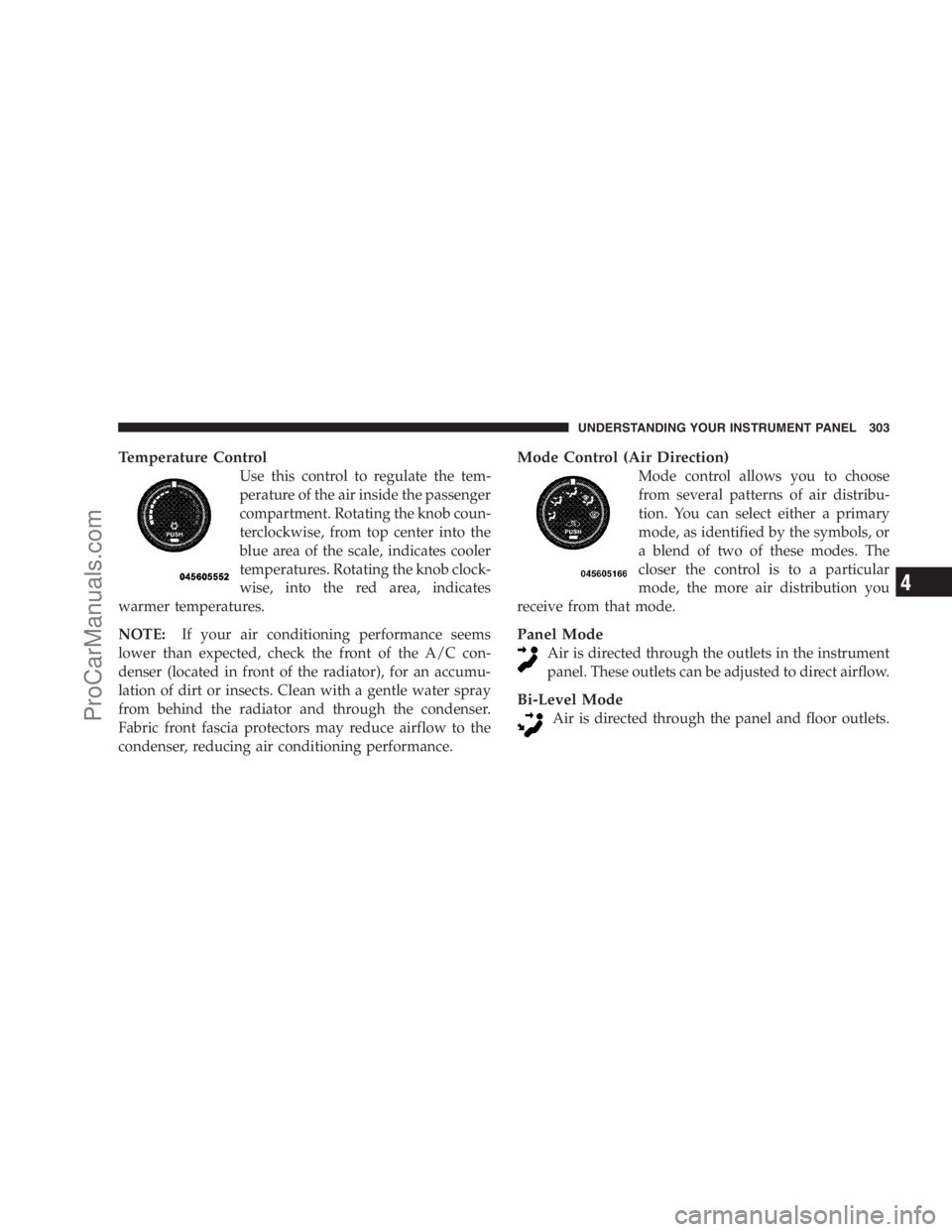
Use this control to regulate the tem-
perature of the air inside the passenger
compartment. Rotating the knob coun-
terclockwise, from top center into the
blue area of the scale, indicates cooler
temperatures. Rotating the knob clock-
wise, into the red area, indicates
warmer temperatures.
NOTE:If your air conditioning performance seems
lower than expected, check the front of the A/C con-
denser (located in front of the radiator), for an accumu-
lation of dirt or insects. Clean with a gentle water spray
from behind the radiator and through the condenser.
Fabric front fascia protectors may reduce airflow to the
condenser, reducing air conditioning performance.
Mode Control (Air Direction)
Mode control allows you to choose
from several patterns of air distribu-
tion. You can select either a primary
mode, as identified by the symbols, or
a blend of two of these modes. The
closer the control is to a particular
mode, the more air distribution you
receive from that mode.
Panel Mode
Air is directed through the outlets in the instrument
panel. These outlets can be adjusted to direct airflow.
Bi-Level Mode
Air is directed through the panel and floor outlets.
UNDERSTANDING YOUR INSTRUMENT PANEL 303
4
ProCarManuals.com
