2009 AUDI S6 warning
[x] Cancel search: warningPage 138 of 398

• ..__A_ d_a...: p:,..._ ti_v _ e_ C_ ru_ is_ e_ C_ o_n_ t_ r_ o _ l ___________________________________________ _
• <0111,c::::, Driv ing in traffi c: The indicator light '°"'''° shows that a
ve hicle moving in your lane of travel has been de tec ted up front in
your lane of travel. Your speed is adjusted according to the speed of
the vehic le up front . ACC accelerates and brakes automatically
within the system's capabilities.
• -011 ,,-0 Dr iv e r intervention prompt : The red flashing warning
light
-011 .. ~ means Request for dri ver to as sume contr ol. You as the
driver must slow the vehic le with the foot brake . The symbol
<0 1111<0
tel ls you that the Adaptive Cruise Control is not able to slow the
vehic le down enough to keep a enough distance to the vehicle in
front of you. A warning tone will also sound when the symbo l
appears . For more information about the driver intervention prompt
::;, page 138.
& WARNING
Improper use of the Adap tive Crui se Contro l features and inatten
tion can lead to an crash and serious personal injury .
• Never allow the closing speed betw een you and other veh icles
to be so high that the Adapt ive Cruise Control may not be able to
slow you r vehi cle saf ely . If clo sing speed is too high , you mu st
apply the brake s yourself to reduce the ri sk of a re ar-end cra sh .
• Always sele ct a greater follo wing dist ance to the vehi cle up
ahead on wet roads than on dry road s.
• Alway s re ad and heed the information and WARNINGS::;,
& in
"De scription " on
pag e 127 .
[ i ] Tips
• If you use the acce lerato r to go faster than the speed of the
vehicle ahead of you, the driver intervention prompt wi ll not be
accompanied by a warning tone.
• If the speed you previously set is exceeded , the indicator light in
the speedometer w ill sw itc h off. •
App lies to vehic les: w ith Ad apt ive Cruise Contro l
Display in the instrument cluster
Fig. 1 32 D isplay i n the
i n strum ent c lust er
Scroll through the availab le in formati on displays by briefly tapping
the (RESET] button at the end of the windshie ld wiper lever. You can
se lect information from the trip computer, navigation system* or
Adaptive Cruise Control.
© Vehicle symbol
® Distance
© Status
© Vehi cle s ymbol
The vehicle symbo l indicates whether the system has detected an
object traveling in front .
• Vehicle outline : Open road, no vehicle ahead .
• Wh it e v ehi cle: A vehic le is detected ahead.
• Red vehicle: Request for driver to assume co ntrol.
® Distance
Using the arrows and scale, you can detect how far it is to the
vehic le in front of you.
• Open road : No arrow appears when the vehicle is on a n open
road and there is no vehic le ahead .
Page 139 of 398

_____________________________________________ A_ d_a ...: p_ t_ i_ v _e_ C_ ru_ is_ e_ C_ o_n _ t_ r_o _ l _ __._
• Driv in g i n t raff ic: If a vehicle is detected ahead, the arrow moves
on the scale. The green area represents the distance set . When
approaching slowly, the arrow moves from the
gray zone to the
green zone on the sca le .
• Driver int erv ention prompt : When approaching rapidly, the
arrow serves as an early warning signal. If the distance selected is
exceeded or possibly not reached, the arrow moves into the
red
zone on the scale. In certain driving situations, you as the driver wi ll
have to take actio n=>
page 138, "Driver interve ntion prompt" .
© Status
• The text ACC OFF appears in white letters when Adaptive Cru ise
Control is turned off.
• The text
ACC AVAILABLE appears in white letters when the
system is turned on but no desired speed has been set.
• The text
OVERRIDE appears in white letters when you exceed the
desired speed by accelerating .
• The text
DISTANCE ! appears in red letters when the interval to a
vehicle traveling ahead is too sh ort and you have t o slow your
vehicle additionally with the foot brake .
• The tex t messages
DISTANCE 1 to DISTANCE 4 appea r in green
letters to indicate the time interva l you have set and Adaptive Cruise
Control is in management mode .
• I f the driving program "standard" is replaced by "comfort" or
" d ynamic" usi ng the M MI, the above text message is supplemented
by an appropriate prompt, e.g.
DISTANCE 1 -dyn .. •
Con tro ls and eq uip
ment
Ap plies to veh icles: wi th Ada ptive Crui se Co ntro l
System status indicator
The text messages and symbols shown in this area of the
dis pla y are no t displaye d perm anen tly.
T ime intervals (such as c::::, ___ _ c::::,)
Fig. 133 S ystem
s ta tu s indi cator
The different symbols for the time intervals (distance) appear if you
change the settings=> fig. 133 .
Three wh ite do ts .. . appear if a setting cannot b e made with the
operating lever . The fol lowing are possib le reasons
• I f you pull the control lever towards you t o resume speed but no
requested speed was set.
• I f you push the lever up to increase (or down to reduce) speed
when no speed has been set previously .
• I f you push the lever up to increase (or d own to reduce) speed
and this speed is outside the 20 to 95 mph (30 to 1 50 km/h) speed
range .
ACC fun ction ality limited
The message ACC functionality limited appears when the ACC
System does not detect any moving vehicles up ahead in your lane
of trave l for a lo n ger period o f time . During this time, the dis tance
to moving vehicles in your lane of travel up ahead is not being main-~
Vehicle care I I irechnical data
Page 140 of 398

• ..__A_ d_a...: p:,..._ ti_v _ e_ C_ ru_ is_ e_ C_ o_n_ t_ r_ o _ l ___________________________________________ _
tained. The ACC system is not switched off, and increased attention
to the traffic situation is absolutely necessary. The following may be
reasons why the message
ACC functionality limited appears:
• The ACC sensor is dirty . The ACC system is not reacting, or is not
reacting correctly, to moving vehicles up ahead in your lane of
travel.
• There may be very light traffic on and there is nothing that marks
the side of the road (for example, guard rails, traffic signs, trees). As
soon as a moving vehicle up ahead is detected again, ACC becomes
active again and the message disappears .
The ACC sensor is located in the area under the front license plate.
If the ACC sensor is dirty or blocked, clean the area to restore system
operation.
ACC not available
The text message ACC not available appears, for example, if the
temperature of the brakes is excessive . Adaptive Cruise Control is
temporarily not available. A warning tone sounds as a reminder.
ACC not available!
The text message ACC not available! appears in the event of a
malfunction. Adaptive Cruise Control is turned off. A warning tone
sounds as a reminder. Have the system inspected by a qualified
dealership .
ACC sensor blocked !
The text message ACC sensor blocked ! appears when the ACC
System can no longer accurately detect vehicles moving up ahead
in your lane of travel. Adaptive Cruise Control is turned off. A
warning tone a lso sounds as a reminder.
To decide whether it is necessary to switch off the ACC (ACC sensor blocked
!) or if it is only a temporary condition (ACC Functionally
limited), the system will also takes into consideration the outside
temperature and/or the windshield wiper operation.
The ACC sensor is dirty or blocked (e.g. leaves, snow) . The
ACC sensor is located in the area under the front license plate .
If the ACC sensor is dirty or blocked, clean the area to restore system
operation.
EPB activation
Th e text message EPB activation appears if emergency braking was
manual ly initiated with the Electromechanical Parking Brake (EPB).
The Adaptive Cruise Con trol is turned off . This is accompanied by a
warning tone.
Speed
The set speed in mph (Canada km/h) always appears when saving or
changing the speed in Adaptive Cruise Control~
page 130 , "How is
the speed stored?" and~
page 131 , "Changing stored speed".
Selector lever position!
The text message Selector lever position! appears when the
selector lever is moved to position
N. In this position, Adaptive
Cruise Control is not available. •
Applies to vehicles : with Ada ptive Cruise Cont rol
Driver intervention prompt
The driver intervention prompt calls on the driver to take
over the situation.
Fig . 134 Instrument
cluster: Driver inter-
vention prompt
~
Page 141 of 398

_____________________________________________ A_ d...;a..! p~ ti_v _ e---- C_ ru_ is_ e ___ C.::..: o;.:.n..:.. t.:.: r...; o:.. 1-----JIIII
In certain situations, the braking power of the Adaptive Cruise
Control is no t enough to maintain an adequate distance to the
vehicle up ahead . In these situations, the Adaptive Cruise Contro l
calls the driver to take action.
The
driv er in tervention pr omp t alerts you visually and audibly to
take over.
• A red vehicle is shown in the instrument c luster display
=>
page 138, fig. 134 .
• The text
DISTANCE! appears in the status line .
• The indicator light~'" '~ in the speedometer b links red.
• A warning tone sounds .
[ i J Tip s
• If the Adaptive cruise control initiates braking, the hydraulic
brake system is under pressure . Therefore, the brake peda l distance
is shorter and the pedal "fee ls" harder .
• Adaptive Cruise Contro l is switched off after pressing the foot
brake. The speed saved up this point can be resumed .
• To resume the saved speed, release the brake pedal and press
the control lever=>
page 132, "Turning Adaptive Cruise Cont ro l off
temporarily" .
• I f you use the accelerator to go faster than the speed of the
vehicle ahead of you, the
drive r inte rv e ntion prompt will not be
accompanied by a warning signal.
• If the speed you previously set is exceeded, the indicator light in
the speedometer wi ll switch off. •
Controls and equip
ment
Ap plies to veh ic les : w ith A dapt ive Crui se Co nt rol
MMI settings
Individual settings for Adap tive Cruise Control can be
selected in the
MM/ .
Fig. 135 MMI Disp lay :
Ad aptive C ruise
C ontrol
Sett ings fo r th e driving program can be adjusted individu
ally to the p artic ular user and saved in the MML This can
only be do ne with the eng ine r un ning.
Press the
I CAR] fu nction button.
Select
Systems * in the CAR menu .
Select
Adaptive Cruise Control . The Adaptive Cruise
Control
menu appears.
Selec t
driving program.
Select the desired driving program .
Sett ing th e dr iving pr ogram
In the driv ing prog ram menu you can adjust the characteristics of
Adaptive Cruise Contro l to your own preferences using
d ynami c,
s ta nd ard
or comf ort . _.,
I • •
Page 142 of 398

• ..__A_ d_ a-:.. p_t _iv _ e_ C_r_ u_ i _s _ e_ C_ o_n_ t_ r_ o_ l _____________________________________________ _
Sav ing s etting s
Your individual settings are automa tically saved and assigned to the
remote control key being used {remote key storage). If the key is
given to another person, the saved settings remain as they are. •
System limitations
Applies to vehic les : with Adapt ive Crui se Co ntro l
General information
The radar sensor has limits that the driver must know to
b e able to use AC C properly.
The Adaptive Cruise Control works within limits that are also re lated
to radar sensor range and sight d istance. In some situations ACC
may react unusually or late from the driver's point of view. There
fore, always be attentive to what is happening around you and
a lways be ready to in tervene, if necessary:
• when driving around curves=>
page 140
• whe n vehicles up front are not in line with y our vehicle
=>
page 141
• when other vehicles a re changing lanes => page 141
• when other vehicles are difficu lt to detect => page 141.
• when vehicles up ahead are not moving or obstacles are in your
travel lane=>
page 141
& WARNING
The radar sensor's function and range can be r educed by rain ,
sn ow and he avy spray. Moving vehicles up ahead may not be
promptly det ected or ma y not be det ected at all.
• Alway s pay careful attention to the traffi c situatio n a nd be
ready to intervene and be ready to take complete contr ol when
e ver ne ces sary . •
Ap plies to veh ic les: with Ad apt ive Crui se Contro l
When driving around curves
k::;=========== =,!
~
[J
Ent ering a cur ve
Fi g. 13 6 Veh icle
e nteri ng a curv e
Fig. 137 Ve hicle
l ea ving a curv e
When entering a curve, the Adaptive Cruise Control may react to a
vehicle in the next lane and apply the brakes in your vehicle
=> fig. 136. The braking action can be overridden by depressing the
acce lerator pedal.
Lea vin g a c urve
At the end of very long curves, ACC 's predictive lane reading can
cause ACC to react to another vehicle in the next lane and apply t he
brakes on your vehicle=> fig. 137 . T he braking action can be over
ri dden by depressing t he accelerator peda l.•
Page 145 of 398
Audi lane ass is t 11111 -----------------------------------
Audi lane assist
Lane assist
A pplies to veh icles : with lane assist
Description
Lane a ssist helps you keep y our vehicle in your lane .
Lane assist uses a camera to detect lane boundary lines. If the
system detects that your vehicle is about to leave a lane boundary
line, the steering wheel
vibrates to alert the driver. If lane assist
detects boundary lines on both sides of the vehicle's lane, the
system enters active standby mode, which is indicated by the green
indica tor light /: on the instrument cluster .
I f the system is in active standby mode and the turn signal is acti
vated before driving ov er the boundary line, the warning does not
occur since the sys tem allows for intenti onal lane changes.
The system is designed for driving on freeways and expanded high
ways and t hus works on ly at speeds of 40 mph (65 km/h) or mo re .
& WARNING
• Lane ass ist will not k eep your vehicle in your lane. The sy stem
only warns the d riv er w hen t he vehicle i s le av ing the lan e. The
driv er is alway s re spon sible for keeping the vehicle in the lane.
• The camera is not able to d ete ct all lane boundary lines and in
s o me cases might al so dete ct lane str ucture s or objects as
boundary lines . This c an le ad to in corre ct wa rning s or warnings
that fa il to go off at all .
• The camer a's visibili ty ca n be i mpaired by vehi cle s ahe ad of
you , for instan ce, or by rain , snow , h eavy spray or li ght shining into
th e cam era lens . Thi s can ca use lane as sis t to f ail to d ete ct
boundary line s. •
Con tro ls and eq uip
ment
Ap plies to vehi cles : wi th la ne assi st
Activating and deactivating
Fig . 14 3 Turn signal
l ev er: La ne assis t
butt on
F ig . 144 Win dshie ld:
L ane assist ca mera
v iewing win dow
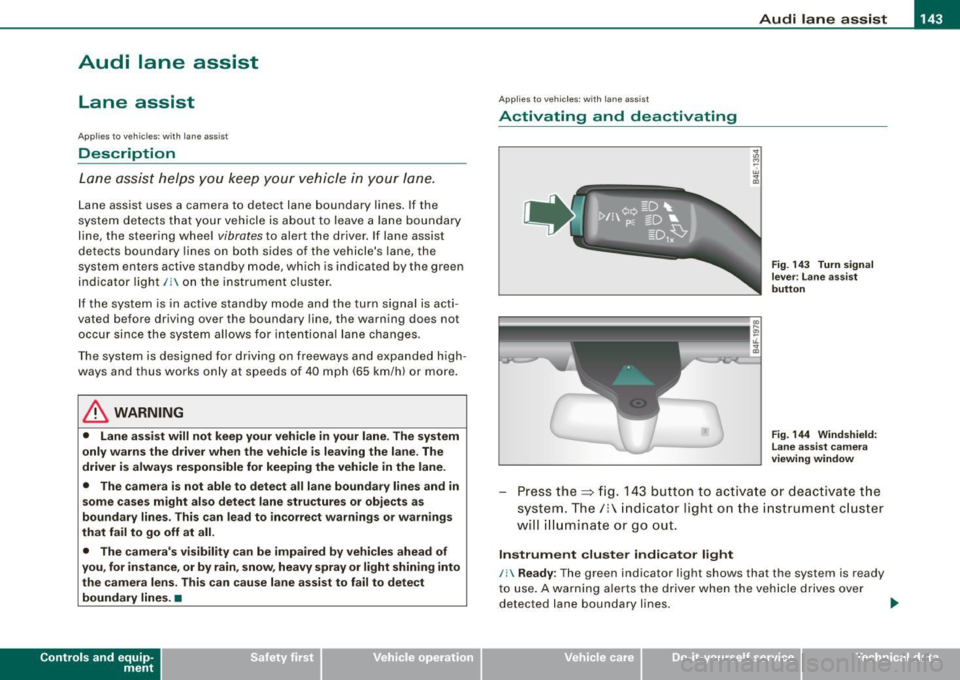
Press the :::> fig. 143 button to activa te or deactivate the
syst em . T he/ : in dica tor ligh t on t he i nstrument c luster
will illuminate or go out.
Instrument c lu ster indi ca tor light
/: Ready:
The green indicator light shows that the system is ready
to use . A warning a lerts the drive r when the veh icle drives over
dete cted lane boundary l ines. .,.
Vehicle care I I irechnical data
Page 146 of 398

• .___A_ u_ d _ i_l_a _n _ e_ a_ s_s _is _ t _________________________________________________ _
I Not ready: The yellow indicator light shows that the system is
turned on but unable to send a warn ing. This can be due to the
following:
• There are no boundary lines, or there is on ly one boundary line
present .
• The boundary lines are not detected (e.g. due to snow, dirt, wet
conditions or light shining into the camera lens).
• More than two boundary lines (such as at construction sites) are
located in the vehicle's lane.
• The vehicle's speed is below the speed needed to activate it,
which is about 40 mph (65 km/h).
• The lane is narrower than about 8 ft . (2.5 ml, or wider than about
16 ft. (5 ml.
• The curve is too sharp.
Notes on the instrument cluster display
When the lane assist turns off automatically, the instrument cluster
indicator goes out and one of the following messages appears on
the display:
Audi lane assist not available: Currently no sensor vision
This message appears when the camera can no longer function
because it cannot detect the boundary lines. This may be due to the
following :
• The exterior s ide of the camera viewing window=>
page 143,
fig. 144 is covered with dirt or ice. Clean this part of the windshield.
• The camera v iewing window is fogged up on the inside. In this
case, wait until the fog disappears before turning lane assist on
again.
• The system was unable to detect boundary lines over an
extended period of time due to road conditions (such as snow
covered lanes). Do not turn lane assist on again until the lines can
be more easily detected.
Audi lane assist not available
A temporary malfunction is preventing lane assist from operating .
Try turning on lane assist again a t a later time.
Audi lane assist: system fault
The system should be checked by an authorized Audi dealer or other
qualified workshop .
[ i ] Tips
• Make sure that the camera viewing window=> page 143, fig. 144
is not covered by stickers or similar objects .
• Always keep the camera viewing window clean. This can usually
be done by operating the windshield wipers. •
Applies to vehicles: with lane assist
MMI settings
You can use the MM/ to adjust the warning time and
steering wheel vibration.
Setting the warning time
Press the I CAR] function button.
- Select
Systems * in the CAR menu .
- Select
Audi lane assist.
Fig. 145 MMI Display:
Setting the warning
time and stee ring
wheel vibration
Page 147 of 398
___________________________________________________ A_u_ d_i_ l_ a _ n_ e_ a _ s_s _ i_s _t __ lffll
- Sele ct Warning early , adaptive or late ~ page 144,
fig. 145.
Setting th e st eering wheel vibration
- Press the
I CAR I function button.
- Selec t Sy stems ·* in t he CAR me nu.
- Selec t Audi lane a ssis t.
- Selec t Steering vibrat ion weak , medium or strong.
Setting th e warning tim e
Earl y:
This setting warns the driver before a wheel touches the
detected lane boundary line. The warning depends on the vehicle's
angle as it approaches the boundary line . If you approach a
boundary l ine gradua lly, the warning will occur ear lier. If you
approach the boundary line at a very sharp angle, the warning wi ll
occur just before a whee l touches the line.
Adapti ve : In this setting, the warning time adjusts to the character
istics of the road and the vehicle speed. The warning occurs later for
curves and occurs earlier for straight stretches of road . The warning
occurs later on narrow roads than on wide roads.
Late: This setting warns the driver when a whee l drives over the
detected lane boundary line.
Se ttin g th e steering wheel vibrat ion
When adjusting the steering wheel vibration, the steering wheel
v ibrates so that you can check the intensity you have set.
[ i ] Tips
• When making the adjustment, lane assist is not activated . The
steering whee l vibrates briefly only to assist you in changing the
setting .
• Your settings are automatically stored and assigned to the
remote contro l key being used. •
Controls and equip
ment I • •