2008 MERCEDES-BENZ CLS COUPE phone
[x] Cancel search: phonePage 55 of 329
Occupant safety
52 inflated, the child could be seriously or even
fatally injured.
Proceed as follows:
R
Do not use a rearward-facing child
restraint system on the front-passenger
seat.
R Fit a rearward-facing child restraint sys-
tem on a suitable rear seat.
or
R Only use a forward-facing child seat on
the front-passenger seat and move the
front-passenger seat to its rearmost
position.
R Have the automatic child seat recogni-
tion checked at a qualified specialist
workshop. To ensure that the automatic child seat rec-
ognition on the front-passenger seat func-
tions correctly, never place objects (such
as a cushion) under the child restraint sys-
tem. The entire base of the child restraint
system
must always be resting on the seat
cushion. An incorrectly fitted child restraint
system cannot perform its intended pro-
tective function in the event of an accident,
and could even lead to injuries.
i The windowbag, the sidebag and the belt
tensioner on the front-passenger side are
still active even if the front-passenger front
airbag is disabled. G
Risk of injury
Do not place items of electronic equipment
on the front-passenger seat, e.g.:
R laptops, if switched on
R mobile phones
R cards with transponders, e.g. ski passes
or access passes
Signals from electronic equipment can
cause interference in the automatic child
seat recognition sensor system. This can
lead to a system malfunction. This may
cause the 5 PASSENGER AIRBAG OFF
warning lamp to light up without there
being
a child seat with automatic child seat
recognition fitted. This means the front-
passenger airbag is not deployed during an
accident. It is also possible that the
5 PASSENGER AIRBAG OFF warning
lamp will not light up if you turn the key in
the ignition lock to position 2.Safety
219_AKB; 2; 4, en-GB
mkalafa,
2007-11-13T09:28:36+01:00 - Seite 52
Page 115 of 329
On-board computer
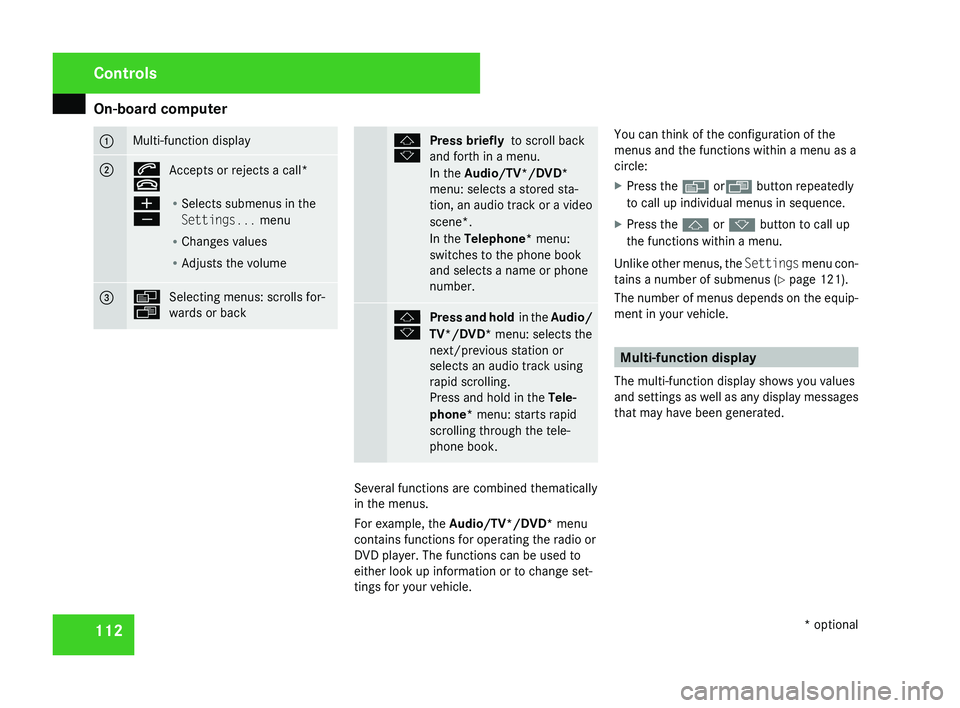
112 1 Multi-function display
2 s
t
Accepts or rejects a call*
æ
ç R
Selects submenus in the
Settings... menu
R Changes values
R Adjusts the volume 3 è
ÿ
Selecting menus: scrolls for-
wards or back j
k
Press briefly
to scroll back
and forth in a menu.
In the Audio/TV*/DVD*
menu: selects a stored sta-
tion,
an audio track or a video
scene*.
In the Telephone* menu:
switches to the phone book
and selects a name or phone
number. j
k
Press and hold
in the Audio/
TV*/DVD* menu: selects the
next/previous station or
selects an audio track using
rapid scrolling.
Press and hold in the Tele-
phone* menu: starts rapid
scrolling through the tele-
phone book. Several functions are combined thematically
in the menus.
For example, the Audio/TV*/DVD*
menu
contains functions for operating the radio or
DVD player. The functions can be used to
either look up information or to change set-
tings for your vehicle. You can think of the configuration of the
menus and the functions within a menu as a
circle:
X
Press the è orÿ button repeatedly
to call up individual menus in sequence.
X Press the j or k button to call up
the functions within a menu.
Unlike other menus, the Settings
menu con-
tains a number of submenus ( Y page 121).
The number of menus depends on the equip-
ment in your vehicle. Multi-function display
The multi-function display shows you values
and
settings as well as any display messages
that may have been generated. Controls
* optional
219_AKB; 2; 4, en-GB
mkalafa,
2007-11-13T09:28:36+01:00 - Seite 112
Page 118 of 329
On-board computer
115Function
1 Basic display menu (Y page 115)
R
Digital speedometer 12
(Y page 116)
R Outside tempera-
ture 12
(Y page 116)
R ASSYST PLUS service display
(Y page 209)
R Tyre pressure loss warning system
(Y page 201) or tyre pressure mon-
itor* (Y page 202) 2
AMG* menu (Y page 116)
3
Audio/TV*/DVD*
(Y page 118)
menu
R Radio station ( Y page 119)
R Audio drive or media ( Y page 119)
R TV* (Y page 119)
R DVD video* (Y page 120) 4
Navigation* menu (Y page 120) Function
5
Distronic
* menu (distance display)
(Y page 135) 6
Message memory menu
13
(fault and
warning messages) ( Y page 121) 7 Settings menu (Y page 121)
R
Resetting to factory settings
(Y page 121)
R Selecting a submenu ( Y page 122) 8 Trip computer
menu
R Consumption statistics
(Y page 130)
R Range ( Y page 130) 9
Telephone*
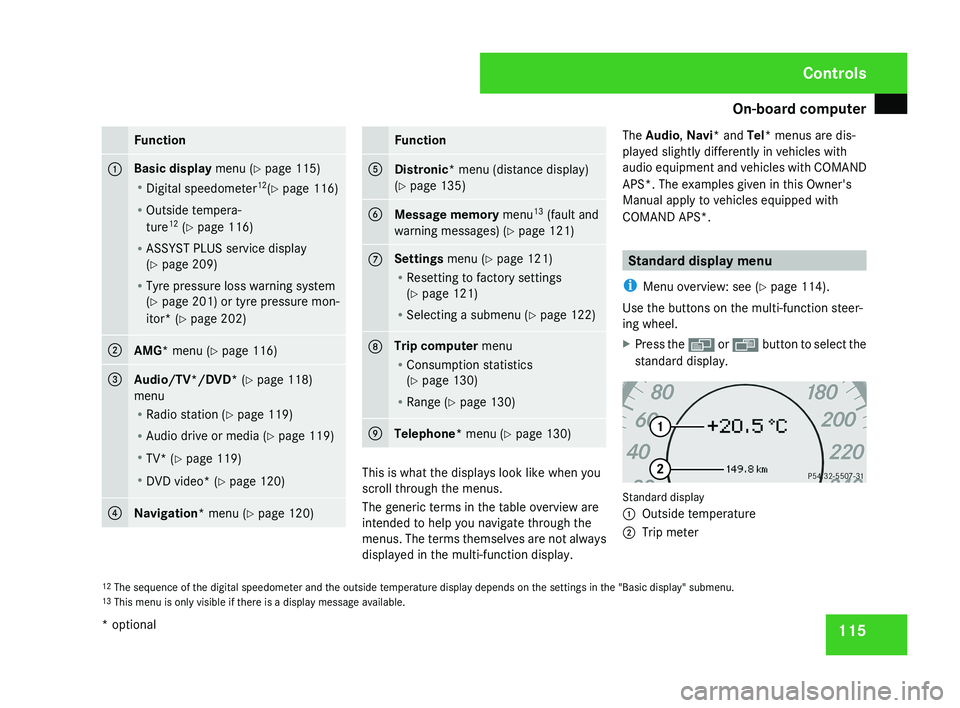
menu (Y page 130) This is what the displays look like when you
scroll through the menus.
The generic terms in the table overview are
intended to help you navigate through the
menus. The terms themselves are not always
displayed in the multi-function display.The Audio
, Navi* and Tel* menus are dis-
played slightly differently in vehicles with
audio equipment and vehicles with COMAND
APS*. The examples given in this Owner's
Manual apply to vehicles equipped with
COMAND APS*. Standard display menu
i Menu overview: see ( Y page 114).
Use the buttons on the multi-function steer-
ing wheel.
X Press the è or · button to select the
standard display. Standard display
1
Outside temperature
2 Trip meter
12 The sequence of the digital speedometer and the outside temperature display depends on the settings in the "Basic display" submenu.
13 This menu is only visible if there is a display message available. Controls
* optional
219_AKB; 2; 4, en-GB
mkalafa,
2007-11-13T09:28:36+01:00 - Seite 115
Page 133 of 329
On-board computer
130
If the vehicle is parked for more than 4 hours,
the From start consumption statistics are
reset (key in position
0 of the ignition lock or
removed).
The values will not be reset if you turn the key
to position 1 or 2 during this time.
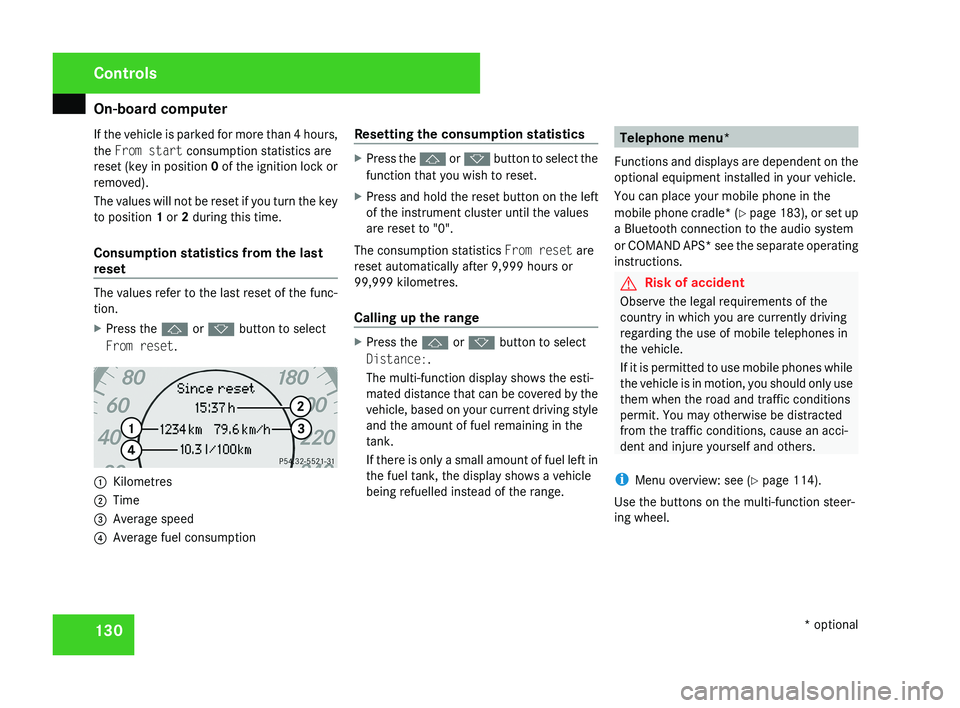
Consumption statistics from the last
reset The values refer to the last reset of the func-
tion.
X
Press the j or k button to select
From reset. 1
Kilometres
2 Time
3 Average speed
4 Average fuel consumption Resetting the consumption statistics X
Press the j or k button to select the
function that you wish to reset.
X Press and hold the reset button on the left
of the instrument cluster until the values
are reset to "0".
The consumption statistics From reset are
reset automatically after 9,999 hours or
99,999 kilometres.
Calling up the range X
Press the j or k button to select
Distance:.
The multi-function display shows the esti-
mated distance that can be covered by the
vehicle, based on your current driving style
and the amount of fuel remaining in the
tank.
If there is only a small amount of fuel left in
the fuel tank, the display shows a vehicle
being refuelled instead of the range. Telephone menu*
Functions and displays are dependent on the
optional equipment installed in your vehicle.
You can place your mobile phone in the
mobile phone cradle* (Y page 183), or set up
a Bluetooth connection to the audio system
or COMAND APS* see the separate operating
instructions. G
Risk of accident
Observe the legal requirements of the
country in which you are currently driving
regarding the use of mobile telephones in
the vehicle.
If it is permitted to use mobile phones while
the vehicle is in motion, you should only use
them when the road and traffic conditions
permit. You may otherwise be distracted
from the traffic conditions, cause an acci-
dent and injure yourself and others.
i Menu overview: see ( Y page 114).
Use the buttons on the multi-function steer-
ing wheel. Controls
* optional
219_AKB; 2; 4, en-GB
mkalafa,
2007-11-13T09:28:36+01:00 - Seite 130
Page 134 of 329
On-board computer
131
X
Switch on the mobile phone and audio sys-
tem or COMAND APS* see the separate
operating instructions.
X Press the è or · button to select the
Telephone menu.
Mobile phone on PIN code not yet entered
Once you have inserted the mobile phone into
the mobile phone cradle* the multi-function
display shows the
Please enter PIN:mes-
sage.
X Enter the PIN using the mobile phone, Lin-
guatronic*, the audio systemor COMAND
APS*.
The mobile phone will search for a network.
Mobile phone operational
The multi-function display shows the Ready
message or the name of the GSM network
provider. If the operational readiness symbol
goes out, your vehicle is outside the trans-
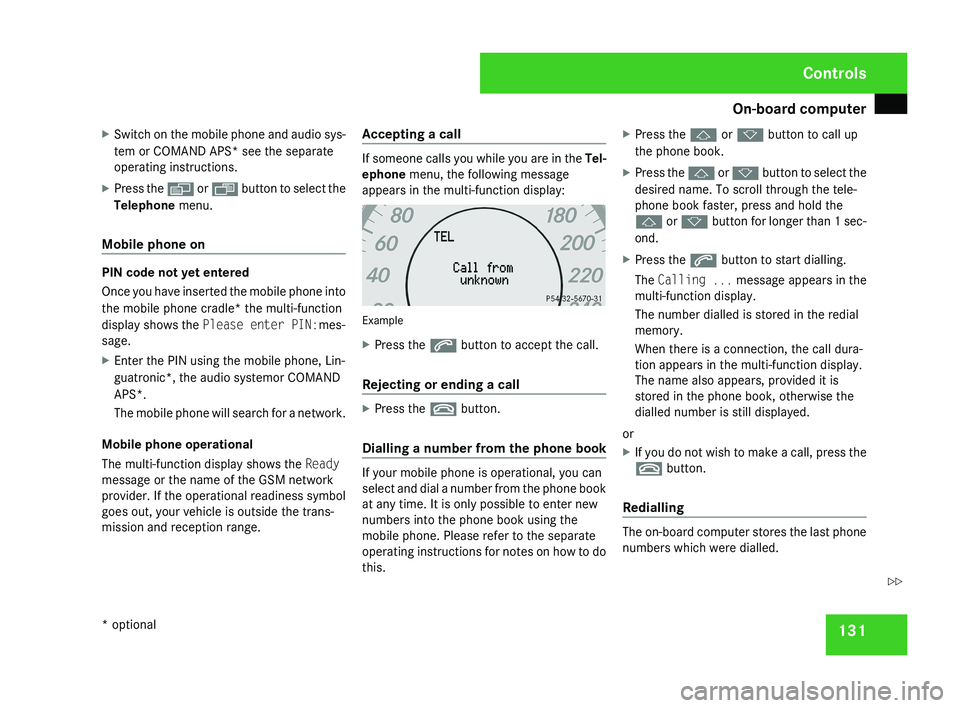
mission and reception range. Accepting a call If someone calls you while you are in the
Tel-
ephone menu, the following message
appears in the multi-function display: Example
X
Press the s button to accept the call.
Rejecting or ending a call X
Press the t button.
Dialling a number from the phone book If your mobile phone is operational, you can
select and dial a number from the phone book
at any time. It is only possible to enter new
numbers into the phone book using the
mobile phone. Please refer to the separate
operating instructions for notes on how to do
this.X
Press the j or k button to call up
the phone book.
X Press the j or k button to select the
desired name. To scroll through the tele-
phone book faster, press and hold the
j or k button for longer than 1 sec-
ond.
X Press the s button to start dialling.
The Calling ... message appears in the
multi-function display.
The number dialled is stored in the redial
memory.
When there is a connection, the call dura-
tion appears in the multi-function display.
The name also appears, provided it is
stored in the phone book, otherwise the
dialled number is still displayed.
or
X If you do not wish to make a call, press the
t button.
Redialling The on-board computer stores the last phone
numbers which were dialled. Controls
* optional
219_AKB; 2; 4, en-GB
mkalafa,
2007-11-13T09:28:36+01:00 - Seite 131 Z
Page 181 of 329
Loading and stowing
178
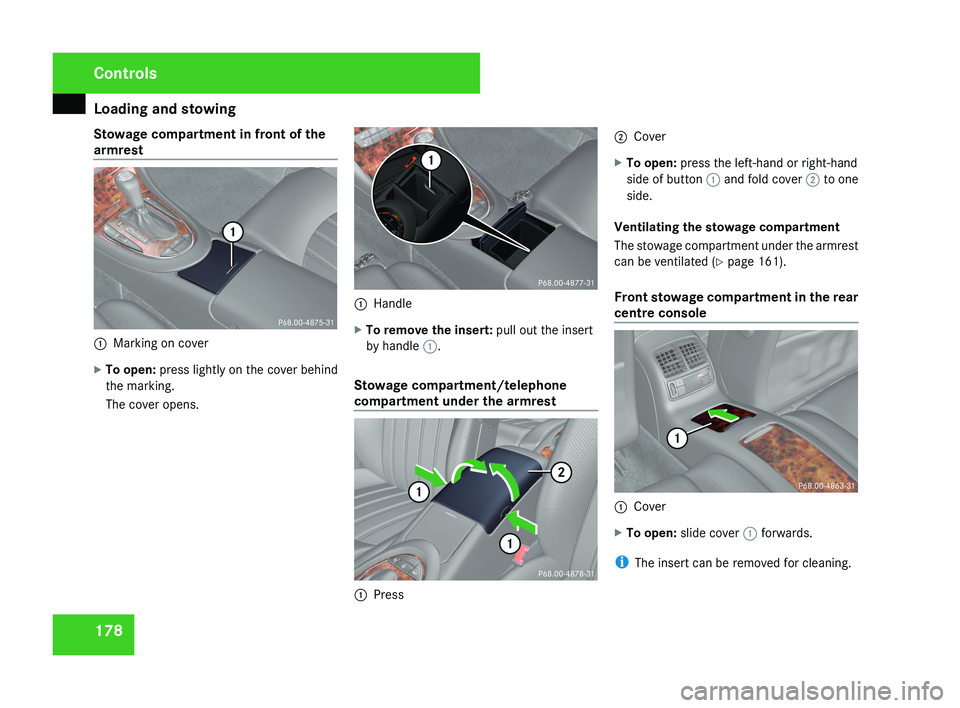
Stowage compartment in front of the
armrest
1
Marking on cover
X To open: press lightly on the cover behind
the marking.
The cover opens. 1
Handle
X To remove the insert: pull out the insert
by handle 1.
Stowage compartment/telephone
compartment under the armrest 1
Press 2
Cover
X To open: press the left-hand or right-hand
side of button 1 and fold cover 2 to one
side.
Ventilating the stowage compartment
The stowage compartment under the armrest
can be ventilated (Y page 161).
Front stowage compartment in the rear
centre console 1
Cover
X To open: slide cover 1 forwards.
i The insert can be removed for cleaning. Controls
219_AKB; 2; 4, en-GB
mkalafa,
2007-11-13T09:28:36+01:00 - Seite 178
Page 186 of 329
Features
183Mobile phone*
G
Risk of accident
Observe the legal requirements of the
country in which you are currently driving
regarding operating mobile communica-
tions equipment in a vehicle.
If
it is permitted by law to operate commu-
nications equipment while the vehicle is in
motion, you must only do so when the traf-
fic situation allows. You could otherwise be
distracted from the traffic conditions,
cause an accident and injure yourself and
others.
Two-way radios and fax equipment used
without low-reflection exterior aerials can
interfere with the vehicle's electronics and
thereby jeopardise the operating safety of
the vehicle and your safety. You must there-
fore only use this equipment if it is correctly
connected to a separate reflection-free
exterior aerial. G
Risk of injury
Excessive electromagnetic radiation may
cause
damage to your health and the health
of others. Using an exterior aerial takes into
account current scientific discussions relating to the possible health risk posed by
electromagnetic fields.
i In
order to ensure optimum signal quality
for mobile phones and to minimise mutual
interference between the vehicle electron-
ics and mobile phones, Mercedes-Benz rec-
ommends the use of an approved exterior
aerial. An exterior aerial conducts the elec-
tromagnetic fields generated by a wireless
device to the exterior of the vehicle; the
field strength within the vehicle interior is
lower than in a vehicle that does not have
an exterior aerial.
i There are various mobile phone brackets
that may be fitted to your vehicle; in some
cases these are country-specific. You can
obtain these mobile phone brackets from a
qualified specialist workshop, e.g. a
Mercedes-Benz Service Centre. The func-
tions and services available when you use
the phone depend on your mobile phone
model and service provider.
The mobile phone bracket is in the armrest.
X Open the telephone compartment
(Y page 178). Inserting the mobile phone into the
mobile phone bracket If the mobile phone is inserted into the mobile
phone
bracket, you can only speak to the per-
son you are calling using the hands-free sys-
tem.
! Do not attempt to remove the mobile
phone and the telephone bracket together.
You could otherwise damage the mobile
phone bracket.
X Remove the cover of the aerial plug from
the
back of the mobile phone and keep it in
a safe place. Controls
* optional
219_AKB; 2; 4, en-GB
mkalafa,
2007-11-13T09:28:36+01:00 - Seite 183
Page 187 of 329
Features
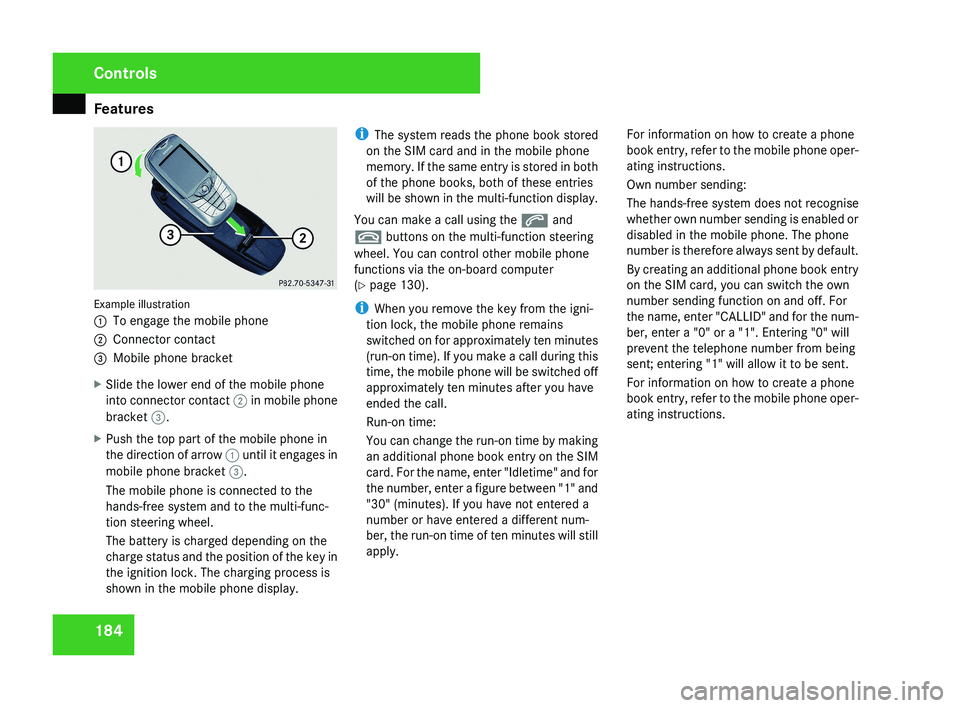
184Example illustration
1
To engage the mobile phone
2 Connector contact
3 Mobile phone bracket
X Slide the lower end of the mobile phone
into connector contact 2 in mobile phone
bracket 3.
X Push the top part of the mobile phone in
the direction of arrow 1 until it engages in
mobile phone bracket 3.
The mobile phone is connected to the
hands-free system and to the multi-func-
tion steering wheel.
The battery is charged depending on the
charge status and the position of the key in
the ignition lock. The charging process is
shown in the mobile phone display. i
The system reads the phone book stored
on the SIM card and in the mobile phone
memory. If the same entry is stored in both
of the phone books, both of these entries
will be shown in the multi-function display.
You can make a call using the s and
t buttons on the multi-function steering
wheel. You can control other mobile phone
functions via the on-board computer
(Y page 130).
i When you remove the key from the igni-
tion lock, the mobile phone remains
switched on for approximately ten minutes
(run-on time). If you make a call during this
time, the mobile phone will be switched off
approximately ten minutes after you have
ended the call.
Run-on time:
You can change the run-on time by making
an additional phone book entry on the SIM
card. For the name, enter "Idletime" and for
the number, enter a figure between "1" and
"30" (minutes). If you have not entered a
number or have entered a different num-
ber, the run-on time of ten minutes will still
apply. For information on how to create a phone
book entry, refer to the mobile phone oper-
ating instructions.
Own number sending:
The hands-free system does not recognise
whether own number sending is enabled or
disabled in the mobile phone. The phone
number is therefore always sent by default.
By creating an additional phone book entry
on the SIM card, you can switch the own
number sending function on and off. For
the name, enter "CALLID" and for the num-
ber, enter a "0" or a "1". Entering "0" will
prevent the telephone number from being
sent; entering "1" will allow it to be sent.
For information on how to create a phone
book entry, refer to the mobile phone oper-
ating instructions.
Controls
219_AKB; 2; 4, en-GB
mkalafa,
2007-11-13T09:28:36+01:00 - Seite 184