2008 HYUNDAI ENTOURAGE esc
[x] Cancel search: escPage 186 of 393
Features of your vehicle170 3Reprogramming a single
HomeLink buttonTo program a device to HomeLink using
a HomeLink button previously trained,
follow these steps:
1. Press and hold the desired HomeLink
button. Do NOT release until step 4
has been completed.
2. When the indicator light begins to flash
slowly (after 20 seconds), position the
hand-held transmitter 1 to 3 inches
away from the HomeLink surface.
3. Press and hold the hand-held trans-
mitter button (or press and “cycle” - as
described in “Canadian Programming”
above).
4. The HomeLink indicator light will flash,
first slowly and then rapidly. When the
indicator light begins to flash rapidly,
release both buttons.
The previous device has now been
erased and the new device can be acti-
vated by pushing the HomeLink button
that has just been programmed. This pro-
cedure will not affect any other pro-
grammed HomeLink buttons.
Gate operator programming &
canadian programmingDuring programming, your hand-held
transmitter may automatically stop trans-
mitting. Continue to press and hold the
HomeLink button (note steps 2 through 4
in the “Programming” portion of this text)
while you press and re-press (“cycle”)
your handheld transmitter every two sec-
onds until the frequency signal has been
learned. The indicator light will flash
slowly and then rapidly after several sec-
onds upon successful training.
AccessoriesIf you would like additional information on
the HomeLink Wireless Control System,
HomeLink compatible products, or to
purchase other accessories such as the
HomeLink® Lighting Package, please
contact HomeLink at 1-800-355-3515 or
on the internet at www.homelink.com.
This device complies with Part 15 of
the FCC rules.Operation is subject to
the following two conditions:
1. This device may not cause harmful
interference, and
2. This device must accept any interfer-
ence received, including interference
that may cause undesired operation.
CAUTION
If programming a garage door
opener or gate, it is advised to
unplug the device during the
“cycling” process to prevent possi-
ble motor burn-up.
WARNING
The HomeLink transmitter has been
tested and complies with FCC and
DOC/MDC rules. Changes or modifi-
cations not expressly approved by
the party responsible for compli-
ance could void the user’s authority
to operate the equipment.
IC: 4112104541A Gentex
MODEL/FCC ID: NZLSTDHL3
Page 229 of 393
3213
Features of your vehicle
You have two options: 4:3 (normal) and
16:9 (widescreen). Press the display but-
ton to select the preferred aspect ratio.
When the RSE unit receives video sig-
nals from the AUX, the aspect ratio can
be changed to 16:9 or 4:3 by the DISP
button.
The aspect ratio information will auto-
matically disappear if no button is
pressed for three seconds.5. ForwardThere are three DVD and VCD fast for-
ward speeds. Press and hold the FWD
button for up to 2 seconds and the player
will fast forward at 4 times the normal
speed (8 times for VCDs). Hold the but-
ton for more than 2 seconds but less than
4 seconds and the player will fast forward
at about 8 times the normal speed (20
times for VCDs). Hold the button for more
than 4 seconds and the fast forward will
increase to about 32 times the normal
speed for both DVDs and VCDs. Press
the FWD button again to stop fast for-
warding and return to normal speed play.
6. ReverseThere are three DVD and VCD fast
reverse speeds. Press and hold the REV
button for up to 2 seconds and the player
will reverse through the DVD at 4 times
the normal speed (8 times for VCDs).
Hold the button for more than 2 seconds
but less than 4 seconds and the player
will reverse at about 8 times the normal
speed (20 times for VCDs). Hold the but-
ton for more than 4 seconds and the
reverse will increase to 32 times the nor-
mal speed for both DVDs and VCDs.
Press the REV button again to stop
reversing and return to normal speed
play.7. Next ChapterWhile a DVD is playing, press the NEXT
button to skip to the next chapter. The
current chapter number is shown on the
screen. Press and hold the NEXT button
to move quickly through the chapters.✽ ✽
NOTICEDepending on the DVD, if NEXT is
pressed during the last chapter on a
DVD, a red circle with a “Invalid
icon[: :
]” may be displayed, indicating
an invalid button press.
8. Previous ChapterPress the PREV button to skip to the
beginning of the previous chapter. Press
and hold the PREV button to move quick-
ly through the chapters.
Depending on your DVD, if the PREV
button is pressed during the first 8 sec-
onds of the first chapter, the player will
skip to the beginning of the last chapter
of the DVD.9. EnterA momentary press shall initiate a select
or enter function of a selected menu
item.10. Menu DVDs may contain special programming
or features that are accessed by using
the menu. To use the menu with a DVD
that is playing, press the MENU button
once to display the DVD disc menu.
Press the button a second time to exit the
menu and return to the DVD program.
The menu is not available during disc ini-
tialization, the beginning credits or any
copyright warnings.
Page 232 of 393

Features of your vehicle216 31. Stop/Eject While the disc is playing, press the
STOP/EJECT( ) button to stop disc
play.
While the disc is stopped, press the
STOP/EJECT( ) button again to eject
the disc.2. Volume Control You can adjust the volume one of two
ways. First, if you are adjusting the vol-
ume for audio through the vehicle speak-
ers, you can use the VOLUME (
)button on the control panel or the
remote control. Press “+” to increase the
volume and “-” to decrease the volume.
The volume level will be displayed on the
head-unit, when the RSE unit volume
level is adjusted from its control panel or
remote control. This button does not
affect headphone volume.
Second, you can adjust the volume on
the wireless headphones by locating the
VOL control wheel on the left side of the
headphones. Roll the control wheel to
adjust the volume.
3. Play/Pause When an audio CD is inserted, the RSE
will display the HYUNDAI logo, then
automatically begin playing the first track.
The track number and time elapsed for
the current track is displayed.
If a CD is loaded and playing, press the
PLAY/PAUSE( ) button to pause the
CD. Press the button again to resume
play.
If a CD is already loaded, stopping and
playing the CD by pressing
PLAY/PAUSE( ) button on the remote
control; cycling the ignition and pressing
play; or changing the source will cause the
CD to begin playing at the point where it
was stopped during the previous play. The
player will automatically play this previous
play position unless the
STOP/EJECT( ) button is pressed.
At the end of the CD, the player will auto-
matically return to the first track and con-
tinue playing.
4. Display When the player is in DVD mode, press
the DISP button to view the DVD title,
chapter number and elapsed time and
other information about the DVD current-
ly playing.
The next time the player is turned on, it
will return to the brightness level it was
adjusted to when last used.
The RSE unit has two presets of display
brightness. When the headlamp is turned
on, the display brightness level will be
dimmed as the preset. However, when
the headlamp is turned off, the display
brightness will return to the daytime
brightness.
Press DISP to adjust the image format.
The image format, also known as the
aspect ratio, is a ratio of the height to
width of the image on the screen. For
example, a 4:3 ratio would mean an
image that is 4 units by 3 units. You have
two options: 4:3 (normal) and 16:9
(widescreen). Press the display button to
select the preferred aspect ratio.When the RSE unit receives video sig-
nals from the AUX, the aspect ratio can
be changed to 16:9 or 4:3 by the DISP
button.The aspect ratio information will auto-
matically disappear if no button is
pressed for three seconds.
Page 235 of 393

3219
Features of your vehicle
Using the Remote ControlIn addition to having all the buttons and
functionality listed in the DVD and CD
Controls section, the remote control has
several other buttons that offer additional
functions. It is an infrared remote control,
and must be pointed at the face of the
RSE at a 45° angle for best results. It
requires a CR2025 battery (included).
The remote control has the following
additional buttons:✽ ✽
NOTICEThe RSE system is always “awake”
when the vehicle's ignition is turned on
or when the vehicle is in “accessory”
power mode.1. StopPressing this button once will stop DVD
or CD play. To eject a disc, you must use
the eject button on the control panel.2. Speaker Volume “+” and “-”These buttons control the volume of the
audio of a DVD or CD through the vehicle
speakers, not the volume from head-
phones. Press “+” to turn the volume up
and “-” to turn the volume down.
3. Play/PauseWhen an audio CD(VCD/DVD) is insert-
ed, the RSE will display the HYUNDAI
logo, then automatically begin playing
the first track. The track number and time
elapsed for the current track is displayed.
If a CD(VCD/DVD) is loaded and playing,
press the PLAY/PAUSE( ) button to
pause the CD(VCD/DVD). Press the but-
ton again to resume play.
If a CD(VCD/DVD) is already loaded,
stopping and playing the CD(VCD/ DVD)
by pressing PLAY/PAUSE( ) button
on the remote control; cycling the ignition
and pressing play; or changing the
source will cause the CD(VCD/DVD) to
begin playing at the point where it was
stopped during the previous play. The
player will automatically play this previ-
ous play position unless the
STOP/EJECT( ) button is pressed.
At the end of the CD(VCD/DVD), the
player will automatically return to the first
track and continue playing.4. DisplayWhen the player is in DVD mode, press
the DISP button to view the DVD title,
chapter number and elapsed time and
other information about the DVD current-
ly playing.It will also display brightness. There are
“Day Time” brightness with brightest level
and “Night Time” brightness which has
70% level of “Day Time” brightness. Adjust
the level of brightness by pressing the
REV(dimmer) or FWD(brighter) buttons.
The next time the player is turned on, it
will return to the brightness level it was
adjusted to when last used.
The RSE unit has two presets of display
brightness. When the headlamp is turned
on, the display brightness level will be
dimmed as the preset. However, when
the headlamp is turned off, the display
brightness will return to the daytime
brightness.
Press DISP to adjust the image format.
The image format, also known as the
aspect ratio, is a ratio of the height to
width of the image on the screen. For
example, a 4:3 ratio would mean an
image that is 4 units by 3 units. You have
two options: 4:3 (normal) and 16:9
(widescreen). Press the display button to
select the preferred aspect ratio.
When the RSE unit receives video sig-
nals from the AUX, the aspect ratio can
be changed to 16:9 or 4:3 by the DISP
button.
The aspect ratio information will auto-
matically disappear if no button is
pressed for three seconds.
Page 241 of 393
4
Engine exhaust can be dangerous! / 4-2
Before driving / 4-3
Key positions / 4-5
Starting the engine / 4-6
Automatic transaxle / 4-7
Cruise control system / 4-14
Brake system / 4-17
Electronic stability control (ESC) / 4-22
Rear parking assist system / 4-25
Good braking practices / 4-28
Economical operation / 4-29
Special driving conditions / 4-30
Winter driving / 4-32
Trailer towing / 4-34
Vehicle load limit / 4-41
Weight of the vehicle / 4-46
Driving your vehicle
Page 257 of 393
417
Driving your vehicle
Power brakes Your vehicle has power-assisted brakes
that adjust automatically through normal
usage.
In the event that the power-assisted
brakes lose power because of a stalled
engine or some other reason, you can
still stop your vehicle by applying greater
force to the brake pedal than you nor-
mally would. The stopping distance, how-
ever, will be longer.
When the engine is not running, the
reserve brake power is partially depleted
each time the brake pedal is applied. Do
not pump the brake pedal when the
power assist has been interrupted.
Pump the brake pedal only when neces-
sary to maintain steering control on slip-
pery surfaces.
In the event of brake failure If service brakes fail to operate while the
vehicle is in motion, you can make an
emergency stop with the parking brake.
The stopping distance, however, will be
much greater than normal.
BRAKE SYSTEM
(Continued)
When descending a long or steep
hill, shift to a lower gear and
avoid continuous application of
the brakes. Continuous brake
application will cause the brakes
to overheat and could result in a
temporary loss of braking per-
formance.
Wet brakes may result in the vehi-
cle not slowing down at the usual
rate and pulling to one side when
the brakes are applied. Applying
the brakes lightly will indicate
whether they have been affected
in this way. Always test your
brakes in this fashion after driv-
ing through deep water. To dry the
brakes, apply them lightly while
maintaining a safe forward speed
until brake performance returns
to normal.
WARNING
- Parking brake
Applying the parking brake while
the vehicle is moving at normal
speeds can cause a sudden loss of
control of the vehicle. If you must
use the parking brake to stop the
vehicle, use great caution in apply-
ing the brake.
WARNING -
Brakes
Do not drive with your foot rest-
ing on the brake pedal. This will
create abnormal high brake tem-
peratures, excessive brake lining
and pad wear, and increased
stopping distances.
(Continued)
Page 260 of 393
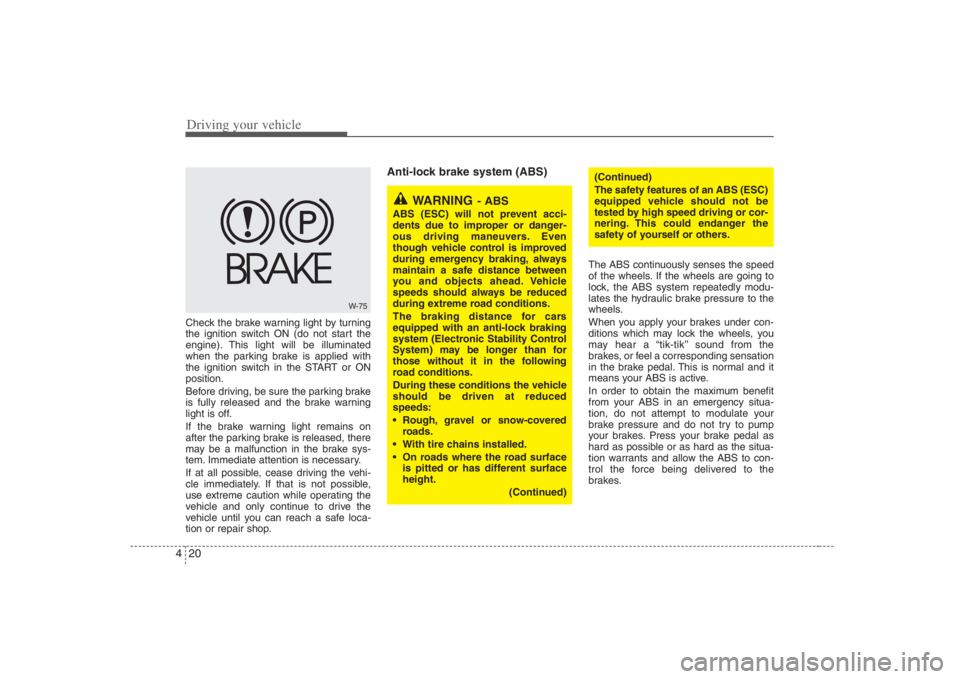
Driving your vehicle20 4Check the brake warning light by turning
the ignition switch ON (do not start the
engine). This light will be illuminated
when the parking brake is applied with
the ignition switch in the START or ON
position.
Before driving, be sure the parking brake
is fully released and the brake warning
light is off.
If the brake warning light remains on
after the parking brake is released, there
may be a malfunction in the brake sys-
tem. Immediate attention is necessary.
If at all possible, cease driving the vehi-
cle immediately. If that is not possible,
use extreme caution while operating the
vehicle and only continue to drive the
vehicle until you can reach a safe loca-
tion or repair shop.
Anti-lock brake system (ABS)
The ABS continuously senses the speed
of the wheels. If the wheels are going to
lock, the ABS system repeatedly modu-
lates the hydraulic brake pressure to the
wheels.
When you apply your brakes under con-
ditions which may lock the wheels, you
may hear a “tik-tik’’ sound from the
brakes, or feel a corresponding sensation
in the brake pedal. This is normal and it
means your ABS is active.
In order to obtain the maximum benefit
from your ABS in an emergency situa-
tion, do not attempt to modulate your
brake pressure and do not try to pump
your brakes. Press your brake pedal as
hard as possible or as hard as the situa-
tion warrants and allow the ABS to con-
trol the force being delivered to the
brakes.
W-75
WARNING
- ABS
ABS (ESC) will not prevent acci-
dents due to improper or danger-
ous driving maneuvers. Even
though vehicle control is improved
during emergency braking, always
maintain a safe distance between
you and objects ahead. Vehicle
speeds should always be reduced
during extreme road conditions.
The braking distance for cars
equipped with an anti-lock braking
system (Electronic Stability Control
System) may be longer than for
those without it in the following
road conditions.
During these conditions the vehicle
should be driven at reduced
speeds:
Rough, gravel or snow-covered
roads.
With tire chains installed.
On roads where the road surface
is pitted or has different surface
height.
(Continued)
(Continued)
The safety features of an ABS (ESC)
equipped vehicle should not be
tested by high speed driving or cor-
nering. This could endanger the
safety of yourself or others.
Page 262 of 393
Driving your vehicle22 4
The Electronic Stability Control (ESC)
system is designed to stabilize the vehicle
during cornering manuevers. ESC checks
where you are steering and where the
vehicle is actually going. ESC applies the
brakes at individual wheels and
intervenes in the engine management
system to stabilize the vehicle.
The Electronic Stability Control (ESC)
system is an electronic system designed
to help the driver maintain vehicle control
under adverse conditions. It is not a
substitute for safe driving practices.
Factors including speed, road conditions
and driver steering input can all affect
whether ESC will be effective in
preventing a loss of control. It is still your
responsibility to drive and corner at
reasonable speeds and to leave a
sufficient margin of safety.
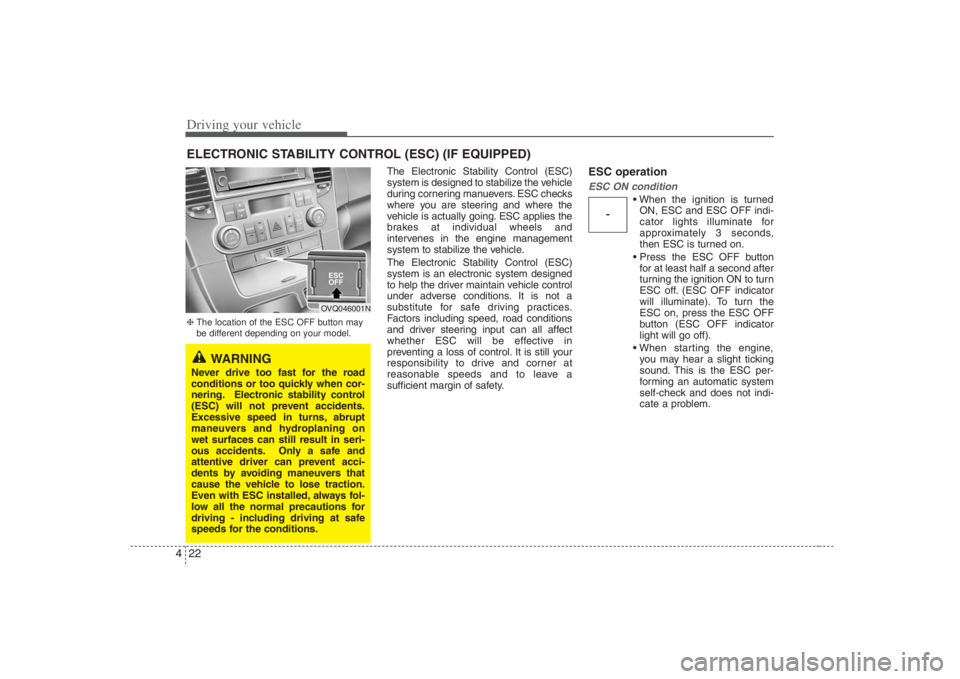
ESC operationESC ON condition
ON, ESC and ESC OFF indi-
cator lights illuminate for
approximately 3 seconds,
then ESC is turned on.
for at least half a second after
turning the ignition ON to turn
ESC off. (ESC OFF indicator
will illuminate). To turn the
ESC on, press the ESC OFF
button (ESC OFF indicator
light will go off).
you may hear a slight ticking
sound. This is the ESC per-
forming an automatic system
self-check and does not indi-
cate a problem.
ELECTRONIC STABILITY CONTROL (ESC) (IF EQUIPPED)
-
WARNING
Never drive too fast for the road
conditions or too quickly when cor-
nering. Electronic stability control
(ESC) will not prevent accidents.
Excessive speed in turns, abrupt
maneuvers and hydroplaning on
wet surfaces can still result in seri-
ous accidents. Only a safe and
attentive driver can prevent acci-
dents by avoiding maneuvers that
cause the vehicle to lose traction.
Even with ESC installed, always fol-
low all the normal precautions for
driving - including driving at safe
speeds for the conditions.❈The location of the ESC OFF button may
be different depending on your model.
OVQ046001N