2008 CHEVROLET CORVETTE clock
[x] Cancel search: clockPage 221 of 432
Setting the Clock
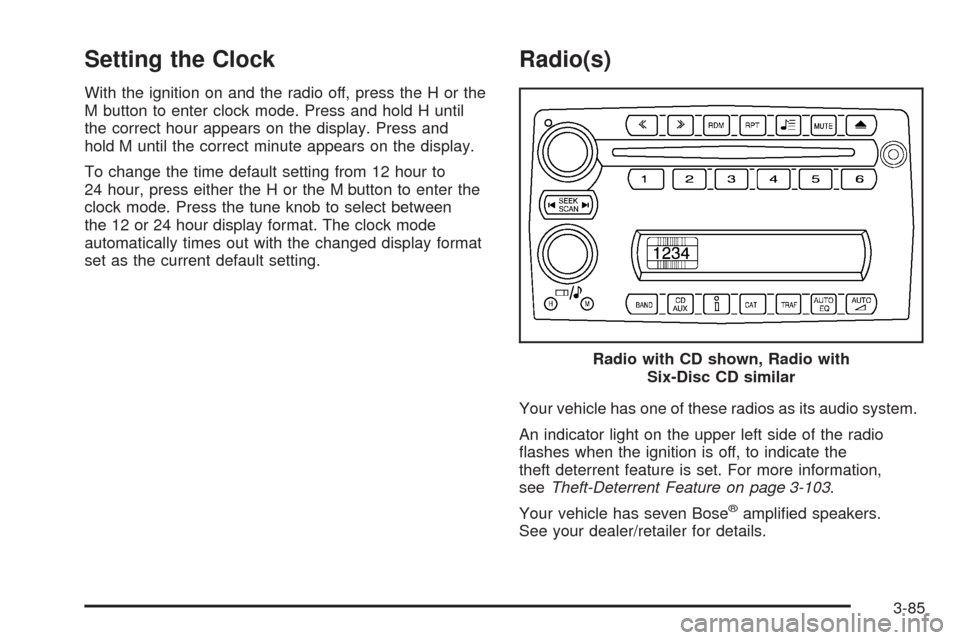
With the ignition on and the radio off, press the H or the
M button to enter clock mode. Press and hold H until
the correct hour appears on the display. Press and
hold M until the correct minute appears on the display.
To change the time default setting from 12 hour to
24 hour, press either the H or the M button to enter the
clock mode. Press the tune knob to select between
the 12 or 24 hour display format. The clock mode
automatically times out with the changed display format
set as the current default setting.
Radio(s)
Your vehicle has one of these radios as its audio system.
An indicator light on the upper left side of the radio
ashes when the ignition is off, to indicate the
theft deterrent feature is set. For more information,
seeTheft-Deterrent Feature on page 3-103.
Your vehicle has seven Bose
®amplied speakers.
See your dealer/retailer for details.Radio with CD shown, Radio with
Six-Disc CD similar
3-85
Page 222 of 432
Radio Data System (RDS)
The audio system has a Radio Data System (RDS).
RDS features are available for use only on FM stations
that broadcast RDS information.
With RDS, the radio can do the following:
Seek to stations broadcasting the selected type of
programming.
Receive announcements concerning local and
national emergencies.
Display messages from radio stations.
Seek to stations with traffic announcements.
This system relies upon receiving specic information
from these stations and works only when the information
is available. In rare cases, a radio station can broadcast
incorrect information that causes the radio features
to work improperly. If this happens, contact the radio
station.
While the radio is tuned to an RDS station, the station
name or call letters display. RDS stations can also
provide the time of day, a program type (PTY) for current
programming, and the name of the program being
broadcast.
Playing the Radio
Top Knob (Power/Volume):Press to turn the system
on and off. Turn clockwise or counterclockwise to
increase or decrease the volume.
4(Information):For RDS, press to change what
display while using RDS. The display options are station
name, RDS station frequency, PTY, and the name of
the program (if available).
For XM™ (if equipped), press while in XM™ mode to
retrieve four different categories of information related to
the current song or channel: Artist, Song Title,
Category or PTY, Channel Number/Channel Name.
To change the default on the display, press until you
see the desired display, then hold for two seconds.
The radio produces one beep and the selected display
is now the default.
AUTO
n(Automatic Volume):Automatic volume
automatically adjusts the audio system to make up
for road and wind noise as you drive, by increasing the
volume as vehicle speed increases.
Set the volume at the desired level. Press this button
to select AUTO VOLUME MIN (minimum), AUTO
VOLUME MED (medium), or AUTO VOLUME MAX
(maximum). Each higher setting provides more volume
compensation at faster vehicle speeds. To turn
automatic volume off, press this until AUTO VOLUME
OFF displays.
3-86
Page 234 of 432
Using the Auxiliary Input Jack
The radio system has an auxiliary input jack located on
the right side of the faceplate. This is not an audio
output; do not plug the headphone set into the front
auxiliary input jack. An external audio device such as an
iPod, laptop computer, MP3 player, CD changer, etc.
can be connected to the auxiliary input jack for use
as another source for audio listening.
Drivers are encouraged to set up any auxiliary device
while the vehicle is in PARK (P). SeeDefensive
Driving on page 4-2.
To use a portable audio player, connect a 3.5 mm
(1/8 inch) cable to the radio’s front auxiliary input jack.
When a device is connected, the radio displays AUX
INPUT DEVICE and begins playing audio from that
device.
Top Knob (Power/Volume):Turn clockwise or
counterclockwise to increase or decrease the volume of
the portable player. Additional volume adjustments
might need to be made from the portable device.
BAND:Press to listen to the radio while a portable audio
device is playing. The portable audio device continues
playing, so you might want to stop it or turn it off.CD/AUX (CD/Auxiliary):Press to play a CD while a
portable audio device is playing. Press again and
the system begins playing audio from the connected
portable audio player. If a portable audio player is
connected, AUX INPUT DEVICE displays. If a portable
audio player is not connected, AUX INPUT DEVICE
does not display.
Using an MP3
MP3 CD-R Disc
MP3 Format
If you burn your own MP3 disc on a personal computer:
Make sure the MP3 les are recorded on a
CD-R disc.
Do not mix standard audio and MP3 les on
one disc.
Make sure playlists have a .mp3 or .wpl extension,
other le extensions might not work.
Files can be recorded with a variety of xed or
variable bit rates. Song title, artist name, and album
are available for display by the radio when
recorded using ID3 tags version 1 and 2.
3-98
Page 236 of 432
Order of Play
Tracks are played in the following order:
Play begins from the rst track in the rst playlist
and continues sequentially through all tracks in
each playlist. When the last track of the last playlist
has played, play continues from the rst track of
the rst playlist.
If the CD does not contain any playlists, then play
begins from the rst track under the root directory.
When all tracks from the root directory have
played, play continues from les according to their
numerical listing. After playing the last track
from the last folder, play begins again at the rst
track of the rst folder or root directory.
When play enters a new folder, the display does not
automatically show the new folder name unless
the folder mode has been chosen as the default display.
See the information button later in this section for
more information. The new track name displays.
File System and Naming
The song name that is displayed is the song name that
is contained in the ID3 tag. If the song name is not
present in the ID3 tag, then the radio displays the le
name without the extension (such as .mp3) as the
track name.Track names longer than 32 characters or four pages
are shortened. Parts of words on the last page of
text and the extension of the lename does not display.
Preprogrammed Playlists
Preprogrammed playlists that were created by
WinAmp™, MusicMatch™, or Real Jukebox™ software
can be accessed, however, they cannot be edited
using the radio. These playlists are treated as special
folders containing compressed audio song les.
Playing an MP3
Insert a CD partway into the slot, label side up.
The player pulls it in, and READING displays. The CD
should begin playing and the CD symbol displays.
If the ignition or radio is turned off with a CD-R in the
player, it stays in the player. When the ignition or radio is
turned on, the CD-R starts to play where it stopped, if
it was the last selected audio source.
As each new track starts to play, the track number
displays.
O/e(Tune):Turn clockwise or counterclockwise to
go to the next or previous track.
{(Previous Folder):Press to go to the rst track in
the previous folder. Press and hold to reverse
through the current track.
3-100
Page 254 of 432
Steering in Emergencies
There are times when steering can be more effective
than braking. For example, you come over a hill and nd
a truck stopped in your lane, or a car suddenly pulls out
from nowhere, or a child darts out from between parked
cars and stops right in front of you. You can avoid these
problems by braking — if you can stop in time. But
sometimes you cannot; there is not room. That is the time
for evasive action — steering around the problem.
Your vehicle can perform very well in emergencies like
these. First apply the brakes. SeeBraking on page 4-4.
It is better to remove as much speed as you can from a
possible collision. Then steer around the problem, to the
left or right depending on the space available.
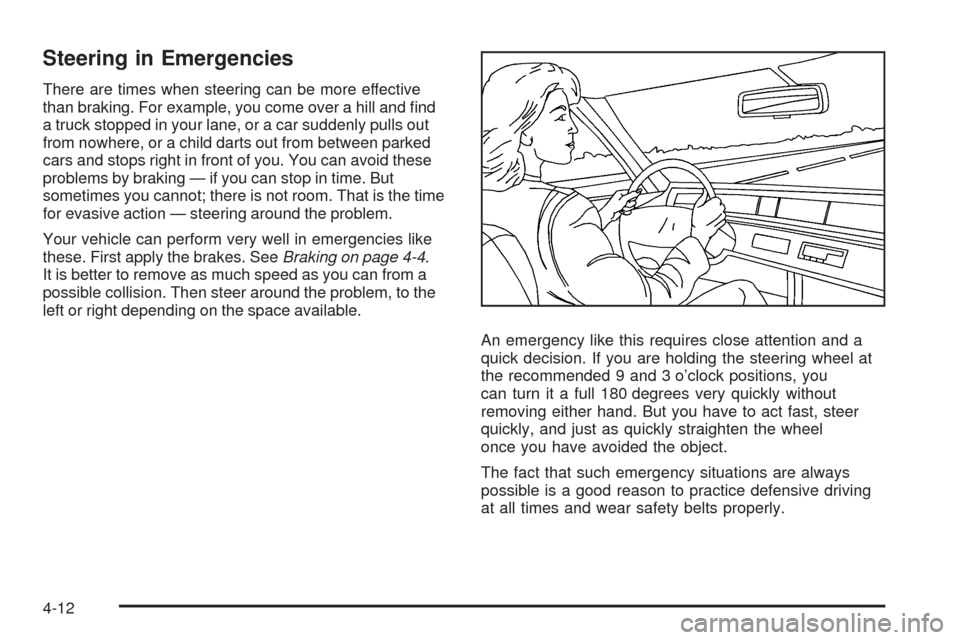
An emergency like this requires close attention and a
quick decision. If you are holding the steering wheel at
the recommended 9 and 3 o’clock positions, you
can turn it a full 180 degrees very quickly without
removing either hand. But you have to act fast, steer
quickly, and just as quickly straighten the wheel
once you have avoided the object.
The fact that such emergency situations are always
possible is a good reason to practice defensive driving
at all times and wear safety belts properly.
4-12
Page 282 of 432
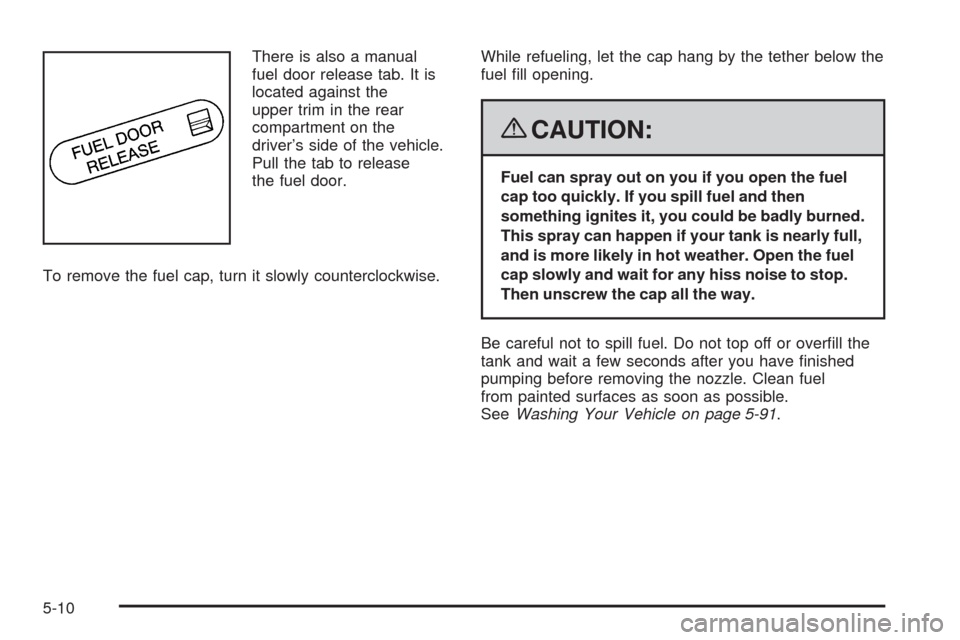
There is also a manual
fuel door release tab. It is
located against the
upper trim in the rear
compartment on the
driver’s side of the vehicle.
Pull the tab to release
the fuel door.
To remove the fuel cap, turn it slowly counterclockwise.While refueling, let the cap hang by the tether below the
fuel ll opening.
{CAUTION:
Fuel can spray out on you if you open the fuel
cap too quickly. If you spill fuel and then
something ignites it, you could be badly burned.
This spray can happen if your tank is nearly full,
and is more likely in hot weather. Open the fuel
cap slowly and wait for any hiss noise to stop.
Then unscrew the cap all the way.
Be careful not to spill fuel. Do not top off or overll the
tank and wait a few seconds after you have nished
pumping before removing the nozzle. Clean fuel
from painted surfaces as soon as possible.
SeeWashing Your Vehicle on page 5-91.
5-10
Page 283 of 432
When replacing the fuel cap, turn it clockwise until it
clicks. Make sure the cap is fully installed. The
diagnostic system can determine if the fuel cap has
been left off or improperly installed. This would allow fuel
to evaporate into the atmosphere. SeeMalfunction
Indicator Lamp on page 3-45.
The CHECK GAS CAP message will be displayed on
the Driver Information Center (DIC) if the fuel cap is not
properly installed. SeeDIC Warnings and Messages
on page 3-57for more information.
{CAUTION:
If a re starts while you are refueling, do not
remove the nozzle. Shut off the ow of fuel by
shutting off the pump or by notifying the
station attendant. Leave the area immediately.
Notice:If you need a new fuel cap, be sure to get
the right type. Your dealer/retailer can get one
for you. If you get the wrong type, it may not t
properly. This may cause your malfunction indicator
lamp to light and may damage your fuel tank and
emissions system. SeeMalfunction Indicator Lamp
on page 3-45.
Filling a Portable Fuel Container
{CAUTION:
Never ll a portable fuel container while it is in
your vehicle. Static electricity discharge from
the container can ignite the fuel vapor. You
can be badly burned and your vehicle
damaged if this occurs. To help avoid injury to
you and others:
Dispense fuel only into approved
containers.
Do not ll a container while it is inside a
vehicle, in a vehicle’s trunk, pickup bed, or
on any surface other than the ground.
Bring the ll nozzle in contact with the
inside of the ll opening before operating
the nozzle. Contact should be maintained
until the lling is complete.
Do not smoke while pumping fuel.
Do not use a cellular phone while
pumping fuel.
5-11
Page 309 of 432
Notice:In cold weather, water can freeze and crack
the engine, radiator, heater core and other parts.
Use the recommended coolant and the proper
coolant mixture.
{CAUTION:
You can be burned if you spill coolant on hot
engine parts. Coolant contains ethylene glycol
and it will burn if the engine parts are hot
enough. Do not spill coolant on a hot engine.
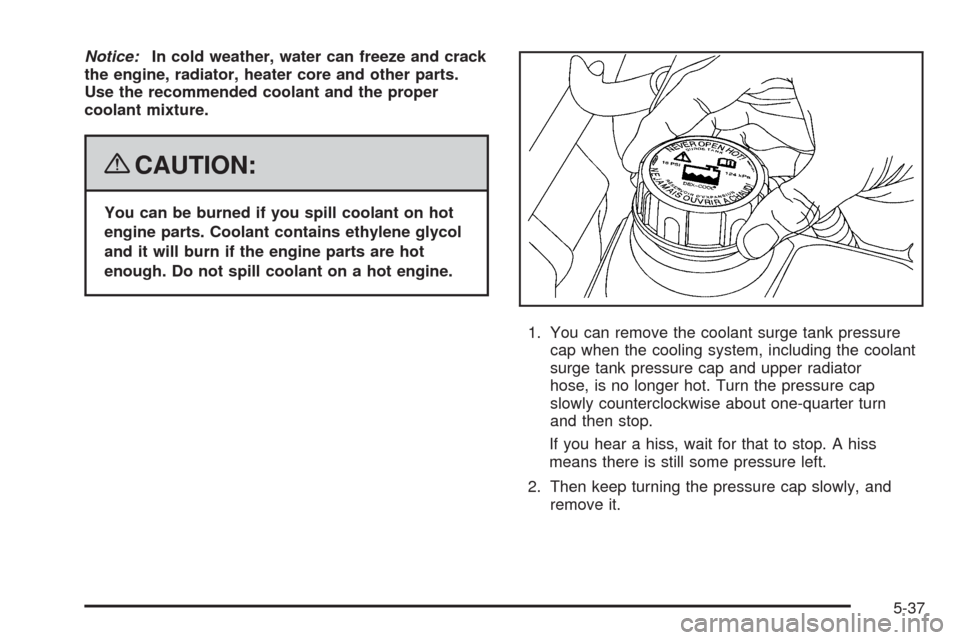
1. You can remove the coolant surge tank pressure
cap when the cooling system, including the coolant
surge tank pressure cap and upper radiator
hose, is no longer hot. Turn the pressure cap
slowly counterclockwise about one-quarter turn
and then stop.
If you hear a hiss, wait for that to stop. A hiss
means there is still some pressure left.
2. Then keep turning the pressure cap slowly, and
remove it.
5-37