2007 FIAT PANDA time
[x] Cancel search: timePage 42 of 166
41
CONNECT NAV+
During the operations available in the
“CD Prog” function, buttons 5, 6and
9-fig. 1are disabled.
CD name
This function can be selected only if
a Compact Disc is inserted.
If the CD already has a name, this will
be shown on the display.
“CD name” function allows to name
max. 10 CDs with 20 characters max.
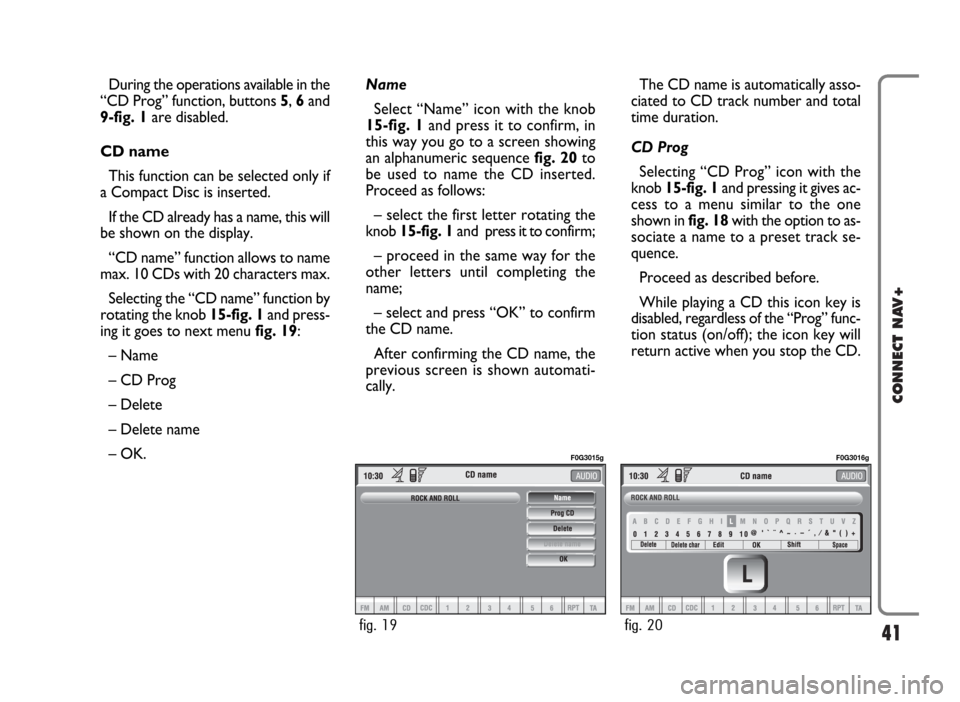
Selecting the “CD name” function by
rotating the knob 15-fig. 1and press-
ing it goes to next menu fig. 19:
– Name
– CD Prog
– Delete
– Delete name
– OK.Name
Select “Name” icon with the knob
15-fig. 1and press it to confirm, in
this way you go to a screen showing
an alphanumeric sequencefig. 20to
be used to name the CD inserted.
Proceed as follows:
– select the first letter rotating the
knob15-fig. 1and press it to confirm;
– proceed in the same way for the
other letters until completing the
name;
– select and press “OK” to confirm
the CD name.
After confirming the CD name, the
previous screen is shown automati-
cally.The CD name is automatically asso-
ciated to CD track number and total
time duration.
CD Prog
Selecting “CD Prog” icon with the
knob 15-fig. 1and pressing it gives ac-
cess to a menu similar to the one
shown in fig. 18with the option to as-
sociate a name to a preset track se-
quence.
Proceed as described before.
While playing a CD this icon key is
disabled, regardless of the “Prog” func-
tion status (on/off); the icon key will
return active when you stop the CD.
fig. 19
F0G3015g
fig. 20
F0G3016g
Page 44 of 166
43
CONNECT NAV+
The CONNECT Nav+ system can
control 10 CDs.
At the bottom of the screen are
shown the functions that can be acti-
vated through the corresponding mul-
tifunction keys 16-fig. 1on the CON-
NECT Nav+ system:
– FMallows audio source change
through the following loop FM1, FM2,
FM3, FMAST, FM1….
– AMallows audio source change
through the following loop MW, LW,
AMAST, MW…
– CDactivates CD
– CDC activates CD Changer
– 1 …10selects the corresponding
CD in the multiple player (only the
keys corresponding to the actual CDs
inside the player are active)
– >> o << enables to display, like
icon keys, the next or previous 5 CDS
contained in the CD Changer.– RPTenables the Repeat function:
Repeat one (repeat one track) / Re-
peat CD (repeat all CD tracks) / Re-
peat all (repeat all CD tracks con-
tained in the CD-Changer) / No Re-
peat (repeat function off).
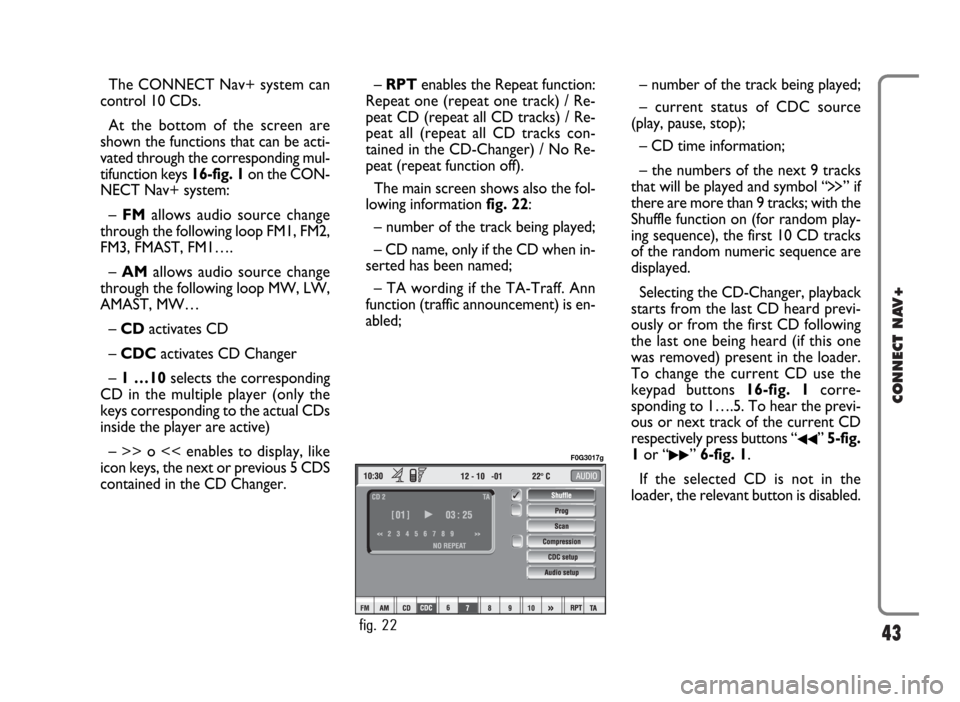
The main screen shows also the fol-
lowing information fig. 22:
– number of the track being played;
– CD name, only if the CD when in-
serted has been named;
– TA wording if the TA-Traff. Ann
function (traffic announcement) is en-
abled;– number of the track being played;
– current status of CDC source
(play, pause, stop);
– CD time information;
– the numbers of the next 9 tracks
that will be played and symbol “
§” if
there are more than 9 tracks; with the
Shuffle function on (for random play-
ing sequence), the first 10 CD tracks
of the random numeric sequence are
displayed.
Selecting the CD-Changer, playback
starts from the last CD heard previ-
ously or from the first CD following
the last one being heard (if this one
was removed) present in the loader.
To change the current CD use the
keypad buttons 16-fig. 1corre-
sponding to 1….5. To hear the previ-
ous or next track of the current CD
respectively press buttons “
¯¯” 5-fig.
1or “
˙˙” 6-fig. 1.
If the selected CD is not in the
loader, the relevant button is disabled.
fig. 22
F0G3017g
Page 49 of 166

48
CONNECT NAV+
Since a full MP3 CD could hypothet-
ically include many MP3 files, a 999
music pieces limit is imposed by the
system. If the user inserts a MP3 CD
which has more than 999 tracks (files)
in it, then only the first 999 files will be
considered and a 7-second warning
will be displayed fig. 25“Warning: the
system will manage only the first 999
tracks on the MP3 CD”; This warn-
ing will be closed after set time or up-
on pressing the knob 15-fig. 1or
“ESC” 14-fig. 1.
Only one Playlist for each MP3 CD
can be managed. Trying to create a
second playlist on the same CD you
will overwrite the existent one.
CONNECT Nav+ allows storing a
max. number of 10 playlists; when
reaching the last one admitted (whentrying to insert the 11th MP3 CD) the
oldest playlist will be overwritten; the
display will show the following mes-
sage: “10 Playlists have already been
stored. Do you want to overwrite the
oldest?”.
When a MP3 CD is inserted, CON-
NECT Nav+ system checks the pres-
ence of a stored playlist coupled with
the CD.
If one of the 10 “known” CDs is de-
tected, playing starts automatically ac-
cording to the preset sequence. If no
playlist coupled to the inserted MP3
CD is found, then playing starts from
the first file on the CD.
If recorded MP3 CD was not sam-
pled at right frequency, playback is im-
mediately stopped and the display
shows the following message: “The
current track was sampled with a for-
mat which is not compatible with the
reader. It cannot be read by the sys-
tem” fig. 26.IMPORTANTTechnical data and
operating conditions for MP3 files:
– sampling frequencies are: 44.1 kHz,
stereo (96 to 320 kbit/s) – 22.05 kHz,
mono or stereo (32 to 80 kbit/s);
– it is possible to play variable bit-rate
tracks (files);
– compatibility with multi-session
CDs, in this case only the first CD ses-
sion will be read;
– reading compatibility with CD-RW;
– MP3 CDs shall have ISO 9660 for-
mat;
– incompatibility with ID3TAG-2;
– incompatibility with packet writing
CDs (DirectCD
TMor INCDTM);
– files in WMATMor Atrac3TMre-
named as .mp3, cannot be played.
fig. 25
F0G3020g
fig. 26
F0G3021g
Page 50 of 166
49
CONNECT NAV+
MAIN SCREEN OPTIONS
AND FUNCTIONS
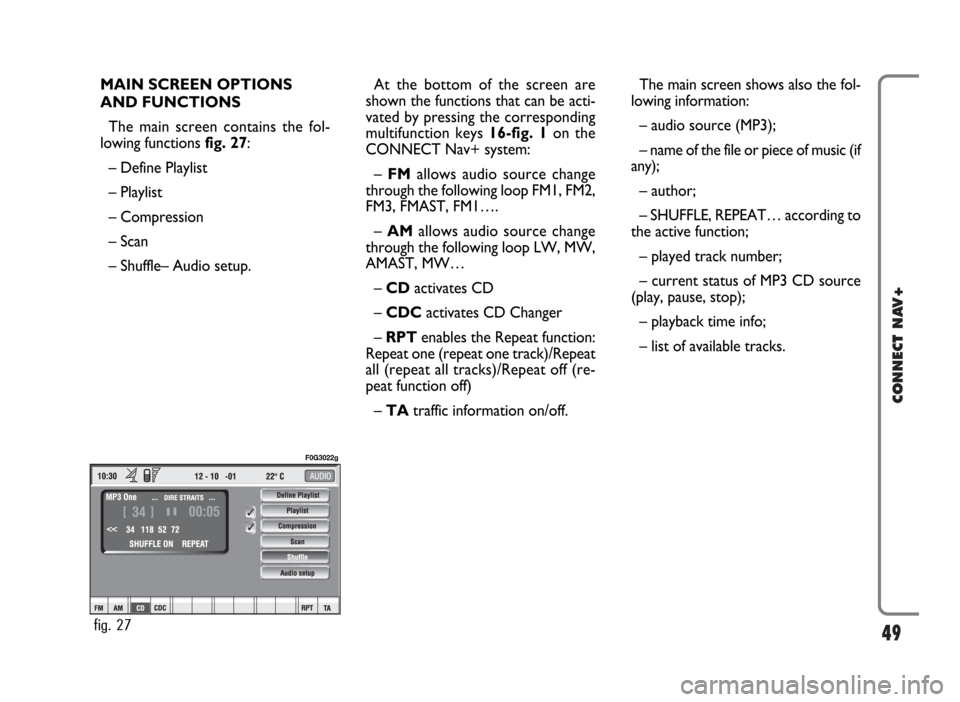
The main screen contains the fol-
lowing functions fig. 27:
– Define Playlist
– Playlist
– Compression
– Scan
– Shuffle– Audio setup.At the bottom of the screen are
shown the functions that can be acti-
vated by pressing the corresponding
multifunction keys 16-fig. 1 on the
CONNECT Nav+ system:
– FMallows audio source change
through the following loop FM1, FM2,
FM3, FMAST, FM1….
–AMallows audio source change
through the following loop LW, MW,
AMAST, MW…
– CDactivates CD
– CDC activates CD Changer
– RPT enables the Repeat function:
Repeat one (repeat one track)/Repeat
all (repeat all tracks)/Repeat off (re-
peat function off)
– TAtraffic information on/off.The main screen shows also the fol-
lowing information:
– audio source (MP3);
– name of the file or piece of music (if
any);
– author;
– SHUFFLE, REPEAT… according to
the active function;
– played track number;
– current status of MP3 CD source
(play, pause, stop);
– playback time info;
– list of available tracks.
fig. 27
F0G3022g
Page 53 of 166

52
CONNECT NAV+
PLAYING THE PLAYLIST
Inserting a MP3 CD with associated
playlist starts sequence playing auto-
matically.
The main screen shows also the fol-
lowing information:
– audio source (MP3);
– when available, author and song
name fig. 28, or file name fig. 29;
– current track numberfig. 28;
– current status of MP3 CD source
(play fig. 28, pause fig. 30, stopfig.
31);– playback time info;
– list of available tracks;
– SHUFFLE, REPEAT… according to
the active function.Icon keys on the right of the screen
are all enabled, excluding “Define
playlist” and “Playlist” under “Play” and
“Pause” conditions fig. 28 and 30;
stop the MP3 CD (“Stop”) to enable
these two functions fig. 31.
When playing MP3 CD, buttons
“
¯¯” 5-fig. 1and “˙˙” 6-fig. 1on
the left of the CONNECT Nav+ key-
pad, perform the following functions:
– with short push skips to previ-
ous/next track in playlist;
– with long push skips 10 tracks
back/forward in playlist.
fig. 28
F0G3023g
fig. 30
F0G3025g
fig. 31
F0G3026g
fig. 29
F0G3024g
Page 54 of 166

53
CONNECT NAV+
Starting from “Stop” state (stop
playing by pressing “
˙/II” 9-fig. 1, user
can modify the playlist by means of the
“Define playlist” function or set a track
sequence by means of the “Playlist”
function. It is then possible to play the
MP3 CD by pressing again “
˙/II” 9-
fig. 1(“Play” key).
PLAYING MP3 CD
When a MP3 CD (to which a play list
has not been matched previously) is
put into the player, the radio naviga-
tion system will start playing auto-
matically from the first piece of the
first folder available in the CD, then
it will go on in a sequence. After all of
the pieces found in a folder have been
played, the pieces found in the next
folder of the CD will be played.
Before starting to play the first track
of the new folder, the display shows
for five seconds the new folder name.The main screen shows also the fol-
lowing information:
– audio source (MP3);
– when available, author and song
name fig. 28, or file name fig. 29;
– current track numberfig. 28;
– current status of MP3 CD source
(play fig. 28, pause fig. 30, stopfig.
31);
– CD time information;
– list of available tracks;
– TA, SHUFFLE, REPEAT… accord-
ing to the active function.
Icon keys on the right of the screen
are all enabled, excluding “Define
playlist” and “Playlist” under “Play” and
“Pause” conditions fig. 28 and 30; stop
the MP3 CD (“Stop”) fig. 31to enable
these two functions.When playing MP3 CD, buttons
“
¯¯”5-fig. 1and “˙˙” 6-fig. 1on
the left of the CONNECT Nav+ key-
pad, perform the following functions:
– pressing the keys briefly will allow
you to shift to the previous/following
piece of the play list; shifting from one
section of the CD to the next one will
involve displaying the name of the new
folder for a few instants;
– with long push skips to previ-
ous/next 10 track with respect to one
being played (provided the folder is
not empty). Should there be in the
folder 10 tracks preceding or follow-
ing the track being played then, skip to
first track of the previous or next fold-
er with respect to the one being
played will take place. During this op-
eration the name of the new folder is
displayed for five seconds.
Page 62 of 166

– DTMF setting (Dual Tone Multi
Frequency) to repeat dialling and in-
hibit the own identification number
transmission
– selection of network provider
– setting volume and tone of incom-
ing calls
– displaying the remaining credit for
a pre-paid SIM card (if provided for by
the telephone company)
– display of signal field intensity and
other status warnings with symbols
and words.PRELIMINARY
OPERATIONS
ENTERING AND EXITING
THE TELEPHONE MODE
To enter the telephone mode pro-
ceed as follows:
– turn ignition key to ON;
– short push on “TEL” button 19-fig.
1on front panel.
The display shows the telephone
mode “main screen” fig. 39that pro-
vides the following information:
– Time.
– GSM field strength. If telephone
mode is “switched off” the display
shows “TEL OFF”. GSM signal
strength is shown even if no SIM card
is inserted.– Active GSM provider. If a SIM card
is inserted and validated by PIN and no
provider is available, the display will
show “FIND…”.
– An envelope-shaped symbol to in-
dicate unread SMS message/s.
– An arrow-shaped symbol to indi-
cate active call forward.
– Active AUDIO source information.
– “TEL” string to indicate that tele-
phone module is currently active.
– A box to input telephone number
with “DIAL NUMBER” string.
– An icon key: “Delete” to clear off
the telephone number input in the
box.
61
CONNECT NAV+
fig. 39
F0G3034g
Page 66 of 166
INCOMING CALLS
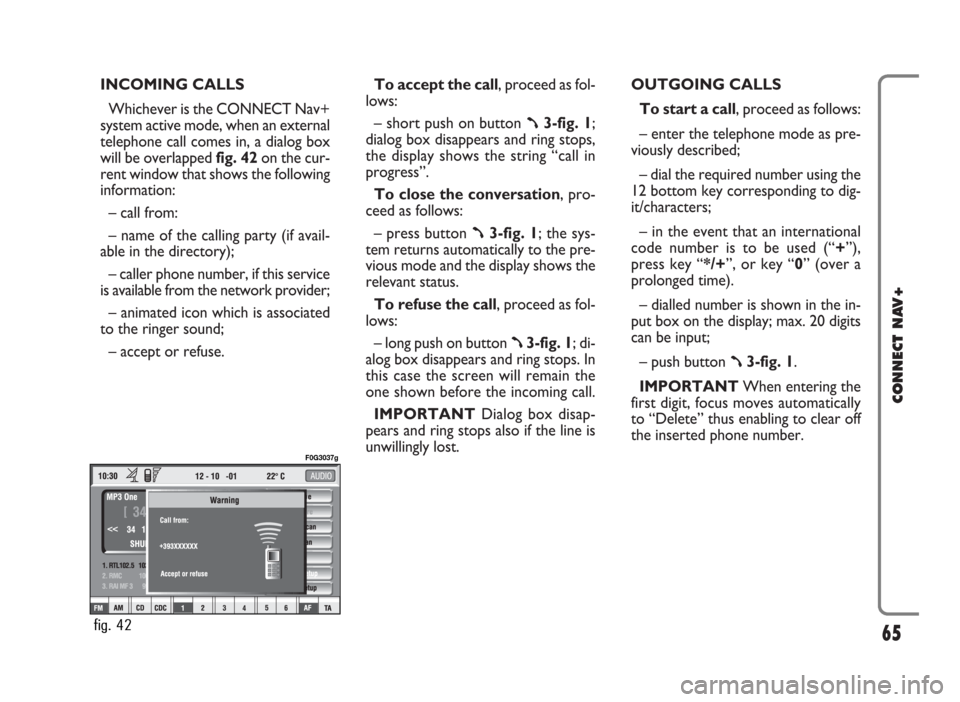
Whichever is the CONNECT Nav+
system active mode, when an external
telephone call comes in, a dialog box
will be overlapped fig. 42on the cur-
rent window that shows the following
information:
– call from:
– name of the calling party (if avail-
able in the directory);
– caller phone number, if this service
is available from the network provider;
– animated icon which is associated
to the ringer sound;
– accept or refuse.To accept the call, proceed as fol-
lows:
– short push on button
ß3-fig. 1;
dialog box disappears and ring stops,
the display shows the string “call in
progress”.
To close the conversation, pro-
ceed as follows:
– press button
ß3-fig. 1; the sys-
tem returns automatically to the pre-
vious mode and the display shows the
relevant status.
To refuse the call, proceed as fol-
lows:
– long push on button
ß3-fig. 1; di-
alog box disappears and ring stops. In
this case the screen will remain the
one shown before the incoming call.
IMPORTANT Dialog box disap-
pears and ring stops also if the line is
unwillingly lost.OUTGOING CALLS
To start a call, proceed as follows:
– enter the telephone mode as pre-
viously described;
– dial the required number using the
12 bottom key corresponding to dig-
it/characters;
– in the event that an international
code number is to be used (“+”),
press key “*/+”, or key “0” (over a
prolonged time).
– dialled number is shown in the in-
put box on the display; max. 20 digits
can be input;
– push button
ß3-fig. 1.
IMPORTANTWhen entering the
first digit, focus moves automatically
to “Delete” thus enabling to clear off
the inserted phone number.
65
CONNECT NAV+
fig. 42
F0G3037g