Page 222 of 472

SALES CODE REC — AM/FM/CD (6–DISC) RADIO
WITH NAVIGATION SYSTEM
Satellite Navigation Radio with CD Player with MP3
Capability (REC) - combines a Global-Positioning
System-based navigation system with an integrated color
screen to provide maps, turn identification, selectionmenus and instructions for selecting a variety of destina-
tions and routes, AM/FM stereo radio and six-disc CD
changer with MP3 capability.
Mapping information for navigation is supplied on a
DVD that is loaded into the unit. One map DVD covers
all of North America. Refer to your “Navigation User’s
Manual” for detailed operating instructions.
Operating Instructions — Satellite Radio (If
Equipped)
Refer to your “Navigation User’s Manual” for detailed
operating instructions.
REC Setting the Clock
GPS Clock
The GPS receiver used in this system is synchronized to
the time data being transmitted by the GPS satellites. The
satellites’ clock is Greenwich Mean Time (GMT). This is
REC Radio
222 INSTRUMENT PANEL AND CONTROLS
Page 223 of 472
the worldwide standard for time. This makes the sys-
tem’s clock very accurate once the appropriate time zone
and daylight savings information is set.
1. At theMain Menuscreen, highlight “Clock Setup”
and press ENTERORpress and hold for 3 seconds the
TIME button on the unit’s faceplate. TheClock Setup
screen appears.2. To show the GPS clock, select “Displayed Clock: GPS
Clock” and press ENTER.
3. To adjust the time zone, Select “Time Zone” and press
ENTER. Select the appropriate time zone and press
ENTER.
4. To turn daylight savings on or off, select “Daylight
Savings” and press ENTER. Select “On” or “Off” and
press ENTER.
5. Select DONE to exit from the clock setting mode. Press
ENTER to save your changes. If you press CANCEL or
NAV then your changes will not be saved.
INSTRUMENT PANEL AND CONTROLS 223
4
Page 224 of 472
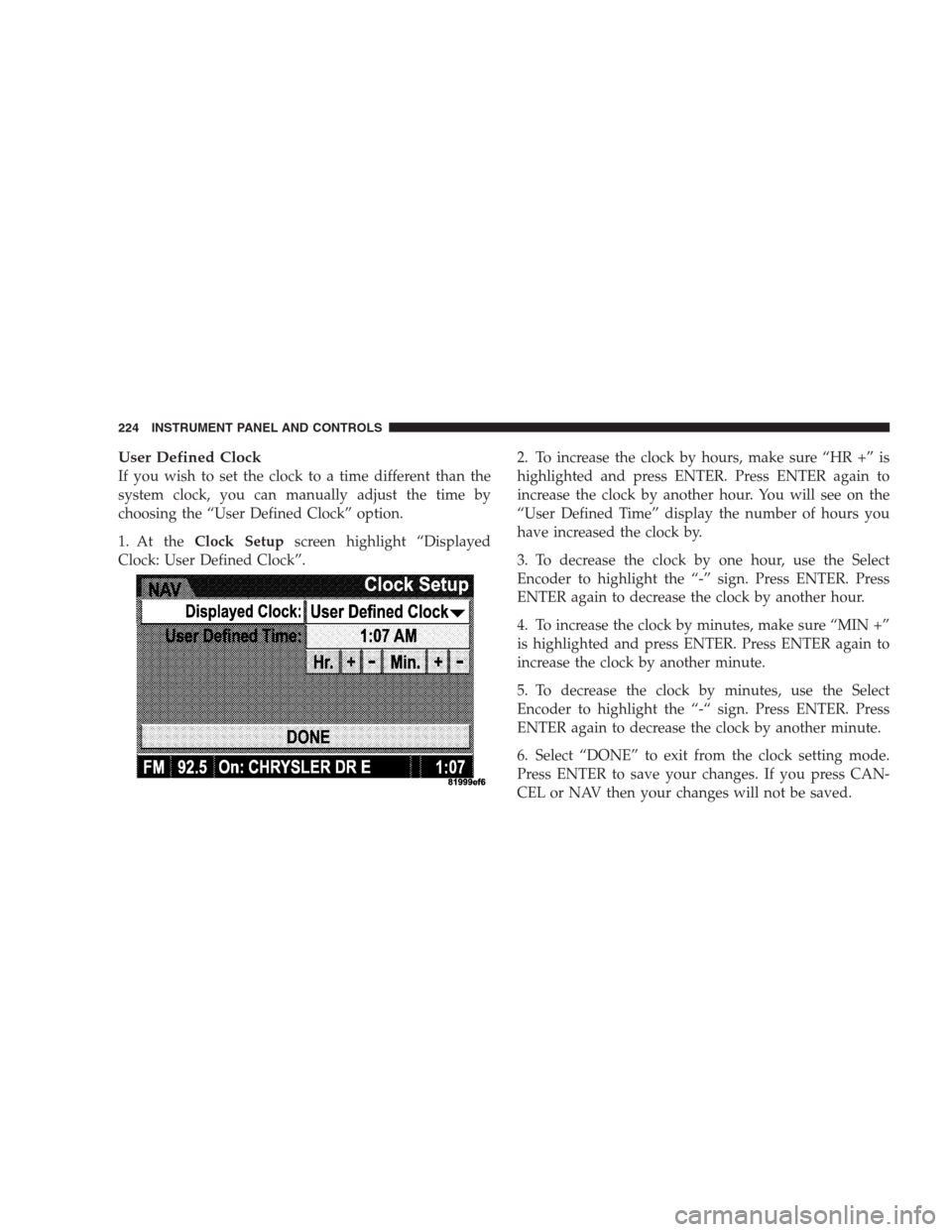
User Defined Clock
If you wish to set the clock to a time different than the
system clock, you can manually adjust the time by
choosing the “User Defined Clock” option.
1. At theClock Setupscreen highlight “Displayed
Clock: User Defined Clock”.2. To increase the clock by hours, make sure “HR +” is
highlighted and press ENTER. Press ENTER again to
increase the clock by another hour. You will see on the
“User Defined Time” display the number of hours you
have increased the clock by.
3. To decrease the clock by one hour, use the Select
Encoder to highlight the “-” sign. Press ENTER. Press
ENTER again to decrease the clock by another hour.
4. To increase the clock by minutes, make sure “MIN +”
is highlighted and press ENTER. Press ENTER again to
increase the clock by another minute.
5. To decrease the clock by minutes, use the Select
Encoder to highlight the “-“ sign. Press ENTER. Press
ENTER again to decrease the clock by another minute.
6. Select “DONE” to exit from the clock setting mode.
Press ENTER to save your changes. If you press CAN-
CEL or NAV then your changes will not be saved.
224 INSTRUMENT PANEL AND CONTROLS
Page 225 of 472
Audio Clock Display
Select this option to change the size of the clock on the
audio screens.
1. When you are at an audio screen, quickly press the
TIME button on the navigation faceplate.
2. In this example the large clock appears on the screen.3. To switch the clock to the small clock, quickly press
TIME again.
4. To toggle back to the large clock, simply press TIME.
INSTRUMENT PANEL AND CONTROLS 225
4
Page 228 of 472
Selecting Satellite Mode in REF, RAQ, and RAK
Radios
Selecting Satellite Mode — REF Radio
Press the MODE button repeatedly until the word�SAT�
appears in the display.
A CD may remain in the radio while in the Satellite radio
mode.
Selecting Satellite Mode — RAQ and RAK Radio
Press the MODE button repeatedly until the word�SAT�
appears in the display.
These radios will also display the current station name
and program type. For more information, such as song
title and artist press the MSG or INFO button.
A CD or tape may remain in the radio while in the
Satellite radio mode.
Selecting a Channel
Press and release the SEEK or TUNE knob to search for
the next channel. Press the top of the button to search up
and the bottom of the button to search down. Holding the
TUNE button causes the radio to bypass channels until
the button is released.
Press and release the SCAN button (if equipped) to
automatically change channels every 7 seconds. The
radio will pause on each channel for 7 seconds before
moving on to the next channel. The word�SCAN�will
appear in the display between each channel change. Press
the SCAN button a second time to stop the search.
NOTE:Channels that may contain objectionable content
can be blocked. Contact Sirius Customer Care at 888-539-
7474 to discuss options for channel blocking or unblock-
ing. Please have your ESN/SID information available.
228 INSTRUMENT PANEL AND CONTROLS
Page 230 of 472
Reception Quality
Satellite reception may be interrupted due to one of the
following reasons.
•The vehicle is parked in an underground parking
structure or under a physical obstacle.
•Dense tree coverage may interrupt reception in the
form of short audio mutes.
•Driving under wide bridges or along tall buildings can
cause intermittent reception.
•Placing objects over or too close to the antenna can
cause signal blockage.
REMOTE SOUND SYSTEM CONTROLS — IF
EQUIPPED
The remote sound system controls are located on the rear
surface of the steering wheel. Reach behind the wheel to
access the switches.
230 INSTRUMENT PANEL AND CONTROLS
Page 234 of 472
engine speed or power may be noticed when the com-
pressor cycles. This is a normal occurrence since the
compressor will cycle on and off to maintain comfort and
improve fuel economy.
Front Blower Control
The Front Blower controls the
amount of air delivered to the
passenger compartment.
There are four blower speeds.
The fan speed increases as
you turn the control clock-
wise. When the front blower
control is turned to OFF, the
blower will be turned off and
the system will be positioned
in recirculation mode.
Front Mode Control
The mode control allows you to
choose from several patterns of air
distribution.
NOTE:To improve your selection choices, the system
allows you to operate at intermediate positions between
the major modes. These intermediate positions are iden-
tified by the small dots and give an even blend of both
modes.
234 INSTRUMENT PANEL AND CONTROLS
Page 239 of 472

located in the overhead console to measure the tem-
perature of the driver and passengers. Based on the
sensor input, the system will automatically ocntrol
comfort by varying the temperature, fan speed, and
mode. This maintains a comfortable temperature, even
under changing conditions. It is important that objects
are not blocking the infrared sensor. It is also impor-
tant that objects are not used that may scratch or
damage it in any way.
Level Of Automatic Control
72°F (22°C) is the recommended setting for maximum
comfort for the average person, however, this may vary.
NOTE:The temperature setting can be adjusted at any
time without affecting automatic control operation. It is
not necessary to move the temperature setting for cold or
hot vehicles. The system automatically adjusts the tem-
perature, mode and fan speed to provide comfort as
quickly as possible.NOTE:In cold weather, the fan will not turn on in
AUTO mode until the engine coolant has warmed up
sufficiently. This is indicated by the WARM UP DELAY
message on the display.
NOTE:The temperature can be displayed in U.S. or
Metric by selecting the US/M customer programmable
feature. Refer to the�Overhead Console-Customer Pro-
grammable Features.�The mode will also be shown in the
display and will change as required during automatic
operation.
NOTE:The system can be put into recirculate mode
without affecting ATC operation. This will prevent out-
side air from entering the vehicle. Use this mode to
temporarily block out any outside odors, smoke, or dust.
INSTRUMENT PANEL AND CONTROLS 239
4


