2007 CHEVROLET TRAIL BLAZER ECO mode
[x] Cancel search: ECO modePage 279 of 574
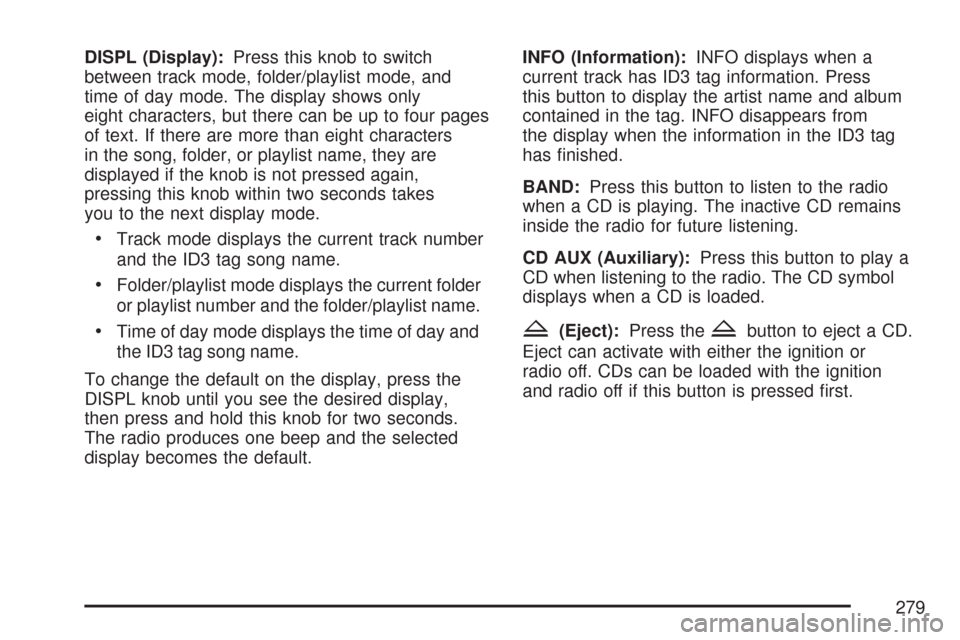
DISPL (Display):Press this knob to switch
between track mode, folder/playlist mode, and
time of day mode. The display shows only
eight characters, but there can be up to four pages
of text. If there are more than eight characters
in the song, folder, or playlist name, they are
displayed if the knob is not pressed again,
pressing this knob within two seconds takes
you to the next display mode.
Track mode displays the current track number
and the ID3 tag song name.
Folder/playlist mode displays the current folder
or playlist number and the folder/playlist name.
Time of day mode displays the time of day and
the ID3 tag song name.
To change the default on the display, press the
DISPL knob until you see the desired display,
then press and hold this knob for two seconds.
The radio produces one beep and the selected
display becomes the default.INFO (Information):INFO displays when a
current track has ID3 tag information. Press
this button to display the artist name and album
contained in the tag. INFO disappears from
the display when the information in the ID3 tag
has nished.
BAND:Press this button to listen to the radio
when a CD is playing. The inactive CD remains
inside the radio for future listening.
CD AUX (Auxiliary):Press this button to play a
CD when listening to the radio. The CD symbol
displays when a CD is loaded.Z(Eject):Press theZbutton to eject a CD.
Eject can activate with either the ignition or
radio off. CDs can be loaded with the ignition
and radio off if this button is pressed rst.
279
Page 290 of 574
z(Set-up Menu):Press thezbutton to
adjust the color, tint, brightness, contrast,
display mode, and dynamic range compression.
The dynamic range compression feature can
be used to reduce loud audio and increase
low audio produced by some DVDs.
To change a feature back to the factory default
setting, press the
zbutton to display the feature,
then press and hold this button until the default
setting displays.
While playing an Audio or DVD disc, press and
hold the
zbutton to display and to remove
the track and time information.
n,q,p,o(Menu Navigation Arrows):
Use the arrows to navigate through a menu.
r(Enter):Press therbutton to select
the choices that are highlighted in any menu.
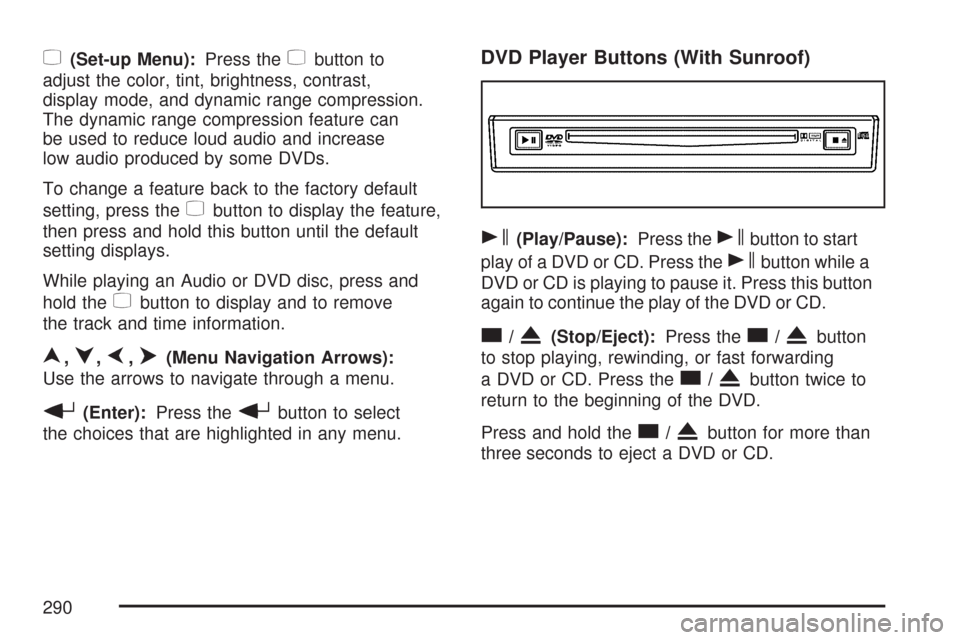
DVD Player Buttons (With Sunroof)
s(Play/Pause):Press thesbutton to start
play of a DVD or CD. Press the
sbutton while a
DVD or CD is playing to pause it. Press this button
again to continue the play of the DVD or CD.
c/X(Stop/Eject):Press thec/Xbutton
to stop playing, rewinding, or fast forwarding
a DVD or CD. Press the
c/Xbutton twice to
return to the beginning of the DVD.
Press and hold the
c/Xbutton for more than
three seconds to eject a DVD or CD.
290
Page 293 of 574
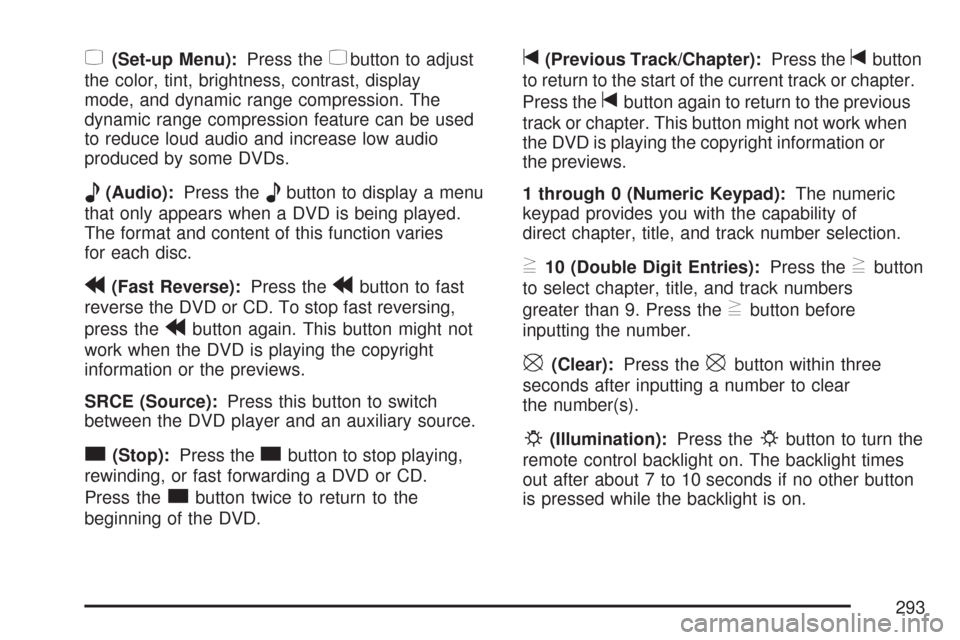
z(Set-up Menu):Press thezbutton to adjust
the color, tint, brightness, contrast, display
mode, and dynamic range compression. The
dynamic range compression feature can be used
to reduce loud audio and increase low audio
produced by some DVDs.
e(Audio):Press theebutton to display a menu
that only appears when a DVD is being played.
The format and content of this function varies
for each disc.
r(Fast Reverse):Press therbutton to fast
reverse the DVD or CD. To stop fast reversing,
press the
rbutton again. This button might not
work when the DVD is playing the copyright
information or the previews.
SRCE (Source):Press this button to switch
between the DVD player and an auxiliary source.
c(Stop):Press thecbutton to stop playing,
rewinding, or fast forwarding a DVD or CD.
Press the
cbutton twice to return to the
beginning of the DVD.
t(Previous Track/Chapter):Press thetbutton
to return to the start of the current track or chapter.
Press the
tbutton again to return to the previous
track or chapter. This button might not work when
the DVD is playing the copyright information or
the previews.
1 through 0 (Numeric Keypad):The numeric
keypad provides you with the capability of
direct chapter, title, and track number selection.
}10 (Double Digit Entries):Press the}button
to select chapter, title, and track numbers
greater than 9. Press the
}button before
inputting the number.
\(Clear):Press the\button within three
seconds after inputting a number to clear
the number(s).
P(Illumination):Press thePbutton to turn the
remote control backlight on. The backlight times
out after about 7 to 10 seconds if no other button
is pressed while the backlight is on.
293
Page 295 of 574
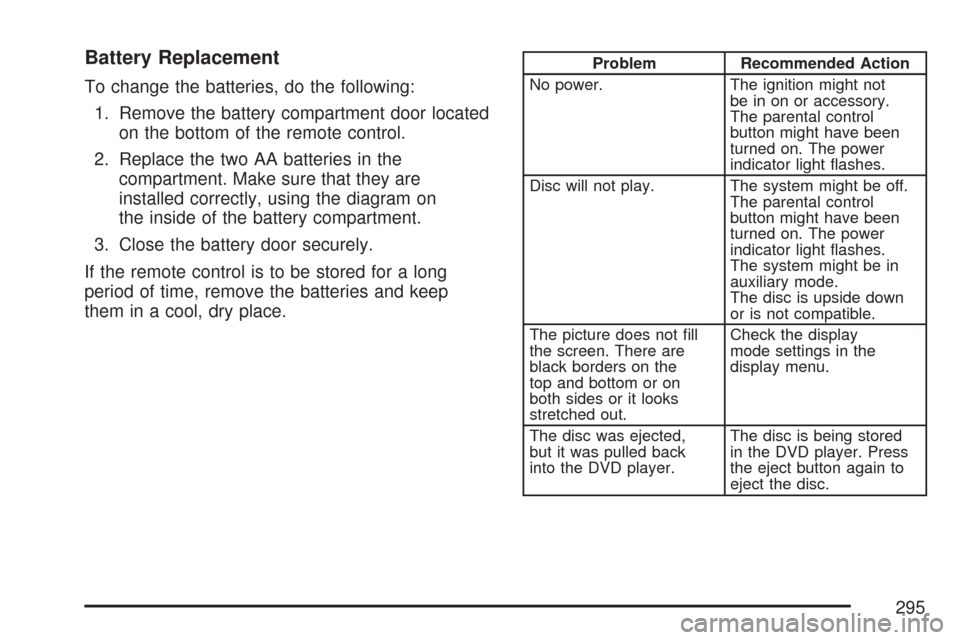
Battery Replacement
To change the batteries, do the following:
1. Remove the battery compartment door located
on the bottom of the remote control.
2. Replace the two AA batteries in the
compartment. Make sure that they are
installed correctly, using the diagram on
the inside of the battery compartment.
3. Close the battery door securely.
If the remote control is to be stored for a long
period of time, remove the batteries and keep
them in a cool, dry place.
Problem Recommended Action
No power. The ignition might not
be in on or accessory.
The parental control
button might have been
turned on. The power
indicator light ashes.
Disc will not play. The system might be off.
The parental control
button might have been
turned on. The power
indicator light ashes.
The system might be in
auxiliary mode.
The disc is upside down
or is not compatible.
The picture does not ll
the screen. There are
black borders on the
top and bottom or on
both sides or it looks
stretched out.Check the display
mode settings in the
display menu.
The disc was ejected,
but it was pulled back
into the DVD player.The disc is being stored
in the DVD player. Press
the eject button again to
eject the disc.
295
Page 296 of 574
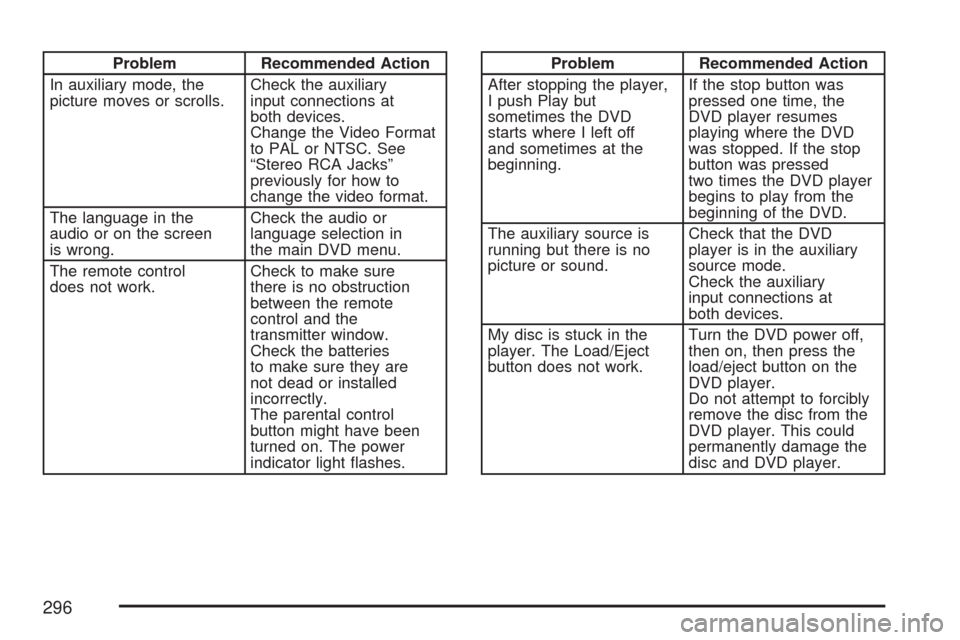
Problem Recommended Action
In auxiliary mode, the
picture moves or scrolls.Check the auxiliary
input connections at
both devices.
Change the Video Format
to PAL or NTSC. See
“Stereo RCA Jacks”
previously for how to
change the video format.
The language in the
audio or on the screen
is wrong.Check the audio or
language selection in
the main DVD menu.
The remote control
does not work.Check to make sure
there is no obstruction
between the remote
control and the
transmitter window.
Check the batteries
to make sure they are
not dead or installed
incorrectly.
The parental control
button might have been
turned on. The power
indicator light ashes.Problem Recommended Action
After stopping the player,
I push Play but
sometimes the DVD
starts where I left off
and sometimes at the
beginning.If the stop button was
pressed one time, the
DVD player resumes
playing where the DVD
was stopped. If the stop
button was pressed
two times the DVD player
begins to play from the
beginning of the DVD.
The auxiliary source is
running but there is no
picture or sound.Check that the DVD
player is in the auxiliary
source mode.
Check the auxiliary
input connections at
both devices.
My disc is stuck in the
player. The Load/Eject
button does not work.Turn the DVD power off,
then on, then press the
load/eject button on the
DVD player.
Do not attempt to forcibly
remove the disc from the
DVD player. This could
permanently damage the
disc and DVD player.
296
Page 297 of 574
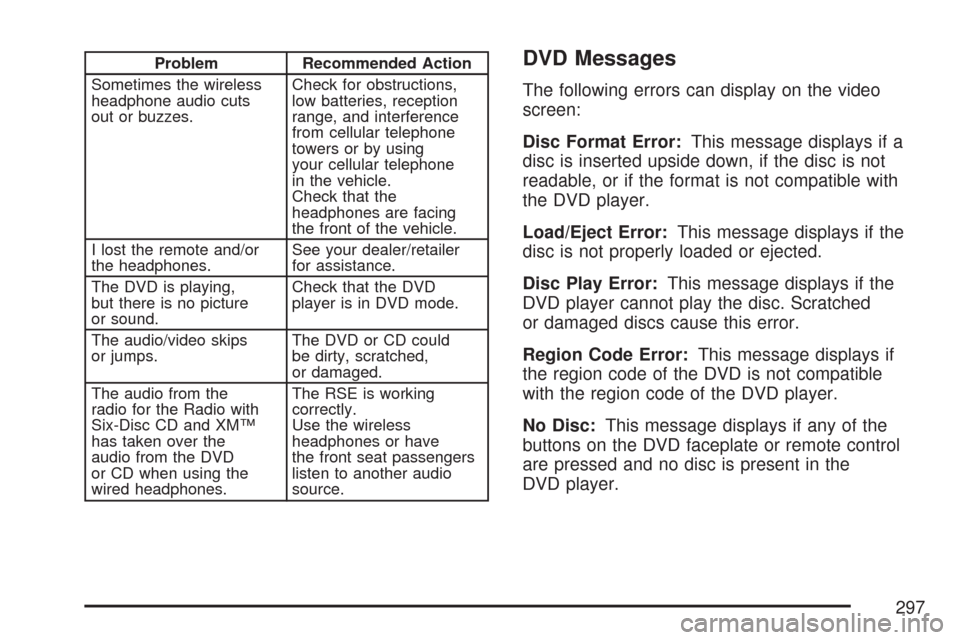
Problem Recommended Action
Sometimes the wireless
headphone audio cuts
out or buzzes.Check for obstructions,
low batteries, reception
range, and interference
from cellular telephone
towers or by using
your cellular telephone
in the vehicle.
Check that the
headphones are facing
the front of the vehicle.
I lost the remote and/or
the headphones.See your dealer/retailer
for assistance.
The DVD is playing,
but there is no picture
or sound.Check that the DVD
player is in DVD mode.
The audio/video skips
or jumps.The DVD or CD could
be dirty, scratched,
or damaged.
The audio from the
radio for the Radio with
Six-Disc CD and XM™
has taken over the
audio from the DVD
or CD when using the
wired headphones.The RSE is working
correctly.
Use the wireless
headphones or have
the front seat passengers
listen to another audio
source.DVD Messages
The following errors can display on the video
screen:
Disc Format Error:This message displays if a
disc is inserted upside down, if the disc is not
readable, or if the format is not compatible with
the DVD player.
Load/Eject Error:This message displays if the
disc is not properly loaded or ejected.
Disc Play Error:This message displays if the
DVD player cannot play the disc. Scratched
or damaged discs cause this error.
Region Code Error:This message displays if
the region code of the DVD is not compatible
with the region code of the DVD player.
No Disc:This message displays if any of the
buttons on the DVD faceplate or remote control
are pressed and no disc is present in the
DVD player.
297
Page 314 of 574
For more information on the stability messages,
seeDIC Warnings and Messages on page 224.
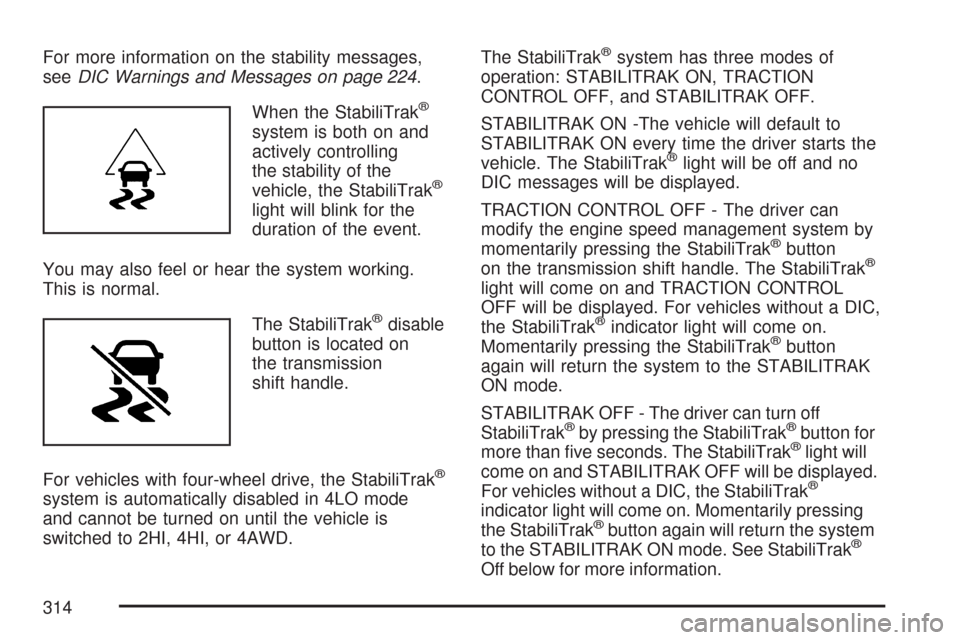
When the StabiliTrak
®
system is both on and
actively controlling
the stability of the
vehicle, the StabiliTrak
®
light will blink for the
duration of the event.
You may also feel or hear the system working.
This is normal.
The StabiliTrak
®disable
button is located on
the transmission
shift handle.
For vehicles with four-wheel drive, the StabiliTrak
®
system is automatically disabled in 4LO mode
and cannot be turned on until the vehicle is
switched to 2HI, 4HI, or 4AWD.The StabiliTrak
®system has three modes of
operation: STABILITRAK ON, TRACTION
CONTROL OFF, and STABILITRAK OFF.
STABILITRAK ON -The vehicle will default to
STABILITRAK ON every time the driver starts the
vehicle. The StabiliTrak
®light will be off and no
DIC messages will be displayed.
TRACTION CONTROL OFF - The driver can
modify the engine speed management system by
momentarily pressing the StabiliTrak
®button
on the transmission shift handle. The StabiliTrak®
light will come on and TRACTION CONTROL
OFF will be displayed. For vehicles without a DIC,
the StabiliTrak
®indicator light will come on.
Momentarily pressing the StabiliTrak®button
again will return the system to the STABILITRAK
ON mode.
STABILITRAK OFF - The driver can turn off
StabiliTrak
®by pressing the StabiliTrak®button for
more than ve seconds. The StabiliTrak®light will
come on and STABILITRAK OFF will be displayed.
For vehicles without a DIC, the StabiliTrak
®
indicator light will come on. Momentarily pressing
the StabiliTrak®button again will return the system
to the STABILITRAK ON mode. See StabiliTrak®
Off below for more information.
314
Page 315 of 574
Traction Control Off
In this mode, stability control and brake-traction
control are functional. Engine speed management
will be modied and the driven wheels can spin
more freely. This can cause the brake-traction
control to activate more frequently. If the controller
detects excessive wheel spin in this mode, the
StabiliTrak
®indicator light may blink and the
STABILITRAK ACTIVE message may be displayed
to warn the driver that damage may occur to the
transfer case.
StabiliTrak®Off
In this mode, both stability control and part of the
traction control system are disabled. Your
vehicle will still have brake-traction control, but will
not be able to use the engine speed management
system. You may still hear system noises as a
result of the brake-traction control coming on. If the
controller detects excessive wheel spin in this
mode, the StabiliTrak
®indicator light may blink and
the STABILITRAK ACTIVE message may be
displayed to warn the driver that damage
may occur to the transfer case.It is recommended to leave the system on for
normal driving conditions, but it may be necessary
to turn the system off if your vehicle is stuck in
sand, mud, ice or snow, and you may want
to “rock” your vehicle in an attempt to free it. It
may also be necessary to turn off the system when
driving in extreme off-road conditions where
high wheel spin is required. SeeIf Your Vehicle is
Stuck in Sand, Mud, Ice, or Snow on page 354
for more information.
For vehicles with four-wheel drive, when the
transfer case is in 4LO, the stability system is
automatically disabled. The StabiliTrak
®light will
come on and the STABILITRAK OFF message will
appear on the DIC. The StabiliTrak
®system
cannot be turned on until the vehicle is switched
to 2HI, 4HI, or 4AWD.
315