2004 CHEVROLET MALIBU reset
[x] Cancel search: resetPage 200 of 426
Then as you drive, automatic volume increases the
volume, as necessary, to overcome noise at any speed.
The volume level should always sound the same to
you as you drive. AUTO VOL NONE will appear on the
display if the radio cannot determine the vehicle
speed or if the engine is not running. If you do not want
to use automatic volume, select AUTO VOL OFF.
DISP (Display):Press this knob to switch the display
between time and temperature or radio station frequency
and temperature. Time display is available with the
ignition turned off.
For RDS, press this knob to change what appears on
the display while using RDS. The display options
are station name, RDS station frequency, PTY, and the
name of the program (if available).
For XM™ (48 contiguous US states, if equipped), press
this knob while in XM mode to retrieve four different
categories of information related to the current song or
channel: Artist, Song Title, Category or PTY, Channel
Number/Channel Name.
To change the default on the display, press this knob
until you see the display you want, then hold the
knob for two seconds. You will hear a beep and the
selected display will now be the default.Finding a Station
BAND:Press this button to switch between FM1,
FM2, or AM, or XM1 or XM2 (48 contiguous US states,
if equipped). The display will show your selection.
ADJ (Adjust):Turn this knob to select radio stations.
xSEEKw:Press the down or up arrow to go to
the next or to the previous station and stay there.
To scan stations, press and hold either arrow for
two seconds until you hear a beep. The radio will go
to a station, play for a few seconds, then go on to
the next station. Press either arrow again to stop
scanning.
To scan preset stations, press and hold either arrow for
more than four seconds until you hear two beeps.
The radio will go to the rst preset station stored on your
pushbuttons, play for a few seconds, then go on to
the next preset station. Press either arrow again to stop
scanning presets.
The radio will seek and scan only to stations that are in
the selected band and only to those with a strong signal.
3-84
Page 201 of 426
Setting Preset Stations
The six numbered pushbuttons let you return to
your favorite stations. You can set up to 30 stations
(six FM1, six FM2, and six AM, six XM1 and six XM2
(48 contiguous US states, if equipped) by performing
the following steps:
1. Turn the radio on.
2. Press BAND to select FM1, FM2, or AM,
or XM1 or XM2.
3. Tune in the desired station.
4. Press AUTO TONE or AUTO EQ to select
the equalization.
5. Press and hold one of the six numbered pushbuttons
until you hear a beep. Whenever you press that
numbered pushbutton, the station you set will return
and the equalization that you selected will be
automatically stored for that pushbutton.
6. Repeat the steps for each pushbutton.
Setting the Tone
(Bass/Midrange/Treble)
TONE /P/Q(Bass/Treble):Press and release this
button until BASS, MID, or TREB appears on the display.
Turn the ADJ knob to increase or to decrease. The
display will show the bass, mid, or treble level. If a station
is weak or noisy, you may want to decrease the treble.
To adjust bass, midrange, or treble to the middle position,
select BASS, MID, or TREB. Then press and hold the
tone button for more than two seconds. You will hear one
beep and the tone control will be adjusted to the middle
position.
To adjust all tone controls to the middle position,
press and hold the tone button when no tone control is
displayed. ALL CENTERED will appear on the display
and you will hear a beep. The bass, midrange, and treble
will be adjusted to the middle position.
3-85
Page 202 of 426
AUTO TONE/AUTO EQ (Automatic Equalization):
Press this button to select customized equalization
settings designed for country, jazz, talk, pop, rock,
and classical.
The equalization setting last chosen will appear on the
display when you rst press this button. Each time
you press this button, another equalization setting will
appear on the display and automatic tone or automatic
equalization will switch to that preset equalization
settings.
To return to the manual mode, press the AUTO TONE
or AUTO EQ button until CUSTOM appears on the
display. You can also manually adjust the bass,
midrange, and treble using the tone button.Adjusting the Speakers (Balance/Fade)
BAL/FADE /S(Balance/Fade):To adjust
the balance between the right and the left speakers,
push and release the balance and fade button until
BAL appears on the display. Turn the ADJ knob to move
the sound toward the right or the left speakers.
To adjust the fade, push and release the balance and
fade button until FADE appears on the display. Turn the
ADJ knob to move the sound toward the front or the
rear speakers.
To adjust balance or fade to the middle position, select
BAL or FADE. Then press and hold the balance and
fade button for more than two seconds. You will
hear one beep and the speaker control will be adjusted
to the middle position.
To adjust both speaker controls to the middle position,
push and hold the tone button when no speaker
control is displayed. ALL CENTERED will appear on the
display and you will hear one beep. The balance and
fade will be adjusted to the middle position.
3-86
Page 205 of 426
XM™ Radio Messages
Radio Display
MessageCondition Action Required
XL
(Explicit Language
Channels)XL on the radio display,
after the channel name,
indicates content with
explicit language.These channels, or any others, can be blocked at a
customer’s request, by calling 1-800-852-XMXM (9696).
Updating Updating encryption code The encryption code in your receiver is being updated,
and no action is required. This process should take no
longer than 30 seconds.
No Signal Loss of signal Your system is functioning correctly, but you are in a
location that is blocking the XM signal. When you move
into an open area, the signal should return.
Loading XM Acquiring channel audio
(after 4 second delay)Your radio system is acquiring and processing audio
and text data. No action is needed. This message should
disappear shortly.
Off Air Channel not in service This channel is not currently in service. Tune to another
channel.
CH Unavl Channel no longer
availableThis previously assigned channel is no longer assigned.
Tune to another station. If this station was one of your
presets, you may need to choose another station for that
preset button.
No Info Artist Name/Feature
not availableNo artist information is available at this time on this
channel. Your system is working properly.
No Info Song/Program Title
not availableNo song title information is available at this time on
this channel. Your system is working properly.
3-89
Page 217 of 426
1–6 (Preset Pushbuttons):This button is inactive
when in DVD mode.
BAND:Press this button to switch between FM1,
FM2, or AM, XM1 or XM2 (48 contiguous US states,
if equipped). If the front seat passengers are listening
to the DVD player, the rear seat passengers cannot
select XM1 or XM2.
SRCE (Source):Press this button to switch between
playing a cassette tape or a CD.
xSEEKw:Press the down arrow to go to the
beginning of the current chapter or track if more than
ve seconds have played. Press the up arrow to
go to the next chapter or track. This button may not
work when the DVD is playing the copyright information
or the previews.
xw(Volume):Press the up or down arrow to
increase or decrease the volume on the wired
headphones (not included). The arrows on the left side
are for the left headphone and the arrows on the
right side are for the right headphone.
Playing a Disc
To play a disc, gently insert the disc with the label side
up into the loading slot. The DVD player will continue
loading the disc and the player will automatically start if
the vehicle is in run, accessory or RAP.
If a disc is already in the player, make sure that the
DVD player is on, then press the play/pause button on
the player faceplate or on the remote control.
Some DVDs will not allow you to fast forward or skip
the copyright information or previews. Some DVDs will
begin playing after the previews have nished. If the
DVD does not begin playing at the main title, refer to the
on-screen instructions.
3-101
Page 229 of 426
P.SET PROG (Preset Program):The front passengers
must be listening to something different for each of
these functions to work:
Press this button to scan through the preset radio
stations set on the pushbuttons on the main radio.
The radio will go to a preset station stored on
your pushbuttons, play for a few seconds, then go
on to the next preset station. Press this button
again to stop scanning presets.
If your vehicle has the Radio with Six-Disc CD,
when a CD is playing, press this button to select
the next CD, if multiple CDs are loaded.
TAPE CD:Press this button to play a CD when
listening to the radio.
Rear Seat Audio (RSA)
(With Entertainment System)
This feature allows rear seat passengers to listen to
and control any of the music sources: radio, cassette
tapes and CDs. However, the rear seat passengers
can only control the music sources that the front seat
passengers are not listening to. For example, rear
seat passengers may listen to and control a cassette
tape or CD through headphones, while the driver listens
to the radio through the front speakers. The rear seat
passengers have control of the volume for each
set of headphones.
The front seat audio controls always have priority over
the RSA controls. If the front seat passengers switch
the source for the main radio to a remote source,
the RSA will not be able to control the remote source.
The rear speakers will be muted when the RSA power
is turned on. You may operate the RSA functions
even when the main radio is off.
3-113
Page 230 of 426
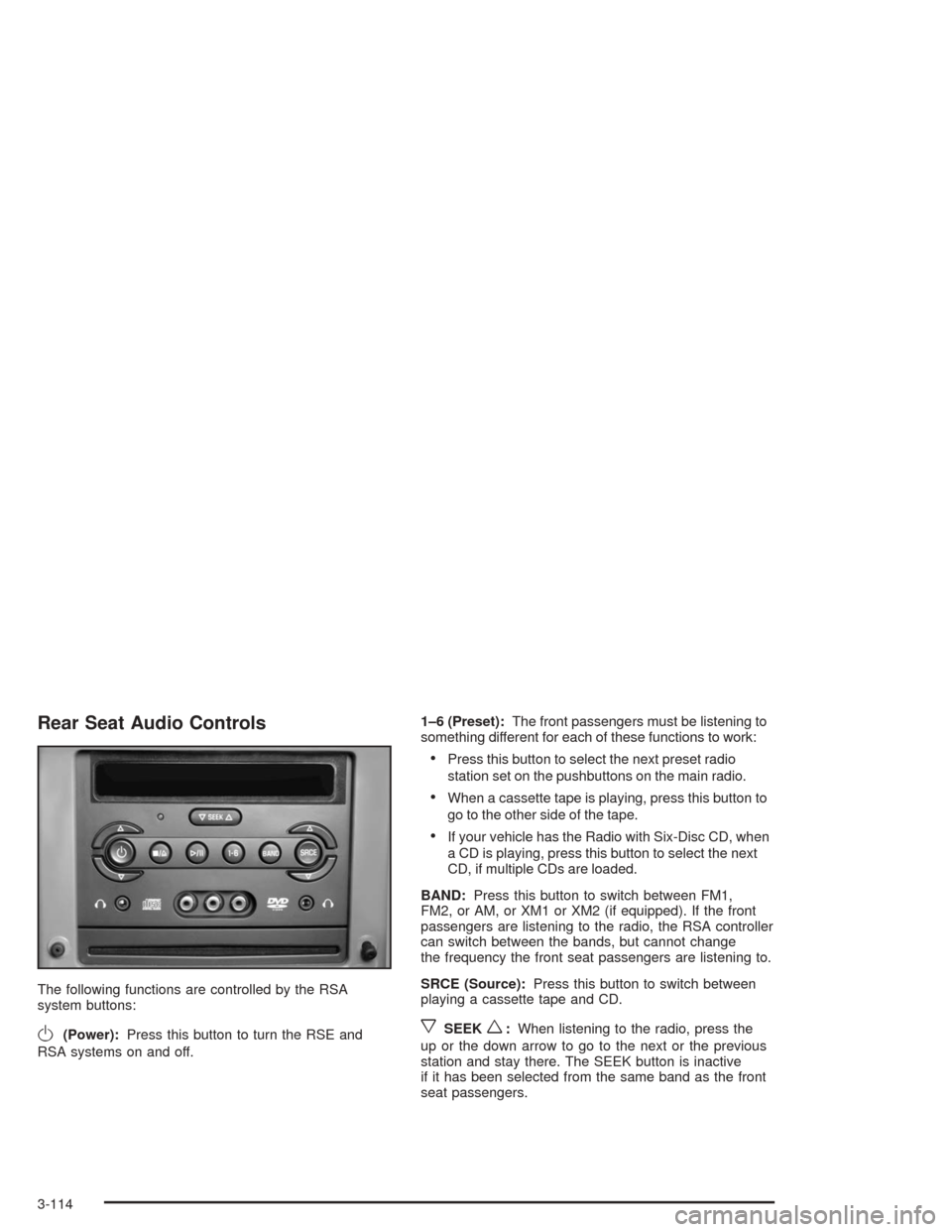
Rear Seat Audio Controls
The following functions are controlled by the RSA
system buttons:
O(Power):Press this button to turn the RSE and
RSA systems on and off.1–6 (Preset):The front passengers must be listening to
something different for each of these functions to work:
Press this button to select the next preset radio
station set on the pushbuttons on the main radio.
When a cassette tape is playing, press this button to
go to the other side of the tape.
If your vehicle has the Radio with Six-Disc CD, when
a CD is playing, press this button to select the next
CD, if multiple CDs are loaded.
BAND:Press this button to switch between FM1,
FM2, or AM, or XM1 or XM2 (if equipped). If the front
passengers are listening to the radio, the RSA controller
can switch between the bands, but cannot change
the frequency the front seat passengers are listening to.
SRCE (Source):Press this button to switch between
playing a cassette tape and CD.
xSEEKw:When listening to the radio, press the
up or the down arrow to go to the next or the previous
station and stay there. The SEEK button is inactive
if it has been selected from the same band as the front
seat passengers.
3-114
Page 232 of 426
1–6 (Preset Pushbuttons):Press this button to play
a station you have programmed on the radio preset
pushbuttons. Press this button again to go to the next
preset station.
If your vehicle has the Radio with Six-Disc CD and
multiple CDs are loaded, each press of this button will
take you to the next CD.
xuw(Volume):Press the up or the down arrow
to increase or to decrease volume.
>(Mute):Press this button to turn the sound off.
Press this button again to turn the sound on.
SRCE (Source):Press this button to toggle between
listening to the radio, a cassette tape, a CD, or a
remote device.
DVD Distortion
You may experience video distortion when operating
cellular phones, scanners, CB radios, Global Position
Systems (GPS)*, two-way radios, mobile fax, or
walkie talkies.
It may be necessary to turn off the DVD player when
operating one of these devices in or near the vehicle.
*Excludes the OnStar
®System.
Radio Reception
AM
The range for most AM stations is greater than for FM,
especially at night. The longer range, however, can
cause stations to interfere with each other. AM can pick
up noise from things like storms and power lines.
Try reducing the treble to reduce this noise.
FM Stereo
FM stereo will give you the best sound, but FM signals
will reach only about 10 to 40 miles (16 to 65 km).
Tall buildings or hills can interfere with FM signals,
causing the sound to come and go.
XM™ Satellite Radio Service
(48 Contiguous US States)
XM™ Satellite Radio gives you digital radio reception
from coast to coast. Just as with FM, tall buildings
or hills can interfere with satellite radio signals, causing
the sound to come and go. Your radio may display
NO SIGNAL to indicate interference.
3-116