2002 BMW 745LI SEDAN audio
[x] Cancel search: audioPage 30 of 208
At a glanceControlsDriving tipsCommunicationsNavigationEntertainmentMobilityReference
29
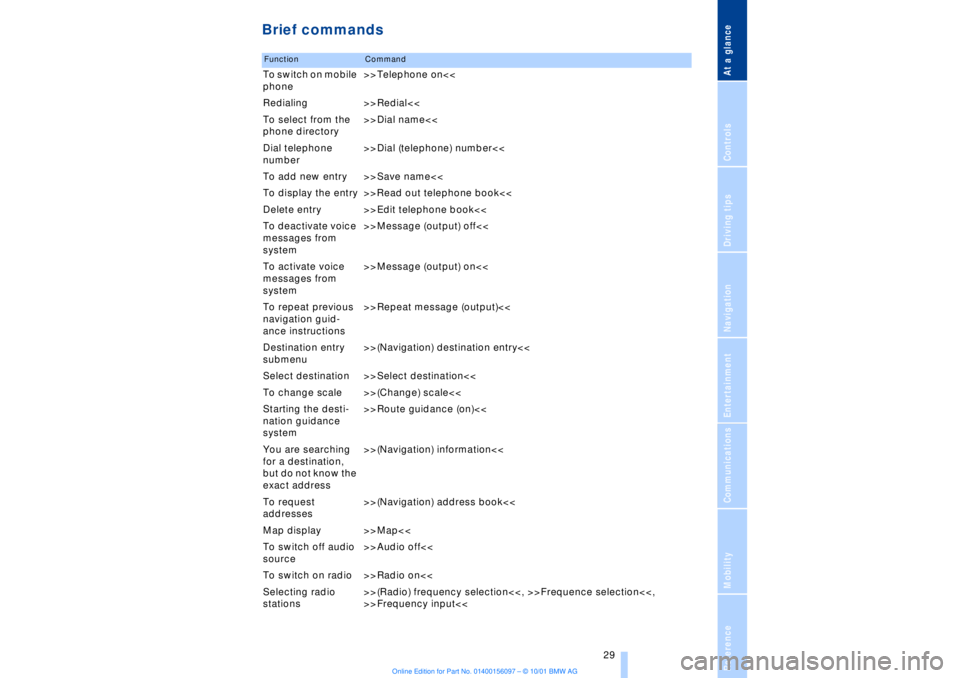
Brief commandsFunction
Command
To switch on mobile
phone>>Telephone on<<
Redialing >>Redial<<
To select from the
phone directory>>Dial name<<
Dial telephone
number>>Dial (telephone) number<<
To add new entry >>Save name<<
To display the entry >>Read out telephone book<<
Delete entry >>Edit telephone book<<
To deactivate voice
messages from
system>>Message (output) off<<
To activate voice
messages from
system>>Message (output) on<<
To repeat previous
navigation guid-
ance instructions>>Repeat message (output)<<
Destination entry
submenu>>(Navigation) destination entry<<
Select destination >>Select destination<<
To change scale >>(Change) scale<<
Starting the desti-
nation guidance
system>>Route guidance (on)<<
You are searching
for a destination,
but do not know the
exact address>>(Navigation) information<<
To request
addresses>>(Navigation) address book<<
Map display >>Map<<
To switch off audio
source>>Audio off<<
To switch on radio >>Radio on<<
Selecting radio
stations>>(Radio) frequency selection<<, >>Frequence selection<<,
>>Frequency input<<
Page 134 of 208
At a glanceControlsDriving tipsCommunicationsNavigationEntertainmentMobilityReference
133
the navigation system's suggested travel
route.
The distances remaining to be traveled on
each individual road are also displayed.
1.Select "View" and confirm your selec-
tion. If you do not make any additional
entries the menu will disappear from the
screen after a brief pause
2.Select "Route" and confirm.
If the system has not yet completely
defined the travel route, "..." will appear in
the list.
select and confirm to cancel "Route"
mode.Select new routeDuring active guidance you can revise the
navigation system's route recommenda-
tions to avoid particular stretches of road.
Enter the number of miles (kilometers) that
you want to travel before returning to the
original route.
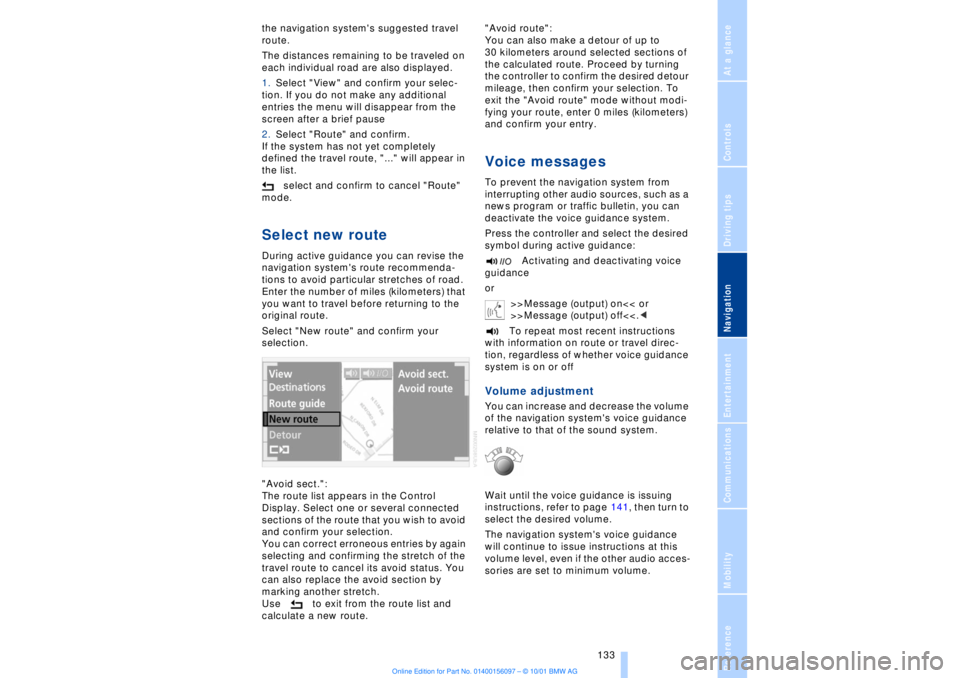
Select "New route" and confirm your
selection.
"Avoid sect.":
The route list appears in the Control
Display. Select one or several connected
sections of the route that you wish to avoid
and confirm your selection.
You can correct erroneous entries by again
selecting and confirming the stretch of the
travel route to cancel its avoid status. You
can also replace the avoid section by
marking another stretch.
Use to exit from the route list and
calculate a new route."Avoid route":
You can also make a detour of up to
30 kilometers around selected sections of
the calculated route. Proceed by turning
the controller to confirm the desired detour
mileage, then confirm your selection. To
exit the "Avoid route" mode without modi-
fying your route, enter 0 miles (kilometers)
and confirm your entry.
Voice messagesTo prevent the navigation system from
interrupting other audio sources, such as a
news program or traffic bulletin, you can
deactivate the voice guidance system.
Press the controller and select the desired
symbol during active guidance:
Activating and deactivating voice
guidance
or
>>Message (output) on<< or
>>Message (output) off<<.<
To repeat most recent instructions
with information on route or travel direc-
tion, regardless of whether voice guidance
system is on or offVolume adjustmentYou can increase and decrease the volume
of the navigation system's voice guidance
relative to that of the sound system.
Wait until the voice guidance is issuing
instructions, refer to page 141, then turn to
select the desired volume.
The navigation system's voice guidance
will continue to issue instructions at this
volume level, even if the other audio acces-
sories are set to minimum volume.
Page 141 of 208
Sound system
140
Sound systemControlsThe cassette deck, or CD or MD player, is
installed in the instrument panel. Local user
controls for these sound systems are also
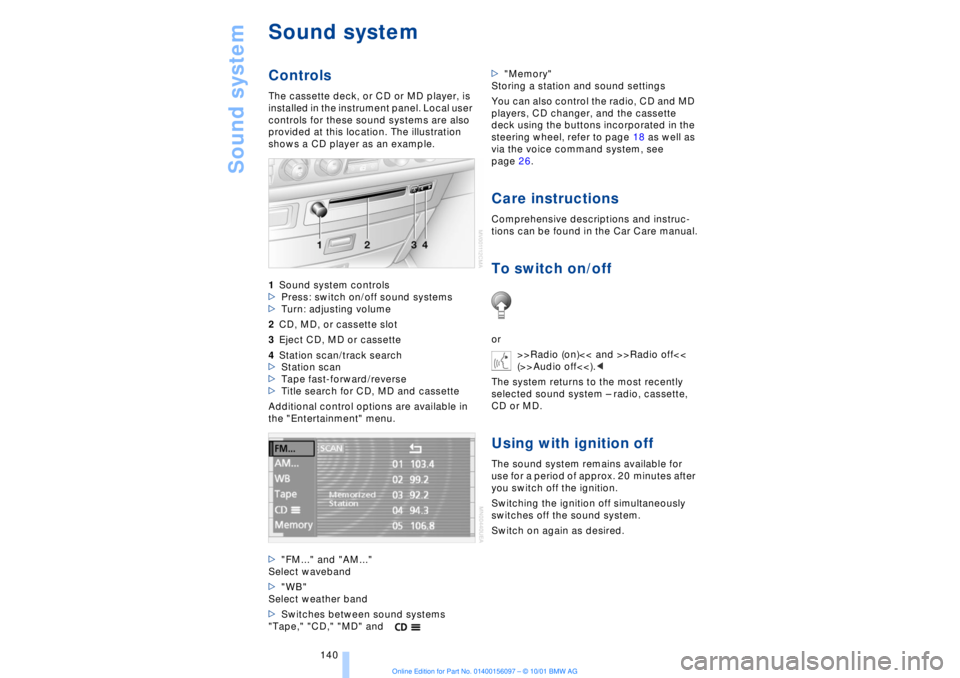
provided at this location. The illustration
shows a CD player as an example.
1Sound system controls
>Press: switch on/off sound systems
>Turn: adjusting volume
2CD, MD, or cassette slot
3Eject CD, MD or cassette
4Station scan/track search
>Station scan
>Tape fast-forward/reverse
>Title search for CD, MD and cassette
Additional control options are available in
the "Entertainment" menu.
>"FM..." and "AM..."
Select waveband
>"WB"
Select weather band
>Switches between sound systems
"Tape," "CD," "MD" and>"Memory"
Storing a station and sound settings
You can also control the radio, CD and MD
players, CD changer, and the cassette
deck using the buttons incorporated in the
steering wheel, refer to page 18 as well as
via the voice command system, see
page 26.
Care instructionsComprehensive descriptions and instruc-
tions can be found in the Car Care manual.To switch on/offor
>>Radio (on)<< and >>Radio off<<
(>>Audio off<<).<
The system returns to the most recently
selected sound system Ð radio, cassette,
CD or MD.Using with ignition offThe sound system remains available for
use for a period of approx. 20 minutes after
you switch off the ignition.
Switching the ignition off simultaneously
switches off the sound system.
Switch on again as desired.
Page 142 of 208
At a glanceControlsDriving tipsCommunicationsNavigationEntertainmentMobilityReference
141
It is not possible to operate the
system using the control buttons in
the steering wheel when the ignition is off.
To avoid discharging the battery you
should always switch off the sound system
when leaving the vehicle.<
Volume adjustmentAdjusting volumeTurn adjust the desired volume level.
The sound system automatically
reverts to its mute mode whenever
you use your mobile phone.
>Treble:
To amplify or reduce high frequencies
>Bass:
To amplify or reduce low frequencies
>Balance:
Left-to-right balance
>Fader:
Front-to-rear adjustment, high/low volume
>Reset:
This feature resets the tone settings to their
standard, default settings
>Speed vol.:
Speed-sensitive volume adjustment. Tone settings can be made separately
for each sound system, i. e., radio,
CD, MD and cassette. When you then
select a new sound system the system
automatically adopts the stored settings.<
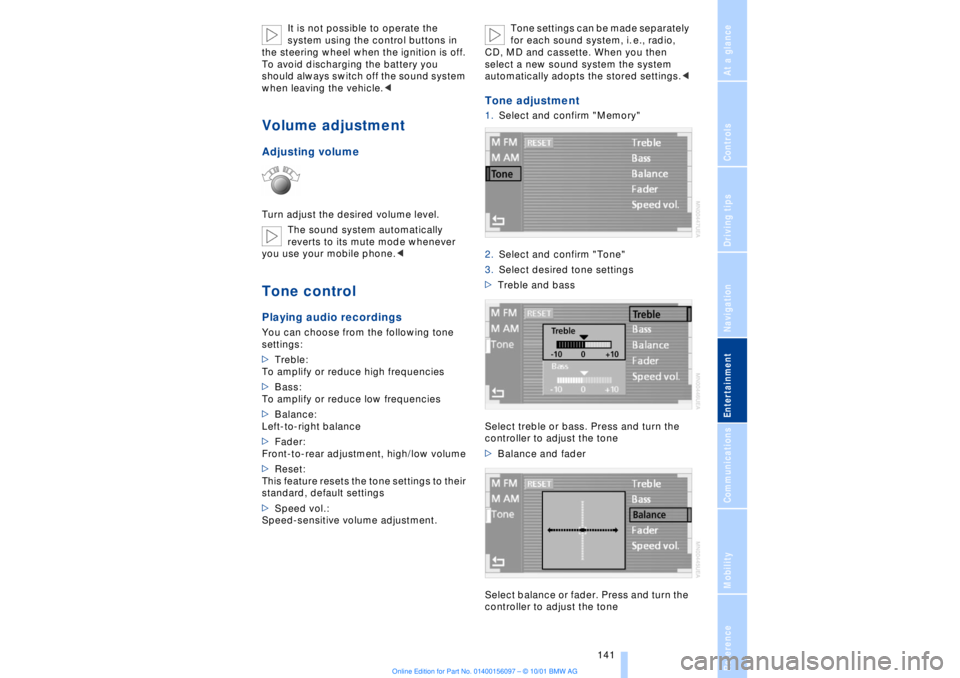
Tone adjustment1.Select and confirm "Memory"
2.Select and confirm "Tone"
3.Select desired tone settings
>Treble and bass
Select treble or bass. Press and turn the
controller to adjust the tone
>Balance and fader
Select balance or fader. Press and turn the
controller to adjust the tone
Page 147 of 208
CD Compact Disc
146
CD Compact Disc
You may experience playback prob-
lems, such as skips, when using CDs
that you have copied at home.<
StartingInsert the CD in the slot.
If a CD is already inserted in the CD-player:
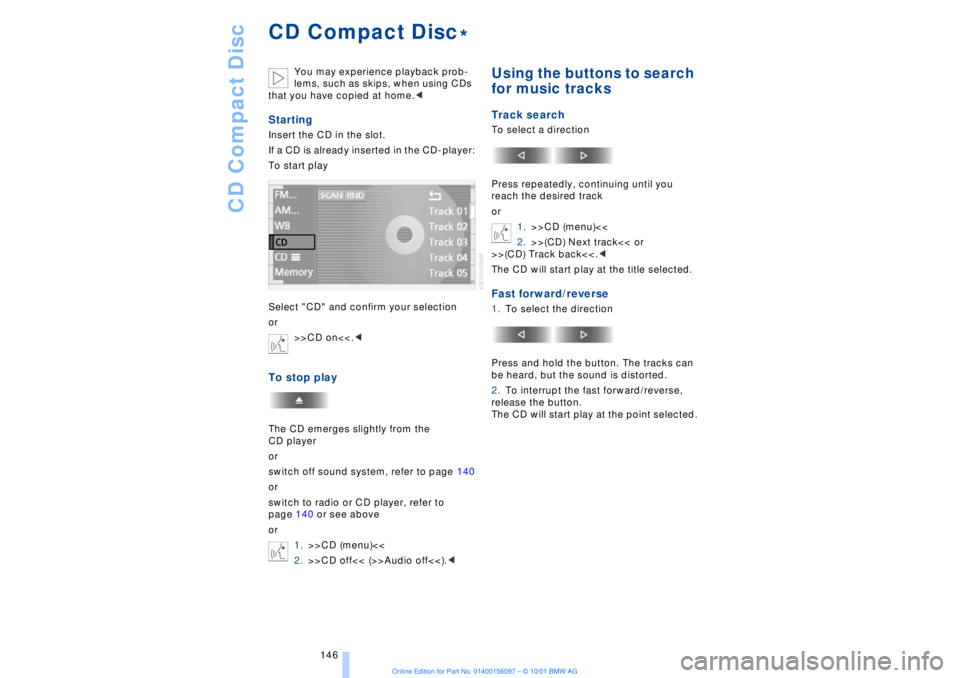
To start play
Select "CD" and confirm your selection
or
>>CD on<<.
or
switch off sound system, refer to page 140
or
switch to radio or CD player, refer to
page 140 or see above
or
1.>>CD (menu)<<
2.>>CD off<< (>>Audio off<<).<
Using the buttons to search
for music tracksTrack searchTo select a direction
Press repeatedly, continuing until you
reach the desired track
or
1.>>CD (menu)<<
2.>>(CD) Next track<< or
>>(CD) Track back<<.<
The CD will start play at the title selected.Fast forward/reverse1.To select the direction
Press and hold the button. The tracks can
be heard, but the sound is distorted.
2.To interrupt the fast forward/reverse,
release the button.
The CD will start play at the point selected.
*
Page 150 of 208
At a glanceControlsDriving tipsCommunicationsNavigationEntertainmentMobilityReference
149
Always refer all repair and maintenance
operations to qualified technicians.
You may experience playback prob-
lems, such as skips, when using CDs
that you have copied at home.<
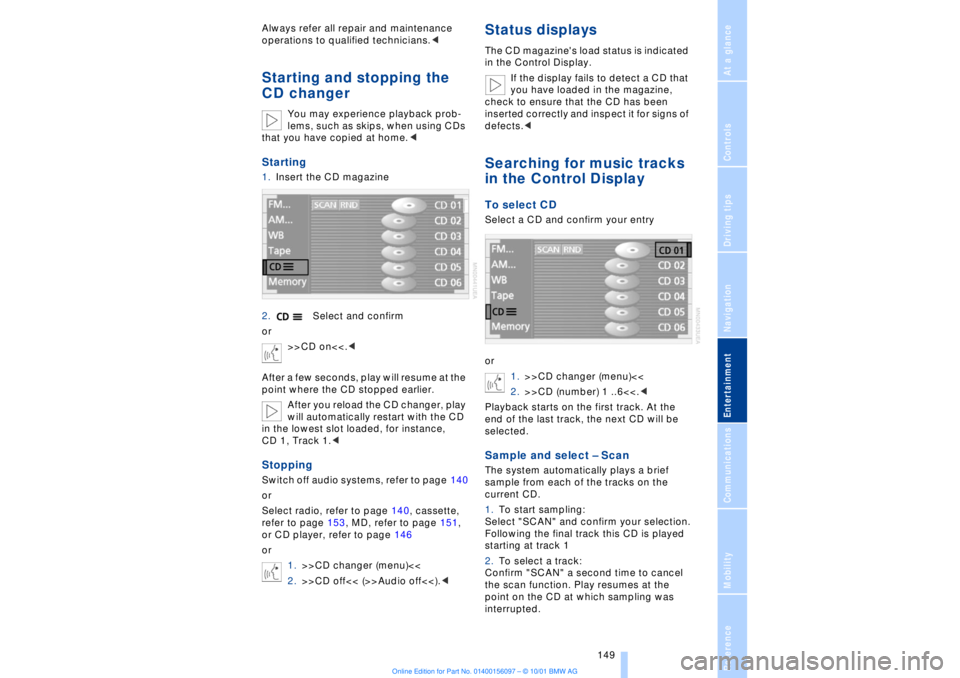
Starting1.Insert the CD magazine
2.Select and confirm
or
>>CD on<<.<
After a few seconds, play will resume at the
point where the CD stopped earlier.
After you reload the CD changer, play
will automatically restart with the CD
in the lowest slot loaded, for instance,
CD 1, Track 1.
Select radio, refer to page 140, cassette,
refer to page 153, MD, refer to page 151,
or CD player, refer to page 146
or
1.>>CD changer (menu)<<
2.>>CD off<< (>>Audio off<<).<
Status displaysThe CD magazine's load status is indicated
in the Control Display.
If the display fails to detect a CD that
you have loaded in the magazine,
check to ensure that the CD has been
inserted correctly and inspect it for signs of
defects.
or
1.>>CD changer (menu)<<
2.>>CD (number) 1 ..6<<.<
Playback starts on the first track. At the
end of the last track, the next CD will be
selected.Sample and select Ð ScanThe system automatically plays a brief
sample from each of the tracks on the
current CD.
1.To start sampling:
Select "SCAN" and confirm your selection.
Following the final track this CD is played
starting at track 1
2.To select a track:
Confirm "SCAN" a second time to cancel
the scan function. Play resumes at the
point on the CD at which sampling was
interrupted.
Page 152 of 208
At a glanceControlsDriving tipsCommunicationsNavigationEntertainmentMobilityReference
151
MiniDisc MDStartingInsert the MiniDisc.
If a MiniDisc is already in the MD player:
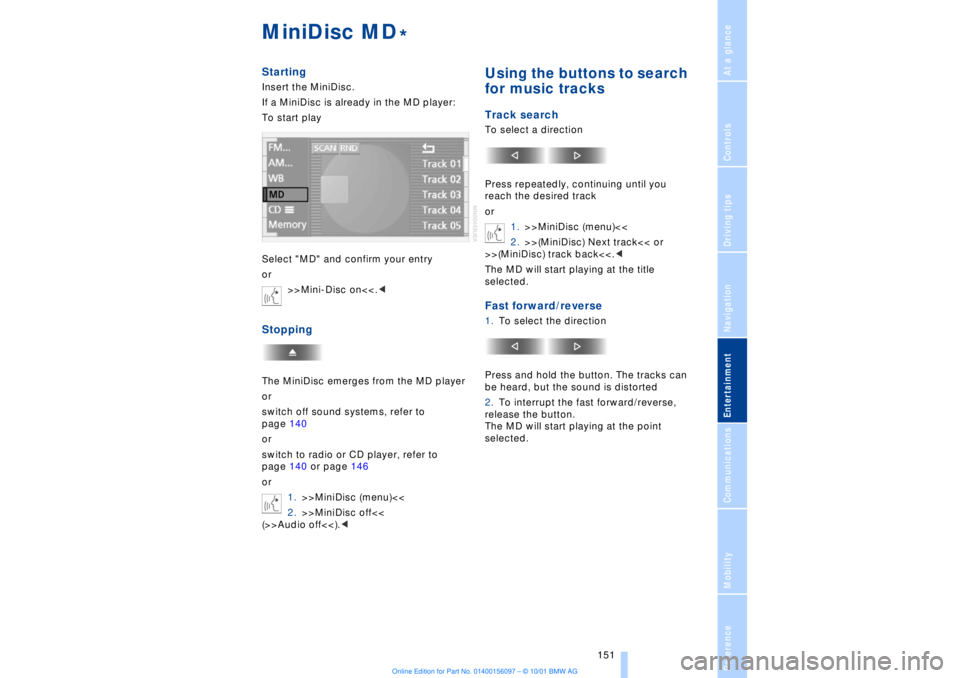
To start play
Select "MD" and confirm your entry
or
>>Mini-Disc on<<.
switch off sound systems, refer to
page 140
or
switch to radio or CD player, refer to
page 140 or page 146
or
1.>>MiniDisc (menu)<<
2.>>MiniDisc off<<
(>>Audio off<<).<
Using the buttons to search
for music tracksTrack searchTo select a direction
Press repeatedly, continuing until you
reach the desired track
or
1.>>MiniDisc (menu)<<
2.>>(MiniDisc) Next track<< or
>>(MiniDisc) track back<<.<
The MD will start playing at the title
selected.Fast forward/reverse1.To select the direction
Press and hold the button. The tracks can
be heard, but the sound is distorted
2.To interrupt the fast forward/reverse,
release the button.
The MD will start playing at the point
selected.
*
Page 154 of 208
At a glanceControlsDriving tipsCommunicationsNavigationEntertainmentMobilityReference
153
CassetteStartingSlide the cassette all the way into the slot,
ensuring that the side with the exposed
tape is on the right.
If a cassette is already in the slot:
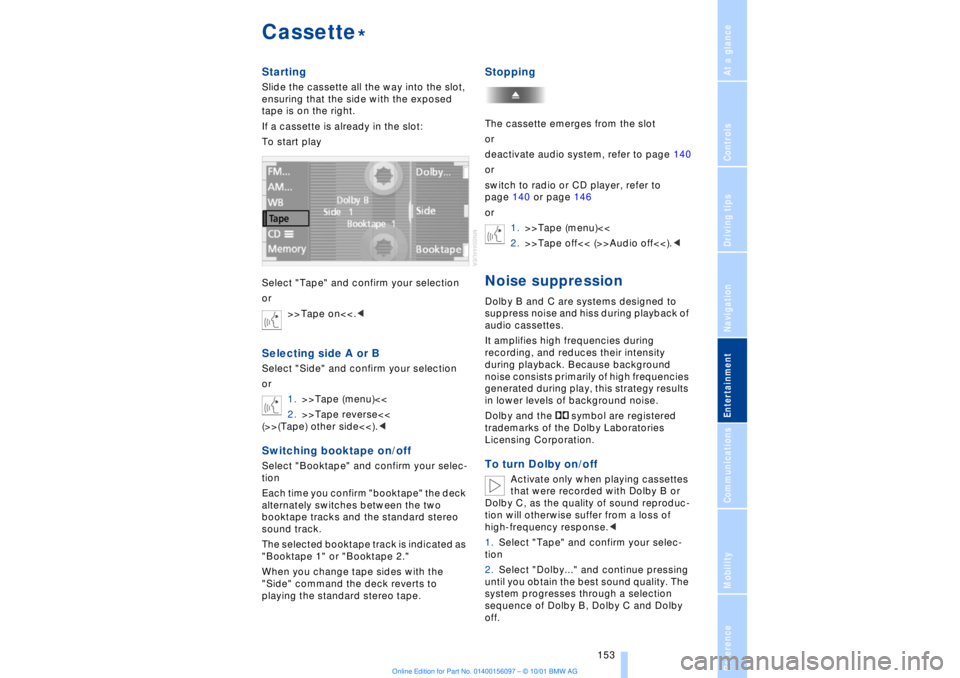
To start play
Select "Tape" and confirm your selection
or
>>Tape on<<.
1.>>Tape (menu)<<
2.>>Tape reverse<<
(>>(Tape) other side<<).
Each time you confirm "booktape" the deck
alternately switches between the two
booktape tracks and the standard stereo
sound track.
The selected booktape track is indicated as
"Booktape 1" or "Booktape 2."
When you change tape sides with the
"Side" command the deck reverts to
playing the standard stereo tape.
StoppingThe cassette emerges from the slot
or
deactivate audio system, refer to page 140
or
switch to radio or CD player, refer to
page 140 or page 146
or
1.>>Tape (menu)<<
2.>>Tape off<< (>>Audio off<<).
audio cassettes.
It amplifies high frequencies during
recording, and reduces their intensity
during playback. Because background
noise consists primarily of high frequencies
generated during play, this strategy results
in lower levels of background noise.
Dolby and the symbol are registered
trademarks of the Dolby Laboratories
Licensing Corporation.To turn Dolby on/off
Activate only when playing cassettes
that were recorded with Dolby B or
Dolby C, as the quality of sound reproduc-
tion will otherwise suffer from a loss of
high-frequency response.<
1.Select "Tape" and confirm your selec-
tion
2.Select "Dolby..." and continue pressing
until you obtain the best sound quality. The
system progresses through a selection
sequence of Dolby B, Dolby C and Dolby
off.
*