2002 BMW 745LI SEDAN ignition
[x] Cancel search: ignitionPage 76 of 208
At a glanceControlsDriving tipsCommunicationsNavigationEntertainmentMobilityReference
75
3 Interrupt cruise control Briefly press the lever up or down while the
cruise control is active. The status
message 5 in the Info Display is no longer
highlighted. You can use the cruise control
again as required.
In addition, cruise control is interrupted
automatically
>When you apply pressure to the brake
pedal
>when you select the automatic transmis-
sion's neutral range N
>when the DSC (Dynamic Stability
Control) system is in active operation. 4 To recall stored speed Briefly press button 4: The vehicle acceler-
ates to and maintains the last speed stored. To deactivate the cruise control The stored speed is deleted from the
system memory when you switch off the
ignition. To activate multilevel preset mode Push 1 or pull 2 the lever beyond the
detent.
The system maintains and stores the
current speed, which is also displayed as a
preset speed 5 and as the desired speed 6.
If no levels are programmed, with the
graduated function in operation you
can push or pull the lever past the detent to
increase or decrease the vehicle's speed in
increments of 6.2 mph (10 km/h).<1 Change preset level Press 1 or pull 2 the lever beyond the
detent: The preset speed progresses to the
next desired speed. The lowest desired
speed that it is possible to select is roughly
18 mph (30 km/h).3 Interrupt cruise control With the cruise control active, briefly tap
the lever up or down.
To deactivate the multilevel preset
modeThe multilevel preset mode is deactivated
when you switch off the ignition. Multilevel preset mode Ð Storing
speeds
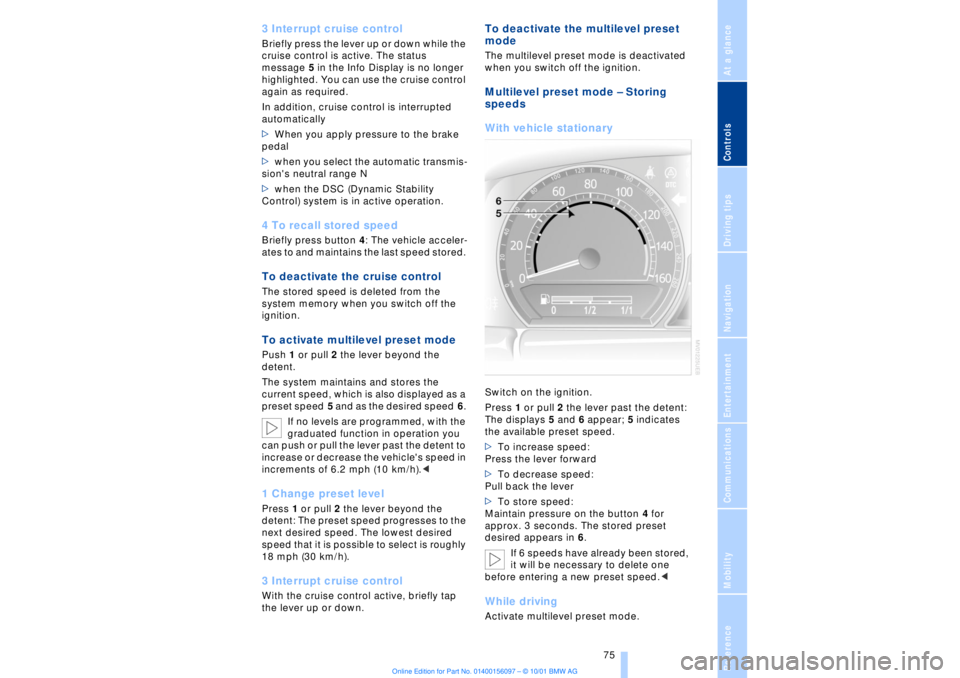
With vehicle stationary Switch on the ignition.
Press 1 or pull 2 the lever past the detent:
The displays 5 and 6 appear; 5 indicates
the available preset speed.
>To increase speed:
Press the lever forward
>To decrease speed:
Pull back the lever
>To store speed:
Maintain pressure on the button 4 for
approx. 3 seconds. The stored preset
desired appears in 6.
If 6 speeds have already been stored,
it will be necessary to delete one
before entering a new preset speed.
Page 78 of 208
At a glanceControlsDriving tipsCommunicationsNavigationEntertainmentMobilityReference
77
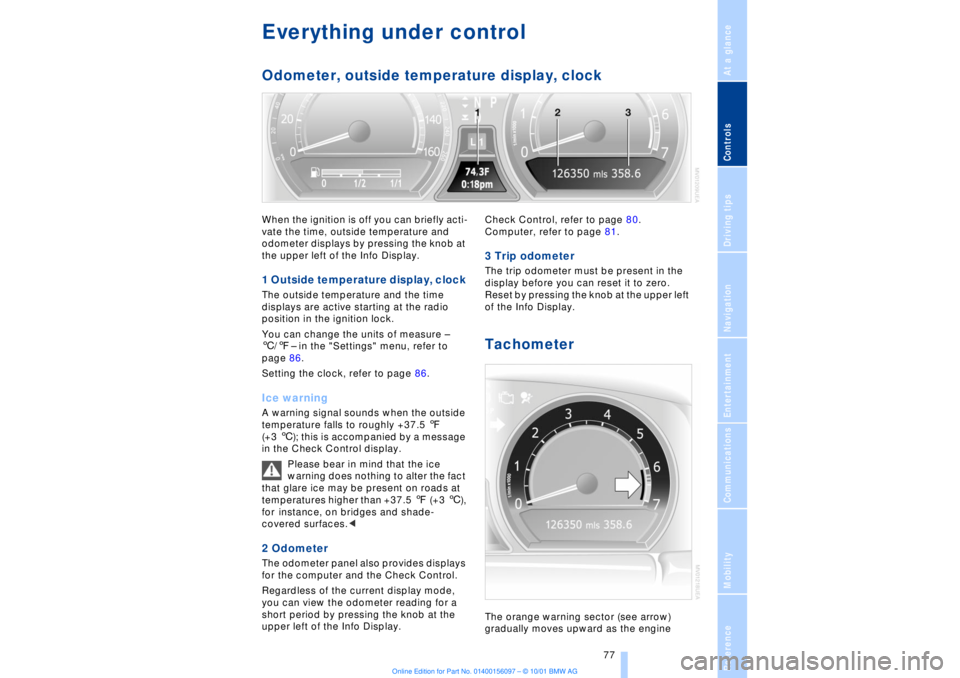
Everything under control Odometer, outside temperature display, clockWhen the ignition is off you can briefly acti-
vate the time, outside temperature and
odometer displays by pressing the knob at
the upper left of the Info Display. 1 Outside temperature display, clock The outside temperature and the time
displays are active starting at the radio
position in the ignition lock.
You can change the units of measure Ð
6/7Ð in the "Settings" menu, refer to
page 86.
Setting the clock, refer to page 86.Ice warning A warning signal sounds when the outside
temperature falls to roughly +37.5 7
(+3 6); this is accompanied by a message
in the Check Control display.
Please bear in mind that the ice
warning does nothing to alter the fact
that glare ice may be present on roads at
temperatures higher than +37.5 7 (+3 6),
for instance, on bridges and shade-
covered surfaces.< 2 Odometer The odometer panel also provides displays
for the computer and the Check Control.
Regardless of the current display mode,
you can view the odometer reading for a
short period by pressing the knob at the
upper left of the Info Display. Check Control, refer to page 80.
Computer, refer to page 81.
3 Trip odometer The trip odometer must be present in the
display before you can reset it to zero.
Reset by pressing the knob at the upper left
of the Info Display. Tachometer The orange warning sector (see arrow)
gradually moves upward as the engine
Page 79 of 208
Everything under control
78 warms to its normal operating temperature.
The segments disappear in sequence as
the engine warms to its normal operating
temperature.
Avoid allowing the engine speed to rise as
far as the orange warning sector whenever
possible.
Service Interval Display Info Display screen contents The distance/period remaining until your
next service briefly appears when you
switch on the ignition.
The Info Display immediately
switches to its computer mode when
you press one of the two buttons in the turn
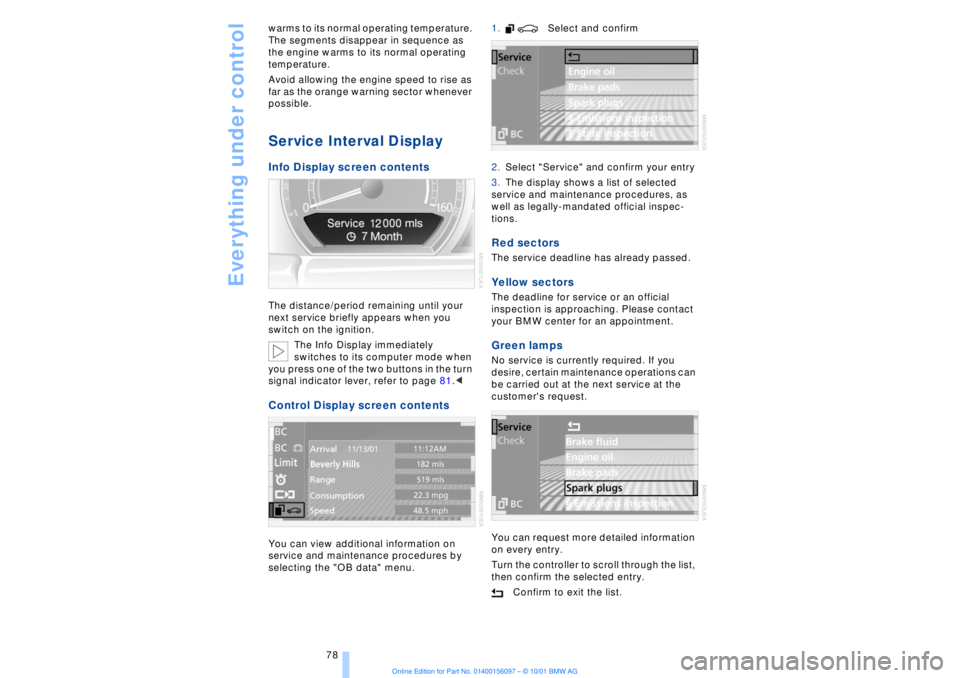
signal indicator lever, refer to page 81.< Control Display screen contents You can view additional information on
service and maintenance procedures by
selecting the "OB data" menu. 1. Select and confirm
2.Select "Service" and confirm your entry
3.The display shows a list of selected
service and maintenance procedures, as
well as legally-mandated official inspec-
tions.
Red sectors The service deadline has already passed. Yellow sectors The deadline for service or an official
inspection is approaching. Please contact
your BMW center for an appointment. Green lamps No service is currently required. If you
desire, certain maintenance operations can
be carried out at the next service at the
customer's request.
You can request more detailed information
on every entry.
Turn the controller to scroll through the list,
then confirm the selected entry.
Confirm to exit the list.
Page 80 of 208
At a glanceControlsDriving tipsCommunicationsNavigationEntertainmentMobilityReference
79
The display will automatically go out after a
short period; you can also cancel the
display manually using the symbol.
The Service Interval Display does not
continue counting down to the next
service during periods when the vehicle is
stored with the battery disconnected or the
battery switch OFF.
Please remember that brake fluid should
be changed every two years at the latest,
even if the display does not yet indicate
that service is required, for additional infor-
mation refer to page 178.
This same precaution applies to all of the
other service and maintenance operations
scheduled according to periodic inter-
vals.< To enter and view deadlines for
official emissions and vehicle
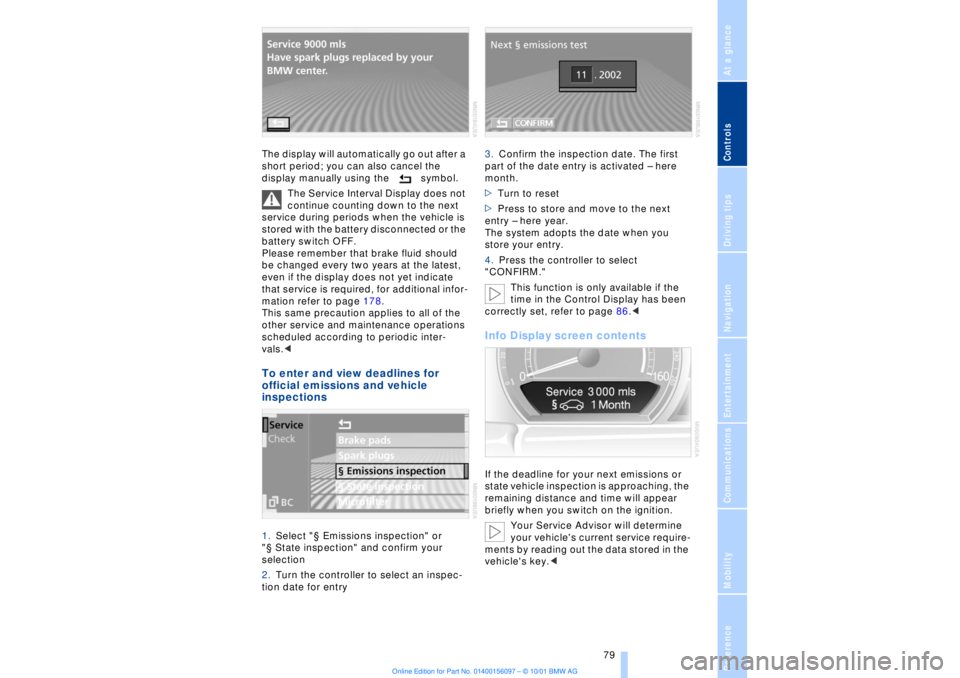
inspections 1.Select "¤ Emissions inspection" or
"¤ State inspection" and confirm your
selection
2.Turn the controller to select an inspec-
tion date for entry 3.Confirm the inspection date. The first
part of the date entry is activated Ð here
month.
>Turn to reset
>Press to store and move to the next
entry Ð here year.
The system adopts the date when you
store your entry.
4.Press the controller to select
"CONFIRM."
This function is only available if the
time in the Control Display has been
correctly set, refer to page 86.<
Info Display screen contents If the deadline for your next emissions or
state vehicle inspection is approaching, the
remaining distance and time will appear
briefly when you switch on the ignition.
Your Service Advisor will determine
your vehicle's current service require-
ments by reading out the data stored in the
vehicle's key.<
Page 82 of 208
At a glanceControlsDriving tipsCommunicationsNavigationEntertainmentMobilityReference
81
Select and confirm to cancel the
display.
Selecting stored status reports for
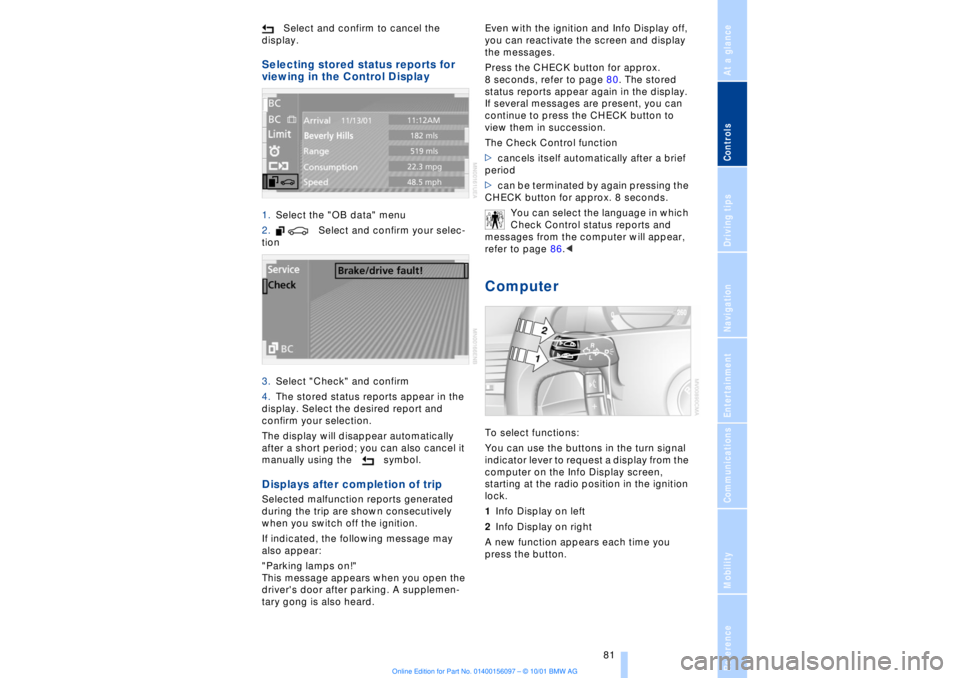
viewing in the Control Display 1.Select the "OB data" menu
2. Select and confirm your selec-
tion
3.Select "Check" and confirm
4.The stored status reports appear in the
display. Select the desired report and
confirm your selection.
The display will disappear automatically
after a short period; you can also cancel it
manually using the symbol. Displays after completion of trip Selected malfunction reports generated
during the trip are shown consecutively
when you switch off the ignition.
If indicated, the following message may
also appear:
"Parking lamps on!"
This message appears when you open the
driver's door after parking. A supplemen-
tary gong is also heard. Even with the ignition and Info Display off,
you can reactivate the screen and display
the messages.
Press the CHECK button for approx.
8 seconds, refer to page 80. The stored
status reports appear again in the display.
If several messages are present, you can
continue to press the CHECK button to
view them in succession.
The Check Control function
>cancels itself automatically after a brief
period
>can be terminated by again pressing the
CHECK button for approx. 8 seconds.
You can select the language in which
Check Control status reports and
messages from the computer will appear,
refer to page 86.<
Computer To select functions:
You can use the buttons in the turn signal
indicator lever to request a display from the
computer on the Info Display screen,
starting at the radio position in the ignition
lock.
1Info Display on left
2Info Display on right
A new function appears each time you
press the button.
Page 89 of 208

Technology for comfort, convenience and safety
88
Technology for comfort, convenience
and safetyPDC Park Distance Control*
The concept The PDC assists you when you are parking.
Acoustic signals inform you of the distance
to an obstacle. Four ultrasonic sensors in
both the front and rear bumpers monitor
the distance to the nearest object. The
monitoring range of the front and two rear
corner sensors extends outward roughly
2 ft (60 cm), while the rear bumper's two
centrally located sensors detect objects at
distances of up to approximately 4.9 ft
(1.50 m). Automatic function Whenever the ignition is on the system
automatically assumes operational status
each time the selector lever is pressed
briefly in R. Manual activationPress the button, the indicator lamp lights
up.
The system is automatically deactivated
once the vehicle travels approximately
165 ft (50 m) or exceeds a speed of roughly
18 mph (roughly 30 km/h); the indicator
lamp goes out. You can reactivate the
system manually as needed.
Manual deactivation Press the button again; the indicator lamp
goes out. Acoustic signals The signal indicating the distance to the
nearest obstacle is directional. Thus, an
object detected to the left rear of the
vehicle will be indicated by a signal tone
from the left rear speaker, etc. As the
distance between vehicle and object
decreases, the intervals between the tones
become shorter. The signal tone becomes
continuous once the distance to the
nearest object falls to below roughly 1 ft
(30 cm).
The warning signal is canceled after
approximately 3 seconds when the
distance to an object remains constant
during this time (if you are moving parallel
to a wall, for instance). Malfunctions The indicator lamp within the button
flashes and a status message appears in
the Check Control panel.
Please take note of the supplementary
information provided in the Control Display.
Switch the system off and have the cause
of the malfunction corrected by your BMW
center. PDC with visual alert
Page 94 of 208
At a glanceControlsDriving tipsCommunicationsNavigationEntertainmentMobilityReference
93
This symbol will appear in the
Check Control panel to inform you
when the inflation pressure varies
from that stored in the system. A text
message appears at the same time. Please
take note of the additional information in
the Control Display panel.
You can find more information on the
Check Control starting on page 80.
The RDC cannot alert you to severe
and sudden tire damage caused by
external factors.<
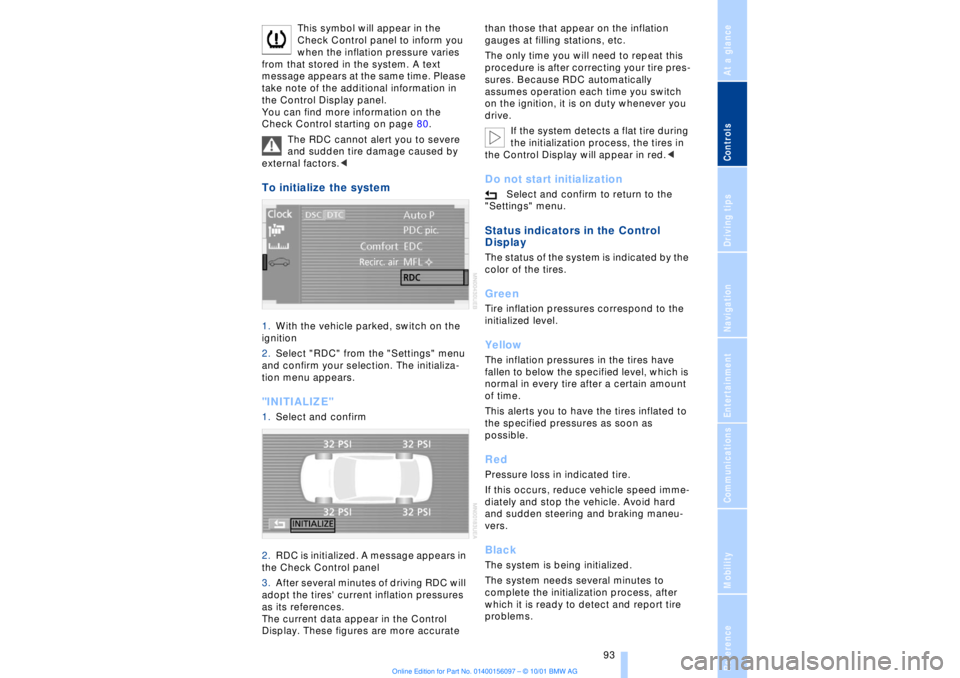
To initialize the system 1.With the vehicle parked, switch on the
ignition
2.Select "RDC" from the "Settings" menu
and confirm your selection. The initializa-
tion menu appears. "INITIALIZE" 1.Select and confirm
2.RDC is initialized. A message appears in
the Check Control panel
3.After several minutes of driving RDC will
adopt the tires' current inflation pressures
as its references.
The current data appear in the Control
Display. These figures are more accurate than those that appear on the inflation
gauges at filling stations, etc.
The only time you will need to repeat this
procedure is after correcting your tire pres-
sures. Because RDC automatically
assumes operation each time you switch
on the ignition, it is on duty whenever you
drive.
If the system detects a flat tire during
the initialization process, the tires in
the Control Display will appear in red.<
Do not start initialization
Select and confirm to return to the
"Settings" menu.
Status indicators in the Control
Display The status of the system is indicated by the
color of the tires. GreenTire inflation pressures correspond to the
initialized level.YellowThe inflation pressures in the tires have
fallen to below the specified level, which is
normal in every tire after a certain amount
of time.
This alerts you to have the tires inflated to
the specified pressures as soon as
possible. RedPressure loss in indicated tire.
If this occurs, reduce vehicle speed imme-
diately and stop the vehicle. Avoid hard
and sudden steering and braking maneu-
vers. BlackThe system is being initialized.
The system needs several minutes to
complete the initialization process, after
which it is ready to detect and report tire
problems.
Page 97 of 208
Lamps
96
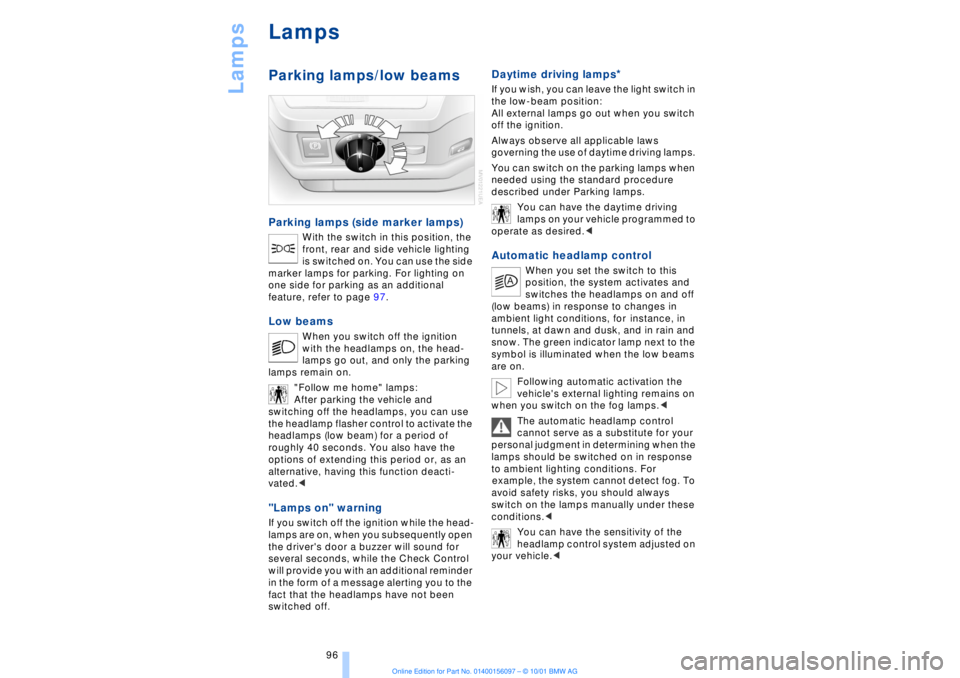
LampsParking lamps/low beams Parking lamps (side marker lamps)
With the switch in this position, the
front, rear and side vehicle lighting
is switched on. You can use the side
marker lamps for parking. For lighting on
one side for parking as an additional
feature, refer to page 97.
Low beams
When you switch off the ignition
with the headlamps on, the head-
lamps go out, and only the parking
lamps remain on.
"Follow me home" lamps:
After parking the vehicle and
switching off the headlamps, you can use
the headlamp flasher control to activate the
headlamps (low beam) for a period of
roughly 40 seconds. You also have the
options of extending this period or, as an
alternative, having this function deacti-
vated.<
"Lamps on" warning If you switch off the ignition while the head-
lamps are on, when you subsequently open
the driver's door a buzzer will sound for
several seconds, while the Check Control
will provide you with an additional reminder
in the form of a message alerting you to the
fact that the headlamps have not been
switched off
.
Daytime driving lamps
*
If you wish, you can leave the light switch in
the low-beam position:
All external lamps go out when you switch
off the ignition.
Always observe all applicable laws
governing the use of daytime driving lamps.
You can switch on the parking lamps when
needed using the standard procedure
described under Parking lamps.
You can have the daytime driving
lamps on your vehicle programmed to
operate as desired.< Automatic headlamp control
When you set the switch to this
position, the system activates and
switches the headlamps on and off
(low beams) in response to changes in
ambient light conditions, for instance, in
tunnels, at dawn and dusk, and in rain and
snow. The green indicator lamp next to the
symbol is illuminated when the low beams
are on.
Following automatic activation the
vehicle's external lighting remains on
when you switch on the fog lamps.<
The automatic headlamp control
cannot serve as a substitute for your
personal judgment in determining when the
lamps should be switched on in response
to ambient lighting conditions. For
example, the system cannot detect fog. To
avoid safety risks, you should always
switch on the lamps manually under these
conditions.<
You can have the sensitivity of the
headlamp control system adjusted on
your vehicle.<