1997 PONTIAC PONTIAC ignition
[x] Cancel search: ignitionPage 156 of 419
Control Buttons
The trip computer has three buttons that control
its functions.
ENG/MET: Press this button to change the display from
English to metric units
or metric t’o English.
RESET Press this button for two seconds to reset the
mode displayed.
MODE: Press this button to change the mode
being displayed.
Functions
FUEL USED: Shows the total amount of fuel used
since you last reset this mode. The amount can be
displayed in gallons or liters.
AVG ECON: Shows your average fuel economy since
you last reset this mode.
OIL LIFE: Shows a percentage of the oil’s remaining
useful life. The system predicts remaining
oil life using
inputs from length of drives, coolant temperature,
engine rpm and vehicle speed. Each time
you get an oil
change,
be sure to reset this function so that it will give
you an accurate percentage.
To reset the ail life indicator after the oil has been
changed, press the mode button until the light appears
next to
O’IL LIFE. Press and hold the reset button for
three seconds. The oil life percentage should change
to
100%.
RANGE: Shows how much farther you can travel with
the fuel you have before refueling.
CHECK TIRE PREISS: This light alerts you that a tire
is low or flat, See “Check Tire Pressure Light” in
the Index.
LOW WASHER FLUID: This light will come on when
your ignition is on and the fluid container
is low.
DOOR A JAR: If one of your ‘doors is left ajar, a light
will appear next to that
door on the vehicle outline.
PERFORMANCE SHIFT This light comes on when
you press the performance shift button (located on the
console shift)
to indicate that your vehicle is in
performance shifting mode, See “Performance Shifting”
in the Index.
BOOST GAGE: If you have the supercharged engine,
this gage will show the amount of boost your engine
is receiving.
ProCarManuals.com
Page 157 of 419

TRUNK A JAR: If your trunk is not fully closed or
open, a light will outline the trunk area on your
vehicle outline.
TRAC SWITCH: If yop vehicle has the Trac System
(this is not an available option with the 3800 Supercharged
engine),
you will have a disable switch on the far right
side
of your Trip Computer. Your Trac System is
automatically activated when you turn the ignition on. This
switch will activate/deactivate the Trac System. If you
need to disable
the system, such as when you are stuck
and are rocking your vehicle back and forth, push this
switch. See “Stuck: In Sand, Mud, Ice or Snow” in
the Index.
TRAC OFF: This light lets you know that your Trac
System has been disabled and will not limit wheel spin.
See “Trac System Warning Light” or “Low Traction
Light” in the Index.
LOW TRAC: This light will come on when your Trac
System is limiting wheel spin or when your anti-lock
brake system is active. See “Trac System” or “Low
Traction Light” in the Index.
Head-Up Display (If Equipped)
radio station or CD track,
displayed “through”
the windshield.
The
HUD also shows these lights when they are lit on
the instrument panel:
0 Turn Signal Indicators
0 High-Beam Indicator Symbol
0 Low Fuel Symbol
2-83
ProCarManuals.com
Page 158 of 419
The HUD will display the “Check Gage” when the
following are lit on the instrument panel:
Oil warning Symbol
0 Coolant Temperature Symbol
0 Charging System Symbol
When you sit straight in your seat, the HUD image will
appear straight ahead near the front bumper.
When
the ignition key is turned to RUN, the HUD
image will come on. Then the Head-Up Display will
operate normally.
NOTICE:
Although the HUD image appears to be near the
front
of the vehicle, do not use it as a parking aid.
The
HUD was not designed for that purpose.
If you try to use it that way, such as in a
parking lot, you may misjudge distance and
run into something.
When the HUD is on, the speedometer reading will be
displayed continually. The current radio station or
CD
track number will only be displayed for three seconds
after the radio or
CD track status changes. This will
happen whenever one
of the radio controls is pressed,
either on the radio itself or on the optional steering
wheel controls.
...... ............. ... ...... .... . ... 2-84 L ., .5 e--..% _I...-,. I. .. .: . ’ ., , ,. ,.-. - .... ., .. _. .. .. . ,. .
ProCarManuals.com
Page 160 of 419
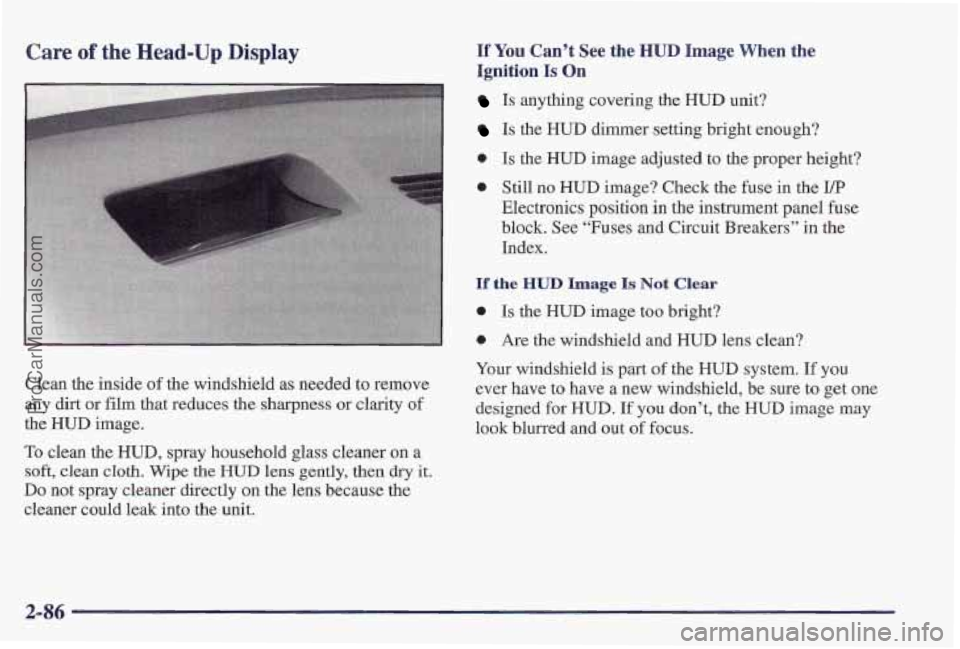
Care of the Head-Up Display
Clean the inside of the windshield as needed to remove
any dirt
or film that reduces the sharpness or clarity of
the HUD image.
To clean the HUD, spray household glass cleaner on a
soft, clean cloth. Wipe the HUD lens gently, then dry it,
Do not spray cleaner directly on the len,s because the
cleaner could leak into the unit.
If You Can’t See the HUD Image When the
Ignition Is
On
Is anything covering the HUD unit?
Is the HUD dimmer setting bright enough?
0 Is the HUD image adjusted to the proper height?
0 Still no HUD image? Check the fuse in the z/p
Electronics position in the instrument panel fuse
block. See “Fuses and Circuit Breakers” in the
Index.
If the HUD Image Is Not Clear
0 Is the HUD image too bright?
0 Are the windshield and HUD lens clean?
Your windshield is part
of the HUD system. If you
ever have to
have a nlew windshield, be sure to get one
designed
for HUD. If you don’t, the HUD image may
look blurred and out of focus.
2-86
ProCarManuals.com
Page 172 of 419

AM-FM Stereo with Cassette Tape Player
(If Equipped)
Playing the Radio
VOL: Push this knob to turn the system on an'd off.
To increase volume, turn the knob clockwise. Turn it
counterclockwise to decrease volume.
RECALL: Display the time with the ignition off by
pressing
this knob. When the radio is playing, press this
knob
to recall the station frequency.
Finding a Station
AM-FM: Press this button to switch between AM, FMl
and FM2. The display shows your selection.
TUNE: Press this knob lightly so it extends. Turn it to
choose radio stations.
Push the knob back into its store
position when you're not using it.
SEEK: Press the up or down arrow to go to the next
higher or lower station and stay there.
:d
PUSHBUTTONS: The six numbered pushbuttons let
you return to your favorite stations.
You can set up to
18 stations (six AM, six FM1 and six FM2). Just:
1. Press AM-FM to select the band.
2. Tune in the desired station.
3. Press and hold one of the six numbered buttons until
SET appears on the display. Whenever
you press that
numbered button,
the station you set will return.
4. Repeat the steps for each pushbutton.
3-12
ProCarManuals.com
Page 174 of 419
If any error occurs repeatedly or if an error can't be
corrected, please contact your dealer.
If your radio
displays an error number, write it down and provide it to
your dealer when reporting the problem.
PREV (1): Press this button or the SEEK down arrow to
search for the previous selection on the tape, Your tape
must have at least three seconds of
silence between each
selection for
PREV or SEEK to work. The tape direction
arrow blinks during
PREV or SEEK operation. Press
PREV or the
SEEK down assow to stop searching. The
sound will mute during
PREV or SEEK operation.
NEXT (2): Press this button or the SEEK up arrow to
search for the next selection on the tape. If you hold the
button, the player will continue moving forward through
the tape. Your tape must have at least three seconds
of
silence between each selection for NEXT or SEEK to
work. The tape direction arrow blinks during NEXT or
SEEK operation. Press NEXT or the SEEK up arrow to
stop searching. The sound will mute during NEXT or
SEEK operation.
PROG (3): Press this button to play the other side of
the tape.
flu (4): Press this button to reduce background
noise. Note that the double-6) symbol will appear on
the display. Dolby* Noise Reduction is' manufactured under a
license from Dolby Laboratories Licensing Corporation.
Dolby and the double-D symbol are tradernarks
of
Dolby Laboratories Licensing Corporation.
REV (5): Press this button to reverse the tape rapidly.
Press
it again to return to playing speed. The radio will
play the last-selected station while the tape reverses.
You may select stations during REV operation by using
SEEK or TUNE,
FWD (6): Press this button to advance quickly to
another part of the tape. Press the button again
to return
to playing speed. The radio will play the last-selected
station while the tape advances.
You may select stations
during
FWD operation by using SEEK or TUNE.
AM-FM: Press this button to play the radio when a tape
is in the player.
TAPEFLAY: Press this button to change to the tape
function when the radio is
on. The tape symbol with an
arrow will appear on
the display when the tape is active.
To return to playing the radio, press the AM-FM button.
E JECE Press this button to remove the tape. The radio
will play.
EJECT may be activated with either the
ignition or radio
off. Cassettes may be loaded with the
radio and ignition off if this button is pressed first.
3-14
ProCarManuals.com
Page 175 of 419

CLN: If this message appears on the display, the
cassette tape player needs to be cleaned. It will still play
tapes, but you should clean it as soon as possible to
prevent damage to the tapes and player. See “Care
of
Your Cassette Tape Player” in the Index. After you clean
the player, press and hold EJECT for five seconds to
reset the CLN indicator. The radio will display
--- to
show the indicator was reset.
CD Adapter Kits
It is possible to use a CD adapter kit with your cassette
tape player after activating the bypass feature on your
tape player.
AM-FM Stereo with Cassette Tape Player
and Equalizer
(If Equipped)
To activate the bypass feature, the ignition must be on.
Turn your radio off. Press TAPELPLAY and hold for
three seconds. After three seconds, the tape symbol in
the display will flash for two seconds indicating the
feature is active. Turn the radio on and insert
the adapter.
This override feature will remain active until EJECT
is pressed.
Playing the Radio
VOL: Push this knob to turn the system on and off. To
increase volume, turn
the knob clockwise. Turn it
counterclockwise to decrease volume.
RECALL: Display the time with the ignition off by
pressing this knob. When the radio is playing, press this
knob to recall the station frequency.
3-15
ProCarManuals.com
Page 178 of 419
REV (5): Press this button to reverse the tape rapidly.
Press it again to return to playing speed.
The radio will
play the last-selected station while the tape reverses.
You may select stations during REV operation by using
SEEK or TUNE.
FWD (6): Press this button to advance quickly to
another part of the tape. Press the button again to return
to playing speed. The radio will play the last-selected
station while the tape advances. You may select stations
during
FWD operation by using SEEM or TUNE.
AMmFM: Press this button to play tne radio when a tape
is in the player.
TAPERLAPI’: Press this button to change to the tape
function when the radio is
on. The tape symbol with an
mow will appear on the display when the tape is active.
To return to playing the radio, press the AM-FM button.
EJECT: Press this button to remove the tape. The radio
will play.
EJECT may be activated with either the
ignition
or radio off. Cassettes may be loaded with the
radio off if this button is pressed first.
CLN: If this message appears on the display, the
cassette tape player needs to be cleaned. It will still play
tapes, but you should clean it
as soon as possible to
prevent damage to the tapes and player. See “Care of
Your Cassette Tape Player” in the Index. After you clean
the player, press and hold
EJECT for five seconds to
reset the
CLN indicator. The radio will display --- to
show the indicator was reset.
CD Adapter Kits
It is possible to use a CD adapter kit with your cassette
tape player after activating the bypass feature on your
tape player.
To activate the bypass feature, the ignition must be on,
Turn
your radio off. Press TAPEFLAY and hold for
three seconds. After three seconds, the tape symbol in
the display will flash for two seconds indicating
the
feature is active. Turn the radio on and insert
the adapter.
This override feature will remain active until
EJECT
is pressed.
3-18
ProCarManuals.com