Page 163 of 320
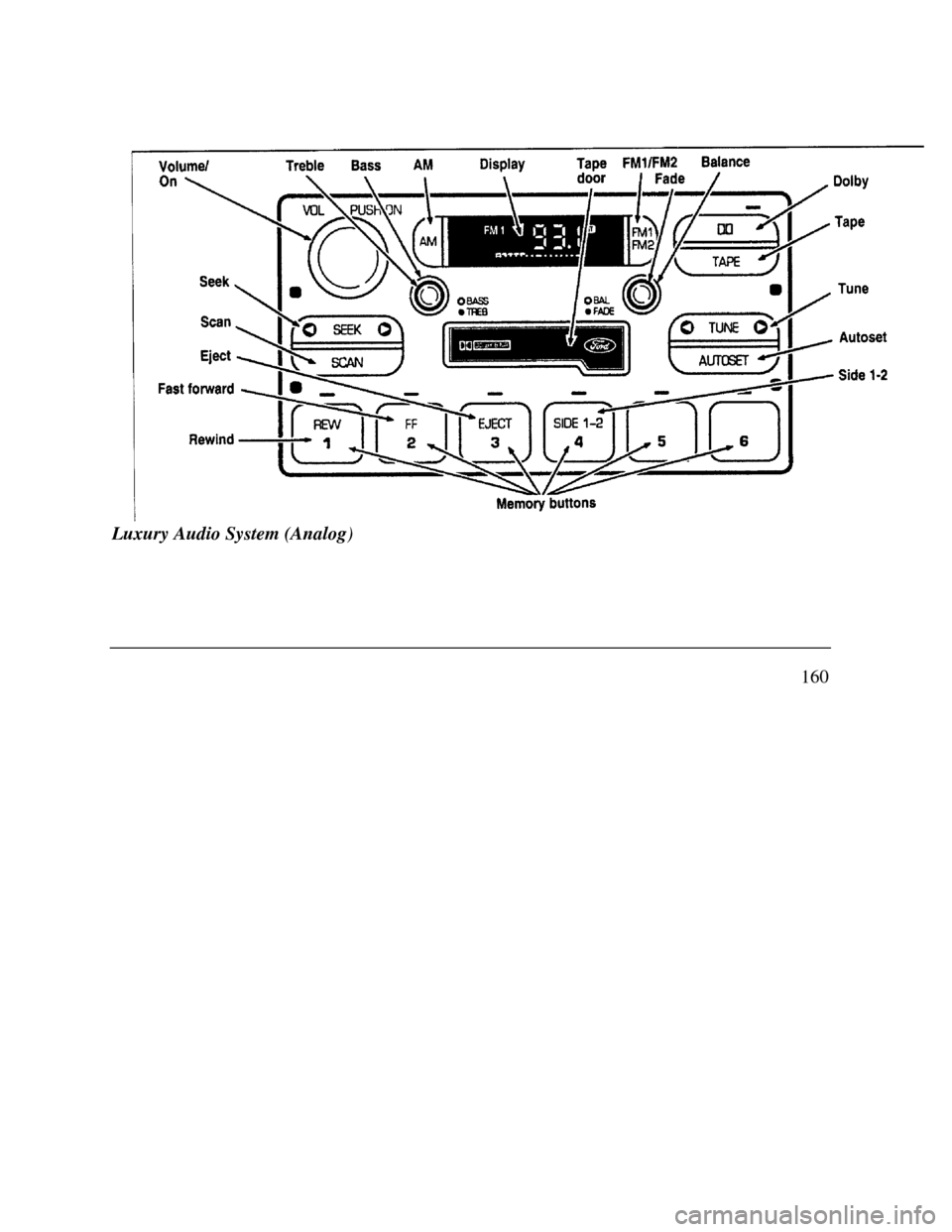
Volume/ Treble Bass AM Display SCAN Dolby Tape Tune Autoset FastforwardLuxury Audio System (Analog)
160
Page 166 of 320

Using the Automatic Memor.y Store feature
(“AUTOSET”)
If the memory buttons have been set, either by
using the Auto Memory Load feature or if you
have set them manually, the system is prepared to
let you use a convenient feature called
Automatic Memory Store.
With Auto Memory Store, you can continually
set strong stations into your memory buttons
without losing your originally set stations. Your
radio will automatically set your memory buttons
to the strong local stations.
Activate Auto Memory Store by pushing the
"AUTOSET" button once. Your radio will set
the first six strong stations of the band you are in
(AM, FMI or FM2) into the memory buttons.
The display will flash "AUTO" and display the
autoset icon "A" while the stations are being set
in the memory buttons.NOTE: If there are less than six strong
stations in the frequency band, the
remaining unfilled buttons will store the
last strong station detected on the band.
After all stations have been filled, the radio
will begin playing the station stored on
memory button 1.
To deactivate the Auto Memory Store mode and
return to the manually-set memory button stations,
simply push the "AUTOSET" button. Display will
show "AUTO" then "OFF". The next time Auto
Memory Store is activated on that band, the radio
will store the next set of six strong stations.
Adjusting the tone balance of your radio Increasing or decreasing bass and treble
response Push the "BASS/TREB" popout knob
to gain access to the bass and treble controls.
Bass control allows you to adjust the lower,
bass frequencies to your preference. The outer
ring of the "BASS/TREB" knob adjusts the
bass (turn clockwise to increase bass;
counterclockwise to decrease bass).
163
Page 167 of 320
Treble control allows YOU to adjust the higher,
treble frequencies of your radio to your
preference. The inner ring of the "BASS/TREB"
knob adjusts the treble (turn clockwise to
increase treble; counterclockwise to decrease
treble). Adjusting speaker balance and speaker fader
Push the "BAL/FADE" popout knob to gain
access to the speaker balance and fader controls.
Balance control allows YOU to adjust the sound
distribution between the right and left speakers.
The outer ring of "BAL/FADE" knob adjusts the
speaker balance control. (Turn clockwise to shift
the sound to the right speakers, and turn left
counterclockwise to shift the sound to the
speakers.)
164Fade control allows YOU to adjust the sound
distribution between the front and rear speakers.
The inner ring of the 'BAL/FADE" knob adjusts
the speaker fader. (Turn clockwise to shift the
sound to the rear speakers, and turn
counterclockwise to shift the sound to the front
speakers.)
Using the Digital Signal Processing
(DSP) Feature
Push the "(DSP)" button to activate the
feature. The display will indicate Which signal
mode is in effect. To change the signal mode press
either the left () or right () side of the selector
button (located under the "(DSP)" button).
The following signal modes May be selected:
1."HALL" - Rectangular concert hall capacity of
about 2,000.
2. "CHURCH” - Church with a high vault.
Page 168 of 320

3. 3. "JAZZ" - Jazz club with clearly reflected
sounds.
4. “'STADIUM" - Outdoor stadium with a
capacity of about 30,000.
5. “NEWS" - “Voice-only" type of sound with a
limited audio band.
To deactivate the DSP feature, press the
"(DSP)" button again.
Delayed Accessory Feature
If the ignition is turned off while the radio is on,
the radio will continue to play for up to ten
minutes or until a door is opened.
Speaker Locations
Your Ford JBL sound system is equipped with a
total of ten speakers: two speakers in each of the
four doors and two subwoofers located in the
rear package tray.Your Antenna
Antennas for both AM and FM reception are
hidden in the back glass of your vehicle. There
is an internal antenna module that will switch
between AM and FM, when bands are changed,
for maximum reception performance.
NOTE: Do not attempt to adapt any other type
of antenna system to your audio system.
Using the Controls of Your Cassette
TapePlayer
NOTE: Radio power must be on to use the
cassette tape player.
How to insert a tape
Your cassette tape player is equipped with
power loading. Once you insert a tape and push
slightly (with the open edge to the right), the
loading mechanism draws the tape the rest of the
way in and play will begin after a momentary
tape tightening process. Display indicates
"TAPE" while tape is playing.
165
Page 169 of 320

If the player is in the tape mode but not in Play,
pressing the 'TAPE" button will activate play. If
the "TAPE" button is pressed with no tape
inserted, the display will flash "NO TAPE".
How to locate a desired track on the tape
There are six ways to quickly locate a desired
selection on the tape. You can use the fast
forward, rewind, Blank Skip, "SEEK", "SCAN"
or "SIDE 1-2" functions. Following are brief
descriptions of each: Fast forwarding the tape
To fast forward the tape, press the "FF'
button. The radio will play while the tape is in
fast forward. The light above the "FF" button
will blink while in the fast forward mode.
Press "FF" again or press the "TAPE" button
to stop fast forwarding. At the end of the
tape, the direction automatically reverses and
plays the other side of the tape.
166 Rewinding the tape
To rewind the tape, press the "REW' button.
The radio will automatically begin playing
while the tape is rewinding. The light above
the "REW" button will blink while in the
rewind mode. Press "REW" again or press
the 'TAPE" button to stop rewinding. Using the "SEEK" function with your cassette
tape player
While in the tape mode, push the right ()
side of the "SEEK' button to seek forward to
the next selection on the tape. Push the left
() side to restart a currently playing tape
selection. Using the 'Blank Skip" function with your
cassette tape player
Press the "Blank Skip" button to activate
the blank skip mode. After approximately
20 seconds of blank program, the tape will
seek forward to the next program.
Page 171 of 320
TD El - Radio tries to change sides of tape 3
times in a 10 second span. push ,EJECT" and try
another tape. if problem persists, refer problem to
qualified personnel for service.
TD E2 - Tape eject failure. Radio tries to eject
tape and it will not eject. push "EJECT" to elect
tape. if the tape Will not eject, refer problem to
qualified personnel for service.
TD E3 - Loading error. push 'EJECT" to elect
tape. Reload tape. If the same error code
appears in the display, try another tape.
Tips on Caring for the Cassette Player
and Tapes
In order to keep your cassette tape player
performing the Way it was meant to, read and
follow these simple precautions: Using a Ford Cassette Cleaning Cartridge to
clean the tape player head after 10-12 hours of
play will help maintain the best playback
sound and proper tape operation.
168 Only cassettes that are go minutes long or
less ger than go minutes should be used.
Tapes longer than 90 minutes are thinner
and subject to breakage or may jam the tape
player mechanism. Protect cassettes from exposure to direct
sunlight, high humidity and extreme heat or
cold. If they are exposed to extreme
conditions allow them to reach a moderate
temperature before playing. If a tape is. loose inside the cassette; tighten
it by putting, your finger or a pencil into
one of the holes and turning the hub until
the tape is tight. Loose labels on cassette tapes can become
lodged in the mechanism. Remove any
loose label material before inserting a
cassette. Do not leave a tape in the cassette tape
player when not in use. High heat in the
vehicle can cause the cassette to warp.
Page 174 of 320
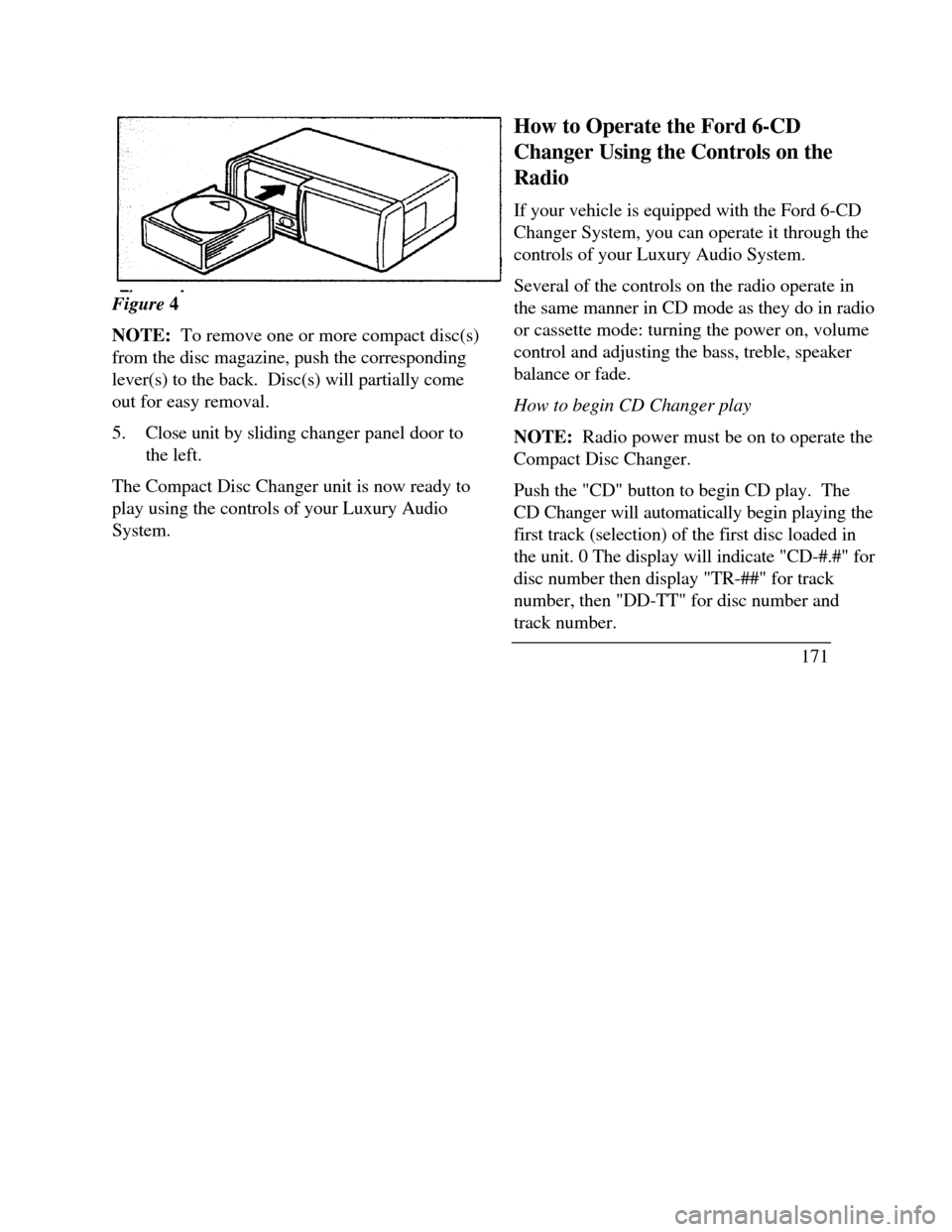
Figure 4
NOTE: To remove one or more compact disc(s)
from the disc magazine, push the corresponding
lever(s) to the back. Disc(s) will partially come
out for easy removal.
5.Close unit by sliding changer panel door to
the left.
The Compact Disc Changer unit is now ready to
play using the controls of your Luxury Audio
System.How to Operate the Ford 6-CD
Changer Using the Controls on the
Radio
If your vehicle is equipped with the Ford 6-CD
Changer System, you can operate it through the
controls of your Luxury Audio System.
Several of the controls on the radio operate in
the same manner in CD mode as they do in radio
or cassette mode: turning the power on, volume
control and adjusting the bass, treble, speaker
balance or fade.
How to begin CD Changer play
NOTE: Radio power must be on to operate the
Compact Disc Changer.
Push the "CD" button to begin CD play. The
CD Changer will automatically begin playing the
first track (selection) of the first disc loaded in
the unit. 0 The display will indicate "CD-#.#" for
disc number then display "TR-##" for track
number, then "DD-TT" for disc number and
track number.
171
Page 175 of 320
How to change the disc being played
When in the CD mode, you can change discs by
pressing the right (pop.) side of the "TUNE
DISCS" button (to select the next disc) or the
left () side of the "TUNE DISCS" button (to
select the next disc) or the left () side of the
“TUNE DISCS” button to select the previous
disc). Play will begin on the first track of the
selected disc.
When either side of the button is pressed and
held, the CD changer will continue fast-
forwarding or reversing through the discs in the
disc magazine. During these functions, the
display will indicate the disc number.
How to change the track being played
Press the right () side of the "SEEK" button to
seek forward to the next track of current disc.
After the last track has been completed, the CD
player automatically wraps back to the first track
of the current disc.
172Press the left () side of the SEEK
button to seek in reverse to the previous
track on the current disc. If a selection
has been playing for three seconds or
more and you press the left () side of
the SEEK button, the CD Changer will
replay that selection from the beginning.
Operating the CD Compression feature
The compression feature will bring soft
and loud passages closer together for a
more consistent listening level.
To turn the compression on, press the #5
"/COMP" button. (While in the CD
Changer mode, the Dolby button controls
the compression function.) When the
compression feature is activated, the
display will indicate "C". Press again to
deactivate.