2024 CHEVROLET SILVERADO EV infotainment
[x] Cancel search: infotainmentPage 106 of 429
Chevrolet Silverado EV Owner Manual (GMNA-Localizing-U.S./Canada-
16702912) - 2024 - CRC - 1/13/23
Instruments and Controls 105
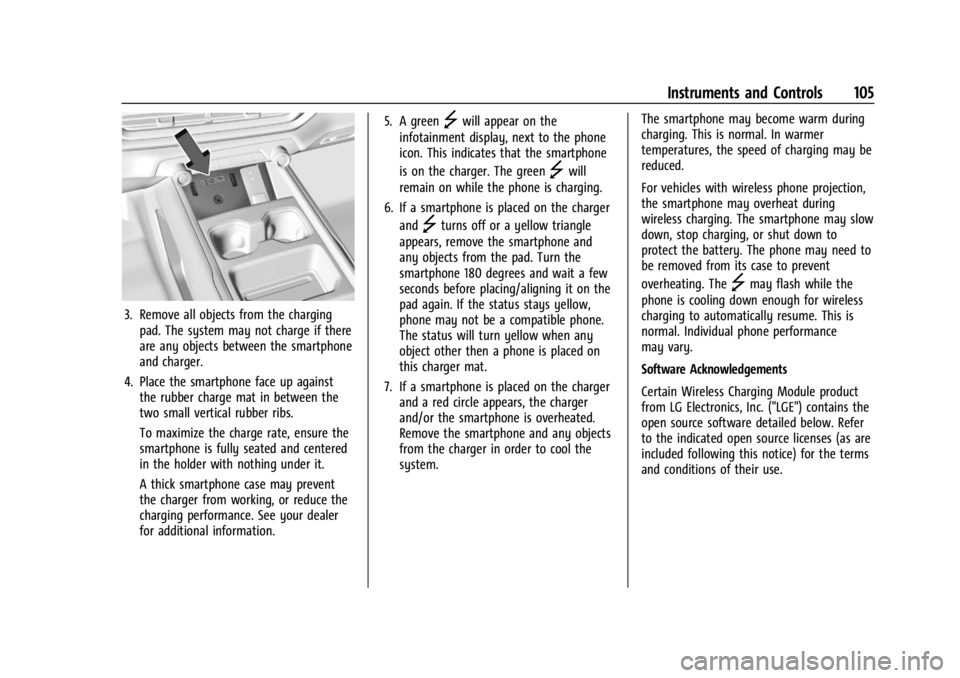
3. Remove all objects from the chargingpad. The system may not charge if there
are any objects between the smartphone
and charger.
4. Place the smartphone face up against the rubber charge mat in between the
two small vertical rubber ribs.
To maximize the charge rate, ensure the
smartphone is fully seated and centered
in the holder with nothing under it.
A thick smartphone case may prevent
the charger from working, or reduce the
charging performance. See your dealer
for additional information. 5. A green
]will appear on the
infotainment display, next to the phone
icon. This indicates that the smartphone
is on the charger. The green
]will
remain on while the phone is charging.
6. If a smartphone is placed on the charger and
]turns off or a yellow triangle
appears, remove the smartphone and
any objects from the pad. Turn the
smartphone 180 degrees and wait a few
seconds before placing/aligning it on the
pad again. If the status stays yellow,
phone may not be a compatible phone.
The status will turn yellow when any
object other then a phone is placed on
this charger mat.
7. If a smartphone is placed on the charger and a red circle appears, the charger
and/or the smartphone is overheated.
Remove the smartphone and any objects
from the charger in order to cool the
system. The smartphone may become warm during
charging. This is normal. In warmer
temperatures, the speed of charging may be
reduced.
For vehicles with wireless phone projection,
the smartphone may overheat during
wireless charging. The smartphone may slow
down, stop charging, or shut down to
protect the battery. The phone may need to
be removed from its case to prevent
overheating. The
]may flash while the
phone is cooling down enough for wireless
charging to automatically resume. This is
normal. Individual phone performance
may vary.
Software Acknowledgements
Certain Wireless Charging Module product
from LG Electronics, Inc. ("LGE") contains the
open source software detailed below. Refer
to the indicated open source licenses (as are
included following this notice) for the terms
and conditions of their use.
Page 108 of 429
Chevrolet Silverado EV Owner Manual (GMNA-Localizing-U.S./Canada-
16702912) - 2024 - CRC - 1/13/23
Instruments and Controls 107
On-Screen Controls
The Controls App organizes the on-screen
controls for many vehicle functions on one
screen. The specific controls available in the
app vary by model.
To access the Controls App, select the
Controls icon from the infotainment home
screen.
Warning Lights, Gauges, and
Indicators
Warning lights and gauges can signal that
something is wrong before it becomes
serious enough to cause an expensive repair
or replacement. Paying attention to the
warning lights and gauges could prevent
injury.
Some warning lights come on briefly when
the propulsion system is started to indicate
they are working. When one of the warning
lights comes on and stays on while driving,
or when one of the gauges shows there
may be a problem, check the section that
explains what to do. Waiting to do repairs
can be costly and even dangerous.
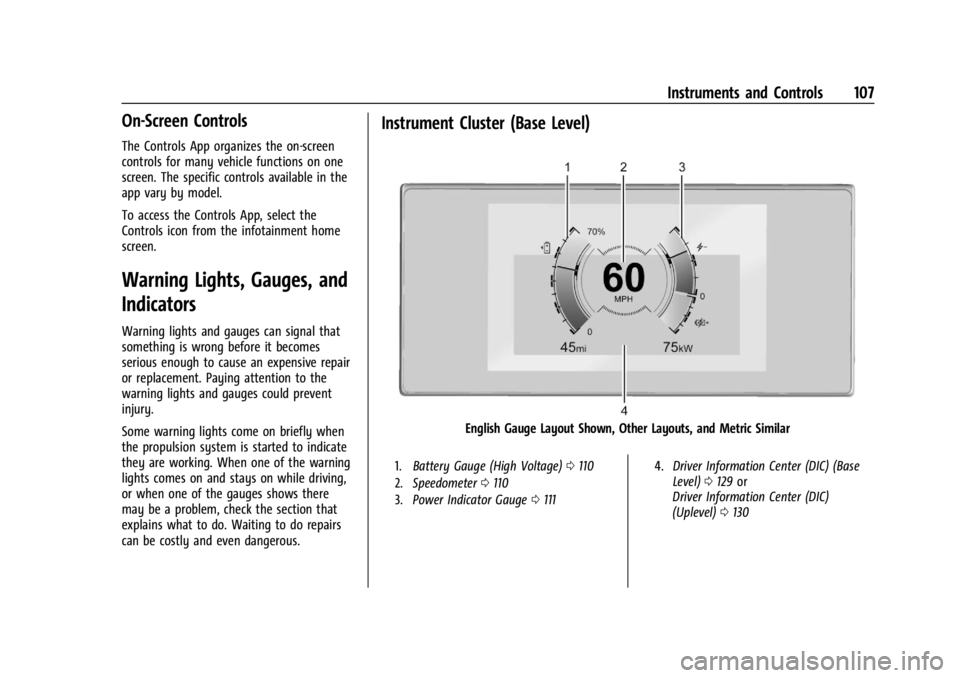
Instrument Cluster (Base Level)
English Gauge Layout Shown, Other Layouts, and Metric Similar
1.Battery Gauge (High Voltage) 0110
2. Speedometer 0110
3. Power Indicator Gauge 0111 4.
Driver Information Center (DIC) (Base
Level) 0129 or
Driver Information Center (DIC)
(Uplevel) 0130
Page 109 of 429
Chevrolet Silverado EV Owner Manual (GMNA-Localizing-U.S./Canada-
16702912) - 2024 - CRC - 1/13/23
108 Instruments and Controls
Reconfigurable Instrument Cluster
The cluster display layout can be changed.
Some of the selectable views may not be
available for your particular vehicle.
The following are selectable views:
Clean :Displays no information zones.
Info : Displays one information zone under
the speedometer.
Gauge : Displays no information zones and
the gauges are located to the left and right
of the speedometer.
Infotainment : Displays one information
zone under the speedometer.
Driver Assistance : If equipped, displays
information for Adaptive Cruise Control
(ACC), Follow Distance, Lane Keep Assist
(LKA), and Forward Collision Alert (FCA).
Off Road : Displays one information zone
under the speedometer.
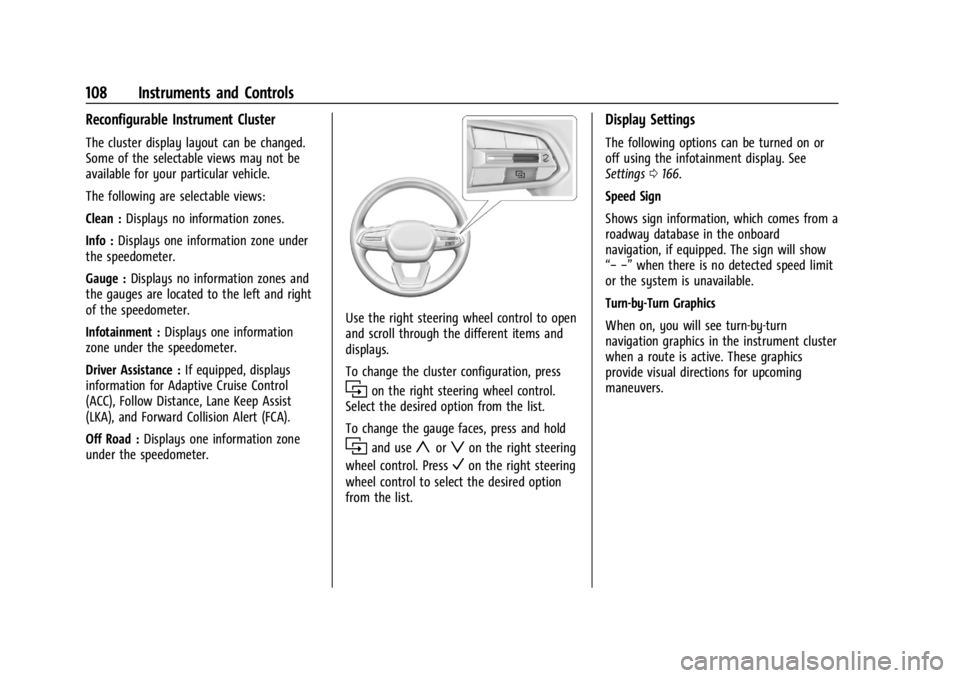
Use the right steering wheel control to open
and scroll through the different items and
displays.
To change the cluster configuration, press
ion the right steering wheel control.
Select the desired option from the list.
To change the gauge faces, press and hold
iand useyorzon the right steering
wheel control. Press
Von the right steering
wheel control to select the desired option
from the list.
Display Settings
The following options can be turned on or
off using the infotainment display. See
Settings 0166.
Speed Sign
Shows sign information, which comes from a
roadway database in the onboard
navigation, if equipped. The sign will show
“− −” when there is no detected speed limit
or the system is unavailable.
Turn-by-Turn Graphics
When on, you will see turn-by-turn
navigation graphics in the instrument cluster
when a route is active. These graphics
provide visual directions for upcoming
maneuvers.
Page 111 of 429
Chevrolet Silverado EV Owner Manual (GMNA-Localizing-U.S./Canada-
16702912) - 2024 - CRC - 1/13/23
110 Instruments and Controls
torque gauge to the left of it. There are two
information zones on the left and right of
the display. Follow the prompts on the
instrument cluster. SeeDriver Mode Control
0 209.
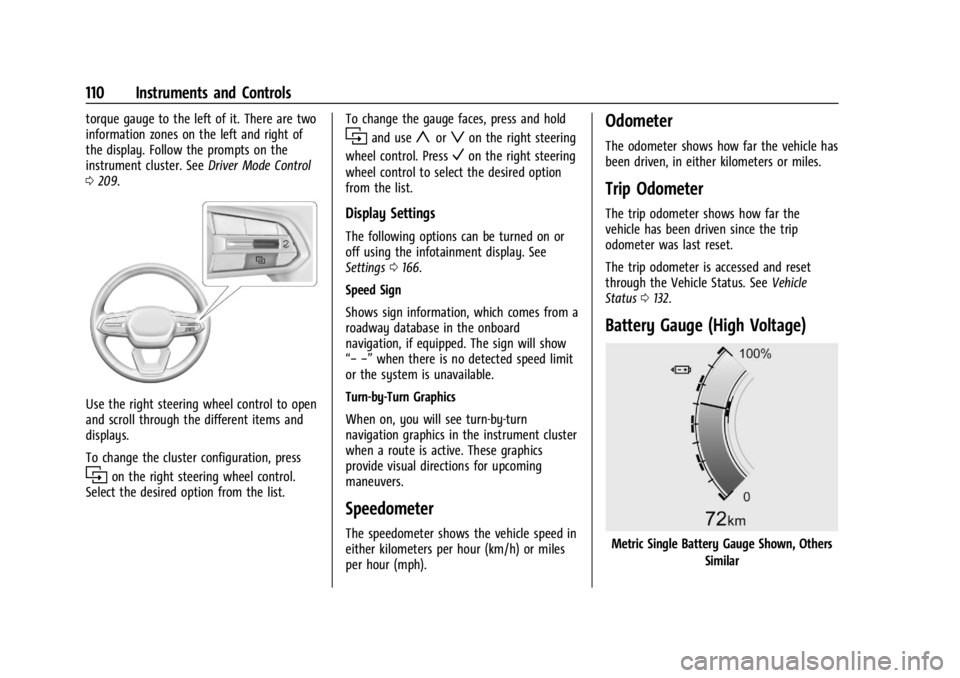
Use the right steering wheel control to open
and scroll through the different items and
displays.
To change the cluster configuration, press
ion the right steering wheel control.
Select the desired option from the list. To change the gauge faces, press and hold
iand useyorzon the right steering
wheel control. Press
Von the right steering
wheel control to select the desired option
from the list.
Display Settings
The following options can be turned on or
off using the infotainment display. See
Settings 0166.
Speed Sign
Shows sign information, which comes from a
roadway database in the onboard
navigation, if equipped. The sign will show
“− −” when there is no detected speed limit
or the system is unavailable.
Turn-by-Turn Graphics
When on, you will see turn-by-turn
navigation graphics in the instrument cluster
when a route is active. These graphics
provide visual directions for upcoming
maneuvers.
Speedometer
The speedometer shows the vehicle speed in
either kilometers per hour (km/h) or miles
per hour (mph).
Odometer
The odometer shows how far the vehicle has
been driven, in either kilometers or miles.
Trip Odometer
The trip odometer shows how far the
vehicle has been driven since the trip
odometer was last reset.
The trip odometer is accessed and reset
through the Vehicle Status. See Vehicle
Status 0132.
Battery Gauge (High Voltage)
Metric Single Battery Gauge Shown, Others
Similar
Page 124 of 429
Chevrolet Silverado EV Owner Manual (GMNA-Localizing-U.S./Canada-
16702912) - 2024 - CRC - 1/13/23
Instruments and Controls 123
Information Displays
Charging
Important Information about Electric Vehicle
Charging
.Charging an electric vehicle can stress a
building’s electrical system more than a
typical household appliance.
.Charge cord limits can vary from vehicle
to vehicle, and increased charging rates
can stress a building’s electrical system.
.Before plugging into any electrical outlet,
have a qualified electrician inspect and
verify the electrical system (electrical
outlet, wiring, junctions, and protection
devices) for heavy-duty service at a
12 amp continuous load.
.Electrical outlets may wear out with
normal usage or may be damaged over
time, making them unsuitable for electric
vehicle charging.
.Check the electrical outlet/plug while
charging and discontinue use if the
electrical outlet/plug is hot, then have the
electrical outlet serviced by a qualified
electrician.
.When outdoors, plug into an electrical
outlet that is weatherproof while in use.
.Mount the charging cord to reduce strain
on the electrical outlet/plug.
.Do not place the charge cord in a position
where it is expected to be submerged in
water.
{Danger
Improper use of portable electric vehicle
charge cords may cause a fire, electrical
shock, or burns, and may result in
damage to property, serious injury,
or death.
.Do not use extension cords,
multi-outlet power strips, splitters,
grounding adapters, surge protectors,
or similar devices.
.Do not use an electrical outlet that is
worn or damaged, or will not hold the
plug firmly in place.
.Do not use an electrical outlet that is
not properly grounded.
.Do not use an electrical outlet that is
on a circuit with other electrical loads.
Charging App
The Charging app gives you access to
features that will help you better
understand and control how the vehicle
manages charging, providing a central
location to determine and review your
charging preferences.
To launch the Charging app from the
infotainment home screen, touch the
Charging icon. There are four selections to
choose from: Next Charge, Charge Assist,
Schedule, and Settings. When you launch
Charging for the first time, the Next Charge
screen will display.
Next Charge
To view the current charging status in the
infotainment display, touch
C.
On the Next Charge screen, there is a range
of information associated with the next
Charging session, as well as the ability to
specify when you would like to charge the
vehicle. The choices available to charge are
Charge Now or Charge Later.
Page 127 of 429
Chevrolet Silverado EV Owner Manual (GMNA-Localizing-U.S./Canada-
16702912) - 2024 - CRC - 1/13/23
126 Instruments and Controls
temperature, and outside air temperature.
To learn more about the vehicle battery see
Plug-In Charging0278.
The peek-in charging screen can be used to
monitor your vehicle’s charge status when
the vehicle is off, see Instrument Cluster
(Base Level) 0107 or
Instrument Cluster (Uplevel) 0109. To
monitor the charging status remotely,
download the myChevrolet app on your
mobile device.
Fast Charging
The vehicle will immediately begin charging
when plugged into a fast charging station.
While Fast Charging, the vehicle will bypass
any schedule or departure time selection.
See Plug-In Charging 0278.
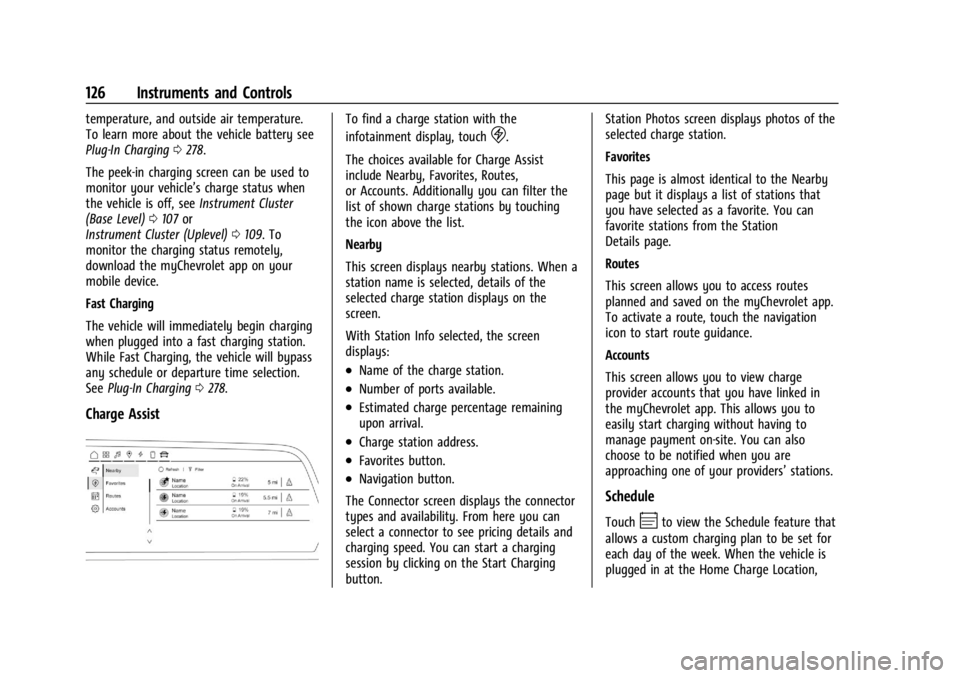
Charge Assist
To find a charge station with the
infotainment display, touch
D.
The choices available for Charge Assist
include Nearby, Favorites, Routes,
or Accounts. Additionally you can filter the
list of shown charge stations by touching
the icon above the list.
Nearby
This screen displays nearby stations. When a
station name is selected, details of the
selected charge station displays on the
screen.
With Station Info selected, the screen
displays:
.Name of the charge station.
.Number of ports available.
.Estimated charge percentage remaining
upon arrival.
.Charge station address.
.Favorites button.
.Navigation button.
The Connector screen displays the connector
types and availability. From here you can
select a connector to see pricing details and
charging speed. You can start a charging
session by clicking on the Start Charging
button. Station Photos screen displays photos of the
selected charge station.
Favorites
This page is almost identical to the Nearby
page but it displays a list of stations that
you have selected as a favorite. You can
favorite stations from the Station
Details page.
Routes
This screen allows you to access routes
planned and saved on the myChevrolet app.
To activate a route, touch the navigation
icon to start route guidance.
Accounts
This screen allows you to view charge
provider accounts that you have linked in
the myChevrolet app. This allows you to
easily start charging without having to
manage payment on-site. You can also
choose to be notified when you are
approaching one of your providers’
stations.
Schedule
TouchEto view the Schedule feature that
allows a custom charging plan to be set for
each day of the week. When the vehicle is
plugged in at the Home Charge Location,
Page 129 of 429
Chevrolet Silverado EV Owner Manual (GMNA-Localizing-U.S./Canada-
16702912) - 2024 - CRC - 1/13/23
128 Instruments and Controls
delete the schedule, simply touch the Delete
Schedule button, at which point you will be
prompted to confirm your decision.
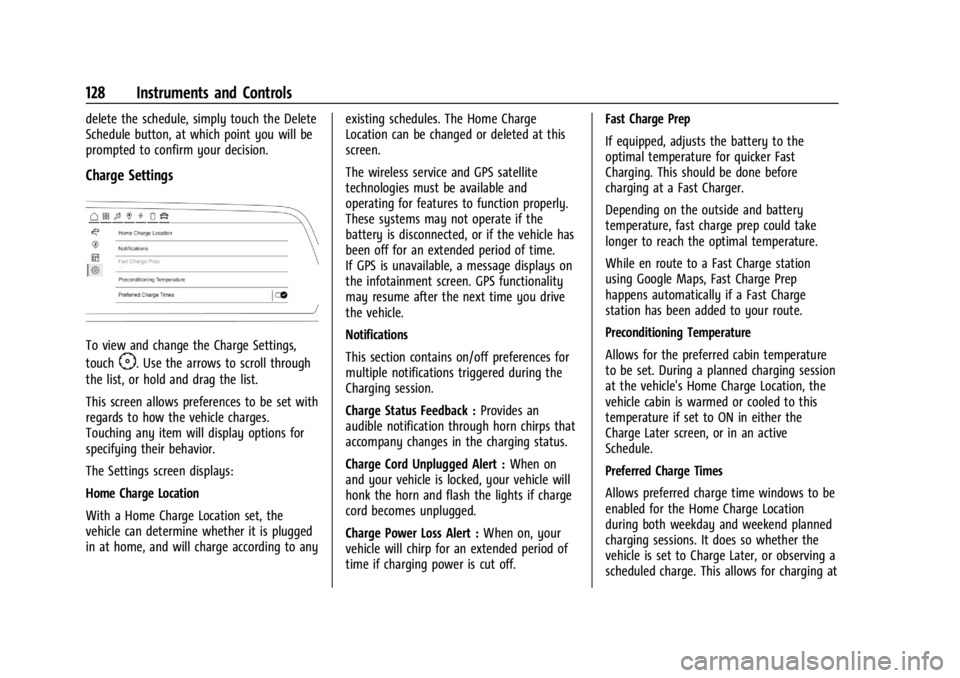
Charge Settings
To view and change the Charge Settings,
touch
F. Use the arrows to scroll through
the list, or hold and drag the list.
This screen allows preferences to be set with
regards to how the vehicle charges.
Touching any item will display options for
specifying their behavior.
The Settings screen displays:
Home Charge Location
With a Home Charge Location set, the
vehicle can determine whether it is plugged
in at home, and will charge according to any existing schedules. The Home Charge
Location can be changed or deleted at this
screen.
The wireless service and GPS satellite
technologies must be available and
operating for features to function properly.
These systems may not operate if the
battery is disconnected, or if the vehicle has
been off for an extended period of time.
If GPS is unavailable, a message displays on
the infotainment screen. GPS functionality
may resume after the next time you drive
the vehicle.
Notifications
This section contains on/off preferences for
multiple notifications triggered during the
Charging session.
Charge Status Feedback :
Provides an
audible notification through horn chirps that
accompany changes in the charging status.
Charge Cord Unplugged Alert : When on
and your vehicle is locked, your vehicle will
honk the horn and flash the lights if charge
cord becomes unplugged.
Charge Power Loss Alert : When on, your
vehicle will chirp for an extended period of
time if charging power is cut off. Fast Charge Prep
If equipped, adjusts the battery to the
optimal temperature for quicker Fast
Charging. This should be done before
charging at a Fast Charger.
Depending on the outside and battery
temperature, fast charge prep could take
longer to reach the optimal temperature.
While en route to a Fast Charge station
using Google Maps, Fast Charge Prep
happens automatically if a Fast Charge
station has been added to your route.
Preconditioning Temperature
Allows for the preferred cabin temperature
to be set. During a planned charging session
at the vehicle's Home Charge Location, the
vehicle cabin is warmed or cooled to this
temperature if set to ON in either the
Charge Later screen, or in an active
Schedule.
Preferred Charge Times
Allows preferred charge time windows to be
enabled for the Home Charge Location
during both weekday and weekend planned
charging sessions. It does so whether the
vehicle is set to Charge Later, or observing a
scheduled charge. This allows for charging at
Page 130 of 429
Chevrolet Silverado EV Owner Manual (GMNA-Localizing-U.S./Canada-
16702912) - 2024 - CRC - 1/13/23
Instruments and Controls 129
a lower cost by prioritizing charging during
the electrical provider’s off-peak period. The
vehicle will use these times to reach the
desired Charge Level by the scheduled time.
If the vehicle cannot reach the desired
charge level within these times, it will
charge as needed outside of this time
window.
Driver Information Center (DIC)
(Base Level)
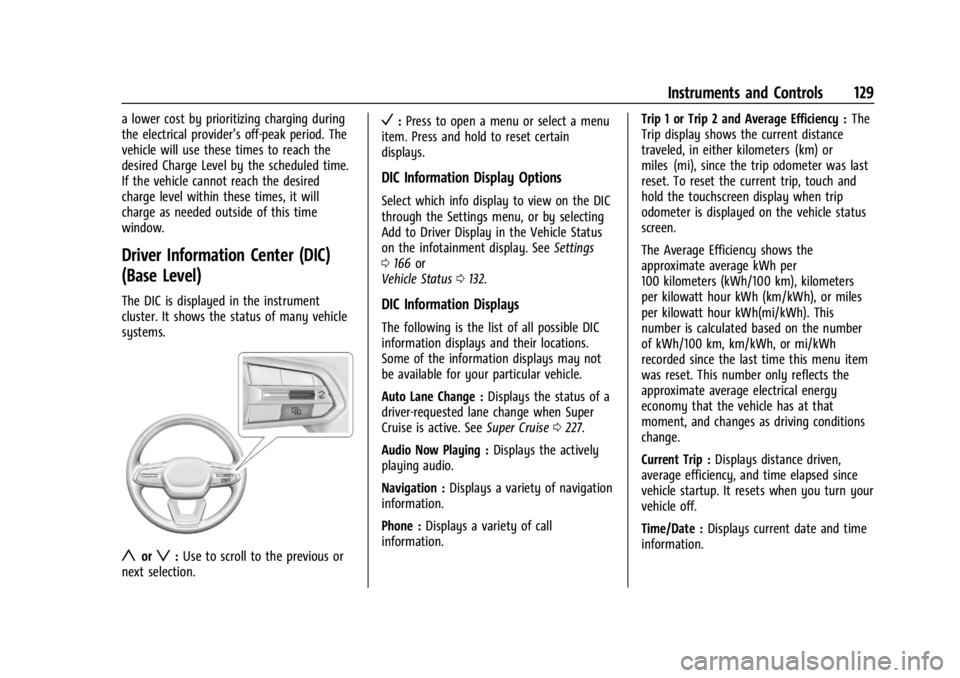
The DIC is displayed in the instrument
cluster. It shows the status of many vehicle
systems.
yorz:Use to scroll to the previous or
next selection.
V: Press to open a menu or select a menu
item. Press and hold to reset certain
displays.
DIC Information Display Options
Select which info display to view on the DIC
through the Settings menu, or by selecting
Add to Driver Display in the Vehicle Status
on the infotainment display. See Settings
0 166 or
Vehicle Status 0132.
DIC Information Displays
The following is the list of all possible DIC
information displays and their locations.
Some of the information displays may not
be available for your particular vehicle.
Auto Lane Change : Displays the status of a
driver-requested lane change when Super
Cruise is active. See Super Cruise0227.
Audio Now Playing : Displays the actively
playing audio.
Navigation : Displays a variety of navigation
information.
Phone : Displays a variety of call
information. Trip 1 or Trip 2 and Average Efficiency :
The
Trip display shows the current distance
traveled, in either kilometers (km) or
miles (mi), since the trip odometer was last
reset. To reset the current trip, touch and
hold the touchscreen display when trip
odometer is displayed on the vehicle status
screen.
The Average Efficiency shows the
approximate average kWh per
100 kilometers (kWh/100 km), kilometers
per kilowatt hour kWh (km/kWh), or miles
per kilowatt hour kWh(mi/kWh). This
number is calculated based on the number
of kWh/100 km, km/kWh, or mi/kWh
recorded since the last time this menu item
was reset. This number only reflects the
approximate average electrical energy
economy that the vehicle has at that
moment, and changes as driving conditions
change.
Current Trip : Displays distance driven,
average efficiency, and time elapsed since
vehicle startup. It resets when you turn your
vehicle off.
Time/Date : Displays current date and time
information.