2024 CHEVROLET SILVERADO EV radio controls
[x] Cancel search: radio controlsPage 150 of 429
Chevrolet Silverado EV Owner Manual (GMNA-Localizing-U.S./Canada-
16702912) - 2024 - CRC - 1/13/23
Infotainment System 149
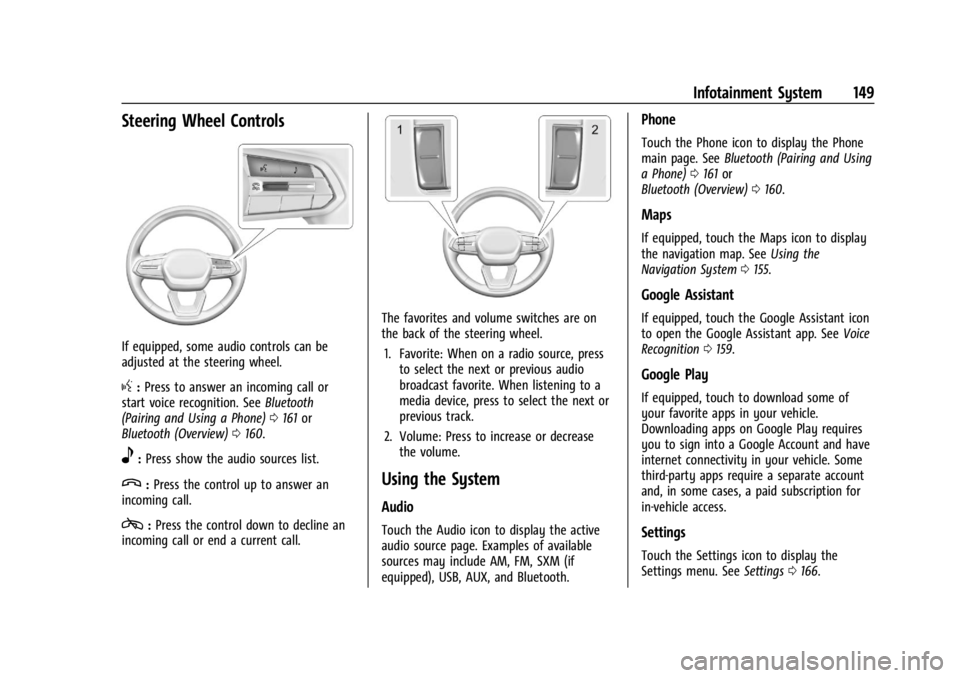
Steering Wheel Controls
If equipped, some audio controls can be
adjusted at the steering wheel.
g:Press to answer an incoming call or
start voice recognition. See Bluetooth
(Pairing and Using a Phone) 0161 or
Bluetooth (Overview) 0160.
e:Press show the audio sources list.
y:Press the control up to answer an
incoming call.
c: Press the control down to decline an
incoming call or end a current call.
The favorites and volume switches are on
the back of the steering wheel.
1. Favorite: When on a radio source, press to select the next or previous audio
broadcast favorite. When listening to a
media device, press to select the next or
previous track.
2. Volume: Press to increase or decrease the volume.
Using the System
Audio
Touch the Audio icon to display the active
audio source page. Examples of available
sources may include AM, FM, SXM (if
equipped), USB, AUX, and Bluetooth.
Phone
Touch the Phone icon to display the Phone
main page. See Bluetooth (Pairing and Using
a Phone) 0161 or
Bluetooth (Overview) 0160.
Maps
If equipped, touch the Maps icon to display
the navigation map. See Using the
Navigation System 0155.
Google Assistant
If equipped, touch the Google Assistant icon
to open the Google Assistant app. See Voice
Recognition 0159.
Google Play
If equipped, touch to download some of
your favorite apps in your vehicle.
Downloading apps on Google Play requires
you to sign into a Google Account and have
internet connectivity in your vehicle. Some
third-party apps require a separate account
and, in some cases, a paid subscription for
in-vehicle access.
Settings
Touch the Settings icon to display the
Settings menu. See Settings0166.
Page 156 of 429
Chevrolet Silverado EV Owner Manual (GMNA-Localizing-U.S./Canada-
16702912) - 2024 - CRC - 1/13/23
Infotainment System 155
Bluetooth Audio
Music may be played from a connected
Bluetooth device.
Volume and song selection may be
controlled by using the infotainment
controls. If Bluetooth is selected and no
volume is present, check the volume setting
on the infotainment system or the
connected phone.
To play music via Bluetooth:1. On the audio now playing page, touch source and select the desired Bluetooth
device.
2. If there is no device connected, follow the screen prompts to pair the device.
3. Supported media content will appear on the display.
Manage Bluetooth Devices
Managing Bluetooth devices allows you to
add, delete, or select another paired device.
Only one Bluetooth device can be active at
a time.
Some smartphones support sending
Bluetooth music information to display on
the radio. When the radio receives this
information, it will check to see if any is available and display it. For more
information about supported Bluetooth
features, visit your brand website. See
Online Account
0398 for details.
See Radio Frequency Statement 0404.
Navigation
Using the Navigation System
The Navigation software is provided by
Google Maps. The information provided in
this section is a general overview and is
subject to change. For the latest functional
information, see g.co/mapsincar.
Accept the Terms and Conditions to use.
Internet Connectivity
Google Maps relies on a subscription data
plan for full functionality, including
availability of offline maps. With an
applicable connected services plan, Google
Maps can be used offline when driving
through connectivity dead zones by
auto-downloading offline maps prior to
going offline. Profiles
Sign in to a Google Account for personalized
service. Information available in the Google
Account will be shown.
To log into a profile, see Accounts under
Settings
0166.
Voice Assistant
If equipped, Google Maps can be controlled
by voice commands, see Google Assistant
under Voice Recognition 0159.
Language and Units
To change the language and units, see
Settings 0166.
Mute Settings
During active route guidance, Google Maps
can give audible voice directions, traffic
alerts, or can be muted. In the Google Maps
app, touch Settings, then Mute settings to
access the options. Alternatively, audible
voice directions and traffic alerts can be
muted by tapping sound icon on the turn
card during active navigation.
Page 160 of 429
Chevrolet Silverado EV Owner Manual (GMNA-Localizing-U.S./Canada-
16702912) - 2024 - CRC - 1/13/23
Infotainment System 159
To recalibrate the vehicle's position on the
map, park with the vehicle running for two
to five minutes, until the vehicle position
updates. Make sure the vehicle is parked in
a location that is safe and has a clear view
of the sky and away from large
obstructions.
Voice Recognition
If equipped, Google Assistant allows for
hands-free use of media and messaging,
navigation, and climate control functionality
in the vehicle. This feature can be started by
pressing
gon the steering wheel, touching
Google Assistant on the infotainment home
screen, or by using the wake up words “Hey
Google” or“OK Google.”
However, not all features within these areas
are supported by voice commands and
requires the user to have a valid data
subscription plan or be able to connect to
an external WiFi in order to use the Google
Assistant features.
Using Voice Recognition
Voice recognition becomes available once
the system is initialized. This begins when
the vehicle is turned on. Initialization may
take a few moments. 1. Press
gon the steering wheel controls,
touch Google Assistant on the Home
screen, or use the wake up words “Hey
Google” or“OK Google” to activate voice
recognition. Google Assistant must be set
as the Default Assistant for the
gand
the wake word options to work.
2. Clearly speak one of the commands described later in this section.
Canceling Google Assistant
.Presscon the steering wheel controls
to cancel the Google Assistant request.
Helpful Hints for Speaking Commands
Voice recognition identifies commands that
are naturally stated in sentence form,
or direct commands that state the
application and the task.
For best results:
.Speak the command naturally, not too
fast, not too slow.
.Use direct commands without a lot of
extra words. For example, “Call
at work,” “Play” followed by the artist or
song name, or “Play”followed by the
radio station number. Direct commands are more clearly
understood by the system. An example of a
direct command is
“Call
If a cell phone number was saved with a
name and a place, the direct command
should include both. For example “Call
Voice Recognition for the Radio
When voice is started, the voice recognition
commands for AM, FM, SiriusXM (if
equipped), and media apps (if supported) are
available.
“Play
radio station frequency identified in the
command (like “nine fifty”).
“Play
radio station frequency identified in the
command (like “one oh one point one”).
“Play channel
SiriusXM” :Tune to the SiriusXM radio
station channel number identified in the
command. This command may require an
online connection.
“Play
Tune to the SiriusXM radio station channel
name identified in the command. This
command may require an online connection.
Page 218 of 429
Chevrolet Silverado EV Owner Manual (GMNA-Localizing-U.S./Canada-
16702912) - 2024 - CRC - 1/17/23
Driving and Operating 217
.To accept the new set speed, briefly
move the thumbwheel down to−SET and
release it.
.To decline the new set speed, briefly
move the thumbwheel up to +RES and
release it.
If you do not accept or decline the new
proposed set speed, there is no change to
the set speed.
Conditions Affecting Automatic Speed
Limiter (Auto)
.There are changes in brightness, such as
entering and exiting tunnels, bridges, and
overpasses.
.There are low sun angles.
.Ambient lighting is poor in the evening or
early morning.
.There are multiple changes in brightness
or there are shadows along the roadway.
.There are conditions associated with low
visibility such as fog, rain, snow, or road
spray.
.The on-board camera’s view of the road is
blocked by leaves, snow, or other debris.
If Automatic Speed Limiter becomes
temporarily unavailable, change to
Manual mode. Resuming Speed Limiter
If Speed Limiter was active but then
*was
pressed, Speed Limiter can be resumed using
the previous set speed. Briefly move the
thumbwheel up to +RES and release it to
activate Speed Limiter using the previous set
speed.
If Speed Limiter was turned off because
cruise control, ACC, or Super Cruise was
turned on, to use Speed Limiter again:
1. Turn off cruise control, ACC, or Super Cruise.
2. On the infotainment home screen, touch Controls > Drive (Drive & Park) > Speed
Limiter.
3. Select Manual or Auto.
Overriding Speed Limiter
When Speed Limiter is active, the set speed
can be temporarily overridden only when
you fully apply the accelerator pedal. You
can control vehicle acceleration again when
the vehicle speed is below the set speed.
Turning Off Speed Limiter
To turn off Speed Limiter, from the
infotainment home screen, touch Controls >
Drive (Drive & Park) > Speed Limiter > Off.
Adaptive Cruise Control
(Advanced)
If equipped, Adaptive Cruise Control (ACC)
allows the cruise control set speed and
following gap to be selected. Read this
entire section before using this system. The
following gap is the following time (or
distance) between your vehicle and a vehicle
detected directly ahead in your path,
moving in the same direction. If no vehicle
is detected in your path, ACC works like
regular cruise control. ACC uses a camera
and radar sensor(s) to detect other vehicles.
See Radio Frequency Statement 0404.
If a vehicle is detected in your path, ACC can
apply acceleration or limited, moderate
braking to maintain the selected following
gap. To disengage ACC, apply the brake
pedal or press
*. If ACC is controlling the
vehicle speed when the Traction Control
System (TCS) or StabiliTrak/Electronic
Stability Control (ESC) system activates, ACC
may disengage. See Traction Control/
Electronic Stability Control 0207. When road
conditions allow ACC to be safely used, ACC
can be turned back on.