2024 CHEVROLET CORVETTE wheel
[x] Cancel search: wheelPage 92 of 362

Chevrolet Corvette Owner Manual (GMNA-Localizing-U.S./Canada/Mexico-
17272984) - 2024 - CRC - 2/20/23
Instruments and Controls 91
To help prevent damage, reduce vehicle
speed and avoid hard accelerations and
uphill grades.
If the light continues to flash, find a safe
place to park. Turn the vehicle off and wait
at least 10 seconds before restarting the
engine. If the light is still flashing, follow
the previous guidelines and see your dealer
for service as soon as possible.
If the light is on steady :A malfunction has
been detected. Diagnosis and service may be
required.
Check the following:
.If fuel has been added to the vehicle
using the capless funnel adapter, make
sure that it has been removed. See
“Filling the Tank with a Portable Gas Can”
under Filling the Tank 0228. The
diagnostic system can detect if the
adapter has been left installed in the
vehicle, allowing fuel to evaporate into
the atmosphere. A few driving trips with
the adapter removed may turn off the
light.
.Poor fuel quality can cause inefficient
engine operation and poor driveability,
which may go away once the engine is
warmed up. If this occurs, change the fuel brand. It may require at least one full
tank of the proper fuel to turn the light
off. See
Recommended Fuel 0227.
If the light remains on, see your dealer.
Emissions Inspection and Maintenance
Programs
If the vehicle requires an Emissions
Inspection/Maintenance test, the test
equipment will likely connect to the
vehicle's Data Link Connector (DLC).
The DLC is under the instrument panel to
the left of the steering wheel. Connecting
devices that are not used to perform an
Emissions Inspection/Maintenance test or to
service the vehicle may affect vehicle
operation. See Add-On Electrical Equipment
0 230. See your dealer if assistance is
needed.
The vehicle may not pass inspection if:
.The light is on when the engine is
running.
.The light does not come on when the
ignition is in Service Mode.
.Critical emission control systems have not
been completely diagnosed. If this
happens, the vehicle would not be ready
for inspection and may require
several days of routine driving before the
system is ready for inspection. This can
happen if the 12-volt battery has recently
been replaced or run down, or if the
vehicle has been recently serviced.
See your dealer if the vehicle will not pass
or cannot be made ready for the test.
Front Lift System Light
If equipped, this light will flash to indicate
when the front of the vehicle is being raised
or lowered. An up or down arrow in the
light will display, depending on the direction
of movement. The light will stay lit while
the front is fully raised.
Page 94 of 362
Chevrolet Corvette Owner Manual (GMNA-Localizing-U.S./Canada/Mexico-
17272984) - 2024 - CRC - 2/20/23
Instruments and Controls 93
Antilock Brake System (ABS)
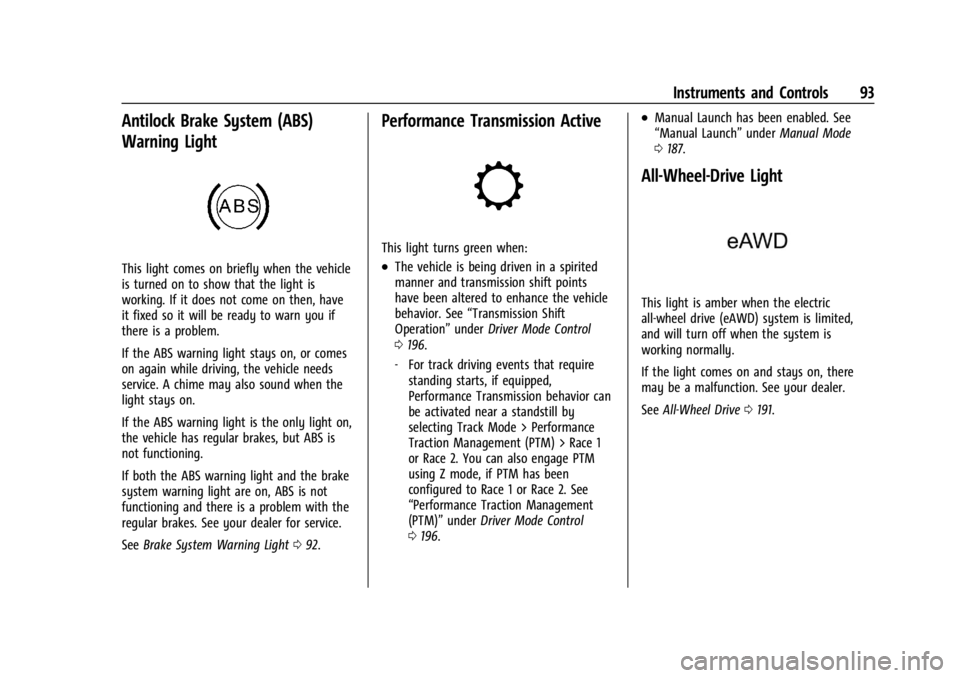
Warning Light
This light comes on briefly when the vehicle
is turned on to show that the light is
working. If it does not come on then, have
it fixed so it will be ready to warn you if
there is a problem.
If the ABS warning light stays on, or comes
on again while driving, the vehicle needs
service. A chime may also sound when the
light stays on.
If the ABS warning light is the only light on,
the vehicle has regular brakes, but ABS is
not functioning.
If both the ABS warning light and the brake
system warning light are on, ABS is not
functioning and there is a problem with the
regular brakes. See your dealer for service.
SeeBrake System Warning Light 092.
Performance Transmission Active
This light turns green when:
.The vehicle is being driven in a spirited
manner and transmission shift points
have been altered to enhance the vehicle
behavior. See “Transmission Shift
Operation” underDriver Mode Control
0 196.
‐ For track driving events that require
standing starts, if equipped,
Performance Transmission behavior can
be activated near a standstill by
selecting Track Mode > Performance
Traction Management (PTM) > Race 1
or Race 2. You can also engage PTM
using Z mode, if PTM has been
configured to Race 1 or Race 2. See
“Performance Traction Management
(PTM)” underDriver Mode Control
0 196.
.Manual Launch has been enabled. See
“Manual Launch” underManual Mode
0 187.
All-Wheel-Drive Light
This light is amber when the electric
all-wheel drive (eAWD) system is limited,
and will turn off when the system is
working normally.
If the light comes on and stays on, there
may be a malfunction. See your dealer.
See All-Wheel Drive 0191.
Page 95 of 362
Chevrolet Corvette Owner Manual (GMNA-Localizing-U.S./Canada/Mexico-
17272984) - 2024 - CRC - 2/20/23
94 Instruments and Controls
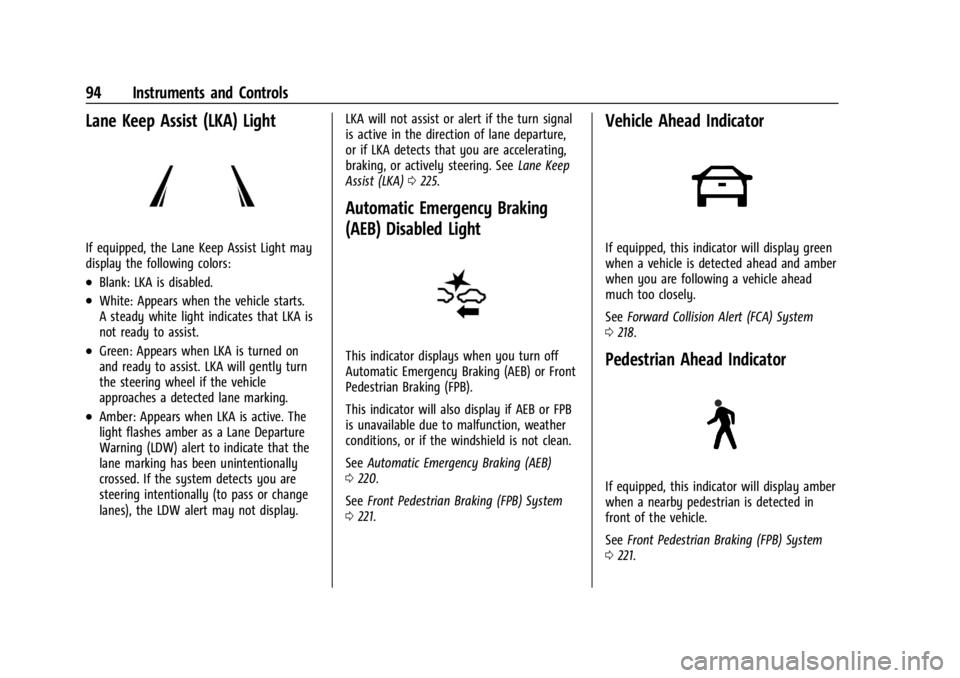
Lane Keep Assist (LKA) Light
If equipped, the Lane Keep Assist Light may
display the following colors:
.Blank: LKA is disabled.
.White: Appears when the vehicle starts.
A steady white light indicates that LKA is
not ready to assist.
.Green: Appears when LKA is turned on
and ready to assist. LKA will gently turn
the steering wheel if the vehicle
approaches a detected lane marking.
.Amber: Appears when LKA is active. The
light flashes amber as a Lane Departure
Warning (LDW) alert to indicate that the
lane marking has been unintentionally
crossed. If the system detects you are
steering intentionally (to pass or change
lanes), the LDW alert may not display.LKA will not assist or alert if the turn signal
is active in the direction of lane departure,
or if LKA detects that you are accelerating,
braking, or actively steering. See
Lane Keep
Assist (LKA) 0225.
Automatic Emergency Braking
(AEB) Disabled Light
This indicator displays when you turn off
Automatic Emergency Braking (AEB) or Front
Pedestrian Braking (FPB).
This indicator will also display if AEB or FPB
is unavailable due to malfunction, weather
conditions, or if the windshield is not clean.
See Automatic Emergency Braking (AEB)
0 220.
See Front Pedestrian Braking (FPB) System
0 221.
Vehicle Ahead Indicator
If equipped, this indicator will display green
when a vehicle is detected ahead and amber
when you are following a vehicle ahead
much too closely.
See Forward Collision Alert (FCA) System
0 218.
Pedestrian Ahead Indicator
If equipped, this indicator will display amber
when a nearby pedestrian is detected in
front of the vehicle.
See Front Pedestrian Braking (FPB) System
0 221.
Page 96 of 362
Chevrolet Corvette Owner Manual (GMNA-Localizing-U.S./Canada/Mexico-
17272984) - 2024 - CRC - 2/20/23
Instruments and Controls 95
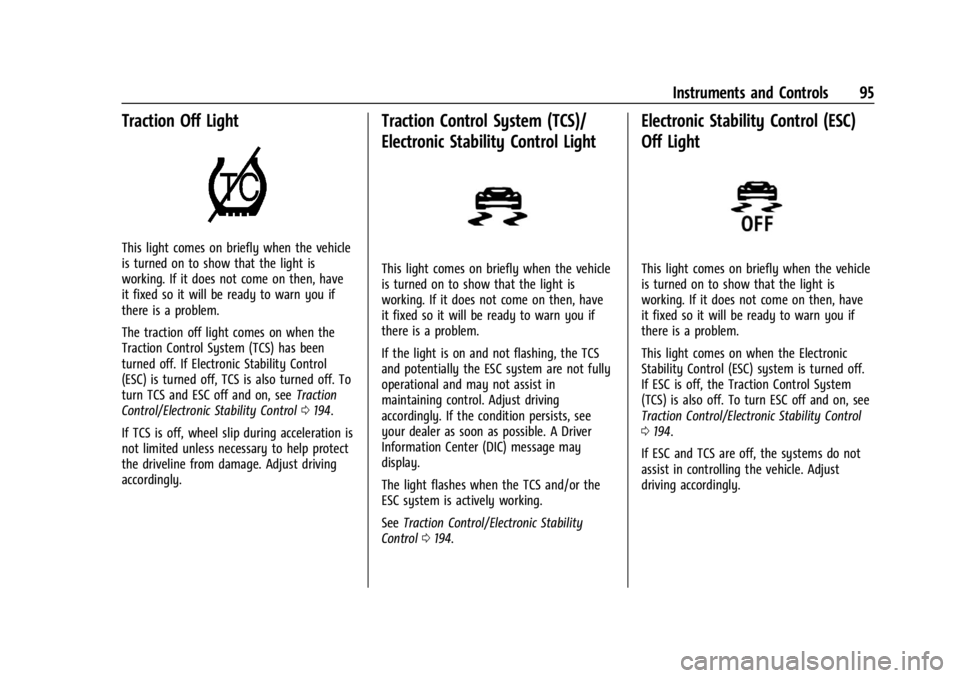
Traction Off Light
This light comes on briefly when the vehicle
is turned on to show that the light is
working. If it does not come on then, have
it fixed so it will be ready to warn you if
there is a problem.
The traction off light comes on when the
Traction Control System (TCS) has been
turned off. If Electronic Stability Control
(ESC) is turned off, TCS is also turned off. To
turn TCS and ESC off and on, seeTraction
Control/Electronic Stability Control 0194.
If TCS is off, wheel slip during acceleration is
not limited unless necessary to help protect
the driveline from damage. Adjust driving
accordingly.
Traction Control System (TCS)/
Electronic Stability Control Light
This light comes on briefly when the vehicle
is turned on to show that the light is
working. If it does not come on then, have
it fixed so it will be ready to warn you if
there is a problem.
If the light is on and not flashing, the TCS
and potentially the ESC system are not fully
operational and may not assist in
maintaining control. Adjust driving
accordingly. If the condition persists, see
your dealer as soon as possible. A Driver
Information Center (DIC) message may
display.
The light flashes when the TCS and/or the
ESC system is actively working.
See Traction Control/Electronic Stability
Control 0194.
Electronic Stability Control (ESC)
Off Light
This light comes on briefly when the vehicle
is turned on to show that the light is
working. If it does not come on then, have
it fixed so it will be ready to warn you if
there is a problem.
This light comes on when the Electronic
Stability Control (ESC) system is turned off.
If ESC is off, the Traction Control System
(TCS) is also off. To turn ESC off and on, see
Traction Control/Electronic Stability Control
0194.
If ESC and TCS are off, the systems do not
assist in controlling the vehicle. Adjust
driving accordingly.
Page 100 of 362
Chevrolet Corvette Owner Manual (GMNA-Localizing-U.S./Canada/Mexico-
17272984) - 2024 - CRC - 2/20/23
Instruments and Controls 99
IntelliBeam Light
If equipped, this light comes on when the
IntelliBeam system is enabled. SeeExterior
Lamp Controls 0109.
Lamps On Reminder
This light comes on when the exterior lamps
are in use, except when only the Daytime
Running Lamps (DRL) are active. See Exterior
Lamp Controls 0109.
Cruise Control Light
For vehicles with cruise control, the cruise
control light is white when the cruise
control is on and ready, and turns green
when the cruise control is set and active.
The light turns off when the cruise control is
turned off. See Cruise Control0212.
Door Ajar Light
This light comes on when a door is open or
not securely latched. Before driving, check
that all doors are properly closed.
Information Displays
Driver Information Center (DIC)
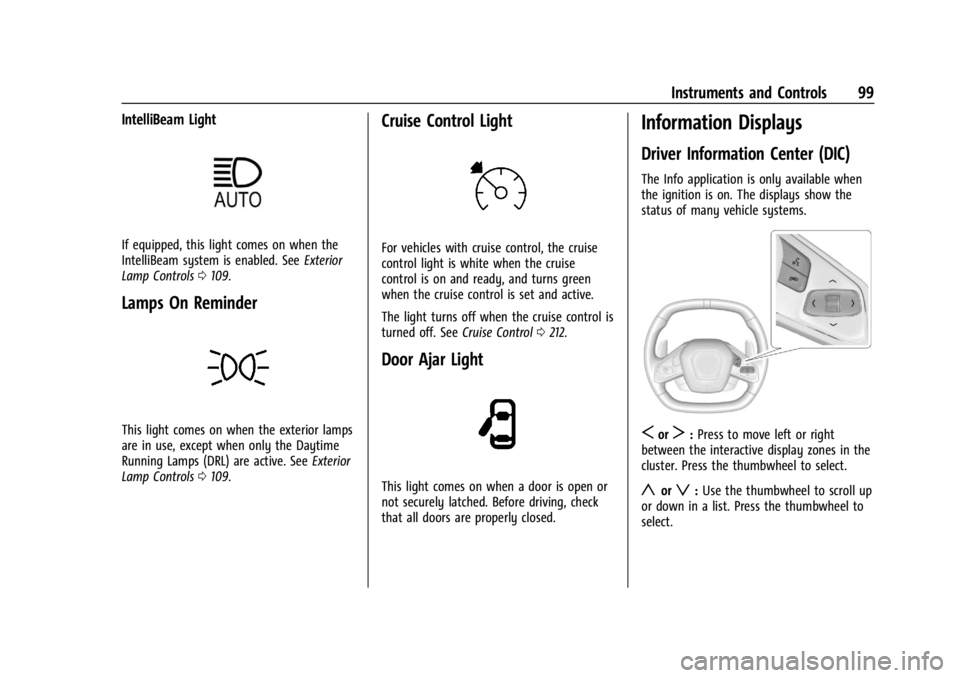
The Info application is only available when
the ignition is on. The displays show the
status of many vehicle systems.
SorT:Press to move left or right
between the interactive display zones in the
cluster. Press the thumbwheel to select.
yorz: Use the thumbwheel to scroll up
or down in a list. Press the thumbwheel to
select.
Page 101 of 362
Chevrolet Corvette Owner Manual (GMNA-Localizing-U.S./Canada/Mexico-
17272984) - 2024 - CRC - 2/20/23
100 Instruments and Controls
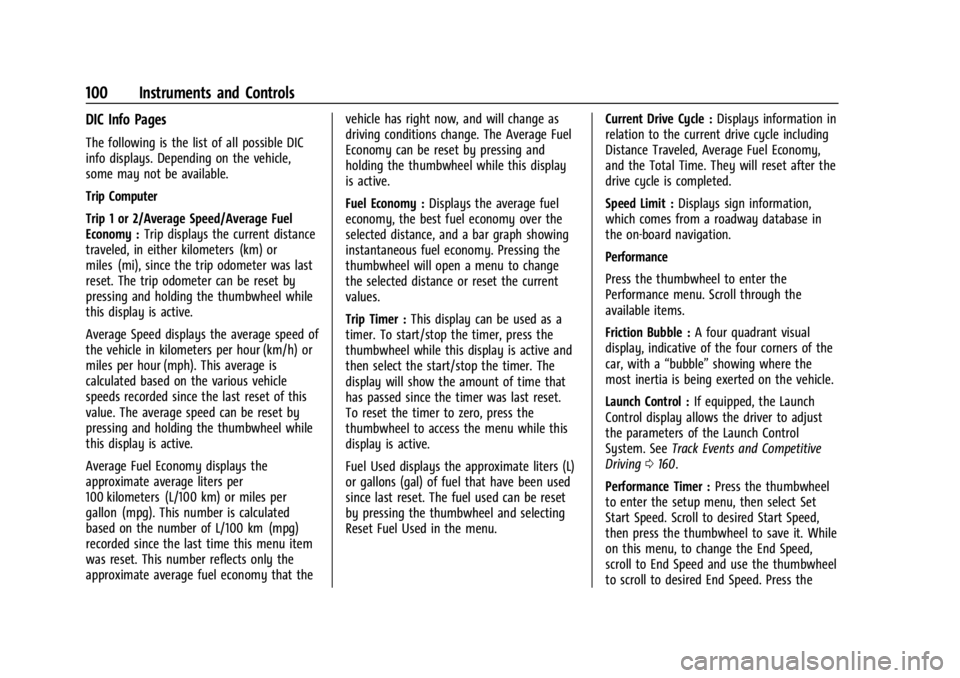
DIC Info Pages
The following is the list of all possible DIC
info displays. Depending on the vehicle,
some may not be available.
Trip Computer
Trip 1 or 2/Average Speed/Average Fuel
Economy :Trip displays the current distance
traveled, in either kilometers (km) or
miles (mi), since the trip odometer was last
reset. The trip odometer can be reset by
pressing and holding the thumbwheel while
this display is active.
Average Speed displays the average speed of
the vehicle in kilometers per hour (km/h) or
miles per hour (mph). This average is
calculated based on the various vehicle
speeds recorded since the last reset of this
value. The average speed can be reset by
pressing and holding the thumbwheel while
this display is active.
Average Fuel Economy displays the
approximate average liters per
100 kilometers (L/100 km) or miles per
gallon (mpg). This number is calculated
based on the number of L/100 km (mpg)
recorded since the last time this menu item
was reset. This number reflects only the
approximate average fuel economy that the vehicle has right now, and will change as
driving conditions change. The Average Fuel
Economy can be reset by pressing and
holding the thumbwheel while this display
is active.
Fuel Economy :
Displays the average fuel
economy, the best fuel economy over the
selected distance, and a bar graph showing
instantaneous fuel economy. Pressing the
thumbwheel will open a menu to change
the selected distance or reset the current
values.
Trip Timer : This display can be used as a
timer. To start/stop the timer, press the
thumbwheel while this display is active and
then select the start/stop the timer. The
display will show the amount of time that
has passed since the timer was last reset.
To reset the timer to zero, press the
thumbwheel to access the menu while this
display is active.
Fuel Used displays the approximate liters (L)
or gallons (gal) of fuel that have been used
since last reset. The fuel used can be reset
by pressing the thumbwheel and selecting
Reset Fuel Used in the menu. Current Drive Cycle :
Displays information in
relation to the current drive cycle including
Distance Traveled, Average Fuel Economy,
and the Total Time. They will reset after the
drive cycle is completed.
Speed Limit : Displays sign information,
which comes from a roadway database in
the on-board navigation.
Performance
Press the thumbwheel to enter the
Performance menu. Scroll through the
available items.
Friction Bubble : A four quadrant visual
display, indicative of the four corners of the
car, with a “bubble”showing where the
most inertia is being exerted on the vehicle.
Launch Control : If equipped, the Launch
Control display allows the driver to adjust
the parameters of the Launch Control
System. See Track Events and Competitive
Driving 0160.
Performance Timer : Press the thumbwheel
to enter the setup menu, then select Set
Start Speed. Scroll to desired Start Speed,
then press the thumbwheel to save it. While
on this menu, to change the End Speed,
scroll to End Speed and use the thumbwheel
to scroll to desired End Speed. Press the
Page 102 of 362
Chevrolet Corvette Owner Manual (GMNA-Localizing-U.S./Canada/Mexico-
17272984) - 2024 - CRC - 2/20/23
Instruments and Controls 101
thumbwheel to save it. On the next
acceleration, the performance timer will
record the time. Pressing the thumbwheel
while the timer is running will cancel the
timer if done before reaching the End Speed.
Lap Timer (without PDR) :Press
Twhen
Lap Timer is displayed to start, stop, or reset
the lap timer. Press the thumbwheel while
the Lap Timer page is active to start the
timer. If the lap timer is active, pressing the
thumbwheel will stop the current lap timer
and start a new lap. Pressing the
thumbwheel within 10 seconds after
completing the last lap (Stop Lap Timer
option is displayed), the Lap Timer will stop.
Lap Timer (with PDR) : The lap times
recorded with the PDR system will
automatically be displayed in this window.
This only happens if a track has been
selected in the PDR system and a video
recording is started. See Performance Data
Recorder (PDR) 0130.
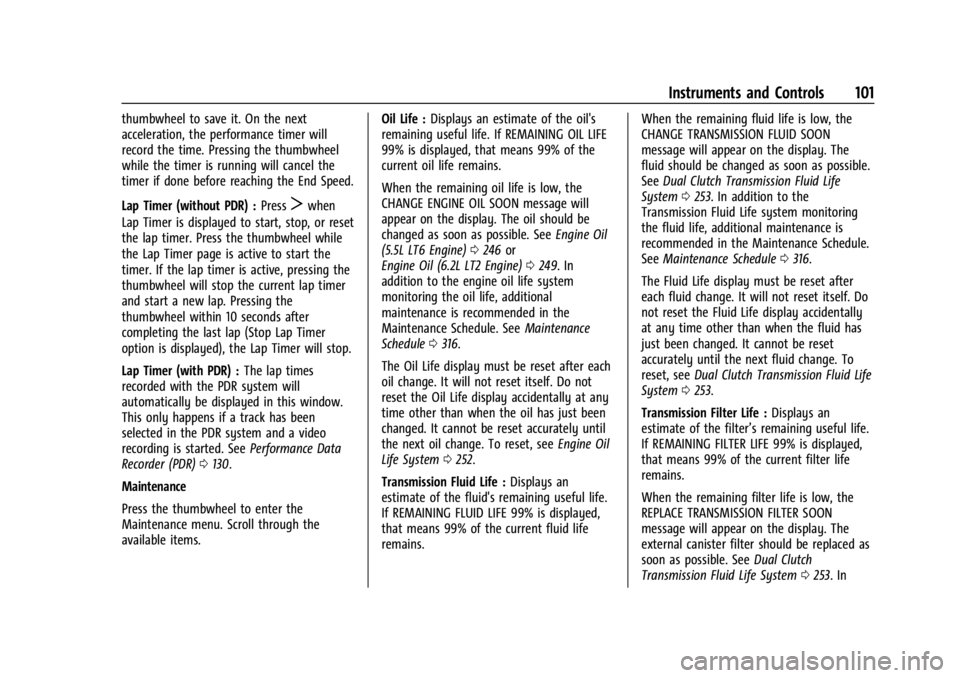
Maintenance
Press the thumbwheel to enter the
Maintenance menu. Scroll through the
available items. Oil Life :
Displays an estimate of the oil's
remaining useful life. If REMAINING OIL LIFE
99% is displayed, that means 99% of the
current oil life remains.
When the remaining oil life is low, the
CHANGE ENGINE OIL SOON message will
appear on the display. The oil should be
changed as soon as possible. See Engine Oil
(5.5L LT6 Engine) 0246 or
Engine Oil (6.2L LT2 Engine) 0249. In
addition to the engine oil life system
monitoring the oil life, additional
maintenance is recommended in the
Maintenance Schedule. See Maintenance
Schedule 0316.
The Oil Life display must be reset after each
oil change. It will not reset itself. Do not
reset the Oil Life display accidentally at any
time other than when the oil has just been
changed. It cannot be reset accurately until
the next oil change. To reset, see Engine Oil
Life System 0252.
Transmission Fluid Life : Displays an
estimate of the fluid's remaining useful life.
If REMAINING FLUID LIFE 99% is displayed,
that means 99% of the current fluid life
remains. When the remaining fluid life is low, the
CHANGE TRANSMISSION FLUID SOON
message will appear on the display. The
fluid should be changed as soon as possible.
See
Dual Clutch Transmission Fluid Life
System 0253. In addition to the
Transmission Fluid Life system monitoring
the fluid life, additional maintenance is
recommended in the Maintenance Schedule.
See Maintenance Schedule 0316.
The Fluid Life display must be reset after
each fluid change. It will not reset itself. Do
not reset the Fluid Life display accidentally
at any time other than when the fluid has
just been changed. It cannot be reset
accurately until the next fluid change. To
reset, see Dual Clutch Transmission Fluid Life
System 0253.
Transmission Filter Life : Displays an
estimate of the filter’s remaining useful life.
If REMAINING FILTER LIFE 99% is displayed,
that means 99% of the current filter life
remains.
When the remaining filter life is low, the
REPLACE TRANSMISSION FILTER SOON
message will appear on the display. The
external canister filter should be replaced as
soon as possible. See Dual Clutch
Transmission Fluid Life System 0253. In
Page 104 of 362
Chevrolet Corvette Owner Manual (GMNA-Localizing-U.S./Canada/Mexico-
17272984) - 2024 - CRC - 2/20/23
Instruments and Controls 103
.Upcoming Maneuver from On-Board
Navigation
.Upcoming Maneuver from OnStar
.Incoming Call
.Advanced Driver Assistance Systems
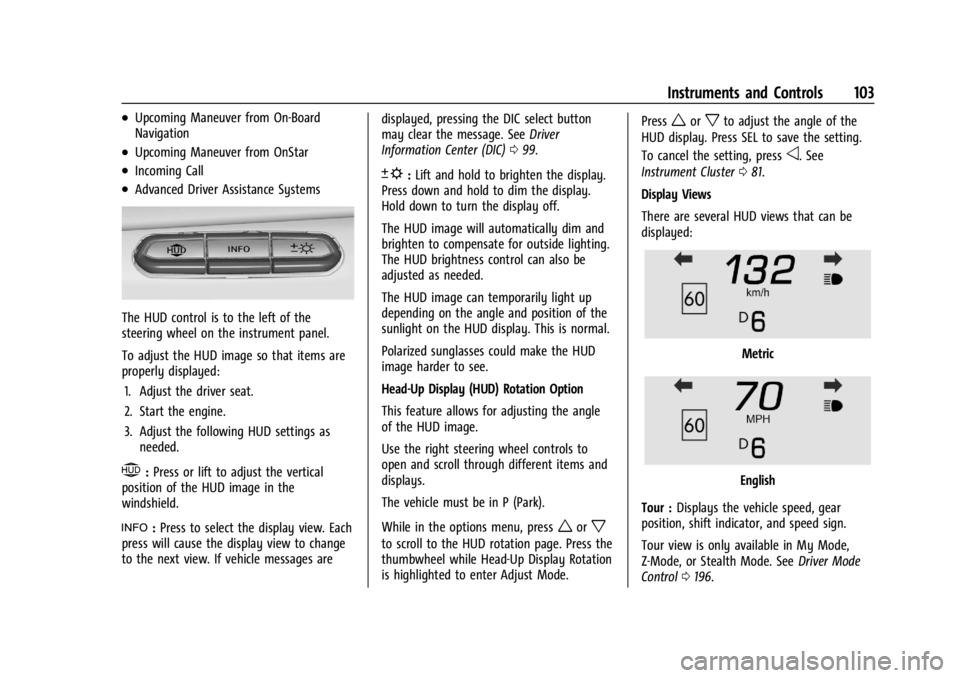
The HUD control is to the left of the
steering wheel on the instrument panel.
To adjust the HUD image so that items are
properly displayed:1. Adjust the driver seat.
2. Start the engine.
3. Adjust the following HUD settings as needed.
$:Press or lift to adjust the vertical
position of the HUD image in the
windshield.
!: Press to select the display view. Each
press will cause the display view to change
to the next view. If vehicle messages are displayed, pressing the DIC select button
may clear the message. See
Driver
Information Center (DIC) 099.
D:Lift and hold to brighten the display.
Press down and hold to dim the display.
Hold down to turn the display off.
The HUD image will automatically dim and
brighten to compensate for outside lighting.
The HUD brightness control can also be
adjusted as needed.
The HUD image can temporarily light up
depending on the angle and position of the
sunlight on the HUD display. This is normal.
Polarized sunglasses could make the HUD
image harder to see.
Head-Up Display (HUD) Rotation Option
This feature allows for adjusting the angle
of the HUD image.
Use the right steering wheel controls to
open and scroll through different items and
displays.
The vehicle must be in P (Park).
While in the options menu, press
worx
to scroll to the HUD rotation page. Press the
thumbwheel while Head-Up Display Rotation
is highlighted to enter Adjust Mode. Press
worxto adjust the angle of the
HUD display. Press SEL to save the setting.
To cancel the setting, press
o. See
Instrument Cluster 081.
Display Views
There are several HUD views that can be
displayed:
Metric
English
Tour : Displays the vehicle speed, gear
position, shift indicator, and speed sign.
Tour view is only available in My Mode,
Z-Mode, or Stealth Mode. See Driver Mode
Control 0196.