2023 TOYOTA COROLLA audio
[x] Cancel search: audioPage 100 of 468
1002-1. Instrument cluster
mation:
Route guidance to destination
Compass display (head-
ing-up display)
Select to enable selection of an
audio source or track on the
meter using the meter control
switches.
This menu icon can be set to be
displayed/not displayed in .
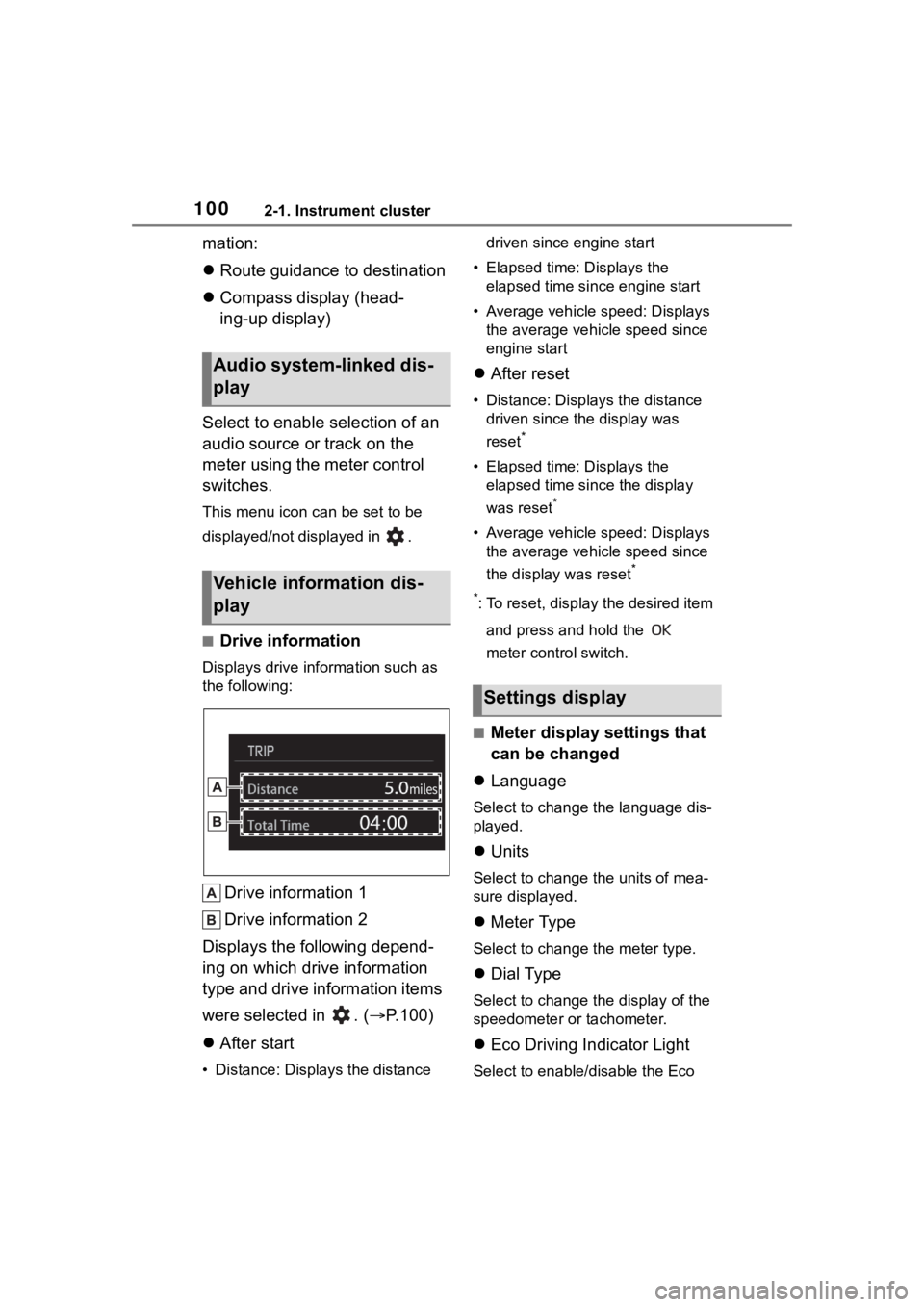
■Drive information
Displays drive information such as
the following:
Drive information 1
Drive information 2
Displays the following depend-
ing on which drive information
type and drive information items
were selected in . ( P.100)
After start
• Distance: Displays the distance driven since engine start
• Elapsed time: Displays the elapsed time since engine start
• Average vehicle speed: Displays the average vehicle speed since
engine start
After reset
• Distance: Displays the distance
driven since the display was
reset
*
• Elapsed time: Displays the elapsed time since the display
was reset
*
• Average vehicle speed: Displays the average vehicle speed since
the display was reset
*
*
: To reset, display the desired item and press and hold the
meter control switch.
■Meter display settings that
can be changed
Language
Select to change the language dis-
played.
Units
Select to change the units of mea-
sure displayed.
Meter Type
Select to change the meter type.
Dial Type
Select to change the display of the
speedometer or tachometer.
Eco Driving Indicator Light
Select to enable/disable the Eco
Audio system-linked dis-
play
Vehicle information dis-
play
Settings display
Page 101 of 468
1012-1. Instrument cluster
2
Vehicle status information and indicators
Driving Indicator Light.
Fuel economy display
Select to change the average fuel
consumption display to any of the
following: trip average/total aver-
age/tank average. ( P. 9 8 )
Select to display/not display the
audio system linked display.
Select to change the displayed con-
tent of the following:
• Drive information type
Select to change the drive informa-
tion type display between trip infor-
mation/total information.
• Drive information items
Select to set the first and second
items of the drive information dis-
play to any of the following: aver-
age vehicle
speed/distance/elapsed time.
Pop-up display
Select to enable/disable pop-up
displays for each relevant system.
Multi-information display off
Select to turn the m ulti-information
display off.
To turn the multi-in formation display
on again, press any of the following
meter control switches
//// /.
Default setting
Select to reset the meter display
settings to the default setting.
■Vehicle functions and set-
tings that can be changed
P.412
■Suspension of the settings dis-
play
●Some settings cannot be changed
while driving. When changing set-
tings, park the vehicle in a safe
place.
●If a warning message is displayed,
operation of the settings display
will be suspended.
WARNING
■Cautions during setting up
the display
If the engine is running when
changing the dis play settings,
ensure that the vehicle is parked
in a place with adequate ventila-
tion. In a closed area such as a
garage, exhaust gases including
harmful carbon monoxide (CO)
may collect and enter the vehicle.
This may lead to death or a seri-
ous health hazard.
NOTICE
■During setting up the display
To prevent batte ry discharge,
ensure that the engine is running
while setting up the display fea-
tures.
Page 102 of 468
1022-1. Instrument cluster
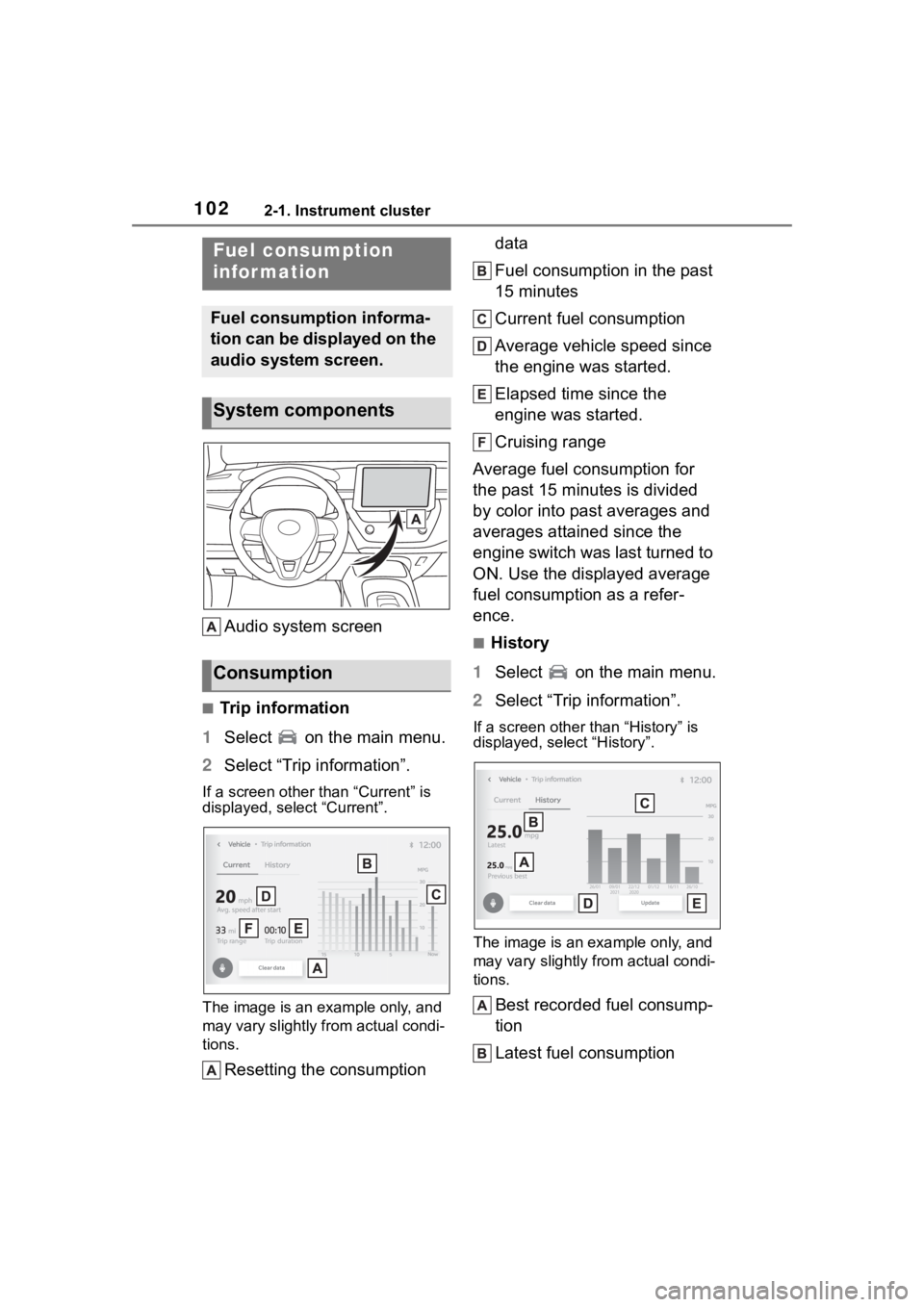
Audio system screen
■Trip information
1 Select on the main menu.
2 Select “Trip information”.
If a screen other than “Current” is
displayed, select “Current”.
The image is an example only, and
may vary slightly f rom actual condi-
tions.
Resetting the consumption data
Fuel consumption in the past
15 minutes
Current fuel consumption
Average vehicle speed since
the engine was started.
Elapsed time since the
engine was started.
Cruising range
Average fuel consumption for
the past 15 minutes is divided
by color into past averages and
averages attained since the
engine switch was last turned to
ON. Use the displayed average
fuel consumption as a refer-
ence.
■History
1 Select on the main menu.
2 Select “Trip information”.
If a screen other than “History” is
displayed, select “History”.
The image is an example only, and
may vary slightly from actual condi-
tions.
Best recorded fuel consump-
tion
Latest fuel consumption
Fuel consumption
infor mation
Fuel consumption informa-
tion can be displayed on the
audio system screen.
System components
Consumption
Page 108 of 468
1083-1. Key information
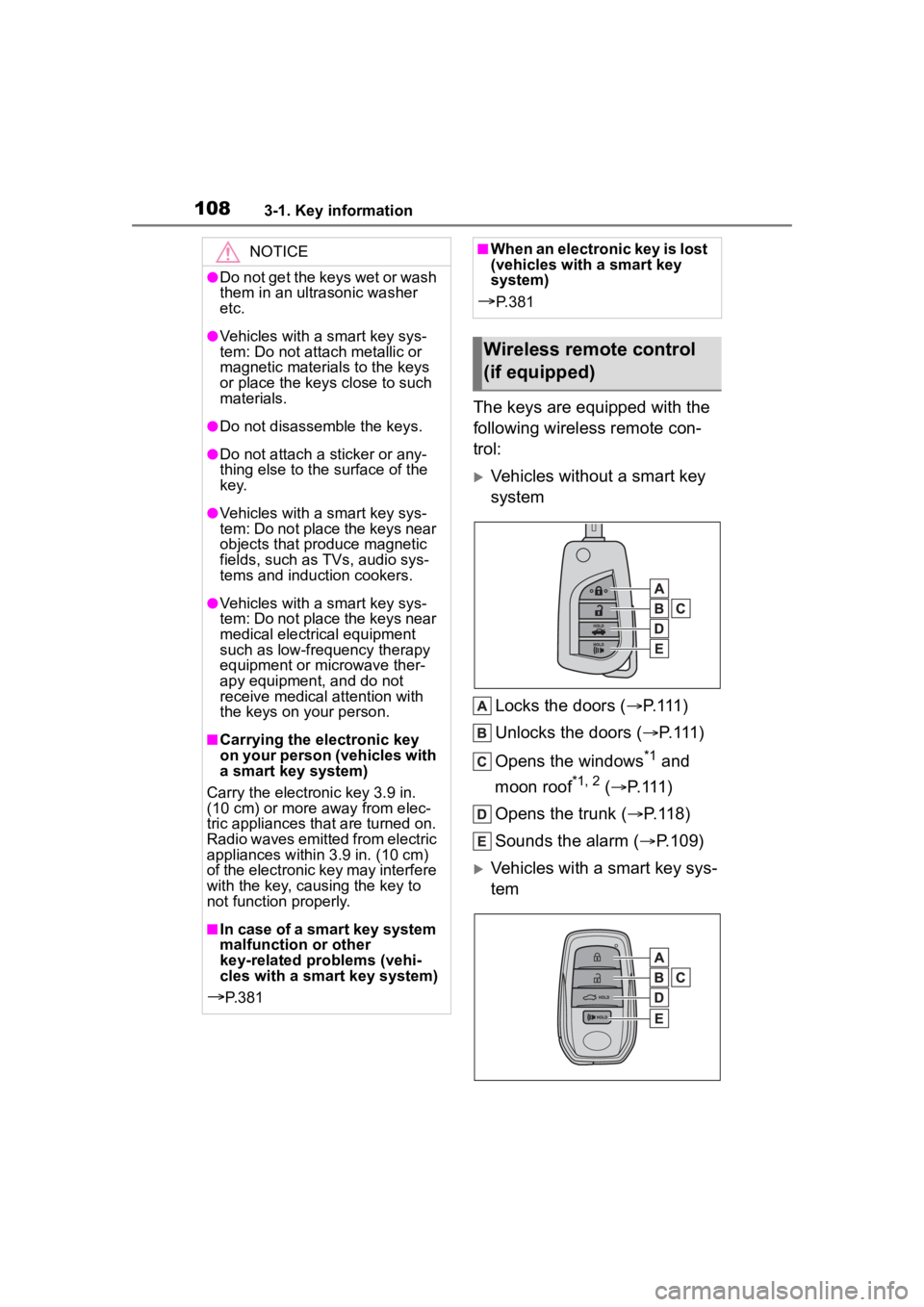
The keys are equipped with the
following wireless remote con-
trol:
Vehicles without a smart key
systemLocks the doors ( P. 111 )
Unlocks the doors ( P. 111 )
Opens the windows
*1 and
moon roof
*1, 2 ( P. 1 1 1 )
Opens the trunk ( P.118)
Sounds the alarm ( P.109)
Vehicles with a smart key sys-
tem
NOTICE
●Do not get the keys wet or wash
them in an ultrasonic washer
etc.
●Vehicles with a smart key sys-
tem: Do not attach metallic or
magnetic materials to the keys
or place the keys close to such
materials.
●Do not disassemble the keys.
●Do not attach a sticker or any-
thing else to the surface of the
k e y.
●Vehicles with a smart key sys-
tem: Do not place the keys near
objects that produce magnetic
fields, such as TVs, audio sys-
tems and induction cookers.
●Vehicles with a smart key sys-
tem: Do not place the keys near
medical electrical equipment
such as low-frequency therapy
equipment or microwave ther-
apy equipment, and do not
receive medical attention with
the keys on your person.
■Carrying the electronic key
on your person (vehicles with
a smart key system)
Carry the electronic key 3.9 in.
(10 cm) or more away from elec-
tric appliances that are turned on.
Radio waves emitted from electric
appliances within 3.9 in. (10 cm)
of the electronic key may interfere
with the key, causing the key to
not function properly.
■In case of a smart key system
malfunction or other
key-related problems (vehi-
cles with a smart key system)
P. 3 8 1
■When an electronic key is lost
(vehicles with a smart key
system)
P. 3 8 1
Wireless remote control
(if equipped)
Page 122 of 468

1223-2. Opening, closing and locking the doors
●Near a TV tower, electric power
plant, gas station, radio station,
large display, airpo rt or other facil-
ity that generates strong radio
waves or electrical noise
●When carrying a portable radio,
cellular phone, cordless phone or
other wireless communication
device
●When the electronic key is in con-
tact with, or is covered by the fol-
lowing metallic objects
• Cards to which al uminum foil is
attached
• Cigarette boxes that have alumi- num foil inside
• Metallic wallets or bags
• Coins
• Hand warmers made of metal
• Media such as CDs and DVDs
●When other wireless keys (that
emit radio waves) are being used
nearby
●When carrying the electronic key
together with the following devices
that emit radio waves
• Another vehicle’s electronic key or a wireless key that emits radio
waves
• Personal computers or personal digital assistants (PDAs)
• Digital audio players
• Portable game systems
●If window tint with a metallic con-
tent or metallic objects are
attached to the rear window
●When the electronic key is placed
near a battery charger or elec-
tronic devices
●When the vehicle is parked in a
pay parking spot where radio
waves are emitted
If the doors cannot be
locked/unlocked using the smart key
system, lock/unlock the doors by
performing any of the following:
●Bring the electronic key close to
either front door handle and oper-
ate the entry function.
●Operate the wireless remote con- trol.
If the doors cannot be
locked/unlocked using the above
methods, use the mechanical key.
( P.382)
If the engine cannot be started using
the smart key system, refer to
P.382.
■Note for the entry function
●Even when the electronic key is
within the effective range (detec-
tion areas), the system may not
operate properly in the following
cases:
• The electronic key is too close to the window or outside door han-
dle, near the ground, or in a high
place when the doors are locked
or unlocked.
• The electronic key is near the ground or in a high place, or too
close to the center of the rear
bumper when the trunk is opened.
• The electronic key is on the instru- ment panel, rear package tray or
floor, or in the door pockets or
glove box when the engine is
started or engine switch modes
are changed.
●Do not leave the electronic key on
top of the instrument panel or near
the door pockets when exiting the
vehicle. Depending on the radio
wave reception conditions, it may
be detected by the antenna out-
side the cabin and the door will
become lockable from the outside,
possibly trapping the electronic
key inside the vehicle.
●As long as the electronic key is
within the effective range, the
doors may be locked or unlocked
by anyone. However, only the
doors detecting the electronic key
can be used to unlock the vehicle.
●Even if the electro nic key is not
inside the vehicle, it may be possi-
ble to start the engine if the elec-
tronic key is near the window.
●The doors may unlock or lock if a
large amount of water splashes on
Page 140 of 468
1403-6. Favorite settings
3-6.Favorite settings
An individual can be identified
using the following authentica-
tion devices.
Electronic key (vehicles with
smart system)
An individual is identified when the
smart key system detects their
electronic key. ( P.120)
Bluetooth® device
An individual is identified when a
Bluetooth
® device is c onnected to
the audio system. For information
on how to connect Bluetooth
®
devices, refer to the “MULTIMEDIA
OWNER’S MANUAL”. When an
individual is identified with an elec-
tronic key identifying using a Blue-
tooth
® device is not performed.
When an individual is identified
from an authentication device,
settings for the following func-
tions are recalled.
Meter displays and audio sys-
tem information
*
When an individual is identified, the
display settings used when the
engine switch was last turned off
are recalled.
Vehicle settings that can be
set using the audio system
*
When an individual is identified, the
vehicle settings used when the
engine switch was last turned off
are recalled.
*: Some settings are excluded
My Settings
Drivers are identified using
devices such as electronic
keys to store the vehicle
settings for each. Then the
information can be recalled
the next time the vehicle is
driven.
Authentication devices can
be assigned in advance to
drivers so that they can
drive using their preferred
settings.
Settings for 3 drivers can be
stored in My Settings.
For information on authenti-
cation devices registra-
tion/deletion, changing the
driver’s name, initializing
driver registered settings,
manually switching drivers
and deleting drivers regis-
tration refer to the “MULTI-
MEDIA OWNER’S
MANUAL”.
Types of assigned
authentication devices
Recalled functions
Page 154 of 468

1544-2. Driving procedures
4-2.Driving procedures
1Check that the parking brake
is set. ( 168)
2 Check that the shift lever is in
P.
3 Firmly depress the brake
pedal.
4 Turn the engine switch to
START to start the engine.
■If the engine does not start
The engine immobilizer system may
not have been deactivated. ( P.77)
Contact your Toyota dealer.
■When the steering lock cannot
be released
When starting the engine, the
engine switch may seem stuck in
OFF. To free it, turn the key while
turning the steerin g wheel slightly
left and right.
1 OFF (“LOCK” position)
The steering wheel is locked and
the key can be re moved. (The key
can be removed only when the shift
lever is in P.)
2 ACC (“ACC” position)
Some electrical components such
as the audio sys tem can be used.
Engine (ignition)
switch (vehicles with-
out a smart key sys-
tem)
Starting the engine
WARNING
■When starting the engine
Always start the engine while sit-
ting in the driver’s seat. Do not
depress the accelerator pedal
while starting the engine under
any circumstances. Doing so may
cause an accident resulting in
death or serious injury.
NOTICE
■When starting the engine
●Do not crank the engine for
more than 30 seconds at a time.
This may overheat the starter
and wiring system.
●Do not race a cold engine.
●If the engine becomes difficult to
start or stalls frequently, have
your vehicle checked by your
Toyota dealer immediately.
Changing the engine
switch positions
Page 158 of 468
1584-2. Driving procedures
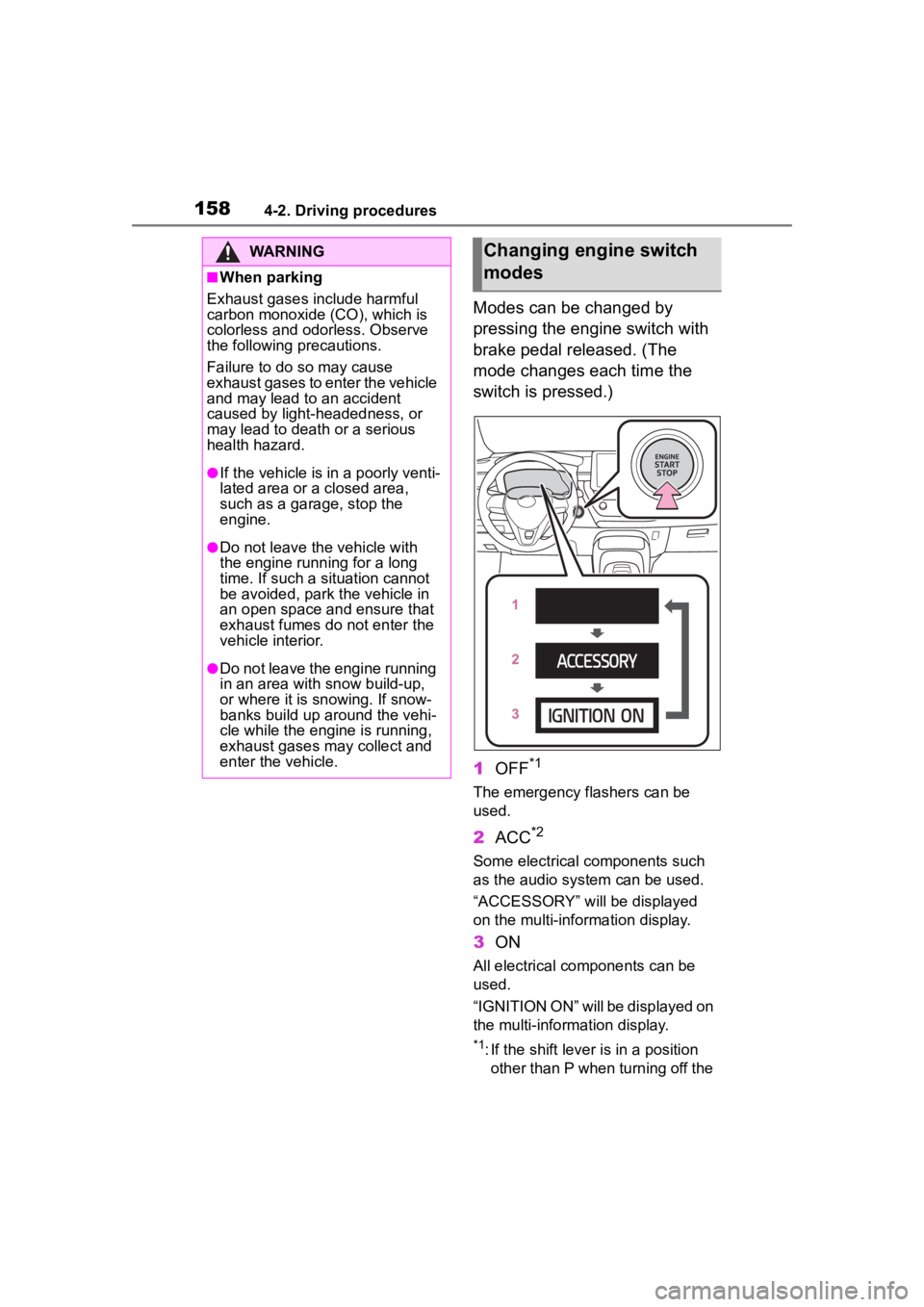
Modes can be changed by
pressing the engine switch with
brake pedal released. (The
mode changes each time the
switch is pressed.)
1OFF
*1
The emergency flashers can be
used.
2ACC*2
Some electrical components such
as the audio sys tem can be used.
“ACCESSORY” will be displayed
on the multi-information display.
3 ON
All electrical components can be
used.
“IGNITION ON” will be displayed on
the multi-information display.
*1: If the shift lever is in a position
other than P when turning off the
WARNING
■When parking
Exhaust gases include harmful
carbon monoxide (CO), which is
colorless and odorless. Observe
the following precautions.
Failure to do so may cause
exhaust gases to enter the vehicle
and may lead to an accident
caused by light-headedness, or
may lead to death or a serious
health hazard.
●If the vehicle is in a poorly venti-
lated area or a closed area,
such as a garage, stop the
engine.
●Do not leave the vehicle with
the engine running for a long
time. If such a situation cannot
be avoided, park the vehicle in
an open space and ensure that
exhaust fumes do not enter the
vehicle interior.
●Do not leave the engine running
in an area with snow build-up,
or where it is snowing. If snow-
banks build up around the vehi-
cle while the engine is running,
exhaust gases may collect and
enter the vehicle.
Changing engine switch
modes