Page 274 of 612
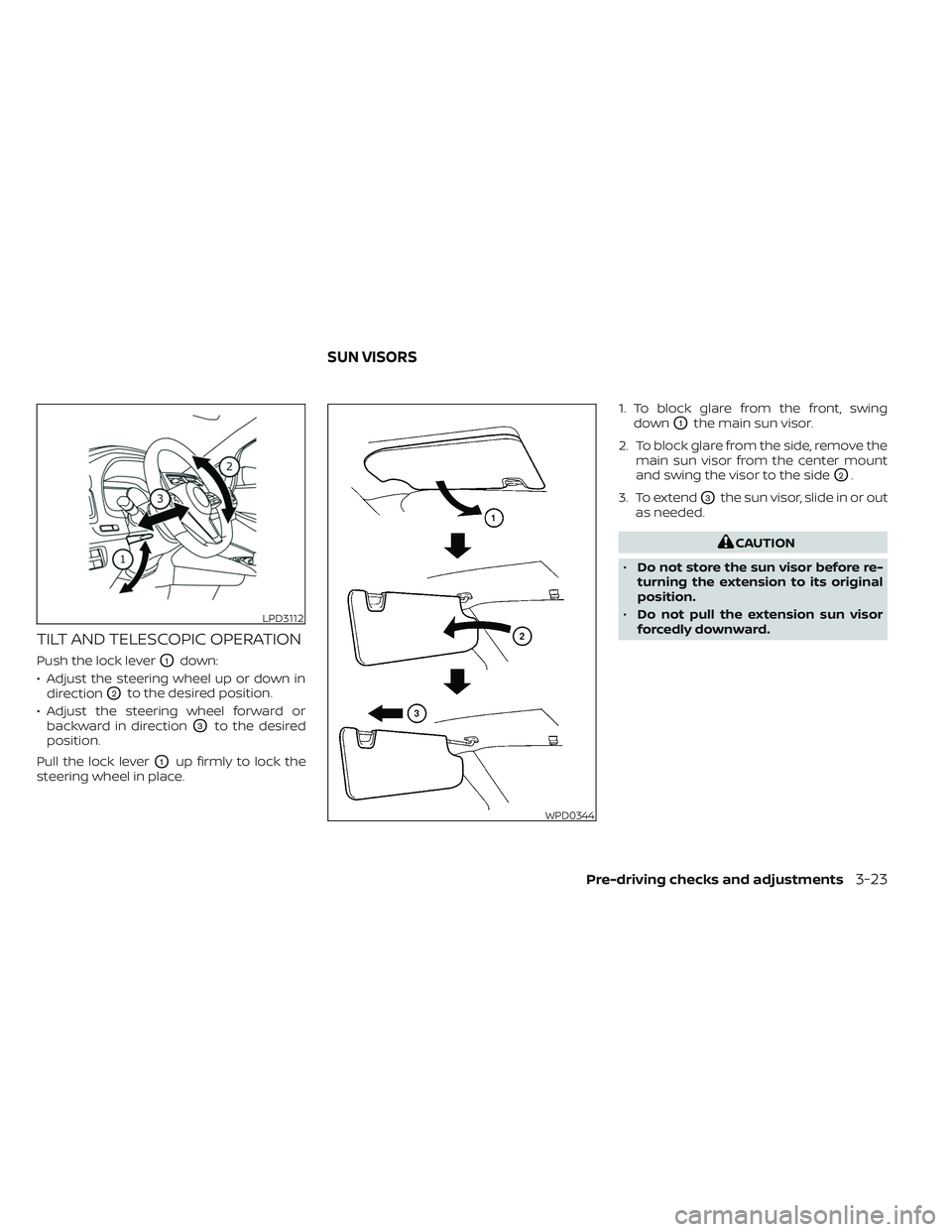
TILT AND TELESCOPIC OPERATION
Push the lock leverO1down:
• Adjust the steering wheel up or down in direction
O2to the desired position.
• Adjust the steering wheel forward or backward in direction
O3to the desired
position.
Pull the lock lever
O1up firmly to lock the
steering wheel in place. 1. To block glare from the front, swing
down
O1the main sun visor.
2. To block glare from the side, remove the main sun visor from the center mount
and swing the visor to the side
O2.
3. To extend
O3the sun visor, slide in or out
as needed.
CAUTION
• Do not store the sun visor before re-
turning the extension to its original
position.
• Do not pull the extension sun visor
forcedly downward.
LPD3112
WPD0344
SUN VISORS
Pre-driving checks and adjustments3-23
Page 282 of 612
HOW TO READ THE DISPLAYED
LINES
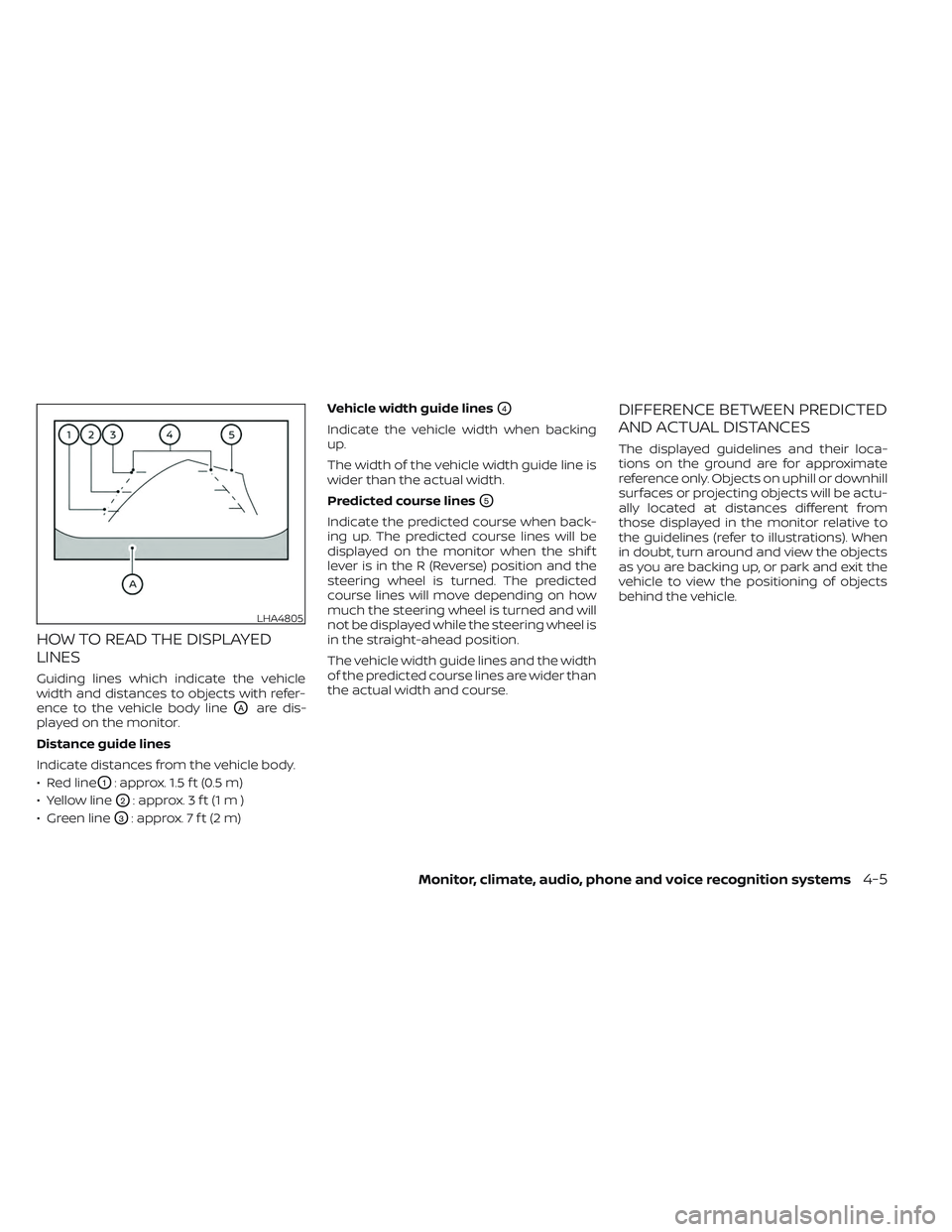
Guiding lines which indicate the vehicle
width and distances to objects with refer-
ence to the vehicle body line
OAare dis-
played on the monitor.
Distance guide lines
Indicate distances from the vehicle body.
• Red line
O1: approx. 1.5 f t (0.5 m)
• Yellow line
O2: approx. 3 f t (1 m )
• Green line
O3: approx. 7 f t (2 m) Vehicle width guide lines
O4
Indicate the vehicle width when backing
up.
The width of the vehicle width guide line is
wider than the actual width.
Predicted course lines
O5
Indicate the predicted course when back-
ing up. The predicted course lines will be
displayed on the monitor when the shif t
lever is in the R (Reverse) position and the
steering wheel is turned. The predicted
course lines will move depending on how
much the steering wheel is turned and will
not be displayed while the steering wheel is
in the straight-ahead position.
The vehicle width guide lines and the width
of the predicted course lines are wider than
the actual width and course.
DIFFERENCE BETWEEN PREDICTED
AND ACTUAL DISTANCES
The displayed guidelines and their loca-
tions on the ground are for approximate
reference only. Objects on uphill or downhill
surfaces or projecting objects will be actu-
ally located at distances different from
those displayed in the monitor relative to
the guidelines (refer to illustrations). When
in doubt, turn around and view the objects
as you are backing up, or park and exit the
vehicle to view the positioning of objects
behind the vehicle.
LHA4805
Monitor, climate, audio, phone and voice recognition systems4-5
Page 284 of 612
Backing up behind a projecting
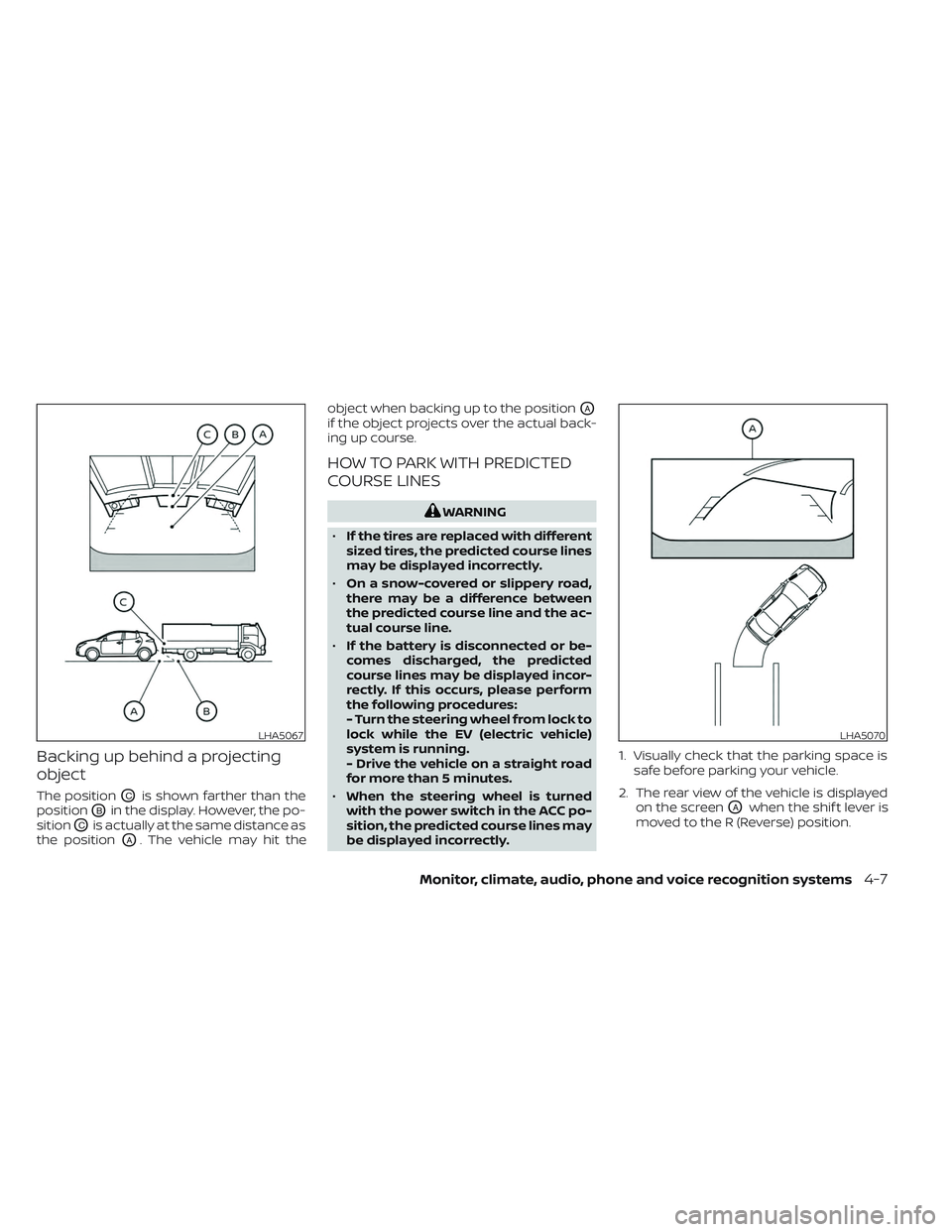
object
The positionOCis shown farther than the
position
OBin the display. However, the po-
sition
OCis actually at the same distance as
the position
OA. The vehicle may hit the object when backing up to the position
OA
if the object projects over the actual back-
ing up course.
HOW TO PARK WITH PREDICTED
COURSE LINES
WARNING
• If the tires are replaced with different
sized tires, the predicted course lines
may be displayed incorrectly.
• On a snow-covered or slippery road,
there may be a difference between
the predicted course line and the ac-
tual course line.
• If the battery is disconnected or be-
comes discharged, the predicted
course lines may be displayed incor-
rectly. If this occurs, please perform
the following procedures:
- Turn the steering wheel from lock to
lock while the EV (electric vehicle)
system is running.
- Drive the vehicle on a straight road
for more than 5 minutes.
• When the steering wheel is turned
with the power switch in the ACC po-
sition, the predicted course lines may
be displayed incorrectly. 1. Visually check that the parking space is
safe before parking your vehicle.
2. The rear view of the vehicle is displayed on the screen
OAwhen the shif t lever is
moved to the R (Reverse) position.
LHA5067LHA5070
Monitor, climate, audio, phone and voice recognition systems4-7
Page 285 of 612
3. Slowly back up the vehicle adjusting thesteering wheel so that the predicted
course lines
OBenter the parking space
OC. 4. Maneuver the steering wheel to make
the vehicle width guide lines
ODparallel
to the parking space
OCwhile referring
to the predicted course lines.
5. When the vehicle is parked in the space completely, push the P (Park) position
switch and apply the parking brake.
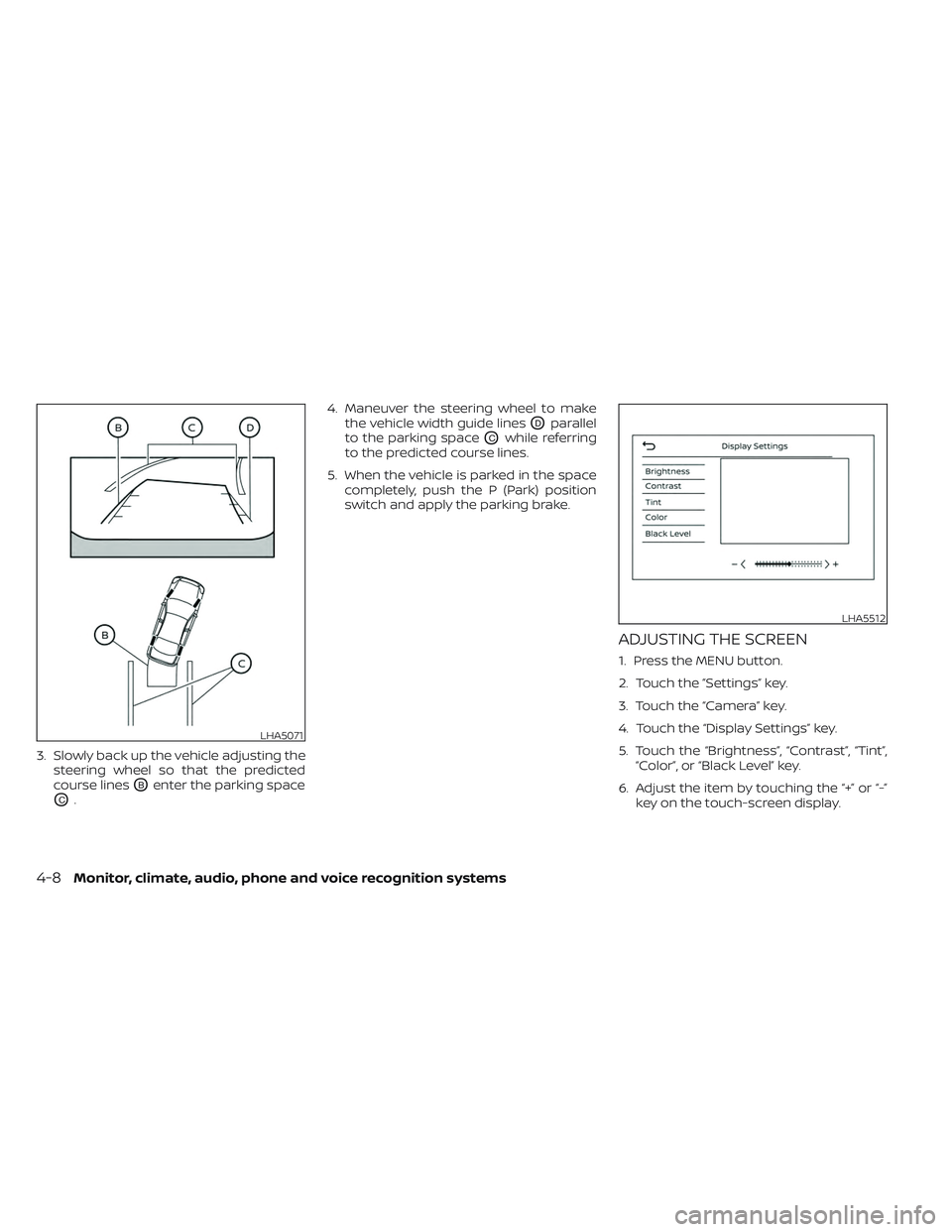
ADJUSTING THE SCREEN
1. Press the MENU button.
2. Touch the ”Settings” key.
3. Touch the “Camera” key.
4. Touch the “Display Settings” key.
5. Touch the “Brightness”, “Contrast”, “Tint”,“Color”, or “Black Level” key.
6. Adjust the item by touching the “+” or “-” key on the touch-screen display.
LHA5071
LHA5512
4-8Monitor, climate, audio, phone and voice recognition systems
Page 289 of 612
WARNING
Failure to follow the warnings and in-
structions for proper use of the Intelli-
gent Around View® Monitor system
could result in serious injury or death.
• The Intelligent Around View® Monitor
is a convenience feature and is not a
substitute for proper vehicle opera-
tion because it has areas where ob-
jects cannot be viewed. The four cor-
ners of the vehicle in particular, are
areas where objects do not always
appear in the bird’s-eye, front, or rear
views. Always check your surround-
ings to be sure that it is safe to move
before operating the vehicle. Always
operate the vehicle slowly.
• The driver is always responsible for
safety during parking and other
maneuvers.
• Use the mirrors or actually look to
properly judge distances to other
objects.CAUTION
Do not scratch the camera lens when
cleaning dirt or snow from the front of
the camera.
The Intelligent Around View® Monitor sys-
tem is designed as an aid to the driver in
situations such as slot parking or parallel
parking. The monitor displays various
views of the position of the vehicle in a split
screen format. Not all views are available at
all times.
Available views:
• Front View The view of the front of the vehicle.
• Rear View The view of the rear of the vehicle.
• Bird’s-Eye View The surrounding views of the vehicle
from above.
• Front-Side View The view around and ahead of the front
passenger’s side wheel.
• Full screen rear view The view to the rear of the vehicle (which
is a little wider than the standard rear
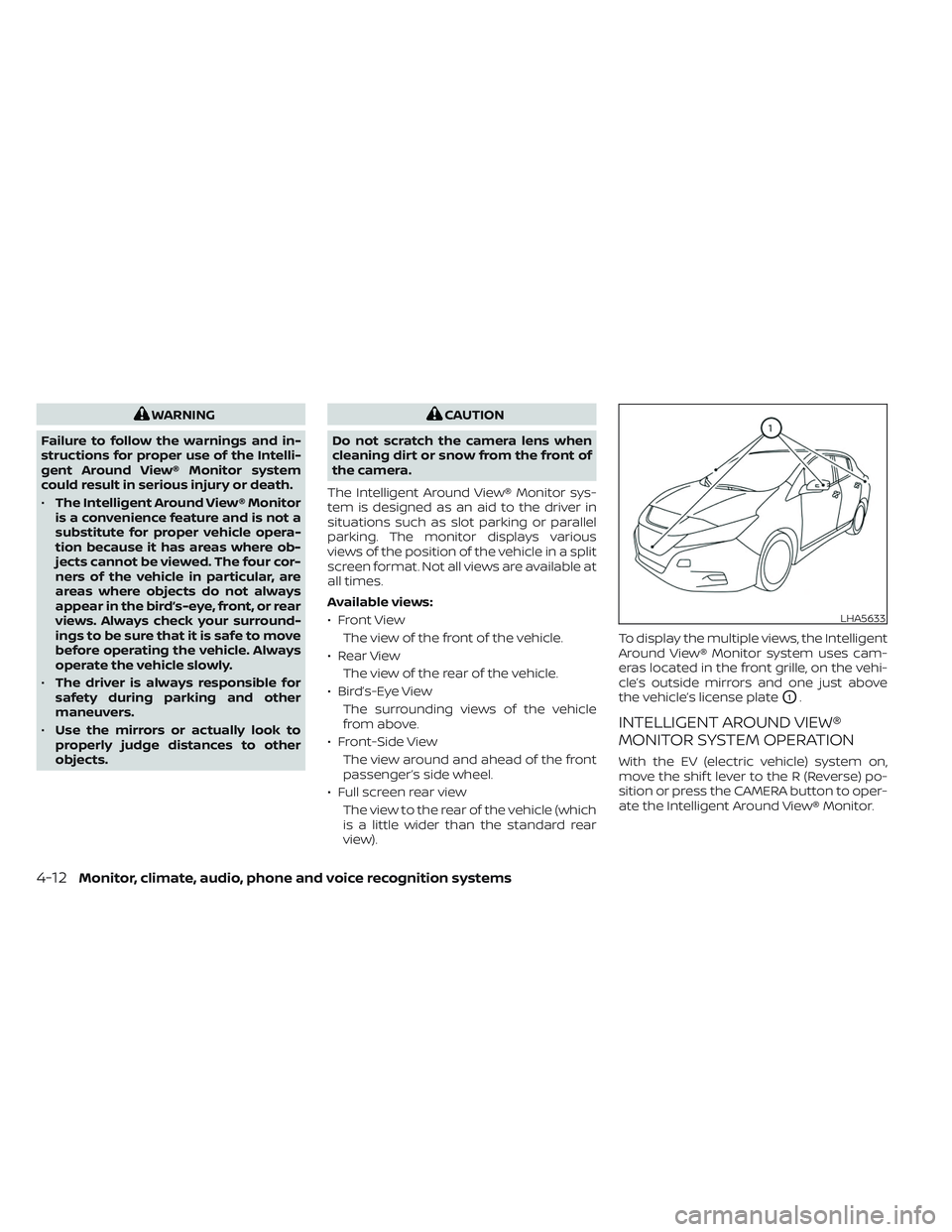
view). To display the multiple views, the Intelligent
Around View® Monitor system uses cam-
eras located in the front grille, on the vehi-
cle’s outside mirrors and one just above
the vehicle’s license plate
O1.
INTELLIGENT AROUND VIEW®
MONITOR SYSTEM OPERATION
With the EV (electric vehicle) system on,
move the shif t lever to the R (Reverse) po-
sition or press the CAMERA button to oper-
ate the Intelligent Around View® Monitor.
LHA5633
4-12Monitor, climate, audio, phone and voice recognition systems
Page 291 of 612
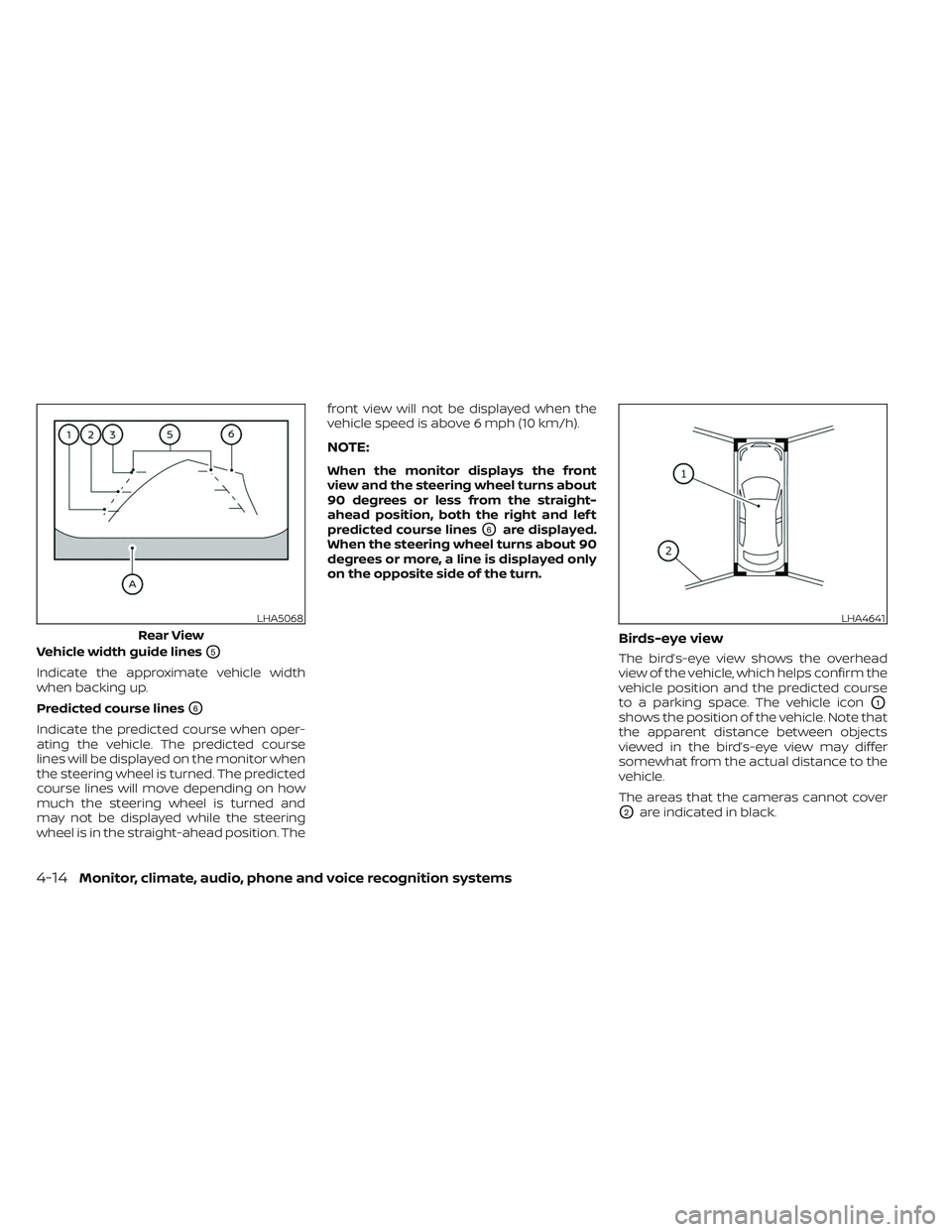
Vehicle width guide linesO5
Indicate the approximate vehicle width
when backing up.
Predicted course lines
O6
Indicate the predicted course when oper-
ating the vehicle. The predicted course
lines will be displayed on the monitor when
the steering wheel is turned. The predicted
course lines will move depending on how
much the steering wheel is turned and
may not be displayed while the steering
wheel is in the straight-ahead position. Thefront view will not be displayed when the
vehicle speed is above 6 mph (10 km/h).
NOTE:
When the monitor displays the front
view and the steering wheel turns about
90 degrees or less from the straight-
ahead position, both the right and lef t
predicted course lines
O6are displayed.
When the steering wheel turns about 90
degrees or more, a line is displayed only
on the opposite side of the turn.
Birds-eye view
The bird’s-eye view shows the overhead
view of the vehicle, which helps confirm the
vehicle position and the predicted course
to a parking space. The vehicle icon
O1
shows the position of the vehicle. Note that
the apparent distance between objects
viewed in the bird’s-eye view may differ
somewhat from the actual distance to the
vehicle.
The areas that the cameras cannot cover
O2are indicated in black.
LHA5068
Rear View
LHA4641
4-14Monitor, climate, audio, phone and voice recognition systems
Page 294 of 612
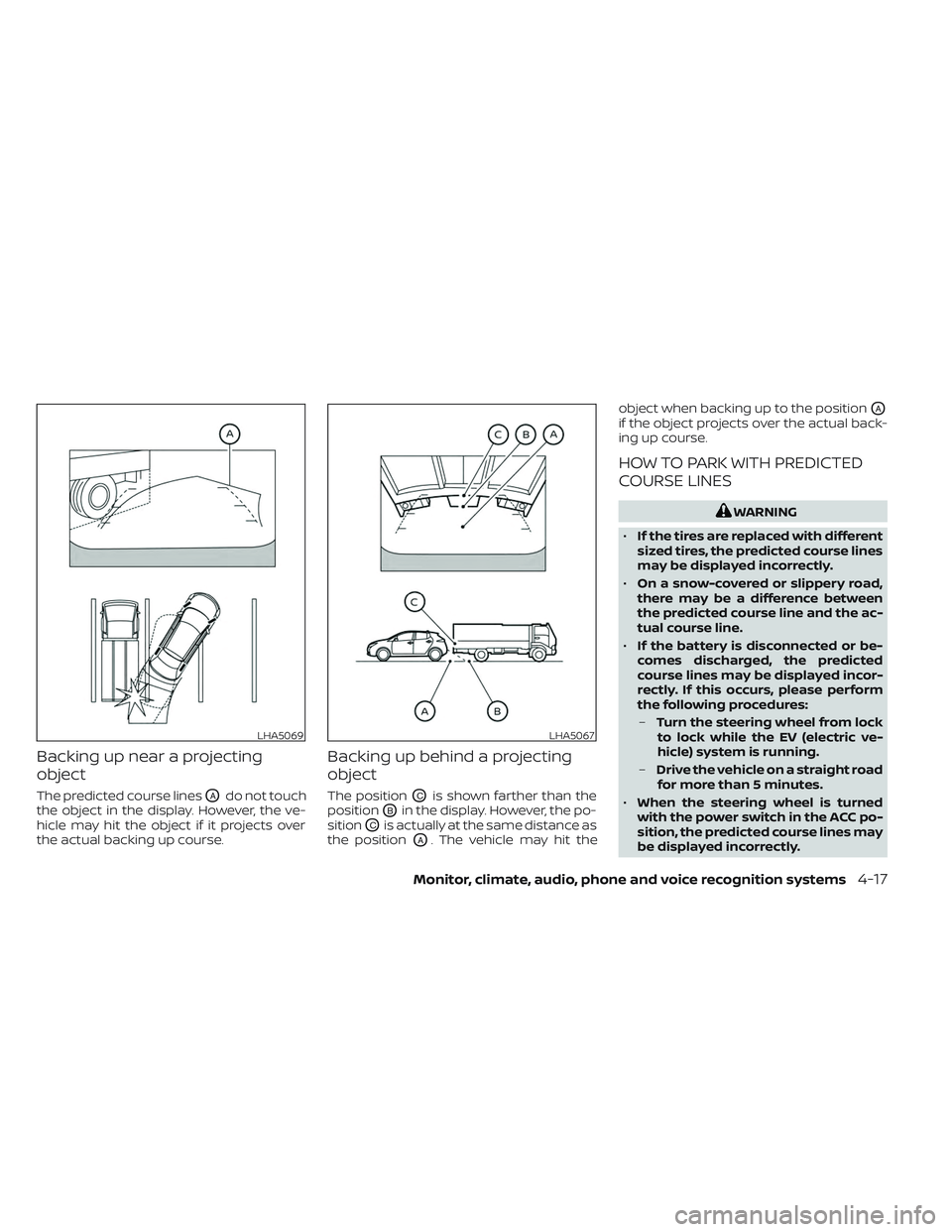
Backing up near a projecting
object
The predicted course linesOAdo not touch
the object in the display. However, the ve-
hicle may hit the object if it projects over
the actual backing up course.
Backing up behind a projecting
object
The positionOCis shown farther than the
position
OBin the display. However, the po-
sition
OCis actually at the same distance as
the position
OA. The vehicle may hit the object when backing up to the position
OA
if the object projects over the actual back-
ing up course.
HOW TO PARK WITH PREDICTED
COURSE LINES
WARNING
• If the tires are replaced with different
sized tires, the predicted course lines
may be displayed incorrectly.
• On a snow-covered or slippery road,
there may be a difference between
the predicted course line and the ac-
tual course line.
• If the battery is disconnected or be-
comes discharged, the predicted
course lines may be displayed incor-
rectly. If this occurs, please perform
the following procedures:
– Turn the steering wheel from lock
to lock while the EV (electric ve-
hicle) system is running.
– Drive the vehicle on a straight road
for more than 5 minutes.
• When the steering wheel is turned
with the power switch in the ACC po-
sition, the predicted course lines may
be displayed incorrectly.
LHA5069LHA5067
Monitor, climate, audio, phone and voice recognition systems4-17
Page 295 of 612
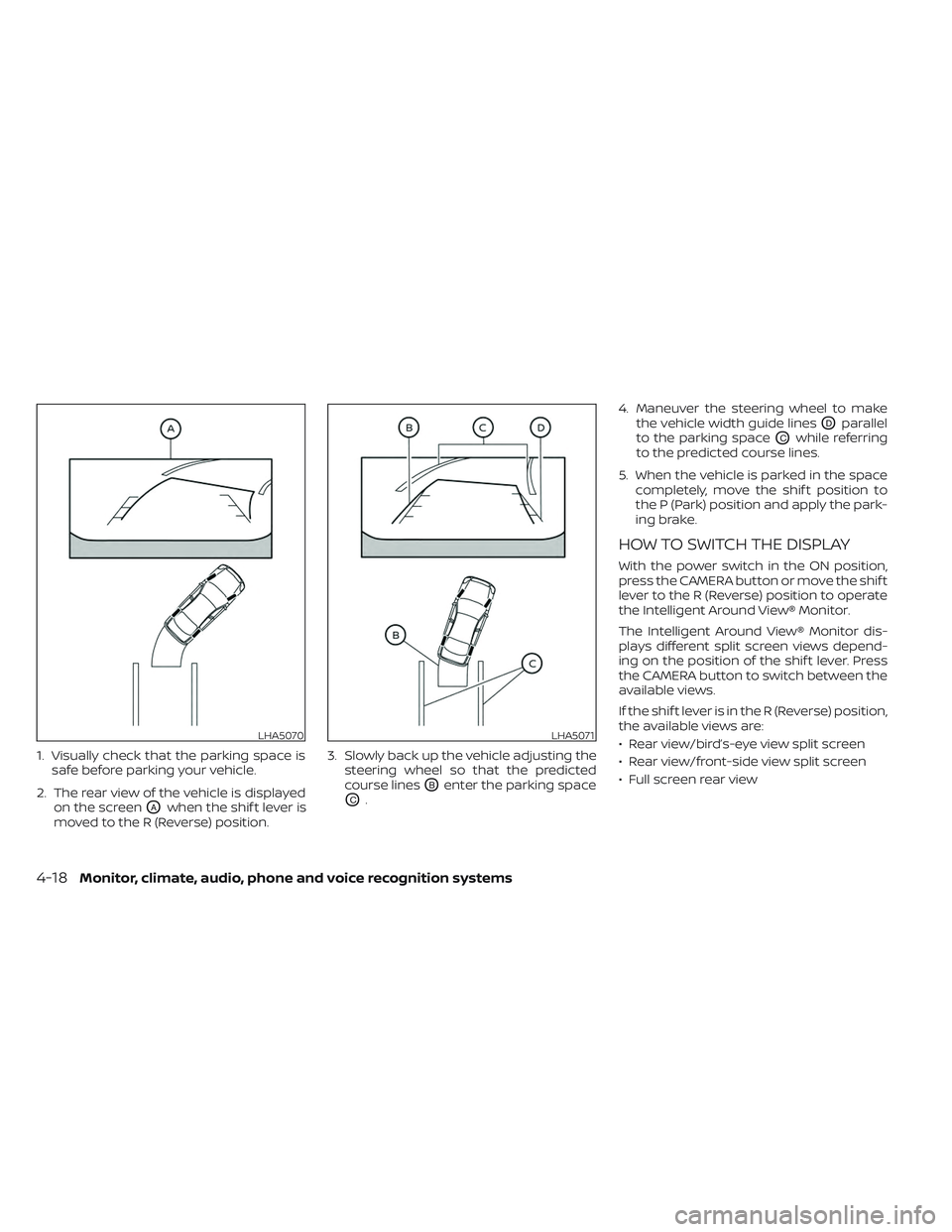
1. Visually check that the parking space issafe before parking your vehicle.
2. The rear view of the vehicle is displayed on the screen
OAwhen the shif t lever is
moved to the R (Reverse) position. 3. Slowly back up the vehicle adjusting the
steering wheel so that the predicted
course lines
OBenter the parking space
OC. 4. Maneuver the steering wheel to make
the vehicle width guide lines
ODparallel
to the parking space
OCwhile referring
to the predicted course lines.
5. When the vehicle is parked in the space completely, move the shif t position to
the P (Park) position and apply the park-
ing brake.
HOW TO SWITCH THE DISPLAY
With the power switch in the ON position,
press the CAMERA button or move the shif t
lever to the R (Reverse) position to operate
the Intelligent Around View® Monitor.
The Intelligent Around View® Monitor dis-
plays different split screen views depend-
ing on the position of the shif t lever. Press
the CAMERA button to switch between the
available views.
If the shif t lever is in the R (Reverse) position,
the available views are:
• Rear view/bird’s-eye view split screen
• Rear view/front-side view split screen
• Full screen rear view
LHA5070LHA5071
4-18Monitor, climate, audio, phone and voice recognition systems