2023 LINCOLN CORSAIR phone
[x] Cancel search: phonePage 82 of 690

REMOTE CONTROL LIMITATIONS
WARNING: Changes or modificationsnot expressively approved by the partyresponsible for compliance could void theuser's authority to operate the equipment.The term "IC:" before the radio certificationnumber only signifies that Industry Canadatechnical specifications were met.
This device complies with Part 15 of the FCCRules and with Industry Canadalicense-exempt RSS standard(s). Operationis subject to the following two conditions: (1)This device may not cause harmfulinterference, and (2) This device must acceptany interference received, includinginterference that may cause undesiredoperation.
Make sure a valid remote control is within3 ft (1 m) from the front door handles and rearof vehicle.
The system may not function if:
•The remote control remains stationaryfor about a minute.
•The vehicle battery has no charge.
•The remote control battery has nocharge.
•There is interference causing issues withthe remote control frequencies.
•The remote control is too close to metalobjects or electronic devices, for examplekeys or a cell phone.
USING THE REMOTE CONTROL
Use your remote control to access variousvehicle systems.
Note:The buttons on your remote may varydepending on the vehicle region or options.
Unlock
Press the button to unlock alldoors. See Unlocking andLocking the Doors Using theRemote Control (page 87).
Lock
Press the button to lock all doors.See Unlocking and Locking theDoors Using the Remote Control(page 87).
Remote Start (If Equipped)
Press the button to remote start.See Remotely Starting andStopping the Vehicle (page 165).
Liftgate (If Equipped)
Press the button to open or closethe liftgate. See Opening theLiftgate (page 100).
Panic Alarm (If Equipped)
Press the button to sound thepanic alarm. See Sounding thePanic Alarm (page 79).
78
2023 Corsair (CTF) Canada/United States of America, enUSA, Edition date: 202208, DOMKeys and Remote ControlsE138629 E138623 E138625 E267940 E138624
Page 87 of 690
WHAT IS PHONE AS A KEY
Phone as a Key allows you to use your phonein place of a passive key.
You can use your phone for the followingfunctions:
•Remote locking and unlocking.
•Passive entry and exit.
•Passive start and drive the vehicle.
•Remote start.
•Memory function recall.
PHONE AS A KEY LIMITATIONS
Limitations can vary based on the make andmodel of your phone, phone location andphysical obstructions.
The following items could impact Phone asa Key performance or prevent functionalityin some cases:
•The typical operating range for Phone asa Key is 131 ft (40 m).
•Your Bluetooth® connection is notenabled, is disrupted, or out of range.
•Your Phone as a Key is not active orenabled on at least one phone.
•Your vehicle battery has depleted.
•Your phone battery has depleted.
•Interference from other devices usingradio frequencies or physicalobstructions.
•Your phone is too close to metal objectsor other electronic devices.
Note:Do not leave a duplicate coded keyin the vehicle. Always take your keys andphone and lock all doors when leaving thevehicle.
PROGRAMMING YOUR PHONE
To program your smartphone as phone as akey:
1.Visit your device's app store to downloadthe Lincoln Way app.
2.Create a new account or sign in to anexisting account on the Lincoln Way app.
3.Add the vehicle identification number toyour account and follow the prompts inthe Lincoln Way app to complete theSync Connect Authorization process.
4.After the authorization is complete, youcan set up phone as a key following theprompts in the Lincoln Way app.
5.After phone as a key is set up, you canset up the backup start passcode byfollowing the prompts on yourtouchscreen.
Note:Keep your new backup start passcodewith you in case of an emergency.
Resetting Phone as a Key
1.Press Settings on the touchscreen.
2.Press General.
3.Press Reset.
4.Press the app connect reset option.
5.Press Phone as a Key Reset.
6.Confirm you would like to continue witherasing all phone as a key, keys andbackup start passcodes.
7.Press Continue.
83
2023 Corsair (CTF) Canada/United States of America, enUSA, Edition date: 202208, DOMPhone as a Key (If Equipped)
Page 88 of 690
8.Confirm you are aware you arede-authorizing all authorized users andLincoln Way Connect settings.
9.Press Continue.
USING THE VALET MODE
Classic Valet Mode
Enabling Valet Mode
Make sure the remote control is in yourvehicle.
1.Press Settings on the touchscreen.
2.Press Valet Mode.
3.Enter a four digit code to lock thetouchscreen.
4.Re-enter the same four digit code tocomplete enabling valet mode.
Disabling Valet Mode
1.Press Exit Valet Mode.
2.Enter your four digit code to disable valetmode and unlock your touchscreen.
Enhanced Valet Mode
Enabling Valet Mode
Have your backup start passcode completelyset up before using valet mode. SeeProgramming Your Phone (page 83).
Note:If your vehicle detects a remotecontrol, the system defaults to classic valetmode.
1.Press Settings on the touchscreen.
2.Press Valet Mode.
Note:If the system detects a valid phone asa key, a valet passcode displays in both thetouchscreen and mobile app.
Note:If the system does not detect a validphone as a key, it prompts you to enter yourbackup start passcode on the touchscreen.Once validated, a valet passcode displayson the touchscreen.
3.Provide the valet the first five digits of thevalet passcode to enter on the keylessentry keypad to unlock your vehicle.
4.Provide the valet the eight-digit valetpasscode to enter on the touchscreen tostart and drive your vehicle.
Disabling Valet Mode
1.Press Exit Valet Mode.
Note:If the system detects an authorizedphone as a key, valet mode disables.
Note:If the system does not detect a validphone as a key, it prompts you to enter yourbackup start passcode. Once validated, valetmode disables.
USING THE BACKUP START
PASSCODE
Make sure you have phone as a key activeon at least one phone to use the previouslycreated backup start passcode. SeeProgramming Your Phone (page 83).
84
2023 Corsair (CTF) Canada/United States of America, enUSA, Edition date: 202208, DOMPhone as a Key (If Equipped)
Page 89 of 690
1.Press the brake pedal and the pushbutton ignition switch. If the system doesnot detect a valid phone as a key orremote control, a message appears onthe touchscreen and the system promptsyou for your backup start passcode.
Note:The touchscreen times out after 30seconds with no interaction.
Note:If the backup start passcode screendoes not appear, press the brake pedal andpush button ignition switch again.
2.Use the touchscreen to enter yourbackup start passcode.
3.After entering your backup startpasscode, press Enter within 30 seconds.
4.Once the system validates the backupstart passcode, a message alerts you tostart your vehicle.
5.Press the brake pedal and the pushbutton ignition switch within 20 secondsto start the vehicle.
6.If your vehicle does not start, repeatsteps 1-5.
System Lockout
The system locks after five combinedincorrect attempts of the following:
•Entering a backup start passcode.
•Resetting a current passcode.
•Entering a valet mode passcode.
Note:The system remains locked for fiveminutes. After five minutes the system allowscodes to be entered again.
PHONE AS A KEY –
TROUBLESHOOTING
PHONE AS A KEY – FREQUENTLYASKED QUESTIONS
How can I tell if my vehicle has phoneas a key?
•The touchscreen shows the phone as akey reset option.
•A control button appears on the homescreen of the Lincoln Way app if you haveregistered your vehicle through theLincoln Way app.
What happens if I cannot unlock thevehicle with phone as a key?
•Attempt to move your phone closer tothe vehicle.
•Check that the Lincoln Way app is stillrunning and that the phone as a keycontrol screen shows connected. If thephone is connected, attempt to press theremote unlock button in the Lincoln Wayapp. If the phone is not connected or theremote unlock button does not work inthe Lincoln Way app, attempt to forceclose and restart the app.
85
2023 Corsair (CTF) Canada/United States of America, enUSA, Edition date: 202208, DOMPhone as a Key (If Equipped)
Page 90 of 690
Why do I get a No Key Detectedmessage in the instrument clusterdisplay when I am using phone as akey and my phone is in the car?
•Your phone’s Bluetooth connection hasbeen disrupted or is not connected. Tryreconnecting your phone's Bluetoothconnection.
•Move the phone closer to the center ofthe vehicle near the cup holder or centerconsole.
•Verify your phone as a key is still active,enabled and has not been revoked.
What do I do if my phone is lost,damaged or the battery has depleted?
•Use the backup start passcode that youcreated. See Using the Backup StartPasscode (page 84).
How many phones can I use for phoneas a key?
•You can program and activate up to fourphones with phone as a key to yourvehicle.
How does a valet drive my car if I onlyuse my phone as a key?
•Have the valet use the temporary valetpasscode that you created. See Usingthe Valet Mode (page 84).
I uninstalled my Lincoln Way app andreinstalled it. Why am I not able to geta new phone as a key?
•Remove the phone as a key that waspreviously associated with your phone.
•Reset phone as a key from your vehicle,and then request a new phone as a key.See Programming Your Phone (page83).
Why can I not remotely start thevehicle with my phone as a key?
•Using the Lincoln Way app, verify yourphone as a key setup is complete andenabled via Bluetooth connection on atleast one phone. If Bluetooth hasconnected but phone as a key setup isnot complete, complete the setup of yourphone as a key as prompted from theLincoln Way app. See ProgrammingYour Phone (page 83).
PHONE AS A KEY VIDEOS
Lincoln Phone As A Key Video Link
Phone As A Key: Valet Mode Video Link
86
2023 Corsair (CTF) Canada/United States of America, enUSA, Edition date: 202208, DOMPhone as a Key (If Equipped)
Page 96 of 690

KEYLESS ENTRY LIMITATIONS
Make sure your remote control is within 3 ft(1 m) from the front door handles and thetailgate.
The system could not function if:
•The remote control remains stationaryfor about a minute.
•The vehicle battery has no charge.
•The remote control battery has nocharge.
•There is interference causing issues withthe remote control frequencies.
•The remote control is too close to metalobjects or electronic devices, for examplekeys or a cell phone.
KEYLESS ENTRY SETTINGS
Switching Keyless Entry On and Off
1.Switch the ignition on.
2.Press Settings on the touchscreen.
3.Press Vehicle Settings.
4.Press Locks.
Reprogramming the UnlockingFunction
You can enable two-stage unlocking functionallowing you to unlock only the driver doorwhen you touch the unlock sensor.
Press and hold both the lock and unlockbuttons on the remote control for fourseconds to disable or enable two-stageunlocking.
If you program the unlocking function so thatonly the driver door unlocks, you can unlockall of the other doors from inside your vehicleusing the power door lock control. You canunlock individual doors by pulling the interiordoor handles on those doors.
USING KEYLESS ENTRY
Unlocking the Doors
With the remote control within 3 ft (1 m) ofyour vehicle, touch the unlock sensor on theback of the door handle for a brief periodand then pull on the door handle to unlock,being careful not to touch the lock sensor atthe same time or pull on the door handle tooquickly. The system requires a brief delay toauthenticate the remote control.
Locking the Doors
92
2023 Corsair (CTF) Canada/United States of America, enUSA, Edition date: 202208, DOMKeyless EntryE248553 E248554
Page 156 of 690
USING THE INSTRUMENT
CLUSTER DISPLAY CONTROLS
WARNING: Driving while distractedcan result in loss of vehicle control, crashand injury. We strongly recommend thatyou use extreme caution when using anydevice that may take your focus off theroad. Your primary responsibility is the safeoperation of your vehicle. We recommendagainst the use of any hand-held devicewhile driving and encourage the use ofvoice-operated systems when possible.Make sure you are aware of all applicablelocal laws that may affect the use ofelectronic devices while driving.
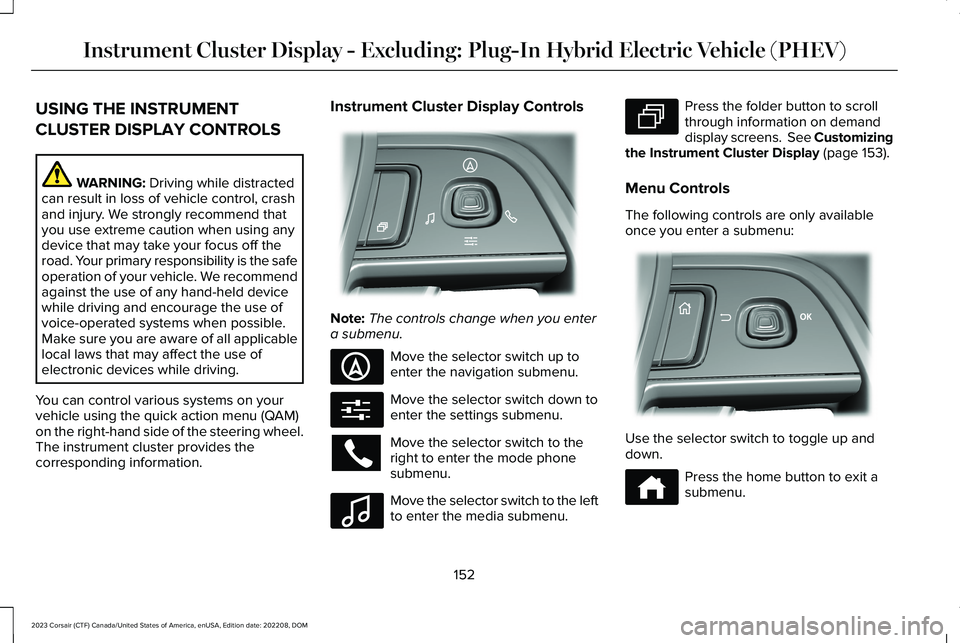
You can control various systems on yourvehicle using the quick action menu (QAM)on the right-hand side of the steering wheel.The instrument cluster provides thecorresponding information.
Instrument Cluster Display Controls
Note:The controls change when you entera submenu.
Move the selector switch up toenter the navigation submenu.
Move the selector switch down toenter the settings submenu.
Move the selector switch to theright to enter the mode phonesubmenu.
Move the selector switch to the leftto enter the media submenu.
Press the folder button to scrollthrough information on demanddisplay screens. See Customizingthe Instrument Cluster Display (page 153).
Menu Controls
The following controls are only availableonce you enter a submenu:
Use the selector switch to toggle up anddown.
Press the home button to exit asubmenu.
152
2023 Corsair (CTF) Canada/United States of America, enUSA, Edition date: 202208, DOMInstrument Cluster Display - Excluding: Plug-In Hybrid Electric Vehicle (PHEV)E281220 E281481 E280315 E100027 E281483 E299701 E272621
Page 157 of 690
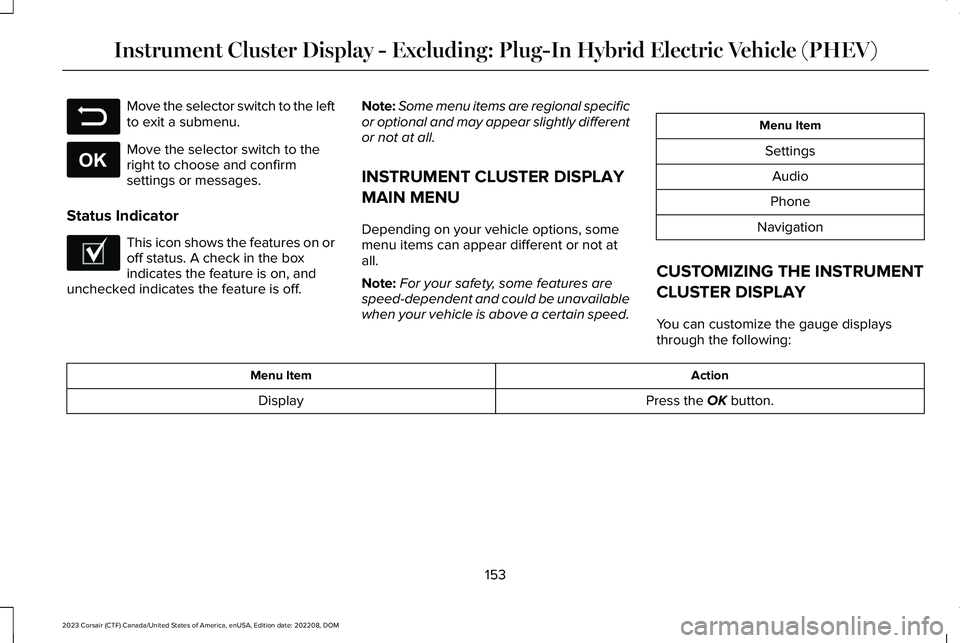
Move the selector switch to the leftto exit a submenu.
Move the selector switch to theright to choose and confirmsettings or messages.
Status Indicator
This icon shows the features on oroff status. A check in the boxindicates the feature is on, andunchecked indicates the feature is off.
Note:Some menu items are regional specificor optional and may appear slightly differentor not at all.
INSTRUMENT CLUSTER DISPLAY
MAIN MENU
Depending on your vehicle options, somemenu items can appear different or not atall.
Note:For your safety, some features arespeed-dependent and could be unavailablewhen your vehicle is above a certain speed.
Menu Item
Settings
Audio
Phone
Navigation
CUSTOMIZING THE INSTRUMENT
CLUSTER DISPLAY
You can customize the gauge displaysthrough the following:
ActionMenu Item
Press the OK button.Display
153
2023 Corsair (CTF) Canada/United States of America, enUSA, Edition date: 202208, DOMInstrument Cluster Display - Excluding: Plug-In Hybrid Electric Vehicle (PHEV)E281480 E265041 E204495