Page 7 of 380

5
d d MAP button
•
Returns to the current location on the map.
•While in guidance on the navigation screen, press to repeat the voice guidance.
e e NAV button
•
Displays the Navigation Menu screen.
•Press and hold the button to display the Places screen.
f f Custom button
•Runs the user-defined function.
•Press and hold the button to display the function settings screen.
g g SEEK/TRACK button
•
While listening to the radio, change the station.
•While playing media, change the track/file. Press and hold to rewind or fast forward
(except for the Bluetooth audio mode).
h h RADIO button
•
Turns on the radio.
•When the radio is on, press the button repeatedly to toggle between FM, AM and
SiriusXM modes.
i i MEDIA button
•
Runs the connected media.
•Press and hold the button to display the Radio/Media selection window.
j j SETUP button
•
Displays the Settings screen.
•Press and hold the button to display the version information screen.
k k Search knob
• While listening to the radio, adjust the frequency or change the broadcasting channel.
•While playing media, scan music or files.
•During scanning, select the current channel, music or file.
•On the map screen, zoom in or out on the map (if activated).
Page 25 of 380
9
06 Phone
Connecting a Bluetooth device 6-2
Making a call via Bluetooth 6-6
Accepting an incoming call over Bluetooth 6-15
Checking new messages over Bluetooth 6-17
07 Voice functions
Voice recognition 7-2
Using the Siri Eyes Free 7-29
Voice Memo 7-30
08 Kia Connect
Kia Connect service 8-2
Running the Kia Connect menu 8-4
Route guidance service 8-13
Page 30 of 380

1-2
Component names and functions
The following describes the part names and controls on the control panel and steering wheel.
Control panel
A
The shape may differ depending on the vehicle model and specifications. For more
information, see "Quick Reference Guide" that is separately provided.
A
For more information about the infotainment / climate control panel, refer to http://
webmanual.kia.com/SwitchableController/index.html.
POWER button
(POWER/PWR)/
VOLUME knob
(VOLUME/VOL) � Turn on or off the Radio/Media.
�Press and hold the button to turn off the screen and
sound.
�Turn the knob to adjust the system volume (except for
navigation sound).
MAP button
� Returns to the current location on the map.
�While in guidance on the navigation screen, press to
repeat the voice guidance.
NAV button
� Displays the Navigation Menu screen.
�Press and hold the button to display the Places screen.
> See "
Searching by keyword."
RADIO button � Turns on the radio.
�When the radio is on, press the button repeatedly to
toggle between FM, AM and SiriusXM modes.
�Press and hold the button to display the Radio/Media
selection window (if equipped).
MEDIA button
� Runs the connected media.
�Press and hold the button to display the Radio/Media
selection window.
Page 56 of 380
2-12
Viewing the surround view while reversing
1 Press the "R" (Reverse) button shifter (or move the shift lever to "R" in a
previous vehicle model) with the vehicle turned on.
The system displays the rear view of the vehicle.
A
The surround view monitor function is not available when you change the shift
position to "P" (Park).
A
When you press the [
] button with the shift position in "P" (Park), you can see the
rear view (if equipped).
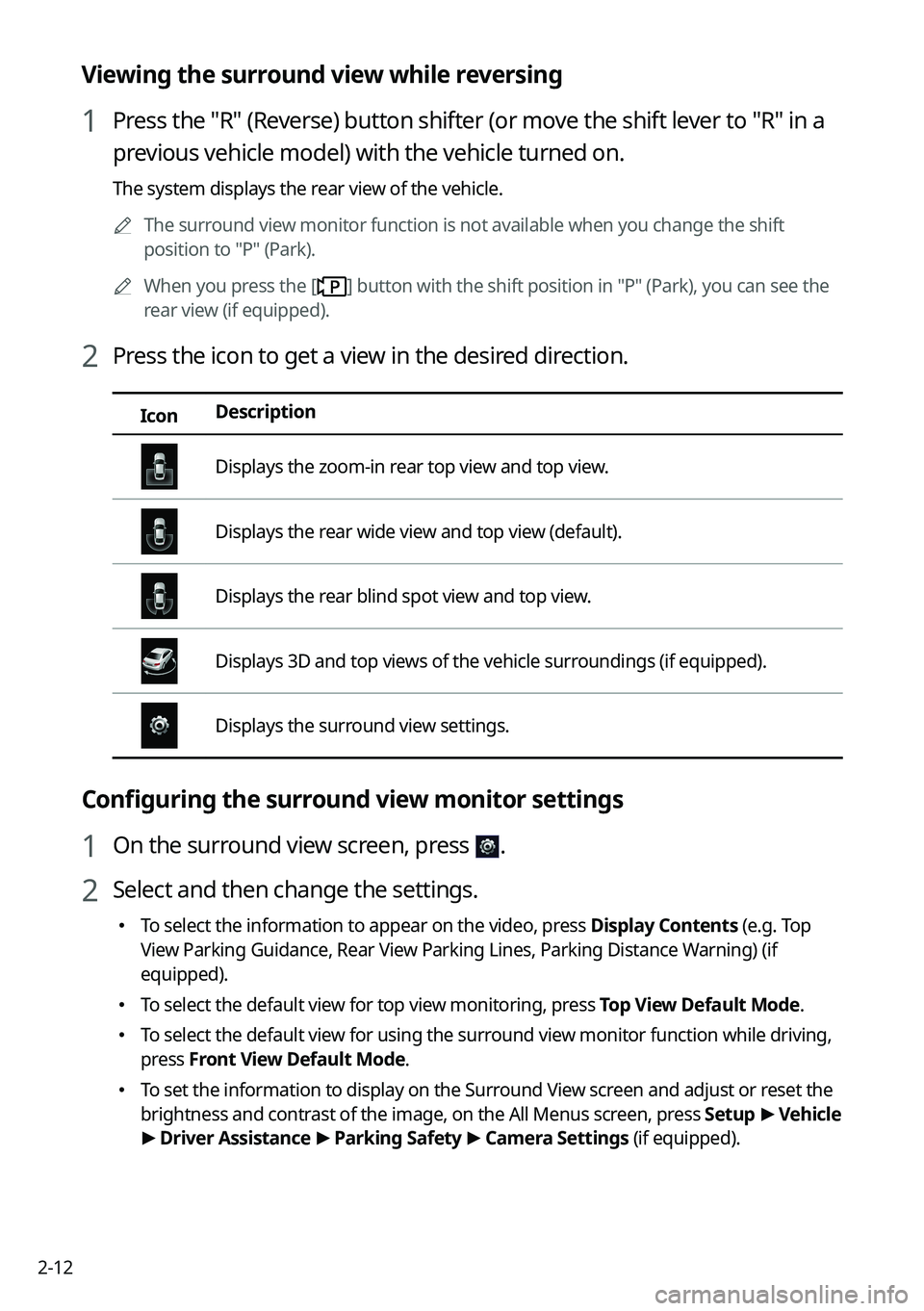
2 Press the icon to get a view in the desired direction.
Icon Description
Displays the zoom-in rear top view and top view.
Displays the rear wide view and top view (default).
Displays the rear blind spot view and top view.
Displays 3D and top views of the vehicle surroundings (if equipped).
Displays the surround view settings.
Configuring the surround view monitor settings
1 On the surround view screen, press .
2 Select and then change the settings.
�
To select the information to appear on the video, press Display Contents (e.g. Top
View Parking Guidance,
Rear View Parking Lines, Parking Distance Warning) (if
equipped).
� To select the default view for top view monitoring, press Top View Default Mode.
�To select the default view for using the surround view monitor function while driving,
press
Front View Default Mode.
�To set the information to display on the Surround View screen and adjust or reset the
brightness and contrast of the image, on the All Menus screen, press Setup
>
Vehicle
> Driver Assistance >
Parking Safety >
Camera Settings (if equipped).
Page 76 of 380
2-32
h h The list of menu items appears.
�Display Off
: Turns off the screen. To switch the screen back on, press the screen or
briefly press the power button.
� User's Manual on Web (QR Code): Displays the QR code that provides access to
the online user manual for the system.
�Split Screen: Can turn on or off the split screen mode.
Searching for nearby charging stations
When you want to drive beyond the drivable range, you can search for charging stations
within the range and start route guidance to a selected charging station.
1 On the Range screen, press List.
A
On the All Menus screen, press Navigation Menu >
POI Categories >
EV Charging
Stations or to search for nearby charging stations.
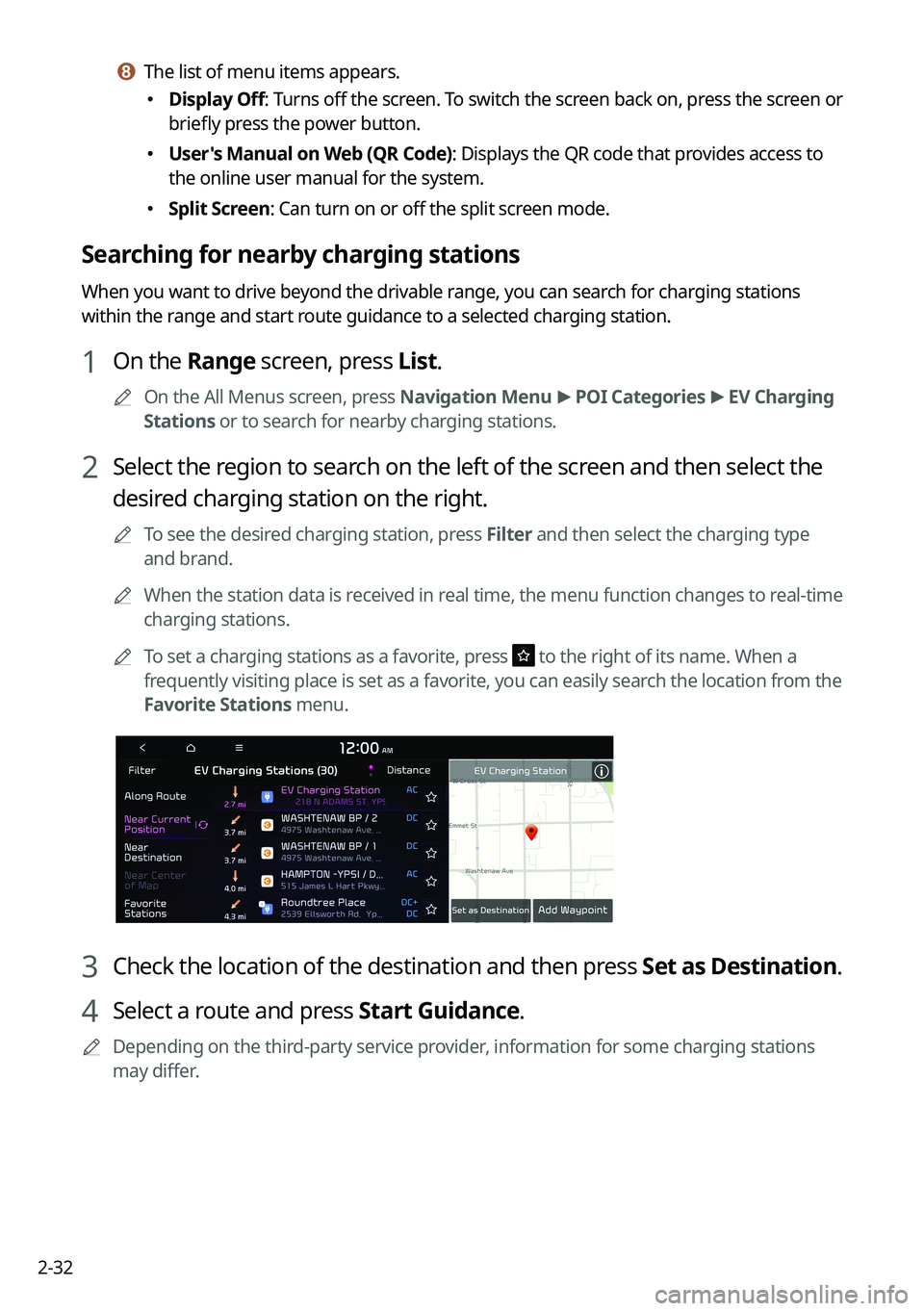
2 Select the region to search on the left of the screen and then select the
desired charging station on the right.
A
To see the desired charging station, press Filter and then select the charging type
and brand.
A
When the station data is received in real time, the menu function changes to real-time
charging stations.
A
To set a charging stations as a favorite, press
to the right of its name. When a
frequently visiting place is set as a favorite, you can easily search the location from the
Favorite Stations menu.
3 Check the location of the destination and then press Set as Destination.
4 Select a route and press Start Guidance.
A
Depending on the third-party service provider, information for some charging stations
may differ.
Page 84 of 380
2-40
Configuring the EV settings (EV only)
You can set to display the warning message when the remaining battery amount is low for
the destination and you can also see the drivable distance. In winter, you can also set to
increase the battery temperature in advance.
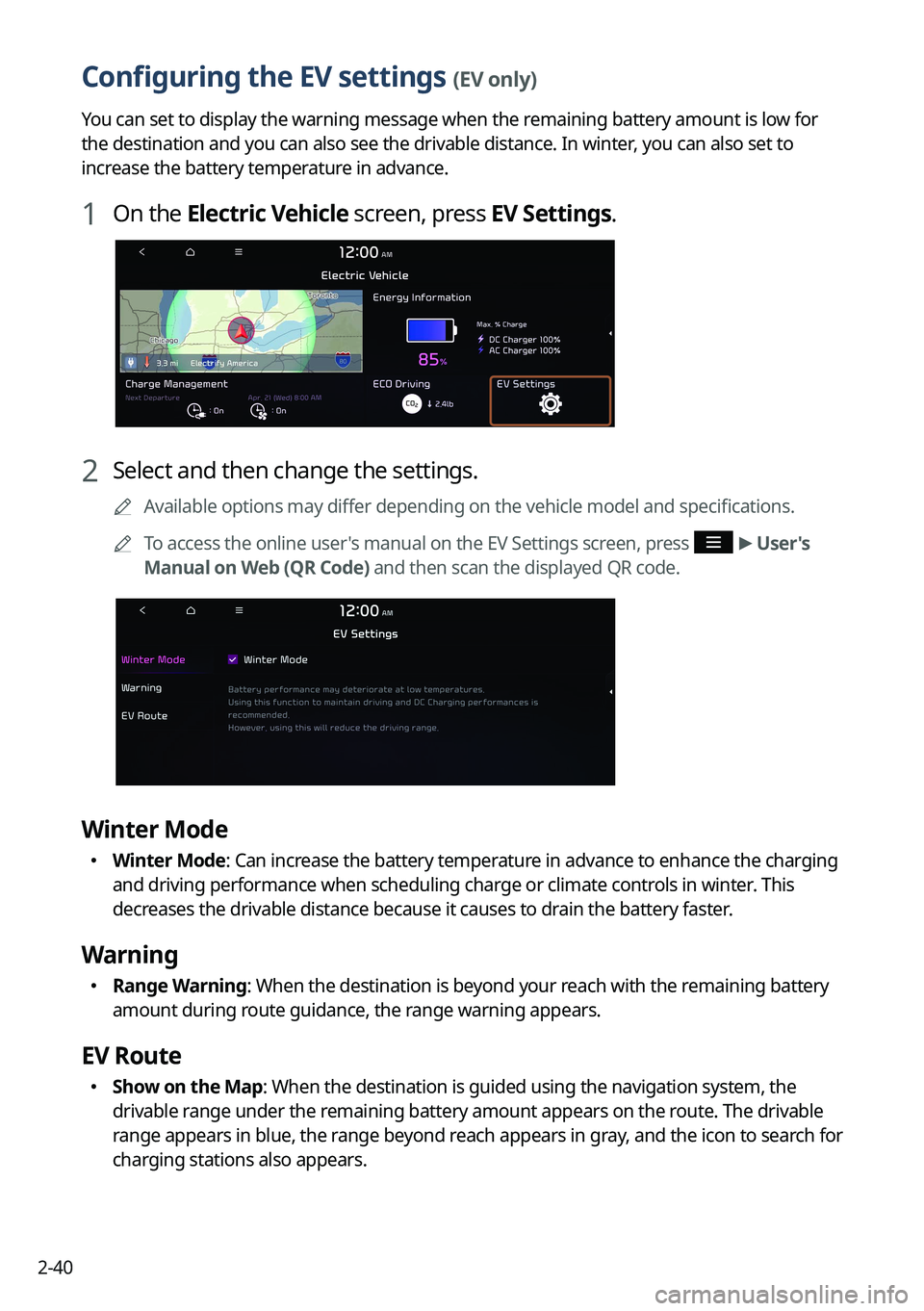
1 On the Electric Vehicle screen, press EV Settings.
2 Select and then change the settings.
A
Available options may differ depending on the vehicle model and specifications.
A
To access the online user's manual on the EV Settings screen, press
>
User's
Manual on Web (QR Code) and then scan the displayed QR code.
Winter Mode
� Winter Mode: Can increase the battery temperature in advance to enhance the charging
and driving performance when scheduling charge or climate controls in winter. This
decreases the drivable distance because it causes to drain the battery faster.
Warning
�Range Warning: When the destination is beyond your reach with the remaining battery
amount during route guidance, the range warning appears.
EV Route
�Show on the Map: When the destination is guided using the navigation system, the
drivable range under the remaining battery amount appears on the route. The drivable
range appears in blue, the range beyond reach appears in gray, and the icon to search for
charging stations also appears.
Page 88 of 380
2-44
i i Can see the status icons for charging stations (if equipped).
A
Subscribe to Kia Connect to check the function.
j j Zooms out the map.
k k The list of menu items appears (if equipped).
�Display Off: Turns off the screen. To switch the screen back on, press the screen or
briefly press the power button.
�User's Manual on Web (QR Code): Displays the QR code that provides access to the
online user manual for the system.
�Split Screen: Can turn on or off the split screen mode.
Searching for nearby charging stations
When you want to drive beyond the drivable range, you can search for charging stations
within the range and start route guidance to a selected charging station.
1 On the All Menus screen, press Navigation Menu
>
POI Categories >
EV Charging Stations to search for nearby charging stations.
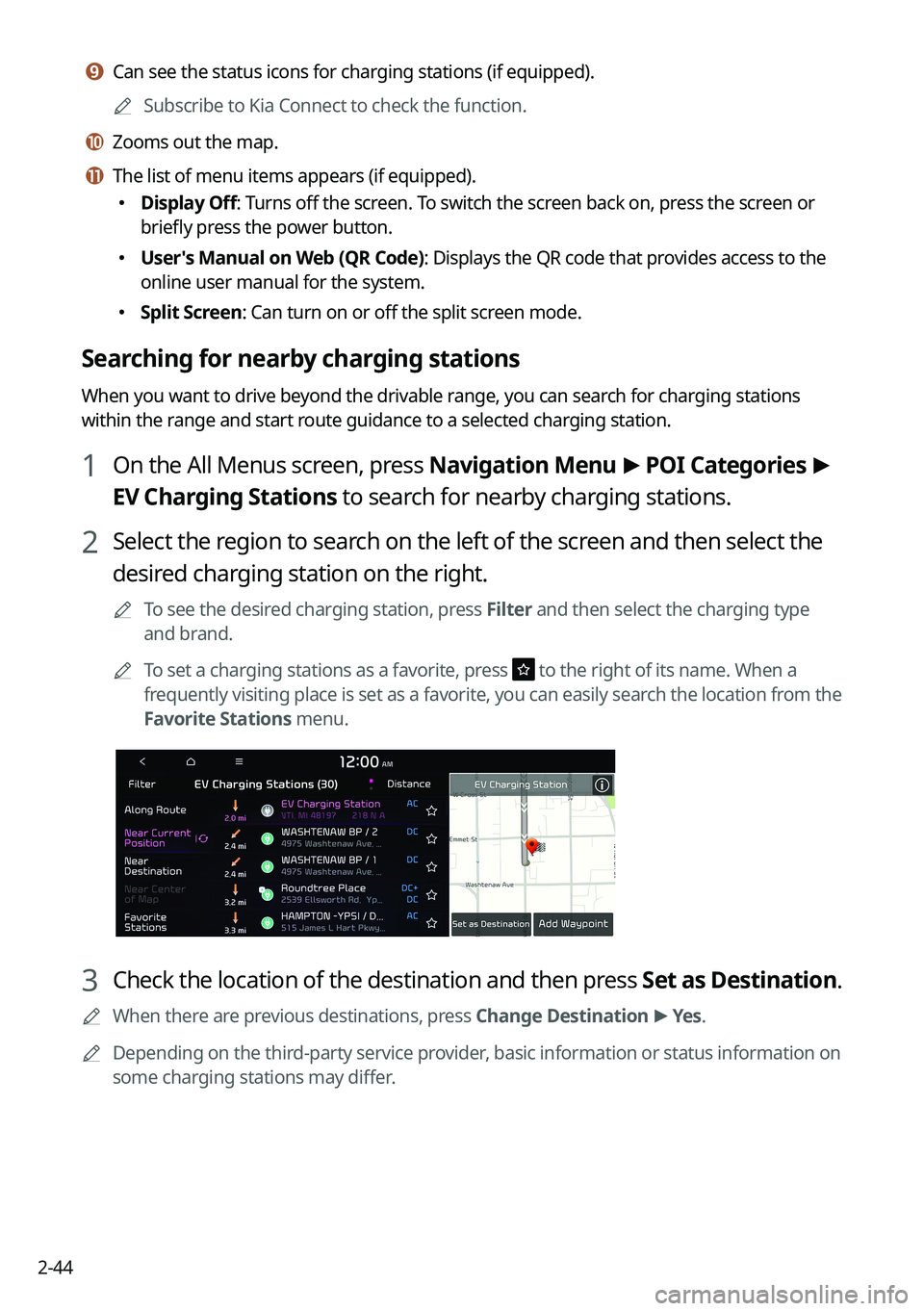
2 Select the region to search on the left of the screen and then select the
desired charging station on the right.
A
To see the desired charging station, press Filter and then select the charging type
and brand.
A
To set a charging stations as a favorite, press
to the right of its name. When a
frequently visiting place is set as a favorite, you can easily search the location from the
Favorite Stations menu.
3 Check the location of the destination and then press Set as Destination.
A
When there are previous destinations, press Change Destination >
Yes .
A
Depending on the third-party service provider, basic information or status information on
some charging stations may differ.
Page 136 of 380
5-2
Navigation functions
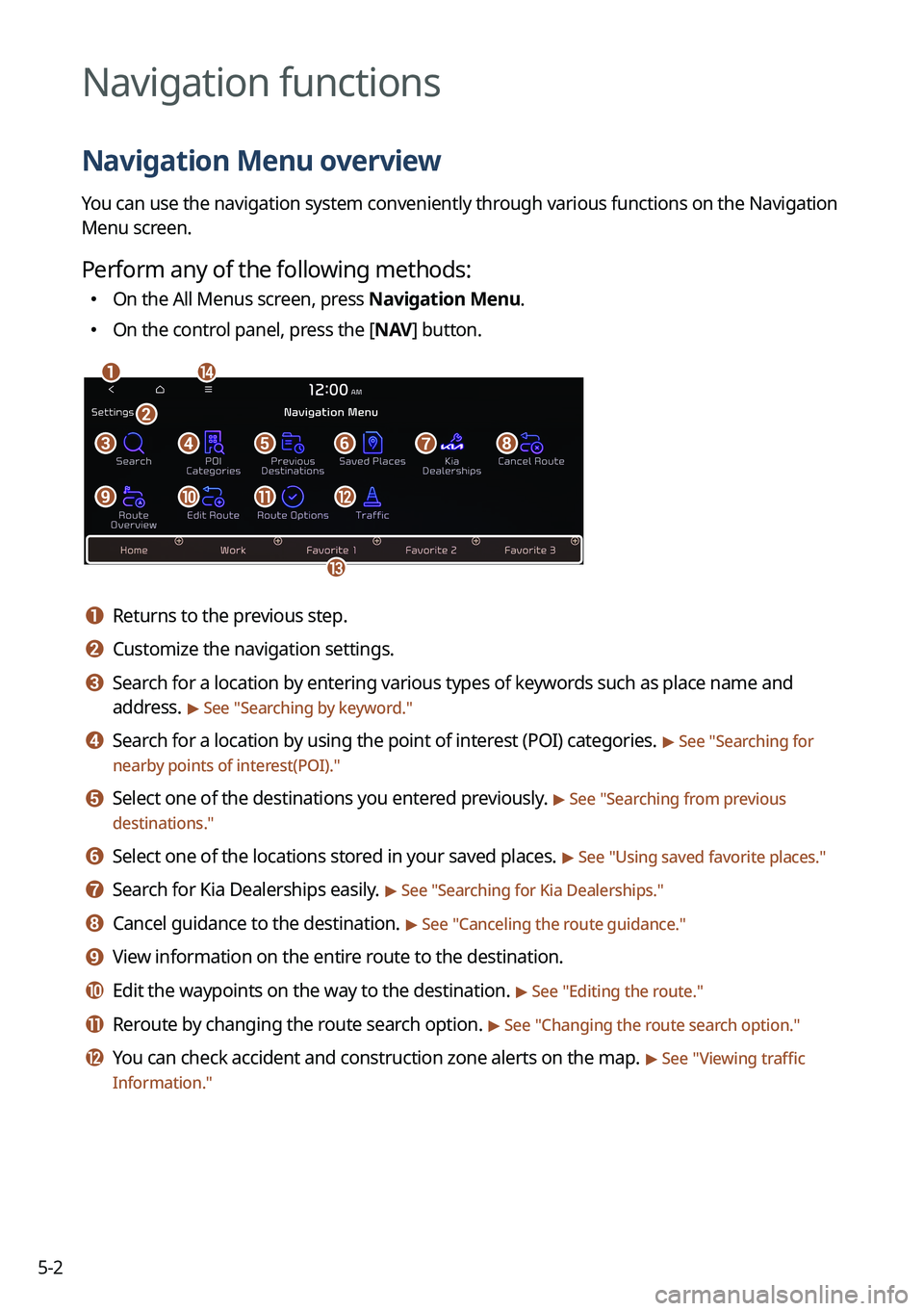
Navigation Menu overview
You can use the navigation system conveniently through various functions on the Navigation
Menu screen.
Perform any of the following methods:
�On the All Menus screen, press Navigation Menu.
�On the control panel, press the [
NAV] button.
an
c
m
defgh
ijkl
b
a a Returns to the previous step.
b b Customize the navigation settings.
c c Search for a location by entering various types of keywords such as place name and
address.
> See " Searching by keyword."
d d Search for a location by using the point of interest (POI) categories. > See "Searching for
nearby points of interest(POI)."
e e Select one of the destinations you entered previously. > See " Searching from previous
destinations."
f f Select one of the locations stored in your saved places. > See " Using saved favorite places."
g g Search for Kia Dealerships easily. > See "Searching for Kia Dealerships."
h h Cancel guidance to the destination. > See "Canceling the route guidance."
i i View information on the entire route to the destination.
j j Edit the waypoints on the way to the destination. > See "Editing the route."
k k Reroute by changing the route search option. > See "Changing the route search option."
l l You can check accident and construction zone alerts on the map. > See " Viewing traffic
Information."
