Page 150 of 380
5-16
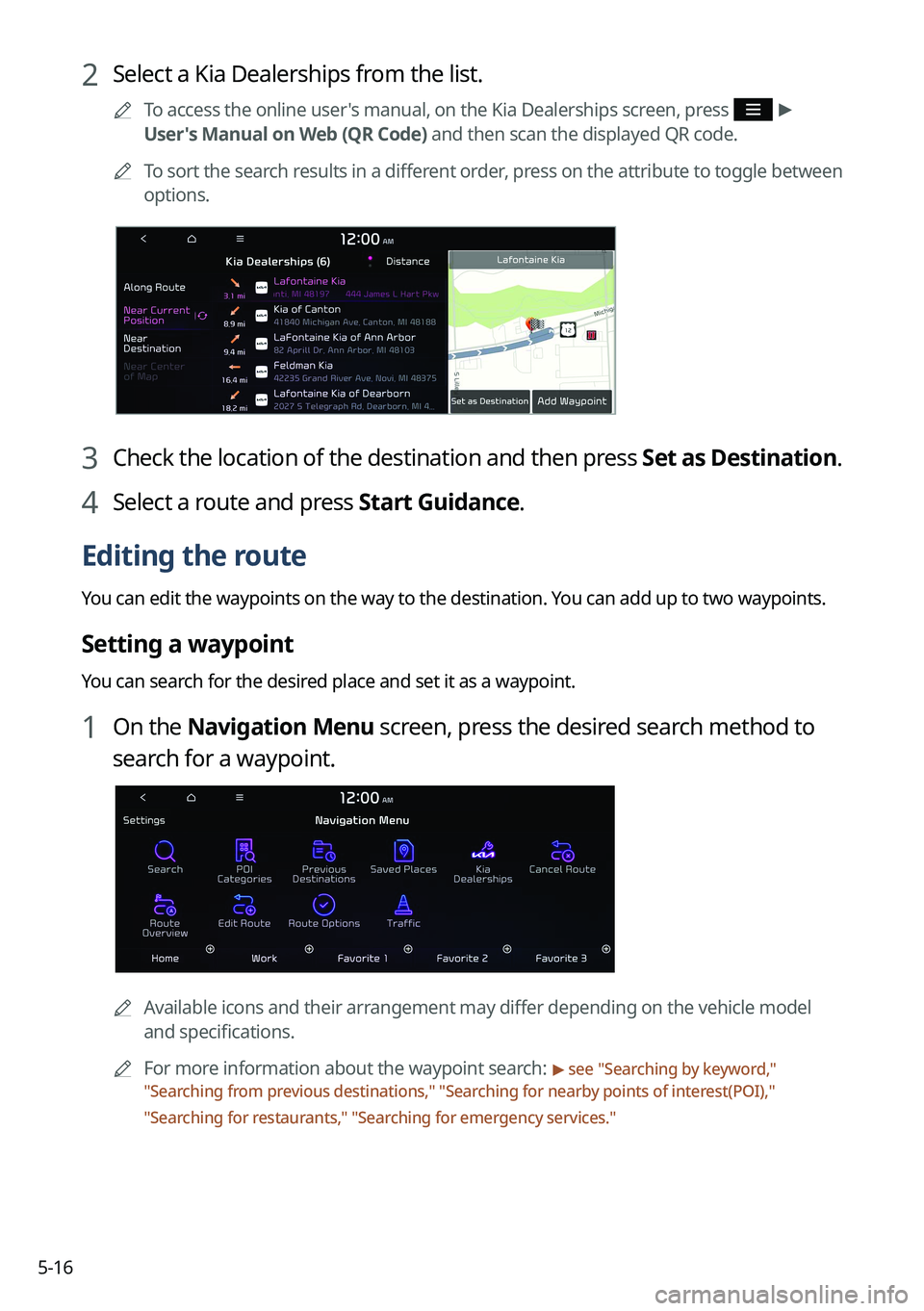
2 Select a Kia Dealerships from the list.
A
To access the online user's manual, on the Kia Dealerships screen, press >
User's Manual on Web (QR Code) and then scan the displayed QR code.
A
To sort the search results in a different order, press on the attribute to toggle between
options.
3 Check the location of the destination and then press Set as Destination.
4 Select a route and press Start Guidance.
Editing the route
You can edit the waypoints on the way to the destination. You can add up to two waypoints.
Setting a waypoint
You can search for the desired place and set it as a waypoint.
1 On the Navigation Menu screen, press the desired search method to
search for a waypoint.
A
Available icons and their arrangement may differ depending on the vehicle model
and specifications.
A
For more information about the waypoint search:
> see "Searching by keyword,"
" Searching from previous destinations," "Searching for nearby points of interest(POI),"
" Searching for restaurants," "Searching for emergency services."
Page 151 of 380
5-17
2 On the map for a search, press Add Waypoint.
The selected waypoint is added to the route.
3 After adding waypoints, press Calculate.
A
To access the online user's manual on the Edit Route screen, press >
User's
Manual on Web (QR Code) and then scan the displayed QR code.
4 Select the updated route and then press Start Guidance.
Changing the order of waypoints
You can change the order of waypoints on the route.
1 On the Navigation Menu screen, press Edit Route.
2 Select a waypoint to change the order and then press Change Order.
A
To change the order of waypoints, press Change Order, then drag it to reposition.
A
To add another waypoint on the Edit Route screen, press Add Waypoint.
A
To see waypoint on the map, press waypoint name >
Show Map.
Page 152 of 380
5-18
3 After editing the route, press Calculate.
4 Select the updated route and then press Start Guidance.
Deleting a waypoint
You can delete a waypoint from the route.
1 On the Navigation Menu screen, press Edit Route.
2 Select a waypoint to delete from the route and then press Delete.
3 To search the route again after removing the waypoint, press Calculate.
4 Select the updated route and then press Start Guidance.
Avoiding specific zones
You can resume routing after excluding the specified roads such as congested roads or roads
under construction.
1 On the Navigation Menu screen, press Route Overview.
2 Press Route Info. / Avoid.
Option A (route search screen linked to connected car system)
Page 153 of 380
5-19
Option B (route search screen not linked to connected car system)
A
The screen may differ depending on the vehicle model and specifications.
3 Select the roads to avoid and press Reroute.
A
To access the online user's manual on the Route Info. / Avoid screen, press >
User's Manual on Web (QR Code) and then scan the displayed QR code.
Option A (route search screen linked to connected car system)
Option B (route search screen not linked to connected car system)
4 Press Yes .
5 Select the updated route and then press Start Guidance.
A
When there is any zone under construction ahead on the way, you are prompted to
confirm whether or not to exclude the zone from the route. To avoid the zone, press Yes
to resume routing.
Page 155 of 380
5-21
Option B (route search screen not linked to connected car system)
Searching for restaurants
1 On the Navigation Menu screen, press POI Categories >
Restaurants.
A
Available icons and their arrangement may differ depending on the vehicle model
and specifications.
2 Select a destination from the search result.
A
To sort the search results in a different order, press on the attribute to toggle between
options.
3 Check the location of the destination and then press Set as Destination.
4 Select a route and press Start Guidance.
Page 156 of 380
5-22
Searching for emergency services
1 On the Navigation Menu screen, press POI Categories.
AAvailable icons and their arrangement may differ depending on the vehicle model
and specifications.
2 Select the type of emergency service.
3 Select a destination from the search result.
A
To sort the search results in a different order, press on the attribute to toggle between
options.
4 Check the location of the destination and then press Set as Destination.
5 Select a route and press Start Guidance.
Page 160 of 380
5-26
Setting a saved favorite place as the destination
You can set any in the saved places of the navigation system as a destination.
1 On the Navigation Menu screen, press Saved Places.
2 Select the desired option from the left of the screen.
3 Select the place to set as a destination.
4 Check the location of the destination and then press Set as Destination.
5 Select a route and press Start Guidance.
Setting a frequently visited place as the destination
You can set your home, office, or other frequently visited places as a destination directly from
your favorites list once you add them.
At the bottom of the Navigation Menu screen, press a desired shortcut
button.
A
When guidance to a destination is in progress, press Change Destination.
A
Available icons and their arrangement may differ depending on the vehicle model and
specifications.
Page 162 of 380
5-28
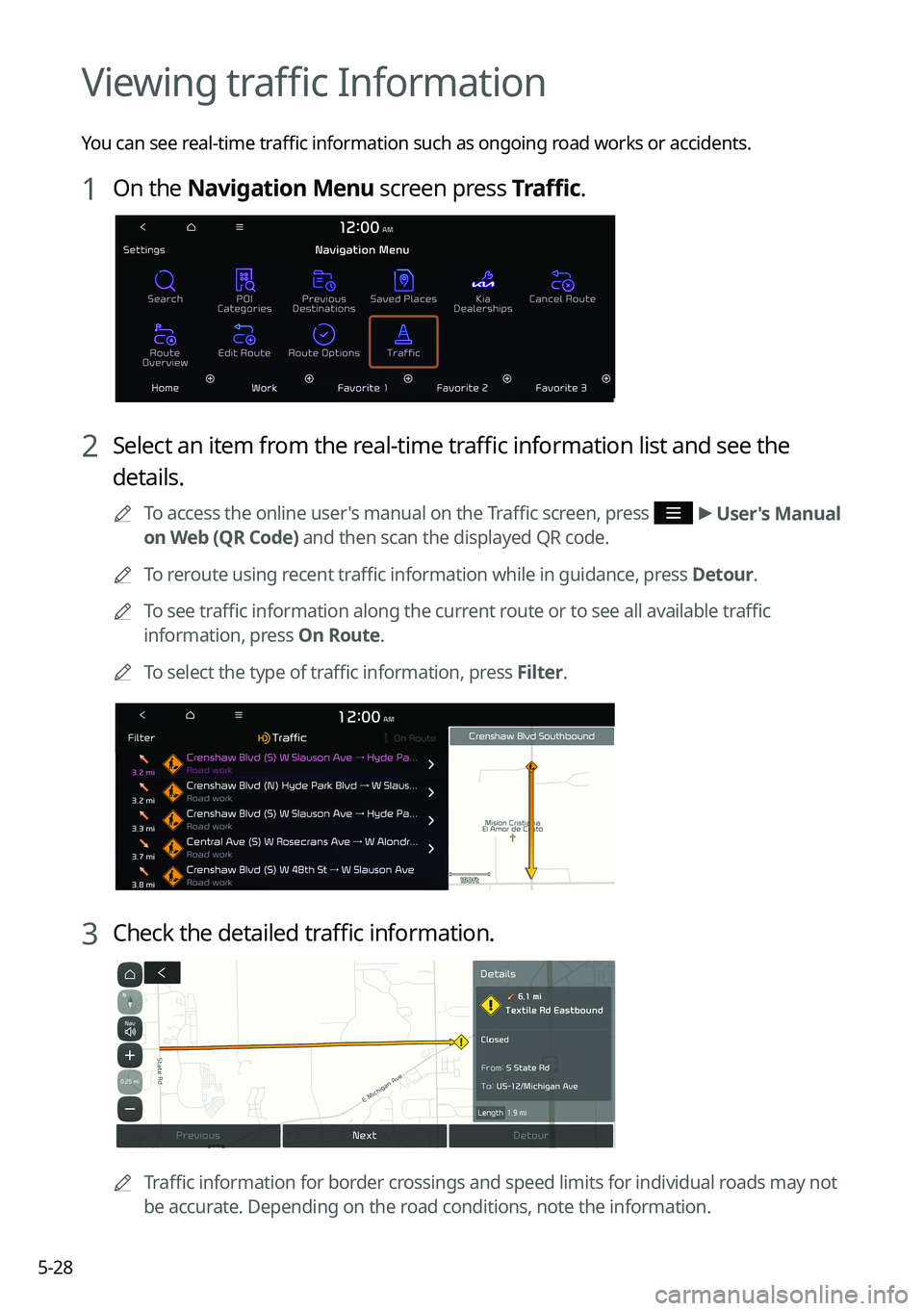
Viewing traffic Information
You can see real-time traffic information such as ongoing road works or accidents.
1 On the Navigation Menu screen press Traffic.
2 Select an item from the real-time traffic information list and see the
details.
A
To access the online user's manual on the Traffic screen, press >
User's Manual
on Web (QR Code) and then scan the displayed QR code.
A
To reroute using recent traffic information while in guidance, press Detour.
A
To see traffic information along the current route or to see all available traffic
information, press On Route.
A
To select the type of traffic information, press Filter.
3 Check the detailed traffic information.
A
Traffic information for border crossings and speed limits for individual roads may not
be accurate. Depending on the road conditions, note the information.