Page 233 of 380
8-11
Using Voice Local Search (if equipped)
With Kia Connect, you can search for locations from the online map database by using voice
commands.
A
This function is only available in vehicle models with
l l (3 Button type).
A
Depending on the conditions such as vehicle type, system type, and the s\
ubscribed
service package, available services may differ.
A
The exact appearance or position of the button may differ depending on the vehicle
model and specifications.
If you did not update the map or system or you cannot find your destination in the
navigation, you can use the latest information from the online server to search for locations
and receive guidance.
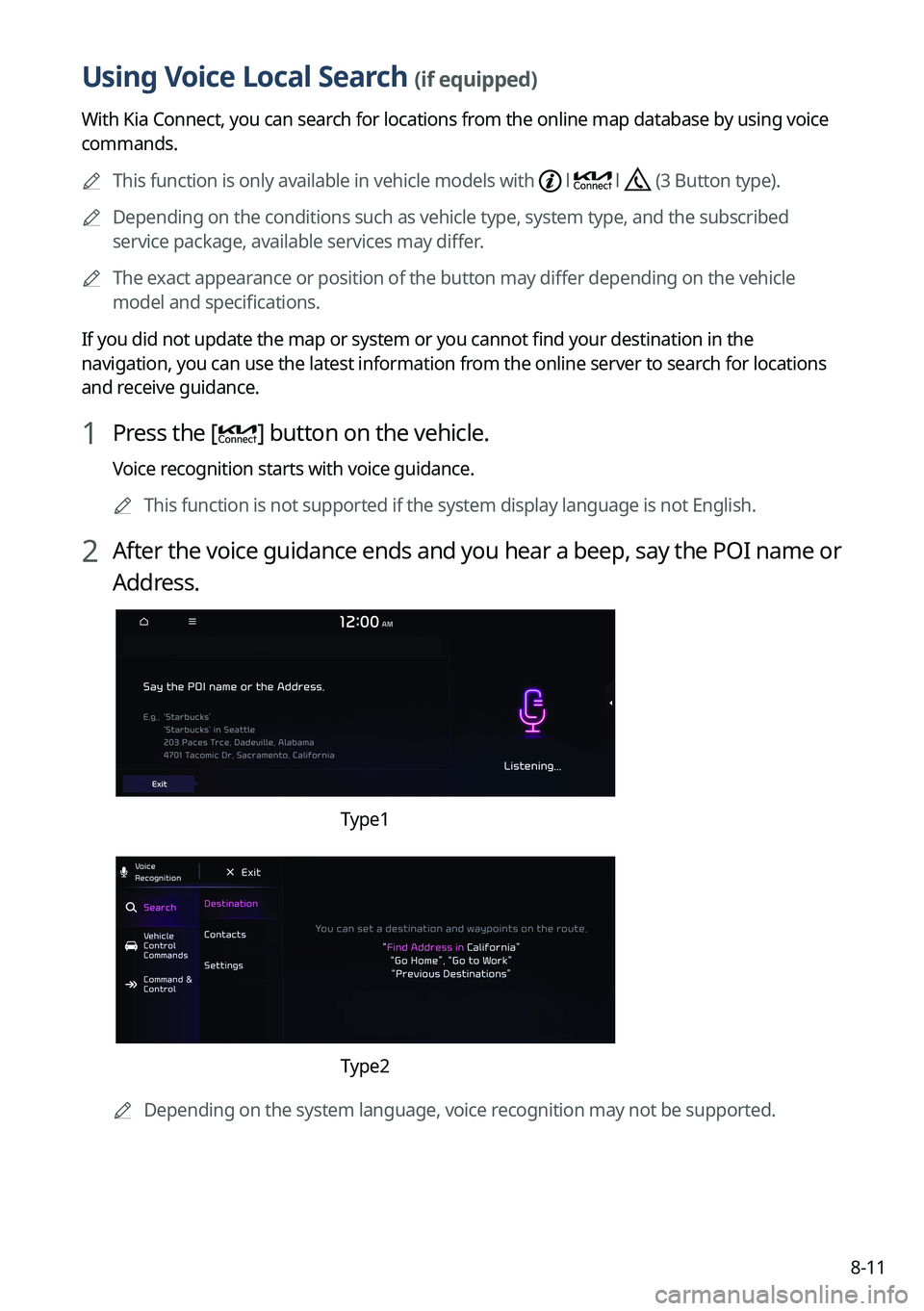
1 Press the [] button on the vehicle.
Voice recognition starts with voice guidance.
A
This function is not supported if the system display language is not Eng\
lish.
2 After the voice guidance ends and you hear a beep, say the POI name or
Address.
Type1
Type2
A
Depending on the system language, voice recognition may not be supported.
Page 235 of 380

8-13
Route guidance service (if equipped)
Use a more convenient, accurate route guidance service through the Kia Connect route
guidance service.
Finding a route by manually entering a destination
You can use fast and accurate route guidance based on real-time and forecast traffic data
collected by the Kia Connect Center.
Using the Kia Connect quick route guidance
You can use the quick navigation service based on real-time traffic information analyzed by
the Kia Connect Center.
1 Set the destination on the navigation system.
2 From the list of routes, select the Kia Connect route.
Quick route guidance starts by the Kia Connect Center.
AThe screen may differ depending on the vehicle model and specifications.
A
You can use the Kia Connect route to search for a different route while in route guidance.
A
The road information by the Kia Connect may differ from actual road conditions. Be sure
to drive according to actual road conditions and regulations.
A
The estimated time of arrival and remaining time to destination are calculated based on
the traffic conditions. The calculated times may differ depending on the change in traffic
conditions.
A
Depending on the map update time, guidance on a new road may not match actual road
conditions.
Guidance to destination service
If you park your vehicle at a distance of more than a specified value away from the
destination, you can continue to use the route guidance to the destination from your
smartphone.
Page 249 of 380
9-13
Cluster Voice Guidance Volume (if equipped)
You can adjust the volume of guiding beep.
Welcome Sound (if equipped)
You can set to generate the notification sound when turning on or off the instrument cluster.
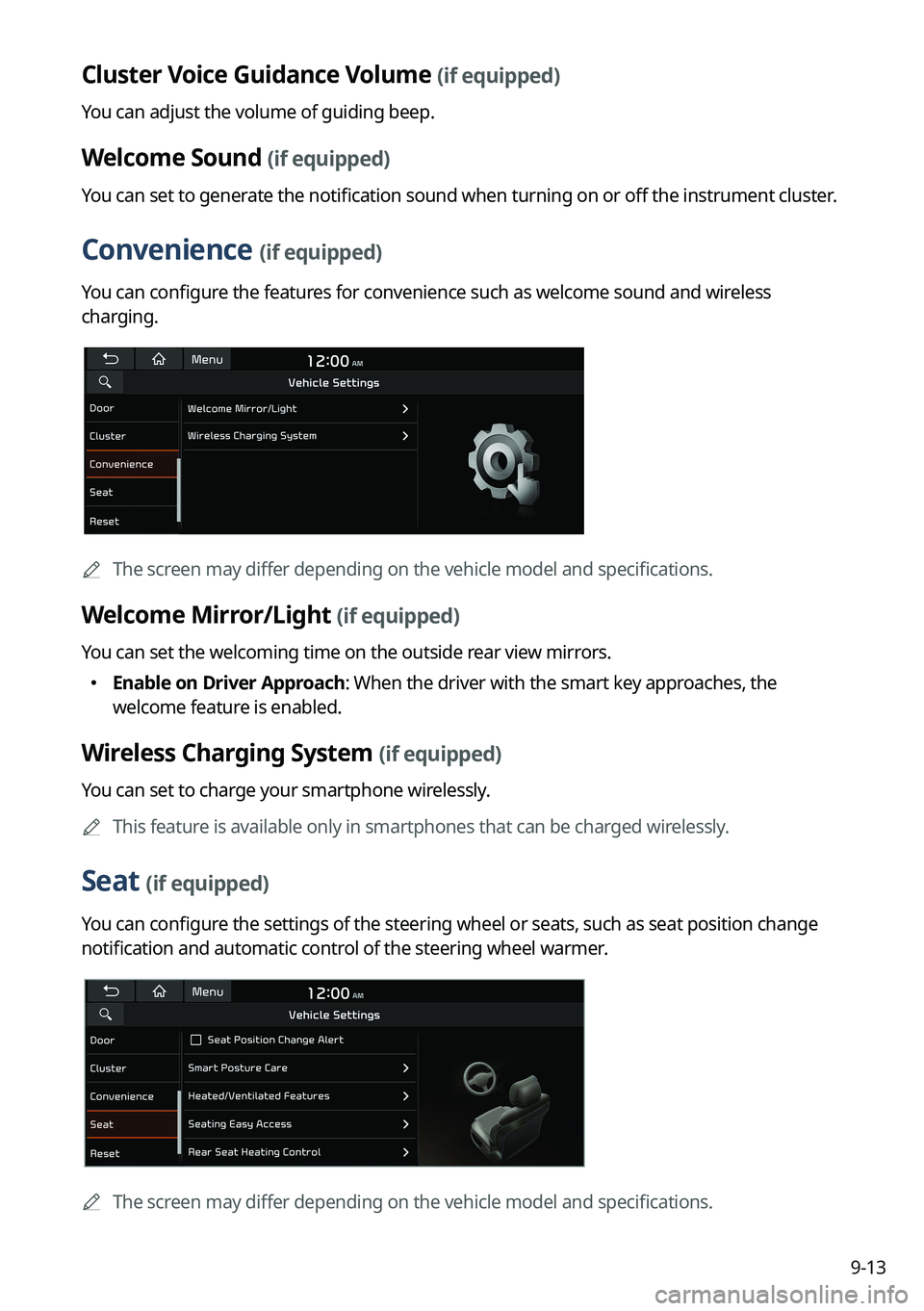
Convenience (if equipped)
You can configure the features for convenience such as welcome sound and wireless
charging.
A
The screen may differ depending on the vehicle model and specifications.
Welcome Mirror/Light (if equipped)
You can set the welcoming time on the outside rear view mirrors.
�Enable on Driver Approach: When the driver with the smart key approaches, the
welcome feature is enabled.
Wireless Charging System (if equipped)
You can set to charge your smartphone wirelessly.
A
This feature is available only in smartphones that can be charged wirelessly.
Seat (if equipped)
You can configure the settings of the steering wheel or seats, such as seat position change
notification and automatic control of the steering wheel warmer.
A
The screen may differ depending on the vehicle model and specifications.
Page 263 of 380
9-27
Reset Fuel Economy or Reset Avg. Energy Consumption (if equipped)
Select which average fuel economy to display on the cluster.
�At vehicle start: Displays the fuel economy after engine restart.
�After refueling: Displays the fuel economy after refueling.
�After recharging: Displays the energy after recharging (EV only).
�Manually: Displays the accumulated fuel economy.
Content Selection (if equipped)
You can set the content to display on the instrument cluster.
�Wiper/Lights Display: When the wiper or light lever operates, the operation mode
appears.
�Traffic Signs: Displays the road information such as speed bumps and speed limits.
�Blind-Spot View Monitor: Displays the blind spot view on the instrument cluster when
the turn signal lamp is operating.
�Icy Road Warning: When the outside temperature drops below 4 °C (39 °F), the
possibility of road icing appears.
Cluster Voice Guidance Volume (if equipped)
You can adjust the voice guidance volume of the cluster.
Welcome Sound (if equipped)
You can set to generate the notification sound when turning on or off the instrument cluster.
Tachometer Display (if equipped)
Selects the drive modes in which the tachometer is displayed.
Oil Change Reminder (if equipped)
Shows the residual life of the engine oil.
Page 288 of 380
9-52
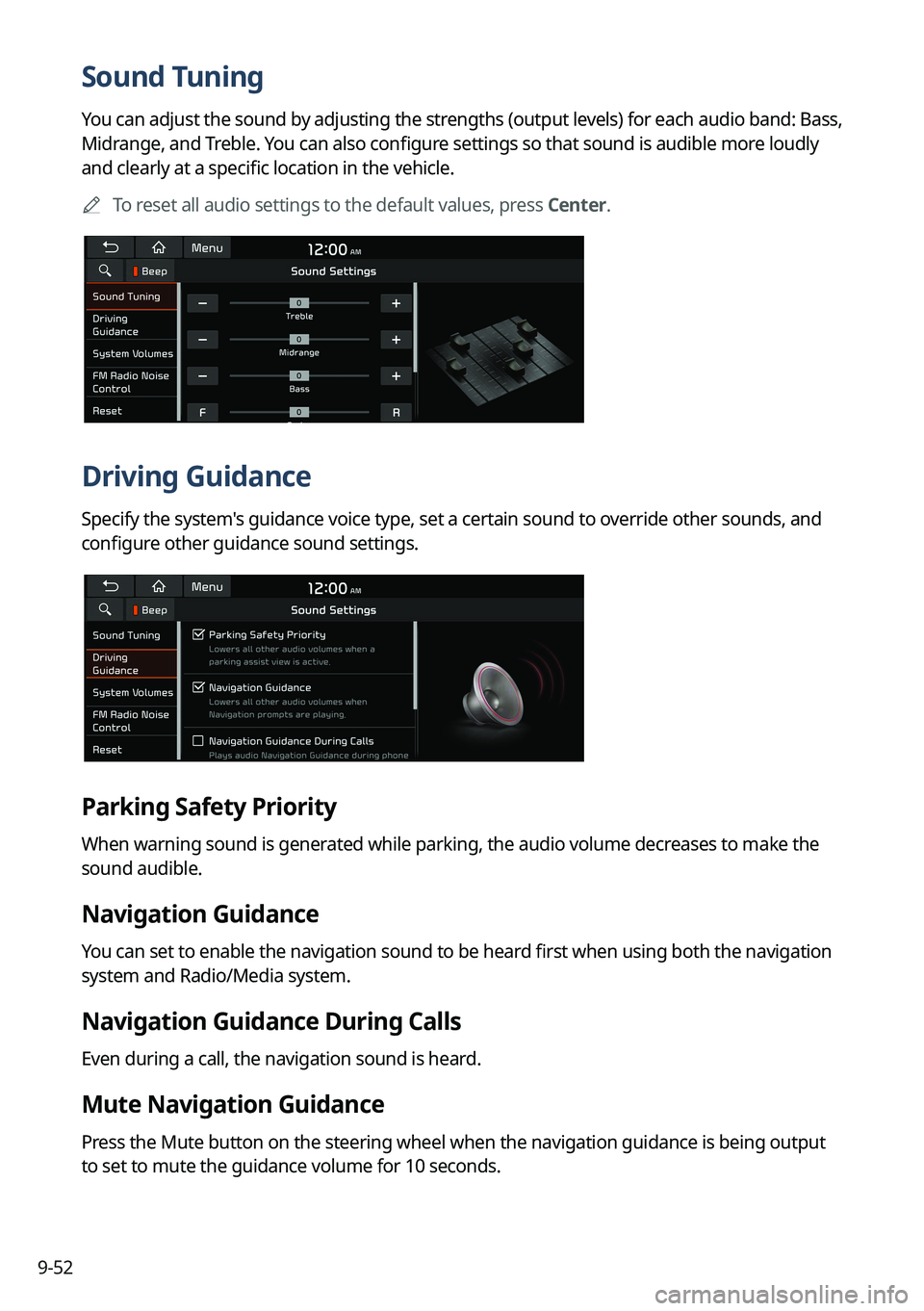
Sound Tuning
You can adjust the sound by adjusting the strengths (output levels) for each audio band: Bass,
Midrange, and Treble. You can also configure settings so that sound is audible more loudly
and clearly at a specific location in the vehicle.
A
To reset all audio settings to the default values, press Center.
Driving Guidance
Specify the system's guidance voice type, set a certain sound to override other sounds, and
configure other guidance sound settings.
Parking Safety Priority
When warning sound is generated while parking, the audio volume decreases to make the
sound audible.
Navigation Guidance
You can set to enable the navigation sound to be heard first when using both the navigation
system and Radio/Media system.
Navigation Guidance During Calls
Even during a call, the navigation sound is heard.
Mute Navigation Guidance
Press the Mute button on the steering wheel when the navigation guidance is being output
to set to mute the guidance volume for 10 seconds.
Page 293 of 380
9-57
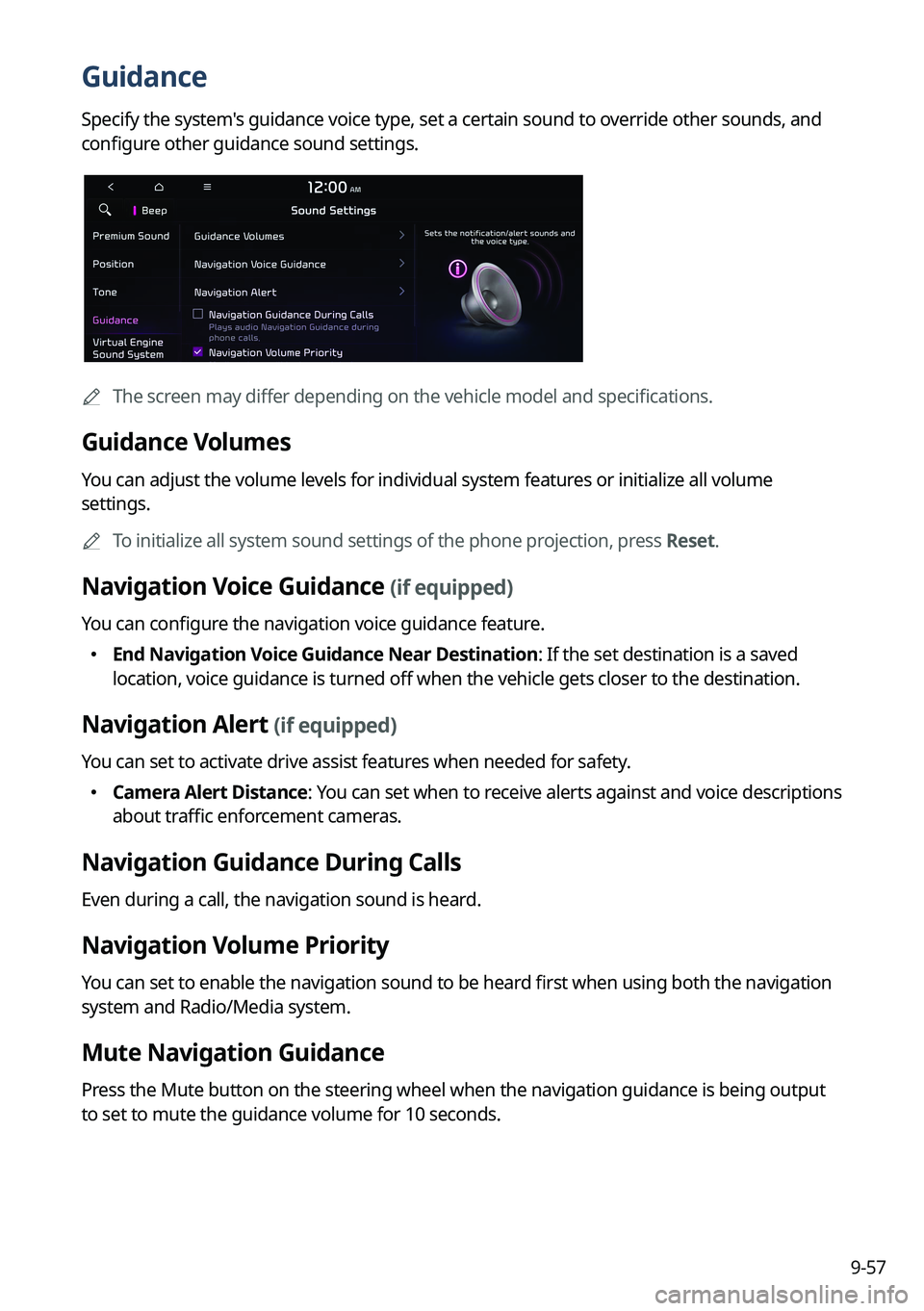
Guidance
Specify the system's guidance voice type, set a certain sound to override other sounds, and
configure other guidance sound settings.
A
The screen may differ depending on the vehicle model and specifications.
Guidance Volumes
You can adjust the volume levels for individual system features or initialize all volume
settings.
A
To initialize all system sound settings of the phone projection, press Reset.
Navigation Voice Guidance (if equipped)
You can configure the navigation voice guidance feature.
�End Navigation Voice Guidance Near Destination: If the set destination is a saved
location, voice guidance is turned off when the vehicle gets closer to the destination.
Navigation Alert (if equipped)
You can set to activate drive assist features when needed for safety.
�Camera Alert Distance
: You can set when to receive alerts against and voice descriptions
about traffic enforcement cameras.
Navigation Guidance During Calls
Even during a call, the navigation sound is heard.
Navigation Volume Priority
You can set to enable the navigation sound to be heard first when using both the navigation
system and Radio/Media system.
Mute Navigation Guidance
Press the Mute button on the steering wheel when the navigation guidance is being output
to set to mute the guidance volume for 10 seconds.
Page 297 of 380
9-61
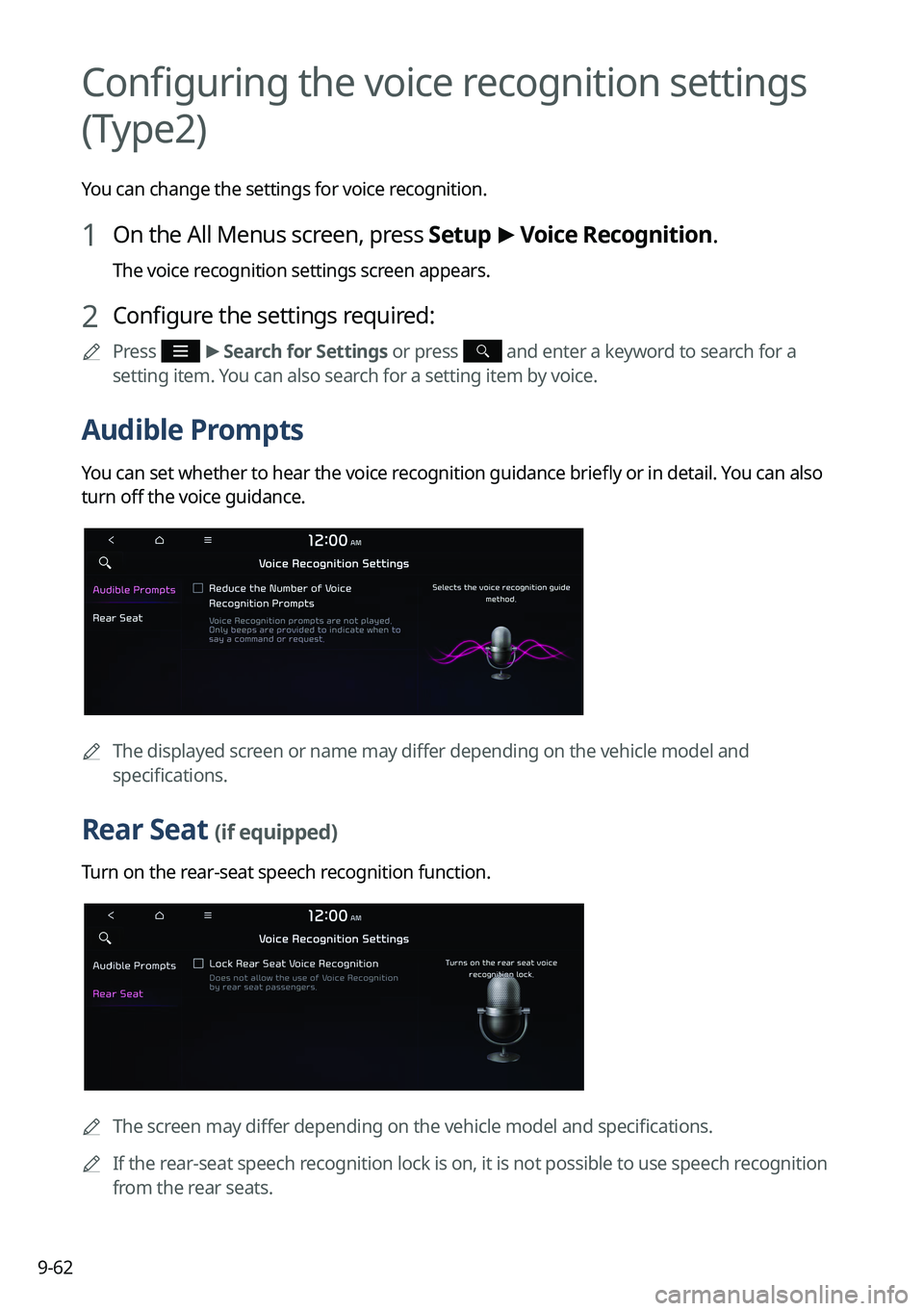
Configuring the voice recognition settings
(Type1)
You can change the settings for voice recognition.
1 On the All Menus screen, press Setup >
Voice Recognition.
The voice recognition settings screen appears.
2 Configure the settings required:
A
Press Menu >
Search for Settings or press and enter a keyword to search for a
setting item. You can also search for a setting item by voice.
Guidance
You can set whether to hear the voice recognition guidance briefly or in detail. You can also
turn off the voice guidance.
Page 298 of 380
9-62
Configuring the voice recognition settings
(Type2)
You can change the settings for voice recognition.
1 On the All Menus screen, press Setup >
Voice Recognition.
The voice recognition settings screen appears.
2 Configure the settings required:
A
Press >
Search for Settings or press and enter a keyword to search for a
setting item. You can also search for a setting item by voice.
Audible Prompts
You can set whether to hear the voice recognition guidance briefly or in detail. You can also
turn off the voice guidance.
A
The displayed screen or name may differ depending on the vehicle model and
specifications.
Rear Seat (if equipped)
Turn on the rear-seat speech recognition function.
AThe screen may differ depending on the vehicle model and specifications.
A
If the rear-seat speech recognition lock is on, it is not possible to use speech recognition
from the rear seats.