Page 197 of 380
7-7
Using the voice recognition function (Type2)
1 Press the Voice Recognition button on the steering wheel. After a beep
sound, say your voice command.
A
If you press the Voice Recognition button when the system is waiting for a voice
command, the standby time is extended.
A
If you press the Voice Recognition button in the middle of voice guidance on the voice
recognition function, the voice guidance is skipped.
2 When a beep sound is heard, say a voice command as required (e.g.,
radio).
> See "Available voice commands (Type2)" or " Viewing available voice commands."
A
Some functions may require additional commands.
A
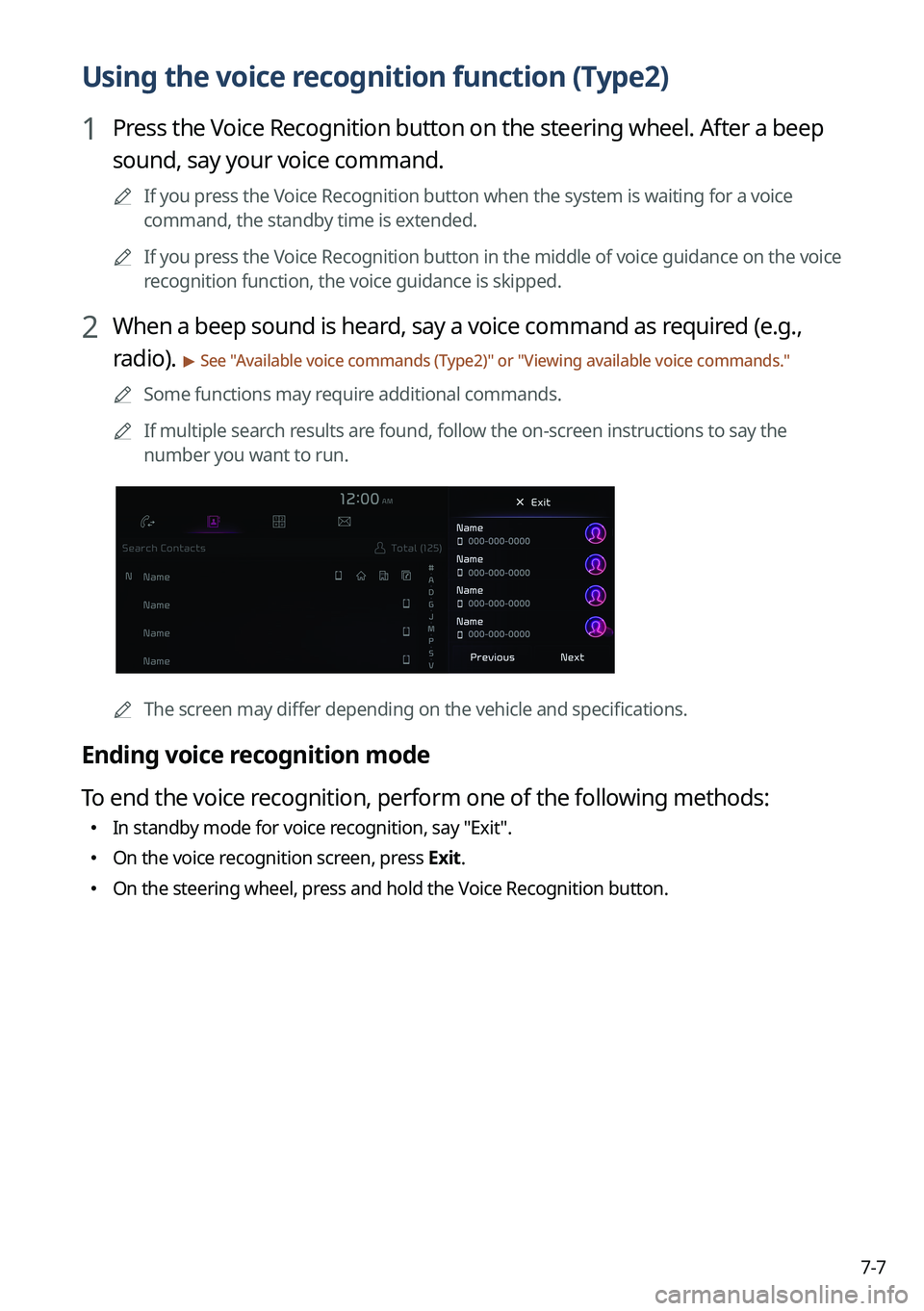
If multiple search results are found, follow the on-screen instructions to say the
number you want to run.
A
The screen may differ depending on the vehicle and specifications.
Ending voice recognition mode
To end the voice recognition, perform one of the following methods:
�In standby mode for voice recognition, say "Exit
".
�On the voice recognition screen, press Exit.
�On the steering wheel, press and hold the Voice Recognition button.
Page 198 of 380
7-8
Using voice recognition via phone projection
Use the voice recognition function on your smartphone via phone projection. > See "Using the
phone projection function."
Adjusting the voice guidance volume
When voice recognition mode is on, you can adjust the volume by using the volume knob.
Viewing available voice commands
Turn on voice recognition mode and then say "All functions" to view all commands that are
available for use.
A
The All functions screen can be controlled by touch only and does not recognize voice
commands.
A
To redirect to the Voice Recognition screen, press the Voice Recognition button.
A
Press Exit to end voice recognition.
A
Some functions may not be supported depending on the vehicle's options.
A
The screen may differ depending on the vehicle and specifications.
Page 199 of 380
7-9
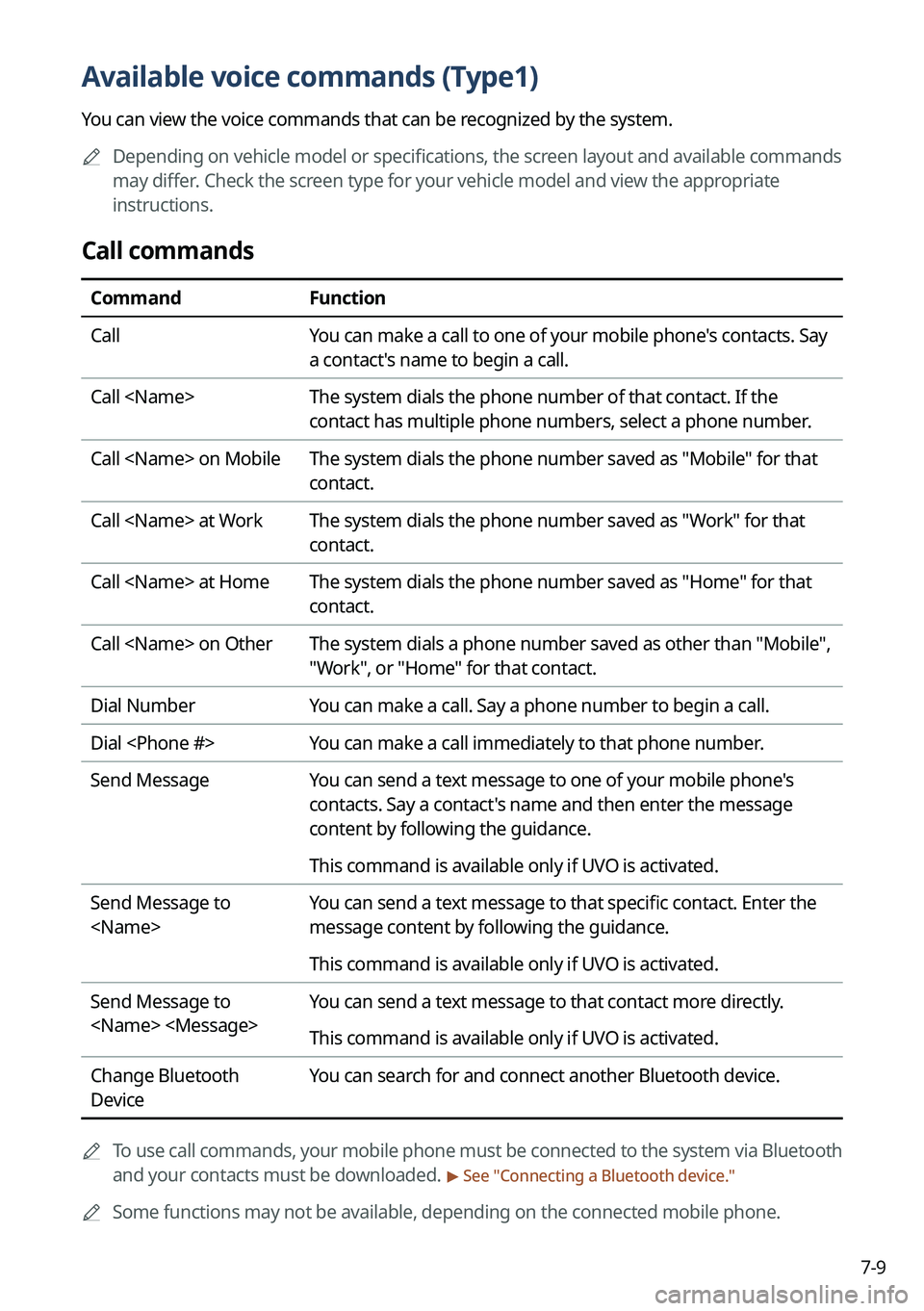
Available voice commands (Type1)
You can view the voice commands that can be recognized by the system.
A
Depending on vehicle model or specifications, the screen layout and available commands
may differ. Check the screen type for your vehicle model and view the appropriate
instructions.
Call commands
Command Function
Call You can make a call to one of your mobile phone's contacts. Say
a contact's name to begin a call.
Call The system dials the phone number of that contact. If the
contact has multiple phone numbers, select a phone number.
Call on Mobile The system dials the phone number saved as "Mobile" for that
contact.
Call at Work The system dials the phone number saved as "Work" for that
contact.
Call at Home The system dials the phone number saved as "Home" for that
contact.
Call on Other The system dials a phone number saved as other than "Mobile",
"Work", or "Home" for that contact.
Dial Number You can make a call. Say a phone number to begin a call.
Dial You can make a call immediately to that phone number.
Send Message You can send a text message to one of your mobile phone's
contacts. Say a contact's name and then enter the message
content by following the guidance.
This command is available only if UVO is activated.
Send Message to
You can send a text message to that specific contact. Enter the
message content by following the guidance.
This command is available only if UVO is activated.
Send Message to
You can send a text message to that contact more directly.
This command is available only if UVO is activated.
Change Bluetooth
Device You can search for and connect another Bluetooth device.
A
To use call commands, your mobile phone must be connected to the system via Bluetooth
and your contacts must be downloaded.
> See "Connecting a Bluetooth device."
A
Some functions may not be available, depending on the connected mobile p\
hone.
Page 200 of 380
7-10
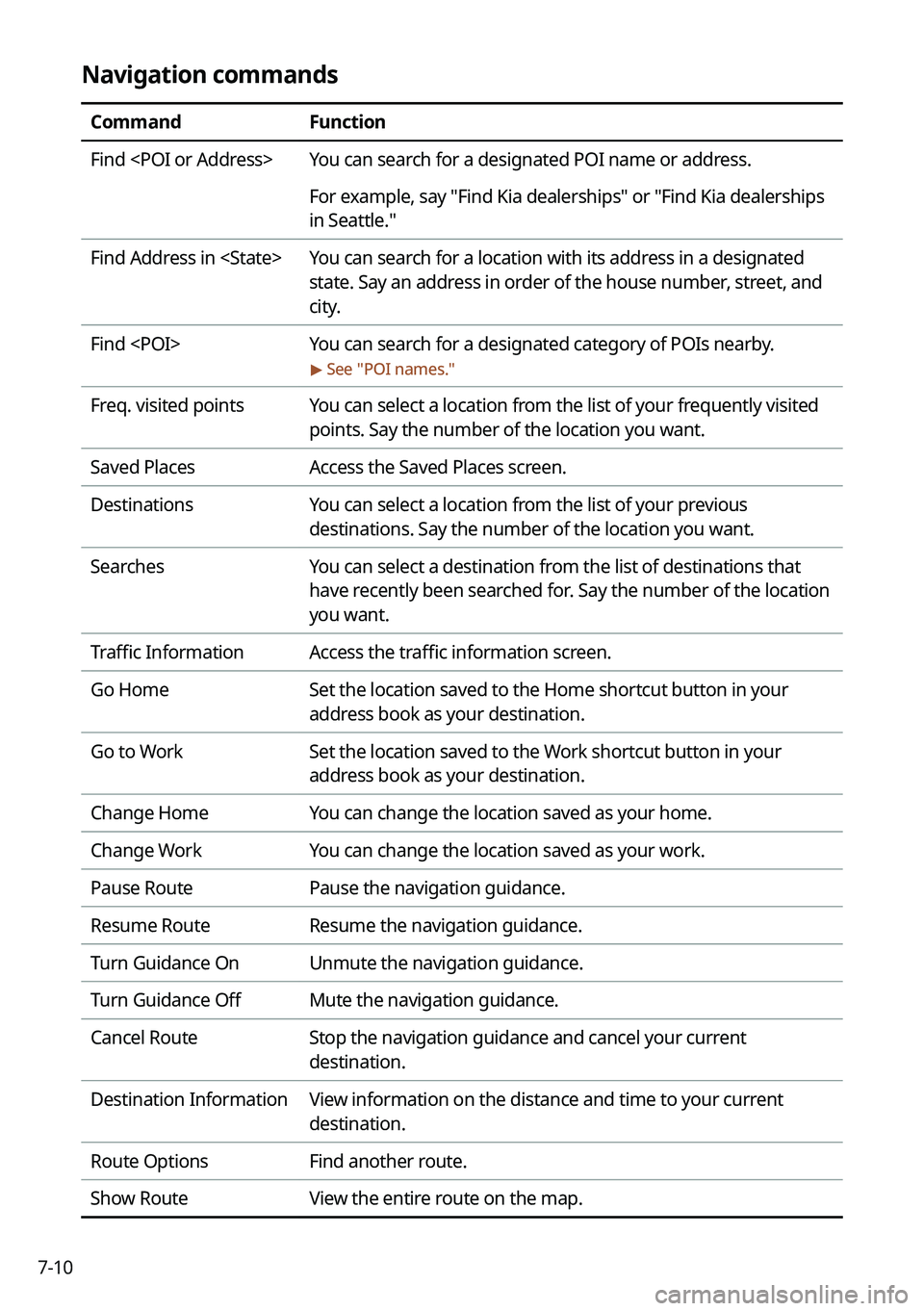
Navigation commands
CommandFunction
Find You can search for a designated POI name or address.
For example, say "Find Kia dealerships" or "Find Kia dealerships
in Seattle."
Find Address in You can search for a location with its address in a designated
state. Say an address in order of the house number, street, and
city.
Find You can search for a designated category of POIs nearby.
> See "POI names."
Freq. visited points You can select a location from the list of your frequently visited
points. Say the number of the location you want.
Saved Places Access the Saved Places screen.
Destinations You can select a location from the list of your previous
destinations. Say the number of the location you want.
Searches You can select a destination from the list of destinations that
have recently been searched for. Say the number of the location
you want.
Traffic Information Access the traffic information screen.
Go Home Set the location saved to the Home shortcut button in your
address book as your destination.
Go to Work Set the location saved to the Work shortcut button in your
address book as your destination.
Change Home You can change the location saved as your home.
Change Work You can change the location saved as your work.
Pause Route Pause the navigation guidance.
Resume Route Resume the navigation guidance.
Turn Guidance On Unmute the navigation guidance.
Turn Guidance Off Mute the navigation guidance.
Cancel Route Stop the navigation guidance and cancel your current
destination.
Destination Information View information on the distance and time to your current
destination.
Route Options Find another route.
Show Route View the entire route on the map.
Page 204 of 380
7-14
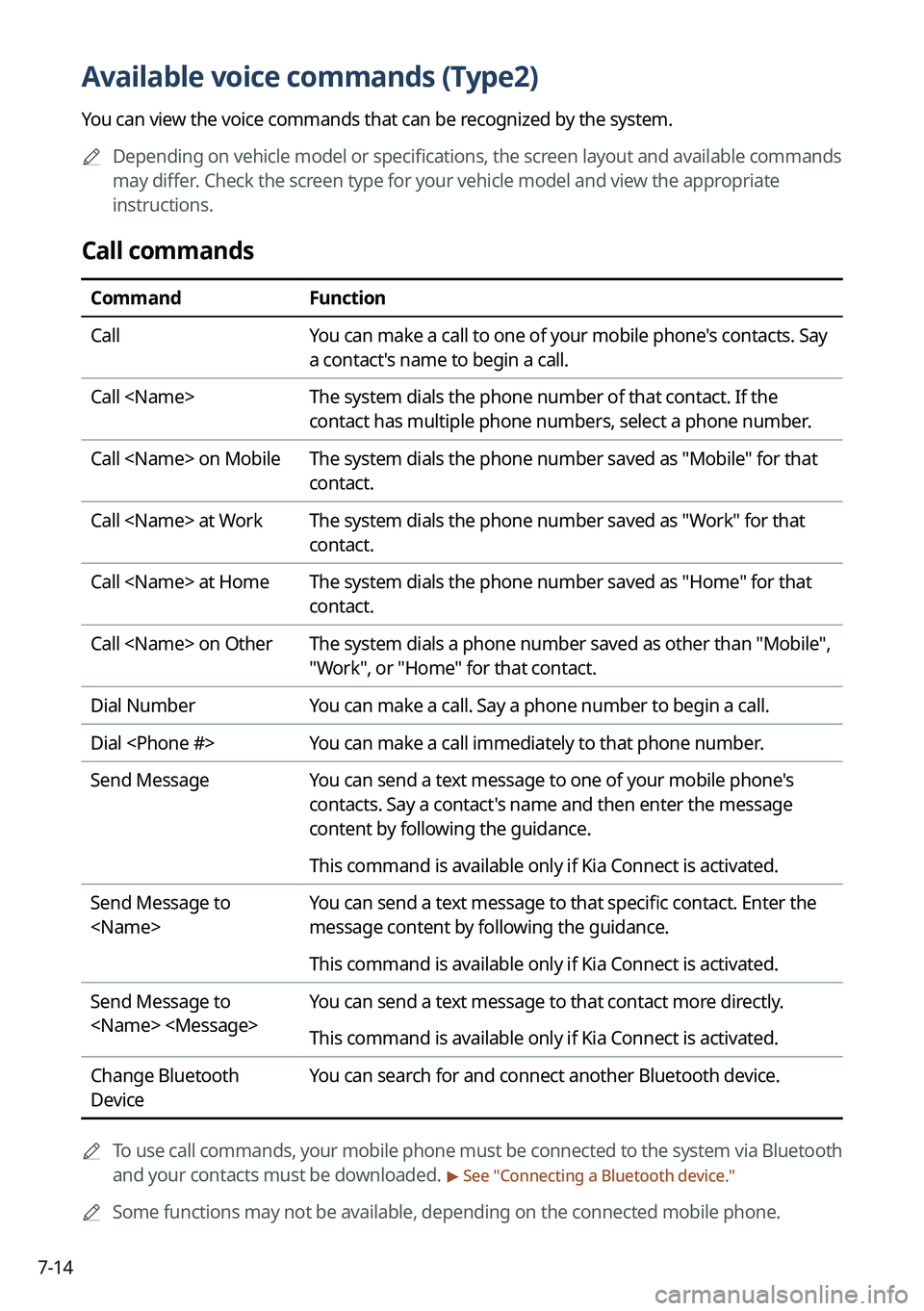
Available voice commands (Type2)
You can view the voice commands that can be recognized by the system.
A
Depending on vehicle model or specifications, the screen layout and available commands
may differ. Check the screen type for your vehicle model and view the appropriate
instructions.
Call commands
Command Function
Call You can make a call to one of your mobile phone's contacts. Say
a contact's name to begin a call.
Call The system dials the phone number of that contact. If the
contact has multiple phone numbers, select a phone number.
Call on Mobile The system dials the phone number saved as "Mobile" for that
contact.
Call at Work The system dials the phone number saved as "Work" for that
contact.
Call at Home The system dials the phone number saved as "Home" for that
contact.
Call on Other The system dials a phone number saved as other than "Mobile",
"Work", or "Home" for that contact.
Dial Number You can make a call. Say a phone number to begin a call.
Dial You can make a call immediately to that phone number.
Send Message You can send a text message to one of your mobile phone's
contacts. Say a contact's name and then enter the message
content by following the guidance.
This command is available only if Kia Connect is activated.
Send Message to
You can send a text message to that specific contact. Enter the
message content by following the guidance.
This command is available only if Kia Connect is activated.
Send Message to
You can send a text message to that contact more directly.
This command is available only if Kia Connect is activated.
Change Bluetooth
Device You can search for and connect another Bluetooth device.
A
To use call commands, your mobile phone must be connected to the system via Bluetooth
and your contacts must be downloaded.
> See "Connecting a Bluetooth device."
A
Some functions may not be available, depending on the connected mobile p\
hone.
Page 205 of 380

7-15
Navigation commands
CommandFunction
Find You can search for a designated POI name or address.
For example, say "Find Kia dealerships" or "Find Kia dealerships
in Seattle."
Find Address in You can search for a location with its address in a designated
state. Say an address in order of the house number, street, and
city.
Find You can search for a designated category of POIs nearby.
> See "POI names."
Freq. visited points You can select a location from the list of your frequently visited
points. Say the number of the location you want.
Saved Places Access the Saved Places screen.
Previous Destinations You can select a location from the list of your previous
destinations. Say the number of the location you want.
Previous Searches You can select a destination from the list of destinations that
have recently been searched for. Say the number of the location
you want.
Traffic Information Access the traffic information screen.
Go Home Set the location saved to the Home shortcut button in your
address book as your destination.
Go to Work Set the location saved to the Work shortcut button in your
address book as your destination.
Change Home You can change the location saved as your home.
Change Work You can change the location saved as your work.
Reroute Can perform routing again.
Pause Route Pause the navigation guidance.
Resume Route Resume the navigation guidance.
Cancel Route Stop the navigation guidance and cancel your current
destination.
Destination Information View information on the distance and time to your current
destination.
Route Options Change the navigation route search options.
Page 223 of 380
Kia Connect
Kia Connect service
Running the Kia Connect menu Route guidance service
08
Page 229 of 380
8-7
2 Press Search Destination.
3 Check the location of the destination and then press Set as Destination.
A
When you see the search result list, press the desired destination to see on the map.
4 Select a route and press Start Guidance.


