Page 171 of 814
uuGauges and Displays uHead-Up Display*
170
Instrument Panel
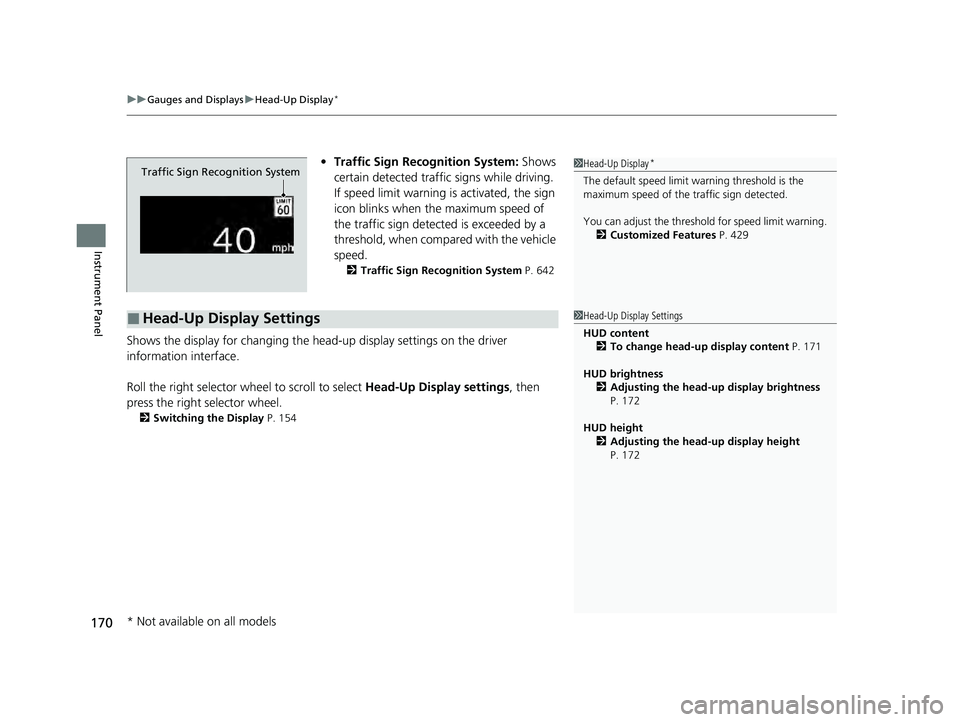
• Traffic Sign Recognition System: Shows
certain detected traffic signs while driving.
If speed limit warning is activated, the sign
icon blinks when th e maximum speed of
the traffic sign detect ed is exceeded by a
threshold, when compar ed with the vehicle
speed.
2 Traffic Sign Recognition System P. 642
Shows the display for changing the head-up display settings on the driver
information interface.
Roll the right selector wheel to scroll to select Head-Up Display settings, then
press the right selector wheel.
2 Switching the Display P. 154
Traffic Sign Recognition System
■Head-Up Display Settings
1Head-Up Display*
The default speed limit wa rning threshold is the
maximum speed of the traffic sign detected.
You can adjust the threshol d for speed limit warning.
2 Customized Features P. 429
1Head-Up Display Settings
HUD content
2 To change head-up display content P. 171
HUD brightness 2 Adjusting the head-up display brightness
P. 172
HUD height 2 Adjusting the head-up display height
P. 172
* Not available on all models
23 PILOT-31T906000_03.book 170 ページ 2022年10月31日 月曜日 午前10時26分
Page 172 of 814
171
uuGauges and Displays uHead-Up Display*
Continued
Instrument Panel
■To change head-up display content
1. Roll the right selector wheel to scroll to select HUD content, then press the right
selector wheel.
2. Roll the right selector wheel to scroll to select desired item, then press the right
selector wheel. • Speedometer
2 Speedometer P. 173
•Navigation
2 Navigation P. 173
•Driver assist
2 Current Mode for ACC with Low Speed Follow, LKAS, and Traffic Jam Assist
P. 173
• OFF
Head-Up Display
Speedometer
Driver assist Navigation
OFF
23 PILOT-31T906000_03.book 171 ページ 2022年10月31日 月曜日 午前10時26分
Page 173 of 814
uuGauges and Displays uHead-Up Display*
172
Instrument Panel
■Adjusting the head-up display brightness
Roll the right selector wheel to scroll to select HUD brightness, then press the right
selector wheel.
Brighten: Roll the right selector wheel up.
Dim : Roll the right selector wheel down.
Press the right selector wheel to exit.
■Adjusting the head-up display height
Roll the right selector wheel to scroll to select HUD height, then press the right
selector wheel.
Raise the head-up display : Roll the right selector wheel up.
Lower the head-up display : Roll the right selector wheel down.
Press the right selector wheel to exit.1 Adjusting the head-up display height
When you unlock and open the driver’s door with a
remote transmitter or keyless access system, the
head-up display adjusts auto matically to one of the
two preset positions.
23 PILOT-31T906000_03.book 172 ページ 2022年10月31日 月曜日 午前10時26分
Page 174 of 814

173
uuGauges and Displays uHead-Up Display*
Instrument Panel
Shows your driving speed in mph or km/h.
Shows the current mode for ACC with Low Speed Follow, LKAS, and Traffic Jam
Assist.
2 Adaptive Cruise Control (ACC) with Low Speed Follow P. 590
2 Lane Keeping Assist System (LKAS) P. 612
2 Traffic Jam Assist P. 625
■Compass
Shows the compass screen.
■Turn-by-Turn Directions
When driving guidance is provided by the navigation system, Android Auto or Apple
CarPlay, turn-by-turn directions to your destination appear.
2Refer to the Navigation System Manual
2 Android AutoTM P. 392
2 Apple CarPlay P. 385
■Speedometer
■Current Mode for ACC with Low Speed Follow, LKAS, and
Traffic Jam Assist
■Navigation
1 Speedometer
Switch between mph and km/h by using the driver
information interface or the customized features on
the audio/information screen.
2 Speed/Distance Units P. 166
2 Customized Features P. 429
1Navigation
You can select whether th e turn-by-turn display
comes on during the route guidance. 2 Customized Features P. 429
Turn-by-turn directions may not be available for all
apps.
23 PILOT-31T906000_03.book 173 ページ 2022年10月31日 月曜日 午前10時26分
Page 177 of 814
176
Controls
Clock
Adjusting the Clock
You can adjust the time in the clock display with the power mode in ON.
1. Press the MENU button.
2. Select Clock Settings .
3. Select Automatic Time , then select OFF.
4. Select Set Time.
5. Select 12H/24H to change 12 or 24 hour
clock.
6. Select or .
7. Select Set to set the time.
■Adjusting the Time
1Adjusting the Clock
The clock is automatically updated through the audio
system.
You can also select and en ter with the selector knob
instead of the touch panel.
Models with 7-in. Color Touchscreen
MENU Button
Models with 7-in. Color Touchscreen
34
23 PILOT-31T906000_03.book 176 ページ 2022年10月31日 月曜日 午前10時26分
Page 178 of 814

177
uuClock uAdjusting the Clock
Controls
1. Press the button.
2. Select General Settings .
3. Select System.
4. Select Date & Time .
5. Select Set Date & Time .
6. Select Automatic Date & Time , then
select OFF.
To adjust date:
7. Select Set Date.
8. Select or .
9. Select Save to set the date.
To adjust time:
7. Select Set Time.
8. Select or .
9. Select Save to set the time.
1Adjusting the Clock
You can also adjust the clock by touching the clock
displayed on the header area of the audio/
information screen, Clock displayed on the home
screen, or All Apps.
1. Touch the clock on the screen. The clock screen of the face-type appears.
2. Select Settings .
3. Select Date & Time .
4. Select Set Date & Time .
5. Select Automatic Date & Time , then select OFF.
6. Select Set Date or Set Time.
7. Adjusting the dates, hours, and minutes by selecting or .
8. Select Save to set the time.
You can customize the clock display to show the 12
hour clock or 24 hour clock. 2 How to Customize the General Settings
P. 429
You can customize the date display to MM/DD/
YYYY , DD/MM/YYYY , or YYYY/MM/DD .
2 How to Customize the General Settings
P. 429
Models with 9-in. Color Touchscreen
34
Models with 9-in. Color Touchscreen
34
34
23 PILOT-31T906000_03.book 177 ページ 2022年10月31日 月曜日 午前10時26分
Page 284 of 814

283Continued
Controls
Climate Control System
Using Automatic Climate Control
The automatic climate control system maintains the interior temperature you select.
The system also selects the proper mix of heat ed or cooled air that raises or lowers
the interior temperature to your pr eference as quickly as possible.
Use the system when the engine is running.
1. Press the AUTO button.
2. Adjust the interior temperature using the driver’s side or passenger’s side
temperature control switch.
3. Press the (ON/OFF) button to cancel.1Using Automatic Climate Control
If any buttons are presse d while using the climate
control system in auto, the function of the button
that was pressed will take priority.
The AUTO indicator will go off, but functions
unrelated to the button th at was pressed will be
controlled automatically.
During idle-stops, air-conditioning is suspended, and
only the blower remains active.
If you do not want air-cond itioning suspended, press
the Auto Idle Stop OFF button to cancel idle-stop.
To prevent cold air from bl owing in from outside, the
fan may not start i mmediately when the AUTO
button is pressed.
If the interior is very warm, you can cool it down
more rapidly by partial ly opening the windows,
turning the system on auto, and setting the
temperature to low. Change the fresh air mode to
recirculation mode until the temperature cools down.
When you set the temperat ure to the lower or upper
limit, Lo or Hi is displayed.
Pressing the button switches the climate
control system between on and off. When turned on,
the system returns to your last selection.
Floor and
windshield
defroster
vents
Floor vents
Dashboard and
floor vents’, and
back of the console
compartment
Dashboard
vents’ and back
of the console
compartment
Driver’s Side
Temperature
Control Dial Passenger’s
Side
Temperature
Control Dial
A/C (Air Conditioning) Button
(ON/OFF) Button
Fan
Control
Dial
(Recirculation)
Button
(Windshield Defroster) Button
AUTO Button SYNC (Synchronization)
Button
MODE
Control
Button
23 PILOT-31T906000_03.book 283 ページ 2022年10月31日 月曜日 午前10時26分
Page 288 of 814
287
uuClimate Control System uRear Climate Control System
Continued
Controls
Rear Climate Control System
Use the system when the engine is runni ng and the climate control system is
operating.
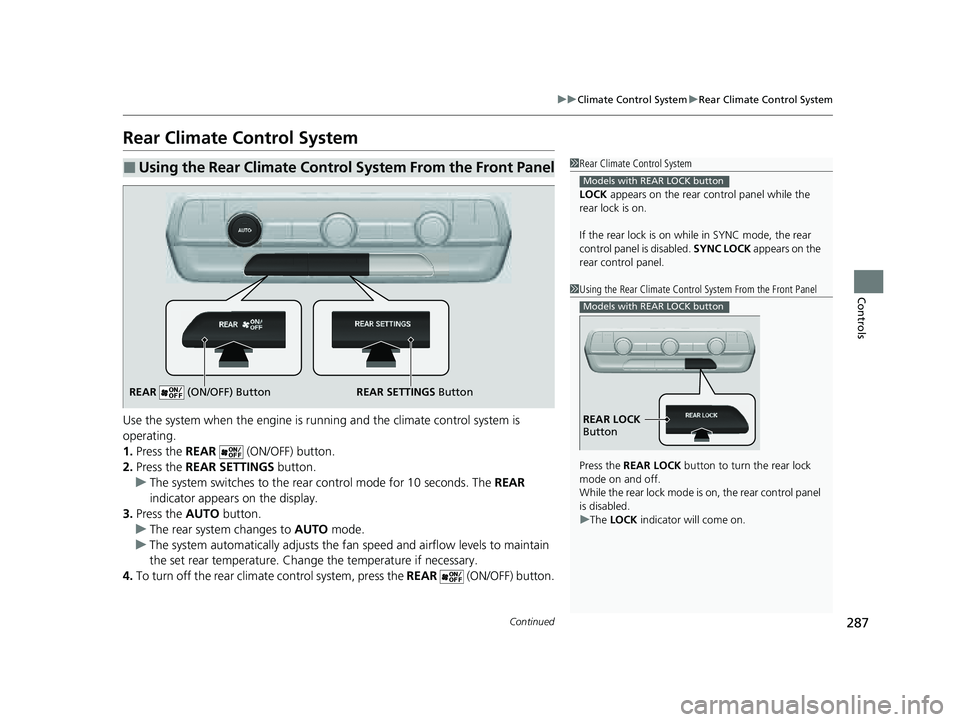
1. Press the REAR (ON/OFF) button.
2. Press the REAR SETTINGS button.
u The system switches to the rear control mode for 10 seconds. The REAR
indicator appears on the display.
3. Press the AUTO button.
u The rear system changes to AUTO mode.
u The system automatically adjusts the fan speed and airfl ow levels to maintain
the set rear temperature. Change the temperature if necessary.
4. To turn off the rear climat e control system, press the REAR (ON/OFF) button.
■Using the Rear Climate Control System From the Front Panel1Rear Climate Control System
LOCK appears on the rear control panel while the
rear lock is on.
If the rear lock is on while in SYNC mode, the rear
control panel is disabled. SYNC LOCK appears on the
rear control panel.
Models with REAR LOCK button
1 Using the Rear Climate Control System From the Front Panel
Press the REAR LOCK button to turn the rear lock
mode on and off.
While the rear lock mode is on, the rear control panel
is disabled.
u The LOCK indicator will come on.
Models with REAR LOCK button
REAR LOCK
Button
REAR SETTINGS Button
REAR (ON/OFF) Button
23 PILOT-31T906000_03.book 287 ページ 2022年10月31日 月曜日 午前10時26分


