Page 334 of 719
333
uuAudio System Basic Operation uApple CarPlay
Continued
Features
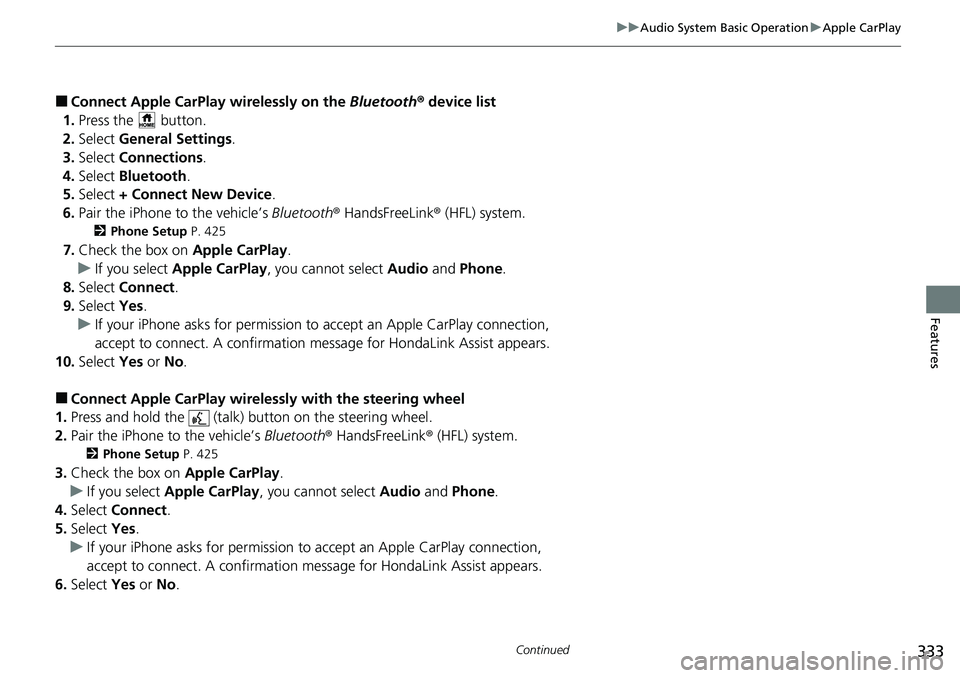
■Connect Apple CarPlay wirelessly on the Bluetooth® device list
1. Press the button.
2. Select General Settings .
3. Select Connections.
4. Select Bluetooth .
5. Select + Connect New Device.
6. Pair the iPhone to the vehicle’s Bluetooth® HandsFreeLink ® (HFL) system.
2 Phone Setup P. 425
7.Check the box on Apple CarPlay.
u If you select Apple CarPlay , you cannot select Audio and Phone .
8. Select Connect .
9. Select Yes.
u If your iPhone asks for permission to accept an Apple CarPlay connection,
accept to connect. A confirmation me ssage for HondaLink Assist appears.
10. Select Yes or No.
■Connect Apple CarPlay wirelessly with the steering wheel
1. Press and hold the (talk) button on the steering wheel.
2. Pair the iPhone to the vehicle’s Bluetooth® HandsFreeLink ® (HFL) system.
2Phone Setup P. 425
3.Check the box on Apple CarPlay.
u If you select Apple CarPlay , you cannot select Audio and Phone .
4. Select Connect .
5. Select Yes.
u If your iPhone asks for permission to accept an Apple CarPlay connection,
accept to connect. A confirmation me ssage for HondaLink Assist appears.
6. Select Yes or No .
Page 341 of 719
340
uuAudio System Basic Operation uAndroid AutoTM
Features
■Connect Android Auto wirele ssly with the steering wheel
1. Press and hold the (talk) button on the steering wheel.
2. Pair the Android phone to the vehicle’s Bluetooth® HandsFreeLink ® (HFL) system.
2Phone Setup P. 425
3.Check the box on Android Auto.
u If you select Android Auto , you cannot select Audio and Phone .
4. Select Connect .
5. Select Yes.
u If your Android phone asks for permission to accept an Android Auto
connection, accept to connect. A confir mation message for HondaLink Assist
appears.
6. Select Yes or No.
■Connect Android Auto wirelessly at start-up (when there is no phone
paired to the system)
1. Set the power mode to ACCESSORY or ON.
2. Select OK.
u If there is no registered device, the Bluetooth® pairing screen will be displayed.
u If you check the box with Do not show this again, this screen will not be
displayed.
3. Pair the Android phone to the vehicle’s Bluetooth® HandsFreeLink ® (HFL) system.
2Phone Setup P. 425
4.Check the box on Android Auto.
u If you select Android Auto , you cannot select Audio and Phone .
5. Select Connect .
6. Select Yes.
u If your Android phone asks for permission to accept an Android Auto
connection, accept to connect. A confir mation message for HondaLink Assist
appears.
7. Select Yes or No.
Page 344 of 719
Continued343
uuAudio System Basic Operation uPower Flow
Features
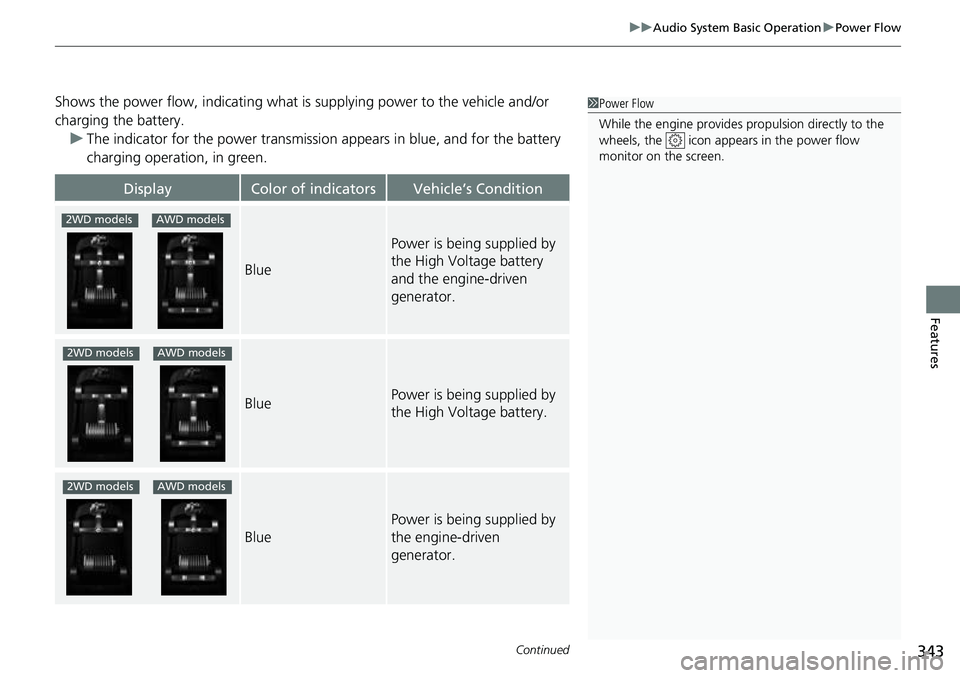
Shows the power flow, indicating what is supplying power to the vehicle and/or
charging the battery. u The indicator for the power transmission appears in blue, and for the battery
charging operation, in green.
DisplayColor of indicatorsVehicle’s Condition
Blue
Power is being supplied by
the High Voltage battery
and the engine-driven
generator.
BluePower is being supplied by
the High Voltage battery.
Blue
Power is being supplied by
the engine-driven
generator.
1 Power Flow
While the engine provides propulsion directly to the
wheels, the icon appears in the power flow
monitor on the screen.
2WD modelsAWD models
2WD modelsAWD models
2WD modelsAWD models
Page 348 of 719
347
Features
General Information on the Audio System
SiriusXM® Radio Service*
1.You need your radio ID ready before registering for subscription. To see the ID on
the screen, select Channel 0.
2. Have your radio ID ready, and either call or visit the SiriusXM® website to
subscribe.
Switch to the SiriusXM ® mode by using the audio remote controls on the steering
wheel, or through the audio/information screen, and stay in this mode for about 30
minutes until the service is activated. Make sure your vehicle is in an open area with
good reception.
Channel **** is not subscribed. Call SiriusXM to subscribe.
*1
You are not subscribed to the channel selected.
Subscription Updated:
SiriusXM ® radio is receiving informati on update from the network.
Channel Not Available:
No such channel exists, or the artist or title information is unavailable.
No Signal:
The signal is too weak in the current location.
Check Tuner:
There is a problem with the SiriusXM ® tuner. Contact a dealer.
Antenna Disconnected, Antenna Shorted:
There is a problem with the SiriusXM ® antenna. Contact a dealer.
*1 : ****part is variable characters, and will change depending upon the channel selected.
■Subscribing to SiriusXM® Radio
■Receiving SiriusXM ® Radio
■SiriusXM ® Radio Display Messages
1 Subscribing to SiriusXM ® Radio
Contact Information for SiriusXM ® Radio:
•U.S.: SiriusXM ® Radio at www.siriusxm.com/
subscribenow , or 1-866-635-2349
•Canada: SiriusXM ® Canada at www.siriusxm.ca/
subscribe-now , or 1-877-209-0079
1Receiving SiriusXM ® Radio
The SiriusXM ® satellites are in orbit over the equator;
therefore, objects south of the vehicle may cause
satellite reception interruptions. Sa tellite signals are
more likely to be blocked by tall buildings and
mountains the farther north you travel from the
equator.
You may experience rece ption problems under the
following circumstances:
•In a location with an obstruction to the south of
your vehicle.
•In tunnels•On the lower level of a multi-tiered road
•Large items carried on the roof rack
* Not available on all models
Page 374 of 719

373
uuCustomized Features u
Continued
Features
*1:Default Setting
Customizable FeaturesDescriptionSelectable Settings
Display Adjustment Brightness
Changes the brightness of the audio/
information screen.
—
Contrast
Changes the contrast of the audio/
information screen.
Black Level Changes the black level of the audio/
information screen.
Day Changes between the daytime mode,
nighttime mode and display off mode.
Night
Display OFF
Touch Panel SensitivitySets the sensitivity of the touch panel screen.Normal*1/
High
Rear Camera Setting Fixed Guideline
Shows the guideline that
does not move with
the steering wheel.
2 Multi-View Rear Camera P. 593
ON*1/OFF
Dynamic Guideline Shows the guideline th
at moves with the
steering wheel.
2 Multi-View Rear Camera P. 593
ON*1/OFF
Cross Traffic Monitor
Shows arrows on the rear camera image to
indicate vehicles approaching from the sides.
2 Cross Traffic Monitor P. 589
ON*1/OFF
Language Changes the display language.English
*1/Español /Français
LicenseShows the legal information.—
Factory Data Reset Resets all the settings to their factory default.
2
Defaulting All the Settings P. 375—
Page 388 of 719
387
uuCustomized Features u
Continued
Features
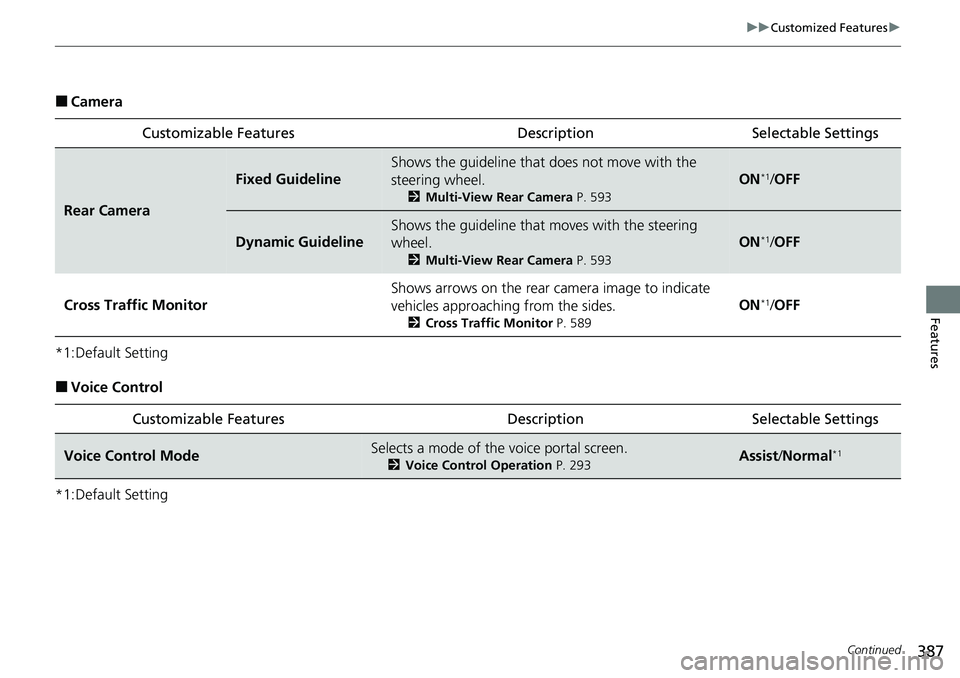
■Camera
*1:Default Setting
■Voice Control
*1:Default Setting Customizable Features Desc
ription Selectable Settings
Rear Camera
Fixed Guideline
Shows the guideline that does not move with the
steering wheel.
2Multi-View Rear Camera P. 593
ON*1/OFF
Dynamic Guideline
Shows the guideline that moves with the steering
wheel.
2 Multi-View Rear Camera P. 593
ON*1/OFF
Cross Traffic Monitor
Shows arrows on the rear ca mera image to indicate
vehicles approaching from the sides.
2 Cross Traffic Monitor P. 589
ON*1/OFF
Customizable Features Descri ption Selectable Settings
Voice Control ModeSelects a mode of the voice portal screen.
2Voice Control Operation P. 293Assist/Normal*1
Page 401 of 719
400
Features
Bluetooth® HandsFreeLink ®
Bluetooth® HandsFreeLink ® (HFL) allows you to place and receive phone calls using
your vehicle’s audio system, without handling your cell phone.
Using HFL
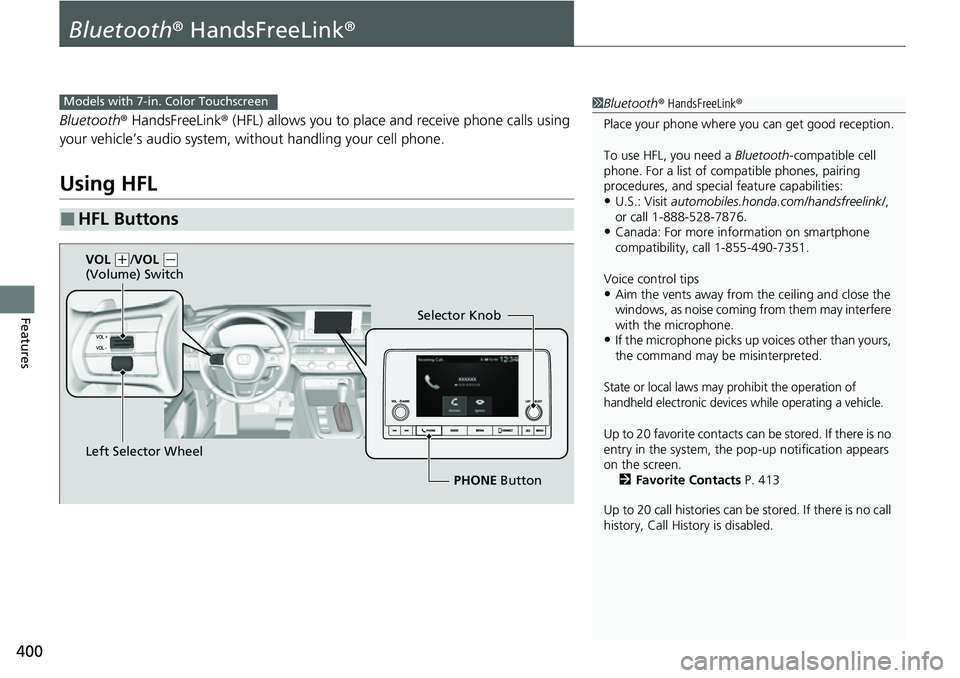
■HFL Buttons
1 Bluetooth ® HandsFreeLink ®
Place your phone where y ou can get good reception.
To use HFL, you need a Bluetooth-compatible cell
phone. For a list of compatible phones, pairing
procedures, and special feature capabilities:
•U.S.: Visit automobiles.honda.com/handsfreelink/ ,
or call 1-888-528-7876.
•Canada: For more info rmation on smartphone
compatibility, call 1-855-490-7351.
Voice control tips
•Aim the vents away from the ceiling and close the
windows, as noise coming from them may interfere
with the microphone.
•If the microphone picks up vo ices other than yours,
the command may be misinterpreted.
State or local laws may prohibit the operation of
handheld electronic devices while operating a vehicle.
Up to 20 favorite contacts ca n be stored. If there is no
entry in the system, the pop-up notification appears
on the screen. 2 Favorite Contacts P. 413
Up to 20 call histories can be stored. If there is no call
history, Call History is disabled.
Models with 7-in. Color Touchscreen
Selector Knob
Left Selector Wheel PHONE Button
VOL
(
+/VOL (-
(Volume) Switch
Page 402 of 719
Continued401
uuBluetooth ® HandsFreeLink ®u Using HFL
Features
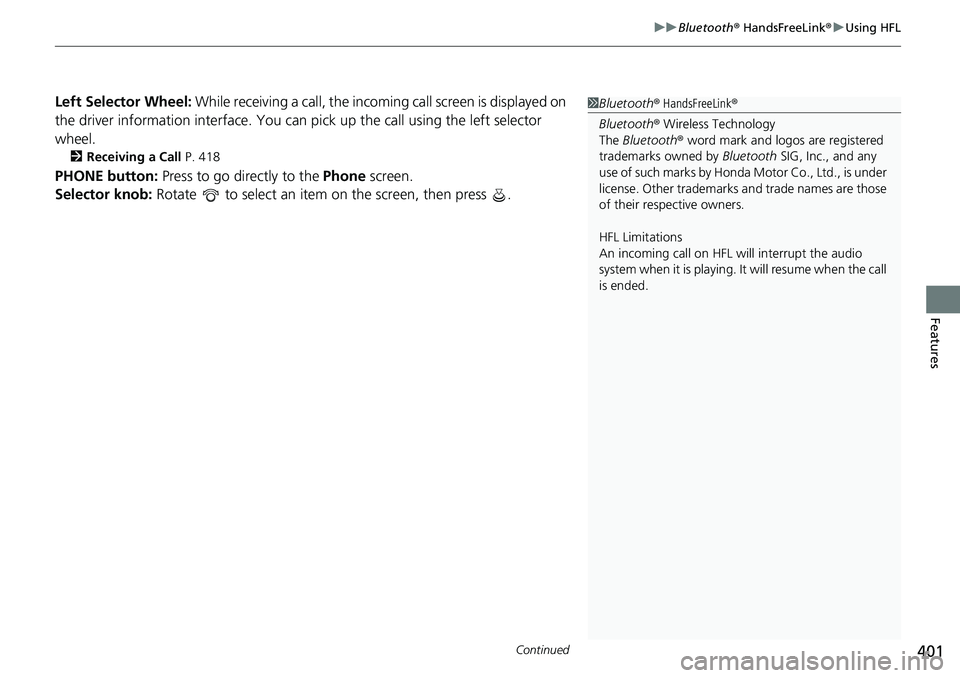
Left Selector Wheel: While receiving a call, the incoming call screen is displayed on
the driver information interface. You can pick up the call using the left selector
wheel.
2 Receiving a Call P. 418
PHONE button: Press to go directly to the Phone screen.
Selector knob: Rotate to select an item on the screen, then press .
1Bluetooth ® HandsFreeLink ®
Bluetooth ® Wireless Technology
The Bluetooth ® word mark and logos are registered
trademarks owned by Bluetooth SIG, Inc., and any
use of such marks by Honda Motor Co., Ltd., is under
license. Other trademarks and trade names are those
of their respective owners.
HFL Limitations
An incoming call on HFL will interrupt the audio
system when it is playing. It will resume when the call
is ended.