Page 227 of 719
uuInterior Convenience Items uOther Interior Convenience Items
226
Controls
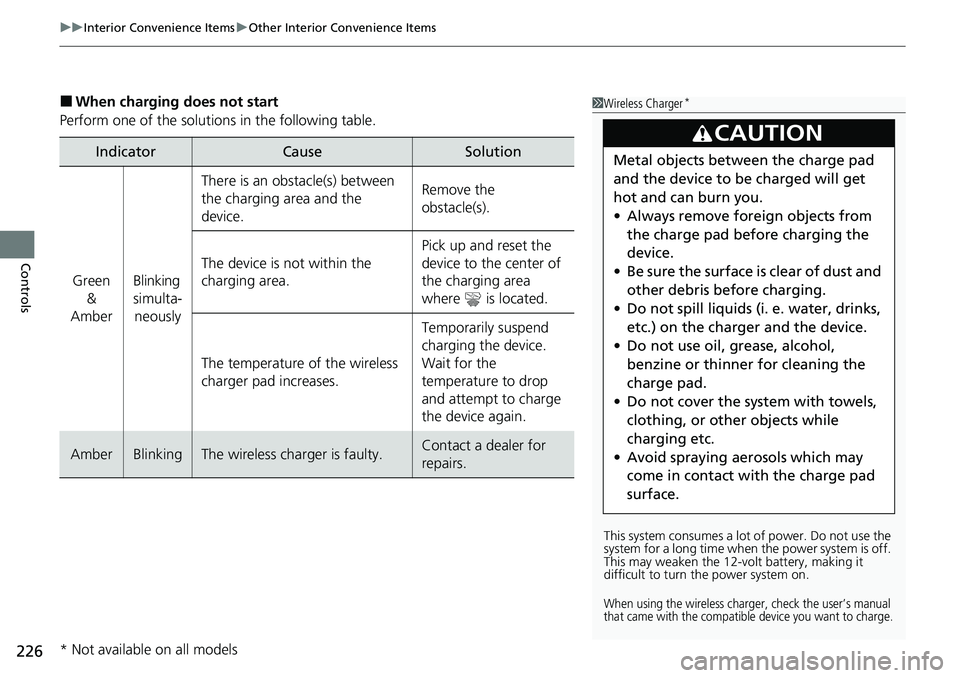
■When charging does not start
Perform one of the solution s in the following table.
IndicatorCauseSolution
Green
&
AmberBlinking
simulta- neously
There is an obstacle(s) between
the charging area and the
device.Remove the
obstacle(s).
The device is not within the
charging area. Pick up and reset the
device to the center of
the charging area
where is located.
The temperature of the wireless
charger pad increases. Temporarily suspend
charging the device.
Wait for the
temperature to drop
and attempt to charge
the device again.
AmberBlinkingThe wireless charger is faulty.Contact a dealer for
repairs.
1
Wireless Charger*
This system consumes a lot of power. Do not use the
system for a long time when the power system is off.
This may weaken the 12-v olt battery, making it
difficult to turn the power system on.
When using the wireless charge r, check the user’s manual
that came with the compatible device you want to charge.
3CAUTION
Metal objects between the charge pad
and the device to be charged will get
hot and can burn you.
• Always remove foreign objects from
the charge pad before charging the
device.
• Be sure the surface is clear of dust and
other debris before charging.
• Do not spill liquids (i. e. water, drinks,
etc.) on the charger and the device.
• Do not use oil, grease, alcohol,
benzine or thinner for cleaning the
charge pad.
• Do not cover the system with towels,
clothing, or other objects while
charging etc.
• Avoid spraying aerosols which may
come in contact with the charge pad
surface.
* Not available on all models
Page 228 of 719

Continued227
uuInterior Convenience Items uOther Interior Convenience Items
Controls
1Wireless Charger*
The wireless charger can su pport up to 15 W, but the
charging rate varies base d on the device and other
conditions.
NOTICE
Do not place any magneti c recording media or
precision machines within the charging area while
charging.
The data on your cards such as credit cards can be
lost because of the magneti c effect. Also, precision
machines such as watc hes can be affected.
“Qi” and marks are the registered trademarks
owned by Wire less Power Consortium (WPC).
In the following cases, ch arging may stop or not start:
•The device is already fully charged.•The temperature of the device is extremely high
while charging.
•You are at a place that emits strong
electromagnetic waves or noises, such as a TV
station, electric power plant, or gas station.
•The device has a cover, case, or accessories which
are not compatible wi th wireless charging.
A device may not charge if the size or shape of its
chargeable side is not a ppropriate for use with the
charging area.
Not all devices are compatible with the system.
* Not available on all models
Page 230 of 719
Continued229
uuInterior Convenience Items uOther Interior Convenience Items
Controls
The power mode must be in ON to use the
heated steering wheel.
Press the button on the lower side of the
steering wheel.
When a comfortable temp erature is reached,
press the button again to turn it off.
The heated steering wheel is turned off every
time you activate the power system, even if
you turned it on the last time you drove the
vehicle.
■Heated Steering Wheel*1 Heated Steering Wheel*
Do not use the heated st eering wheel continuously
when the power system is off. Under such conditions,
the 12-volt battery may be weakened, making the
power system difficult to start.
* Not available on all models
Page 231 of 719
uuInterior Convenience Items uOther Interior Convenience Items
230
Controls
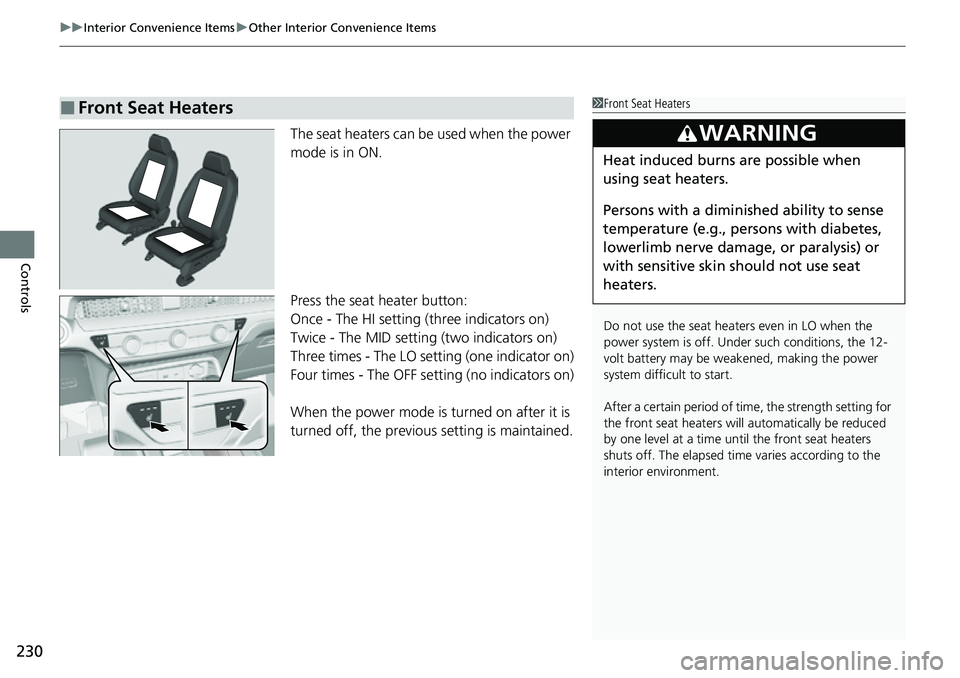
The seat heaters can be used when the power
mode is in ON.
Press the seat heater button:
Once - The HI setting (three indicators on)
Twice - The MID setting (two indicators on)
Three times - The LO setting (one indicator on)
Four times - The OFF se tting (no indicators on)
When the power mode is turned on after it is
turned off, the previous setting is maintained.
■Front Seat Heaters1Front Seat Heaters
Do not use the seat heaters even in LO when the
power system is off. U nder such conditions, the 12-
volt battery may be weakened, making the power
system difficult to start.
After a certain period of time, the strength setting for
the front seat heaters will automatically be reduced
by one level at a time unt il the front seat heaters
shuts off. The elapsed time varies according to the
interior environment.
3WARNING
Heat induced burns are possible when
using seat heaters.
Persons with a diminished ability to sense
temperature (e.g., persons with diabetes,
lowerlimb nerve damage, or paralysis) or
with sensitive skin should not use seat
heaters.
Page 232 of 719
231
uuInterior Convenience Items uOther Interior Convenience Items
Controls
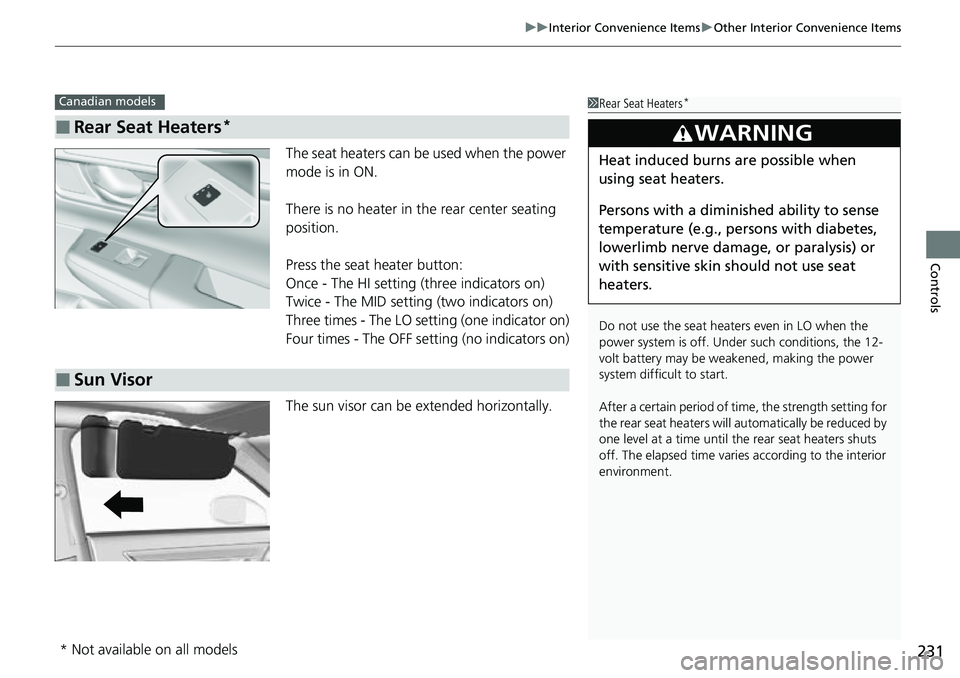
The seat heaters can be used when the power
mode is in ON.
There is no heater in the rear center seating
position.
Press the seat heater button:
Once - The HI setting (three indicators on)
Twice - The MID setting (two indicators on)
Three times - The LO setting (one indicator on)
Four times - The OFF setting (no indicators on)
The sun visor can be extended horizontally.
■Rear Seat Heaters*
Canadian models1 Rear Seat Heaters*
Do not use the seat heaters even in LO when the
power system is off. U nder such conditions, the 12-
volt battery may be weakened, making the power
system difficult to start.
After a certain period of time, the strength setting for
the rear seat heaters will automatically be reduced by
one level at a time until the rear seat heaters shuts
off. The elapsed time varies according to the interior
environment.
3WARNING
Heat induced burns are possible when
using seat heaters.
Persons with a diminished ability to sense
temperature (e.g., persons with diabetes,
lowerlimb nerve damage, or paralysis) or
with sensitive skin should not use seat
heaters.
■Sun Visor
* Not available on all models
Page 233 of 719
232
Controls
Climate Control System
Using Automatic Climate Control
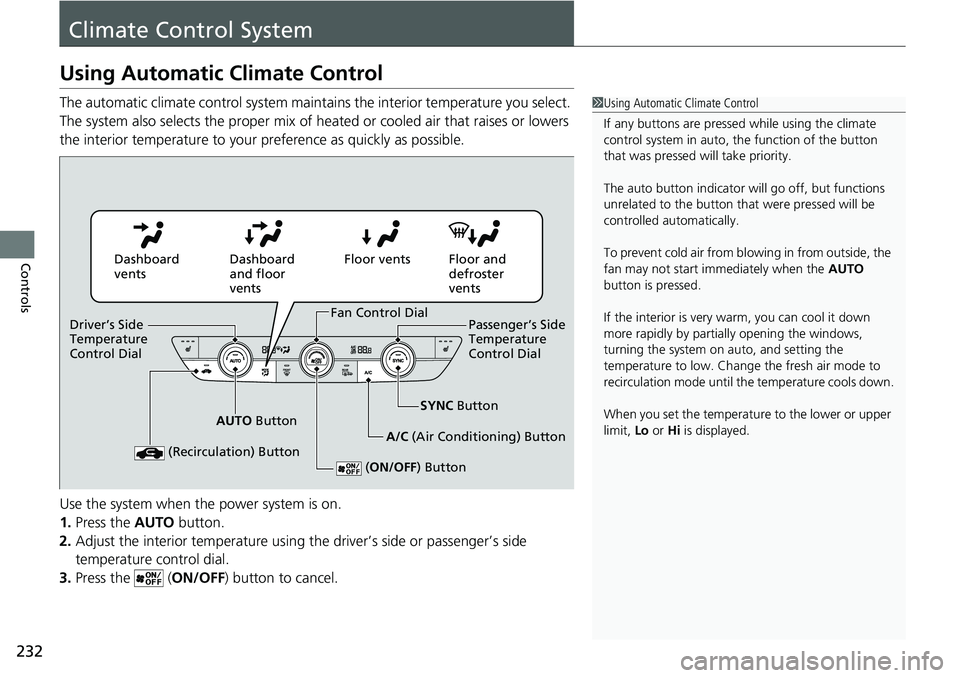
The automatic climate control system maintains the interior temperature you select.
The system also selects the proper mix of heated or cooled air that raises or lowers
the interior temperature to your preference as quickly as possible.
Use the system when the power system is on.
1. Press the AUTO button.
2. Adjust the interior temperature using the driver’s side or passenger’s side
temperature control dial.
3. Press the ( ON/OFF) button to cancel.1Using Automatic Climate Control
If any buttons are presse d while using the climate
control system in auto, the function of the button
that was pressed will take priority.
The auto button indicator will go off, but functions
unrelated to the button that were pressed will be
controlled automatically.
To prevent cold air from bl owing in from outside, the
fan may not start i mmediately when the AUTO
button is pressed.
If the interior is very warm, you can cool it down
more rapidly by partial ly opening the windows,
turning the system on auto, and setting the
temperature to low. Change the fresh air mode to
recirculation mode until the temperature cools down.
When you set the temperat ure to the lower or upper
limit, Lo or Hi is displayed.
Dashboard
vents Dashboard
and floor
ventsFloor vents Floor and
defroster
vents
AUTO Button SYNC
Button
A/C (Air Conditioning) Button
(Recirculation) Button
( ON/OFF ) Button
Fan Control Dial
Driver’s Side
Temperature
Control Dial Passenger’s Side
Temperature
Control Dial
Page 238 of 719

237
Features
This chapter describes how to operate technology features.
Audio SystemAbout Your Audio System ................ 238
USB Ports ......................................... 239
Audio System Theft Protection ......... 241
Audio Remote Controls .................... 242
Audio System Basic Operation ........ 246
Adjusting the Sound ........................ 247
Display Setup ................................... 248
Playing AM/FM Radio ....................... 249
Playing an iPod ................................ 251
Playing a USB Flash Drive ................. 254
Playing Bluetooth ® Audio ................. 257
Siri Eyes Free .................................... 261
Models with 7-in. Color Touchscreen
Smartphone Voice Recognition ........ 262
Apple CarPlay .................................. 263
Android Auto
TM................................ 267
Audio System Basic Operation ........ 271
Start Up ........................................... 272
Audio/Information Screen ................ 273
System Updates ............................... 284
Adjusting the Sound ........................ 290
Display Setup ................................... 291
Voice Control Operation .................. 293
Playing AM/FM Radio ....................... 296
Playing SiriusXM ® Radio ................... 300
Playing an iPod ................................ 311Models with 9-in. Color Touchscreen
Playing a USB Flash Drive ................. 314
Playing Bluetooth ® Audio ................ 317
HondaLink ®..................................... 320
Smart Shortcuts ............................... 324
Wi-Fi Connection ............................. 327
AT&T Hotspot
*................................ 328
Apple CarPlay .................................. 329
Android Auto
TM............................... 336
Power Flow...................................... 342
Audio Error Messages ...................... 345
General Information on the Audio System ............................................. 347
Customized Features ................ 368, 376
Bluetooth® HandsFreeLink® ..... 400, 420
Refuel Recommend .......................... 439
* Not available on all models
Page 273 of 719
272
uuAudio System Basic Operation uStart Up
Features
Start Up
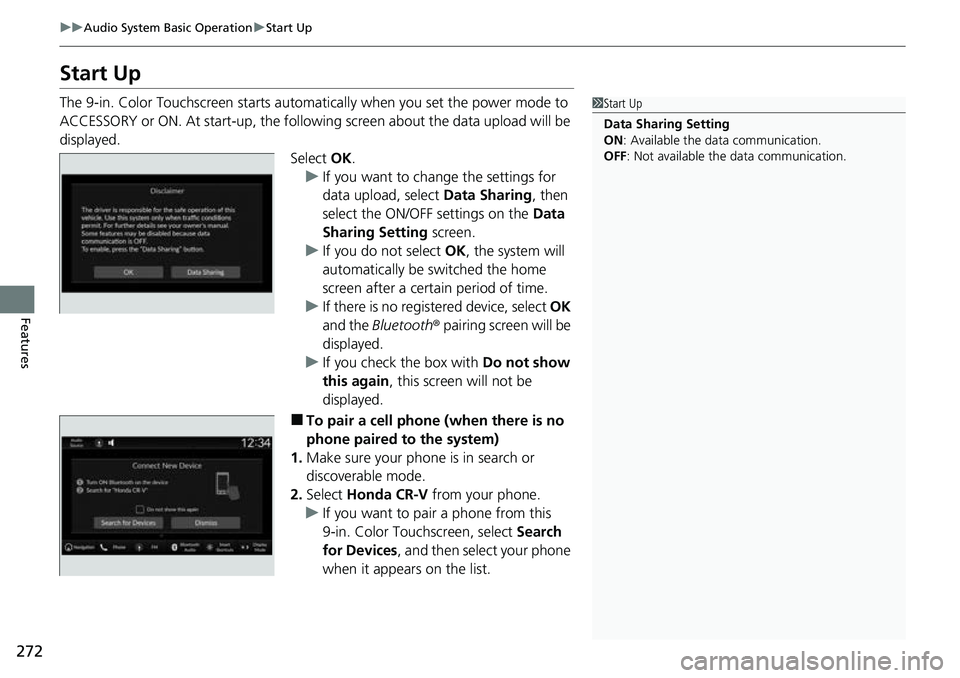
The 9-in. Color Touchscreen starts automatically when you set the power mode to
ACCESSORY or ON. At start-up, the following screen about the data upload will be
displayed.
Select OK.
u If you want to change the settings for
data upload, select Data Sharing, then
select the ON/OFF settings on the Data
Sharing Setting screen.
u If you do not select OK, the system will
automatically be switched the home
screen after a certain period of time.
u If there is no registered device, select OK
and the Bluetooth ® pairing screen will be
displayed.
u If you check the box with Do not show
this again , this screen will not be
displayed.
■To pair a cell phone (when there is no
phone paired to the system)
1. Make sure your phone is in search or
discoverable mode.
2. Select Honda CR-V from your phone.
u If you want to pair a phone from this
9-in. Color Touchscreen, select Search
for Devices , and then select your phone
when it appears on the list.
1 Start Up
Data Sharing Setting
ON : Available the data communication.
OFF: Not available the data communication.