2023 FORD SUPER DUTY USB
[x] Cancel search: USBPage 10 of 738
How Does the Rear Occupant AlertSystem Work.............................................174
Rear Occupant Alert System Precautions.........................................................................174
Rear Occupant Alert System Limitations.........................................................................174
Rear Occupant Alert System Settings.........................................................................175
Rear Occupant Alert System Indicators.........................................................................175
Rear Occupant Alert System AudibleWarnings.....................................................176
Memory Function
What Is the Memory Function.................177
Memory Function Precautions................177
Locating the Memory Function Buttons..........................................................................177
Saving a Preset Position............................177
Recalling a Preset Position.......................177
Memory Function Videos..........................178
Garage Door Opener
Garage Door Opener Introduction.........179
Garage Door Opener Precautions andFrequencies...............................................179
Programming the Garage Door Opener........................................................................180
Garage Door Opener AdditionalAssistance..................................................182
USB Ports
Locating the USB Ports.............................183
Playing Media Using the USB Port........183
Charging a Device........................................183
USB Ports Videos........................................184
Power Outlet
What Is the Power Outlet.........................185
Power Outlet Precautions........................185
Power Outlet Limitations.........................185
Locating the Power Outlets.....................185
Power Outlet Indicators............................186
Power Outlet Videos..................................186
Onboard Generator
What Is the Onboard Generator............187
Onboard Generator Precautions...........187
Locating the Outlets..................................188
Onboard Generator Indicators...............188
Switching the Outlets On and Off........189
What Is Utility Idle Mode..........................190
Switching Utility Idle Mode On and Off........................................................................190
What Is Generator Mode..........................190
Switching Generator Mode On and Off........................................................................190
Resetting Ground Fault Detection........190
Onboard Generator – Troubleshooting..........................................................................191
Center Console Work Surface
Using the Center Console Work Surface.........................................................................193
Center Console Work Surface –Troubleshooting......................................194
Wireless Accessory Charger
What Is the Wireless Accessory Charger.........................................................................195
Wireless Accessory Charger Precautions.........................................................................195
Locating the Wireless Accessory Charger.........................................................................195
Charging a Wireless Device.....................195
Wireless Accessory Charger Videos......196
Storage
Cup Holders...................................................197
Glove Compartment...................................197
Center Console.............................................198
Under Seat Storage....................................198
6
2023 Super Duty (TFH) Canada/United States of America, enUSA, Edition date: 202211, DOMTable of Contents
Page 32 of 738
Note:Event data recorder data is recordedby your vehicle only if a non-trivial crashsituation occurs; no data is recorded by theevent data recorder under normal drivingconditions and no personal data orinformation (for example name, gender,age, and crash location) is recorded.However, parties, such as law enforcement,could combine the event data recorder datawith the type of personally identifying dataroutinely acquired during a crashinvestigation.
To read data recorded by an event datarecorder, special equipment is required,and access to the vehicle or the event datarecorder is needed. In addition to thevehicle manufacturer, other parties, suchas law enforcement, that have such specialequipment, can read the information if theyhave access to the vehicle or the eventdata recorder.
SETTINGS DATA
Your vehicle has electronic control unitsthat have the ability to store data basedon your personalized settings. The data isstored locally in the vehicle or on devicesthat you connect to it, for example, a USBdrive or digital music player. You can deletesome of this data and also choose whetherto share it through the services to whichyou subscribe.
Comfort and Convenience Data
Data recorded includes, for example:
•Seat and steering wheel position.
•Climate control settings.
•Radio presets.
Entertainment Data
Data recorded includes, for example:
•Music, videos or album art.
•Contacts and corresponding addressbook entries.
•Navigation destinations.
CONNECTED VEHICLE DATA
The modem has a SIM. Themodem was enabled when yourvehicle was built and periodicallysends messages to stay connected to thecell phone network, receive automaticsoftware updates and send vehicle-relatedinformation to us, for example diagnosticinformation. These messages couldinclude information that identifies yourvehicle, the SIM and the electronic serialnumber of the modem. Cell phone networkservice providers could have access toadditional information, for example cellphone network tower identification. Foradditional information about our privacypolicy, visit www.FordConnected.com orrefer to your local Ford website.
Note:The modem continues to send thisinformation unless you disable the modemor stop the modem from sharing vehicledata by changing the modem settings. SeeConnected Vehicle (page 548).
Note:The service can be unavailable orinterrupted for a number of reasons, forexample environmental or topographicalconditions and data plan coverage.
Note:To find out if your vehicle has amodem, visit www.FordConnected.com.
28
2023 Super Duty (TFH) Canada/United States of America, enUSA, Edition date: 202211, DOMData Privacy
Page 187 of 738
LOCATING THE USB PORTS
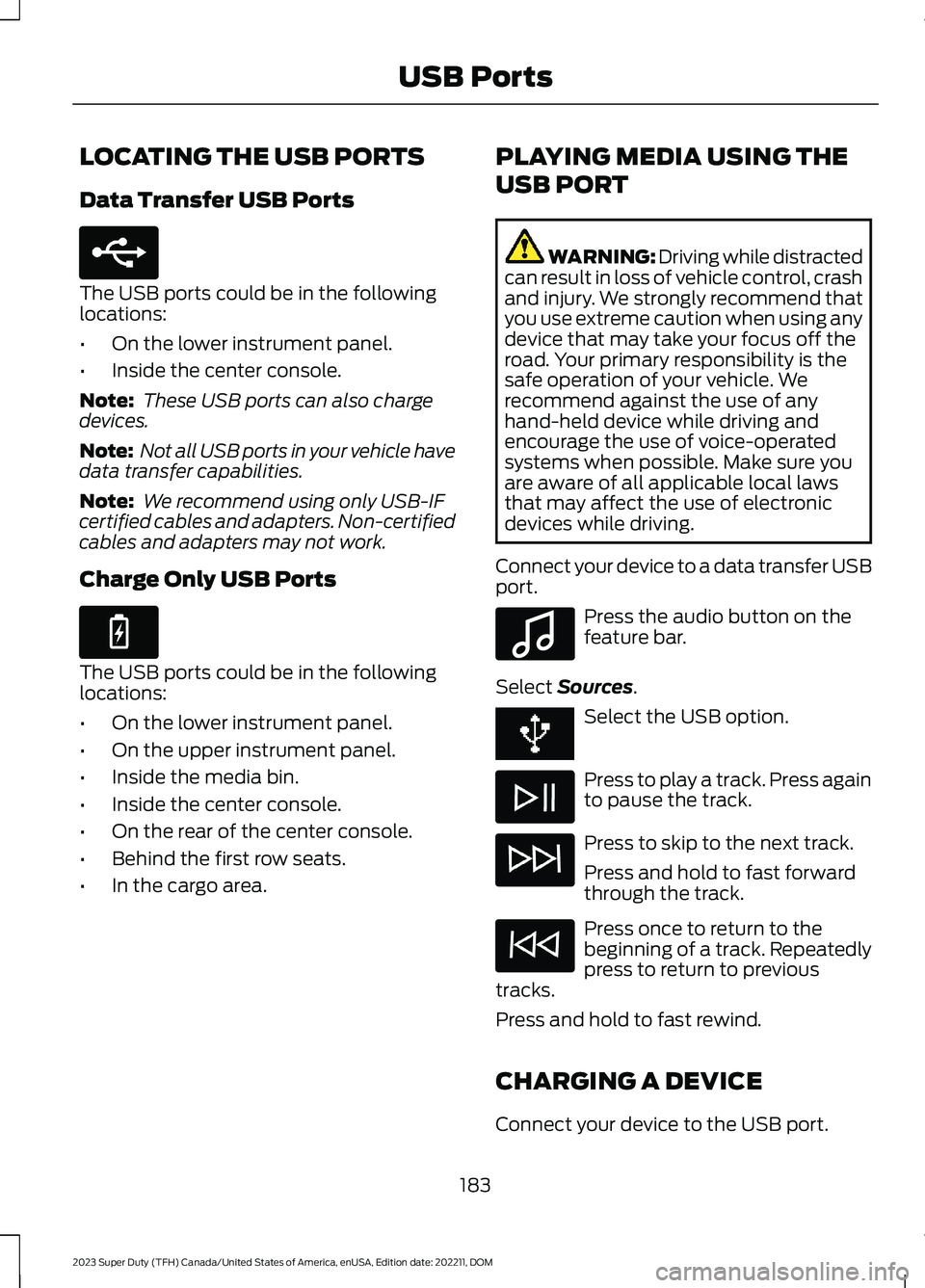
Data Transfer USB Ports
The USB ports could be in the followinglocations:
•On the lower instrument panel.
•Inside the center console.
Note: These USB ports can also chargedevices.
Note: Not all USB ports in your vehicle havedata transfer capabilities.
Note: We recommend using only USB-IFcertified cables and adapters. Non-certifiedcables and adapters may not work.
Charge Only USB Ports
The USB ports could be in the followinglocations:
•On the lower instrument panel.
•On the upper instrument panel.
•Inside the media bin.
•Inside the center console.
•On the rear of the center console.
•Behind the first row seats.
•In the cargo area.
PLAYING MEDIA USING THE
USB PORT
WARNING: Driving while distractedcan result in loss of vehicle control, crashand injury. We strongly recommend thatyou use extreme caution when using anydevice that may take your focus off theroad. Your primary responsibility is thesafe operation of your vehicle. Werecommend against the use of anyhand-held device while driving andencourage the use of voice-operatedsystems when possible. Make sure youare aware of all applicable local lawsthat may affect the use of electronicdevices while driving.
Connect your device to a data transfer USBport.
Press the audio button on thefeature bar.
Select Sources.
Select the USB option.
Press to play a track. Press againto pause the track.
Press to skip to the next track.
Press and hold to fast forwardthrough the track.
Press once to return to thebeginning of a track. Repeatedlypress to return to previoustracks.
Press and hold to fast rewind.
CHARGING A DEVICE
Connect your device to the USB port.
183
2023 Super Duty (TFH) Canada/United States of America, enUSA, Edition date: 202211, DOMUSB PortsE250655 E263583 E100027
Page 188 of 738
Data Transfer USB Ports
You can charge your device through thedata transfer USB port when SYNC is on.
Charge Only USB Ports
You can charge your device through thecharge only USB port when the vehicle isin accessory mode or when the vehicle isrunning.
USB PORTS VIDEOS
USB smart charging
184
2023 Super Duty (TFH) Canada/United States of America, enUSA, Edition date: 202211, DOMUSB PortsE250655 E263583
Page 568 of 738
Vehicle Software Update
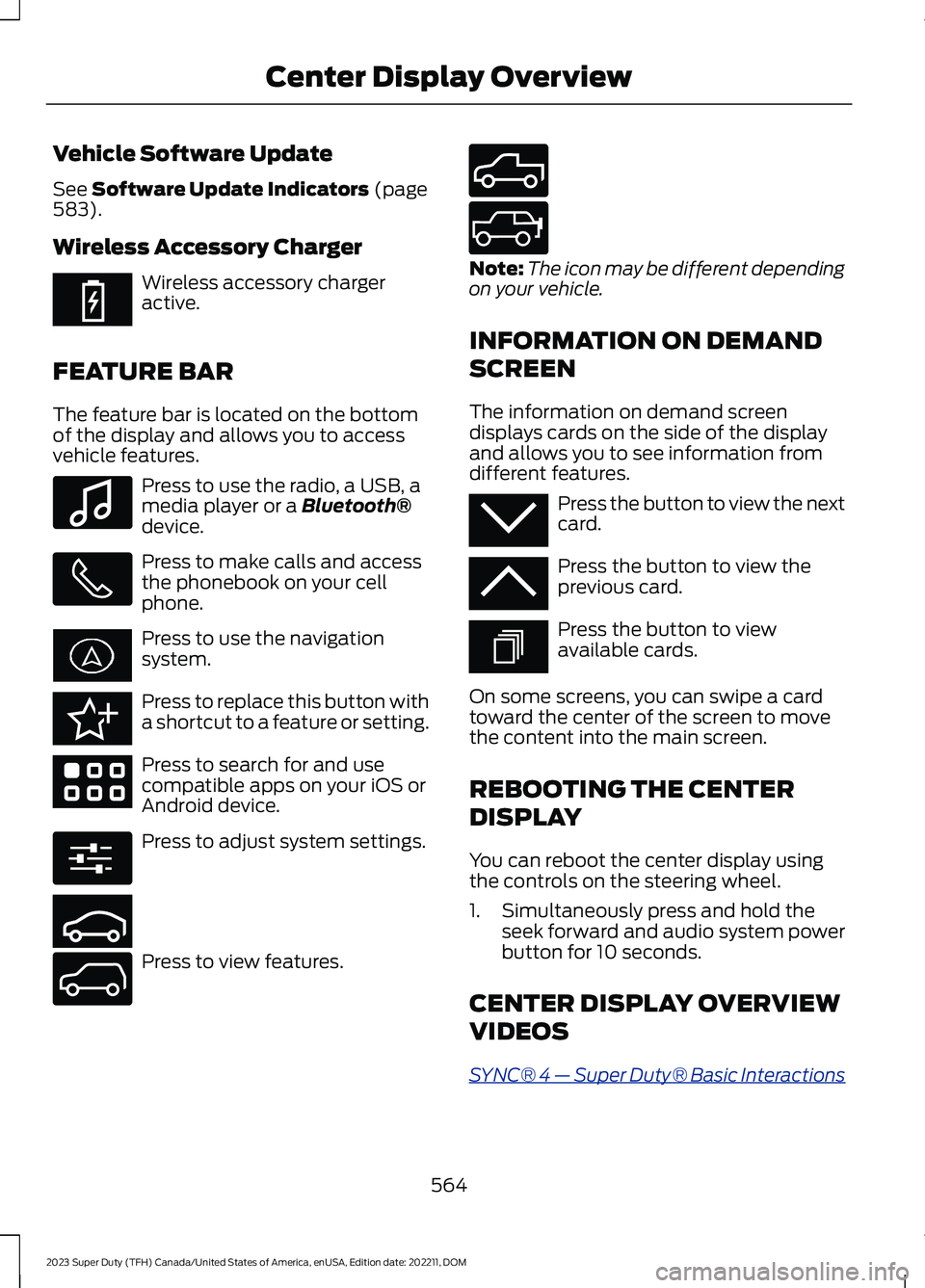
See Software Update Indicators (page583).
Wireless Accessory Charger
Wireless accessory chargeractive.
FEATURE BAR
The feature bar is located on the bottomof the display and allows you to accessvehicle features.
Press to use the radio, a USB, amedia player or a Bluetooth®device.
Press to make calls and accessthe phonebook on your cellphone.
Press to use the navigationsystem.
Press to replace this button witha shortcut to a feature or setting.
Press to search for and usecompatible apps on your iOS orAndroid device.
Press to adjust system settings.
Press to view features.
Note:The icon may be different dependingon your vehicle.
INFORMATION ON DEMAND
SCREEN
The information on demand screendisplays cards on the side of the displayand allows you to see information fromdifferent features.
Press the button to view the nextcard.
Press the button to view theprevious card.
Press the button to viewavailable cards.
On some screens, you can swipe a cardtoward the center of the screen to movethe content into the main screen.
REBOOTING THE CENTER
DISPLAY
You can reboot the center display usingthe controls on the steering wheel.
1.Simultaneously press and hold theseek forward and audio system powerbutton for 10 seconds.
CENTER DISPLAY OVERVIEW
VIDEOS
SYNC® 4 — Super Duty® Basic Interactions
564
2023 Super Duty (TFH) Canada/United States of America, enUSA, Edition date: 202211, DOMCenter Display OverviewE353214 E100027 E358432 E353220 E280315 E353210 E335299 E335300 E347104 E353212 E353211 E353209
Page 569 of 738
FORD ASSISTANT
USING FORD ASSISTANT
The digital assistant allows you to controlvehicle features using conversationalrequests.
To begin a voice interaction using the wakeword, say the selected wake word, thensay your command.
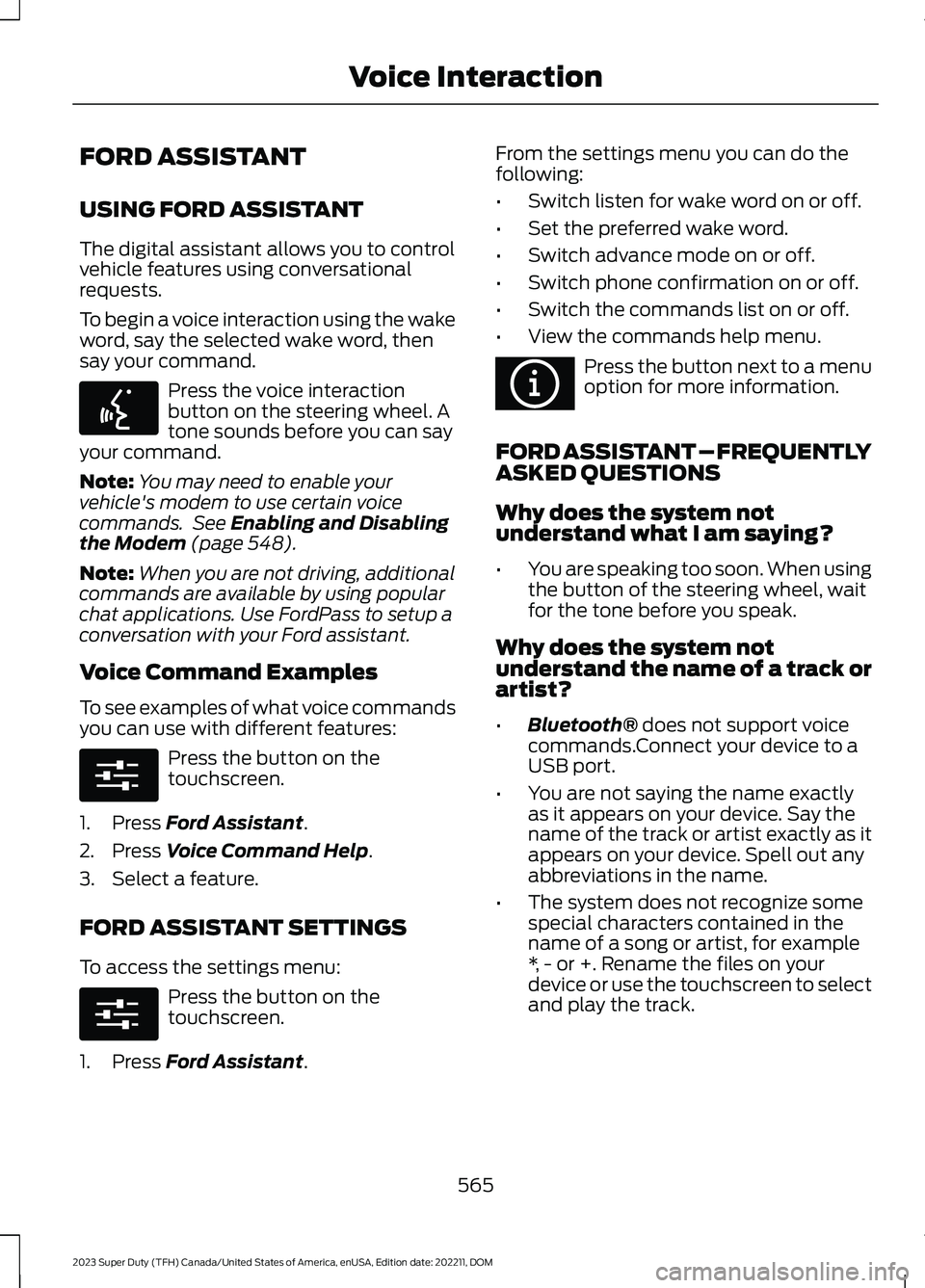
Press the voice interactionbutton on the steering wheel. Atone sounds before you can sayyour command.
Note:You may need to enable yourvehicle's modem to use certain voicecommands. See Enabling and Disablingthe Modem (page 548).
Note:When you are not driving, additionalcommands are available by using popularchat applications. Use FordPass to setup aconversation with your Ford assistant.
Voice Command Examples
To see examples of what voice commandsyou can use with different features:
Press the button on thetouchscreen.
1.Press Ford Assistant.
2.Press Voice Command Help.
3.Select a feature.
FORD ASSISTANT SETTINGS
To access the settings menu:
Press the button on thetouchscreen.
1.Press Ford Assistant.
From the settings menu you can do thefollowing:
•Switch listen for wake word on or off.
•Set the preferred wake word.
•Switch advance mode on or off.
•Switch phone confirmation on or off.
•Switch the commands list on or off.
•View the commands help menu.
Press the button next to a menuoption for more information.
FORD ASSISTANT – FREQUENTLYASKED QUESTIONS
Why does the system notunderstand what I am saying?
•You are speaking too soon. When usingthe button of the steering wheel, waitfor the tone before you speak.
Why does the system notunderstand the name of a track orartist?
•Bluetooth® does not support voicecommands.Connect your device to aUSB port.
•You are not saying the name exactlyas it appears on your device. Say thename of the track or artist exactly as itappears on your device. Spell out anyabbreviations in the name.
•The system does not recognize somespecial characters contained in thename of a song or artist, for example*, - or +. Rename the files on yourdevice or use the touchscreen to selectand play the track.
565
2023 Super Duty (TFH) Canada/United States of America, enUSA, Edition date: 202211, DOMVoice InteractionE142599 E280315 E280315 E366956
Page 571 of 738
WHAT IS ALEXA BUILT-IN
Allows you to use Alexa in your vehicle forauto specific use cases on the road andgives you access to an ever evolvingnumber of skills that help to make your lifemore productive, entertaining, andconnected while using your vehicle.
ALEXA BUILT-IN
REQUIREMENTS
To use Alexa, all of the following mustoccur:
•Your vehicle modem is enabled.
•You are logged into an existing Amazonaccount.
•Vehicle location services are enabled.
•Vehicle connectivity and vehicle datasharing is enabled.
SIGNING INTO YOUR
ACCOUNT
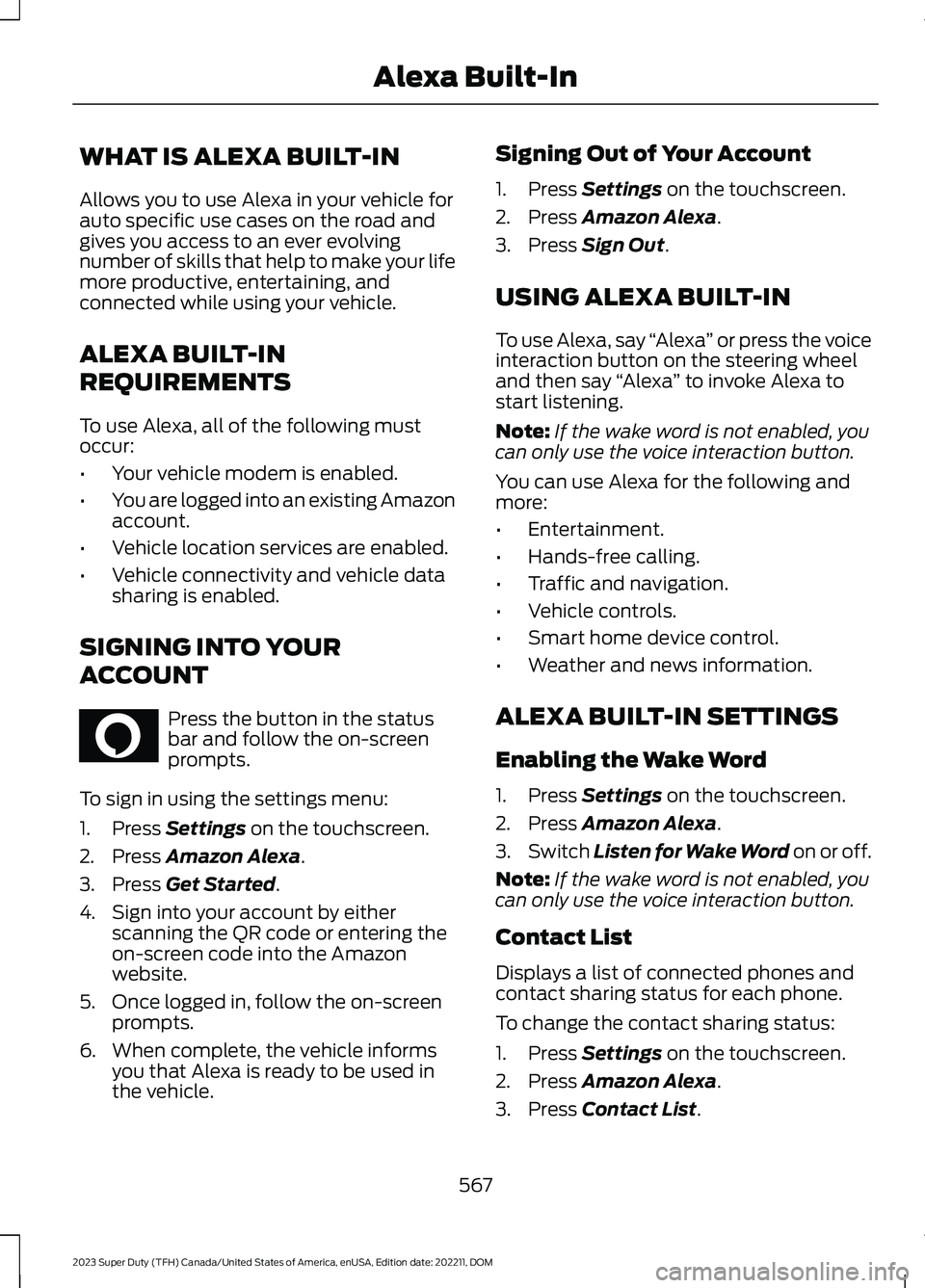
Press the button in the statusbar and follow the on-screenprompts.
To sign in using the settings menu:
1.Press Settings on the touchscreen.
2.Press Amazon Alexa.
3.Press Get Started.
4.Sign into your account by eitherscanning the QR code or entering theon-screen code into the Amazonwebsite.
5.Once logged in, follow the on-screenprompts.
6.When complete, the vehicle informsyou that Alexa is ready to be used inthe vehicle.
Signing Out of Your Account
1.Press Settings on the touchscreen.
2.Press Amazon Alexa.
3.Press Sign Out.
USING ALEXA BUILT-IN
To use Alexa, say “Alexa” or press the voiceinteraction button on the steering wheeland then say “Alexa” to invoke Alexa tostart listening.
Note:If the wake word is not enabled, youcan only use the voice interaction button.
You can use Alexa for the following andmore:
•Entertainment.
•Hands-free calling.
•Traffic and navigation.
•Vehicle controls.
•Smart home device control.
•Weather and news information.
ALEXA BUILT-IN SETTINGS
Enabling the Wake Word
1.Press Settings on the touchscreen.
2.Press Amazon Alexa.
3.Switch Listen for Wake Word on or off.
Note:If the wake word is not enabled, youcan only use the voice interaction button.
Contact List
Displays a list of connected phones andcontact sharing status for each phone.
To change the contact sharing status:
1.Press Settings on the touchscreen.
2.Press Amazon Alexa.
3.Press Contact List.
567
2023 Super Duty (TFH) Canada/United States of America, enUSA, Edition date: 202211, DOMAlexa Built-InE368039
Page 579 of 738
APP PRECAUTIONS
WARNING: Driving while distractedcan result in loss of vehicle control, crashand injury. We strongly recommend thatyou use extreme caution when using anydevice that may take your focus off theroad. Your primary responsibility is thesafe operation of your vehicle. Werecommend against the use of anyhand-held device while driving andencourage the use of voice-operatedsystems when possible. Make sure youare aware of all applicable local lawsthat may affect the use of electronicdevices while driving.
APP REQUIREMENTS
When you start an app through the systemfor the first time, you could be asked togrant certain permissions. You can reviewand change the permissions that you havegranted at any time when your vehicle isnot moving. We recommend that youcheck your data plan before using yourapps through the system. Using themcould result in additional charges. We alsorecommend that you check the appprovider's terms and conditions andprivacy policy before using their app. Makesure that you have an active account forapps that you want to use through thesystem. Some apps will work with nosetup. Others require you to configuresome personal settings before you can usethem.
ACCESSING APPS
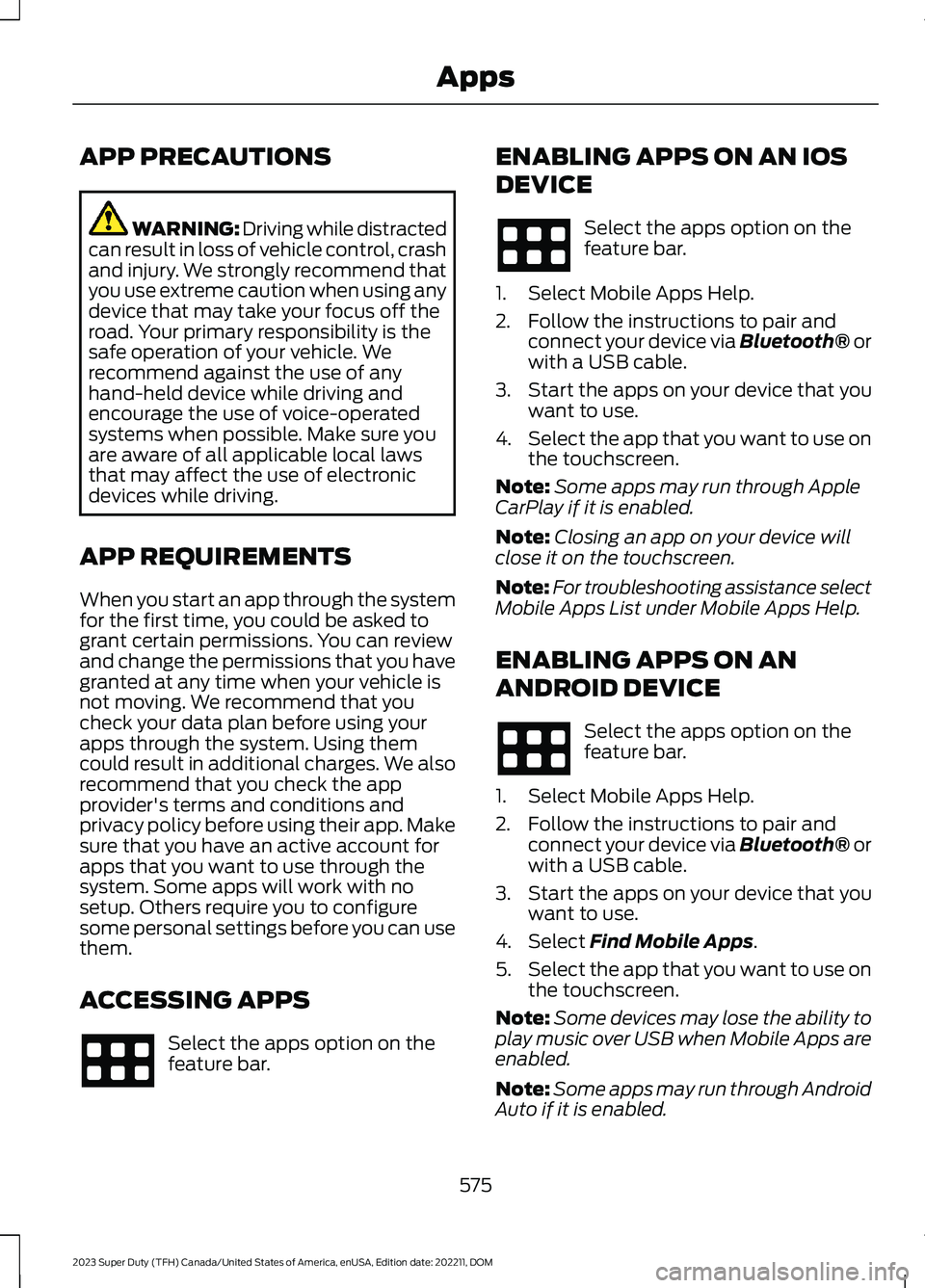
Select the apps option on thefeature bar.
ENABLING APPS ON AN IOS
DEVICE
Select the apps option on thefeature bar.
1.Select Mobile Apps Help.
2.Follow the instructions to pair andconnect your device via Bluetooth® orwith a USB cable.
3.Start the apps on your device that youwant to use.
4.Select the app that you want to use onthe touchscreen.
Note:Some apps may run through AppleCarPlay if it is enabled.
Note:Closing an app on your device willclose it on the touchscreen.
Note:For troubleshooting assistance selectMobile Apps List under Mobile Apps Help.
ENABLING APPS ON AN
ANDROID DEVICE
Select the apps option on thefeature bar.
1.Select Mobile Apps Help.
2.Follow the instructions to pair andconnect your device via Bluetooth® orwith a USB cable.
3.Start the apps on your device that youwant to use.
4.Select Find Mobile Apps.
5.Select the app that you want to use onthe touchscreen.
Note:Some devices may lose the ability toplay music over USB when Mobile Apps areenabled.
Note:Some apps may run through AndroidAuto if it is enabled.
575
2023 Super Duty (TFH) Canada/United States of America, enUSA, Edition date: 202211, DOMApps