Page 247 of 417
Function descriptions
Please refer to and on page 218 and
at the start of the chapter on page 238.
Route plan
The route plan contains inf
ormation on rele-
vant events, such as stopovers and suggested
destinations, if navigation data is available.
When you touch an event, an additional win-
dow opens with further options. The options
available depend on the event and the cur-
rent settings
Page 248 of 417
A forecast arrival time will be displayed.
You can activ
ate or deactivate the function at
any time and also delete the stored data for
the function.
Activating and deactivating “Learn usage
pattern”
Basic functions to open the set-
tings for this function.
2. To activate the function, activate
Learn us-
age pattern.
3. To deactivate the function, deactivate
Learn usage pattern.
Deleting stored data
.
If the charge le
vel is too low, the oper-
ating range display is automatically
hidden. When the battery has recharged, the
range display will reappear.
To show the complete range display
on the map, you may need to adjust
the map view
Page 254 of 417
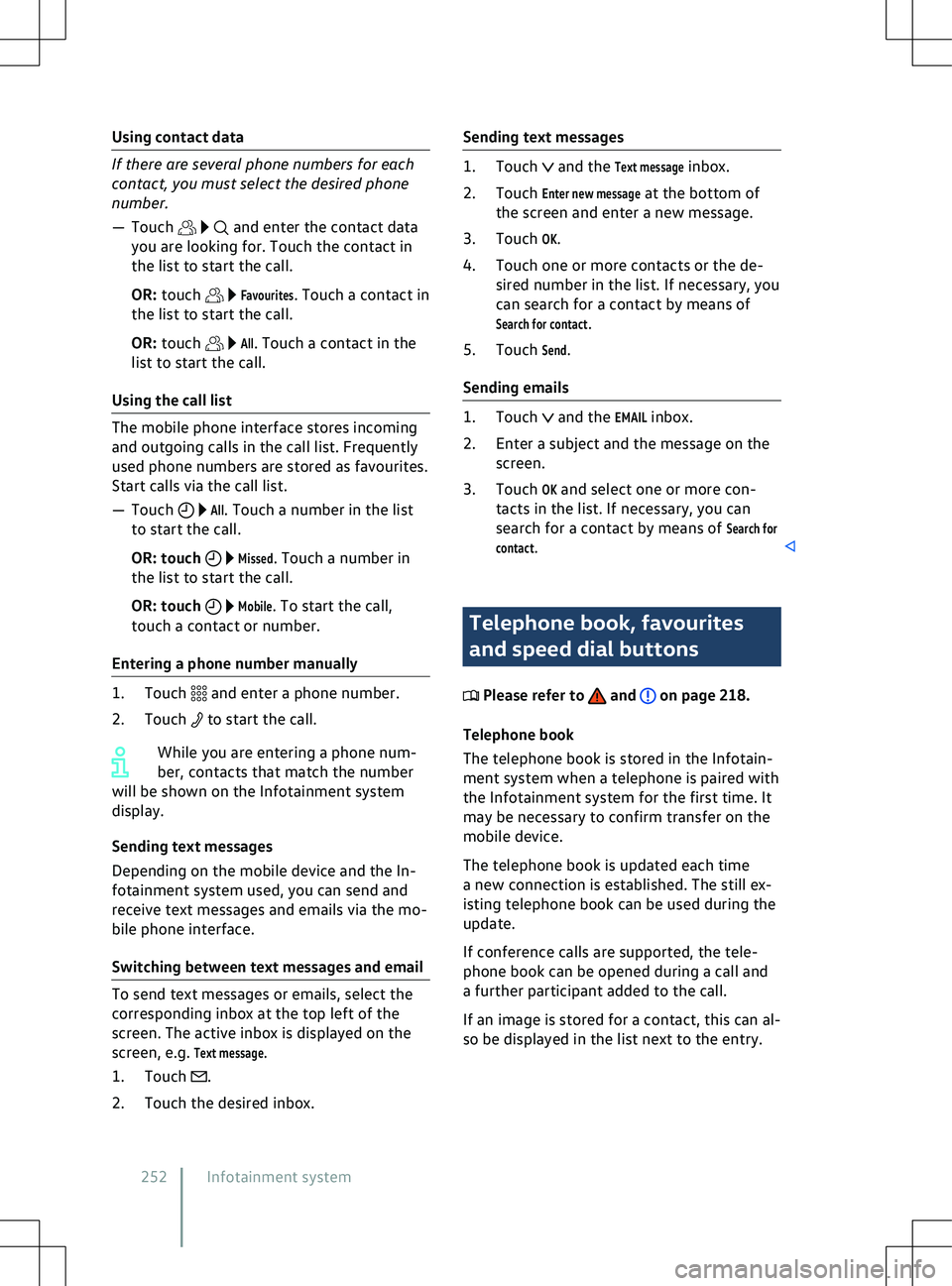
Using contact data
and enter the contact data
you are looking f or. Touch the contact in
the list to start the call.
OR: touch
Favourites. Touch a contact in
the list to start the call.
OR: touch
All. Touch a contact in the
list to start the call.
Using the call list
All. Touch a number in the list
to start the call.
OR: touch
Missed. Touch a number in
the list to start the call.
OR: touch
Mobile. To start the call,
touch a contact or number.
Entering a phone number manually and enter a phone number.
2.
Touch to start the call.
While you are entering a phone num-
ber, contacts that match the number
will be shown on the Inf
otainment system
display.
Sending text messages
Depending on the mobile device and the In-
fotainment system used, you can send and
receive text messages and emails via the mo-
bile phone interface.
Switching between text messages and email .
2.
Touch the desired inbox. and the
Text message inbox.
2. Touch
Enter new message at the bottom of
the screen and enter a new message.
3. Touch
OK.
4. Touch one or more contacts or the de- sired number in the list. If necessary, you
can search for a contact by means of
Search for contact.
5. Touch
Send.
Sending emails and the
EMAIL inbox.
2. Enter a subject and the message on the screen.
3. Touch
OK and select one or more con-
tacts in the list. If necessary, you can
search for a contact by means of
Search for
contact. Telephone book, favourites
and speed dial buttons
Please refer to and on page 218.
Telephone book
The telephone book is stored in the Inf
otain-
ment system when a telephone is paired with
the Infotainment system for the first time. It
may be necessary to confirm transfer on the
mobile device.
The telephone book is updated each time
a new connection is established. The still ex-
isting telephone book can be used during the
update.
If conference calls are supported, the tele-
phone book can be opened during a call and
a further participant added to the call.
If an image is stored for a contact, this can al-
so be displayed in the list next to the entry.
252 Infotainment system
Page 263 of 417
Bag hook
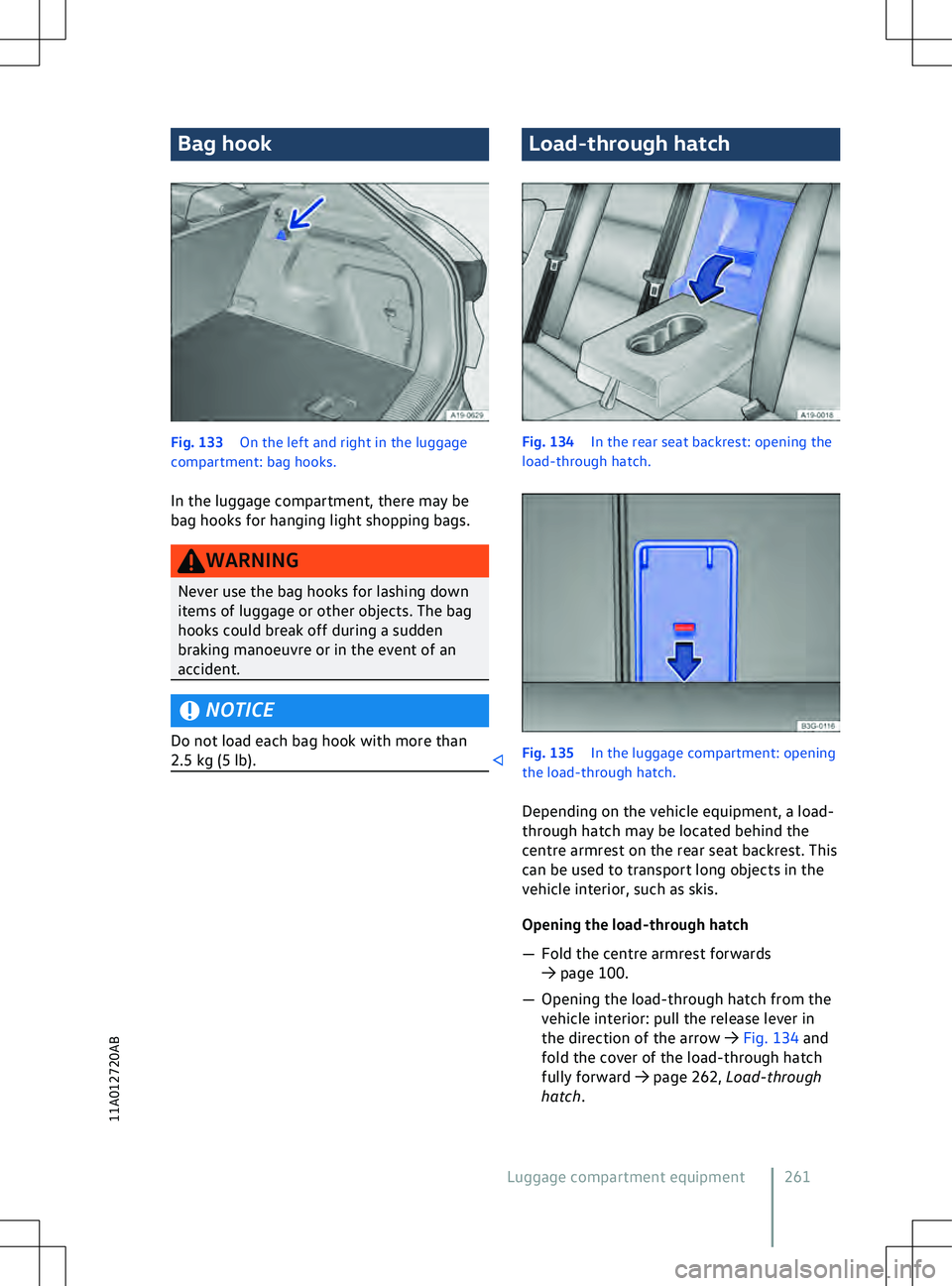
Fig. 133
On the left and right in the luggage
compartment: bag hooks.
In the luggage compartment, there may be
bag hooks f
or hanging light shopping bags. NOTICE
Do not load each bag hook with more than
2.5 kg (5 lb). Load-through hatch
Fig. 134
In the rear seat backrest: opening the
load-through hatch. 261
11A012720AB
Page 279 of 417
ordinates of the vehicle have been
recognised.
Timer-controlled charging Menu f
or a departure time. First open
the Overview
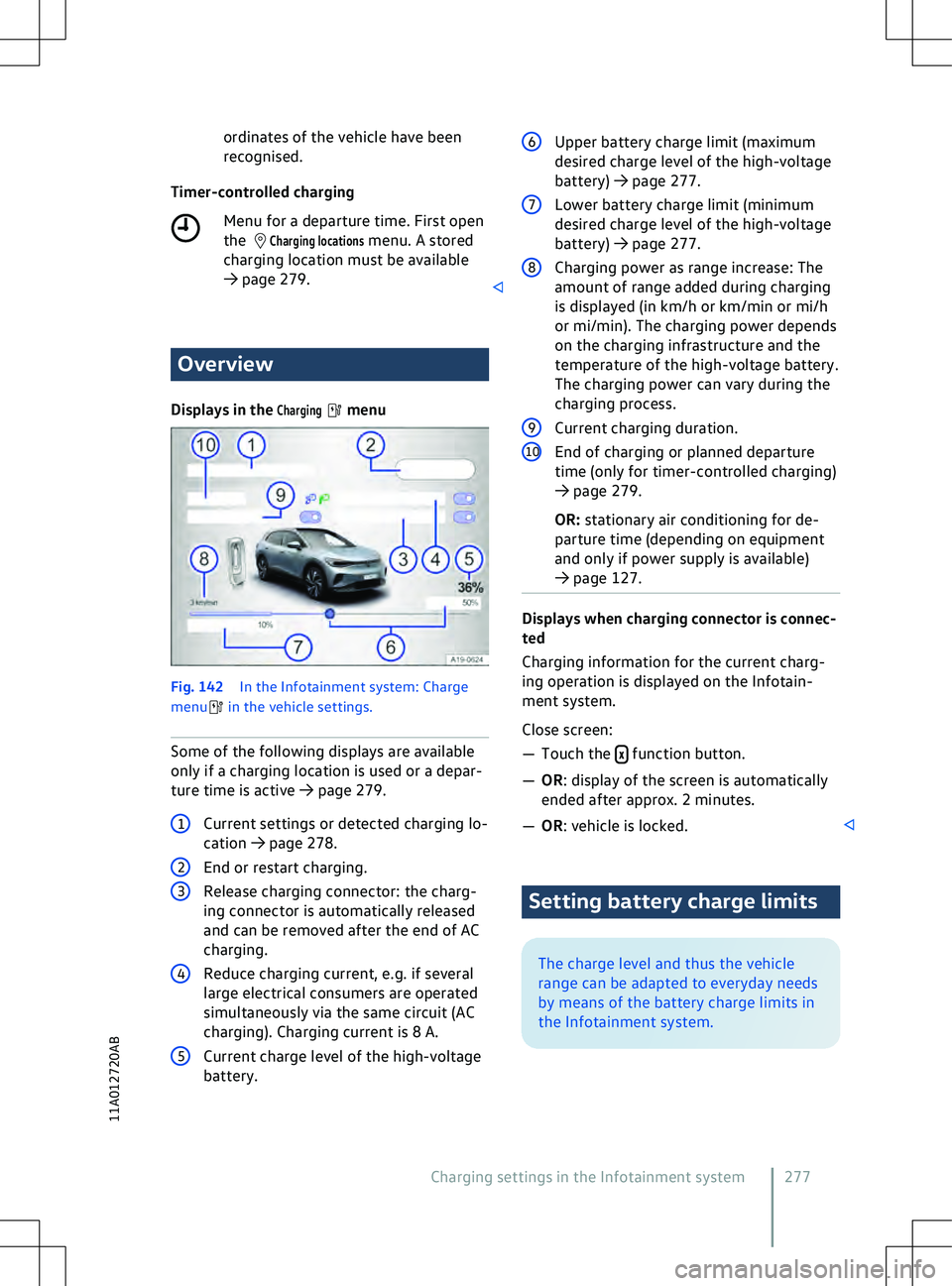
Displays in the
Charging menu
Fig. 142
In the Inf
otainment system: Charge
menu in the vehicle settings.
Some of the f ollowing displays are available
only if a charging location is used or a depar-
ture time is active
Page 300 of 417
Fuses in the bonnet space
Please refer to and at the start of
the chapter on page 296. Fig. 160
In the bonnet space: fuse bo x with
plastic grippers.
Opening the fuse box in the bonnet space
Page 314 of 417
WARNING
Ignoring any of the items on this important
saf ety checklist can lead to severe injuries.
x Always follow the instructions in the
checklist and observe the general safety
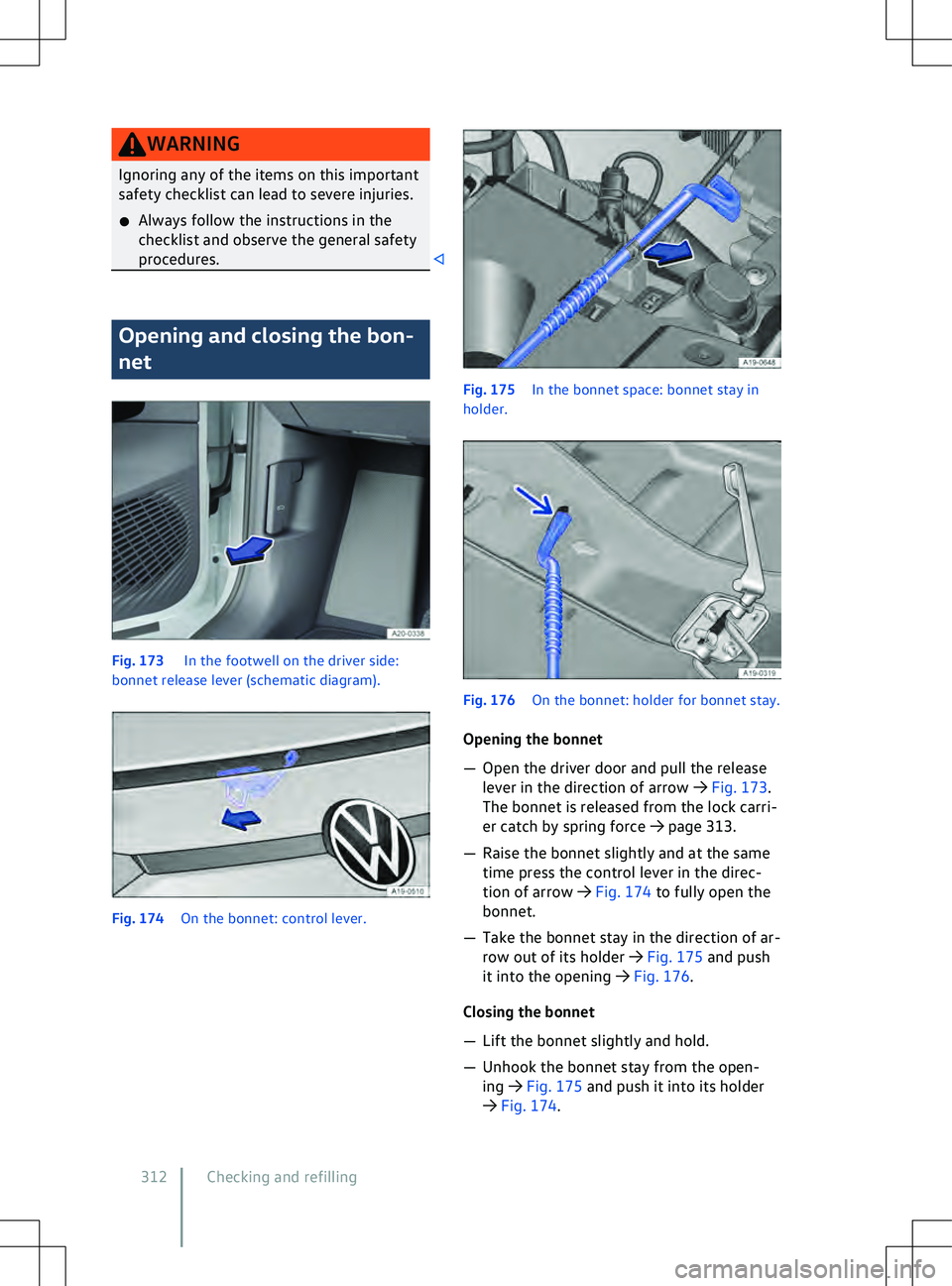
procedures. Opening and closing the bon-
net Fig. 173
In the f
ootwell on the driver side:
bonnet release lever (schematic diagram). Checking and refilling
Page 318 of 417
WARNING
Insufficient anti-freeze in the cooling sys-
tem of the v ehicle can cause the electric
drive to break down and thereby cause se-
rious injuries.
x The amount of correct coolant additive
used must be sufficient for the lowest
ambient temperature that you expect
the vehicle to be exposed to.
x Coolant can freeze at extremely cold
outside temperatures, causing the vehi-
cle to break down. Vehicle occupants
with inadequate winter clothing could
then freeze to death as the heating will
also no longer function. NOTICE
Never mix genuine coolant additives with
other coolants that ha
ve not been approved
by Volkswagen.
x If the liquid in the coolant expansion tank
is not pink (colouring results from mixing
the purple coolant additive with distilled
water) but for example brown instead of
purple, the suitable coolant has been
mixed with an unsuitable coolant additive.
The coolant must be changed as soon as
possible if this is the case. Failure to ob-
serve this warning can result in serious
malfunctions or damage to the electric
drive and cooling system. Coolant and coolant additives can pol-
lute the en
vironment. Spilt service flu-
ids must be collected and disposed of proper-
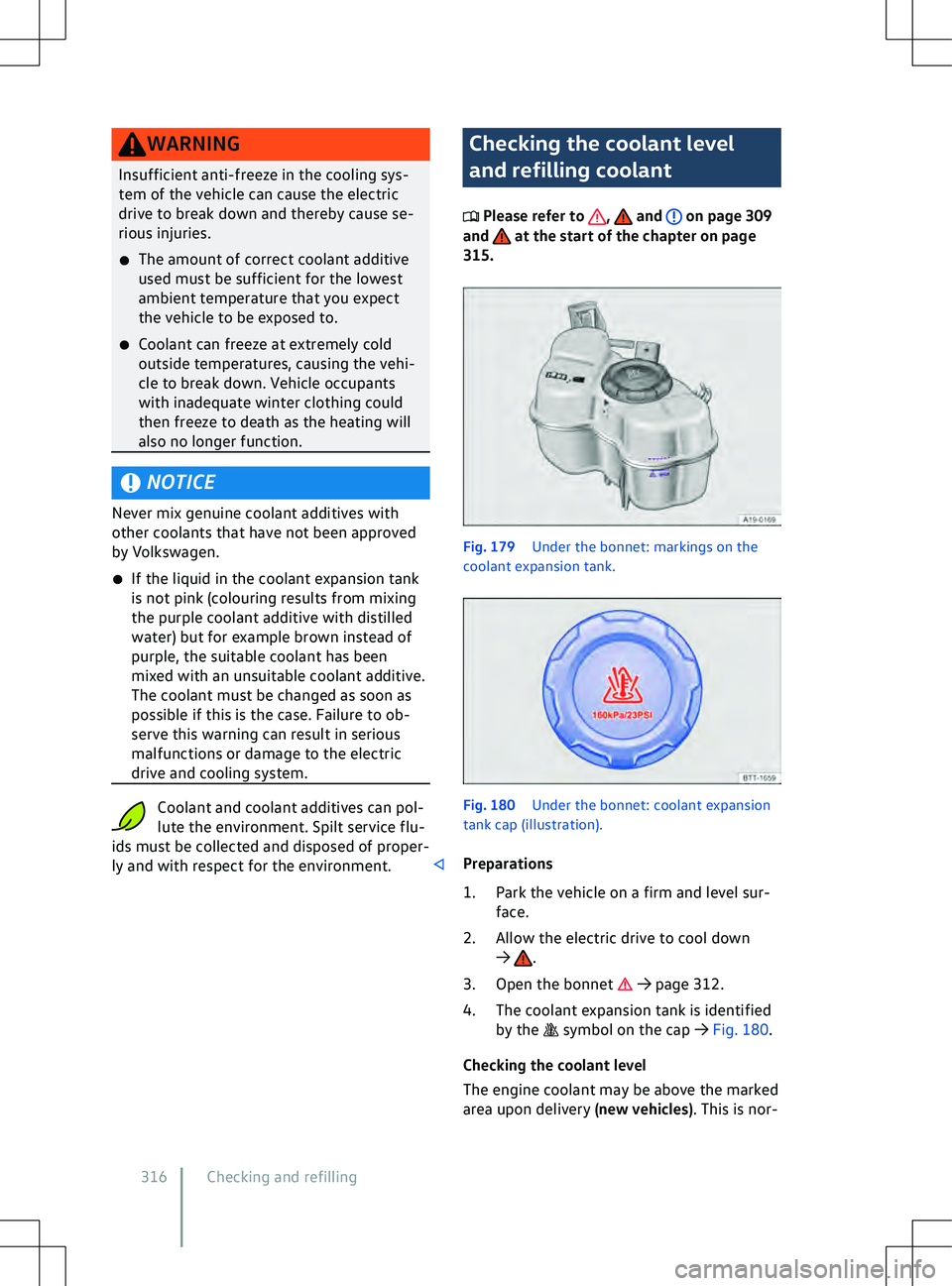
ly and with respect for the environment. Checking the coolant level
and refilling coolant
Please refer to , and on page 309
and at the start of the chapter on page
315. Fig. 179
Under the bonnet: markings on the
coolant e
xpansion tank. .
3.
Open the bonnet