Page 207 of 417
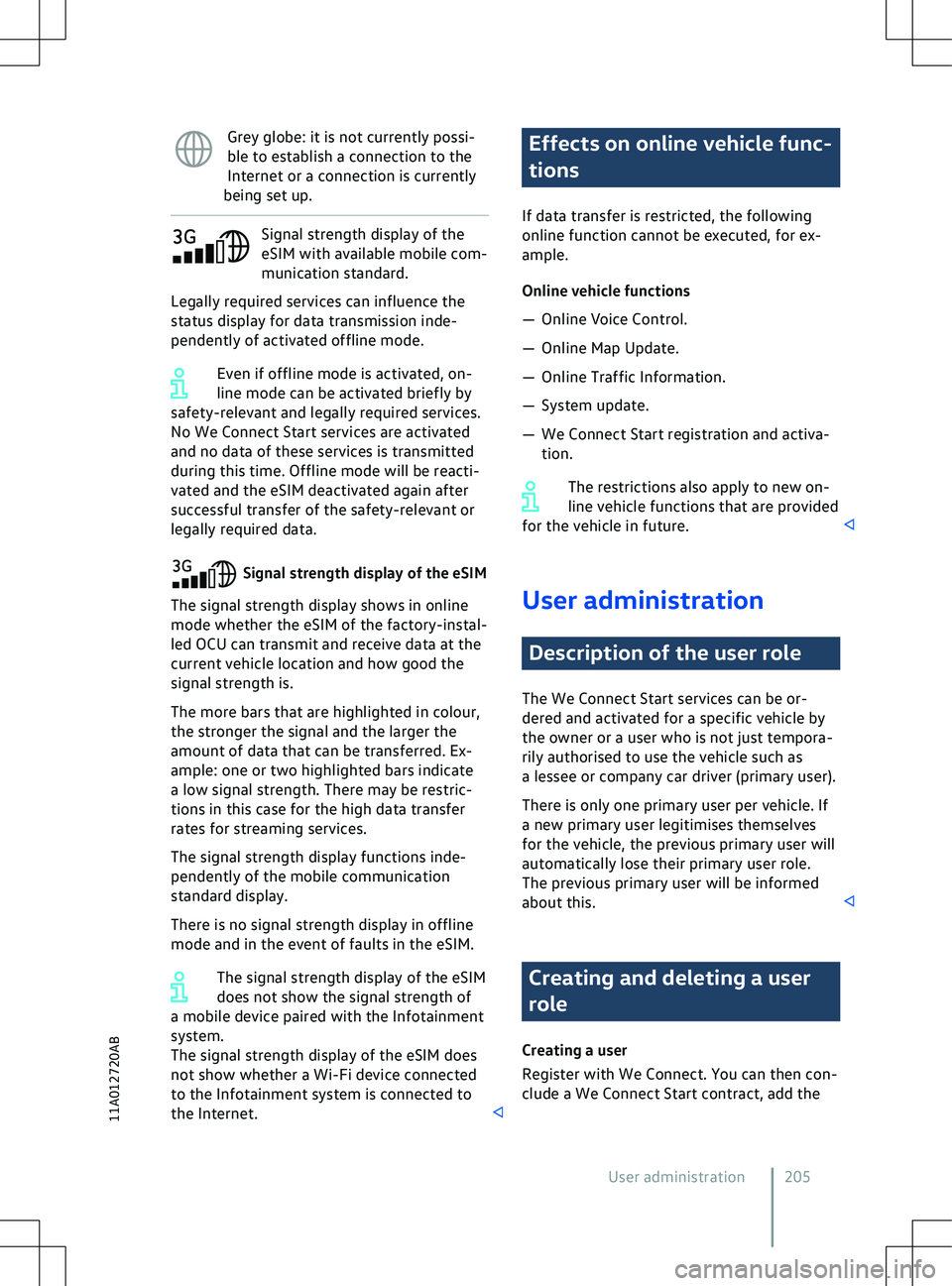
Grey globe: it is not currently possi-
ble to establish a connection to the
Internet or a connection is currently
being set up. Signal strength display of the
eSIM with a
vailable mobile com-
munication standard.
Legally required services can influence the
status display for data transmission inde-
pendently of activated offline mode.
Even if offline mode is activated, on-
line mode can be activated briefly by
safety-relevant and legally required services.
No We Connect Start services are activated
and no data of these services is transmitted
during this time. Offline mode will be reacti-
vated and the eSIM deactivated again after
successful transfer of the safety-relevant or
legally required data. Effects on online vehicle func-
tions
If data transf
er is restricted, the following
online function cannot be executed, for ex-
ample.
Online vehicle functions
Page 210 of 417
always using WPA2 encryption. Observe
country-specific requirements.
The necessary data transf
er may be
subject to charges. Due to the poten-
tially high volume of data in use, Volkswagen
recommends using a mobile phone tariff
which includes a data flat rate. For more in-
formation contact your mobile telephone
provider.
Depending on your mobile telephone
tariff, additional costs (such as roam-
ing charges) may be charged for loading and
using online data packages, especially if you
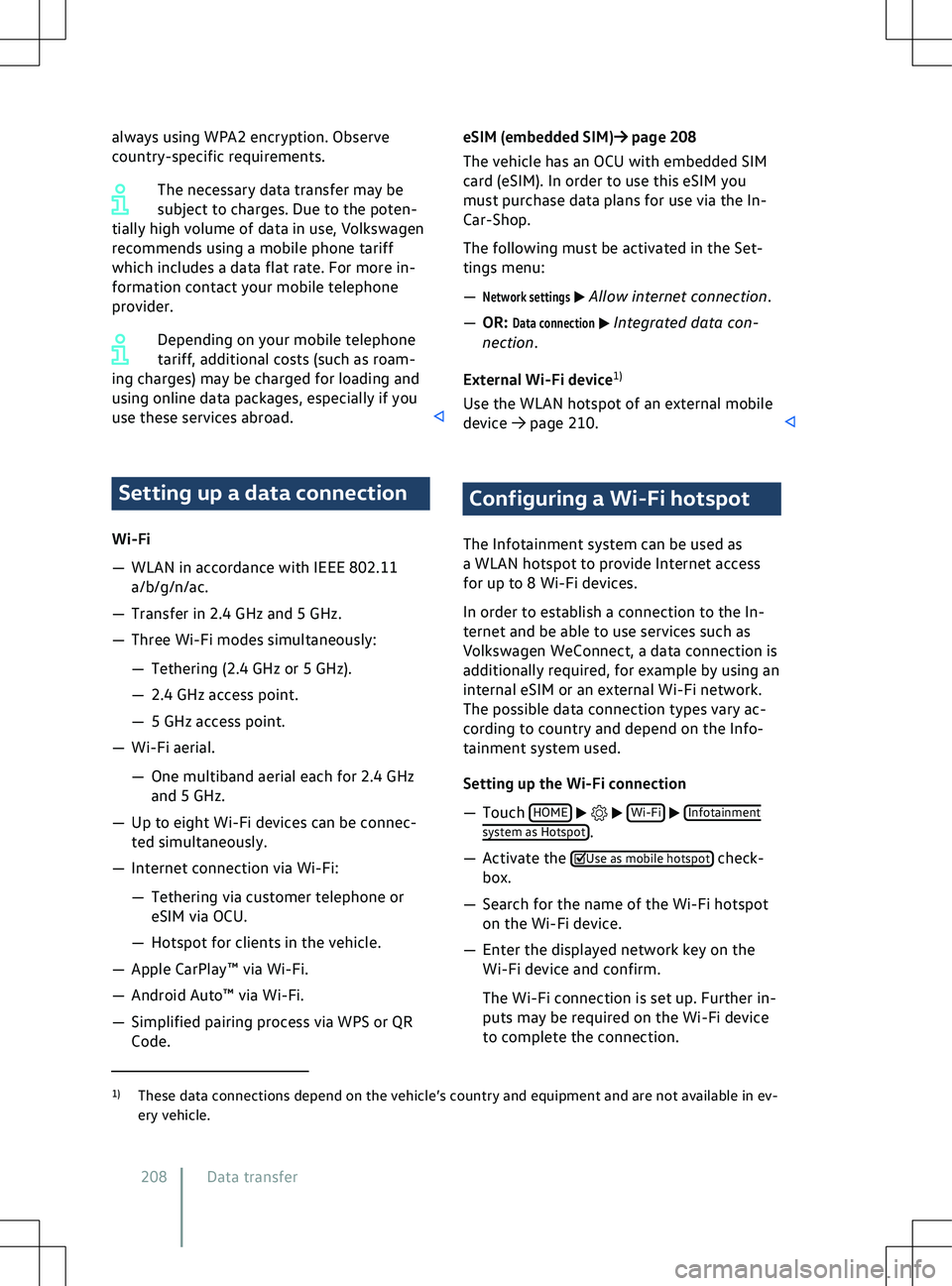
use these services abroad. Setting up a data connection
Wi-Fi
Page 230 of 417
distribution of this type of technology out-
side this product requires a licence from
Microsoft or an authorised Microsoft com-
pany.
Copyright law
Audio and video files sa
ved on data media
and audio sources are normally subject to na-
tional and international copyright laws. Ob-
serve the legal requirements. Voice control
Introduction to voice con-
trol Voice control allows you to perform cer-
tain functions by spoken commands.
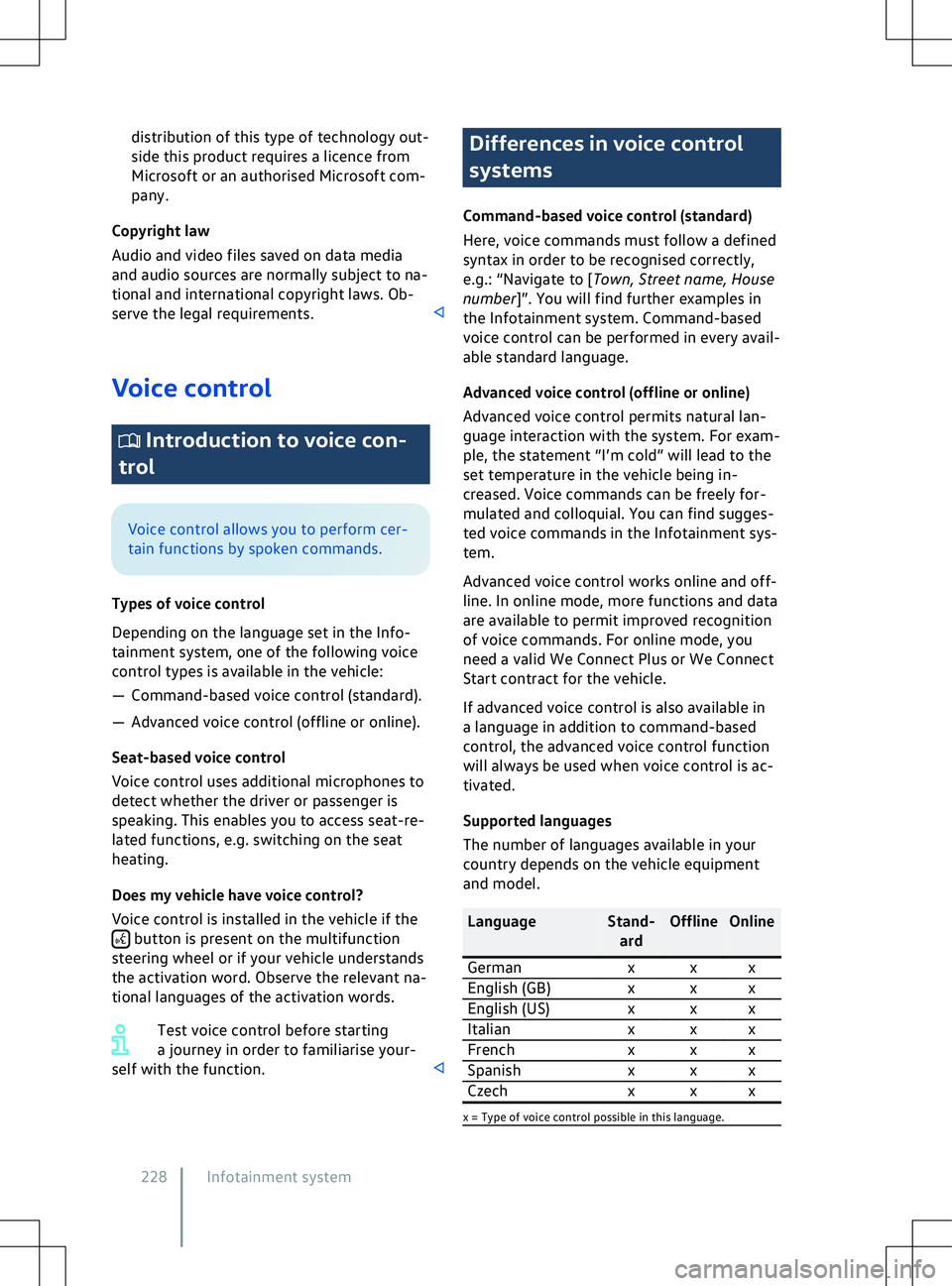
Types of v
oice control
Depending on the language set in the Info-
tainment system, one of the following voice
control types is available in the vehicle:
Page 232 of 417
self around every 15 seconds. The ring mem-
ory is not activ e if the activation word is
switched off. There is no transmission of data
or words spoken in the vehicle.
Switching activation word on and off
Voice control Activation
word.
Speaking activation word and activation
word recognition
Page 234 of 417
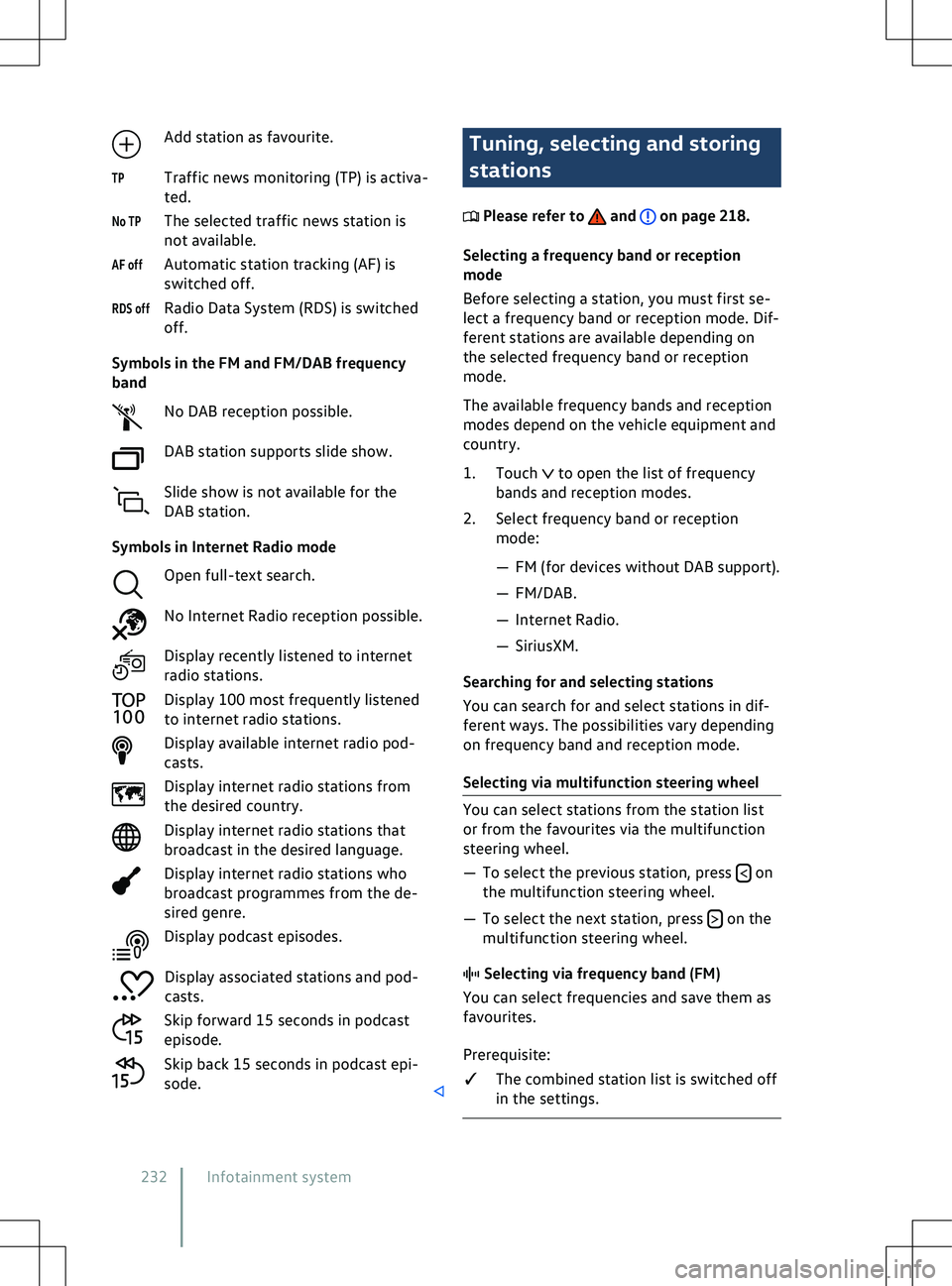
Add station as favourite.
Traffic news monitoring (TP) is activ a-
ted.
The selected traffic news station is
not available.
Automatic station tracking (AF) is
switched off.
Radio Data System (RDS) is switched
off.
Symbols in the FM and FM/DAB frequency
band No DAB reception possible.
DAB station supports slide show.
Slide show is not available for the
DAB station.
Symbols in Internet Radio mode Open full-text search.
No Internet Radio reception possible.
Display recently listened to internet
radio stations.
Display 100 most frequently listened
to internet radio stations.
Display available internet radio pod-
casts.
Display internet radio stations from
the desired country.
Display internet radio stations that
broadcast in the desired language.
Display internet radio stations who
broadcast programmes from the de-
sired genre.
Display podcast episodes.
Display associated stations and pod-
casts.
Skip forward 15 seconds in podcast
episode.
Skip back 15 seconds in podcast epi-
sode. Tuning, selecting and storing
stations
Please refer to and on page 218.
Selecting a frequency band or reception
mode
Bef
ore selecting a station, you must first se-
lect a frequency band or reception mode. Dif-
ferent stations are available depending on
the selected frequency band or reception
mode.
The available frequency bands and reception
modes depend on the vehicle equipment and
country.
1. Touch to open the list of frequency
bands and reception modes.
2.
Select frequency band or reception
mode:
Page 235 of 417
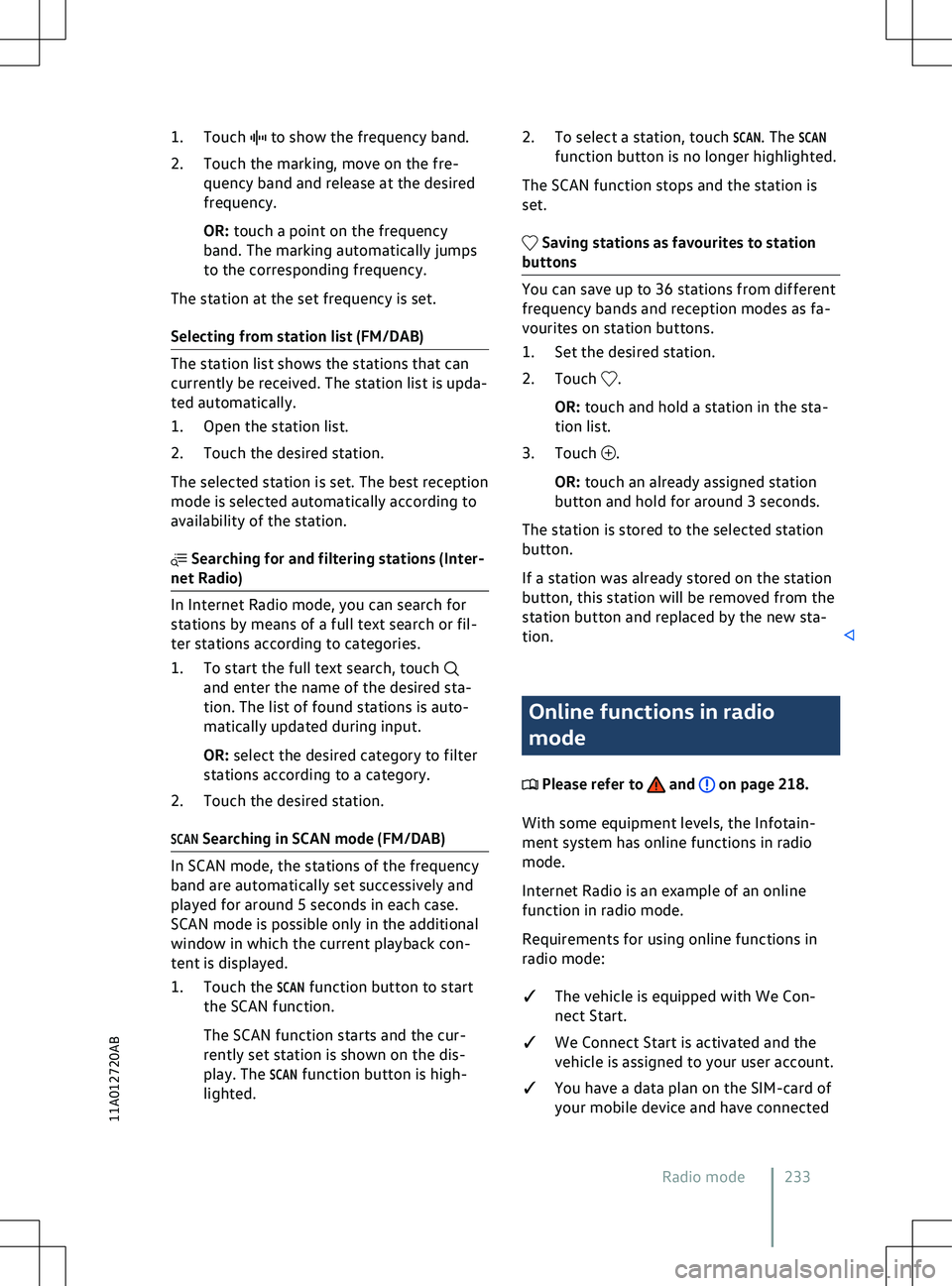
1. Touch to show the frequency band.
2.
Touch the marking, move on the fre-
quency band and release at the desired
frequency.
OR: touch a point on the frequency
band. The marking automatically jumps
to the corresponding frequency.
The station at the set frequency is set.
Selecting from station list (FM/DAB) and enter the name of the desired sta-
tion. The list of f
ound stations is auto-
matically updated during input.
OR: select the desired category to filter
stations according to a category.
2. Touch the desired station.
SCAN Searching in SCAN mode (FM/DAB) .
OR: touch and hold a station in the sta-
tion list.
3.
Touch .
OR: touch an already assigned station
button and hold f
or around 3 seconds.
The station is stored to the selected station
button.
If a station was already stored on the station
button, this station will be removed from the
station button and replaced by the new sta-
tion. Online functions in radio
mode
Please refer to and on page 218.
With some equipment le
vels, the Infotain-
ment system has online functions in radio
mode.
Internet Radio is an example of an online
function in radio mode.
Requirements for using online functions in
radio mode:
�q The vehicle is equipped with We Con-
nect Start.
�q We Connect Start is activated and the
vehicle is assigned to your user account.
�q You have a data plan on the SIM-card of
your mobile device and have connected
Radio mode 233
11A012720AB
Page 237 of 417
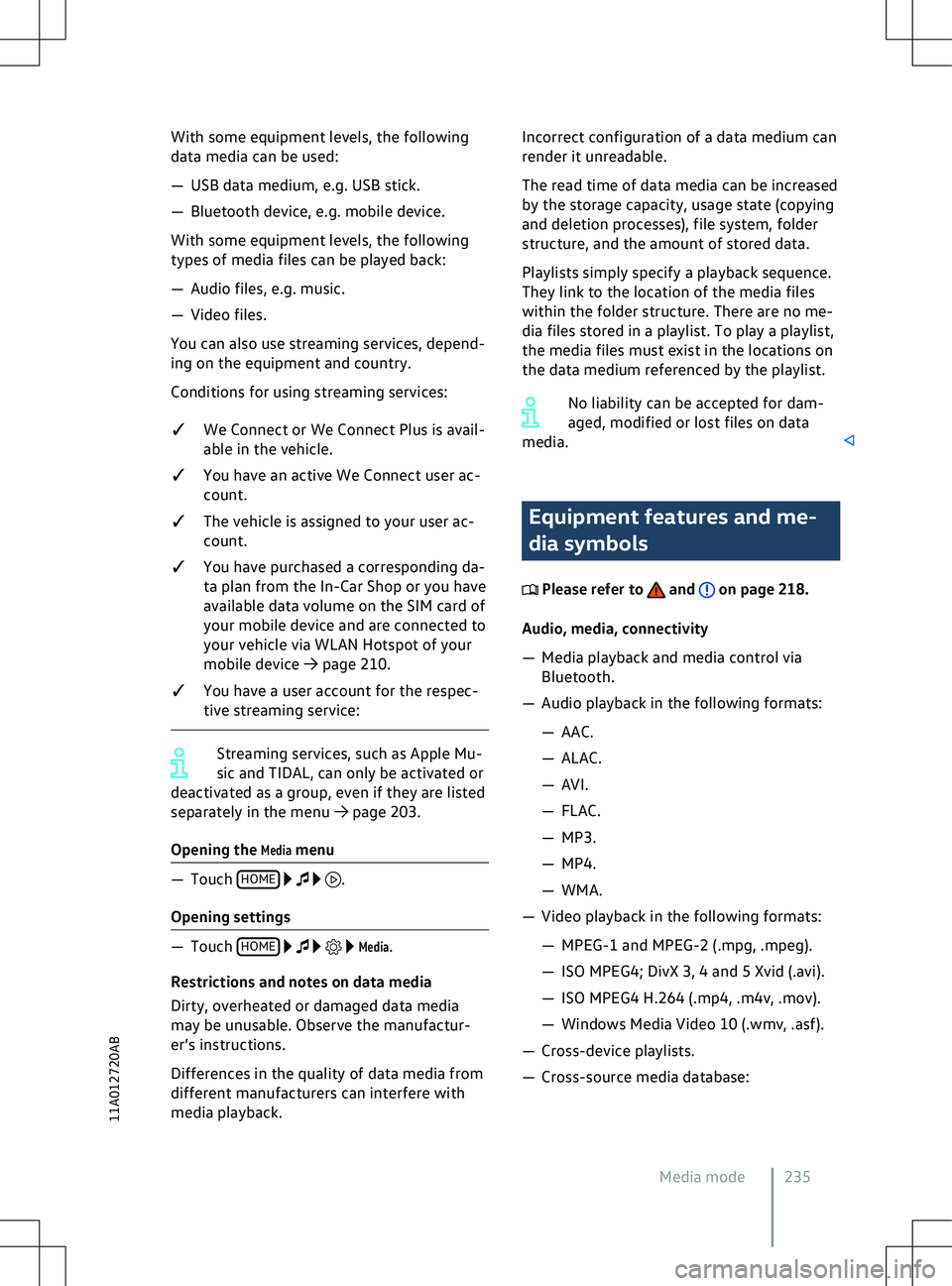
With some equipment levels, the following
data media can be used:
Page 239 of 417
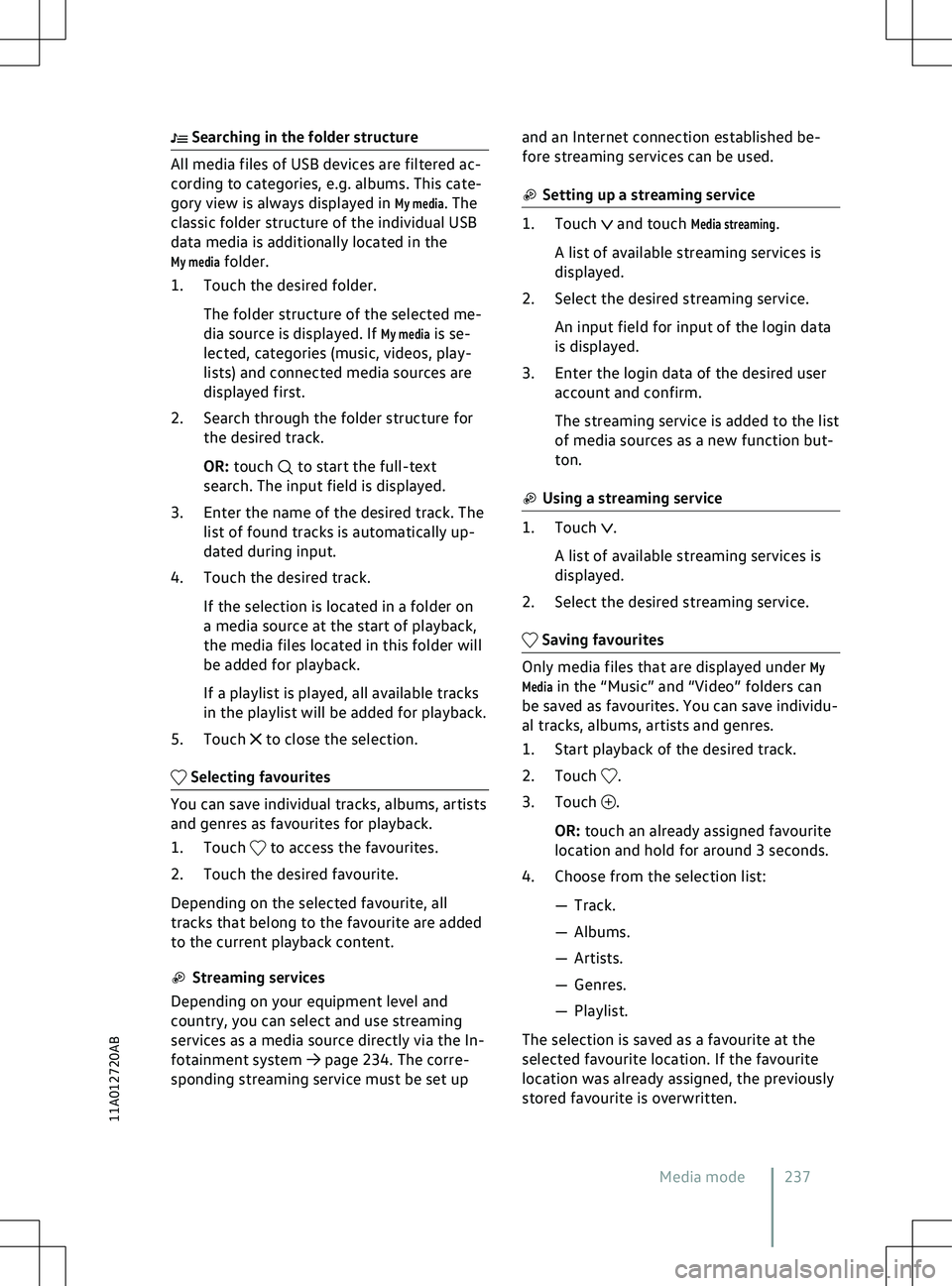
Searching in the folder structure
to start the full-text
search. The input field is displayed.
3.
Enter the name of the desired track. The
list of found tracks is automatically up-
dated during input.
4. Touch the desired track.
If the selection is located in a folder on
a media source at the start of playback,
the media files located in this folder will
be added for playback.
If a playlist is played, all available tracks
in the playlist will be added for playback.
5. Touch to close the selection.
to access the favourites.
2.
Touch the desired favourite.
Depending on the selected favourite, all
tracks that belong to the favourite are added
to the current playback content. and touch
Media streaming.
A list of available streaming services is
displayed.
2. Select the desired streaming service.
An input field for input of the login data
is displayed.
3. Enter the login data of the desired user account and confirm.
The streaming service is added to the list
of media sources as a new function but-
ton. .
A list of a
vailable streaming services is
displayed.
2. Select the desired streaming service. .
3.
Touch .
OR: touch an already assigned fa
vourite
location and hold for around 3 seconds.
4. Choose from the selection list: