2022 TOYOTA VENZA HYBRID instrument cluster
[x] Cancel search: instrument clusterPage 98 of 548
982-1. Instrument cluster
history display
Linked with the hands-free
system, sending or receiving
call is displayed. For details
regarding the hands-free sys-
tem, refer to “NAVIGATION
AND MULTIMEDIA SYS-
TEM OWNER’S MANUAL”.
*: On screens where the screen can be scrolled and the display can
be switched, a scroll bar or a
round icon that shows the num-
ber of registered screens is dis-
played.
Information related to each icon
can be displayed by selecting
the icon with the meter control
switches.
Some of the information may be
displayed automatically depending
on the situation.
Select to display fuel consump-
tion data in various forms.
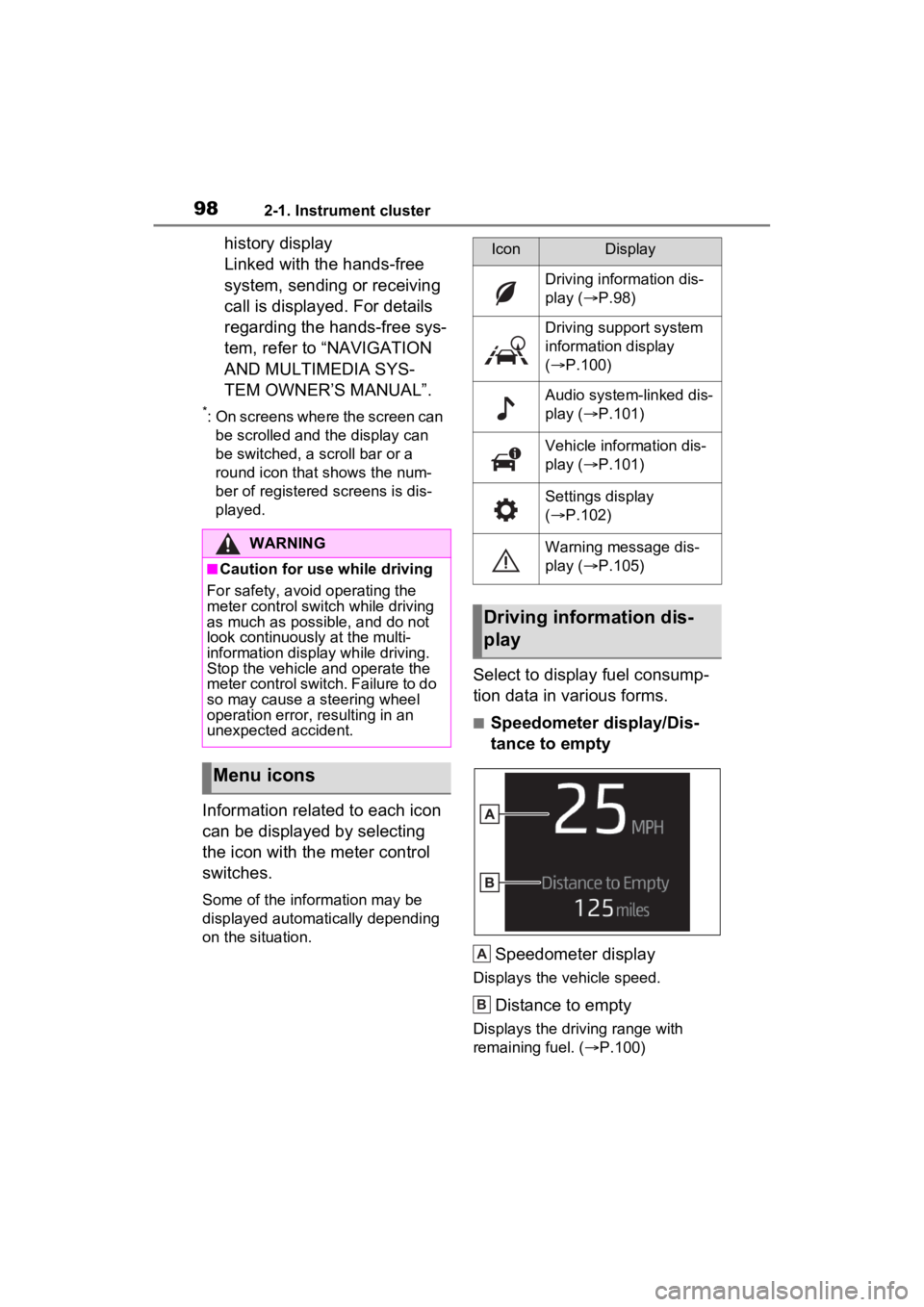
■Speedometer display/Dis-
tance to empty
Speedometer display
Displays the vehicle speed.
Distance to empty
Displays the driving range with
remaining fuel. ( P.100)
WARNING
■Caution for use while driving
For safety, avoid operating the
meter control swit ch while driving
as much as possible, and do not
look continuously at the multi-
information display while driving.
Stop the vehicle and operate the
meter control switch. Failure to do
so may cause a steering wheel
operation error, resulting in an
unexpected accident.
Menu icons
IconDisplay
Driving information dis-
play ( P.98)
Driving support system
information display
( P.100)
Audio system-linked dis-
play ( P.101)
Vehicle information dis-
play ( P.101)
Settings display
( P.102)
Warning message dis-
play ( P.105)
Driving information dis-
play
A
B
Page 99 of 548
992-1. Instrument cluster
2
Vehicle status information and indicators
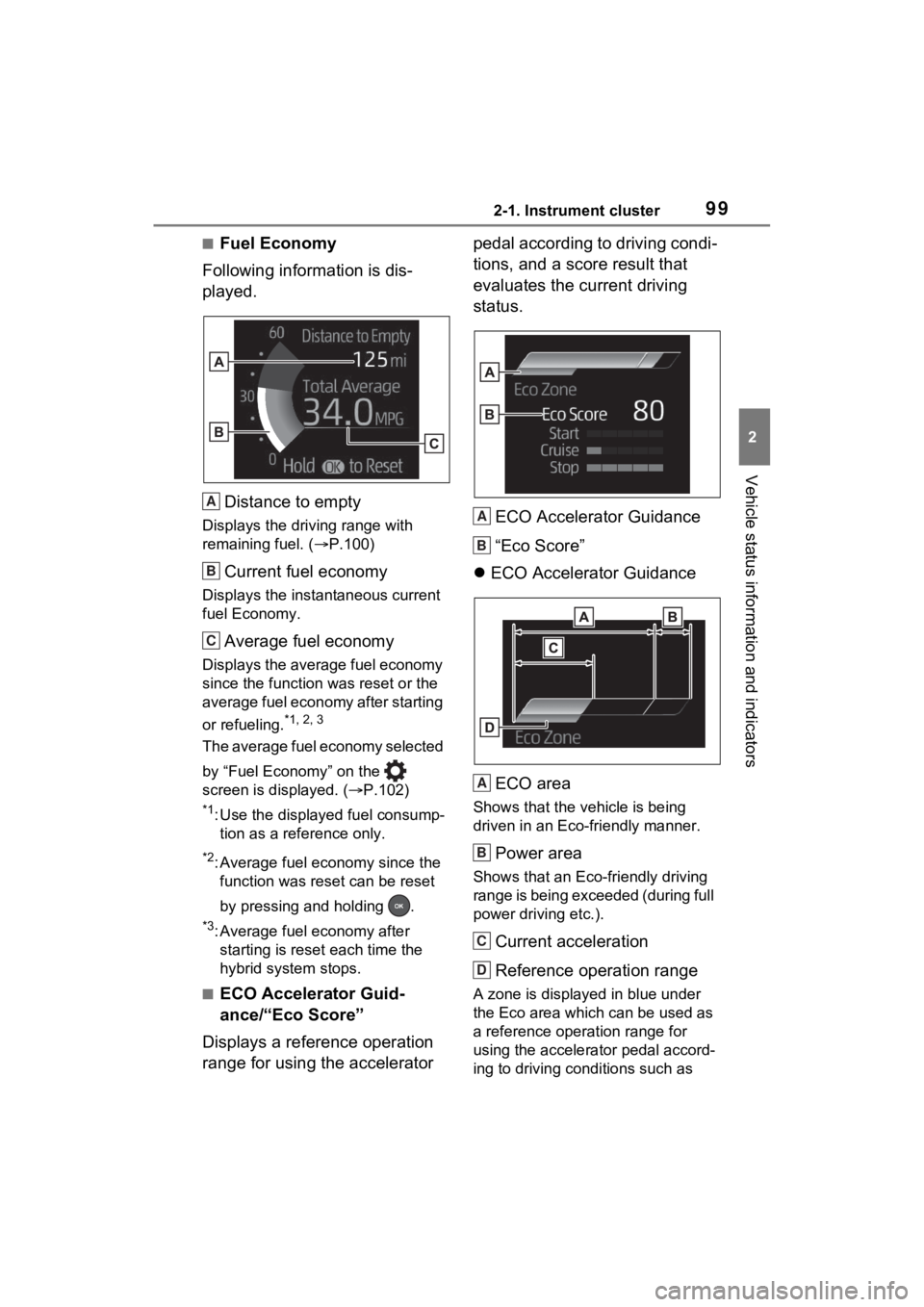
■Fuel Economy
Following information is dis-
played.
Distance to empty
Displays the driving range with
remaining fuel. ( P.100)
Current fuel economy
Displays the instantaneous current
fuel Economy.
Average fuel economy
Displays the average fuel economy
since the function was reset or the
average fuel economy after starting
or refueling.
*1, 2, 3
The average fuel economy selected
by “Fuel Economy” on the
screen is displayed. ( P.102)
*1: Use the displayed fuel consump-
tion as a reference only.
*2: Average fuel economy since the function was reset can be reset
by pressing and holding .
*3: Average fuel economy after starting is reset each time the
hybrid system stops.
■ECO Accelerator Guid-
ance/“Eco Score”
Displays a reference operation
range for using the accelerator pedal according to driving condi-
tions, and a score result that
evaluates the current driving
status.
ECO Accelerator Guidance
“Eco Score”
ECO Accelerator Guidance
ECO area
Shows that the vehicle is being
driven in an Eco-friendly manner.
Power area
Shows that an Eco-friendly driving
range is being exceeded (during full
power driving etc.).
Current acceleration
Reference operation range
A zone is displayed in blue under
the Eco area which can be used as
a reference operation range for
using the accelerator pedal accord-
ing to driving conditions such as
A
B
C
A
B
A
B
C
D
Page 100 of 548
1002-1. Instrument cluster
starting off and cruising.
The ECO Accelerator Guidance
display changes according to the
driving status, such as when start-
ing off or cruising.
It is easier to drive in an Eco-
friendly manner by driving accord-
ing to the display showing the
accelerator pedal operations and
staying within the reference opera-
tion range.
“Eco Score”
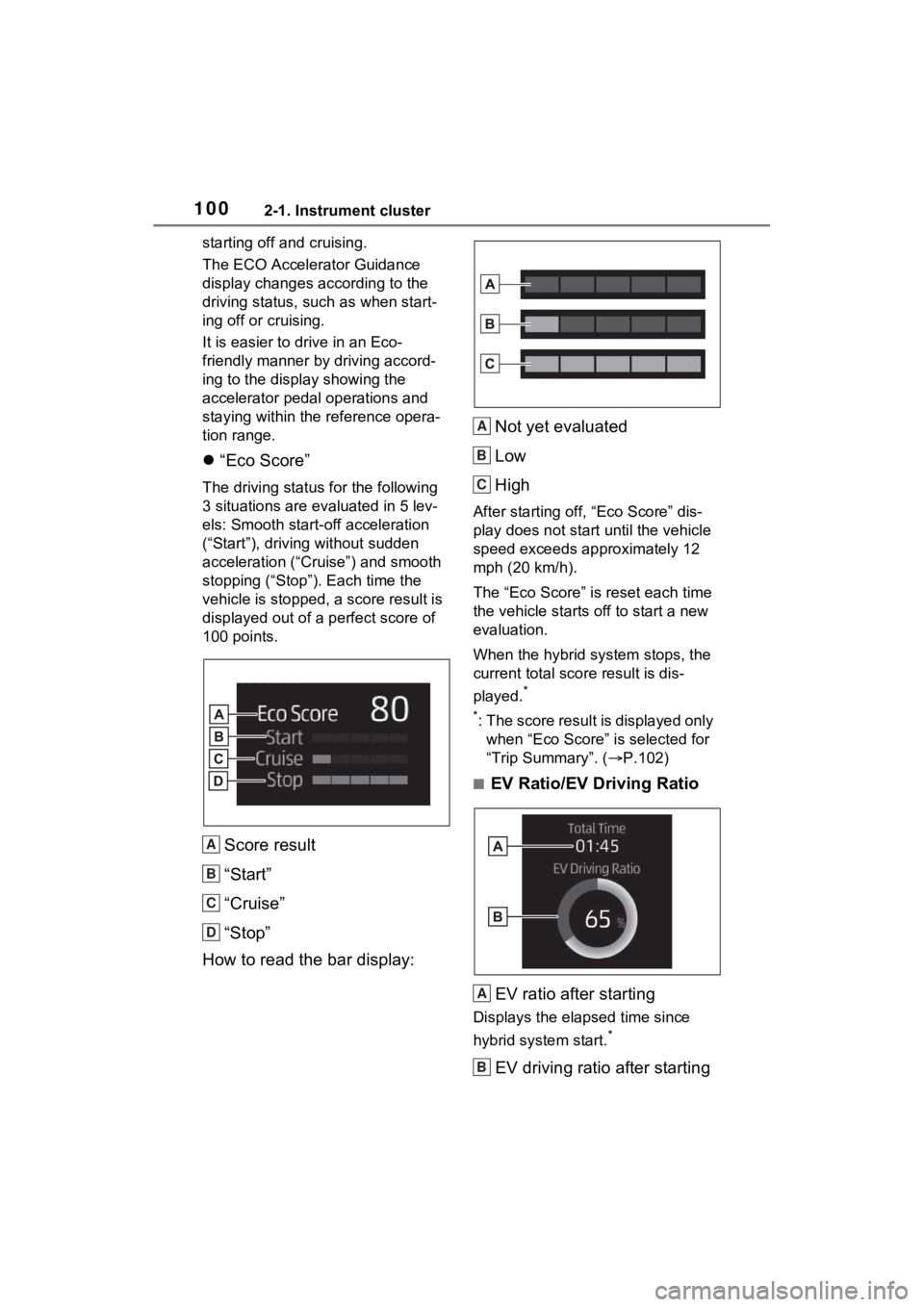
The driving status for the following
3 situations are evaluated in 5 lev-
els: Smooth start-off acceleration
(“Start”), driving without sudden
acceleration (“Cru ise”) and smooth
stopping (“Stop”). Each time the
vehicle is stopped, a score result is
displayed out of a perfect score of
100 points.
Score result
“Start”
“Cruise”
“Stop”
How to read the bar display: Not yet evaluated
Low
High
After starting off, “Eco Score” dis-
play does not start until the vehicle
speed exceeds approximately 12
mph (20 km/h).
The “Eco Score” is
reset each time
the vehicle starts off to start a new
evaluation.
When the hybrid system stops, the
current total scor e result is dis-
played.
*
*
: The score result is displayed only when “Eco Score” is selected for
“Trip Summary”. ( P.102)
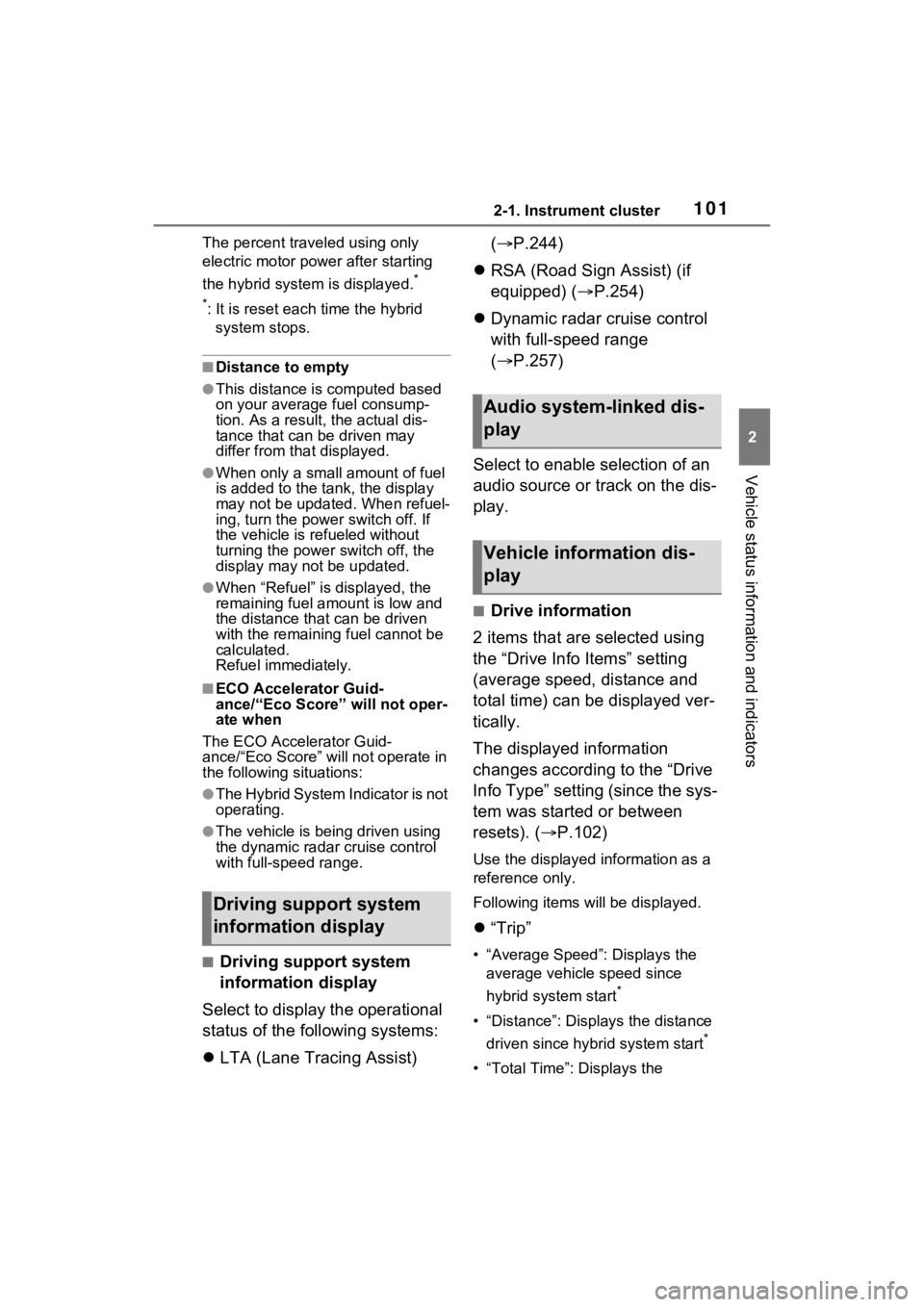
■EV Ratio/EV Driving Ratio
EV ratio after starting
Displays the elapsed time since
hybrid system start.
*
EV driving ratio after starting
A
B
C
D
A
B
C
A
B
Page 101 of 548
1012-1. Instrument cluster
2
Vehicle status information and indicators
The percent traveled using only
electric motor power after starting
the hybrid system is displayed.
*
*
: It is reset each time the hybrid system stops.
■Distance to empty
●This distance is computed based
on your averag e fuel consump-
tion. As a result, the actual dis-
tance that can be driven may
differ from tha t displayed.
●When only a small amount of fuel
is added to the tank, the display
may not be updated. When refuel-
ing, turn the power switch off. If
the vehicle is refueled without
turning the power switch off, the
display may not be updated.
●When “Refuel” is displayed, the
remaining fuel amount is low and
the distance that can be driven
with the remaining fuel cannot be
calculated.
Refuel immediately.
■ECO Accelerator Guid-
ance/“Eco Score” will not oper-
ate when
The ECO Accelerator Guid-
ance/“Eco Score” will not operate in
the following situations:
●The Hybrid System Indicator is not
operating.
●The vehicle is being driven using
the dynamic radar cruise control
with full-speed range.
■Driving support system
information display
Select to display the operational
status of the following systems:
LTA (Lane Tracing Assist) (
P.244)
RSA (Road Sign Assist) (if
equipped) ( P.254)
Dynamic radar cruise control
with full-speed range
( P.257)
Select to enable selection of an
audio source or track on the dis-
play.
■Drive information
2 items that are selected using
the “Drive Info Items” setting
(average speed, distance and
total time) can be displayed ver-
tically.
The displayed information
changes according to the “Drive
Info Type” setting (since the sys-
tem was started or between
resets). ( P.102)
Use the displayed information as a
reference only.
Following items will be displayed.
“Trip”
• “Average Speed”: Displays the
average vehicle speed since
hybrid system start
*
• “Distance”: Displ ays the distance
driven since hybrid system start
*
• “Total Time”: Displays the
Driving support system
information display
Audio system-linked dis-
play
Vehicle information dis-
play
Page 102 of 548
1022-1. Instrument cluster
elapsed time since hybrid system
start
*
*
: These items are reset each time the hybrid system stops.
“Total”
• “Average Speed”: Displays the
average vehicle speed since the
display was reset
*
• “Distance”: Displ ays the distance
driven since the display was
reset
*
• “Total Time”: Displays the elapsed time since the display
was reset
*
*
: To reset, display the desired item and press and hold .
■Energy monitor
P.123
■Tire pressure
P.399
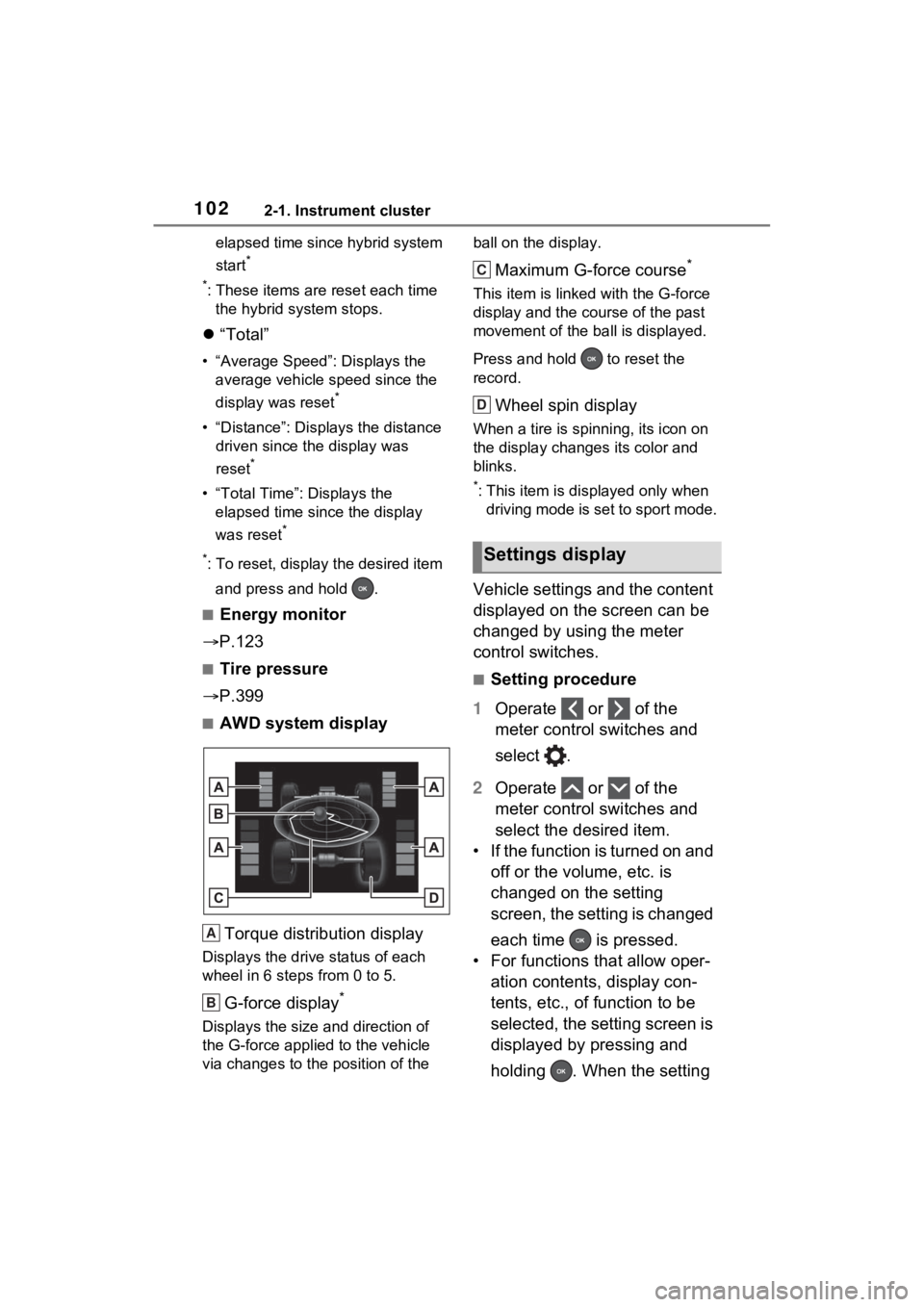
■AWD system display
Torque distribution display
Displays the drive status of each
wheel in 6 steps from 0 to 5.
G-force display*
Displays the size and direction of
the G-force applie d to the vehicle
via changes to the position of the ball on the display.
Maximum G-force course*
This item is linke
d with the G-force
display and the co urse of the past
movement of the ba ll is displayed.
Press and hold to reset the
record.
Wheel spin display
When a tire is spi nning, its icon on
the display changes its color and
blinks.
*: This item is displayed only when driving mode is set to sport mode.
Vehicle settings and the content
displayed on the screen can be
changed by using the meter
control switches.
■Setting procedure
1 Operate or of the
meter control switches and
select .
2 Operate or of the
meter control switches and
select the desired item.
• If the function is turned on and off or the volume, etc. is
changed on the setting
screen, the setting is changed
each time is pressed.
• For functions that allow oper- ation contents, display con-
tents, etc., of function to be
selected, the setting screen is
displayed by pressing and
holding . When the setting
A
B
Settings display
C
D
Page 103 of 548

1032-1. Instrument cluster
2
Vehicle status information and indicators
screen is displayed, select the
setting or desired value (time,
etc.) with .
3 After changing the settings,
press of the meter control
switches.
■ LTA (Lane Tracing
Assist) ( P.244)
Select to set up the following
items.
“Lane Center”
Select to enable/disable the lane
centering function.
“Steering Assist”
Select to enable/d isable steering
wheel assistance.
“Alert”
Select to set the alert type.
“Sensitivity”
Select to set the warning sensitivity.
“Sway Warning”
Select to enable/disable the vehicle
sway warning.
“Sway Sensitivity”
Select to set the vehicle sway warn-
ing sensitivity.
■ PCS (Pre-Collision Sys-
tem) ( P.236)
Select to set up the following
items.
PCS on/off
Select to enable/disable the pre-
collision system.
“Sensitivity”
Select to change the pre-collision
warning timing.
■ BSM (Blind Spot Moni-
tor) ( P.268)
Select to set up the following
items.
BSM (Blind Spot Monitor)
on/off
Select to enable/disable the BSM
system.
“Brightness”
Select to switch the brightness of
the outside rear view mirror indica-
tors. ( P.269)
“Sensitivity”
Select to change the alert timing for
an approaching vehicle.
■ (Intuitive parking
assist) (if equipped)
( P.278)
Select to set up the following
items.
Intuitive parking assist on/off
Select to enable/d isable the Intui-
tive parking assist.
“Volume”
Select to set the volume of the
buzzer which sounds when the
Intuitive parking assist is operated.
■RCTA (Rear Cross Traffic
Alert) ( P.268)
RCTA (Rear Cross Traffic
Alert) on/off
Select to enable /disable the RCTA
system.
“Volume”
Page 104 of 548

1042-1. Instrument cluster
Select to change the RCTA buzzer
volume.
■ RSA (Road Sign
Assist) (if equipped)
( P.254)
Select to set up the following
items.
Road Sign Assist on/off
Select to enable/disable the RSA
(Road Sign Assist).
“Notification method”
Select to change e ach notification
method used to notify the driver
when the system recognizes
excess speed and Do Not Enter
sign.
“Notification Level”
Select to change e ach notification
level used to notify the driver when
the system recognizes a speed limit
sign.
■Vehicle Settings
PBD (Power Back Door)
( P.139)
Select to set up the following items.
• System settings
Select to enable/disable the power
back door system.
• “Hands Free” (if equipped)
Select to enable/disable the Hands
Free Power Back Door operation.
• “Opening Adjustment”
Select the open position when
power back door is fully open.
•“Volume”
Select to set the volume of the
buzzer which sounds when the power back door system operates.
“TPWS setting” (Tire Pres-
sure Warning System)
( P.399)
• “Setting Pressure”
Select to initialize the tire pressure
warning system.
• “Identify Wheel”
Select to change the tire pressure
warning system sen sor ID code set.
To enable this function, a second
set of tire pressure warning system
sensor ID codes must be registered
by a Toyota dealer. For information
regarding changing the registered
ID code set, contact your Toyota
dealer.
• “Setting Unit”
Select to change the units of mea-
sure displayed.
Rear Seat Reminder
( P.135)
Select to enable/disable the rear
seat reminder function.
“Scheduled Maintenance”
( P.378)
Select to reset the scheduled main-
tenance information (message indi-
cating maintenance is required and
distance until the next mainte-
nance) after all ma intenance is per-
formed.
Oil Maintenance
Select to reset the Oil maintenance.
( P.390)
■ Settings
“Language”
Select to change the language on
Page 105 of 548

1052-1. Instrument cluster
2
Vehicle status information and indicators
the multi-information display.
“Units”
Select to change t he units of mea-
sure displayed.
(EV indicator) ( P.71)
Select to enable/disable the EV
indicator.
(Driving information dis-
play settings)
Select to set up the following items.
• “Hybrid System”
Select to enable/disable the ECO
Accelerator Guidance ( P.98).
• “Fuel Economy”
Select to change the display on
Fuel Economy ( P.98).
(Audio settings)
Select to enable/disable
screen.
(Vehicle information dis-
play settings)
• “Display Contents”
Select to set up the following items.
“Energy monitor”:
Select to enable/disable the Energy
monitor ( P.123)
“AWD”:
Select to enable/disable the AWD
system display ( P.101).
• “Drive Info Type”
Select to change the drive informa-
tion type display between trip and
total. ( P.101).
• “Drive Info Items”
Select to set the items on the upper and lower side of
the drive informa-
tion screen. from th ree items, aver-
age speed, distance and total time.
“Trip Summary”
Select to set the items displayed
when the power switch is turned off.
“Pop-Up Display”
Select to enable/d isable the follow-
ing pop-up displays, which may
appear in some situations.
• Incoming call display of the hands-free phone system
• Audio operation
• Volume operation
• Brightness
“MID OFF”
A blank screen is displayed.
“Default Settings”
Select to reset the meter display
settings.
■Tire pressure
• It may take a few minutes to dis-
play the tire inflation pressure
after the power switch is turned to
ON. It may also take a few min-
utes to display the tire inflation
pressure after infl ation pressure
has been adjusted.
• “---” may be displayed if the tire position information cannot be
determined due to unfavorable
radio wave conditions.
• Tire inflation pressure changes with temperature. The displayed
values may also be different from
the values measured using a tire
pressure gauge.
■Suspension of the settings dis-
play
●In the following situations, opera-
tion of the settings display will be