2022 TOYOTA SUPRA ad blue
[x] Cancel search: ad bluePage 87 of 498
85
3
3-1. CONTROLS
CONTROLS
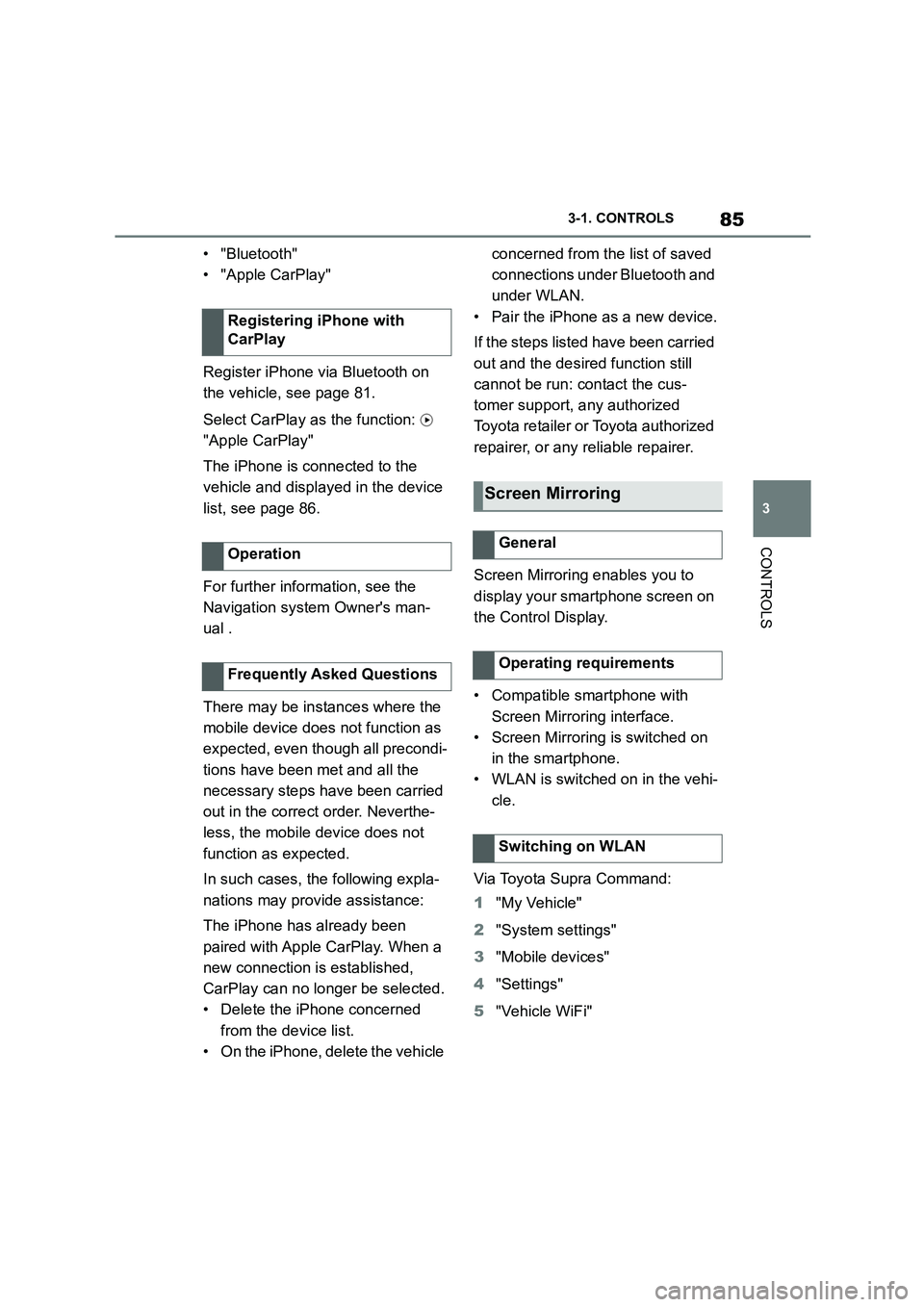
• "Bluetooth"
• "Apple CarPlay"
Register iPhone via Bluetooth on
the vehicle, see page 81.
Select CarPlay as the function:
"Apple CarPlay"
The iPhone is connected to the
vehicle and displayed in the device
list, see page 86.
For further infor mation, see the
Navigation system Owner's man-
ual .
There may be instances where the
mobile device does not function as
expected, even though all precondi-
tions have been met and all the
necessary steps have been carried
out in the correct order. Neverthe-
less, the mobile device does not
function as expected.
In such cases, the following expla-
nations may provide assistance:
The iPhone has already been
paired with Apple CarPlay. When a
new connection is established,
CarPlay can no longer be selected.
• Delete the iPhone concerned
from the device list.
• On the iPhone, delete the vehicle
concerned from the list of saved
connections under Bluetooth and
under WLAN.
• Pair the iPhone as a new device.
If the steps listed have been carried
out and the desire d function still
cannot be run: contact the cus-
tomer support, any authorized
Toyota retailer or Toyota authorized
repairer, or any reliable repairer.
Screen Mirroring enables you to
display your smartphone screen on
the Control Display.
• Compatible smartphone with
Screen Mirroring interface.
• Screen Mirroring is switched on
in the smartphone.
• WLAN is switched on in the vehi-
cle.
Via Toyota Supra Command:
1 "My Vehicle"
2 "System settings"
3 "Mobile devices"
4 "Settings"
5 "Vehicle WiFi"
Registering iPhone with
CarPlay
Operation
Frequently Asked Questions
Screen Mirroring
General
Operating requirements
Switching on WLAN
Page 88 of 498
863-1. CONTROLS
Via Toyota Supra Command:
1 "My Vehicle"
2 "System settings"
3 "Mobile devices"
4 "Connect new device"
5 "Screen Mirroring"
The WLAN name of the vehicle is dis-
played in the Control Display.
6 On the smartphone, search for
WLAN devices in the vicinity.
The WLAN name of the vehicle is
shown on the display of the device. Select WLAN name of the vehicle.
7 Confirm the connection via
Toyota Supra Command.
The device is connected and dis-
played in the device list, see page
86.
• Following one-off registration,
the devices are automatically
detected and connected again
when the standby state is
switched on.
• The data saved on the SIM card
or in the mobile telephone is
transferred to the vehicle follow-
ing detection.
• Some devices may require par-
ticular settings, for example
authorisation; see the user man-
ual of the device.
All devices registered or connected
to the vehicle are displayed in the
device list.
Via Toyota Supra Command:
1 "My Vehicle"
2 "System settings"
3 "Mobile devices"
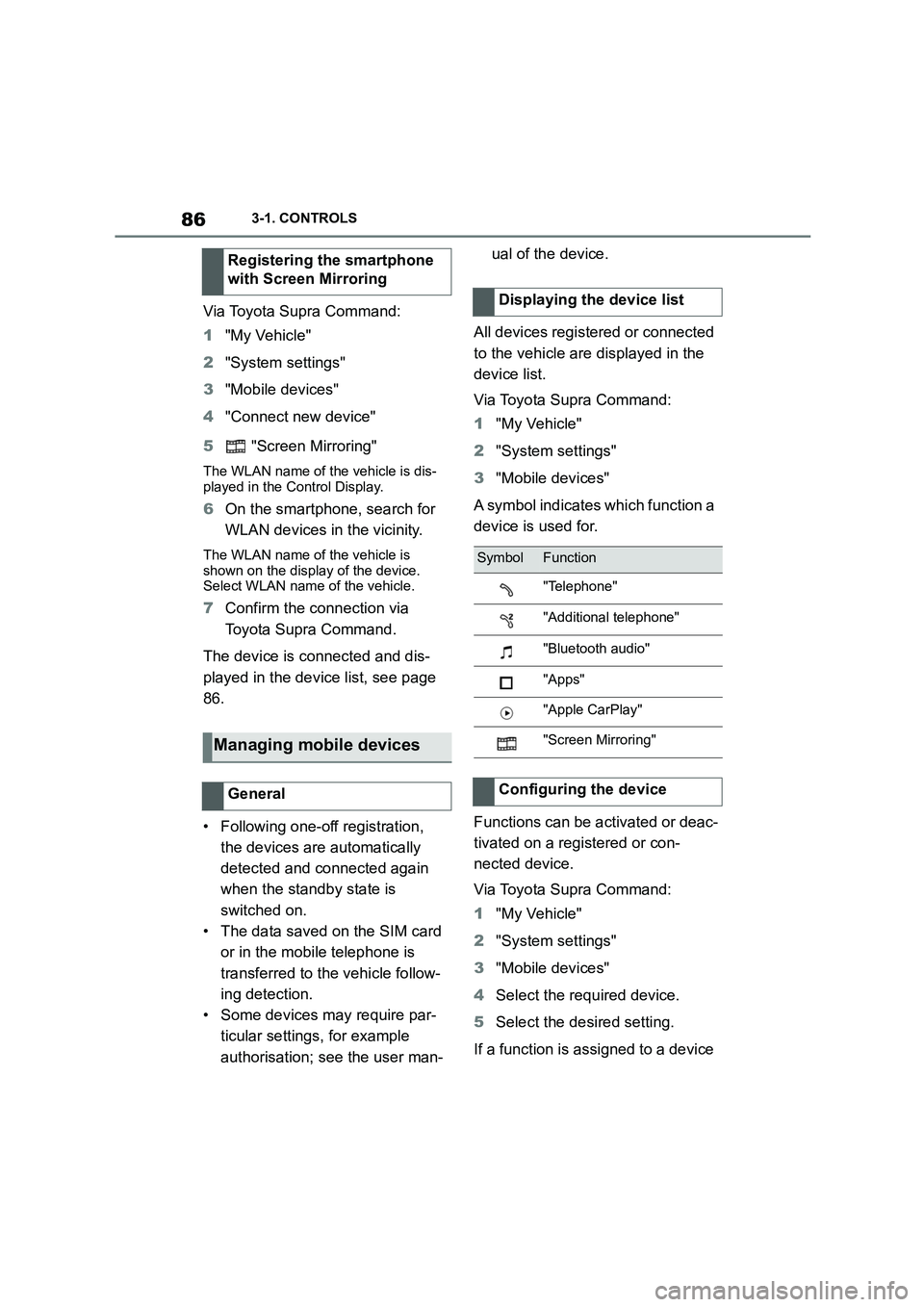
A symbol indicates which function a
device is used for.
Functions can be activated or deac-
tivated on a registered or con-
nected device.
Via Toyota Supra Command:
1 "My Vehicle"
2 "System settings"
3 "Mobile devices"
4 Select the required device.
5 Select the desired setting.
If a function is assigned to a device
Registering the smartphone
with Screen Mirroring
Managing mobile devices
General
Displaying the device list
SymbolFunction
"Telephone"
"Additional telephone"
"Bluetooth audio"
"Apps"
"Apple CarPlay"
"Screen Mirroring"
Configuring the device
Page 170 of 498
1683-1. CONTROLS
The current fill level of the fuel tank
is displayed.
The angle of the vehicle may cause
the display to fluctuate.
For notes on refuelling, see page
290.
It is vital to avoid engine speeds in
the red warning zone. In this zone,
the fuel supply is interrupted to pro-
tect the engine.
Depending on the equipment, the
shift lights on the revolution counter
indicate the maximum shift point at
which the best possible accelera-
tion can be achieved.
When the selected driving mode is
sport mode, a shift light will be dis-
played.
1 Select SPORT using the sport
mode switch.
2 Activate manual mode of the
transmission.
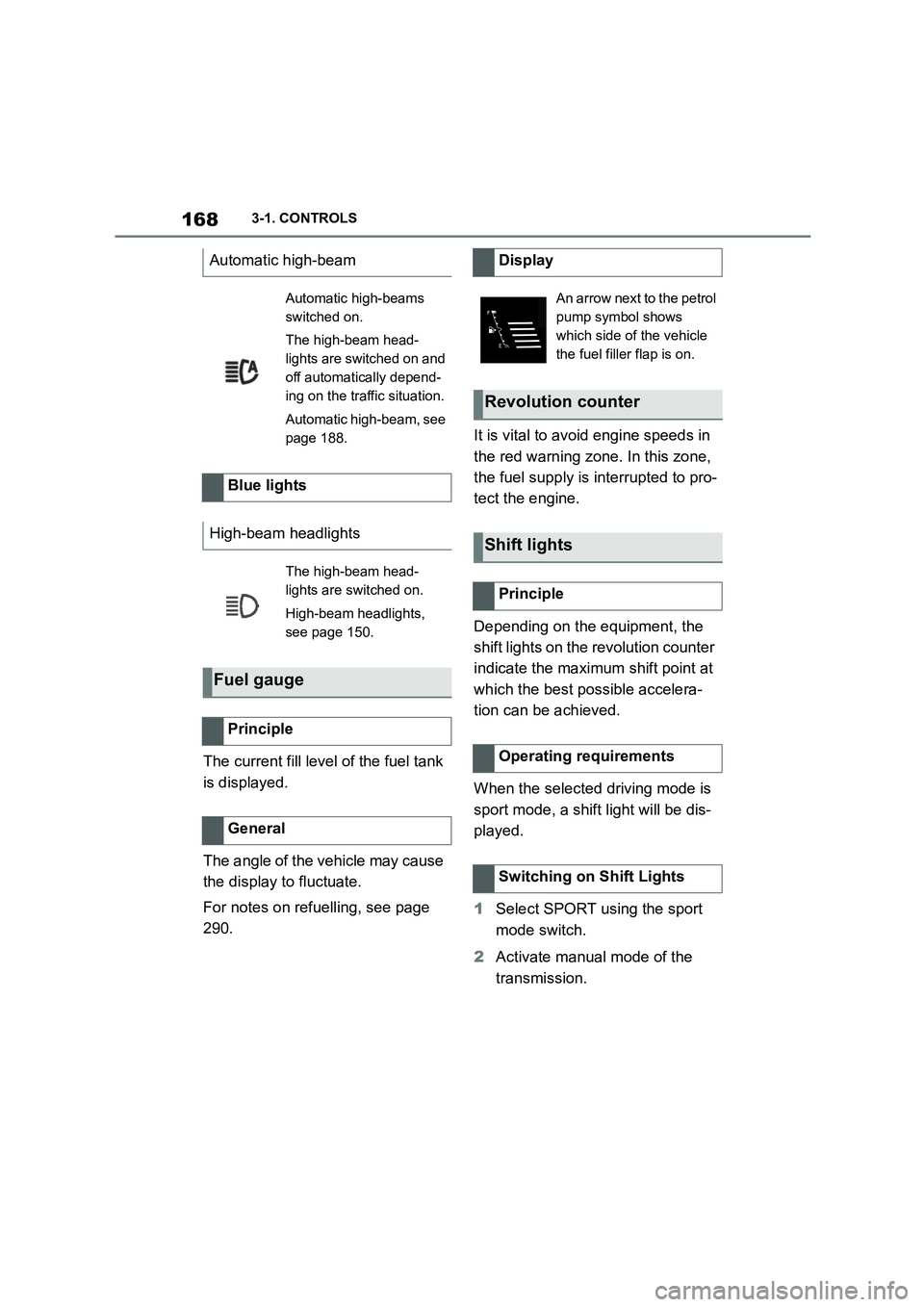
Automatic high-beam
Automatic high-beams
switched on.
The high-beam head-
lights are switched on and
off automatically depend-
ing on the traffic situation.
Automatic high-beam, see
page 188.
Blue lights
High-beam headlights
The high-beam head-
lights are switched on.
High-beam headlights,
see page 150.
Fuel gauge
Principle
General
Display
An arrow next to the petrol
pump symbol shows
which side of the vehicle
the fuel filler flap is on.
Revolution counter
Shift lights
Principle
Operating requirements
Switching on Shift Lights
Page 187 of 498

185
3
3-1. CONTROLS
CONTROLS
Depending on the ambient bright-
ness, the system switches the
low-beam headlights on or off auto-
matically, for example in a tunnel, at
twilight and in rain or snow.
The headlights may also come on
when the sun is low against a blue
sky.
If the low-beam headlights are
switched on manually, the auto-
matic driving lights control is deacti-
vated.
The LED in the button illuminates.
The automatic driving lights control
is no substitute for using your own
judgement to assess the light con-
ditions.
The sensors are unable, for exam-
ple, to recognise fog or hazy
weather. In such situations, switch
on the light manually.
If the driver's door is opened when
SymbolFunction
Rear fog light.
Lights off.
Daytime driving lights.
Side lights.
Automatic driving lights
control.
Adaptive light functions.
Low-beam headlights.
Instrument lighting.
Parking light, right.
Parking light, left.
Automatic driving lights
control
Principle
General
Activating
Press the button on the
light switch element.
The indicator lamp in the
instrument cluster is illumi-
nated when the low-beam
headlights are switched
on.
System limits
Side lights, low-beam head-
lights and parking light
General
Page 191 of 498
189
3
3-1. CONTROLS
CONTROLS
areas of the beam which would oth-
erwise dazzle oncoming traffic or
traffic driving ahead. In this case,
the blue indicator lamp continues to
illuminate.
If the headlights are converted, see
page 190, automatic high-beam
may only function to a limited
extent.
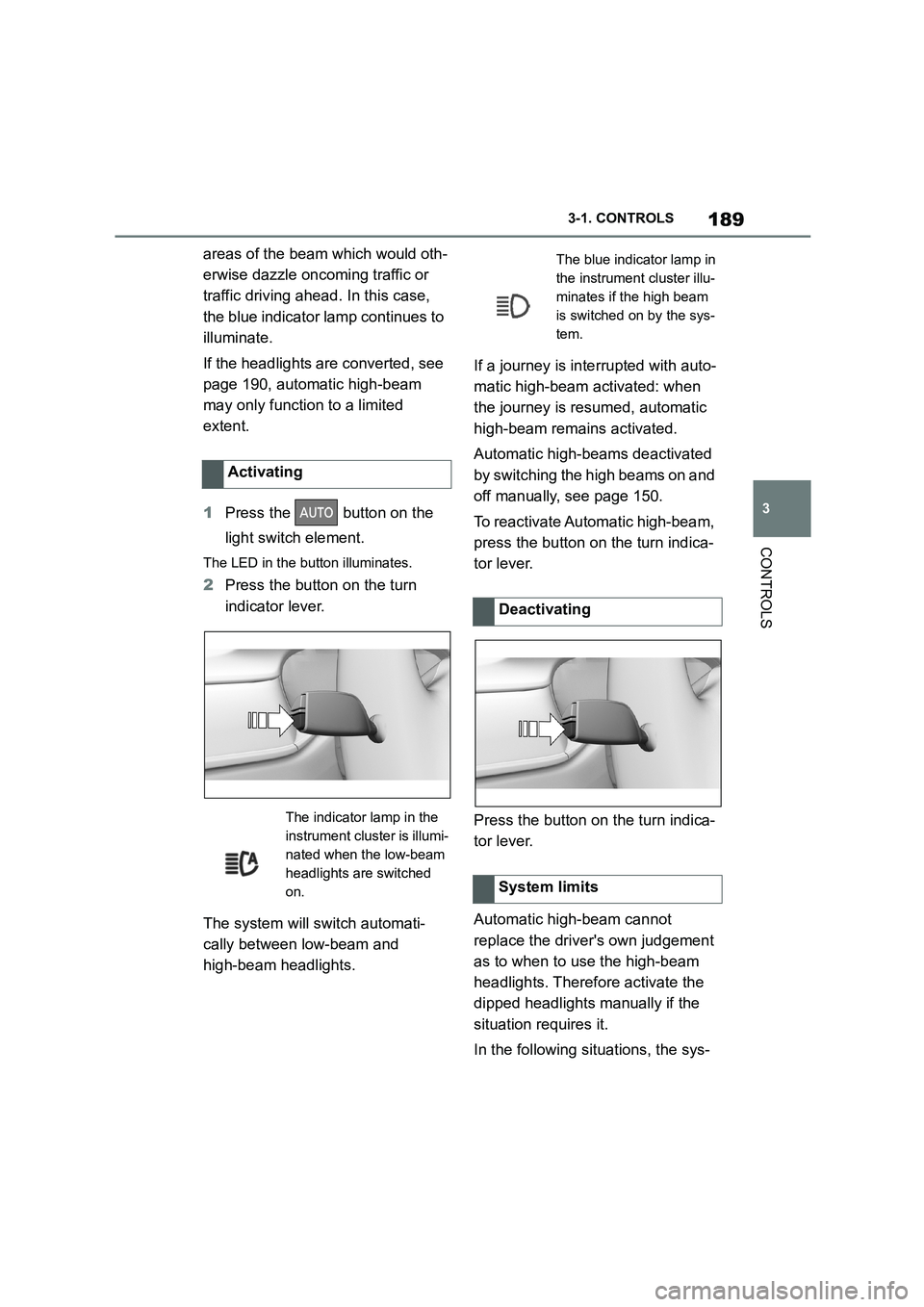
1 Press the button on the
light switch element.
The LED in the button illuminates.
2 Press the button on the turn
indicator lever.
The system will switch automati-
cally between low-beam and
high-beam headlights.
If a journey is inte rrupted with auto-
matic high-beam activated: when
the journey is resumed, automatic
high-beam remains activated.
Automatic high-bea ms deactivated
by switching the high beams on and
off manually, see page 150.
To reactivate Automatic high-beam,
press the button on the turn indica-
tor lever.
Press the button on the turn indica-
tor lever.
Automatic high-beam cannot
replace the driver's own judgement
as to when to use the high-beam
headlights. Therefore activate the
dipped headlights manually if the
situation requires it.
In the following situations, the sys-
Activating
The indicator lamp in the
instrument cluster is illumi-
nated when the low-beam
headlights are switched
on.
The blue indicator lamp in
the instrument cluster illu-
minates if the high beam
is switched on by the sys-
tem.
Deactivating
System limits
Page 268 of 498
2663-1. CONTROLS
The microfilter traps dust and pol-
len in the incoming air.
Have this filter replaced during
maintenance, see page 330, of the
vehicle.
The direction of the air flows can be
set individually.
The direction of the air flows can be
set for direct or indirect ventilation.
Align the air flow directly onto the
vehicle occupants. The air flow pro-
vides noticeable heating or cooling
depending on the set temperature.
Do not align the air flow directly
onto the vehicle occupants. The
vehicle interior is cooled or heated
indirectly depending on the set tem-
perature.
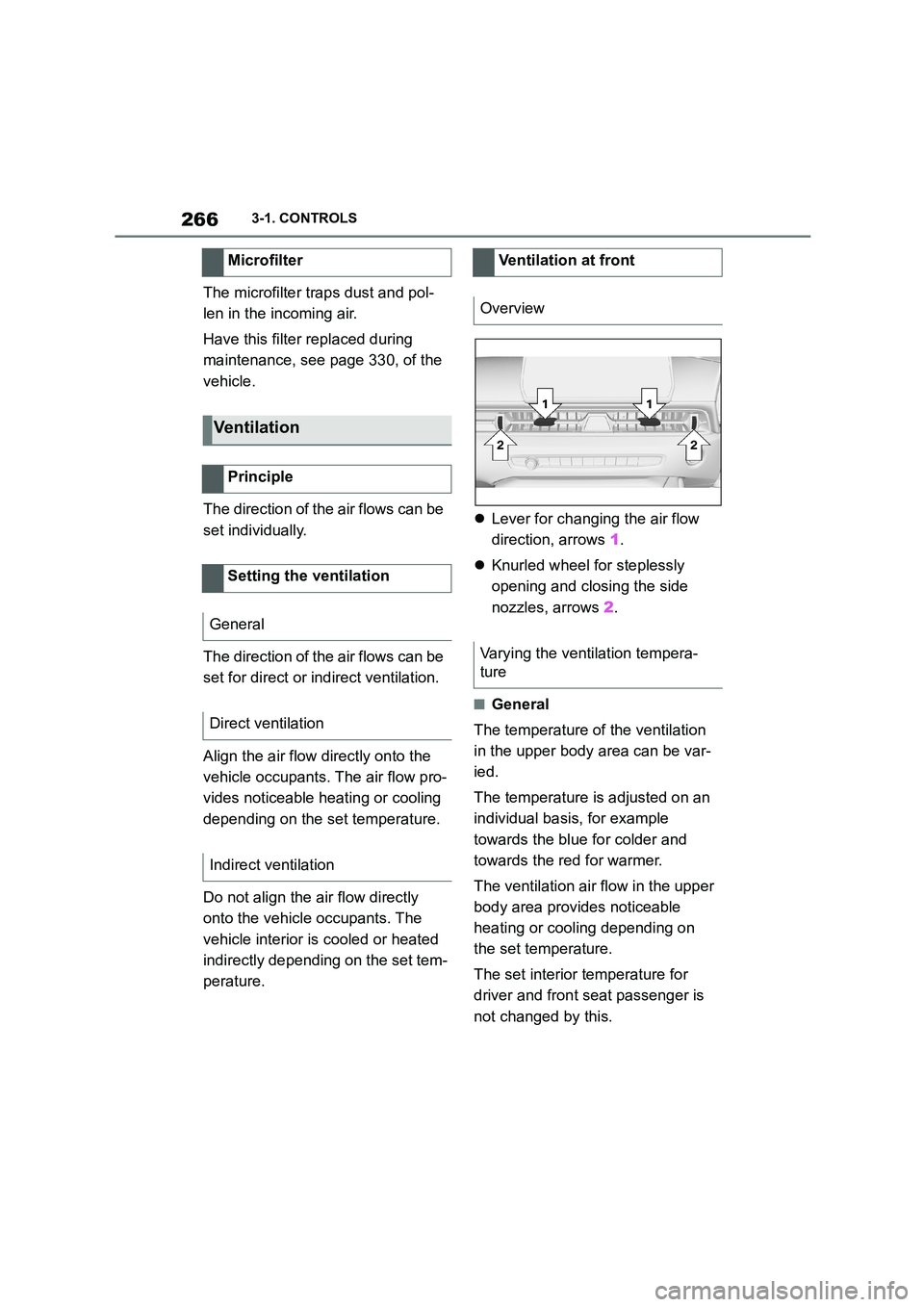
Lever for changing the air flow
direction, arrows 1.
Knurled wheel for steplessly
opening and closing the side
nozzles, arrows 2.
■General
The temperature of the ventilation
in the upper body area can be var-
ied.
The temperature is adjusted on an
individual basis, for example
towards the blue for colder and
towards the red for warmer.
The ventilation air flow in the upper
body area provides noticeable
heating or cooling depending on
the set temperature.
The set interior temperature for
driver and front seat passenger is
not changed by this.
Microfilter
Ventilation
Principle
Setting the ventilation
General
Direct ventilation
Indirect ventilation
Ventilation at front
Overview
Varying the ventilation tempera-
ture
Page 274 of 498
2723-1. CONTROLS
The mobile telephone must sup-
port and be compatible with the
required Qi standard.
Standby state is switched on.
Note the maximum dimensions
of the mobile telephone.
Only use protective sleeves and
covers up to a maximum thick-
ness of 2 mm, 0.07 in, otherwise,
charging function may be
impaired.
The mobile telephone to be
charged is located in the middle
of the dock.
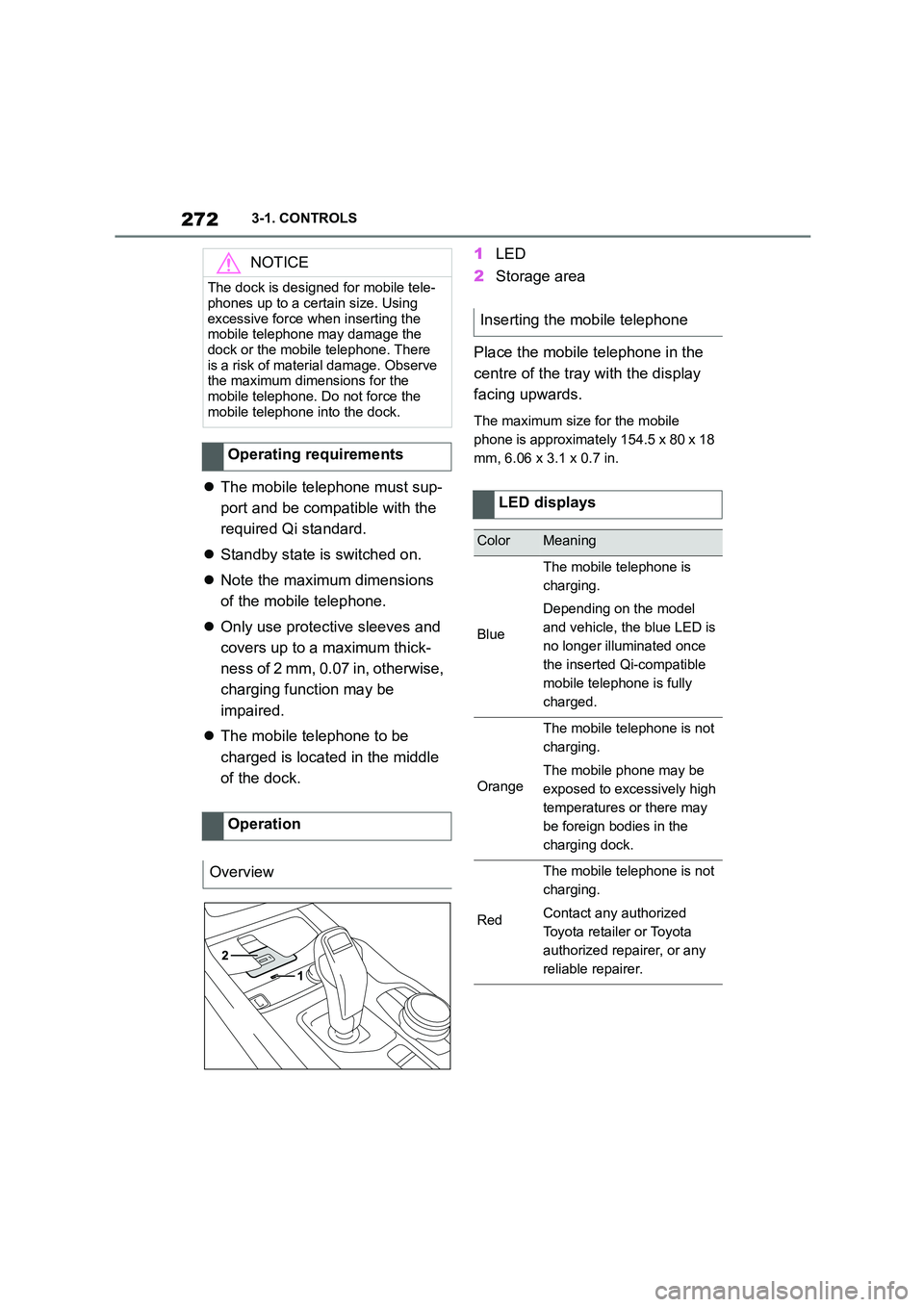
1 LED
2 Storage area
Place the mobile telephone in the
centre of the tray with the display
facing upwards.
The maximum size for the mobile
phone is approximately 154.5 x 80 x 18
mm, 6.06 x 3.1 x 0.7 in.
NOTICE
The dock is designed for mobile tele-
phones up to a certain size. Using
excessive force when inserting the mobile telephone may damage the
dock or the mobile telephone. There
is a risk of material damage. Observe the maximum dimensions for the
mobile telephone. Do not force the
mobile telephone into the dock.
Operating requirements
Operation
Overview
Inserting the mobile telephone
LED displays
ColorMeaning
Blue
The mobile telephone is
charging.
Depending on the model
and vehicle, the blue LED is
no longer illuminated once
the inserted Qi-compatible
mobile telephone is fully
charged.
Orange
The mobile telephone is not
charging.
The mobile phone may be
exposed to excessively high
temperatures or there may
be foreign bodies in the
charging dock.
Red
The mobile telephone is not
charging.
Contact any authorized
Toyota retailer or Toyota
authorized repairer, or any
reliable repairer.
Page 487 of 498

485Alphabetical Index
Bluetooth connection..................... 81
Bonnet ........................................... 320
Boot ............................................... 275
Boot lid .......................................... 100
Boot lid via remote control ............ 91
Boot lid, emergency release........ 101
Boot, emergency release ............. 101
Bottle holder, see Cupholder....... 275
Brake assist .................................. 228
Brake assist, adaptive.................. 228
Brake lights, see Bulbs and lights
..................................................... 340
Brake system ................................ 281
Brake, Fluid ................................... 375
Braking safely ............................... 284
Braking, notes .............................. 284
Break recommendations, see Driver
Attention Control........................ 226
Breakdown Assist ........................ 352
Breakdown assistance................. 353
Breakdown, help........................... 352
Brightness, Control Display .......... 73
Bulbs and lights ........................... 340
Button SOS, see Automatic emer-
gency call .................................... 355
Button, start/stop.......................... 144
Buttons on the steering wheel ...... 46
C
Call up mirror adjustment ............ 102
Call up seat adjustment ............... 102
Calling up steering wheel adjust-
ment............................................. 102
Camera lenses, care ..................... 367
Camera, rear-view camera, without
Surround View ............................ 253
Camera-based assistance systems,
see Toyota Supra Safety ............ 205
Camera-based Cruise Control, see
Dynamic radar cruise control ... 238
Cameras, see Sensors of the vehicle
....................................................... 50
Can holder, see Cupholder .......... 275
Car wash ............................... 362, 363
Care of displays, screens ............368
Care of upholstery fabrics ........... 366
Care products ............................... 364
Care, Head-Up Display ................. 368
Care, see Vehicle wash ................362
Care, vehicle.................................. 364
Carpet, care ...................................367
CarPlay, connection to the vehicle84
Carrying children ..........................122
Carrying children safely ...............122
Catalytic converter, see Hot exhaust
system ......................................... 281
CBS Condition Based Service ..... 330
CC, see Cruise Control................. 234
Central locking system .................. 95
Central screen, see Control Display
....................................................... 59
Centre console ................................ 48
Changes, technical, see Your own
safety ...............................................6
Changing bulbs, see Bulbs and
lights ............................................340
Changing gear, Automatic transmis-
sion ..............................................154
Chassis number, see Vehicle identifi-
cation number............................... 22
Checking the oil level electronically
..................................................... 324
Child restraint systems, i-Size..... 128
Child restraint systems, see Carry-
ing children safely ...................... 122
Child seat mounting .....................123
Child seat mountings, ISOFIX ..... 126
Child seats, see Carrying children
safely ...........................................122
Chrome surfaces, care ................. 366
Chrome-plated surfaces, care ..... 366
Cleaning of displays, screens ..... 368
Cleaning, Head-Up Display ..........368
Comfort closing with the remote
control ........................................... 91
Comfort opening using the remote
control ........................................... 90
Compact wheel, see Emergency
wheel ...........................................318