Page 81 of 612
812-1. Instrument cluster
2
Vehicle status information and indicators
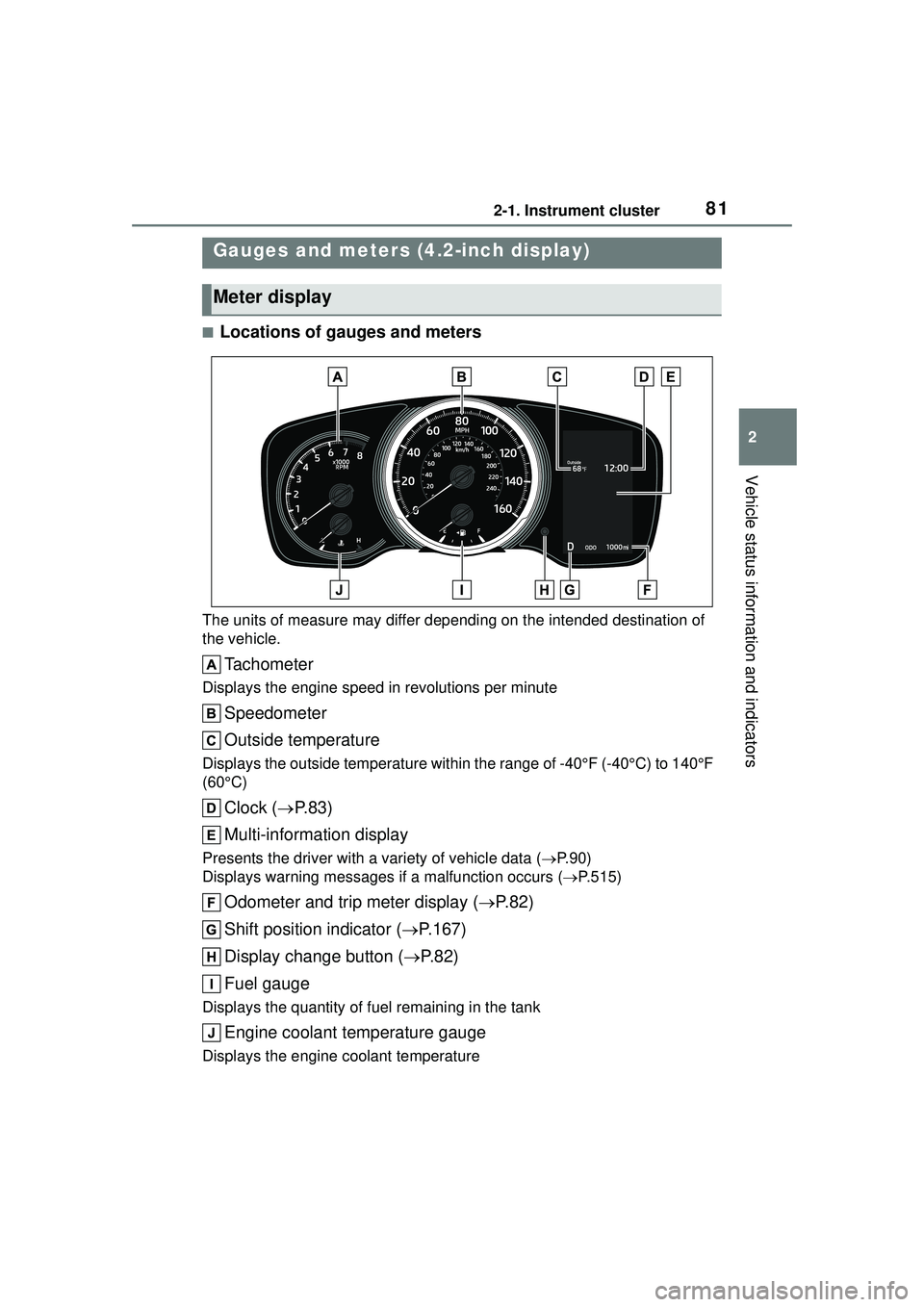
■Locations of gauges and meters
The units of measure may differ depending on the intended destination of
the vehicle.
Tachometer
Displays the engine speed in revolutions per minute
Speedometer
Outside temperature
Displays the outside temperature within the range of -40°F (-40°C) to 140°F
(60°C)
Clock (P. 8 3 )
Multi-information display
Presents the driver with a variety of vehicle data ( P.90)
Displays warning me ssages if a malfunction occurs ( P.515)
Odometer and trip meter display ( P.82)
Shift position indicator ( P.167)
Display change button ( P.82)
Fuel gauge
Displays the quantity of fuel remaining in the tank
Engine coolant temperature gauge
Displays the engine coolant temperature
Gauges and meters (4.2-inch display)
Meter display
Page 83 of 612

832-1. Instrument cluster
2
Vehicle status information and indicators
different distances independently.
To reset, display the desired trip
meter and press and hold the dis-
play change button.
The brightness of the instrument
panel lights can be adjusted.
1Brighter
2 Darker
■Instrument panel light bright-
ness adjustment
The brightness of the instrument
panel lights can be adjusted sepa-
rately for when the tail lights are on
and off.
■Clock adjustment
The clocks on the following can
be adjusted on the audio system
screen.
Multi-information display
Audio system screen
■Setting the clock to be
adjusted automatically by
GPS (Audio [for
U.S.A.]/Audio Plus)
1 Press the “MENU” button.
2 Select “Setup” on the “Menu”
screen.
3 Select “General” on the
“Setup” screen.
4 Select “Clock”.
5 Select “Auto Adjust by GPS”
to set to on.
■Adjusting the clock manu-
ally
Audio (except for U.S.A.)
1 Press the “MENU” button.
2 Select “Setup” on the “Menu”
screen.
3 Select “General” on the
“Setup” screen.
4 Select “Clock”.
5 Adjust the displayed time.
Hour: Select “-” or “+” of
“Hours” to adjust the hour.
Minute: Select “-” or “+” of
“Minutes” to adjust the min-
ute.
“:00”: Select to set the clock to
the beginning of the nearest
hour.
e.g.
1:00 to 1:29 1:00
1:30 to 1:59 2:00
Audio (for U.S.A.)/Audio Plus
1 Press the “MENU” button.
Changing the instrument
panel light brightness
Adjusting the clock
Page 84 of 612

842-1. Instrument cluster
2Select “Setup” on the “Menu”
screen.
3 Select “General” on the
“Setup” screen.
4 Select “Clock”.
5 Select “Auto Adjust by GPS”
to set to off.
6 Adjust the displayed time.
Hour: Select “-” or “+” of
“Hours” to adjust the hour.
Minute: Select “-” or “+” of
“Minutes” to adjust the min-
ute.
“:00”: Select to set the clock to
the beginning of the nearest
hour.
e.g.
1:00 to 1:29 1:00
1:30 to 1:59 2:00
■Setting the time zone
(Audio [for U.S.A.]/Audio
Plus)
1 Press the “MENU” button.
2 Select “Setup” on the “Menu”
screen.
3 Select “General” on the
“Setup” screen.
4 Select “Clock”.
5 Select “Time Zone”.
Select the desired time zone.
■Setting daylight saving time
(Audio [for U.S.A.]/Audio
Plus)
1 Press the “MENU” button. 2
Select “Setup” on the “Menu”
screen.
3 Select “General” on the
“Setup” screen.
4 Select “Clock”.
5 Select “Daylight Saving
Time” then on/off.
■Changing the clock
between 12-hour/24-hour
format
1 Press the “MENU” button.
2 Select “Setup” on the “Menu”
screen.
3 Select “General” on the
“Setup” screen.
4 Select “Clock”.
5 Select “24-Hour Time For-
mat” and then on/off.
When set to off, the clock is dis-
played in 12 hour time format.
■Clock settings screen (Audio
[for U.S.A.]/Audio Plus)
If “Clock : 00” is displayed when
is selected on the multi-information
display, the system may be malfunc-
tioning. Have the vehicle inspected
by your Toyota dealer.
Page 85 of 612
852-1. Instrument cluster
2
Vehicle status information and indicators
■Locations of gauges and meters
Analog speedometer
The units of measure may differ depending on the intended destination of
the vehicle.
Tachometer
Displays the engine speed in revolutions per minute
Speedometer
Sub speedometer
Clock (P. 8 8 )
Fuel gauge
Displays the quantity of fuel remaining in the tank
Engine coolant temperature gauge
Displays the engine coolant temperature
Display change button ( P.87)
Odometer and trip meter display ( P.87)
Multi-information display
Presents the driver with a variety of vehicle data ( P.90)
Displays warning me ssages if a malfunction occurs ( P.515)
Outside temperature
Displays the outside temperature within the range of -40°F (-40°C) to 140°F
Gauges and meters (7-inch display)
Meter display
Page 86 of 612
862-1. Instrument cluster
(60°C)
Shift position indicator (P.167)
Digital speedometer
The units of measure may differ depending on the intended destination of
the vehicle.
Tachometer
Displays the engine speed in revolutions per minute
Speedometer
Clock ( P. 8 8 )
Fuel gauge
Displays the quantity of fuel remaining in the tank
Engine coolant temperature gauge
Displays the engine coolant temperature
Display change button ( P.87)
Odometer and trip meter display ( P.87)
Multi-information display
Presents the driver with a variety of vehicle data ( P.90)
Displays warning me ssages if a malfunction occurs ( P.515)
Outside temperature
Displays the outside temperature within the range of -40°F (-40°C) to 140°F
(60°C)
Shift position indicator ( P.167)
■Outside temperature display●In the following situations, the cor-
rect outside temperature may not
Page 88 of 612

882-1. Instrument cluster
different distances independently.
To reset, display the desired trip
meter and press and hold the dis-
play change button.
The brightness of the instrument
panel lights can be adjusted.
1Brighter
2 Darker
■Instrument panel light bright-
ness adjustment
The brightness of the instrument
panel lights can be adjusted sepa-
rately for when the tail lights are on
and off.
■Clock adjustment
The clocks on the following can
be adjusted on the audio system
screen.
Multi-information display
Audio system screen
■Setting the clock to be
adjusted automatically by
GPS (Audio [for
U.S.A.]/Audio Plus)
1 Press the “MENU” button.
2 Select “Setup” on the “Menu”
screen.
3 Select “General” on the
“Setup” screen.
4 Select “Clock”.
5 Select “Auto Adjust by GPS”
to set to on.
■Adjusting the clock manu-
ally
Audio (except for U.S.A.)
1 Press the “MENU” button.
2 Select “Setup” on the “Menu”
screen.
3 Select “General” on the
“Setup” screen.
4 Select “Clock”.
5 Adjust the displayed time.
Hour: Select “-” or “+” of
“Hours” to adjust the hour.
Minute: Select “-” or “+” of
“Minutes” to adjust the min-
ute.
“:00”: Select to set the clock to
the beginning of the nearest
hour.
e.g.
1:00 to 1:29 1:00
1:30 to 1:59 2:00
Audio (for U.S.A.)/Audio Plus
1 Press the “MENU” button.
Changing the instrument
panel light brightness
Adjusting the clock
Page 89 of 612

892-1. Instrument cluster
2
Vehicle status information and indicators
2Select “Setup” on the “Menu”
screen.
3 Select “General” on the
“Setup” screen.
4 Select “Clock”.
5 Select “Auto Adjust by GPS”
to set to off.
6 Adjust the displayed time.
Hour: Select “-” or “+” of
“Hours” to adjust the hour.
Minute: Select “-” or “+” of
“Minutes” to adjust the min-
ute.
“:00”: Select to set the clock to
the beginning of the nearest
hour.
e.g.
1:00 to 1:29 1:00
1:30 to 1:59 2:00
■Setting the time zone
(Audio [for U.S.A.]/Audio
Plus)
1 Press the “MENU” button.
2 Select “Setup” on the “Menu”
screen.
3 Select “General” on the
“Setup” screen.
4 Select “Clock”.
5 Select “Time Zone”.
Select the desired time zone.
■Setting daylight saving time
(Audio [for U.S.A.]/Audio
Plus)
1 Press the “MENU” button. 2
Select “Setup” on the “Menu”
screen.
3 Select “General” on the
“Setup” screen.
4 Select “Clock”.
5 Select “Daylight Saving
Time” then on/off.
■Changing the clock
between 12-hour/24-hour
format
1 Press the “MENU” button.
2 Select “Setup” on the “Menu”
screen.
3 Select “General” on the
“Setup” screen.
4 Select “Clock”.
5 Select “24-Hour Time For-
mat” and then on/off.
When set to off, the clock is dis-
played in 12 hour time format.
■Clock settings screen (Audio
[for U.S.A.]/Audio Plus)
If “Clock : 00” is displayed when
is selected on the multi-information
display, the system may be malfunc-
tioning. Have the vehicle inspected
by your Toyota dealer.
Page 283 of 612

2835-1. Basic function
5
Audio
Press the “MENU” button to display the “Menu” screen.Displays the clock. Select to display the clock settings screen.
( P.320)
Select to display the audio control screen. ( P.326)
Select to display the hands-free operation screen. ( P.367)
When an Apple CarPlay connection is established, select to dis-
play the Phone app screen.
*1
Select to display the application screen.*1, 2 ( P.396)
When an Apple CarPlay/Android Auto connection is established
and this button displays “Apple CarPlay”/“Android Auto”, select to
display the home screen of Apple CarPlay/Android Auto.
*1
( P.312)
Vehicles without DCM: Select to display the fuel consumption
screen. ( P.97)
Vehicles with DCM: Select to display the information screen.
Select “ECO” to display the fuel consumption screen. ( P.97)
The “Vehicle Alert History” shown on the information screen.
*1
Select to display the “Setup” screen. ( P.286)
Select to adjust the contrast, brightness, etc. of the display.
( P.294)
*1: This function is not made available in some countries or areas.
*2: When an Apple CarPlay/Android Auto connection is established, this
function will be unavailable.
Menu screen
Menu screen operation